How to integrate timeBuzzer with Sally AI

Connect Sally with timeBuzzer to log the time for a meeting straight from its summary. Sally puts the summary itself into the time entry as the note, and you pick the client, the project, and the time frame in the dialog.

Instead of retyping the note for your time tracking and digging through the calendar for what the meeting covered, the time entry comes out of the meeting in a few clicks.

Quick navigation

  1. How to connect timeBuzzer with Sally AI
  2. How to create time entries in timeBuzzer

1. How do I connect timeBuzzer with Sally AI?

timeBuzzer connects through an API key, not through a login. You create the key in timeBuzzer first and paste it into Sally afterwards.

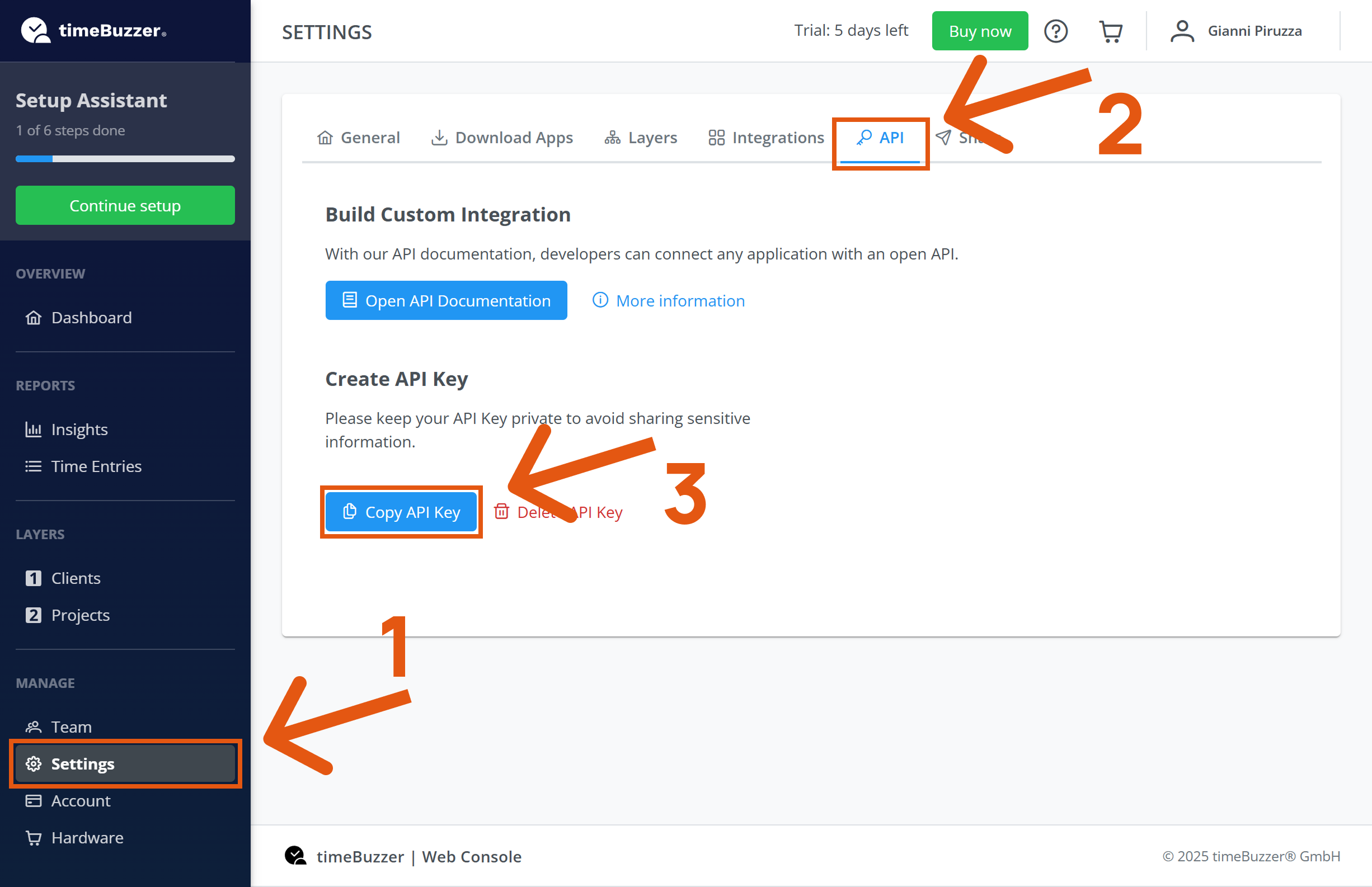
  1. Open the timeBuzzer web console. Under Settings on the left, pick API and click Create API Key. Then copy the key timeBuzzer shows you.
timeBuzzer web console with the API section and the Create API Key button
Figure 1: Create the API key in timeBuzzer
The API key is an access credential

Anyone holding the key can reach your timeBuzzer account. Keep it to yourself and don't send it around by chat or e-mail.

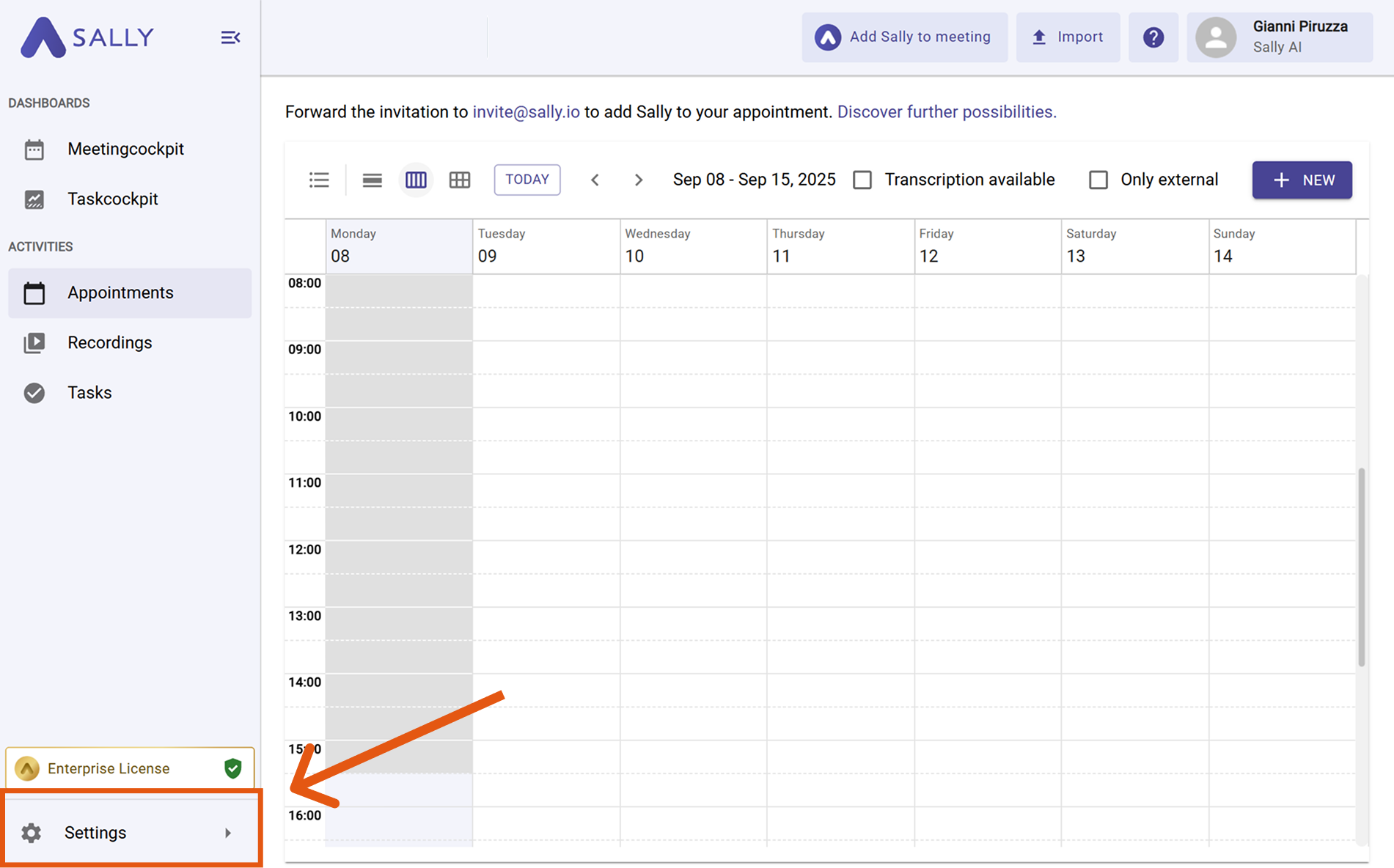
  1. In Sally, open Settings from the bottom-left corner of the sidebar.
Sally interface with Settings highlighted in the bottom-left corner of the sidebar
Figure 2: Open Settings
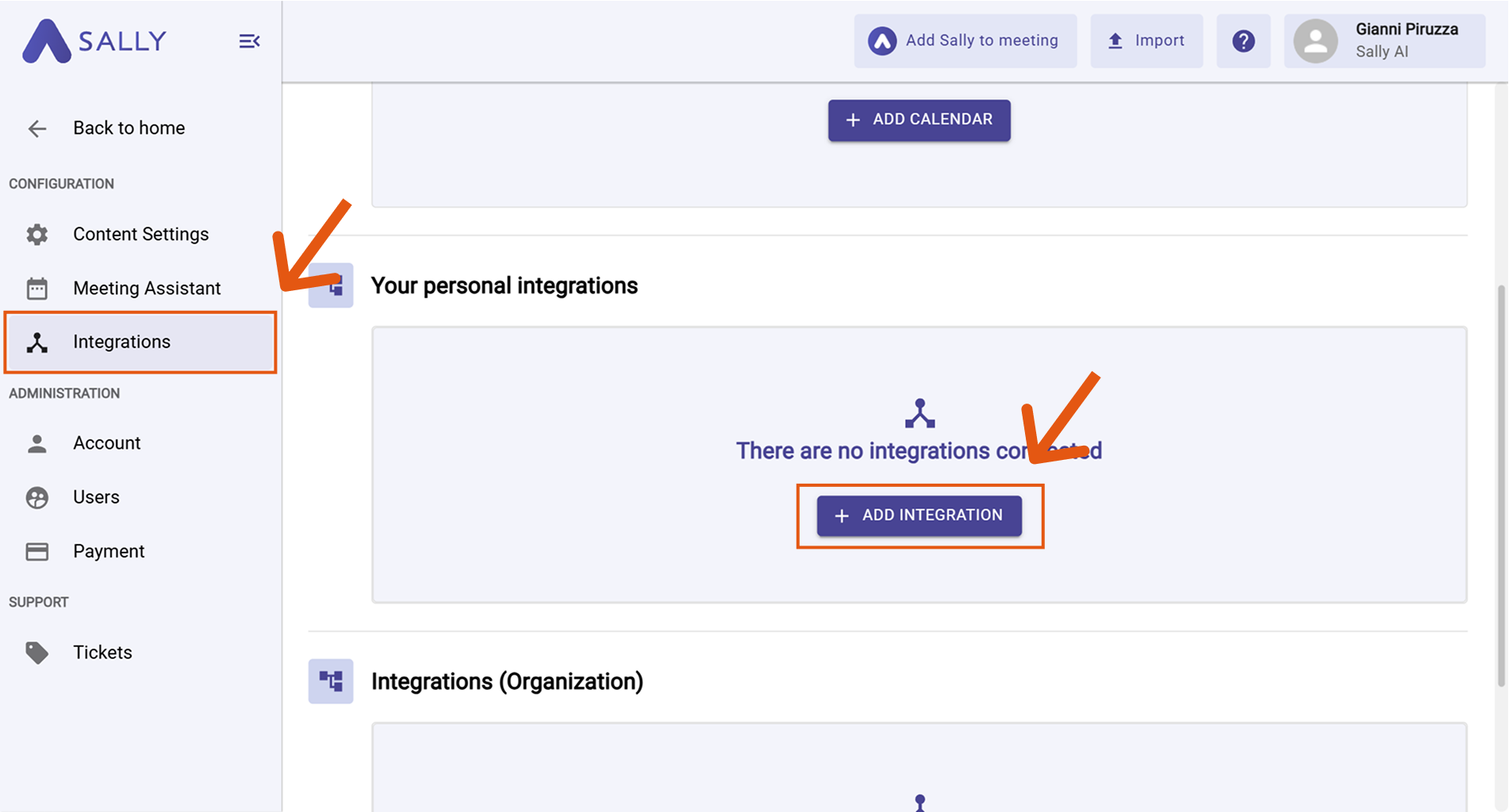
  1. Under Configuration, select Integrations. If no integration is connected yet, click Discover integrations, otherwise click Add integration in the top right corner.
Integrations page with the Discover integrations button highlighted
Figure 3: Open the list of integrations
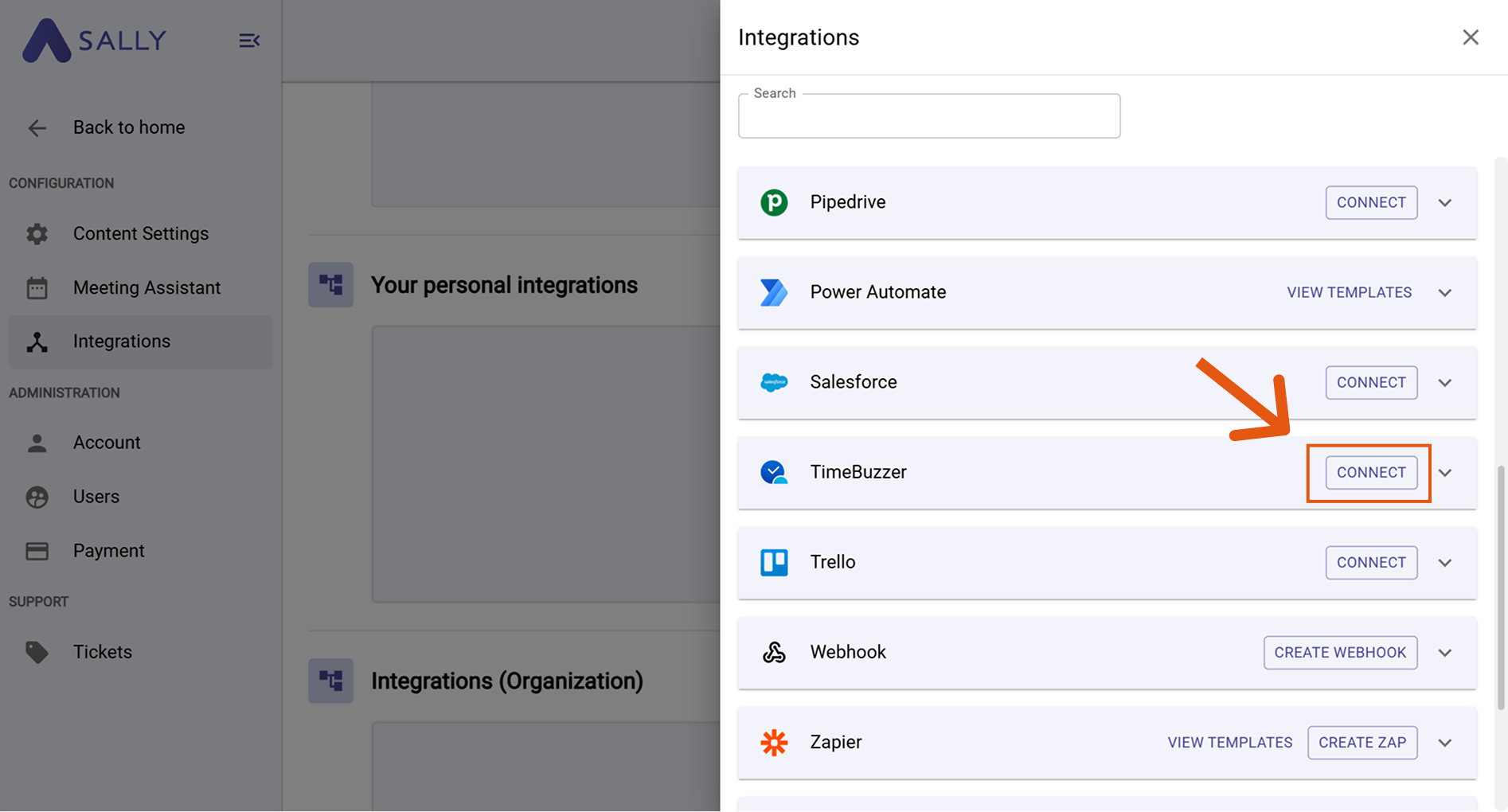
  1. In the Add integration panel, pick the Project management category on the left and then timeBuzzer.
Add integration panel with the Project management category and timeBuzzer highlighted
Figure 4: Select timeBuzzer
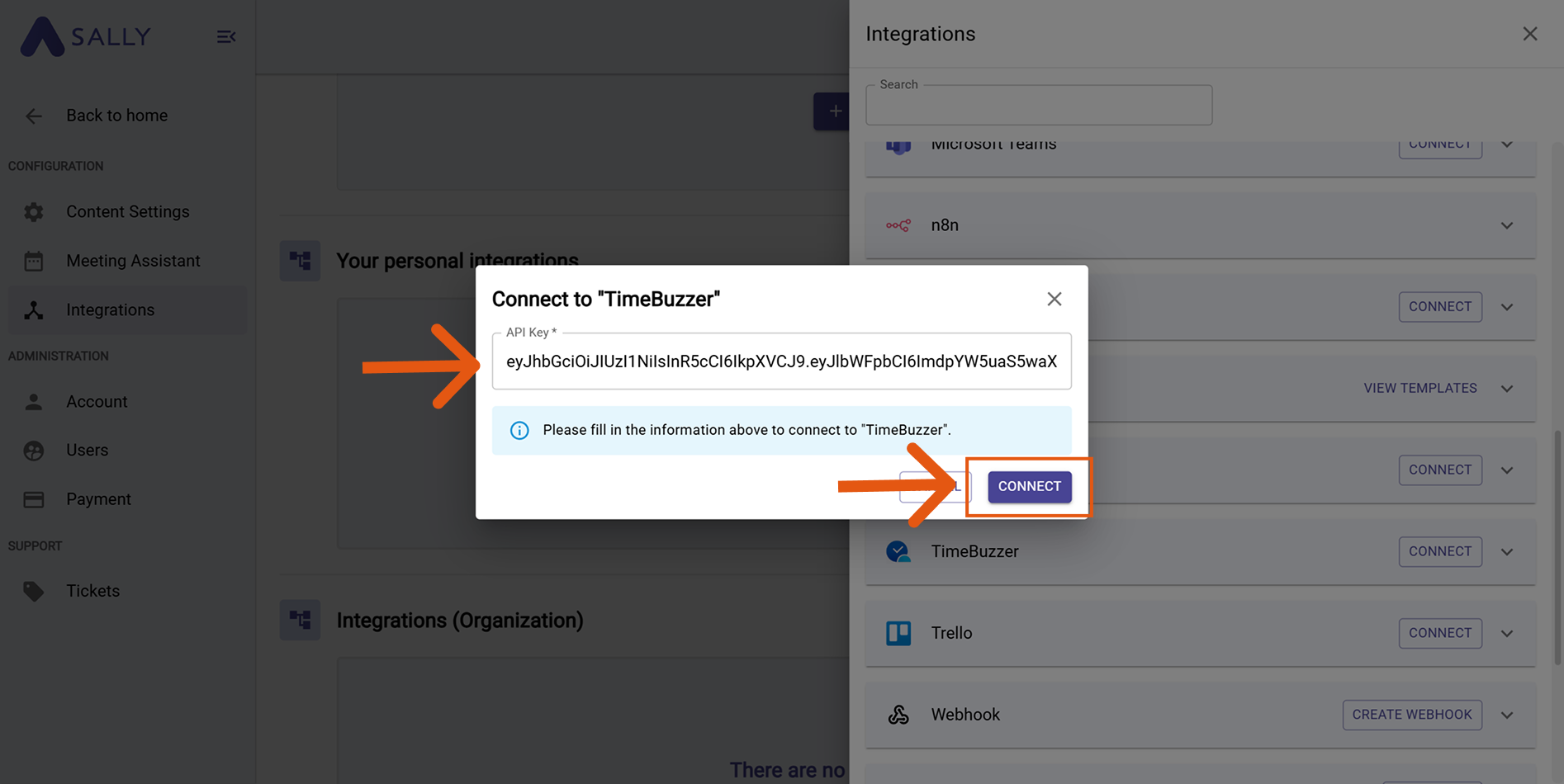
  1. In the Connect timeBuzzer dialog, paste the copied key into the API key field and click Connect. Sally checks the access directly with timeBuzzer, so a wrong or expired key is rejected right away.
Connect timeBuzzer dialog with the API key field and the Connect button highlighted
Figure 5: Paste the API key and connect
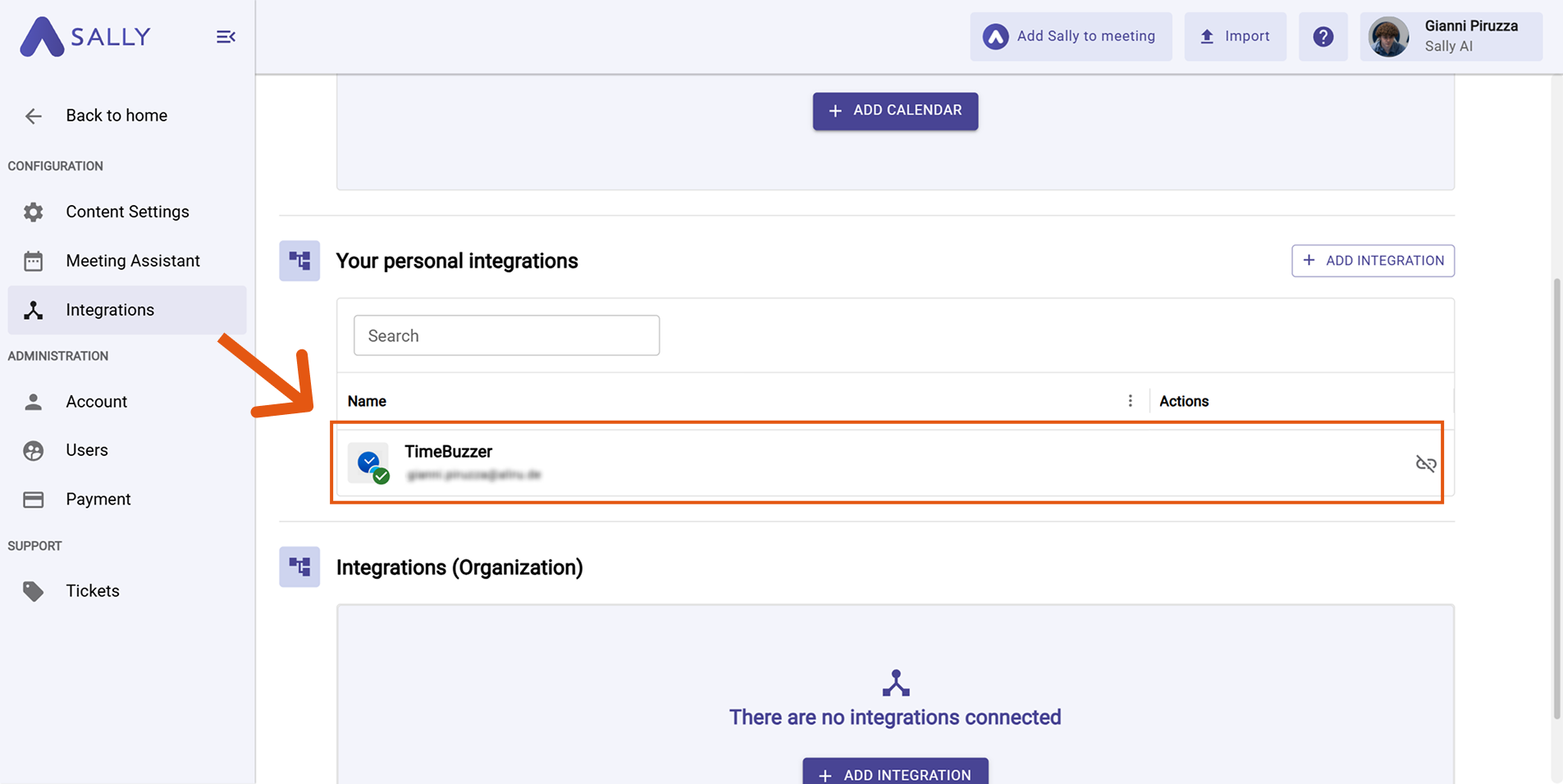
  1. Once the check passes, timeBuzzer appears in the list under the Project management category. Disconnect in the top right corner ends the connection whenever you need to.

1.1. Which actions may Sally use?

A connected integration has two tabs, Overview and Actions. The Actions tab defines what Sally offers through this integration, in the Sally chat and after the meeting.

Actions tab of the timeBuzzer integration with the toggles for the primary action and the helper functions
Figure 6: Enable the actions of the integration

Primary actions are what Sally actively writes into timeBuzzer. For timeBuzzer that is a single action, Create a time entry, which creates a time tracking entry with tiles and times.

Use the toggle on the right to take it out if Sally should not log any time for this organization account.

Below that sit the helper functions, the read and search functions that support the primary action, for timeBuzzer the logged-in account plus the layers and tiles of the hierarchy. They stay locked as long as an active action needs them.


2. How do I create time entries in timeBuzzer?

Once timeBuzzer is connected, you can log a time entry straight from a recording.

  1. Open the recording in Sally.
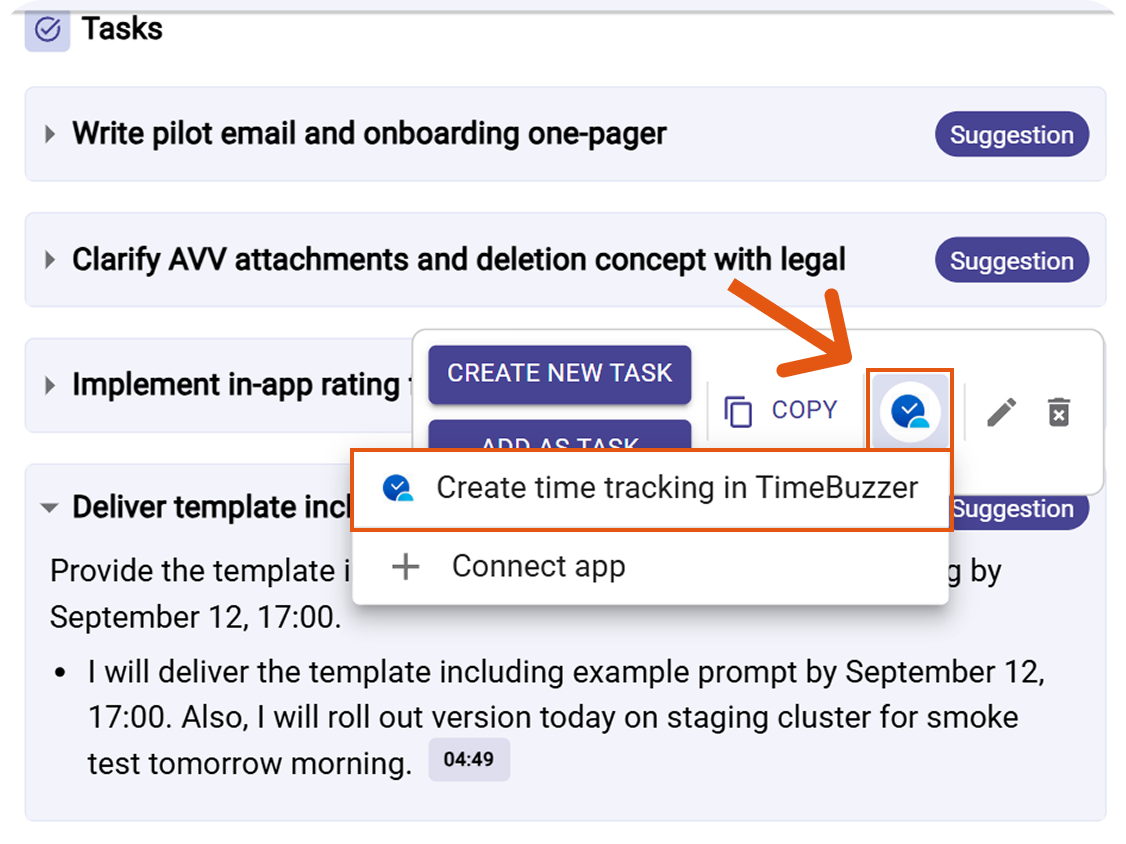
  2. Hover the Summary block and click the plug icon. In the list under timeBuzzer, choose Create time entry in timeBuzzer.
Recording with the list of integrations open and the timeBuzzer action highlighted
Figure 7: Pick the timeBuzzer action
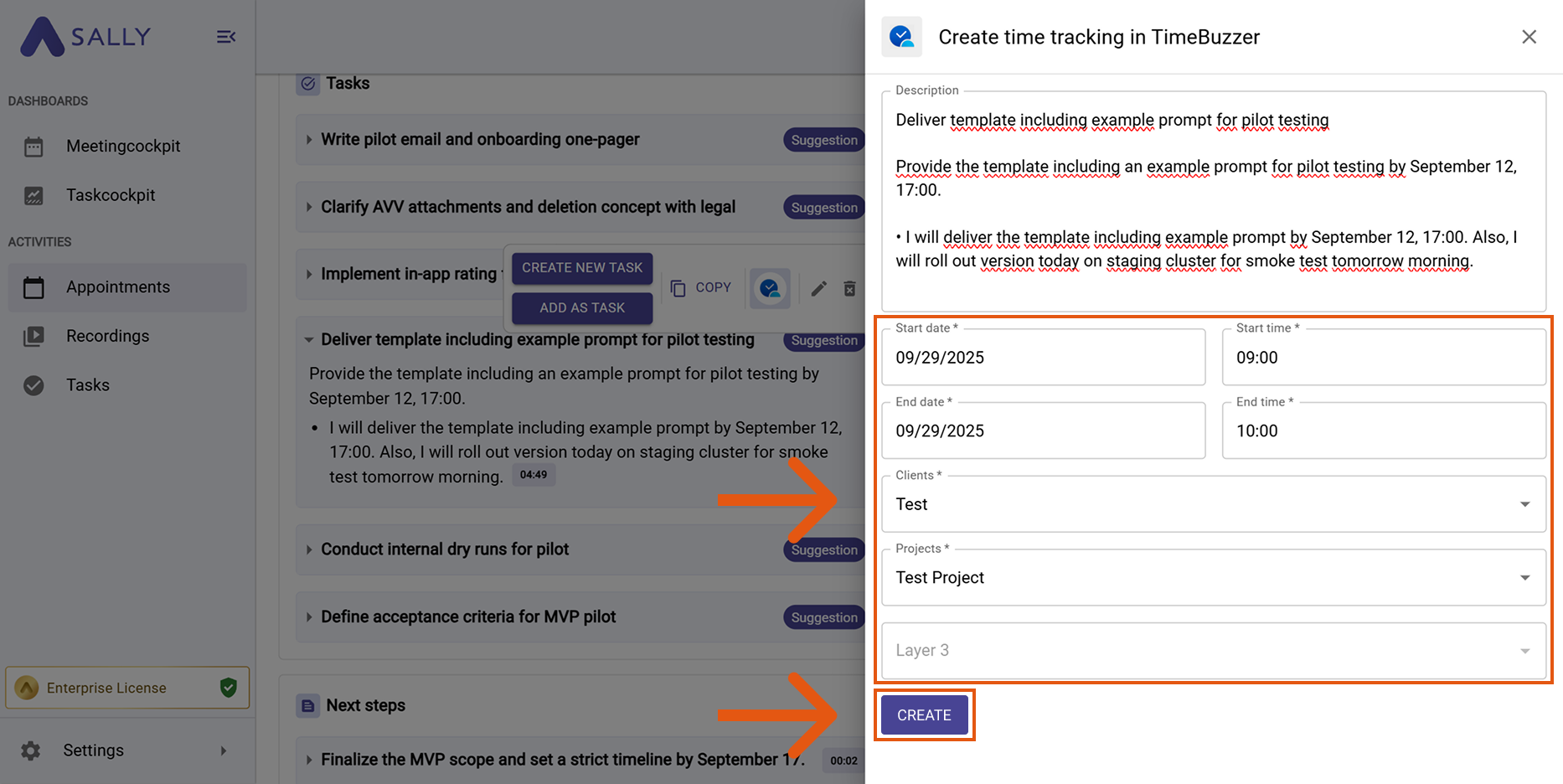
  1. In the dialog, pick the customer under Clients and the project under Projects. Both are required, and so are Start, Ende (the end of the time frame) and Note. Layer Name is optional and picks the timeBuzzer layer for the entry.
Create time entry in timeBuzzer dialog with Clients, Projects, Layer Name, Start, Ende and Note
Figure 8: Check the fields and create the time entry
  1. Enter Start and Ende yourself. Sally does not carry the time frame over from the meeting, but the date and the duration are shown in the recording header.
  2. The Note field holds the meeting summary. You can shorten it or add to it before it is transferred.
  3. Click Create time entry to log the time in timeBuzzer.
Best practice

Trim the note down to what counts for billing: the work done, the outcome, and what is still open. The full meeting text makes the entry hard to read in timeBuzzer.