Notion Integration
Connect Sally with Notion to store meeting summaries directly as structured Notion pages.
With the Sally–Notion integration, you can automatically transfer complete meeting summaries from Sally into Notion and continue editing, documenting, or sharing them with your team.
This way, every meeting can be turned into a cleanly structured documentation inside your Notion workspace with just a few clicks.
Quick navigation
- How to connect Notion with Sally AI
- How to create a Notion page from a meeting summary
- Required permissions
1. How to connect Notion with Sally AI
Follow these steps to activate the Sally–Notion integration:
- Open Settings in the left sidebar of Sally.
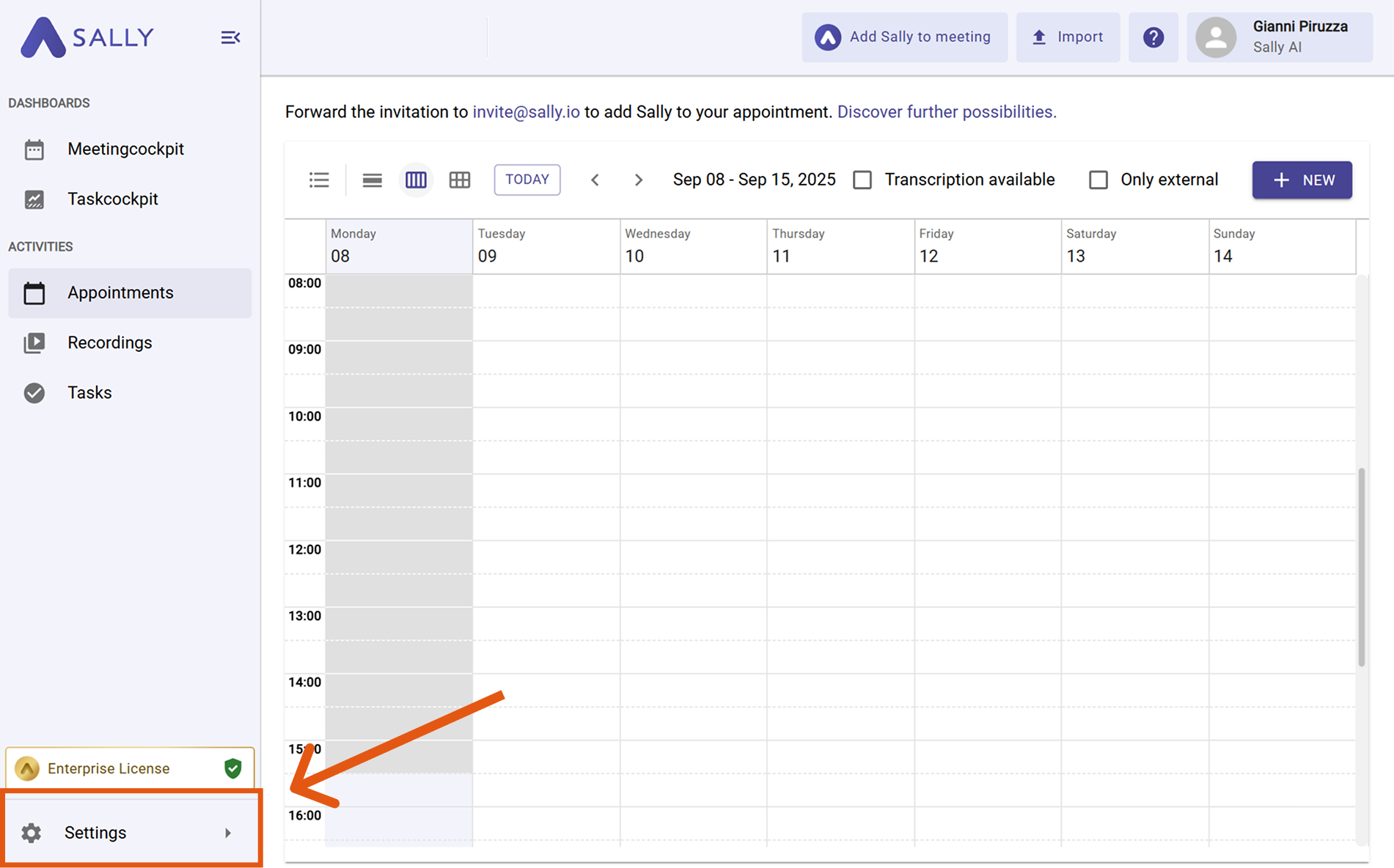
Figure 1: Open settings
- Go to Integrations and click “+ Add integration” under “Your personal integrations”.
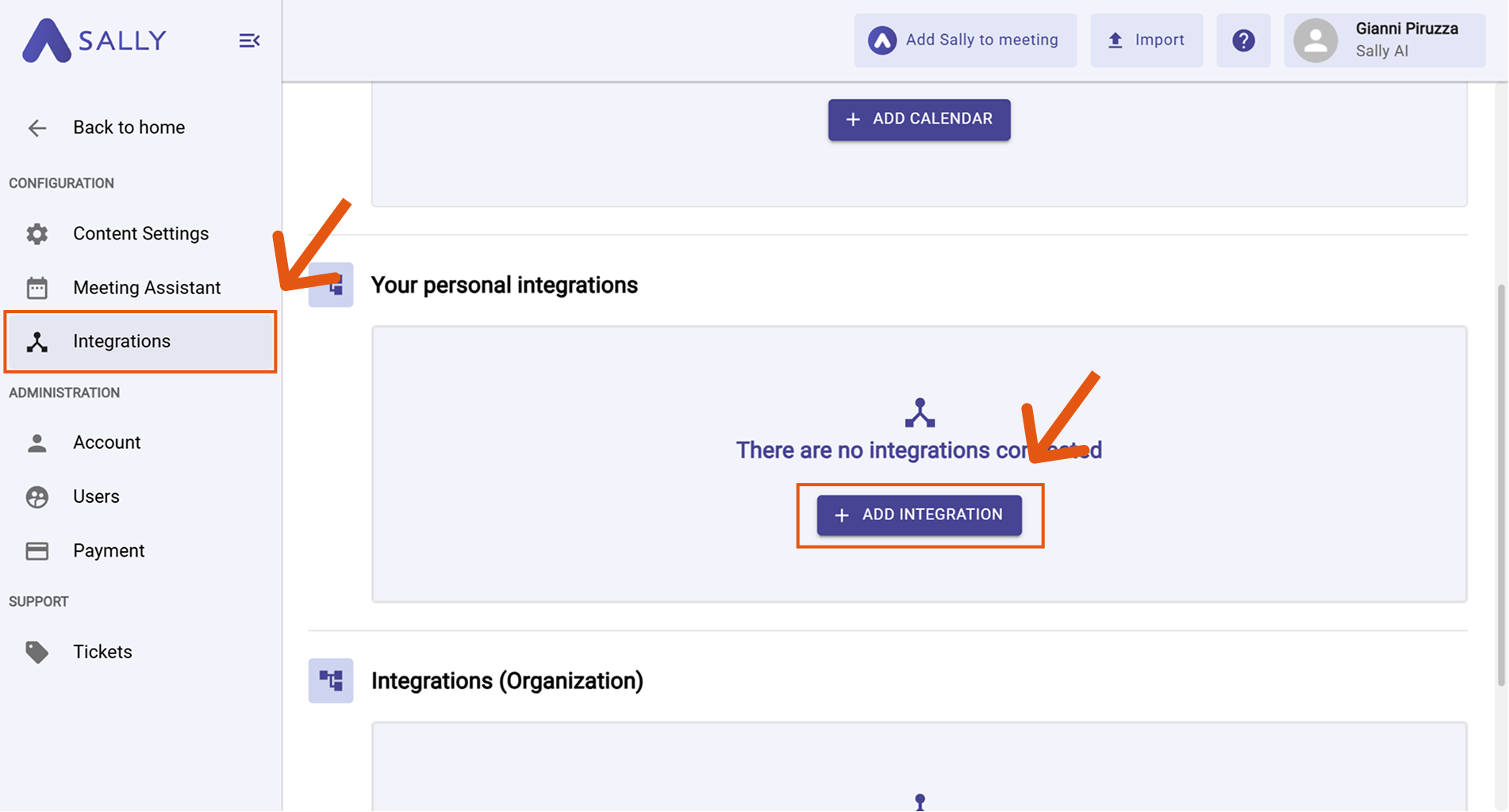
Figure 2: Add integration
- Select Notion from the list and click “Connect”.
The Notion authorization dialog will then open.
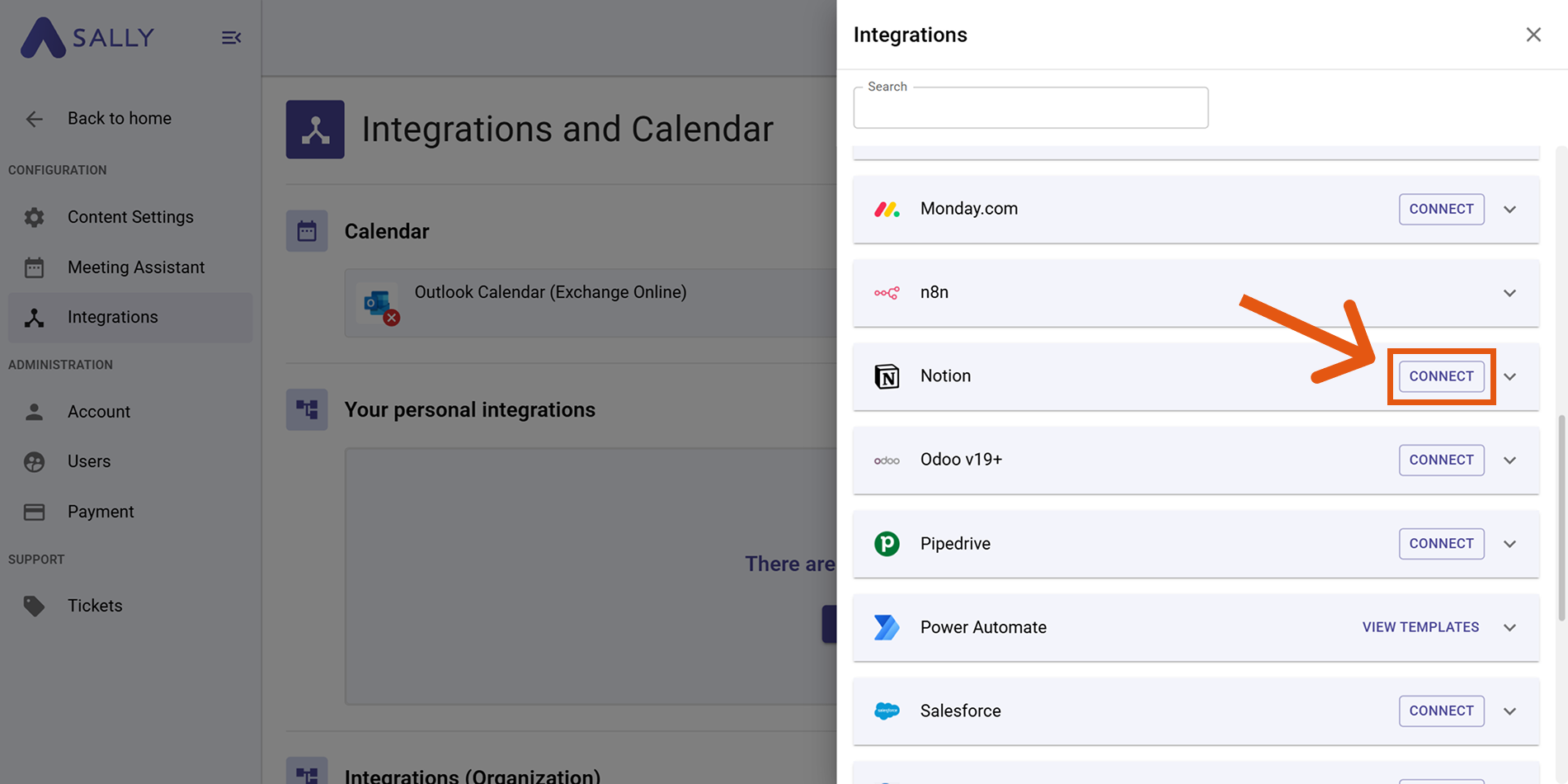
Figure 3: Connect Notion
- Confirm access in Notion and select the workspace that should be connected with Sally.
After the connection is successful, Notion will appear under “Your personal integrations.”
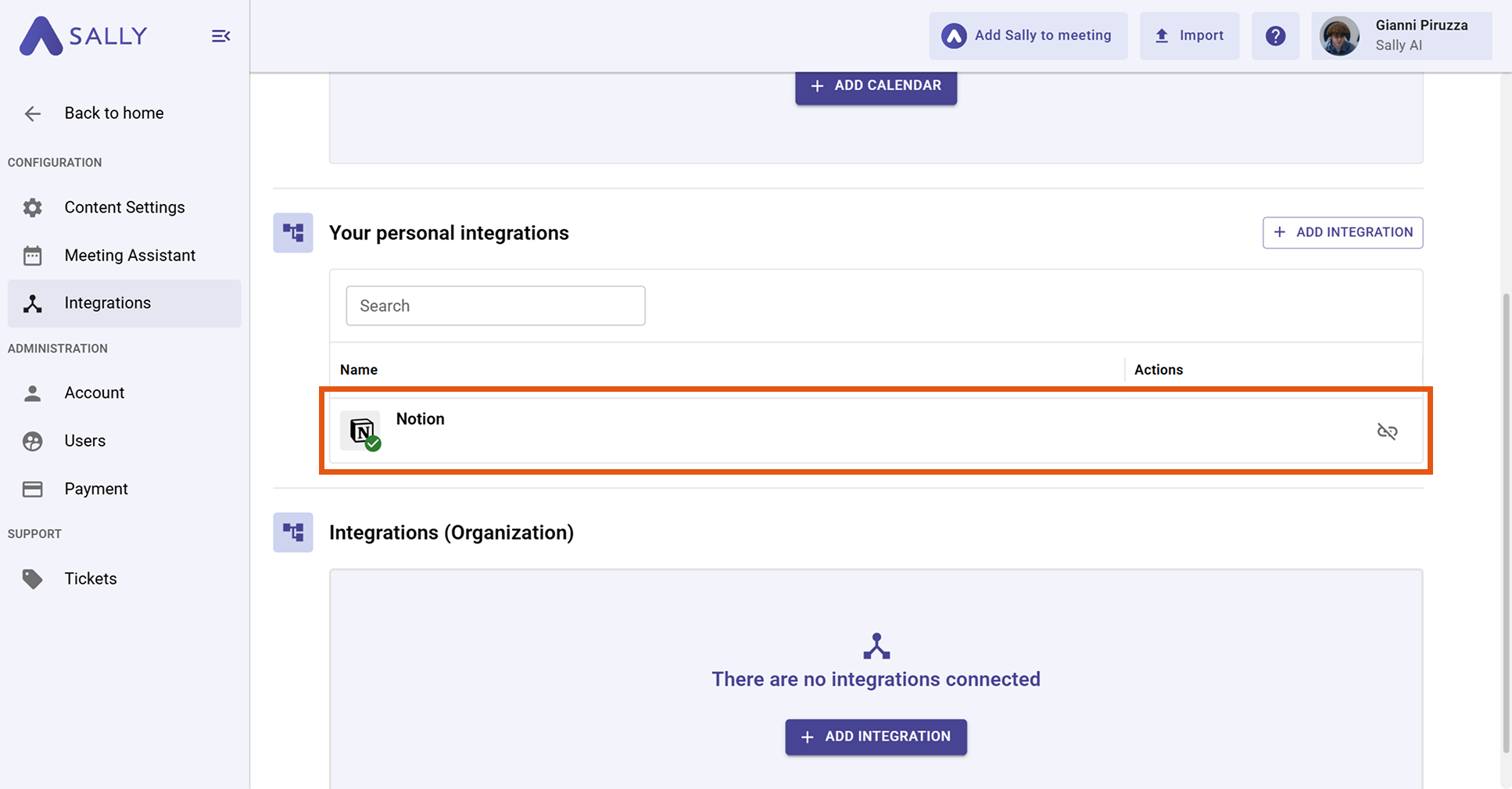
Figure 4: Notion is connected
2. How to create a Notion page from a meeting summary
Once Notion is connected, you can export meeting summaries directly as a Notion page.
For the Notion integration, the entire meeting summary is always transferred, not individual insights.
Step-by-step:
-
Open the desired meeting summary in Sally.
-
Click the integration icon in the top right and select “Create page in Notion.”
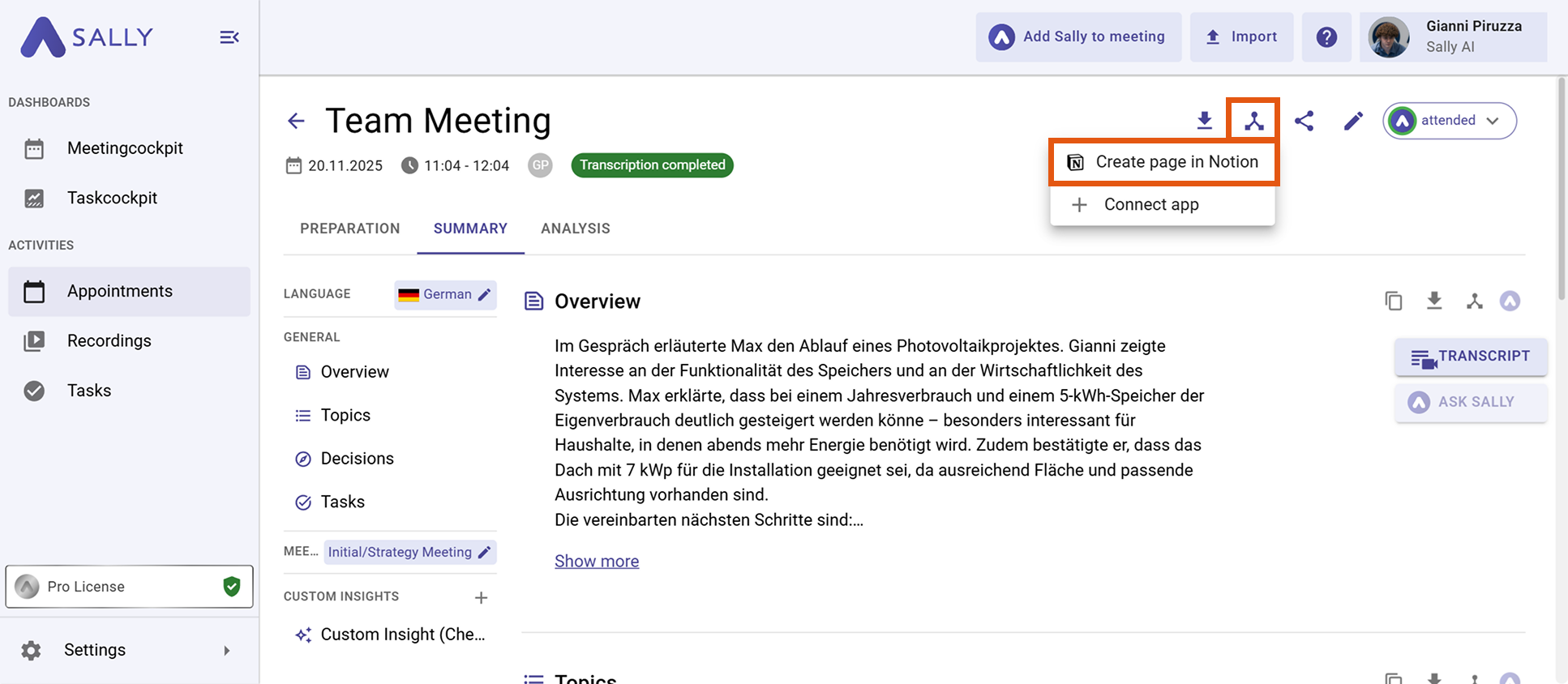
Figure 5: Select Notion action
-
A creation dialog will open where you can review and adjust the content of the new Notion page. In this dialog, you can edit or extend the content before exporting it to Notion.
You can for example:
- Edit text – all content can be modified directly in the editor
- Add additional topics via “Add topic”
- Add additional tasks via “Add task”
- Add additional decisions via “Add decision”
- Delete entries by clicking the “X” icon next to the respective element
This allows you to refine the meeting summary before it is transferred to Notion.
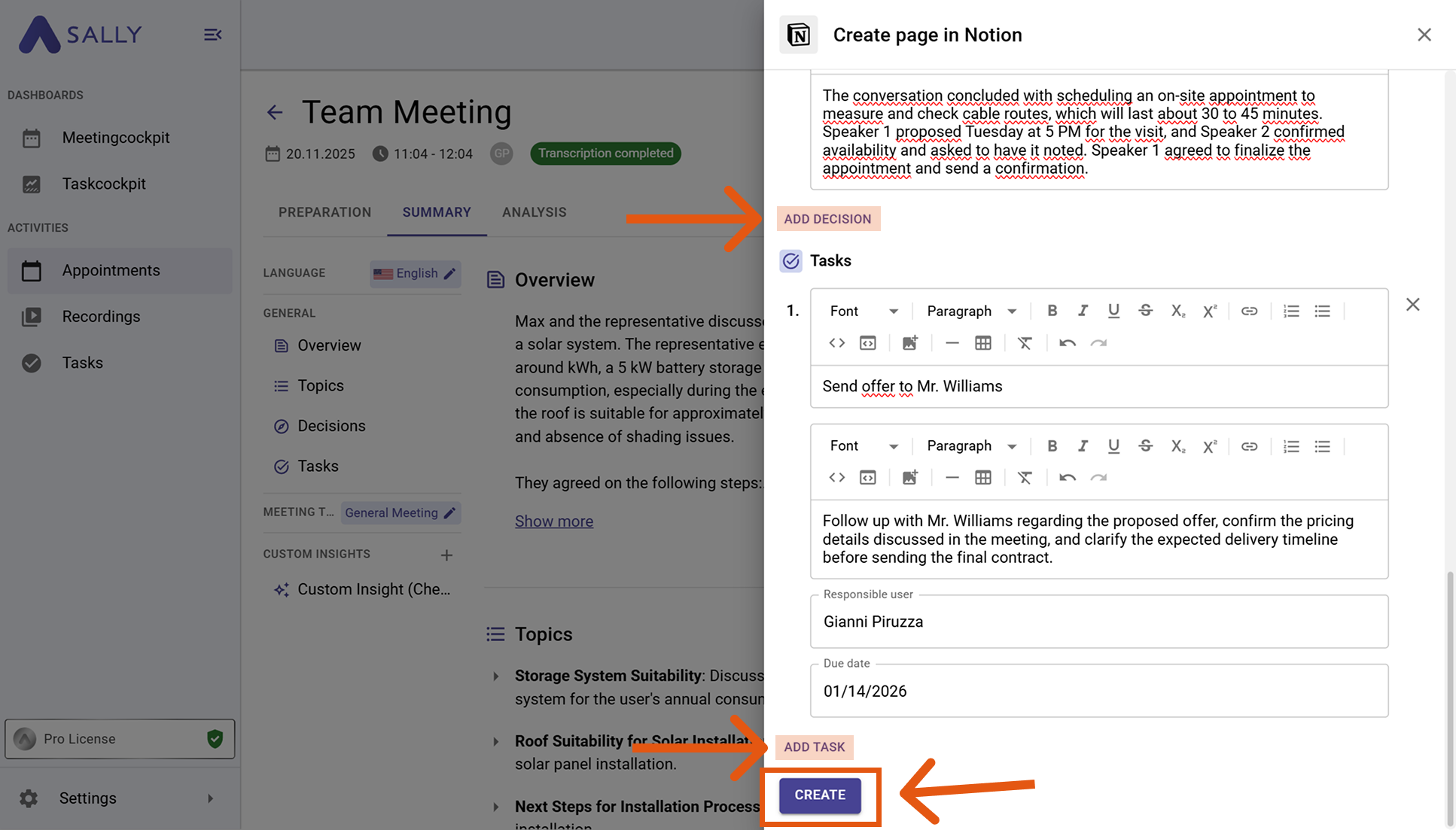
Figure 6: Create a Notion page
Many teams use this step to clean up meeting tasks, adjust responsibilities, or add additional context before saving the documentation in Notion.
-
Click “Create” to generate the page in Notion.
-
The page will then be automatically created in your connected Notion workspace and will contain the structured meeting summary from Sally.
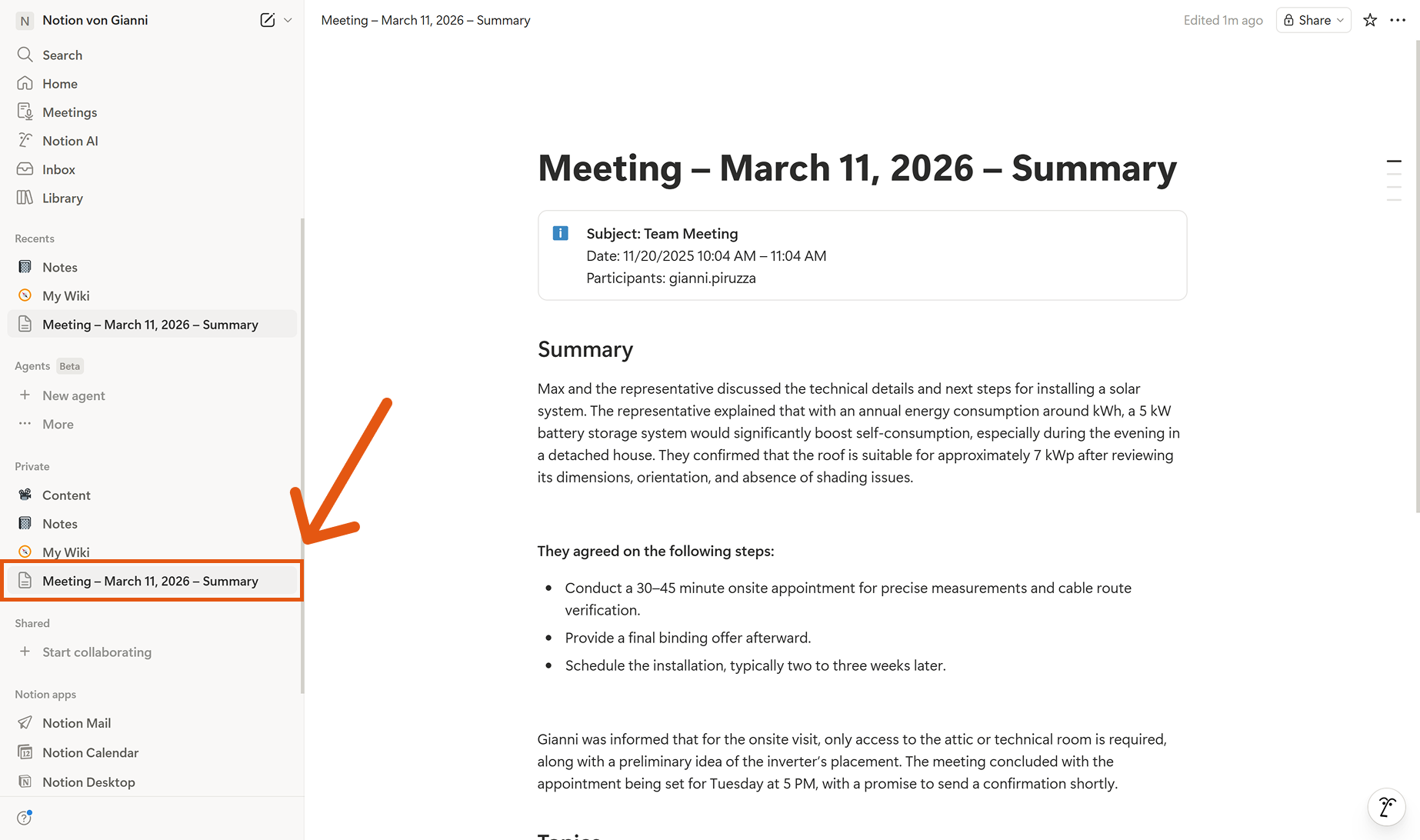
Figure 7: Sally summary in Notion
3. Required permissions
For the Notion integration, Sally uses the official Notion integration authorization. The following permissions define which areas Sally can access on behalf of the user.
-
Sally reads this information solely to technically establish and maintain the connection to the Notion workspace.
-
Sally does not make autonomous changes in Notion. Content is only created or modified when the user explicitly triggers an action within Sally.
-
API endpoints are only called as part of an active action initiated by the user within the platform.
Technical overview of the required permissions
| Capability | What Notion technically allows | How Sally uses this permission |
|---|---|---|
Read content | Access to content within Notion pages and databases | Sally can read content to structure meeting insights within existing Notion pages or databases. |
Update content | Update existing content | Sally can update content on a page if the user exports meeting results to an existing page. |
Insert content | Create new content or pages | Sally creates new Notion pages or inserts content such as meeting summaries, tasks, or decisions. |
Read comments | Access comments within Notion pages | Technically required when comments exist on Notion pages. Sally does not actively process these comments for its own purposes. |
Insert comments | Create new comments | Sally can optionally add comments if meeting results should be documented as comments. |
Read user information including email addresses | Access basic user information including the email address | Sally uses this information solely to uniquely associate the authorized Notion account. No further processing occurs outside authentication. |