How to Integrate Monday.com with Sally AI
Connect Sally AI with Monday.com to turn meeting outcomes directly into structured project work – on the right board, in the correct group, and with the appropriate status.
With the Sally–Monday.com integration, you can create tasks, add comments, update statuses, or move tasks between groups – all directly from your meetings.
Quick navigation
1. How do I connect Monday.com with Sally AI?
Follow these steps to activate the Sally–Monday.com integration:
-
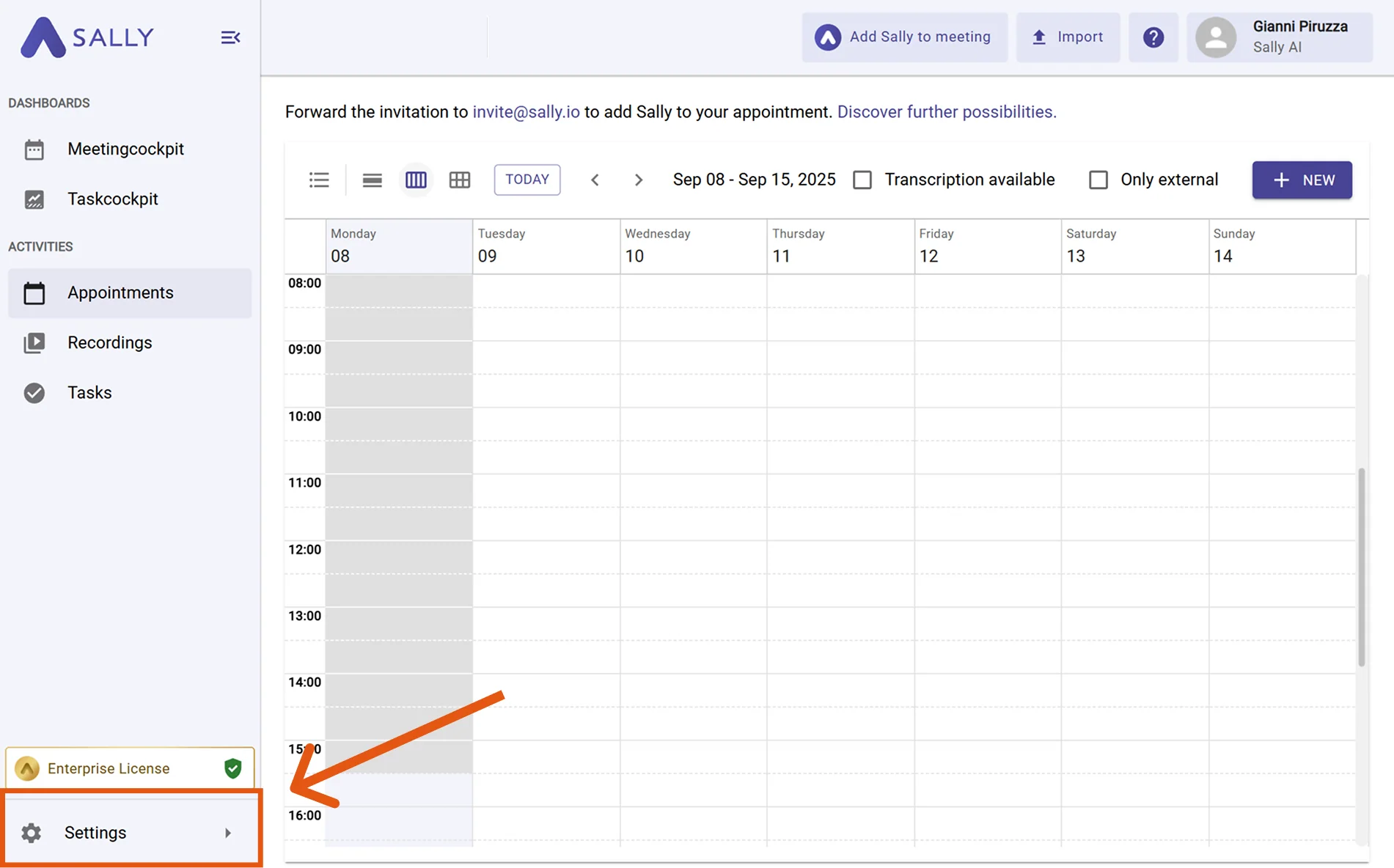
Open Settings in the left sidebar of Sally.
Figure 1: Open Settings -
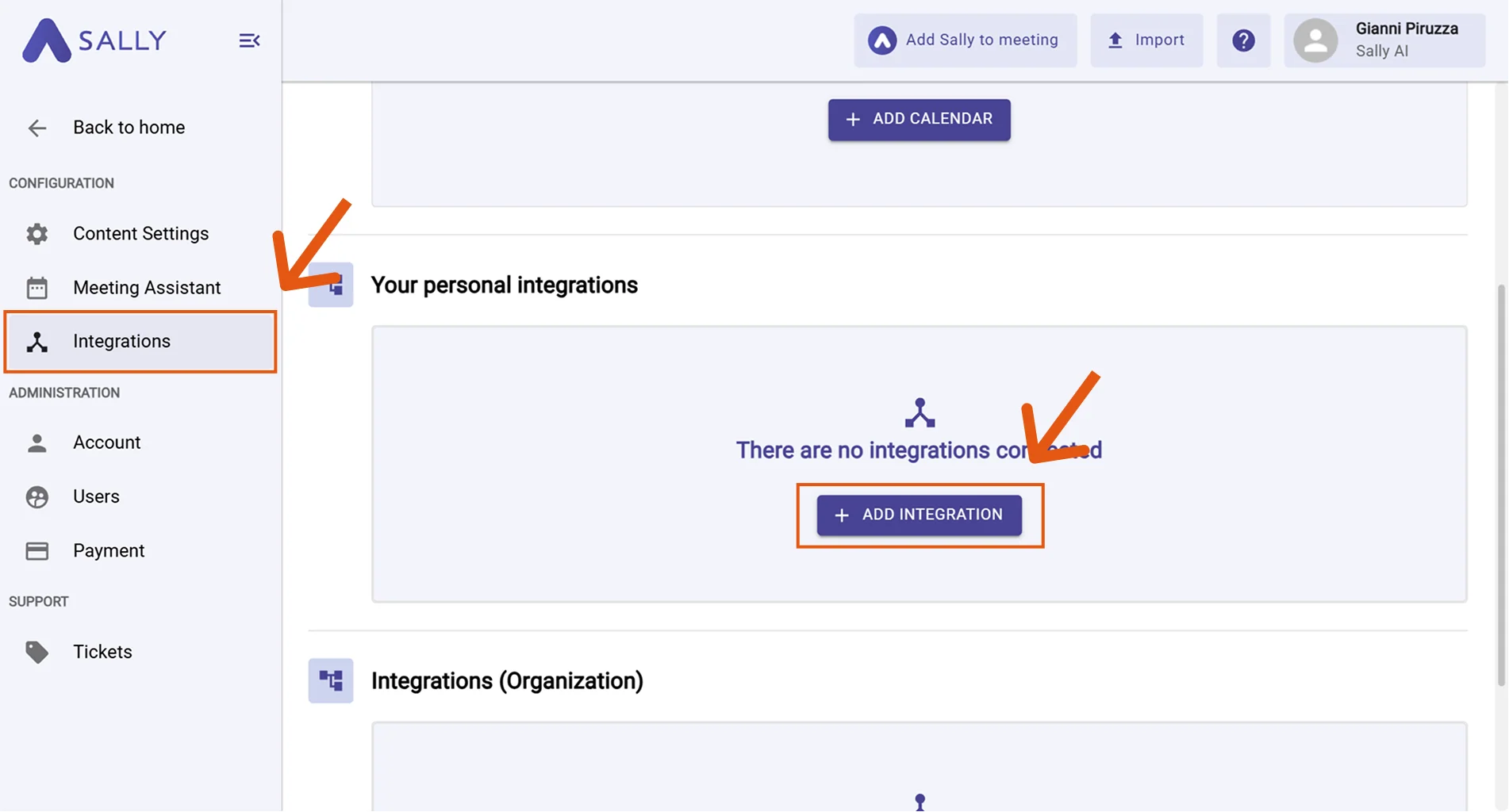
Go to Integrations and click “+ Add integration” under "Your personal integrations".
Figure 2: Add integration -
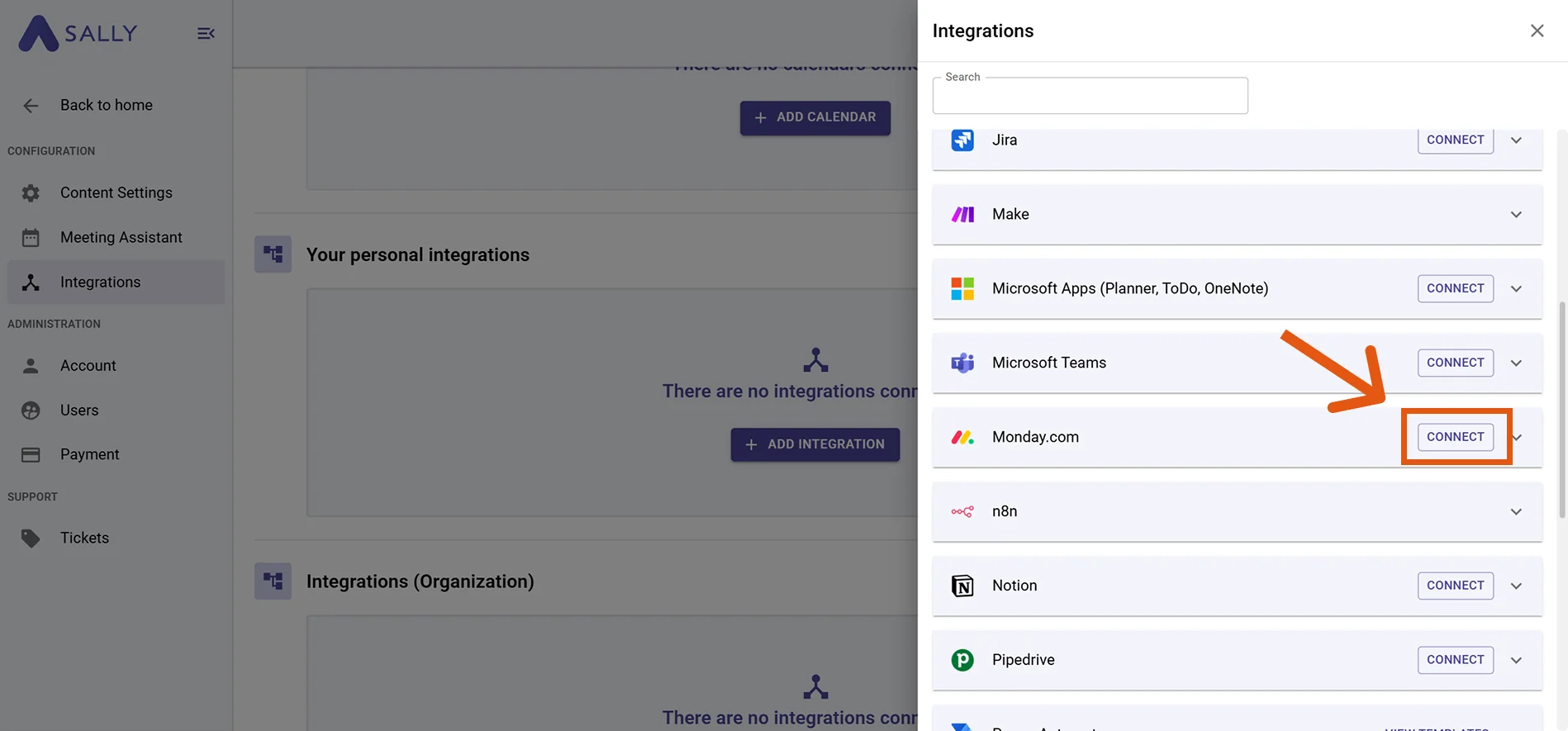
Select Monday.com from the list and click “Connect”. Complete the authorization process in Monday.com.
Figure 3: Connect Monday.com -
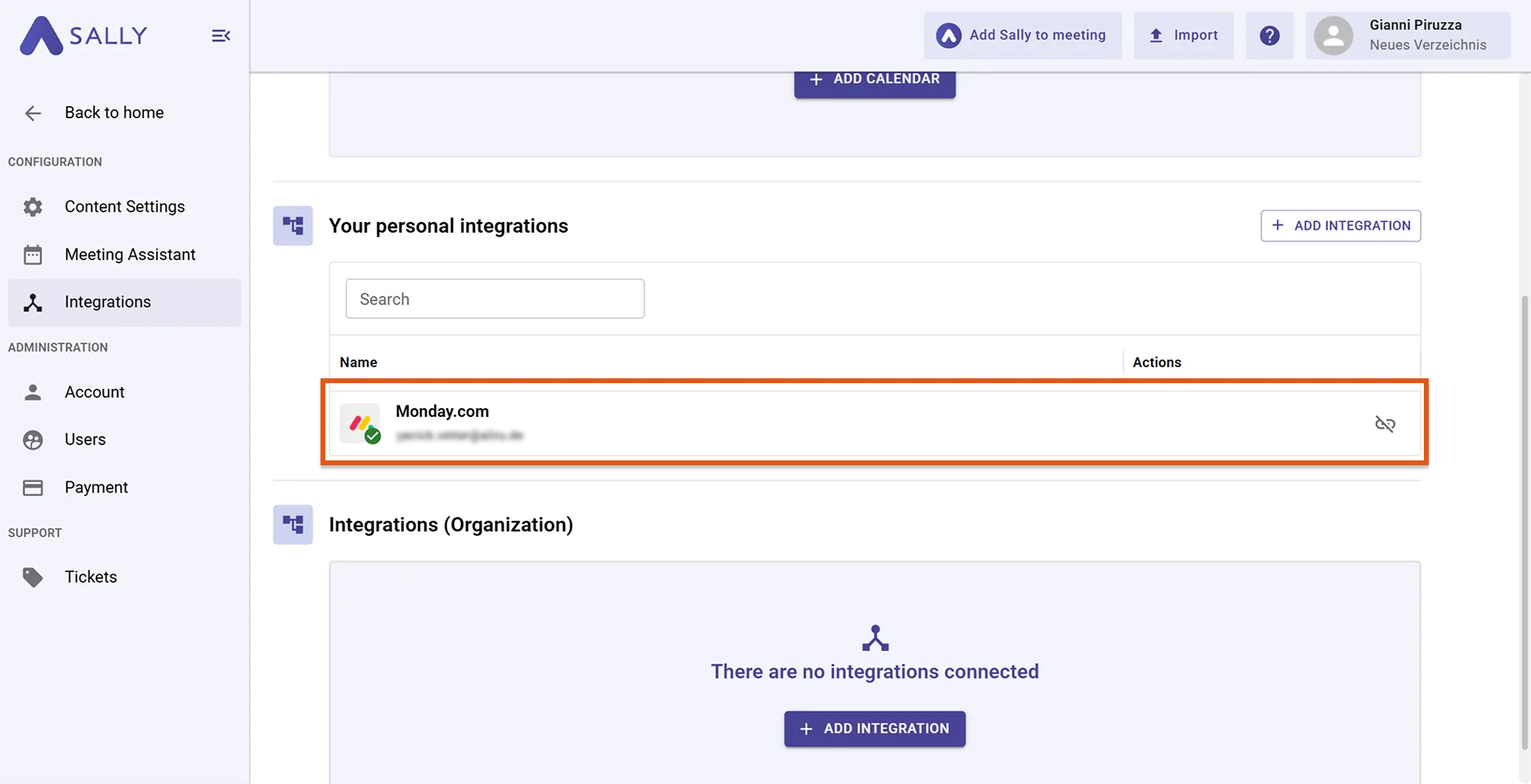
After a successful connection, Monday.com will appear under "Your personal integrations".
Figure 4: Monday.com is connected
2. How do I send meeting insights to Monday.com?
Once Monday.com is connected, you can send meeting content directly from Sally to Monday – no copy & paste required.
You can:
- Create task → When a new to-do results from a meeting.
- Add comment → When you want to add context to an existing task.
- Change status → For progress updates, decisions, or completion.
- Move task → To advance tasks through your workflow (e.g. from To-do to In progress).
2.1 Create a task in Monday.com
Turn a meeting insight into a new Monday.com task.
-
Open the relevant summary in Sally.
-
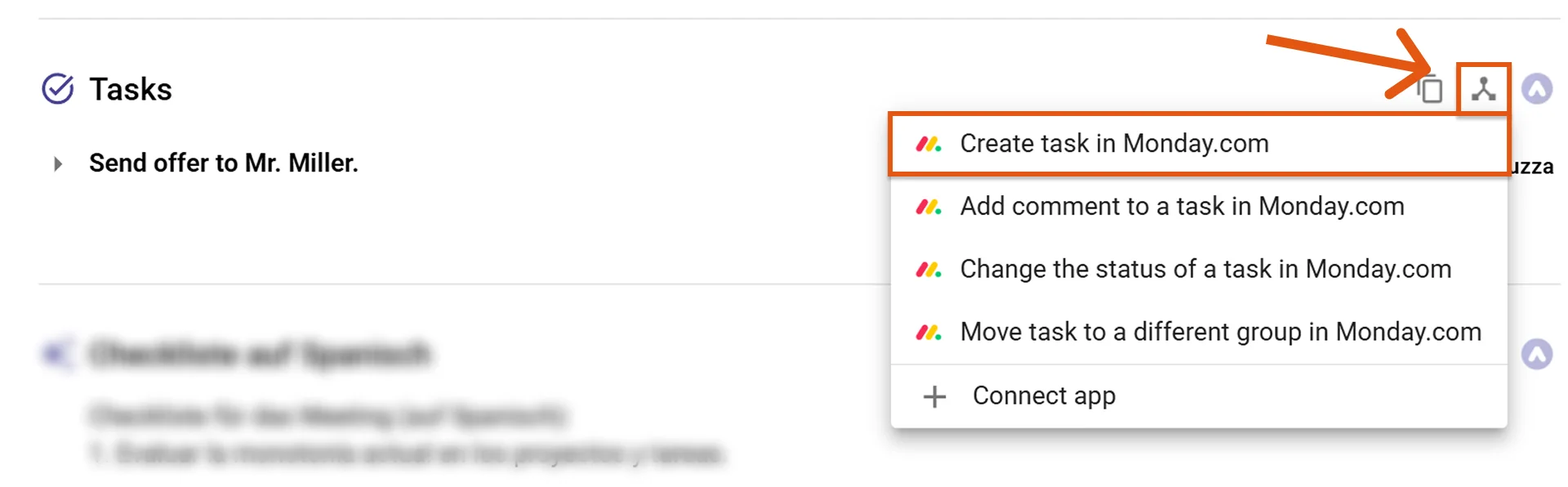
Press the integration button for the insight you want to send to Monday. Click the integration icon and select “Create task in Monday.com”.
Figure 5: Select a Monday.com action -
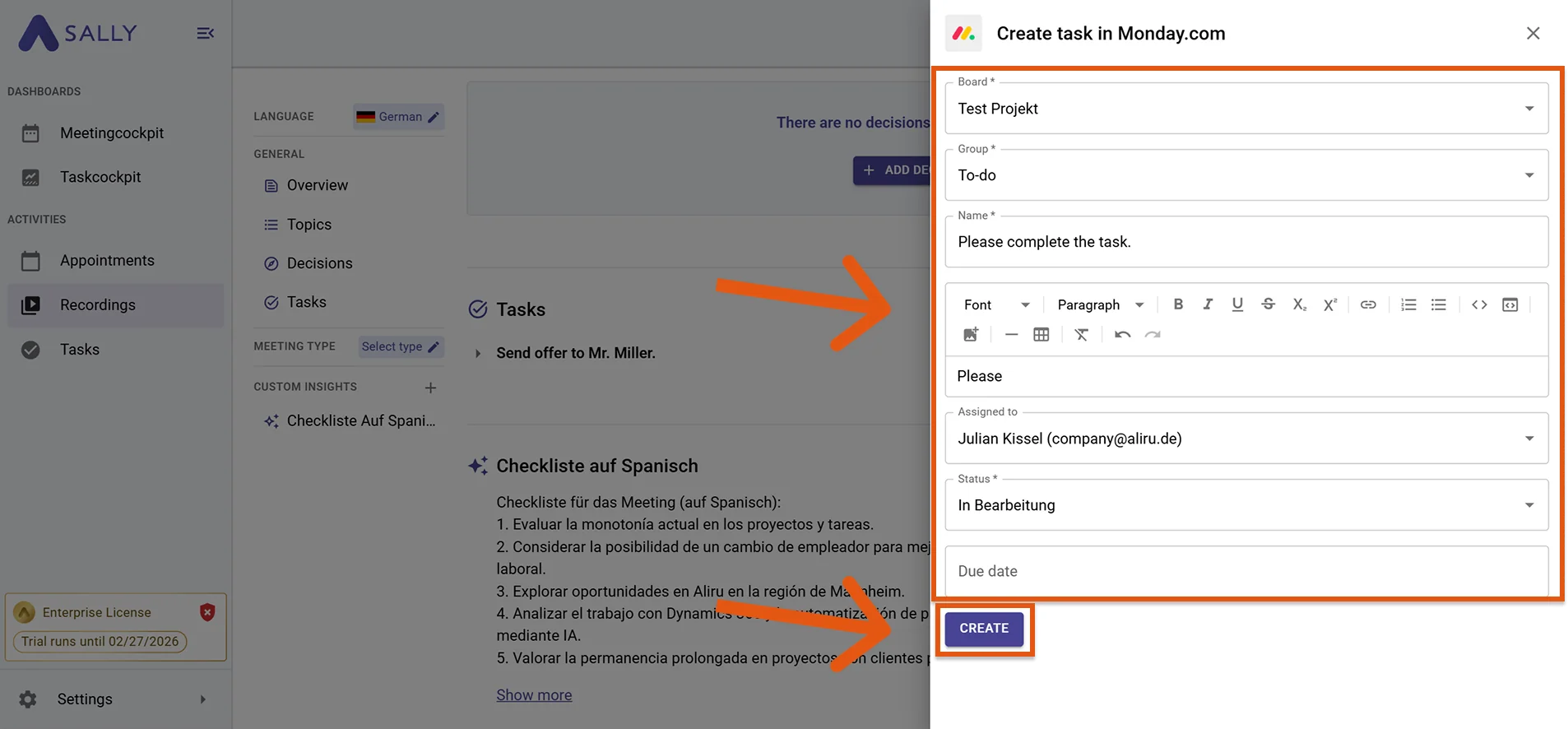
Fill out the creation form (required fields are marked with
*), for example:- Board*
- Group*
- Name* (task title)
- Assigned to
- Status
- Due date
The description is automatically taken from Sally and can be adjusted if needed.
Figure 6: Create a task in Monday.com -
Click “Create” to add the task to Monday.com. Your task will now appear in the correct board in Monday.
Use short, action-oriented task titles (e.g. “Send offer to customer”). Keep detailed meeting context in the description to maintain clean boards.
2.2 Add a comment to a task
Add meeting context as a comment to an existing Monday.com task.
-
Open the relevant summary in Sally.
-
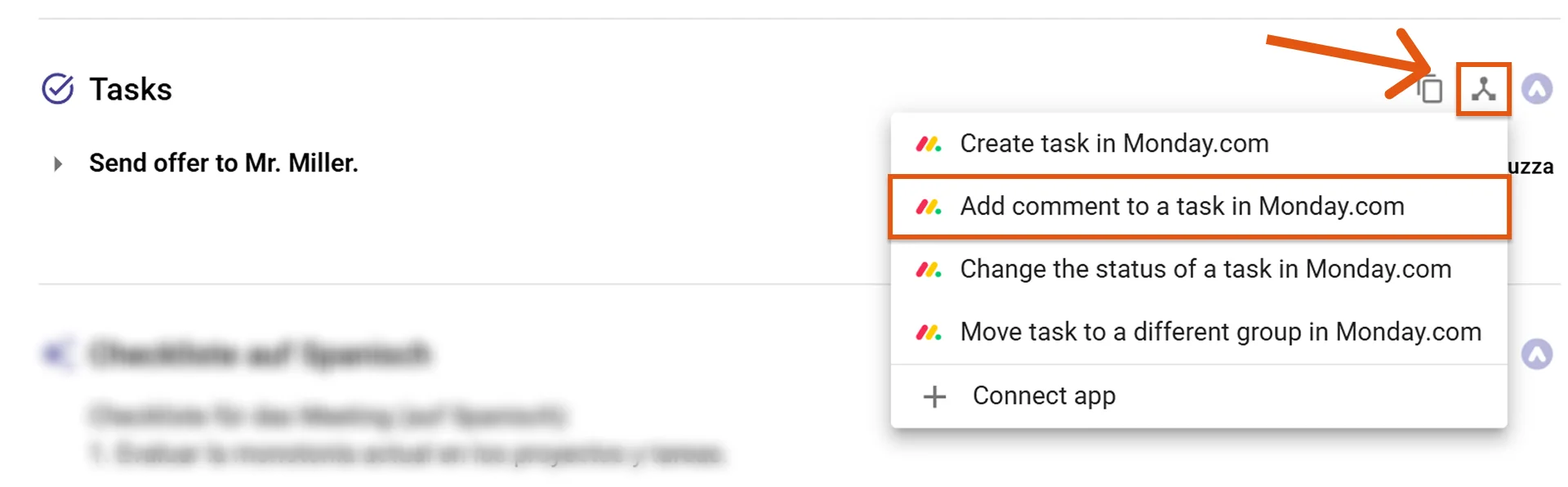
Press the integration button for the insight you want to send to Monday. Click the integration icon and select “Add comment to a task in Monday.com”.
Figure 5: Select a Monday.com action -
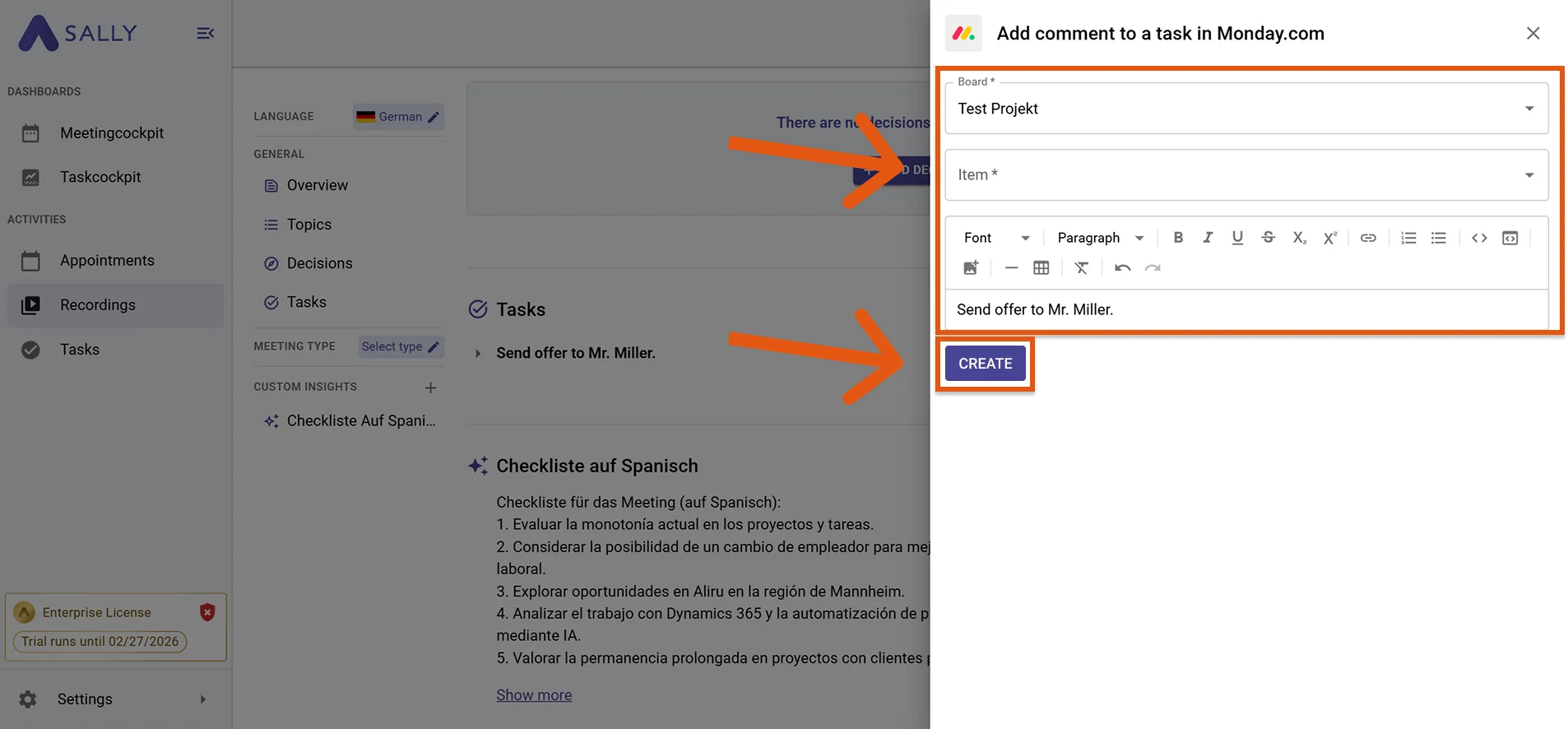
Choose the board and item you want to comment on. The description text is automatically populated from Sally - but you can edit it at any time.
Figure 7: Add a comment to a task -
Click “Create” to post the comment. The comment will now be added to the selected task in Monday.
Use comments for decisions, updates, or additional context instead of creating new tasks.
2.3 Change the status of a task
Update the status of an existing task directly from your meeting.
-
Open the relevant summary in Sally.
-
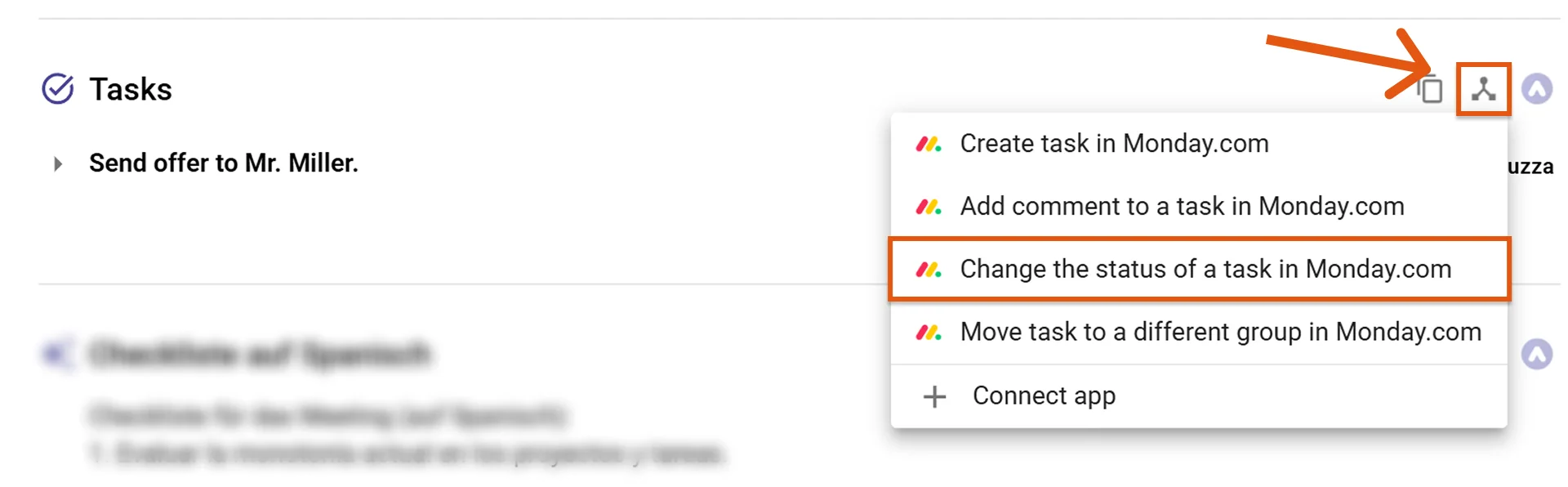
Press the integration button for the insight you want to send to Monday. Click the integration icon and select “Change the status of a task in Monday.com”.
Figure 5: Select a Monday.com action -
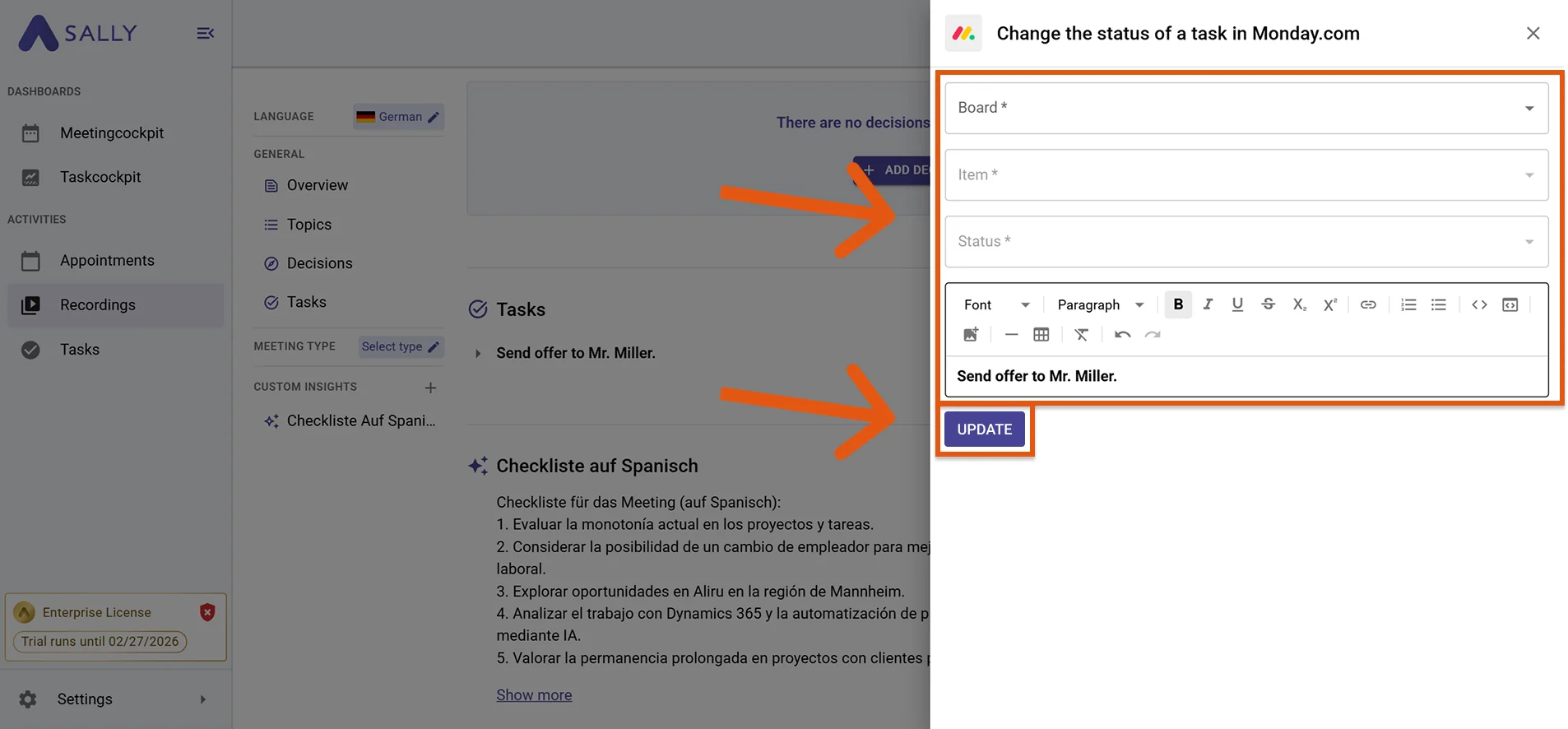
Choose the board, item, and the new status.
Figure 8: Change task status -
Click “Update” to apply the new status. The status will now be updated in Monday.
2.4 Move a task to a different group
Move tasks within a board, for example from To-do to In progress.
-
Open the relevant summary in Sally.
-
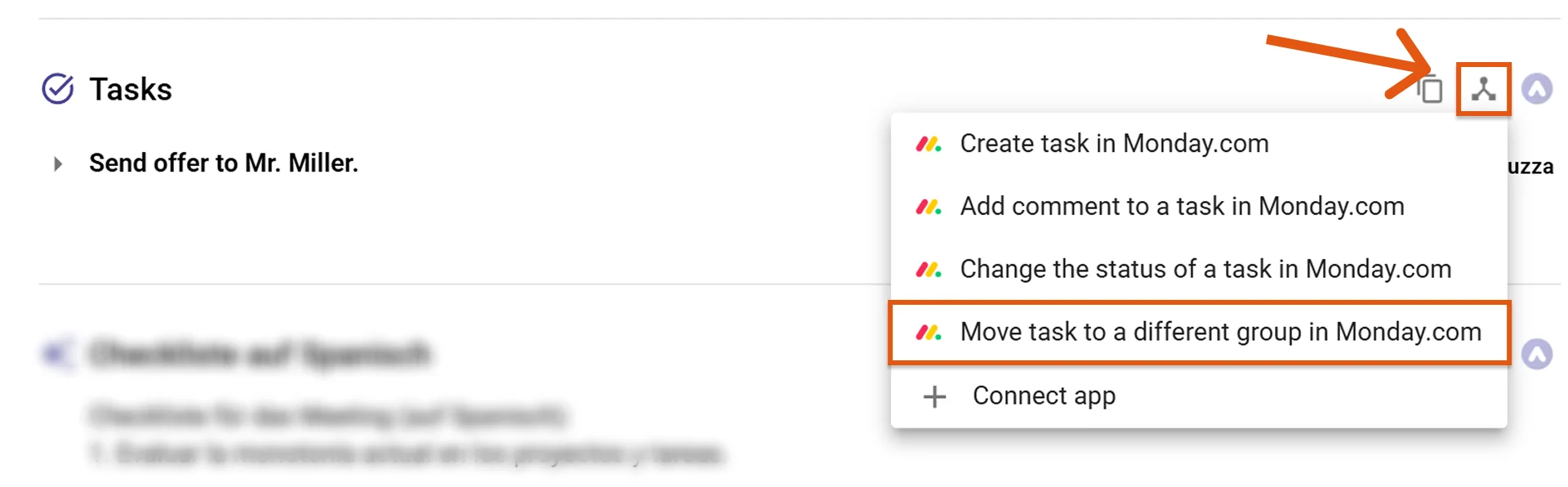
Press the integration button for the insight you want to send to Monday. Click the integration icon and select “Move task to a different group in Monday.com”.
Figure 5: Select a Monday.com action -
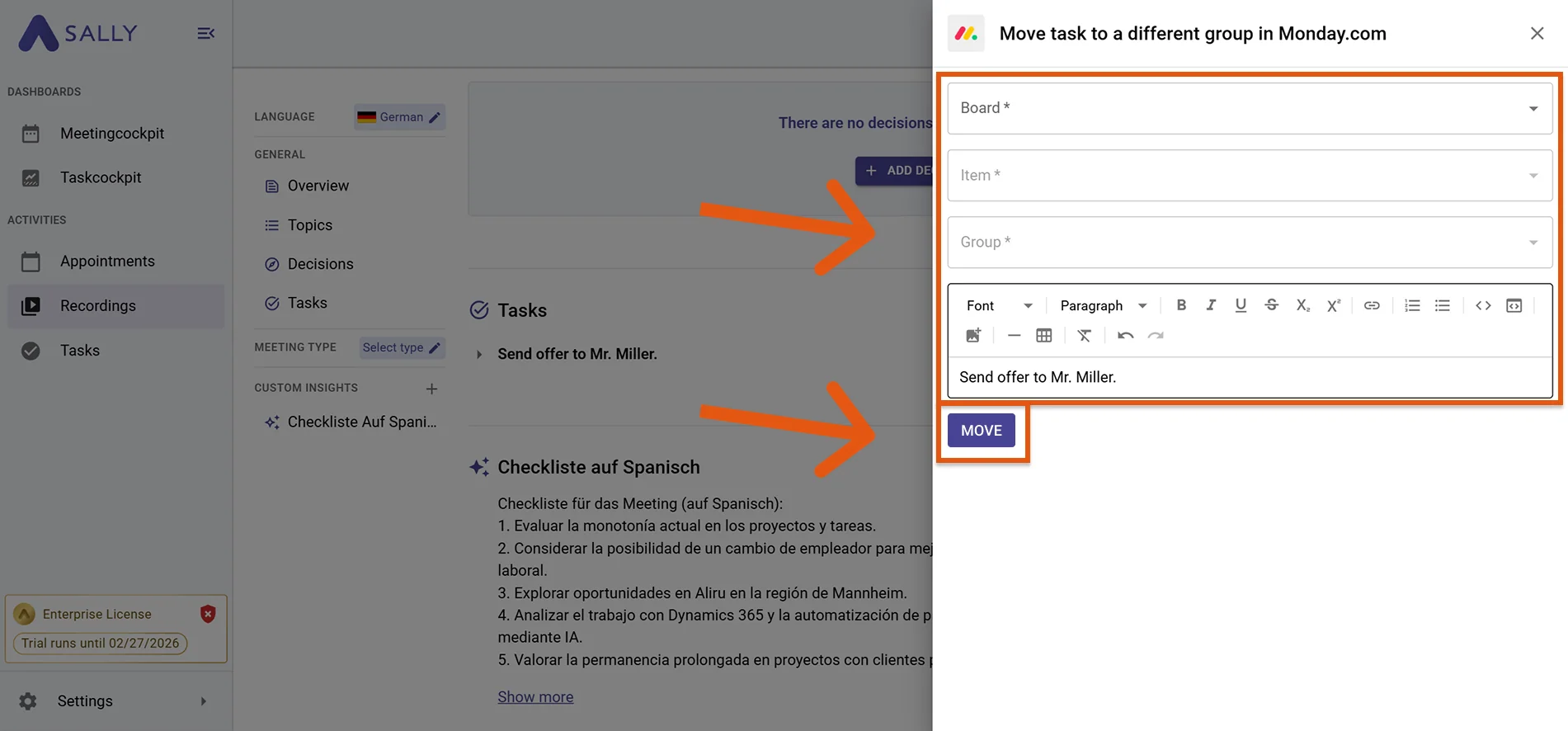
Choose the board, item, and the target group.
Figure 9: Move task to a different group -
Click “Move” to complete the action.
3. What OAuth scopes does the Monday.com integration require?
For the integration with Monday.com, Sally uses OAuth 2.0 for authorization. The following scopes define which areas Sally can access on behalf of the authenticated user.
-
Sally accesses this information solely to technically establish and maintain the connection to the user account.
-
Sally does not make any autonomous changes. Actions are performed exclusively upon the explicit initiative of the user.
-
API endpoints are only called within the scope of an active action initiated by the user within the platform.
Technical Overview of Required Scopes
| Scope | What monday.com technically allows with this scope | How Sally uses this scope |
|---|---|---|
me:read | Read access to the authenticated user's profile | Sally reads basic account information to authenticate the connected monday.com account. |
boards:read | Read access to boards | Sally reads board metadata where required within the integration context. No board data is modified. |
boards:write | API permission for board objects | Part of monday.com's permission model. Sally does not independently modify boards or items outside explicitly user-initiated actions. |
workspaces:read | Read access to workspaces | Sally reads workspace information for technical display within the integration. |
users:read | Read access to user information | Sally reads user information for display within the integration. No user accounts are modified. |
updates:write | API permission for updates | Technically defined within the OAuth model. Sally does not independently create or modify updates without explicit user action. |