How to Integrate Microsoft Apps with Sally AI
Connect Sally AI with your Microsoft Apps - including Planner, Microsoft To Do, and OneNote - to create tasks and meeting notes directly from your Sally insights.
Generate follow-ups in your Microsoft workspace with just one click and keep all your tools perfectly synchronized.
Quick Navigation
- How to connect Microsoft Apps with Sally AI
- How to create tasks and notes in Microsoft Apps
- Required OAuth Scopes
1. How do I connect Microsoft Apps with Sally AI?
Follow these steps to enable the Sally–Microsoft Apps integration.
-
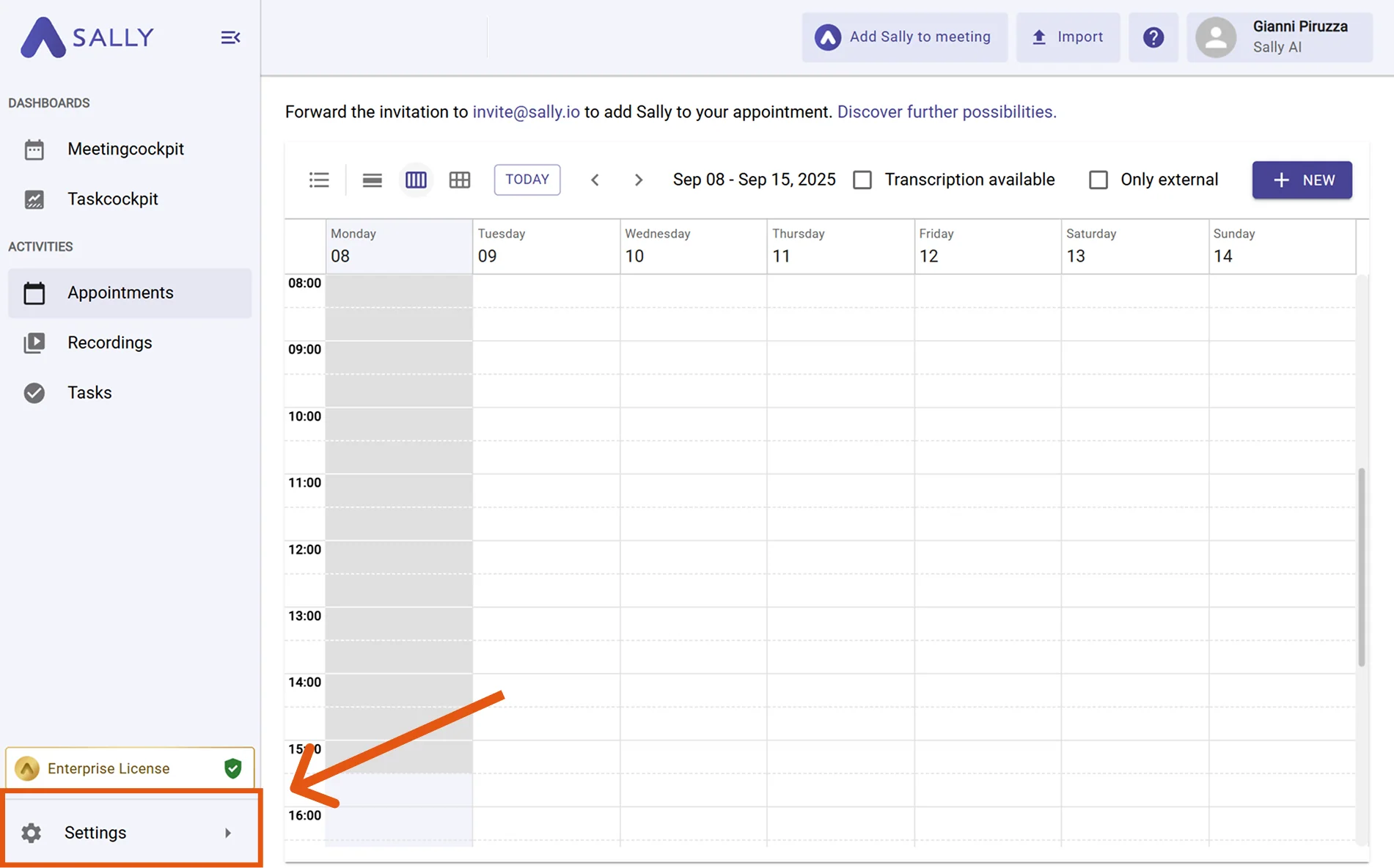
Open Settings in the left sidebar.
Figure 1: Go to Settings -
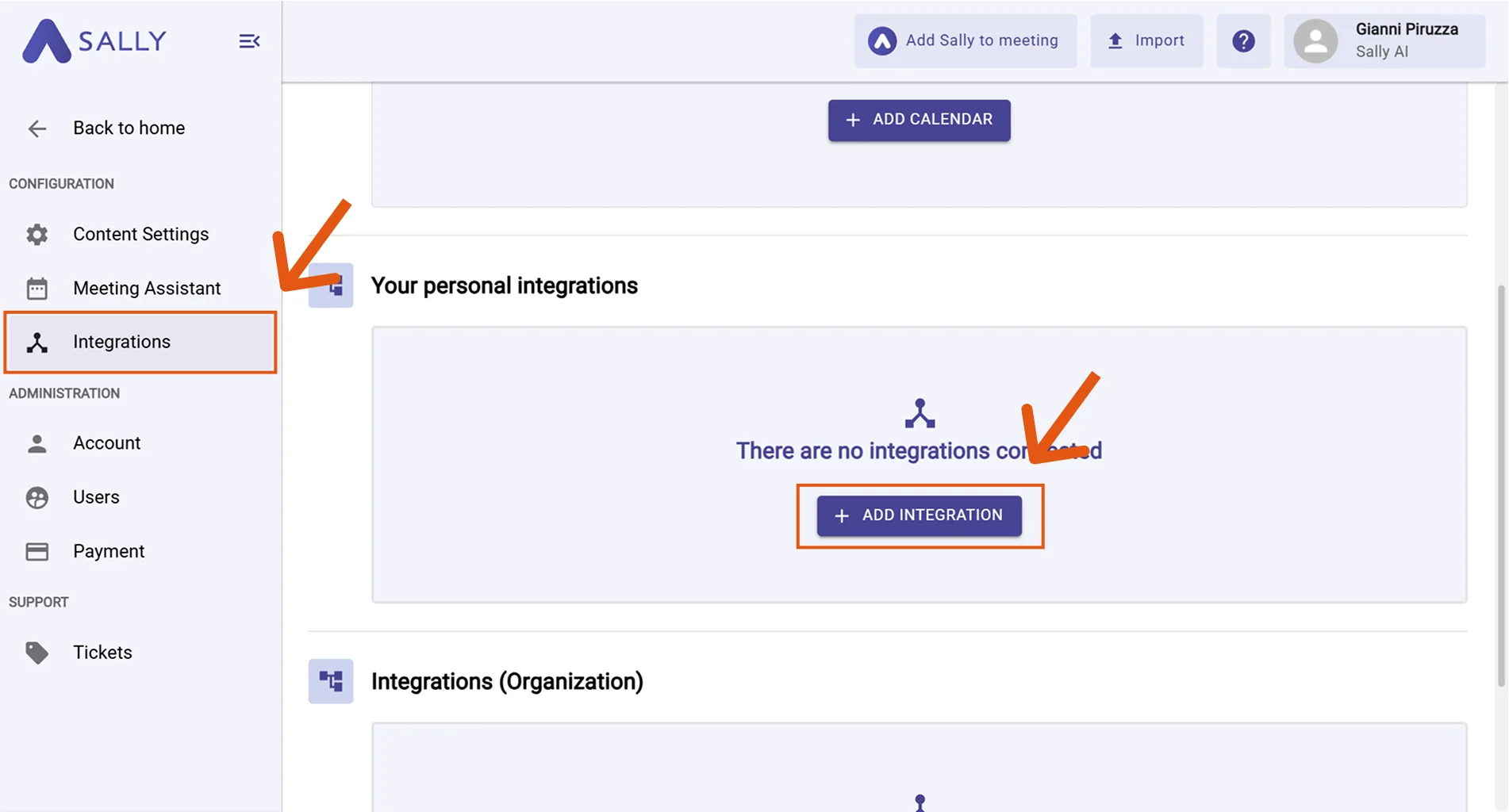
Go to Integrations and click “+ Add integration” under “Your personal integrations.”
Figure 2: Add integration -
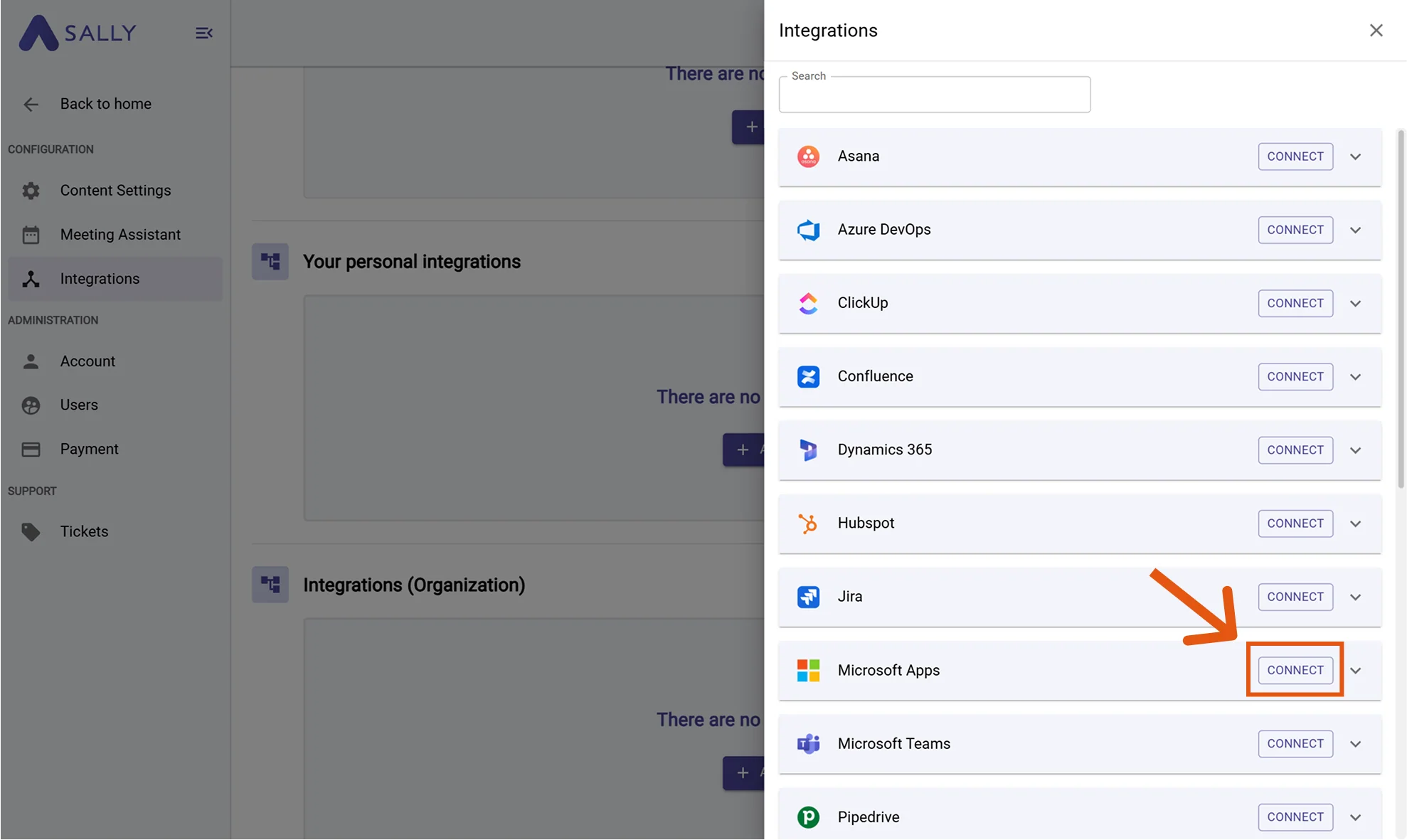
Select Microsoft Apps and click "Connect". Complete the OAuth flow in Microsoft.
Figure 3: Select Microsoft Apps → Connect
-
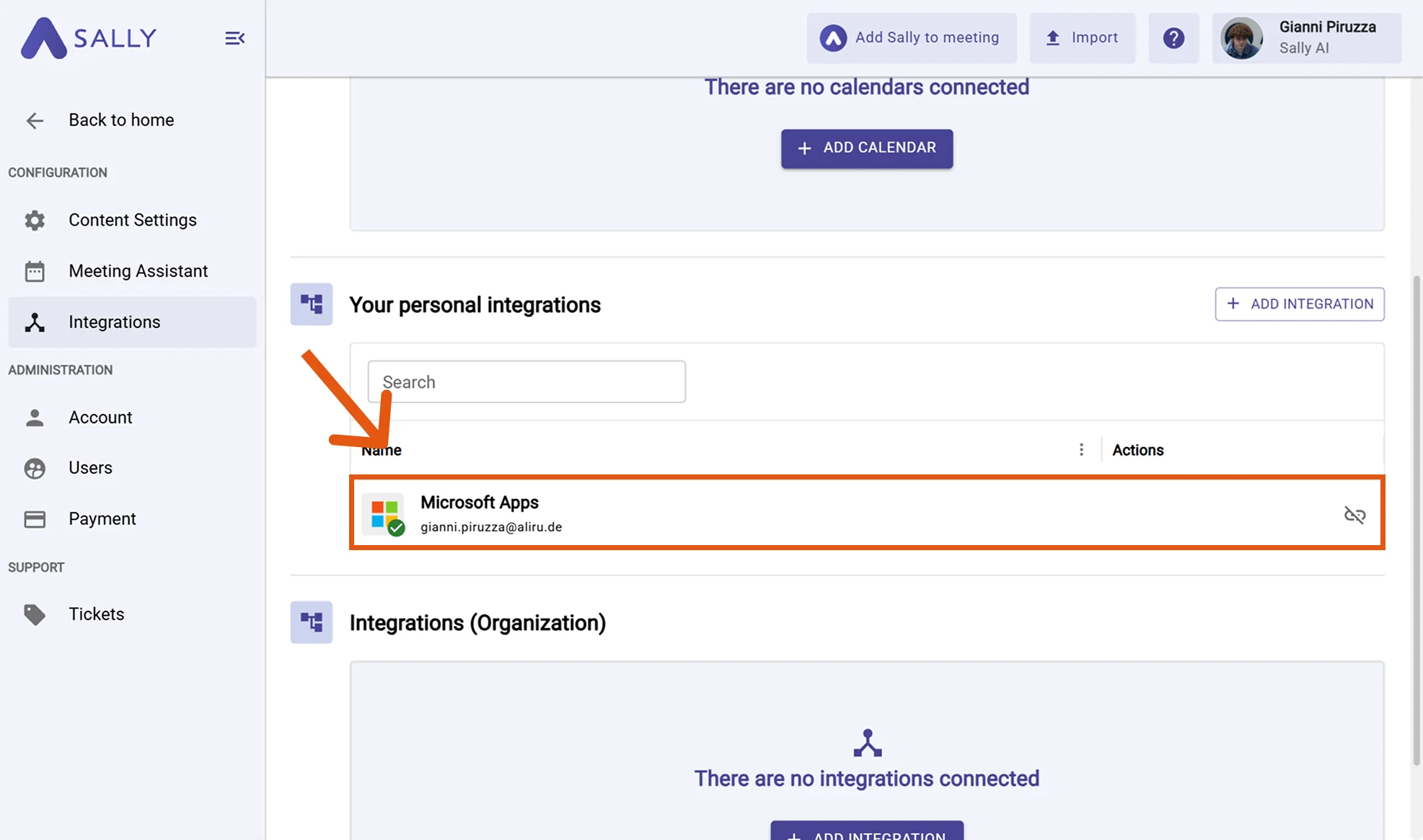
After a successful connection, your Microsoft Apps integration will appear under “Your personal integrations.”
Figure 4: Microsoft Apps are now connected
If your connected Microsoft account is a personal account, only the option to create a task in To Do
is available.
Other actions - such as creating tasks or comments in Planner or saving meeting notes in OneNote - require a work, school, or university account.
When a personal account is used, these buttons will appear grayed out or unavailable.
Microsoft distinguishes between two main account types:
-
Microsoft account (personal):
A personal account you use to access consumer services like Outlook.com, Xbox Live, Skype, or Microsoft Store.
These accounts are usually linked to an email ending with @outlook.com, @hotmail.com, or similar. -
Work, school, or university account:
An account provided by your organization (e.g. a company or educational institution) that gives access to Microsoft 365, Planner, To Do (work), Teams, OneNote, and other enterprise tools.
2. How do I create tasks and notes in Microsoft Apps?
Once your Microsoft Apps are connected, you can create or update tasks and notes directly from Sally with a single click.
2.1. Create a task in Planner
-
Open the desired meeting in Sally.
-
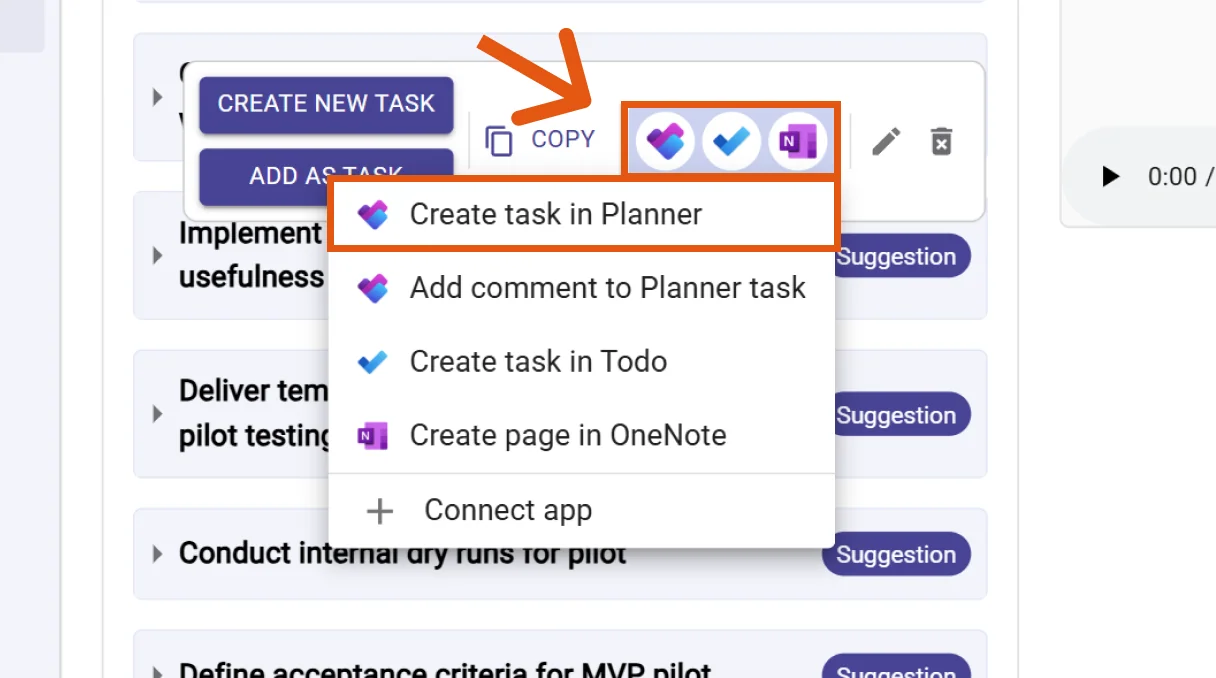
Hover over any insight, decision, or task in your summary and click the Planner icon → "Create task in Planner".
Figure 5: Choose Create task in Planner -
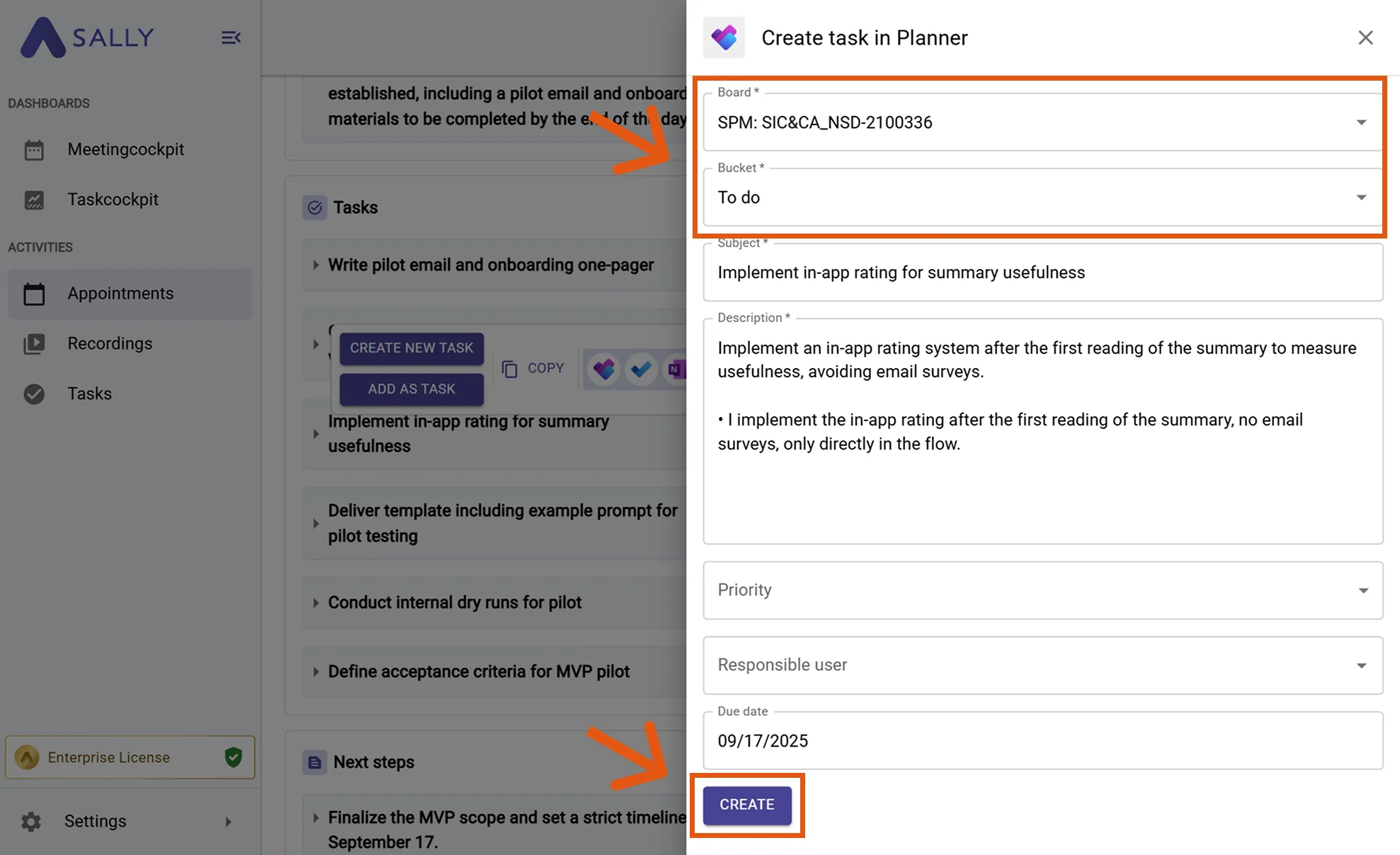
Fill out the form fields such as Board, Bucket, and Task name (required fields are marked with
*).Figure 6: Fill out Planner task fields and click Create -
Click Create to send the task to Microsoft Planner.
2.2. Add a comment to an existing Planner task
-
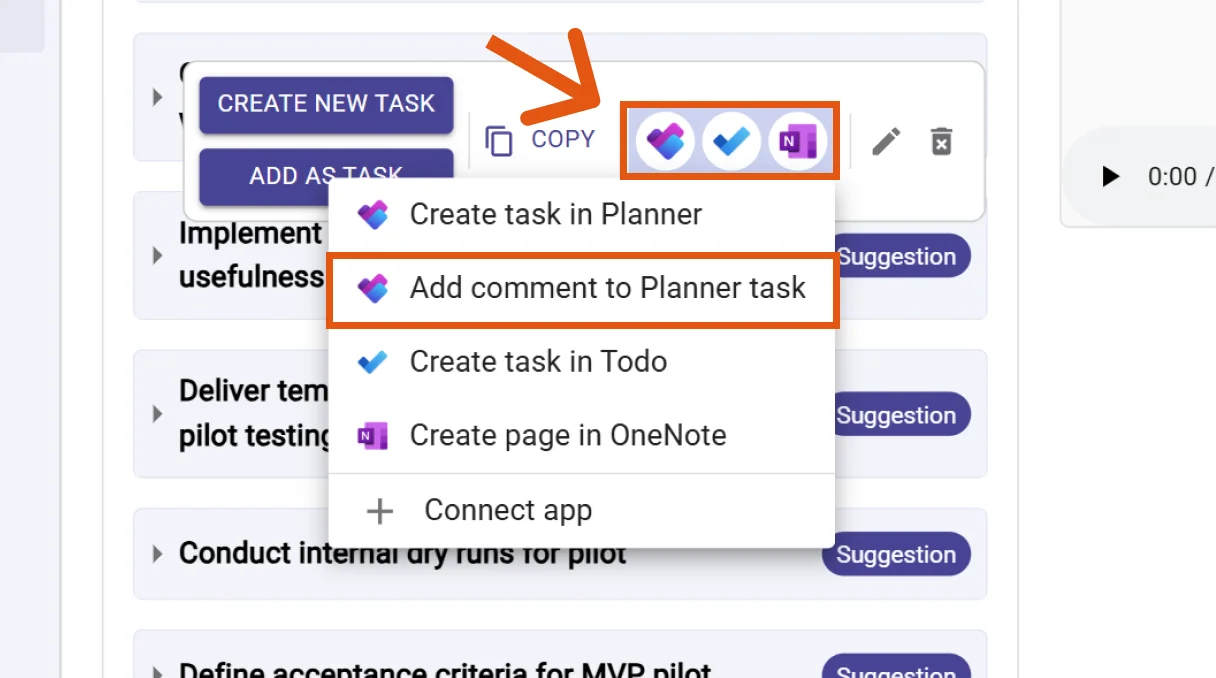
Hover over a Sally insight and click the Planner icon → Add comment to Planner task.
Figure 7: Add comment to existing Planner task -
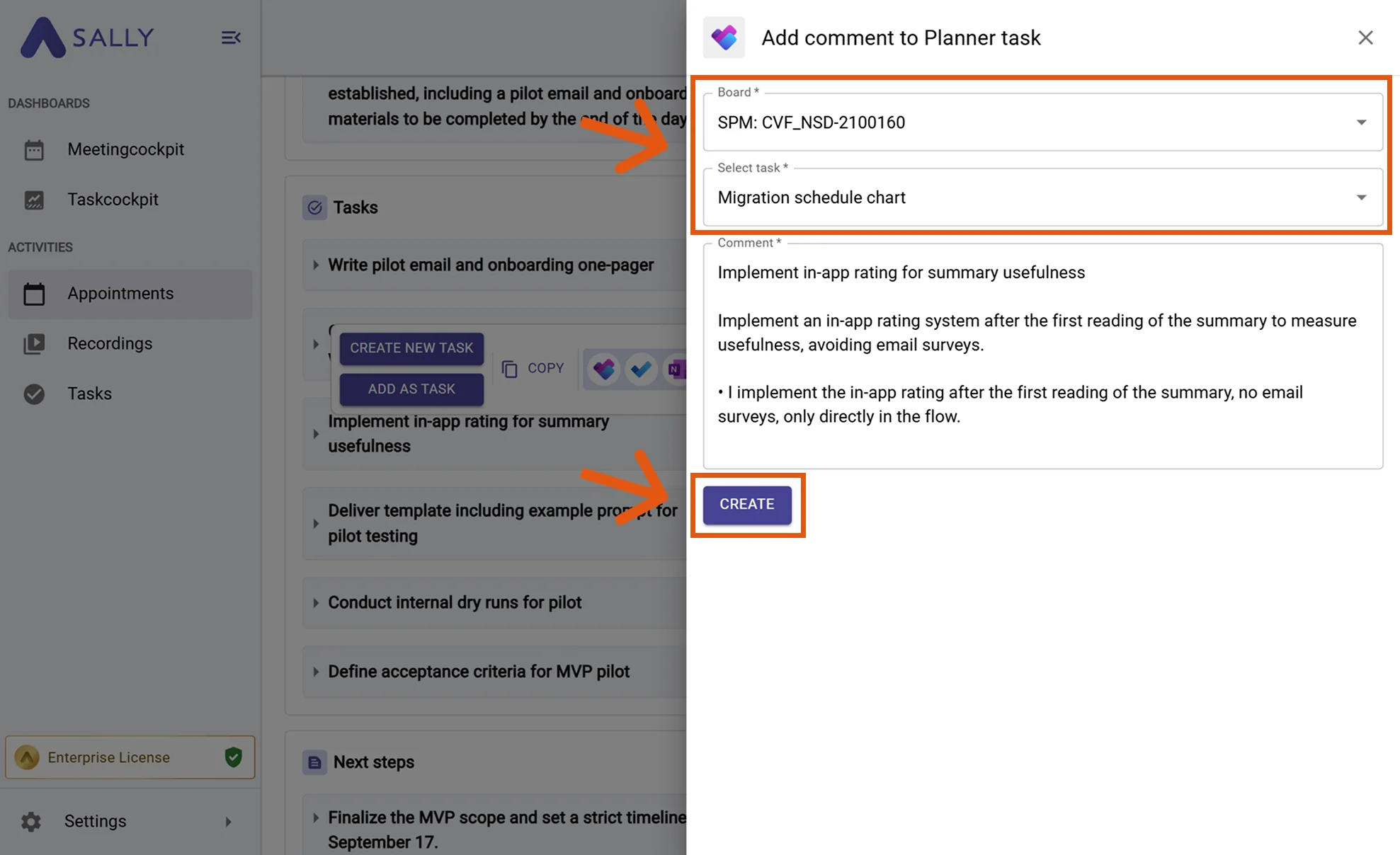
Select the corresponding Board and Task, then edit or confirm the comment text.
Figure 8: Fill in comment details and click Create
2.3. Create a task in Microsoft To Do
-
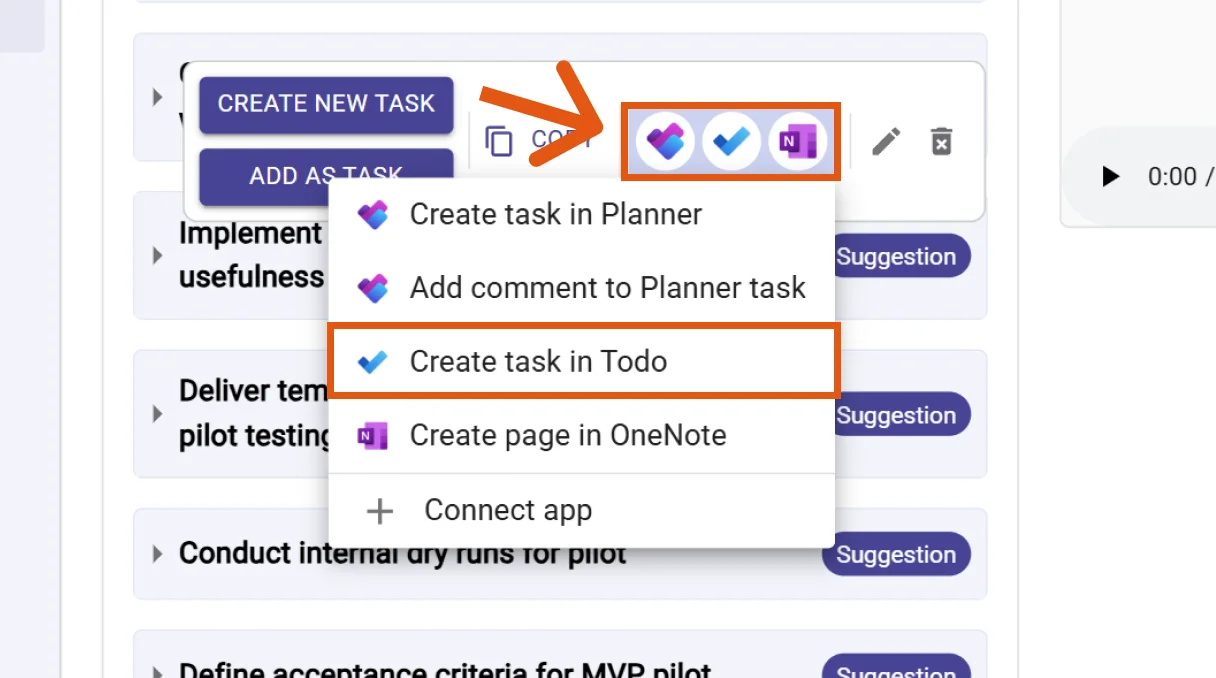
Hover over a Sally task or next step, click the To Do icon, and choose Create task in To Do.
Figure 9: Choose Create task in Microsoft To Do -
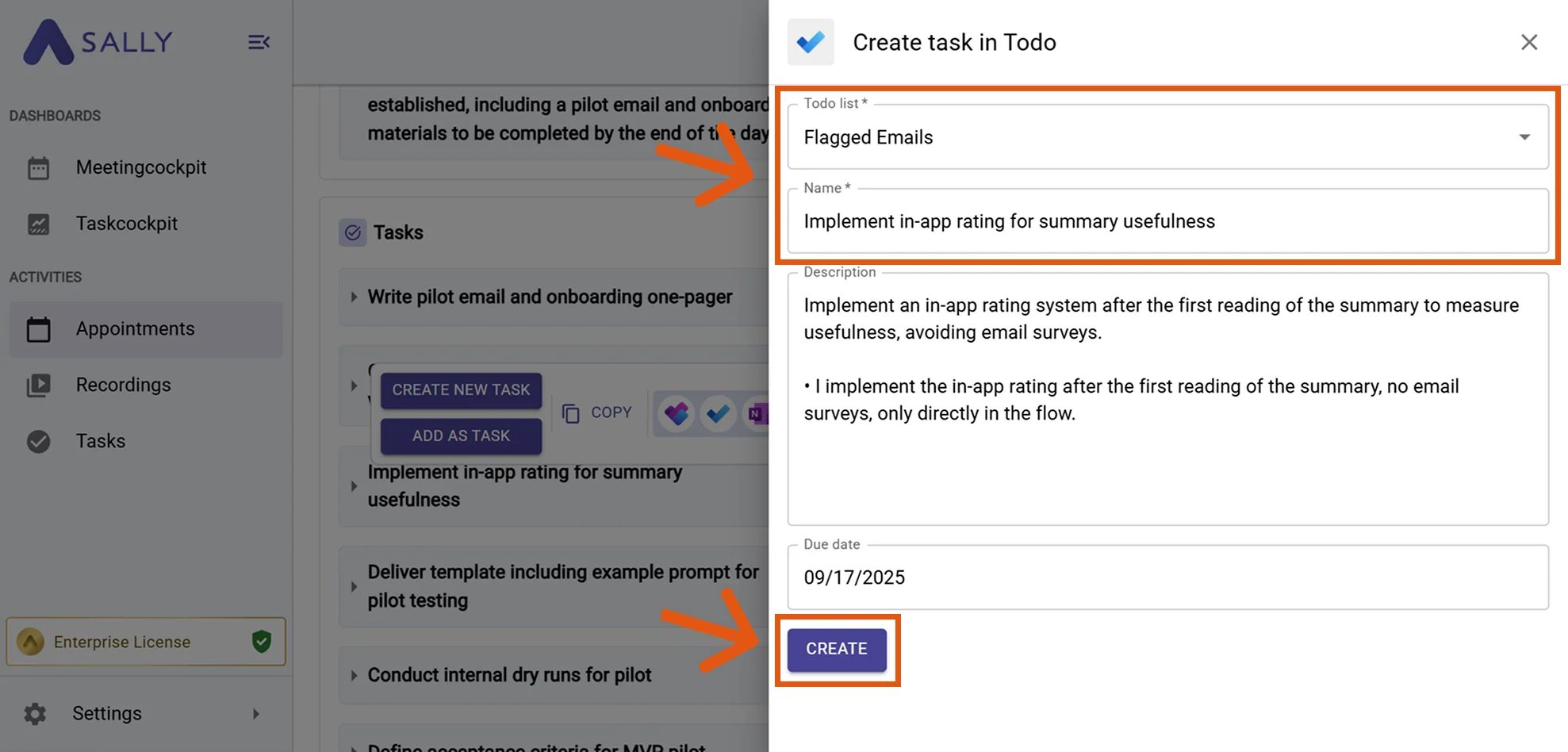
Fill out the task name, list, description, and due date.
Figure 10: Fill out To Do fields and click Create -
Click Create to add it to your Microsoft To Do list.
2.4. Create a page in OneNote
You can also send meeting summaries or notes to Microsoft OneNote for easy archiving.
-
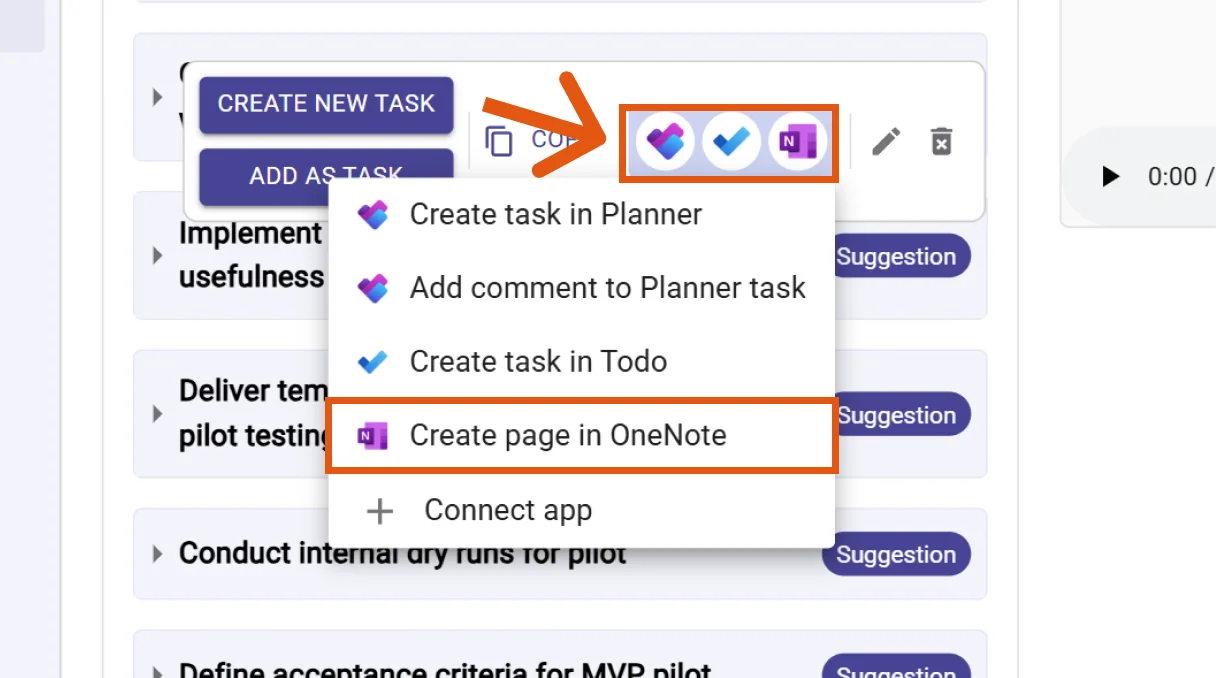
Hover over the summary section and click the OneNote icon → Create page in OneNote.
Figure 11: Choose Create page in OneNote -
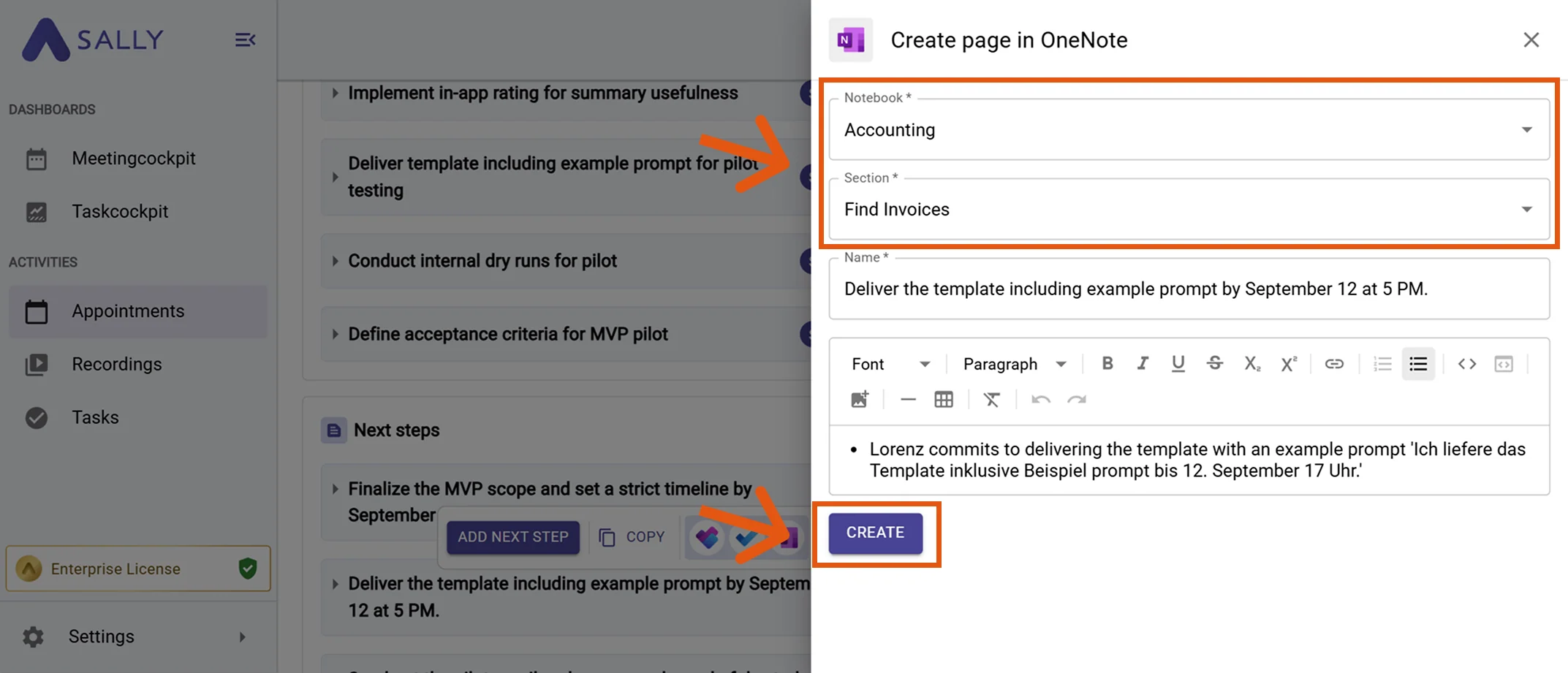
Choose the desired Notebook and Section, then confirm the content to be added.
-
Click Create to save the notes in your OneNote workspace.
Figure 12: Fill out To Do fields and click Create
Use OneNote for structured meeting documentation and reference material, while Planner and To Do handle actionable items.
3. What OAuth scopes does the Microsoft Apps integration require?
For the integration with Microsoft Apps (Planner, ToDo, OneNote), Sally uses OAuth 2.0 for authorization. The following scopes define which areas Sally can access on behalf of the authenticated user.
-
Sally accesses this information solely to technically establish and maintain the connection to the user account.
-
Sally does not make any autonomous changes. Actions are performed exclusively upon the explicit initiative of the user.
-
API endpoints are only called within the scope of an active action initiated by the user within the platform.
Technical Overview of Required Scopes
| Scope | Type | What Microsoft technically allows with this scope | How Sally uses this scope |
|---|---|---|---|
Calendars.ReadWrite.Shared | Delegated | API permission for shared calendars | Part of Microsoft's permission model. Sally does not independently create or modify calendar events. |
Contacts.ReadWrite.Shared | Delegated | API permission for shared contacts | Technically required within the OAuth model. Sally does not modify contact data. |
email | Delegated | Access to the user's email address | Sally reads the email address to uniquely identify the connected account. |
Files.ReadWrite.All | Delegated | API permission for Microsoft 365 files | Part of the integration permission model. Sally does not independently create, modify, or delete files. |
Group.ReadWrite.All | Delegated | API permission for Microsoft 365 groups | Technically defined by Microsoft. Sally does not alter group structures. |
Mail.ReadWrite.Shared | Delegated | API permission for shared mailboxes | Sally does not access mailbox content or modify emails independently. |
Mail.Send | Delegated | API permission to send emails | Part of the Microsoft OAuth model. Sally does not send emails independently outside explicitly user-initiated actions. |
Notes.Create | Delegated | API permission for note objects | Included in the Microsoft permission model. Sally does not independently create notes. |
Notes.ReadWrite | Delegated | API permission for note content | Sally does not modify existing notes without explicit user action. |
Notes.ReadWrite.All | Delegated | Extended API permission for notes | Part of the OAuth model. Sally does not independently access or alter note content. |
offline_access | Delegated | Issuance of long-lived access tokens | Enables a stable connection without repeated login. No Microsoft data is modified. |
openid | Delegated | OpenID Connect authentication | Secure authentication via Microsoft Identity. |
People.Read | Delegated | Read access to contact information | Sally reads basic information for display within the integration. No contact data is modified. |
ShortNotes.ReadWrite | Delegated | API permission for quick notes | Technically defined within Microsoft's model. Sally does not independently modify quick notes. |
Sites.Manage.All | Delegated | API permission for SharePoint sites | Part of the permission model. Sally does not modify SharePoint site structures. |
Sites.ReadWrite.All | Delegated | API permission for SharePoint content | Sally does not independently create or modify SharePoint content. |
Tasks.ReadWrite | Delegated | API permission for task objects | Technically defined within the OAuth model. Sally does not modify tasks without explicit user action. |
Tasks.ReadWrite.Shared | Delegated | API permission for shared tasks | Sally does not independently interfere with team tasks. |
User.Read | Delegated | Read basic user information | Sally reads basic account information for authentication purposes. |
User.ReadBasic.All | Delegated | Read basic information of other users | Sally reads this information solely for display within the integration. |