How to connect Apple Calendar with Sally AI
Once your Apple Calendar is connected, Sally can read your meetings (with the right permissions) and join them without a separate invitation. All your scheduled events then show up right in Sally.
The setup takes you through your Apple account once, because Apple requires a separate password for third-party apps. This guide covers both sides, the connection in Sally and creating the password at Apple.
Apple Calendar requires an app specific password instead of your regular Apple ID password. This is a security requirement by Apple for third-party integrations.
How to connect Apple Calendar
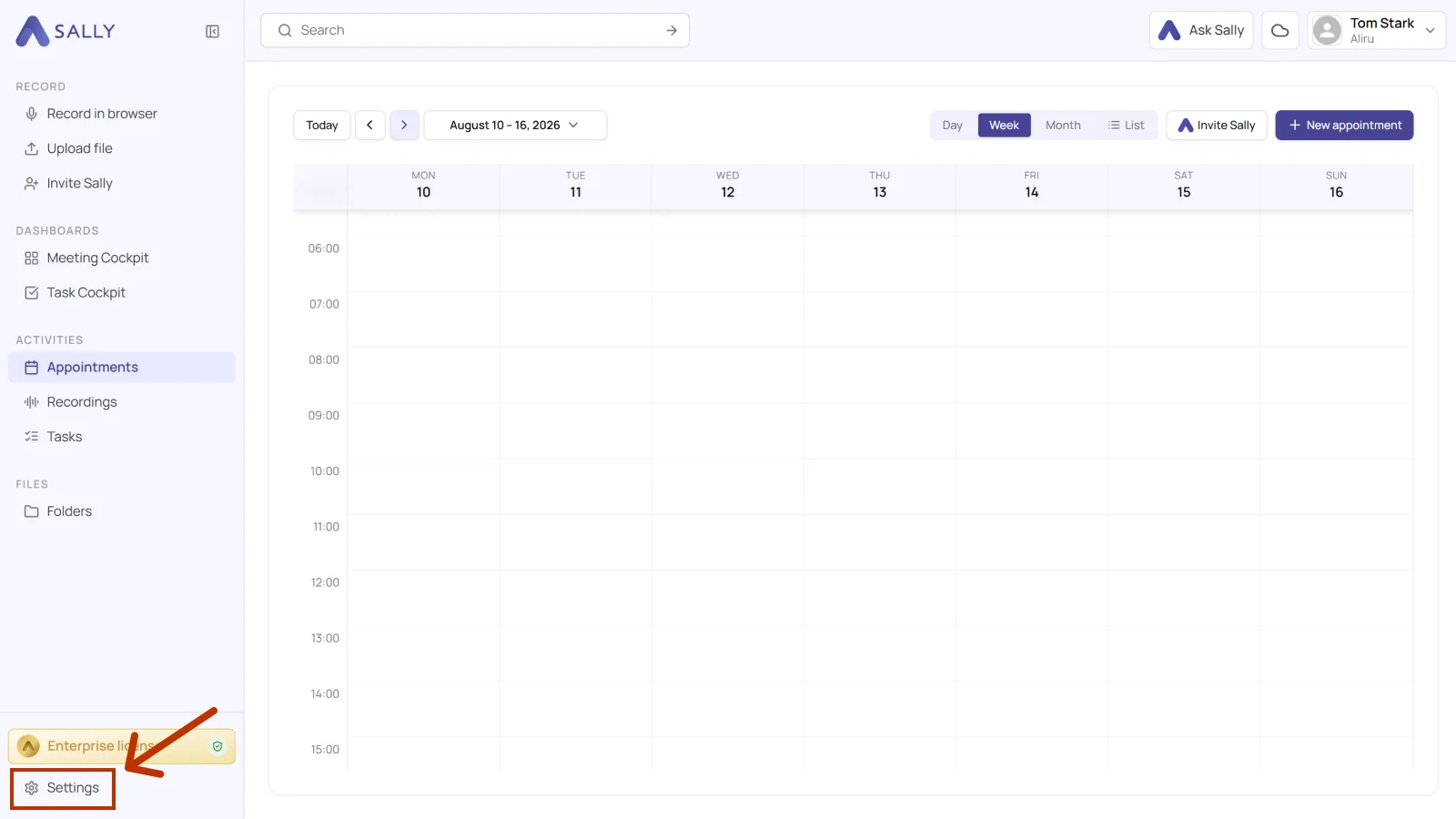
- Open Settings at the bottom of the left sidebar.
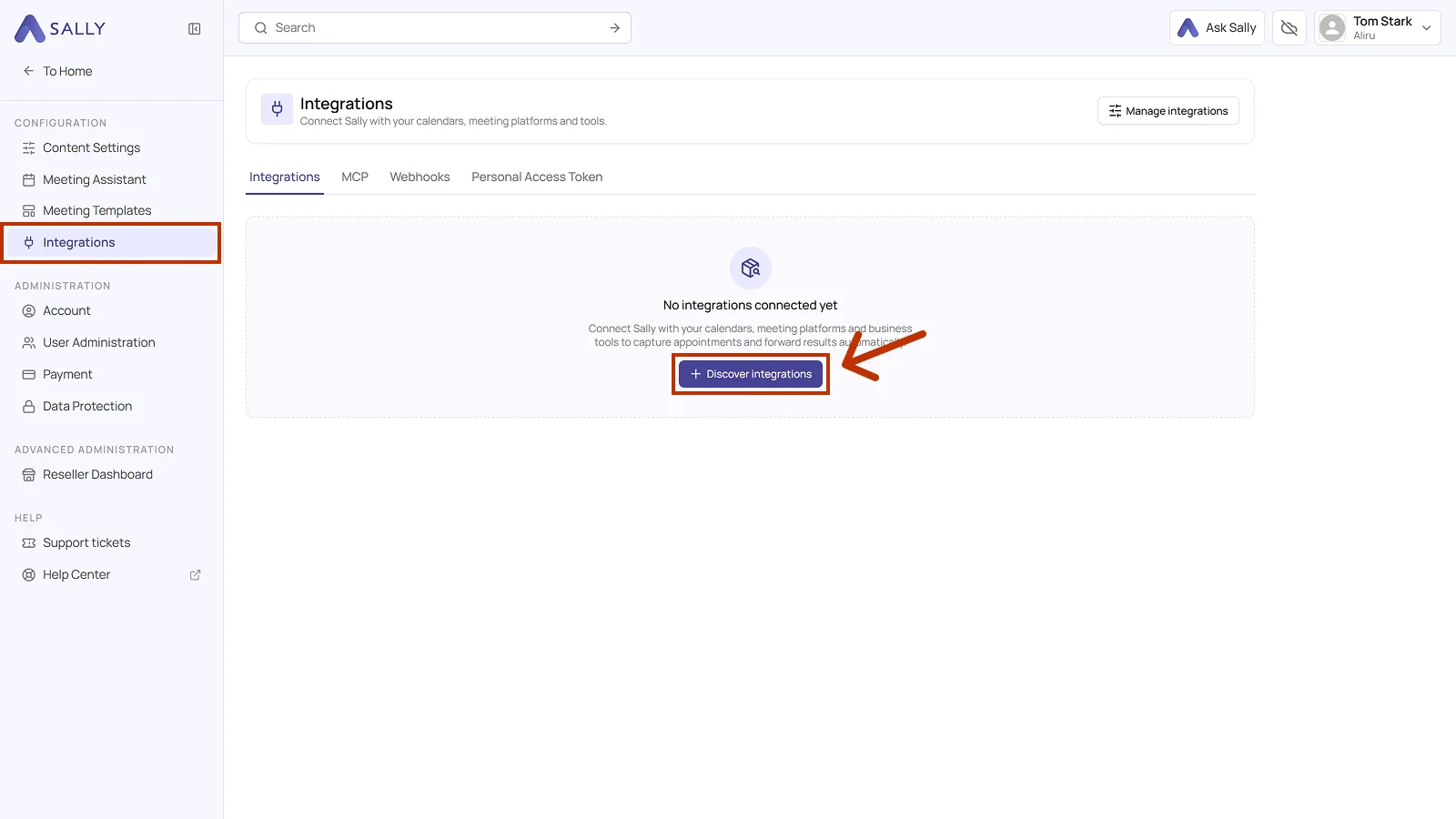
- Under Configuration, select Integrations and click Discover integrations.
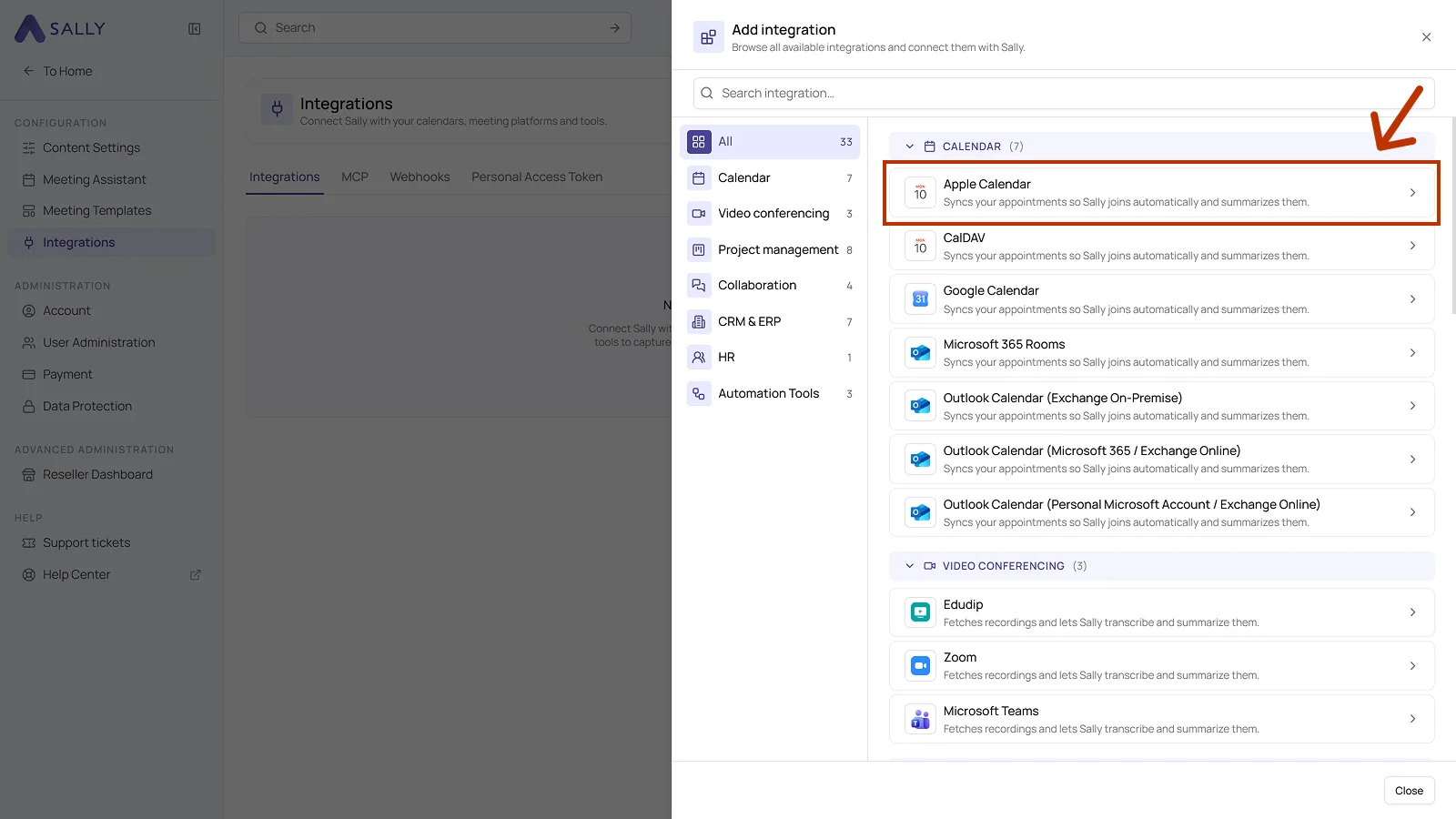
- Pick Apple Calendar from the Calendar section of the list. You can also find an integration directly through the search field at the top.
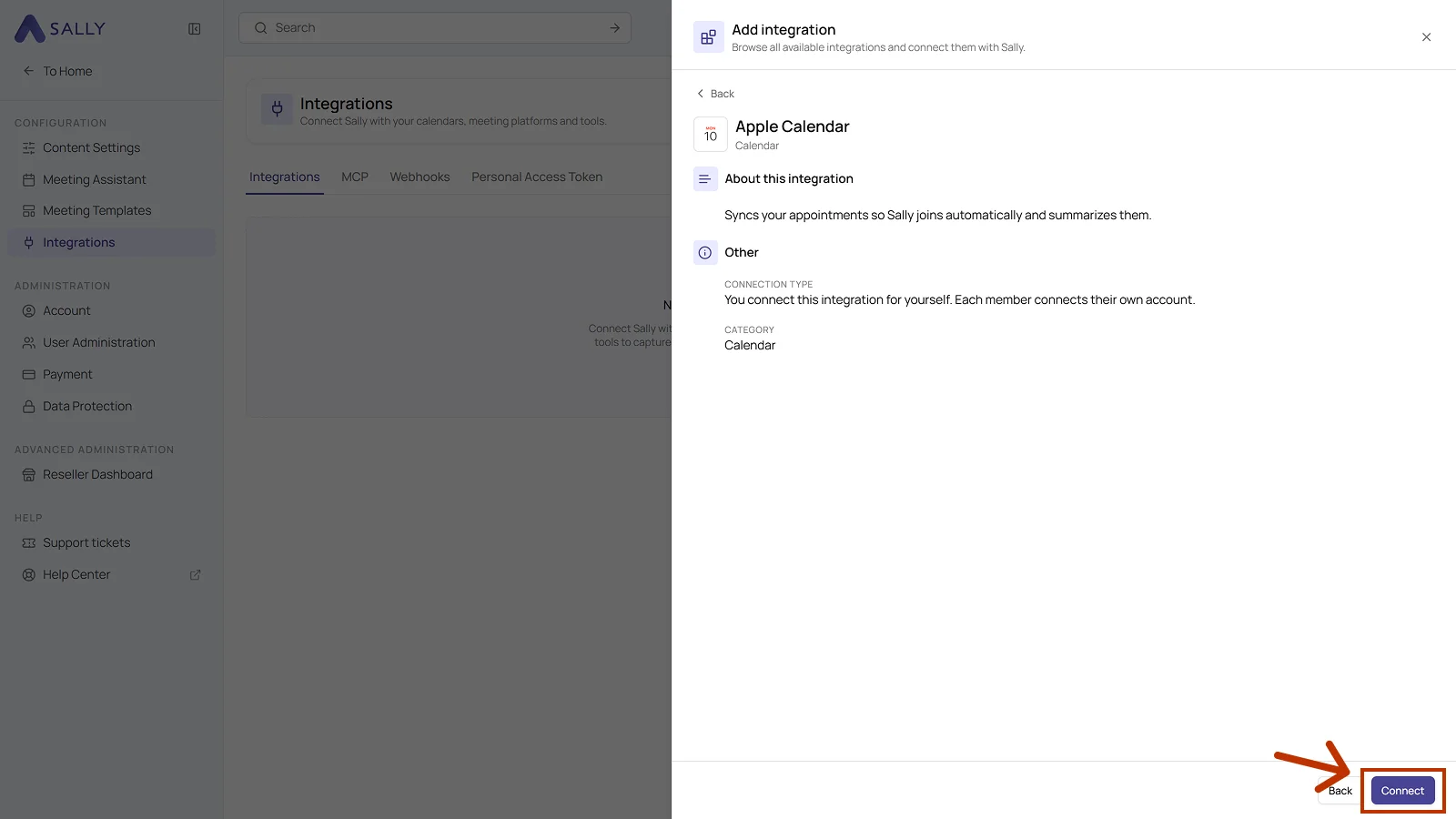
- The panel describes the integration and notes that every member connects their own account. Click Connect in the bottom right corner.
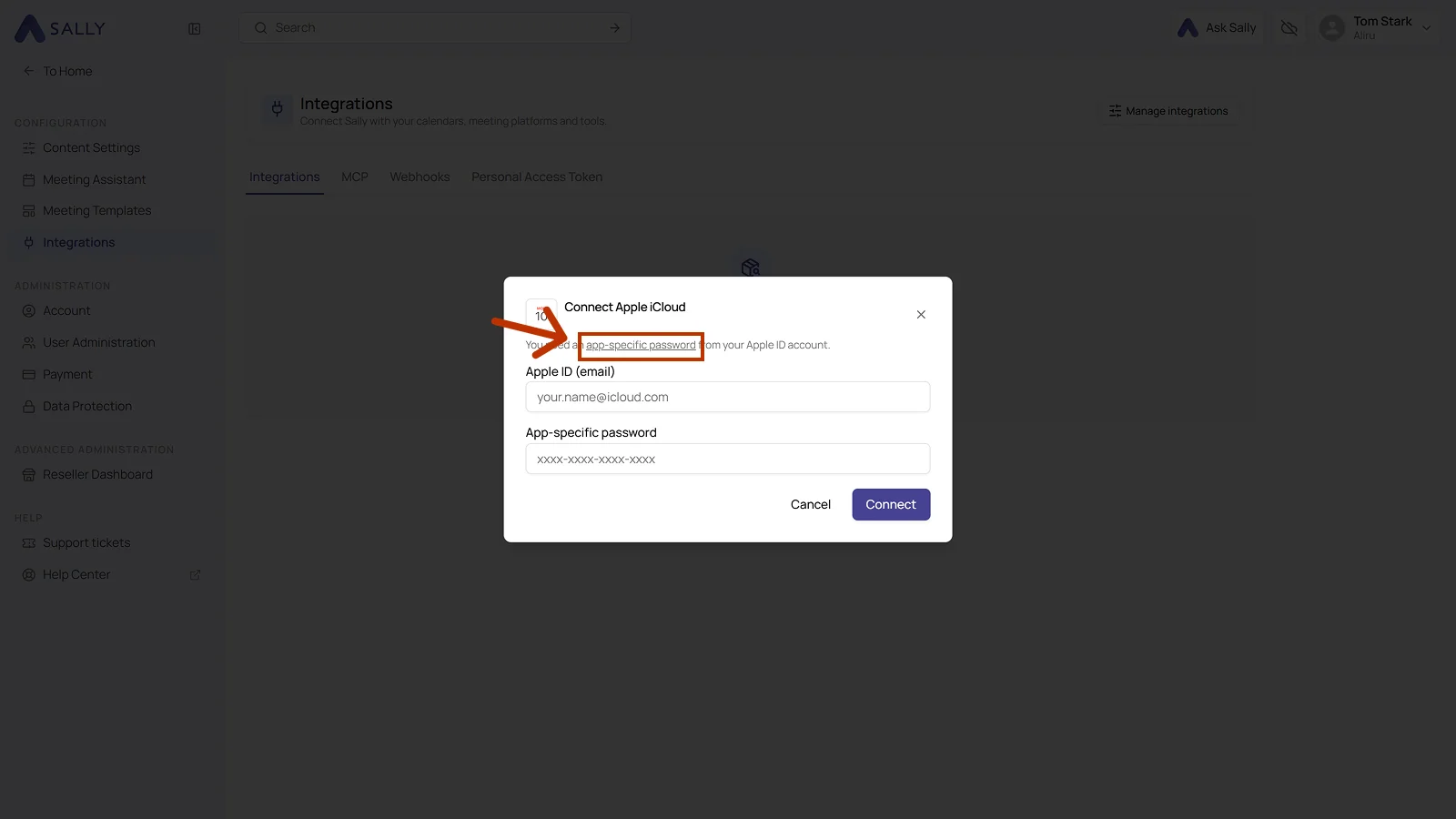
- The Connect Apple iCloud dialog asks for your Apple ID and an app-specific password. The app-specific password link inside the dialog takes you straight to your Apple account.
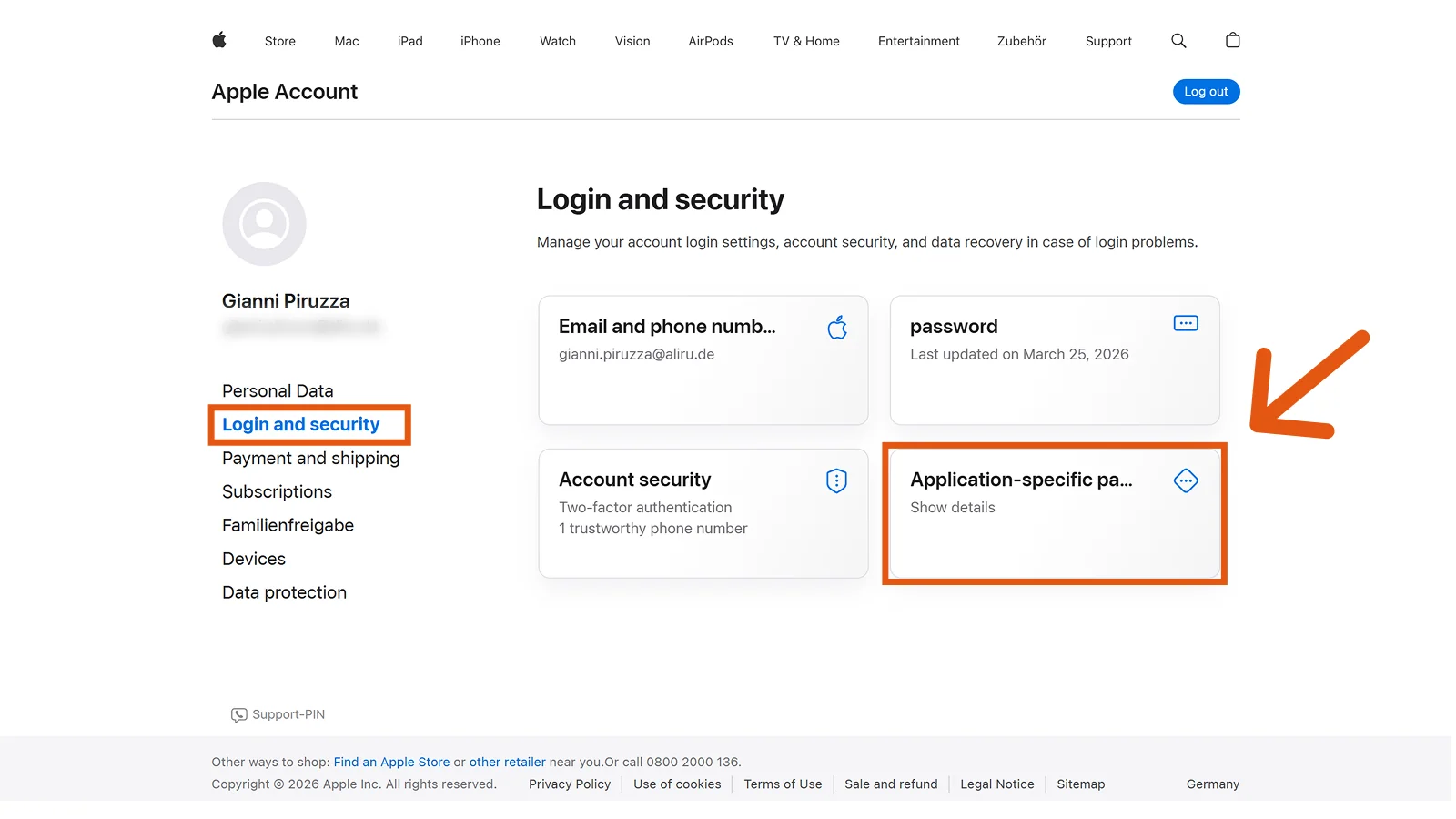
- Sign in at appleid.apple.com, open Login and security, and there the Application-specific passwords card.
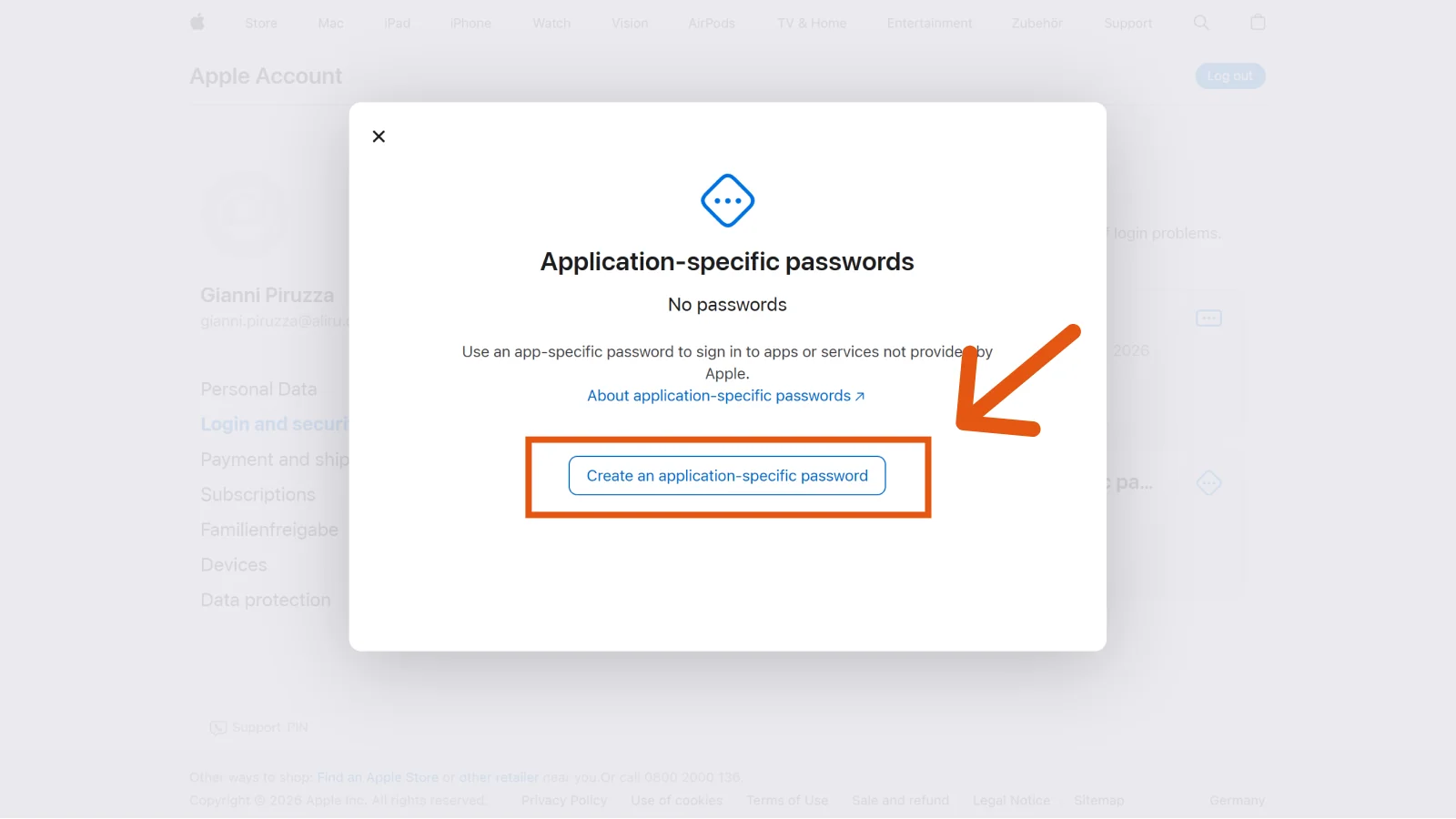
- Click Create an application-specific password, give it a name, for example "Sally", confirm, and copy the generated password.
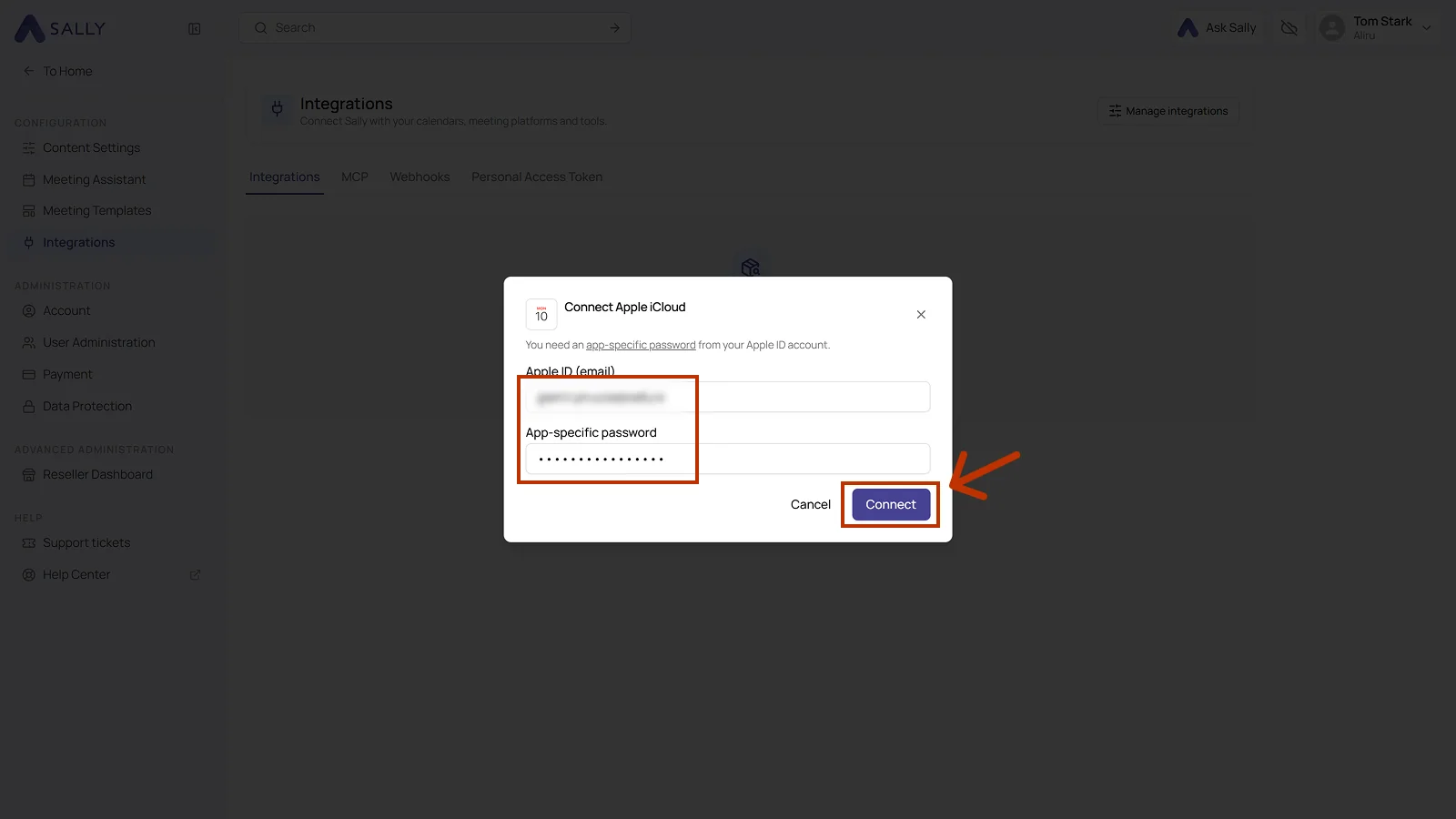
- Enter your Apple ID and the copied password in the Sally dialog and click Connect.
- Your Apple Calendar events will now appear in Sally.
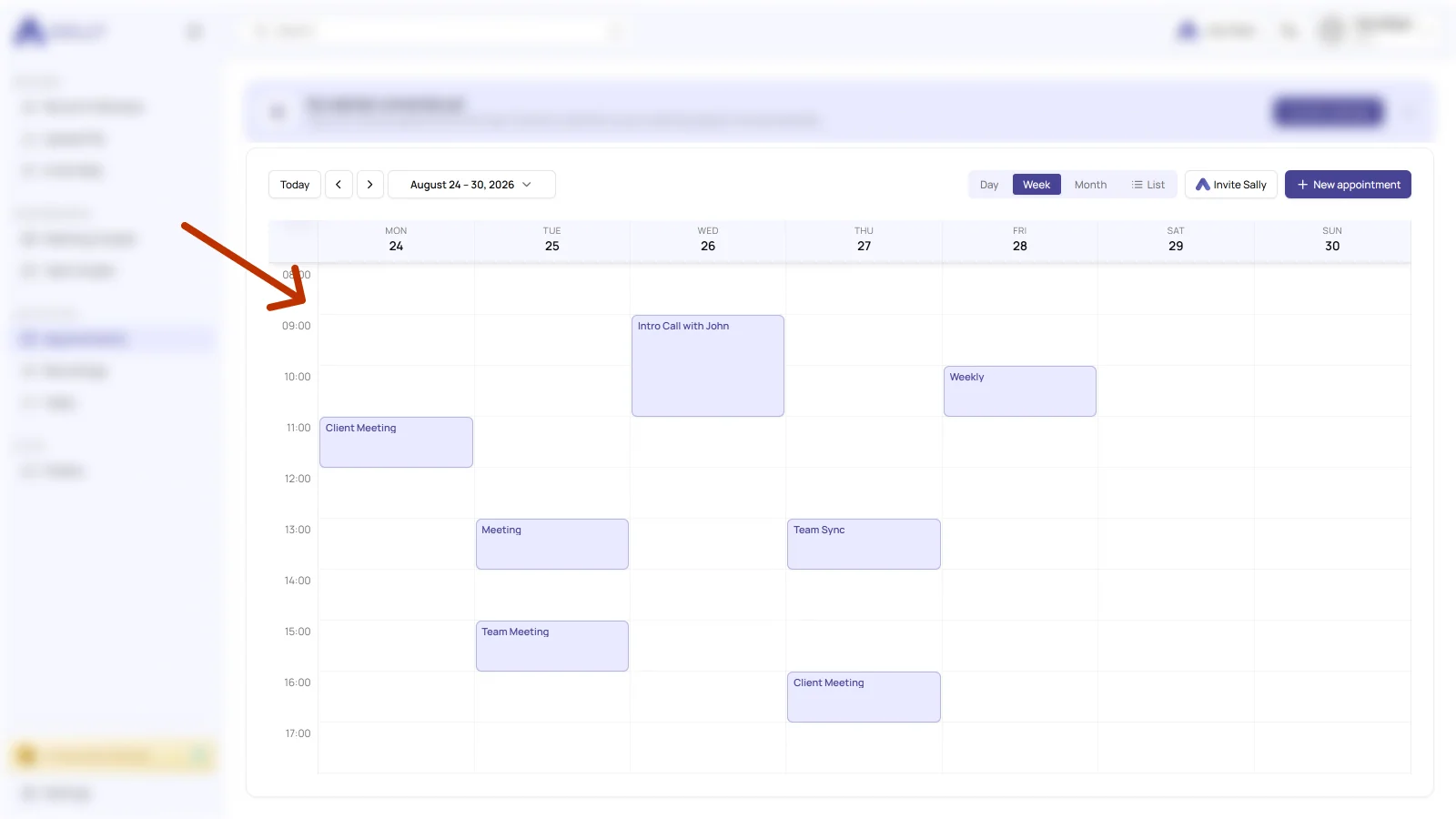
Synchronization may take a few moments. Restart Sally if necessary.
Once the connection is in place, you can set whether and when Sally should automatically join your meetings.
Whether a calendar may be connected at all is up to owners and admins, see managing calendars for your users.