How to connect Outlook Calendar with Sally AI
Once your Outlook Calendar is connected, Sally can read your meetings and, with automated meeting attendance, join them without a separate invitation.
After a successful integration, all your scheduled meetings show up directly in Sally.
The integration list holds four entries for this:
- Outlook Calendar (Microsoft 365 / Exchange Online) for work, school and university accounts managed through Microsoft 365.
- Outlook Calendar (Personal Microsoft Account / Exchange Online) for private Microsoft accounts such as Outlook.com, Hotmail, or Live.
- Outlook Calendar (Exchange On-Premise) for organizations running their own Exchange server, connected over EWS with your server details.
- Microsoft 365 Rooms for the room calendars in your Microsoft 365 tenant. You sign in with the Microsoft account that holds the rooms.
Quick navigation
- Outlook Calendar (Microsoft 365 / Exchange Online)
- Outlook Calendar (Personal Microsoft Account / Exchange Online)
- Outlook Calendar (Exchange On-Premise)
- Microsoft 365 Rooms
1. Connect Outlook Calendar (Microsoft 365 / Exchange Online)
Here you sign in with a work, school, or university account (Microsoft 365 / Azure AD). This option is intended for organizational environments where Outlook is managed through Microsoft 365.
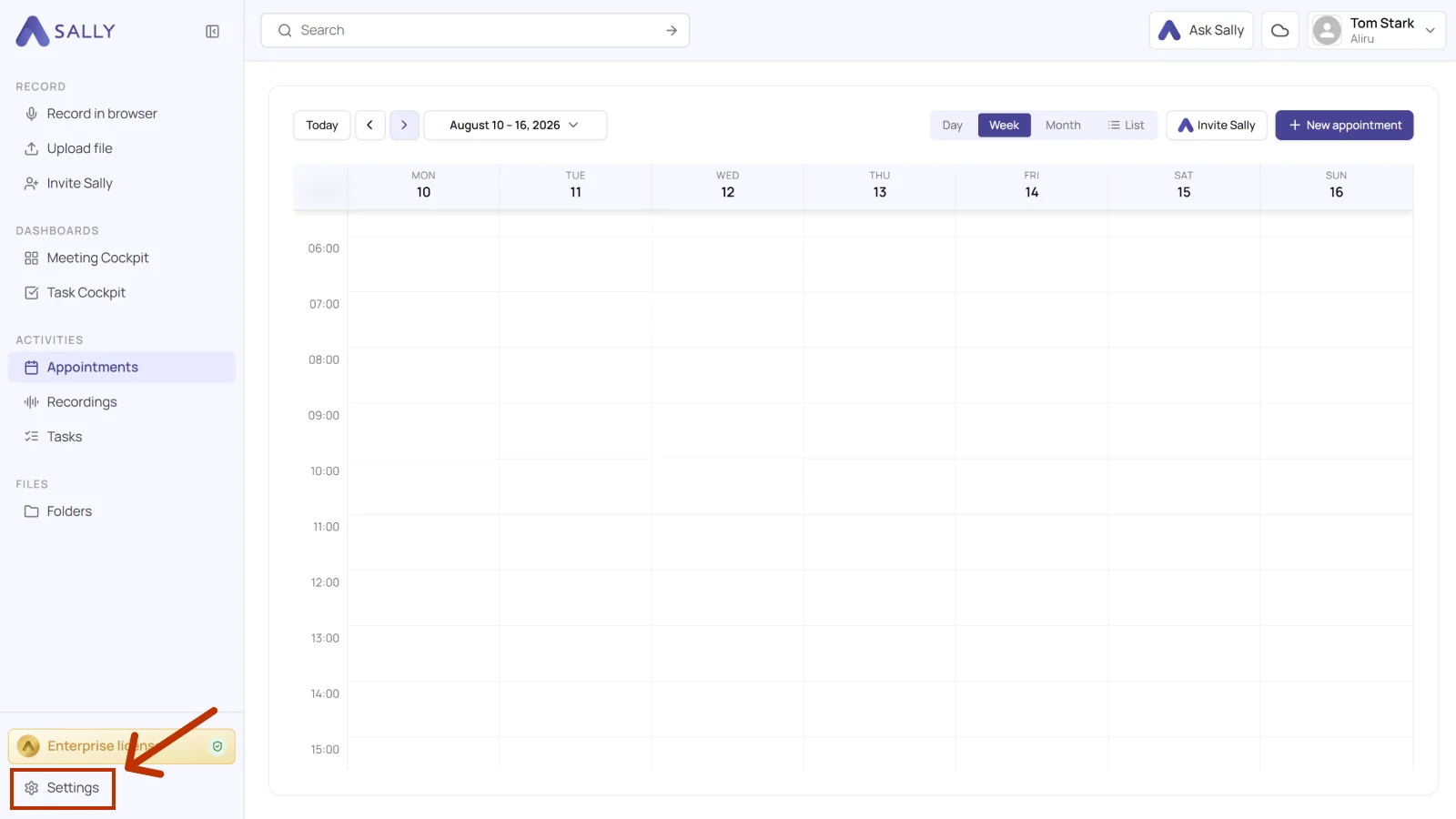
- Open Settings at the bottom of the left sidebar.
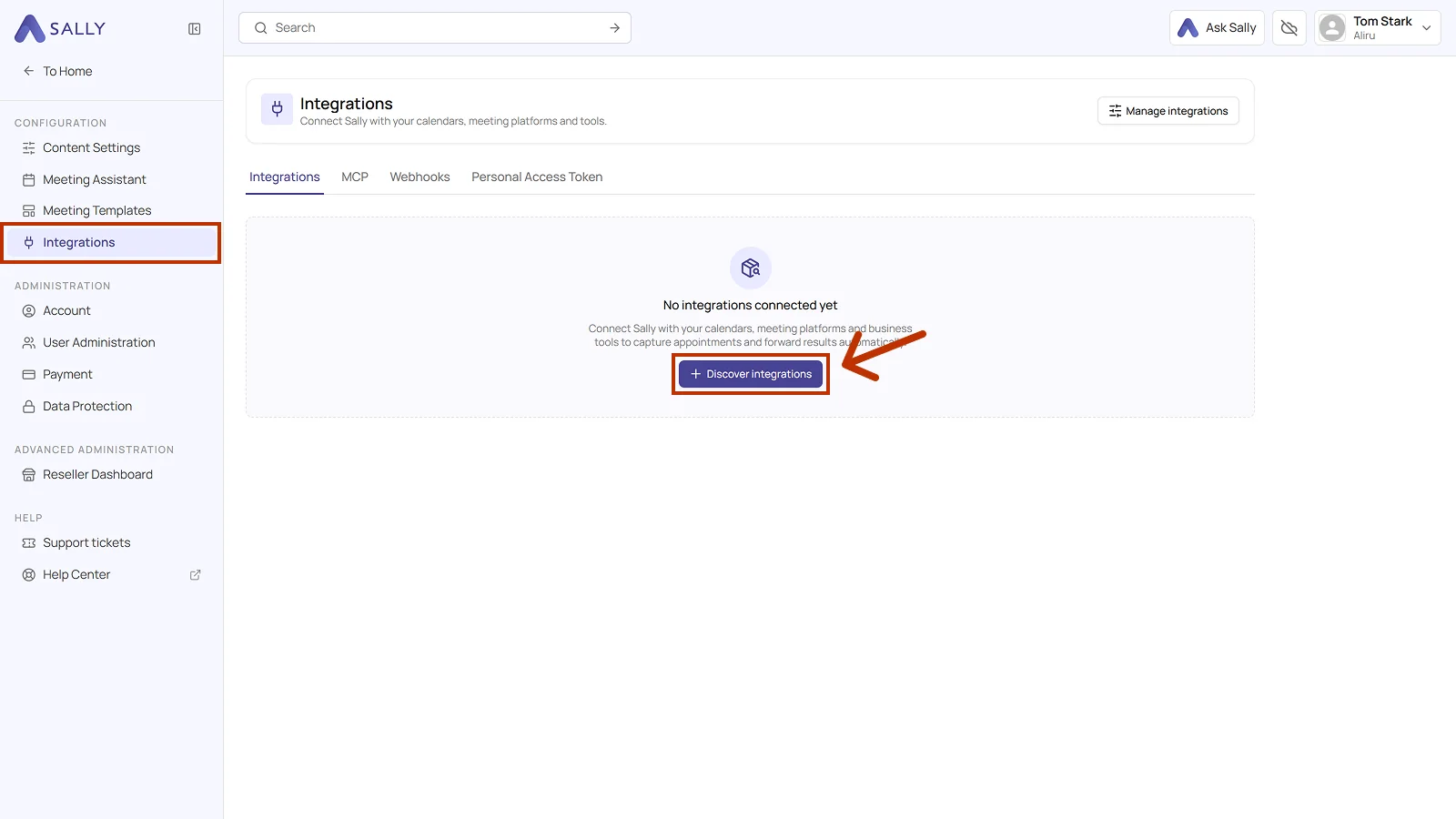
- Under Configuration, select Integrations and click Discover integrations.
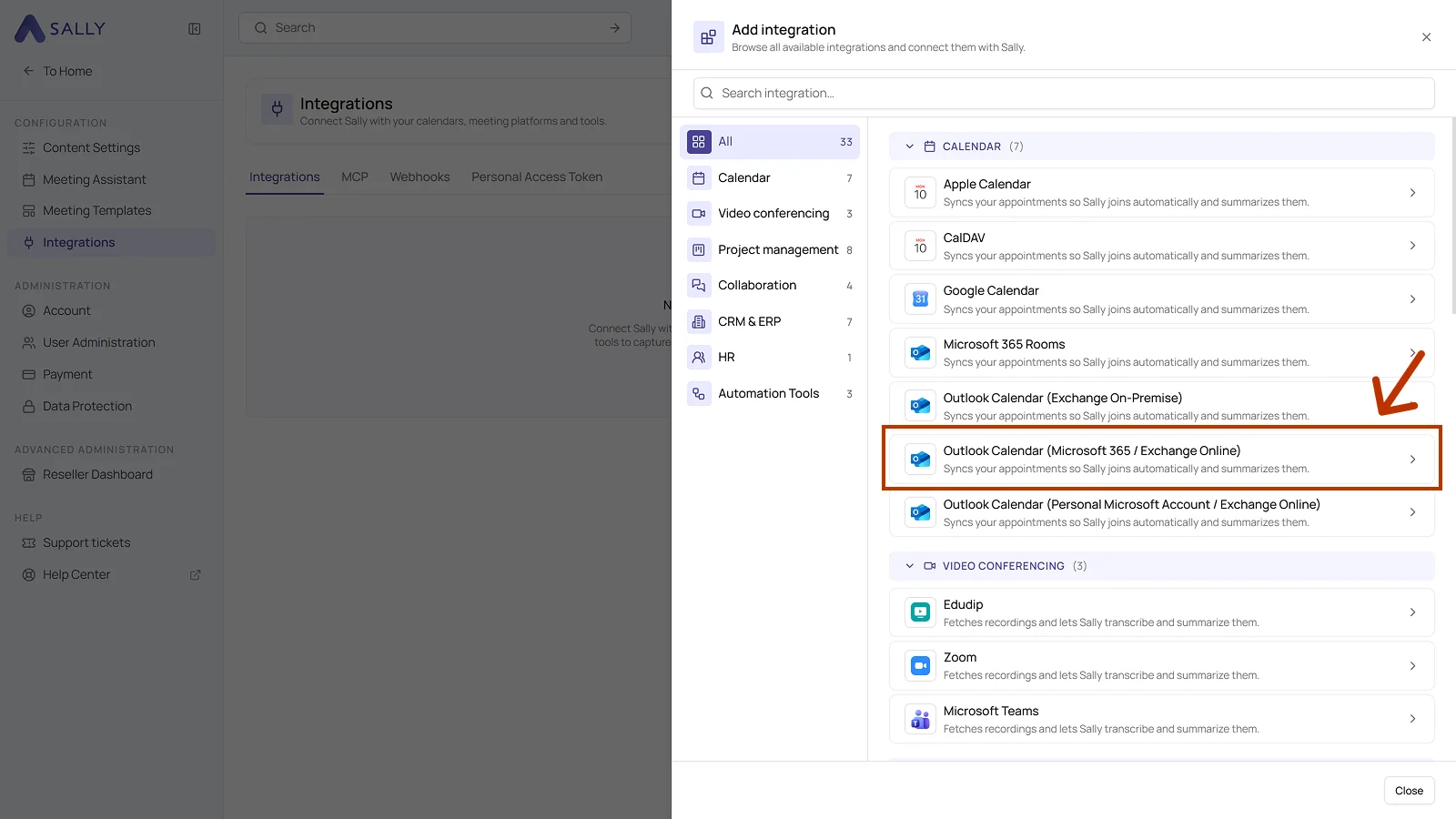
- Pick Outlook Calendar (Microsoft 365 / Exchange Online) from the Calendar section of the list.
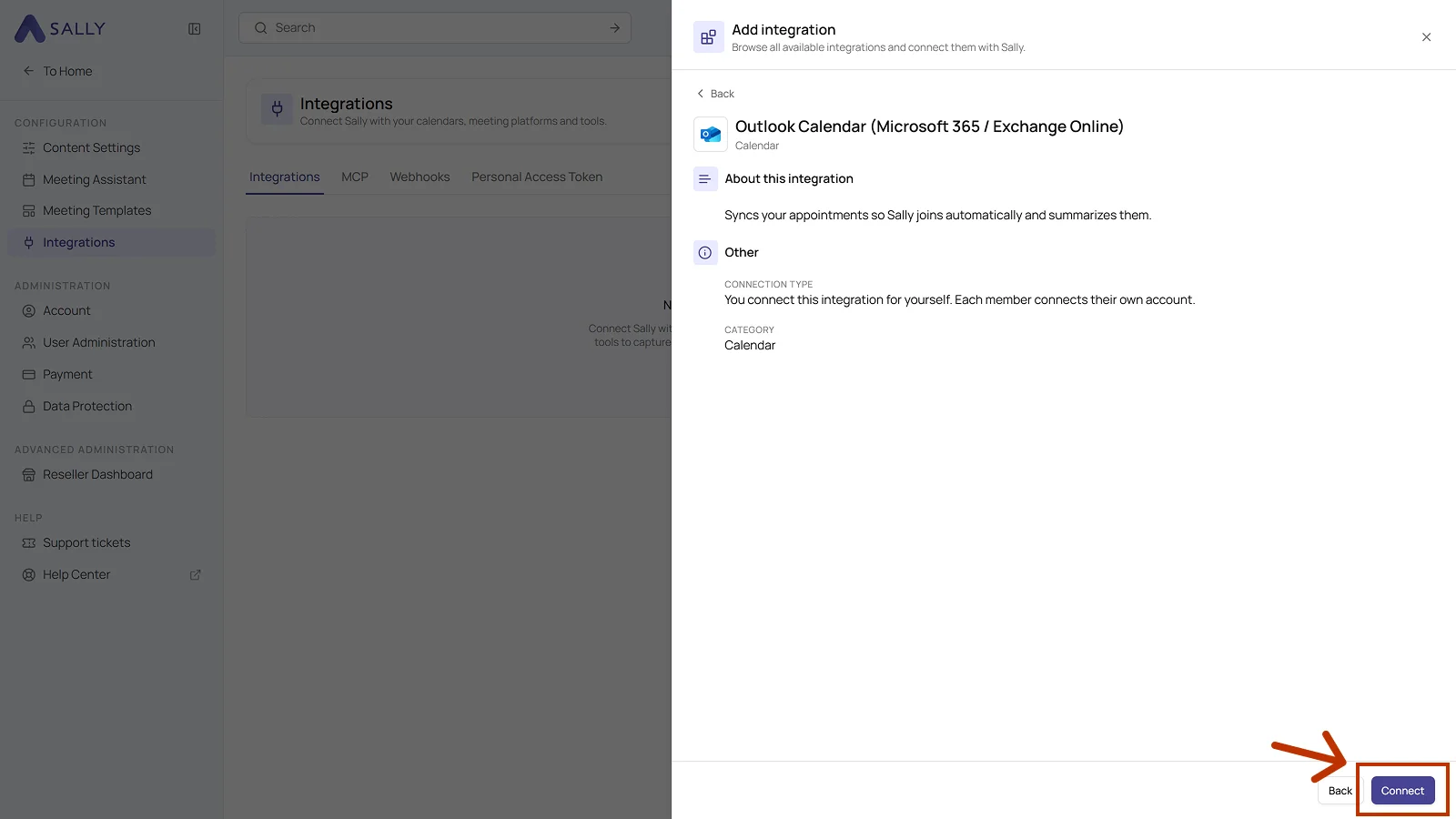
- The panel describes the integration and notes that every member connects their own account. Click Connect in the bottom right corner.
- Sign in with your work, school, or university account and grant the required permissions.
When connecting an Outlook calendar for the first time, an admin login is required to approve the Sally app for the tenant. After that, everyone else connects their calendar normally.
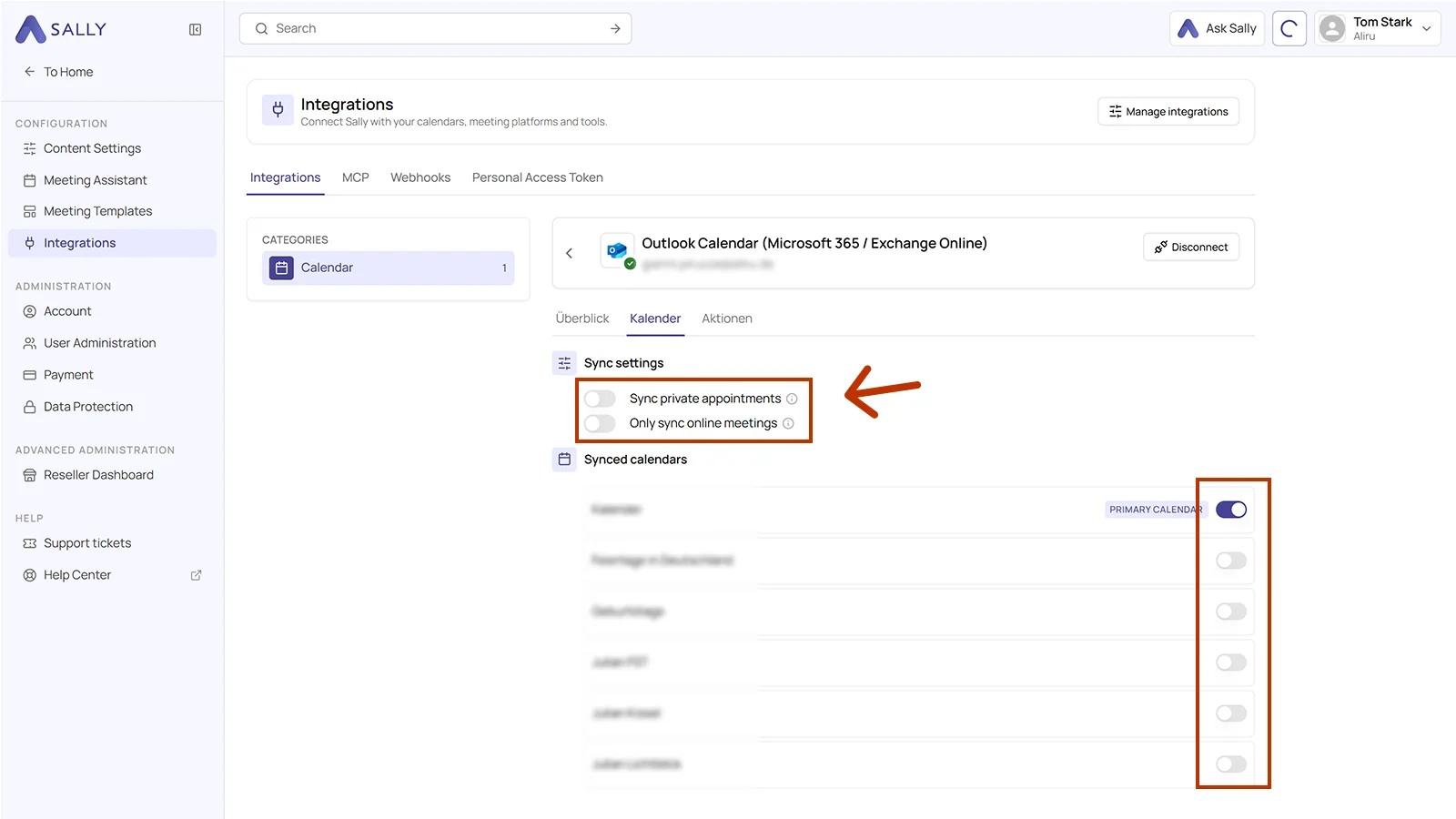
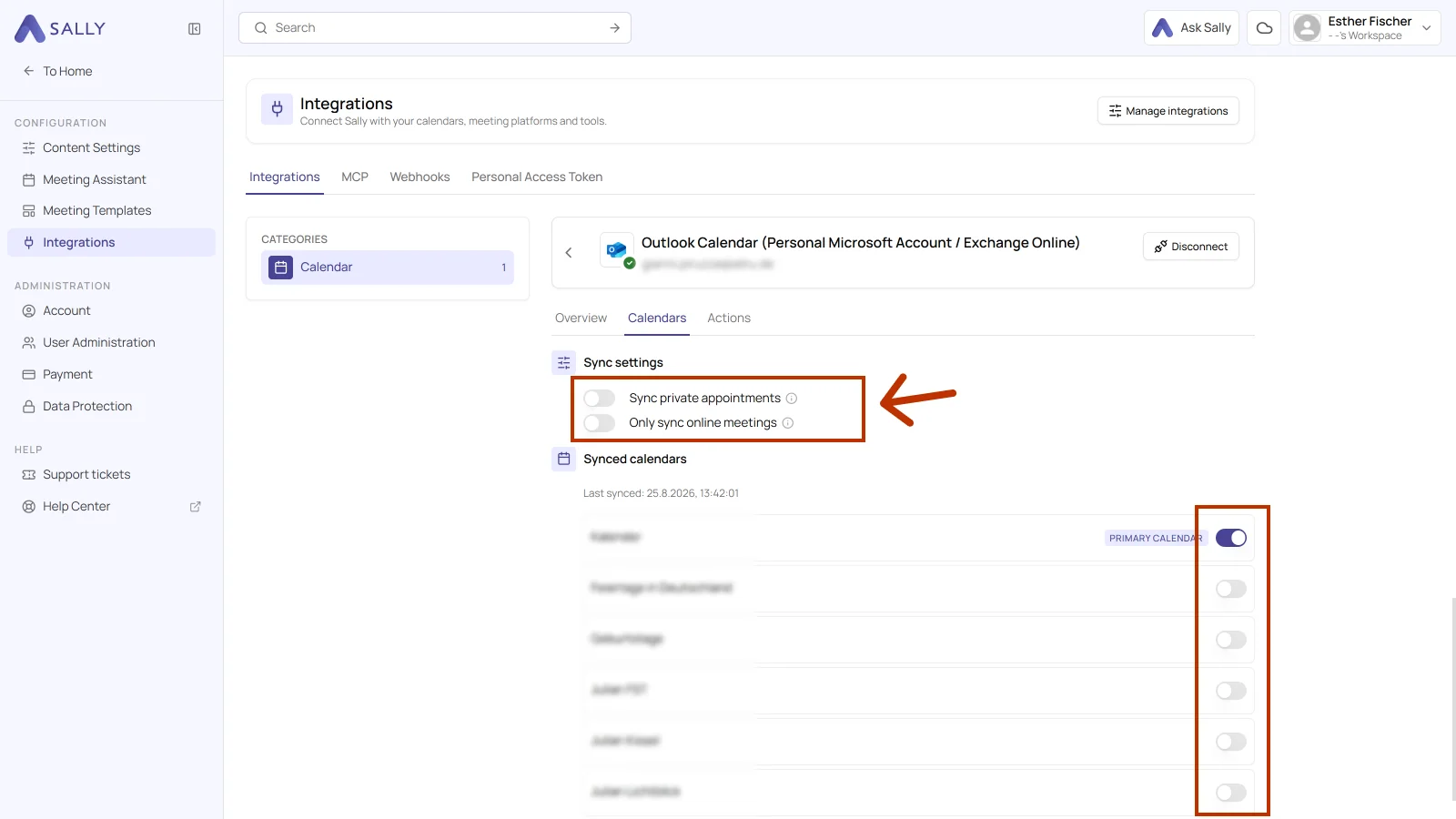
- (Optional) Open the Calendars tab of the connected integration. Under Sync settings you get two toggles:
- Sync private appointments: enable it if you want Sally to sync your private appointments as well.
- Only sync online meetings: enable it if you only want to sync appointments that carry an online meeting link, for example Microsoft Teams, Google Meet, or Zoom.
Below that, Synced calendars lists every calendar you have access to, and Last synced tells you when Sally last fetched the appointments. Your main calendar is marked as Primary calendar, and you can add further calendars one by one. Up to five calendars can be synchronized in parallel per connection. Use Disconnect in the top right corner to remove the integration again.
- Once connected, your Outlook appointments appear in Sally.
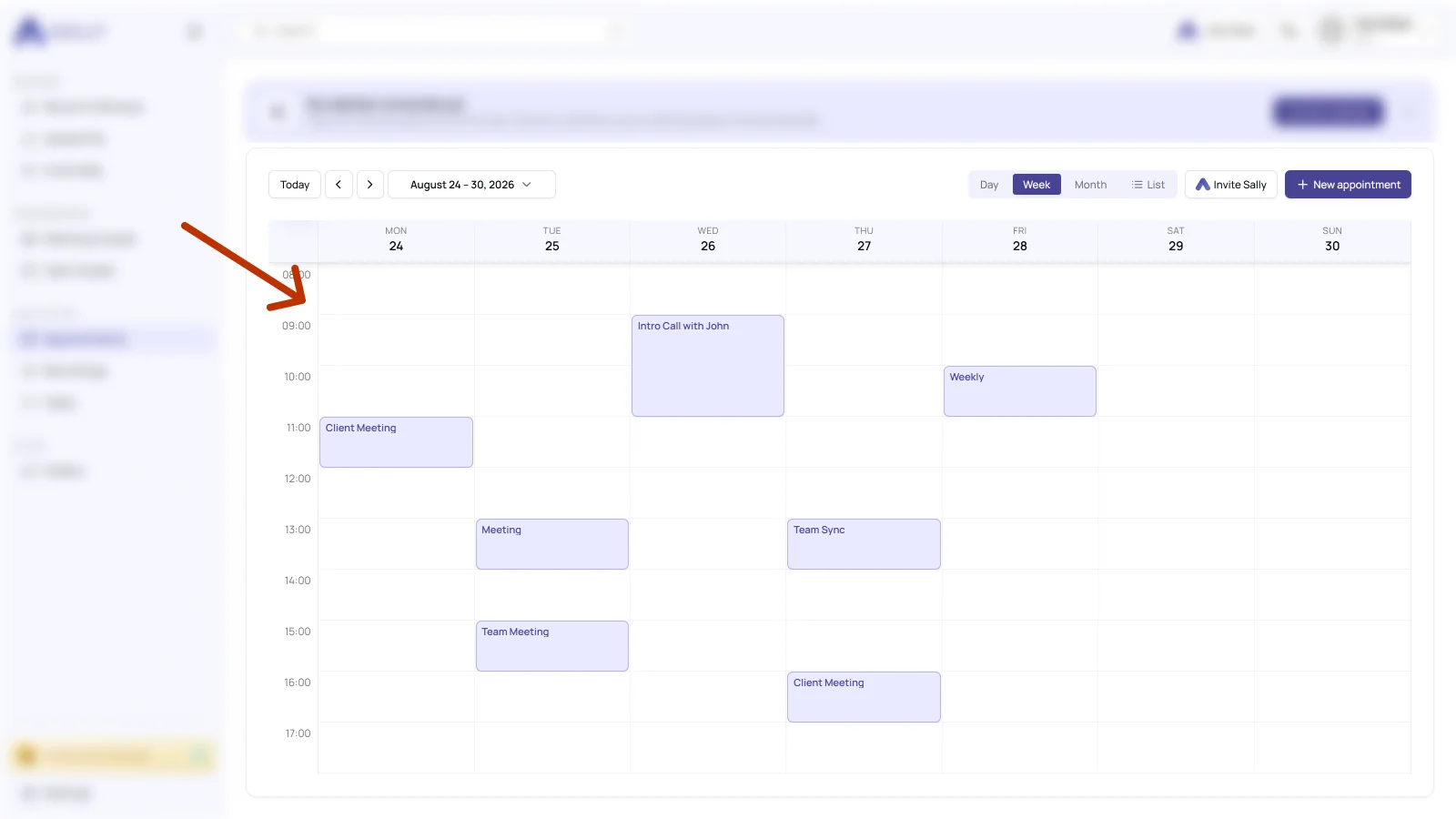
Synchronization may take a few minutes. If nothing shows up yet, reload Sally.
1.1 Technical OAuth permissions for work accounts (Microsoft 365 / Azure AD)
For the integration with Outlook Calendar (Microsoft 365 / Exchange Online), Sally uses OAuth 2.0 for authorization.
The following scopes define which areas Sally may access on behalf of the signed-in user.
-
Sally only reads this information to technically establish and maintain the connection to the user account.
-
Sally does not perform any independent changes. Actions are only executed based on explicit user interaction.
-
API endpoints are only called within the context of an active action triggered by the user within the platform.
Technical overview of the required scopes
| Scope | Type | What Microsoft technically allows | How Sally uses this scope |
|---|---|---|---|
offline_access | Delegated | Issues a long-lived access token | Sally stores an access token to maintain the connection. No calendar data is modified. |
openid | Delegated | OpenID Connect identity verification | Sally reads the unique user ID to correctly authenticate the account. |
profile | Delegated | Access to basic profile data | Sally reads basic profile information (e.g. display name) to identify the signed-in account. |
User.Read | Delegated | Read basic user information | Sally reads basic information of the signed-in user for authentication. No changes are made to the account. |
Calendars.ReadWrite.Shared | Delegated | API permission for calendar access | This scope is technically required for Microsoft to allow the calendar integration. Sally does not create, modify, or delete calendar events. |
Contacts.ReadWrite.Shared | Delegated | API permission for contact access | Part of Microsoft's permission model. Sally does not read contact lists or modify contact data. |
OnlineMeetings.ReadWrite | Delegated | API permission for online meeting resources | Technically required by Microsoft for calendar integration. Sally does not create or modify online meetings. |
Whether a calendar may be connected at all is up to owners and admins, see managing calendars for your users.
2. Connect Outlook Calendar (Personal Microsoft Account / Exchange Online)
Here you sign in with a personal Microsoft account (e.g. Outlook.com, Hotmail, Live). This option is intended for private Outlook accounts.
- Open Settings at the bottom of the left sidebar.
- Under Configuration, select Integrations and click Discover integrations.
- Pick Outlook Calendar (Personal Microsoft Account / Exchange Online) from the Calendar section of the list.
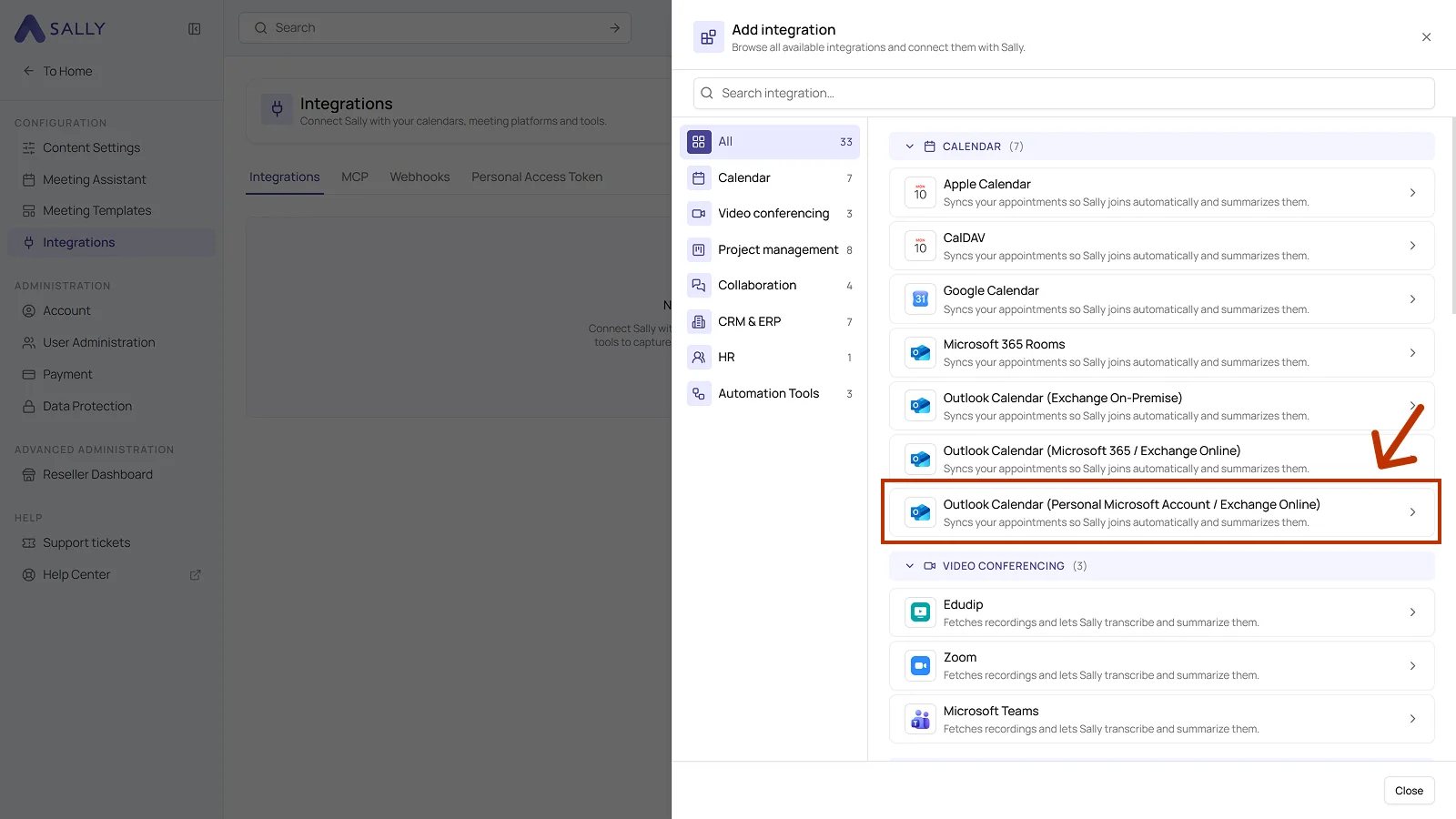
- The panel describes the integration and notes that every member connects their own account. Click Connect in the bottom right corner.
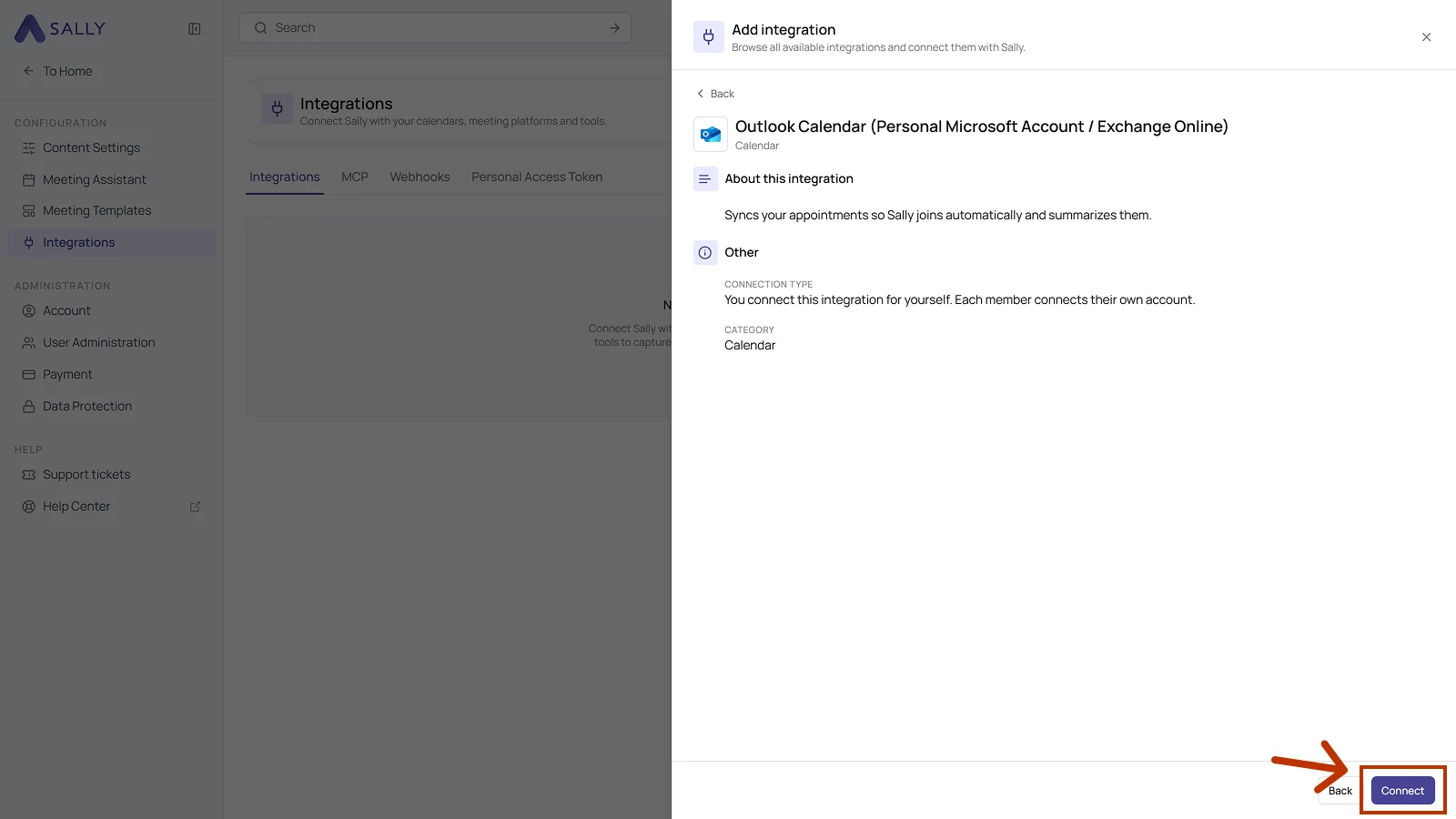
-
Sign in with your personal Microsoft account and grant the required permissions.
-
(Optional) In the Calendars tab of the connected integration, set whether private appointments and online meetings only are synced, and pick the calendars Sally should include, just as described above.
- Once connected, your Outlook appointments appear in Sally.
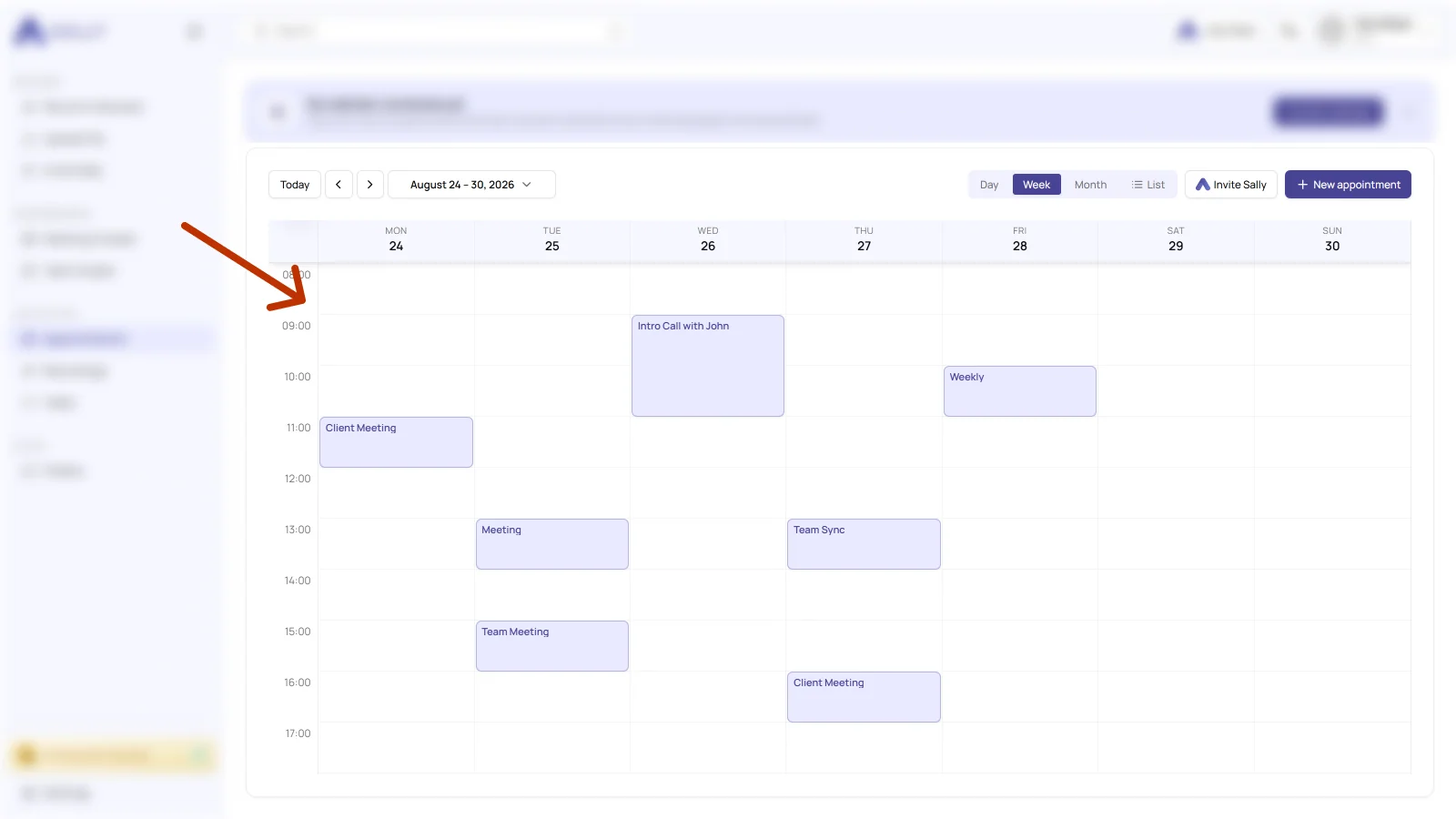
Synchronization may take a few minutes. If nothing shows up yet, reload Sally.
2.1 Technical OAuth permissions for personal Microsoft accounts
For the integration with Outlook Calendar (personal Microsoft account), Sally also uses OAuth 2.0.
The following scopes define which areas Sally may access on behalf of the signed-in user.
-
Sally only reads this information to technically establish and maintain the connection to the user account.
-
Sally does not perform any independent changes. Actions are only executed based on explicit user interaction.
-
API endpoints are only called within the context of an active action triggered by the user within the platform.
Technical overview of the required scopes
| Scope | Type | What Microsoft technically allows | How Sally uses this scope |
|---|---|---|---|
email | Delegated | Access to the user's email address | Sally reads the email address to uniquely identify the account. |
offline_access | Delegated | Issues a long-lived access token | Sally stores an access token to maintain the connection. |
openid | Delegated | OpenID Connect identity verification | Sally uses this scope to securely authenticate the account. |
User.Read | Delegated | Read basic user information | Sally reads basic information of the signed-in user for authentication. |
Calendars.ReadWrite | Delegated | API access to calendar data | This scope is technically required for the calendar integration. Sally does not independently modify calendar events. |
Contacts.ReadWrite | Delegated | API access to contact data | Part of Microsoft's permission model. Sally does not read contact lists or modify contact data. |
3. Connect Outlook Calendar (Exchange On-Premise)
For this connection, Sally reaches your Exchange server from the outside. So check with your IT beforehand whether Sally's fixed IP addresses are allowed through the firewall.
- Open Settings at the bottom of the left sidebar.
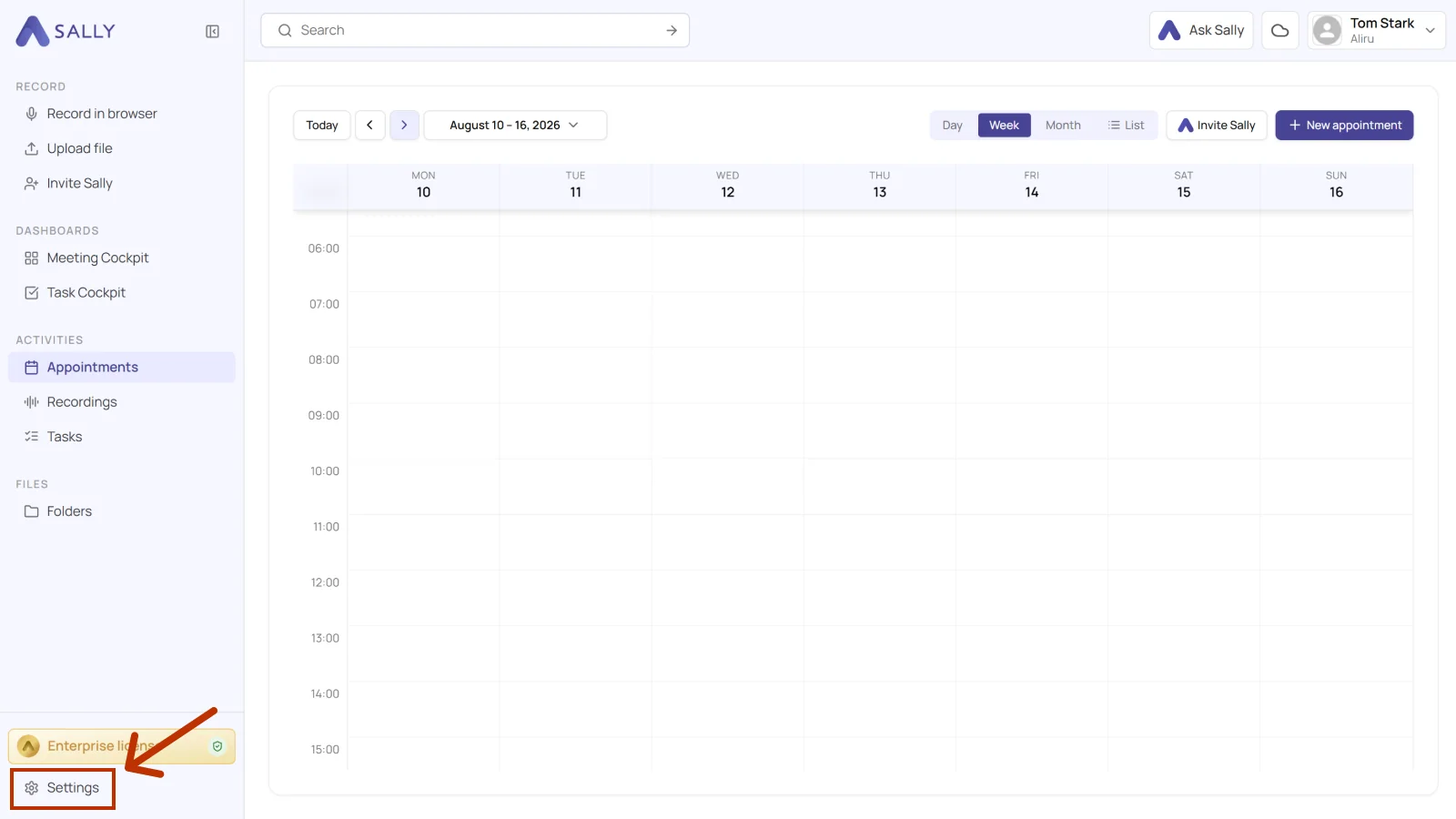
- Under Configuration, select Integrations and click Discover integrations.
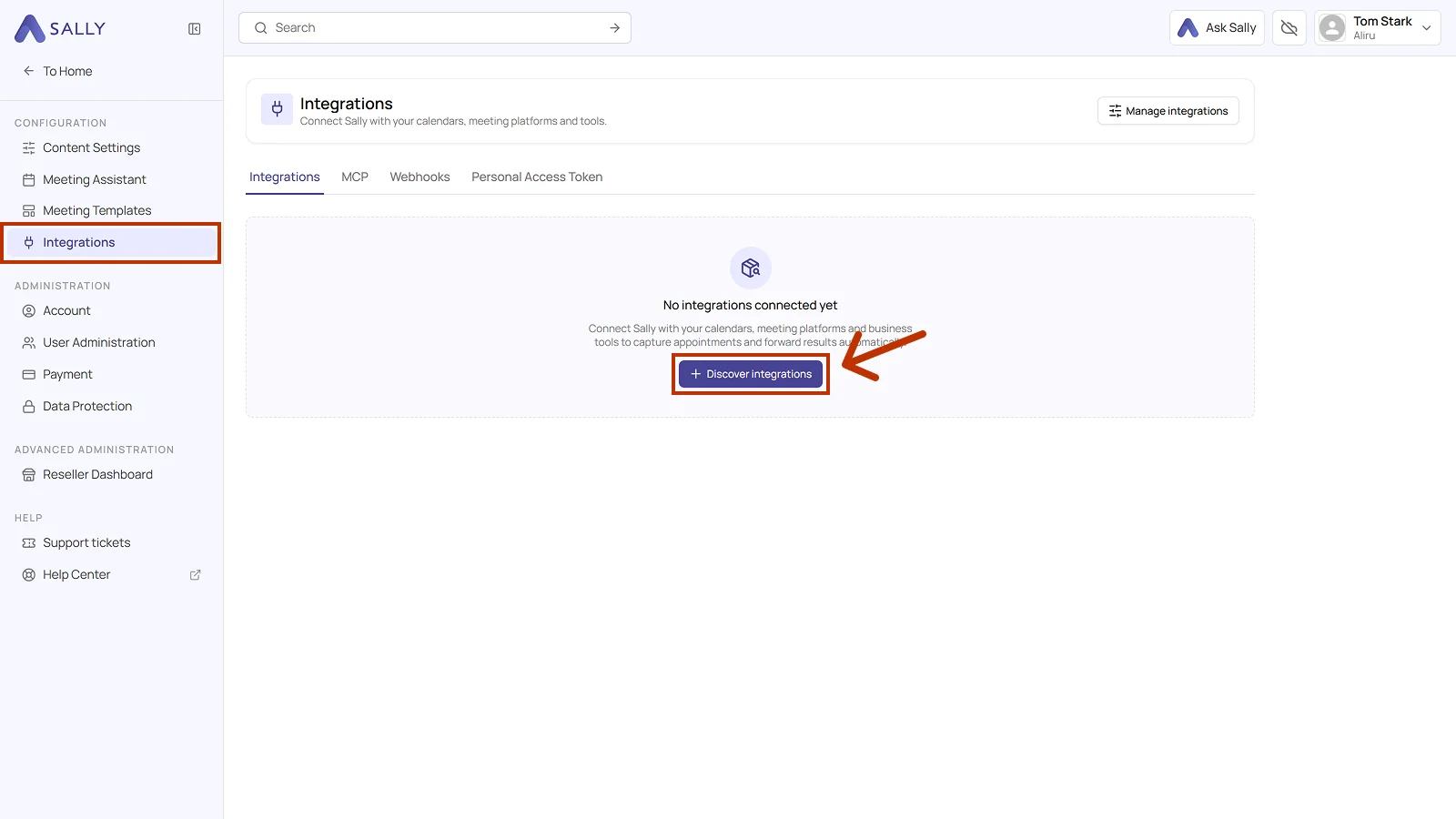
- Pick Outlook Calendar (Exchange On-Premise) from the Calendar section of the list.
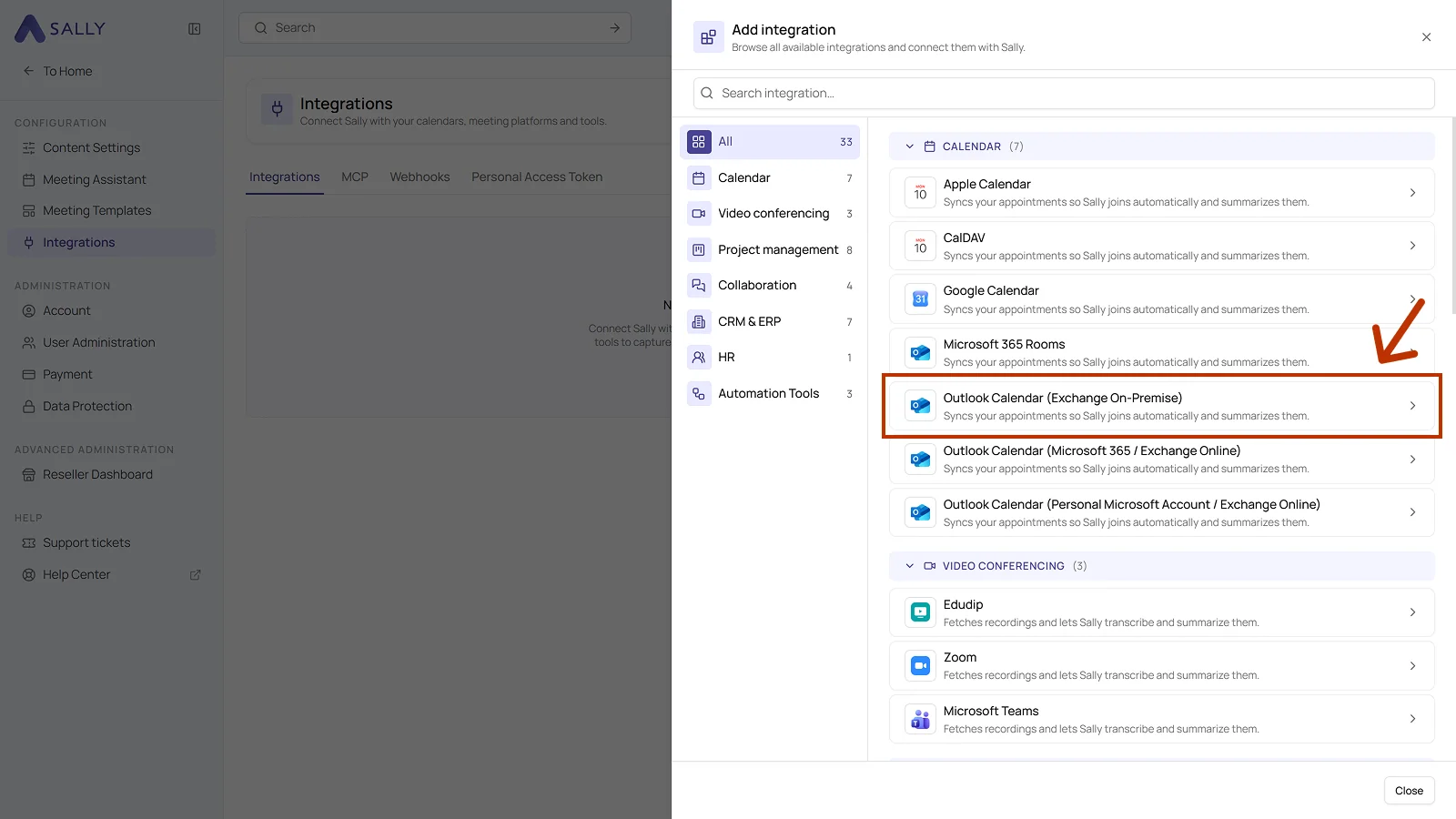
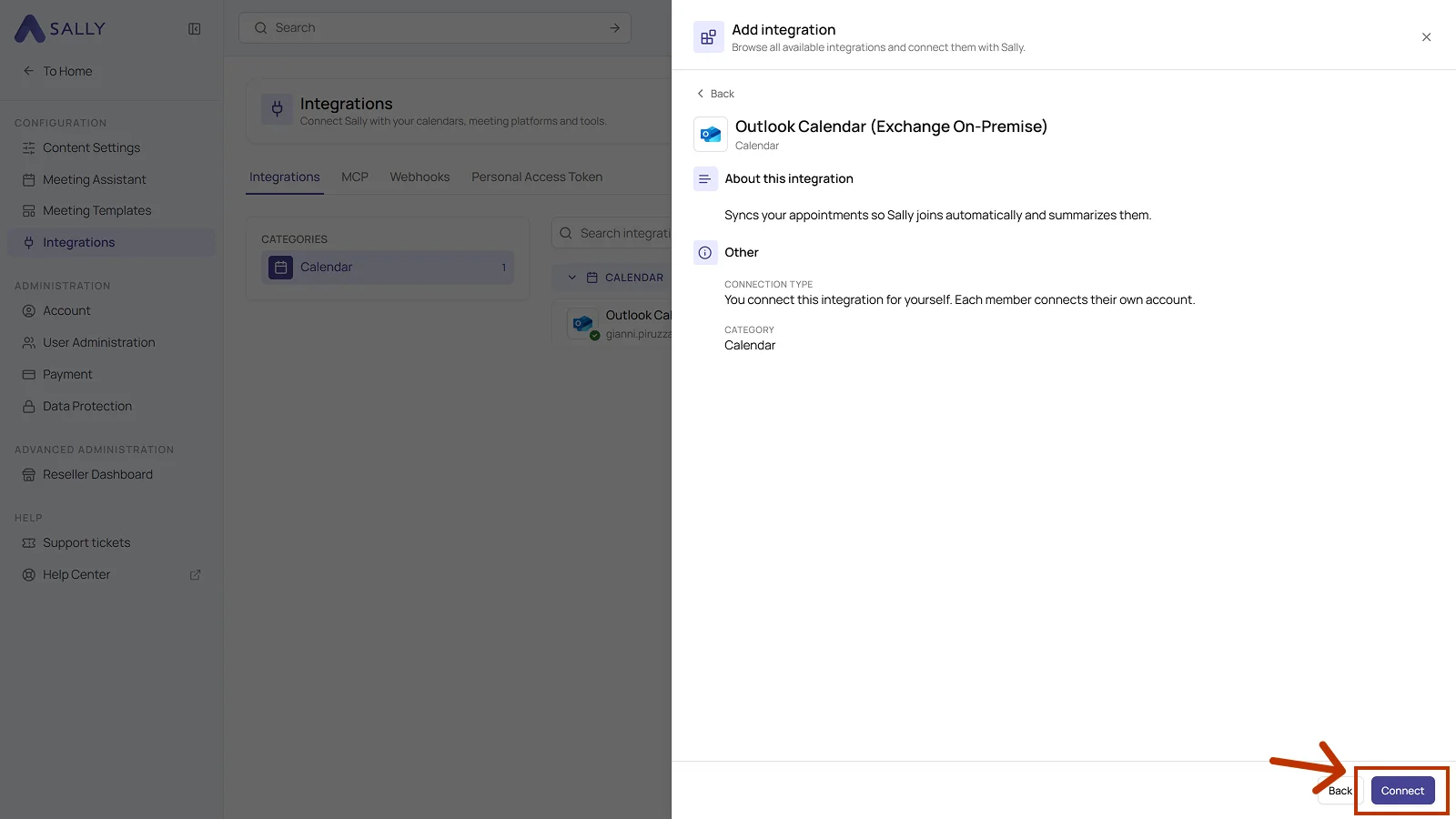
- Click Connect in the bottom right corner of the panel.
- The Connect Exchange Server dialog asks for the details of the EWS connection. Fill them in and click Connect:
- Username, either as
domain\useror asuser@domain.com - Password
- EWS service URL
- Exchange version, preset to Exchange2016
- Username, either as
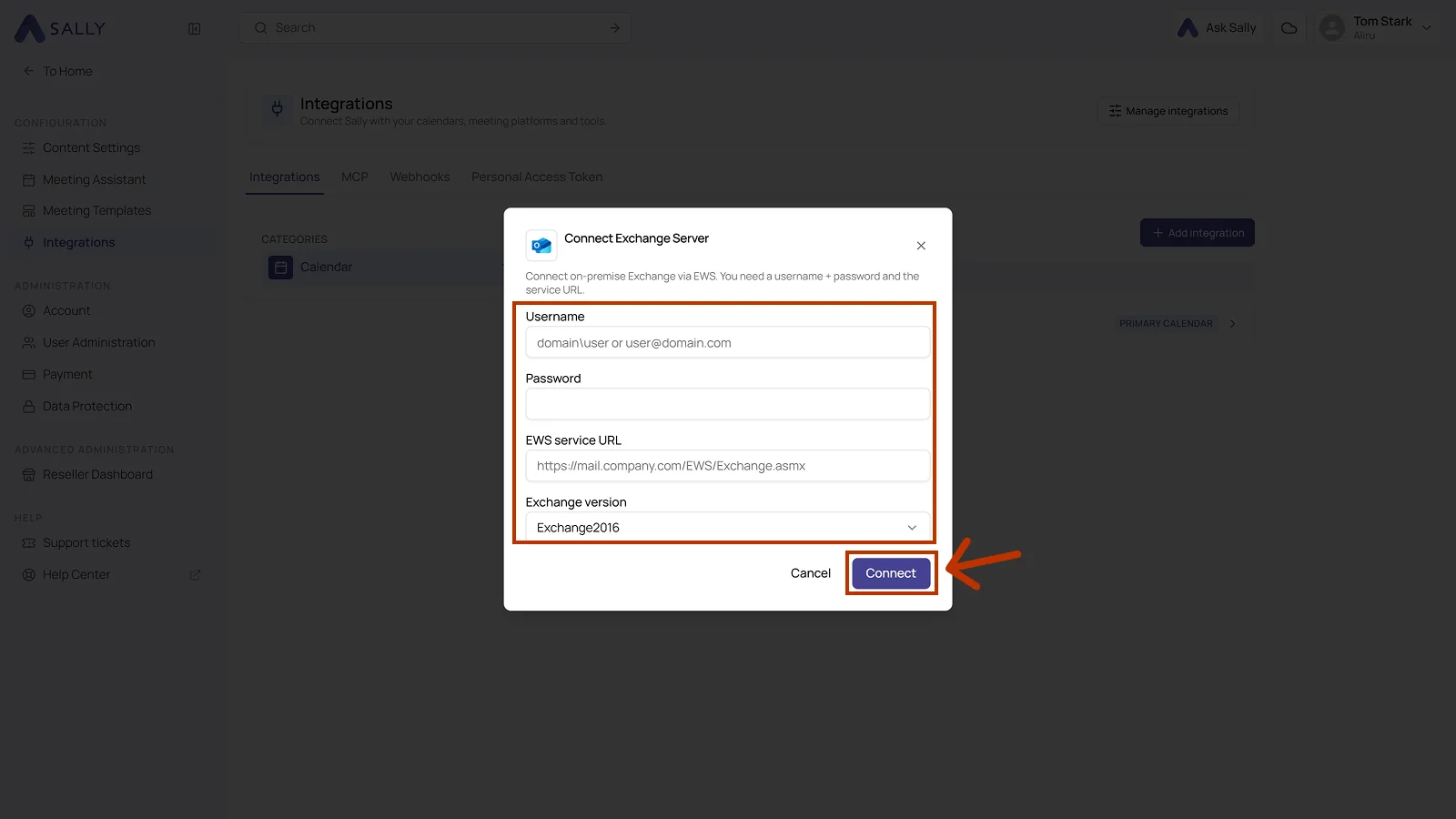
An EWS service URL often looks like this:
https://mail.yourcompany.com/EWS/Exchange.asmx
You usually receive this information from your internal IT department.
- (Optional) Open the Calendars tab of the connected integration. There you decide with Sync private appointments and Only sync online meetings what Sally picks up, and you add individual calendars under Synced calendars. Up to five calendars can be synchronized in parallel per connection.
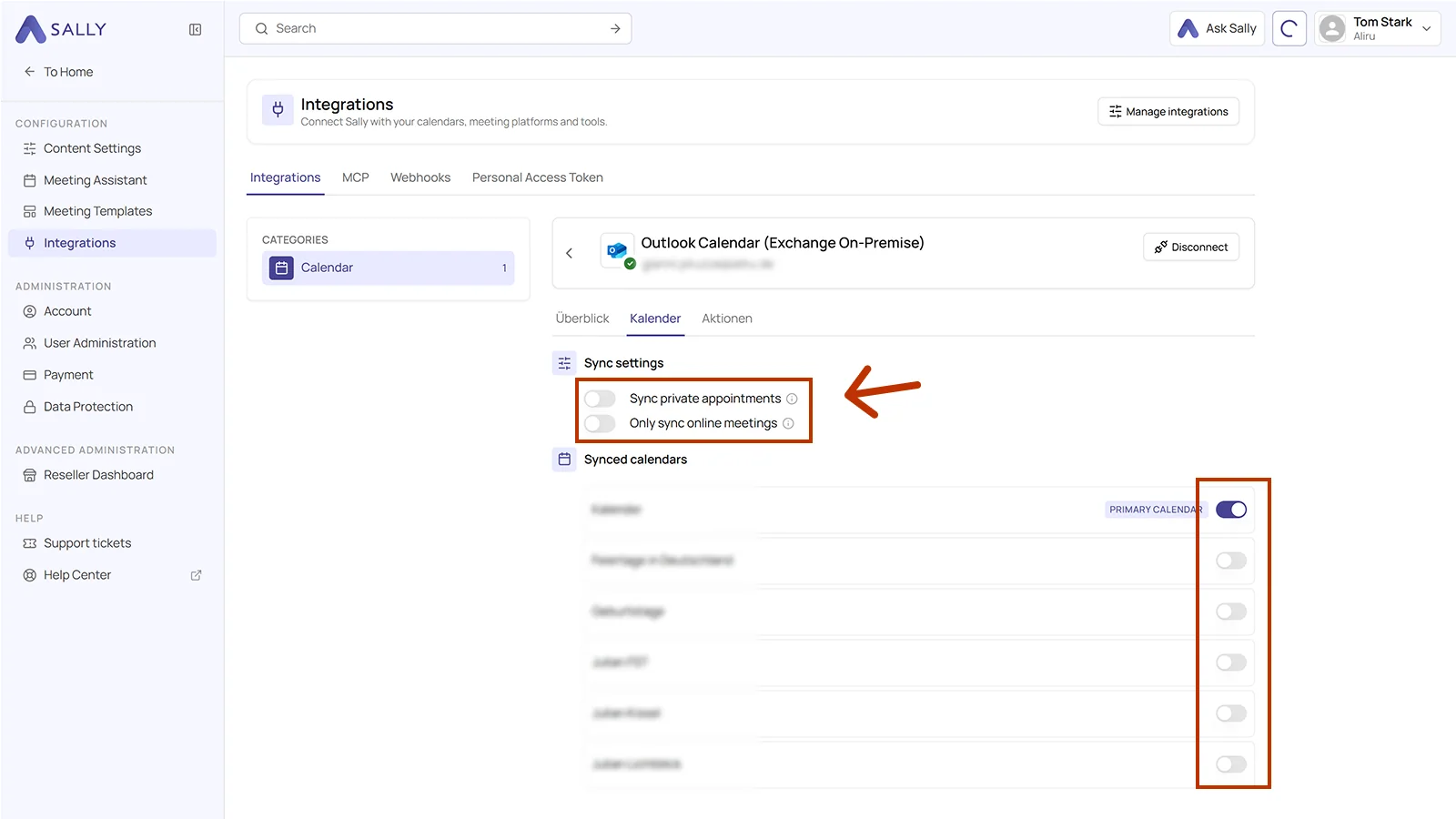
- Once connected, your Outlook On-Premise appointments appear in Sally.
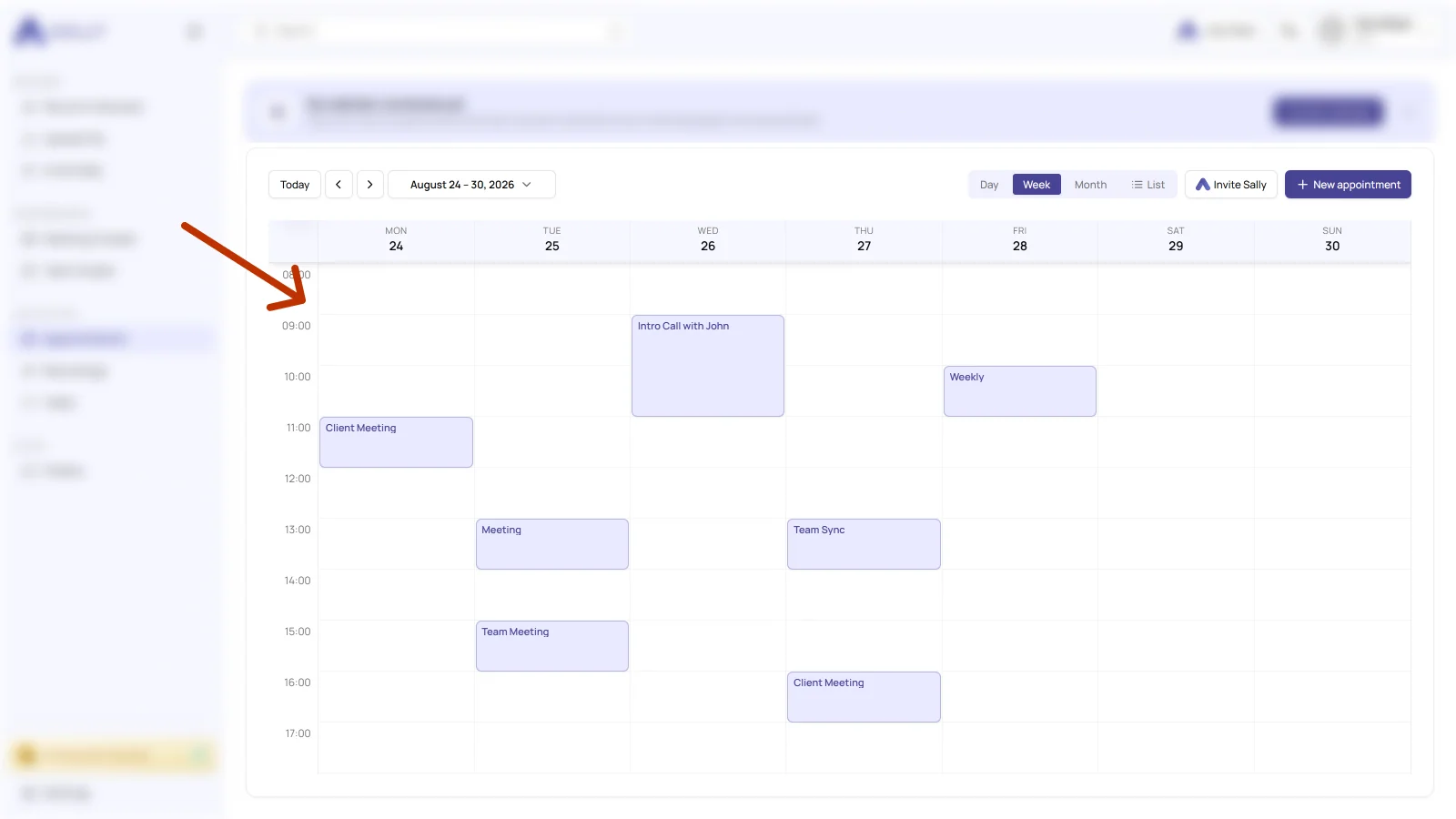
Synchronization may take a few minutes. If nothing shows up yet, reload Sally.
3.1 Which IP addresses does Sally use to reach your Exchange server?
Sally reaches your Exchange server exclusively from the following three fixed IPv4 addresses. For the connection to work, they need to be allowed in your firewall.
| Address | What it is used for |
|---|---|
167.233.210.254 | Setting up the connection and configuring the integration |
167.235.234.62 | Setting up the connection and configuring the integration |
46.225.144.3 | The ongoing calendar sync |
Allow all three, then both the setup and the ongoing sync work. Access runs over HTTPS on port 443 to your EWS endpoint.
Sally runs on its own infrastructure in Germany, in the Falkenstein data centre operated by Hetzner. The three addresses are static and do not change, so you can allow them in your firewall permanently.
4. Connect Microsoft 365 Rooms
In addition to personal calendars, Sally can also sync Microsoft 365 room calendars. This is useful if you regularly book meeting rooms and want Sally to automatically pick up appointments scheduled in those rooms.
Room calendars belong to the Microsoft account that holds the rooms, usually an account with superadmin rights. For Sally to get the room information, that account has to sign in inside your Sally account.
The superadmin either does that at your account directly, or they impersonate you and set the connection up for you.
One sign-in does not cover everyone: every member who wants to see room appointments in Sally connects the room calendars individually, with the same Microsoft account.
Room calendars are loaded directly from your Microsoft 365 tenant. Up to 5 rooms can be synchronized in parallel per connection. Admin consent for the Sally app in your tenant is part of the setup.
- Open Settings at the bottom of the left sidebar.
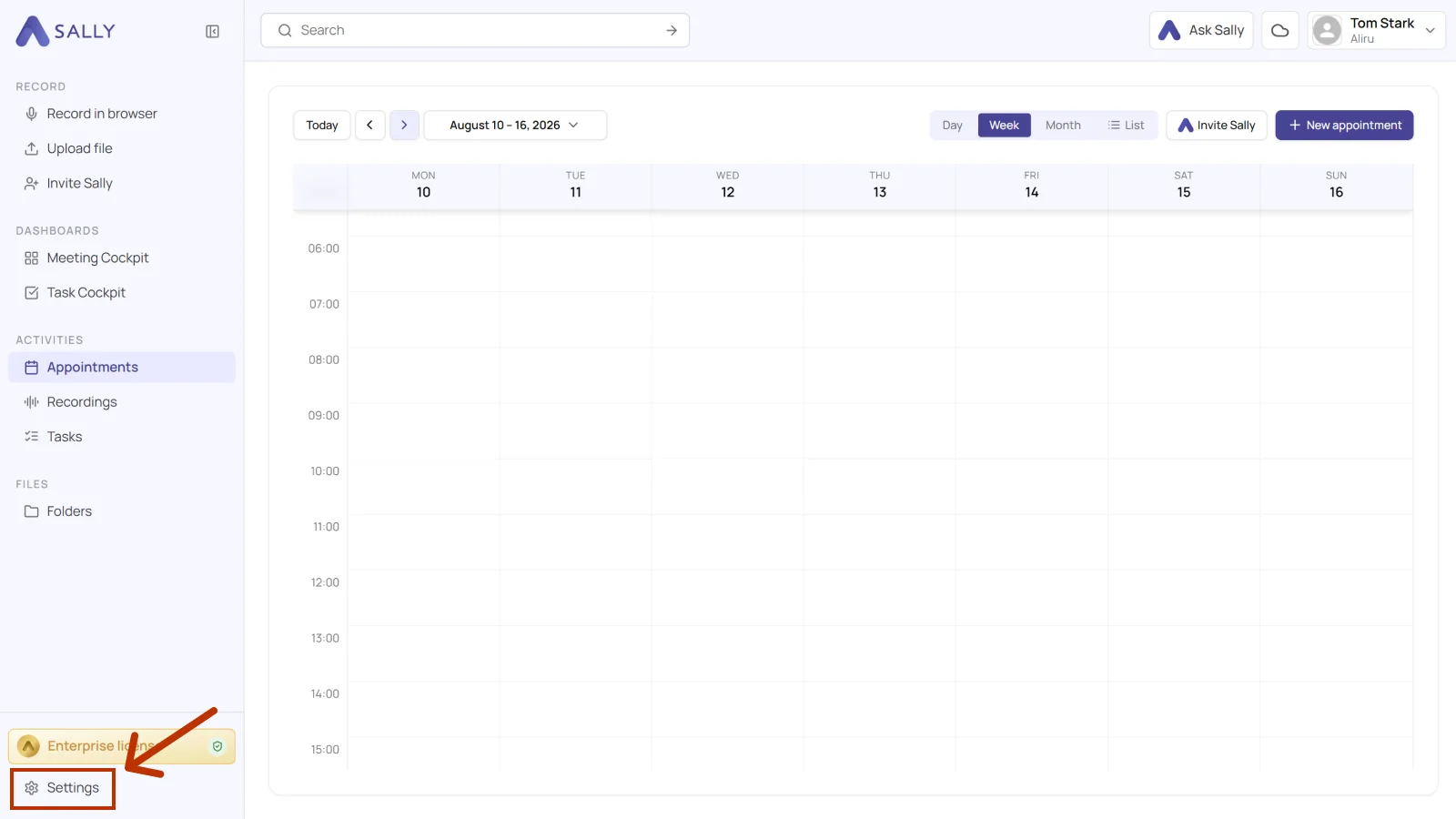
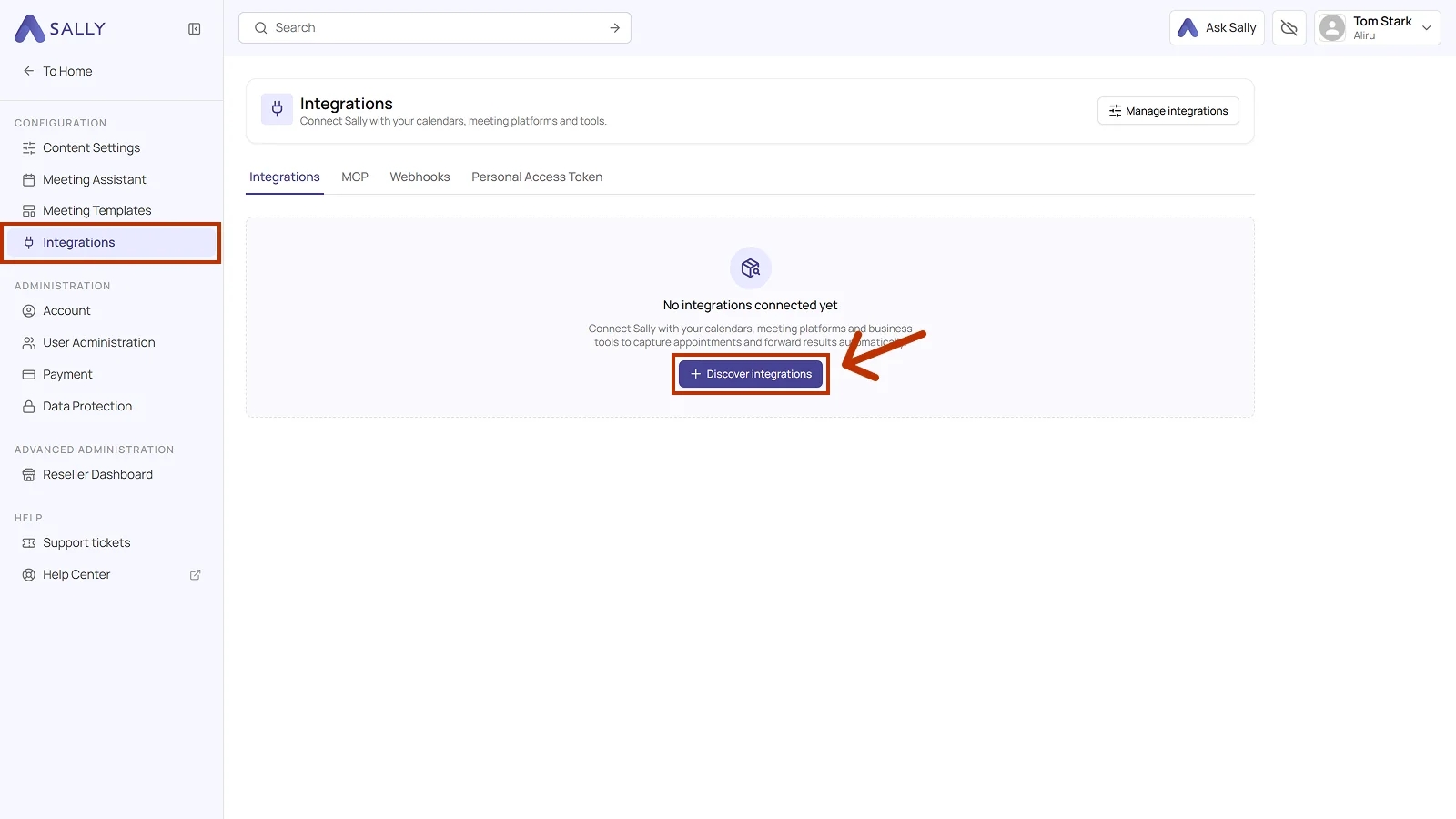
- Under Configuration, select Integrations and click Discover integrations.
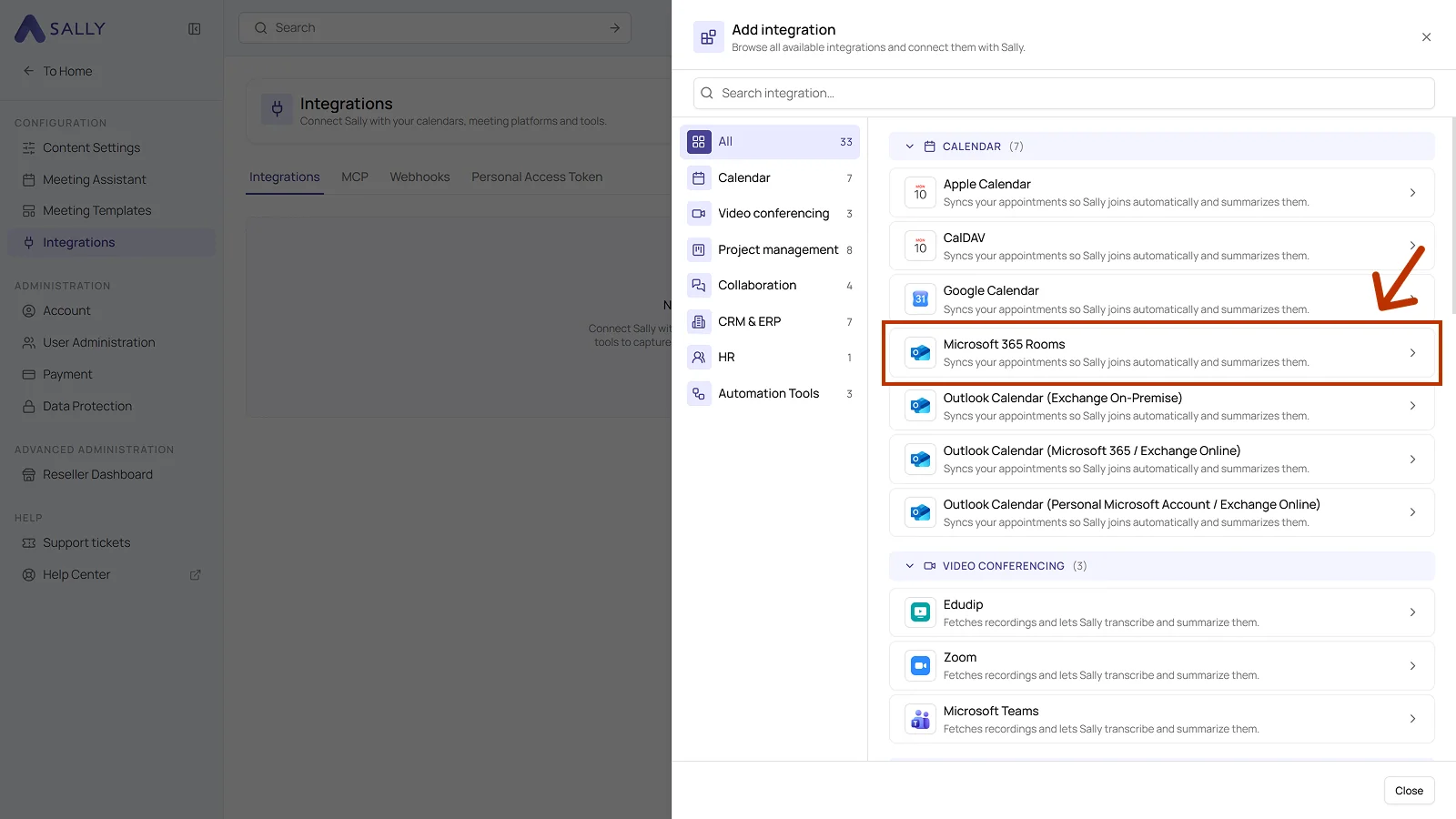
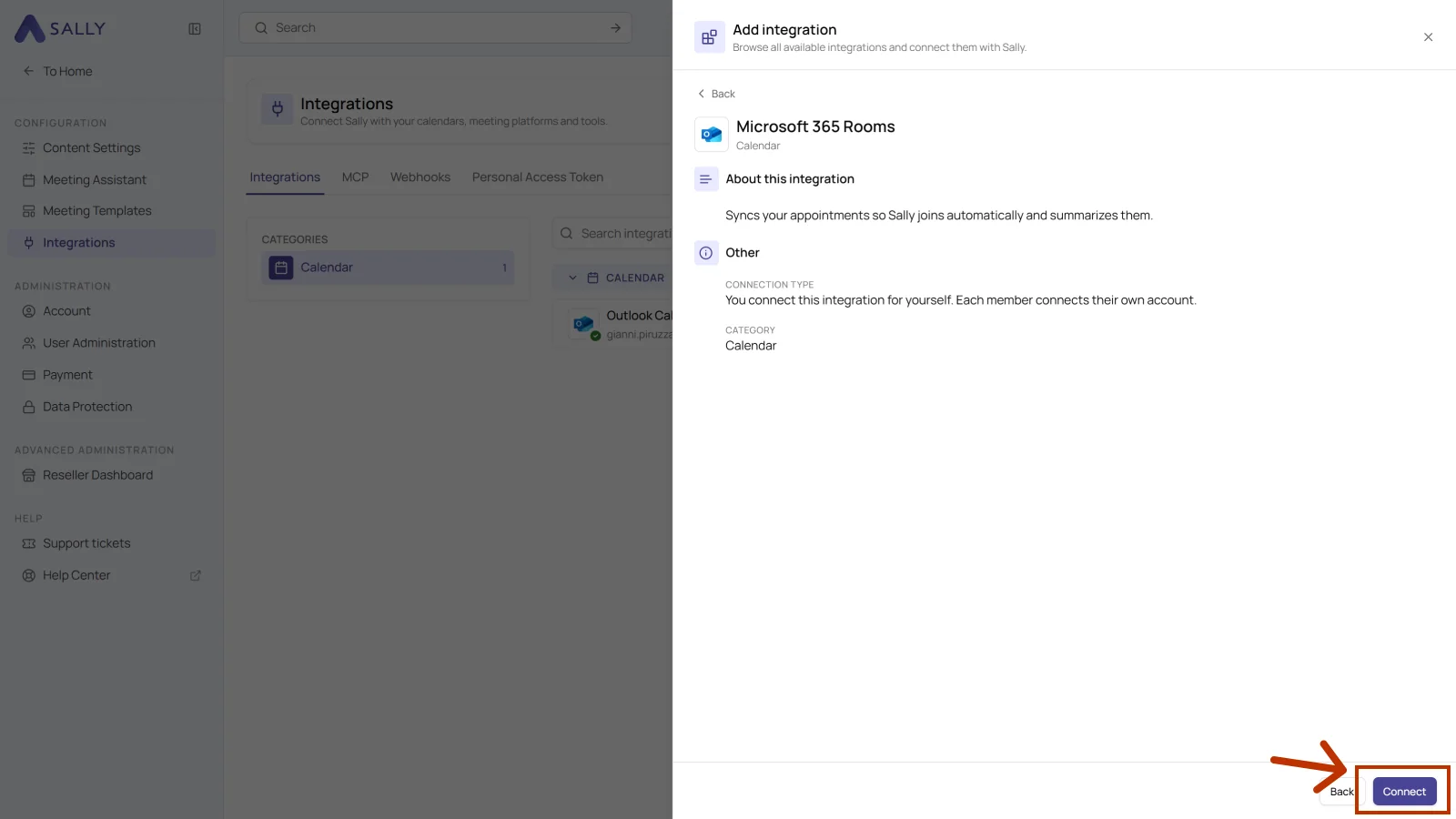
- Pick Microsoft 365 Rooms from the Calendar section of the list.
- Click Connect in the bottom right corner of the panel and sign in with the Microsoft account that holds the rooms. Grant the required permissions there so Sally may read the room mailboxes.
- Open the Calendars tab of the connected integration. Under Configure room calendars you get every room in your tenant with its mailbox and the number of seats. Switch on Active for each room whose appointments Sally should pick up. Search rooms helps you find a specific one, and up to five rooms can be synchronized in parallel per connection.
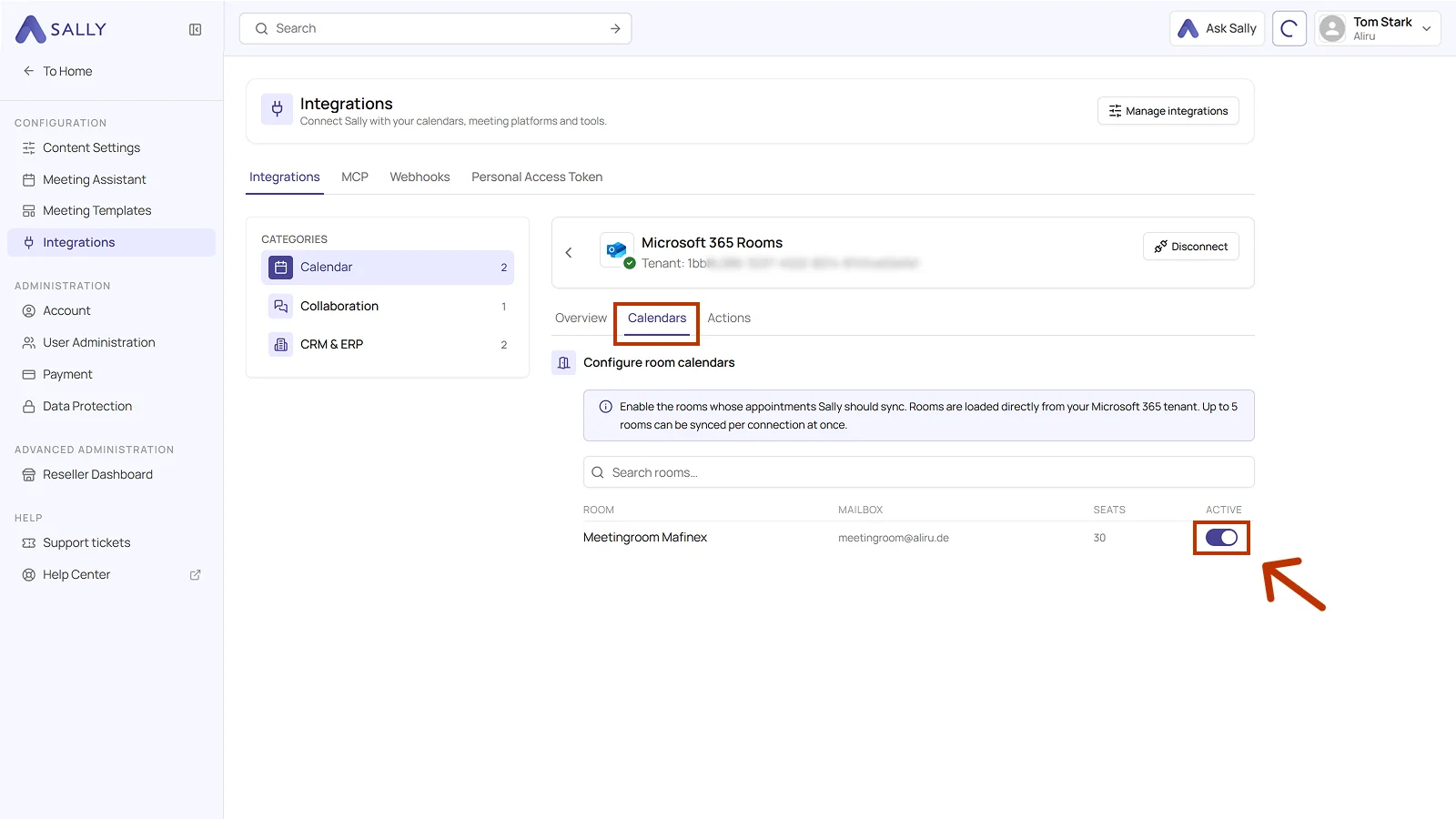
The tenant the connection belongs to sits at the top of the section, and Disconnect removes it again.
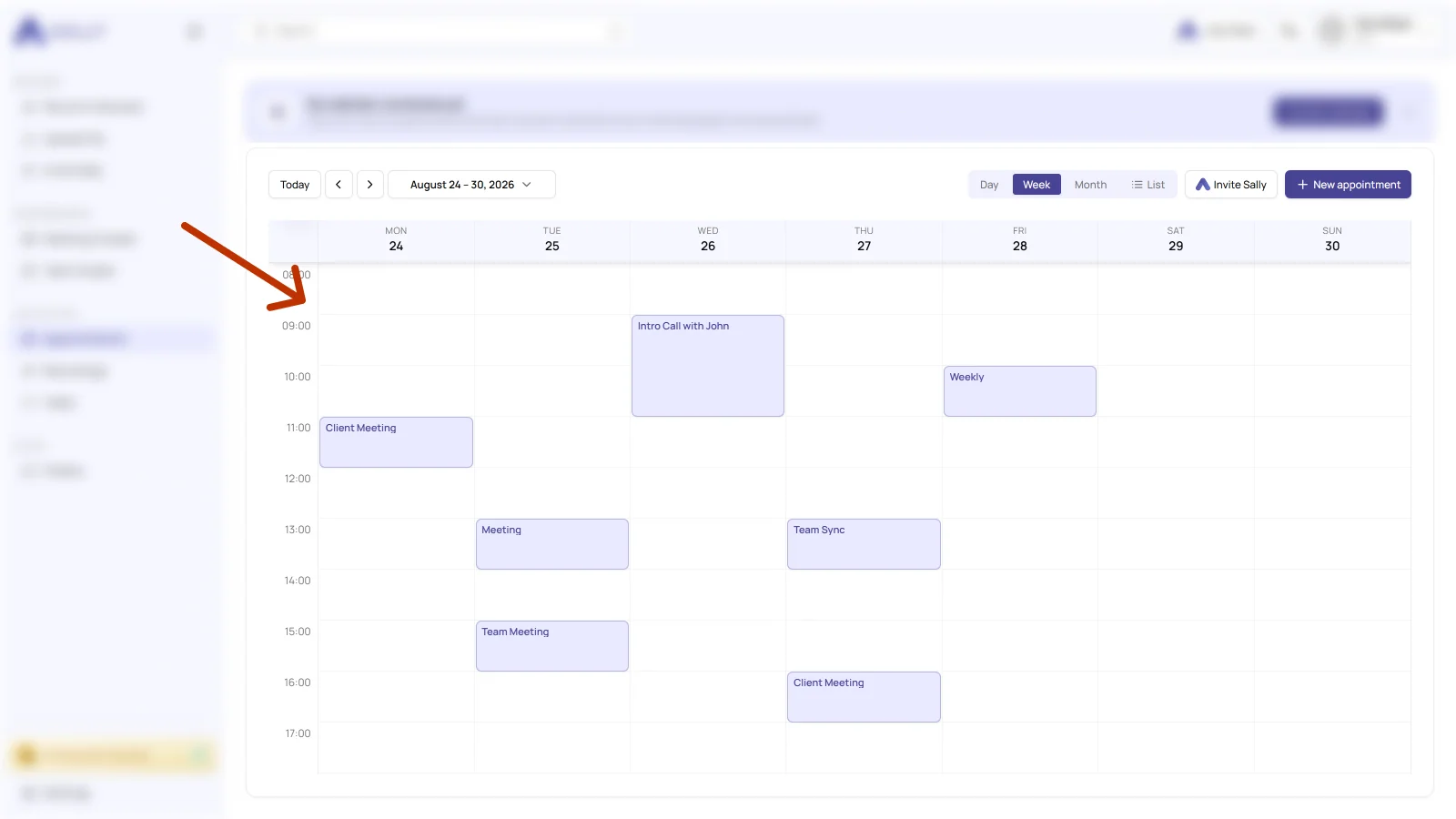
- The activated room calendars are synchronized and their appointments appear in Sally just like personal calendar events.
4.1 Technical Microsoft Graph permissions for room calendars
Connecting room calendars requires extended Application Permissions on Microsoft Graph. These are granted once by a Microsoft 365 tenant administrator via Admin Consent.
Read-only: Sally never writes back into the room calendars, neither appointments, attendees, nor locations.
Consent: Granted once by a Microsoft 365 tenant administrator via Admin Consent. The connection itself is created by each member in their own account, after which token refresh and webhook reconciliation run fully automatically.
Application permissions on Microsoft Graph
| Permission | What Sally needs it for |
|---|---|
Calendars.Read | Read all appointments in the connected room mailboxes, including hybrid meetings (on-site + remote) and meetings where no Sally user is invited. Updates and cancellations are propagated via Microsoft Graph webhooks within seconds. |
Place.Read.All | List the available rooms of the tenant from the Places Directory (/places/microsoft.graph.room), so the rooms to synchronize can be picked in Sally with a switch. |
Once connected, you can set whether and when Sally should automatically join your meetings.