How to Connect Outlook Calendar with Sally AI
By connecting your Outlook Calendar, Sally can automatically access your meetings and join them without needing a separate invitation (see automated meeting attendance).
After a successful integration, you will see all your scheduled meetings directly in the Sally platform.
Sally supports both Exchange Online (Microsoft 365, cloud-based) and Exchange On-Premise (local server environments).
- Exchange Online: Sign in with your Microsoft account. Both personal Microsoft accounts (e.g. Outlook.com) and Microsoft 365 business accounts (Azure AD / Entra ID) are supported.
- Exchange On-Premise: Connect by entering your server information and login credentials – for organizations running their own Exchange server.
Quick Navigation
- Connect Outlook Calendar (Exchange Online)
- Connect Outlook Calendar (Exchange On-Premise)
- Connect Microsoft 365 Rooms
1. Connect Outlook Calendar (Exchange Online)
1.1 Connect a work account
Here you sign in with a work, school, or university account (Microsoft 365 / Azure AD). This option is intended for organizational environments where Outlook is managed through Microsoft 365.
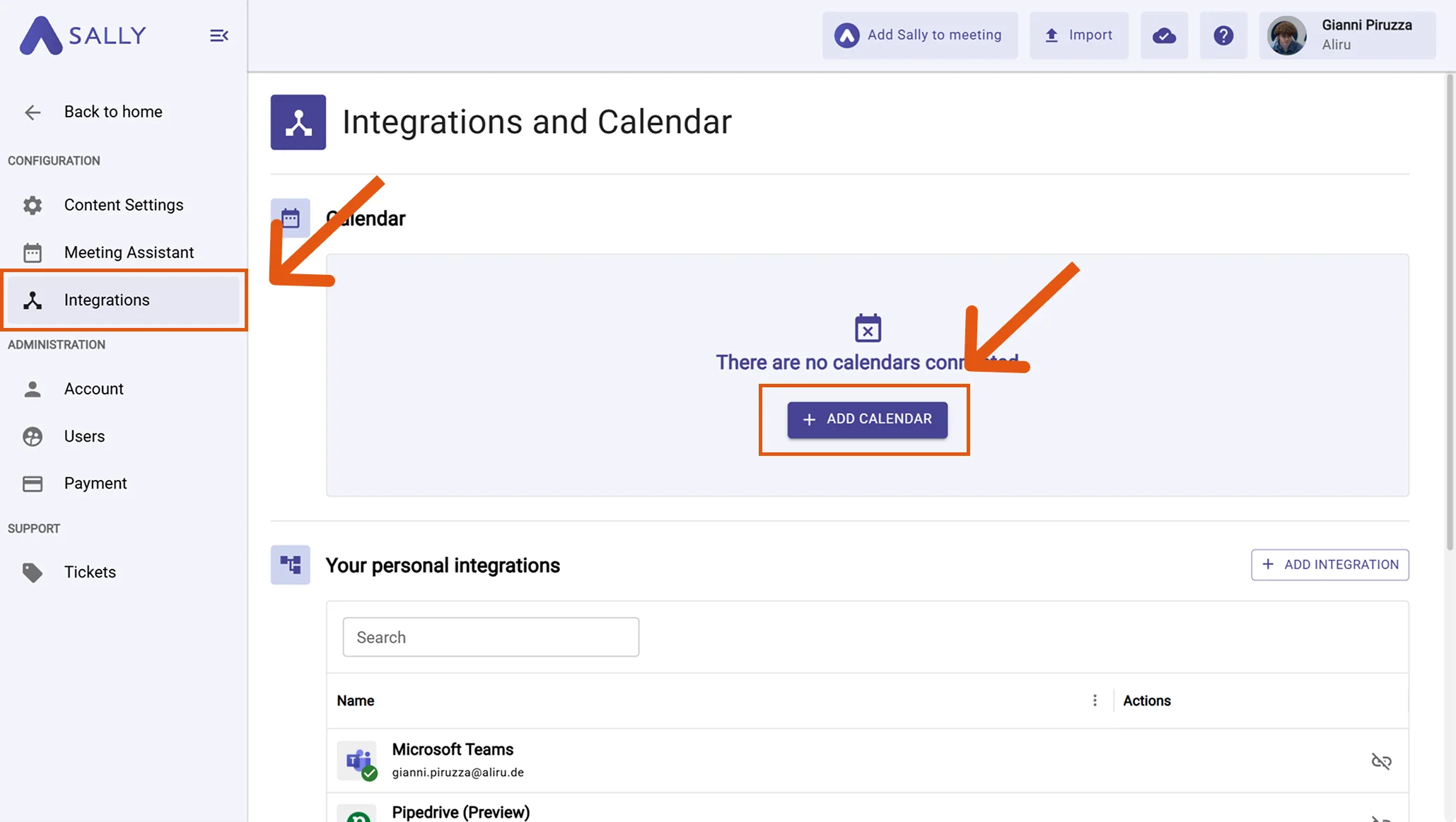
- Open Settings in the left sidebar.
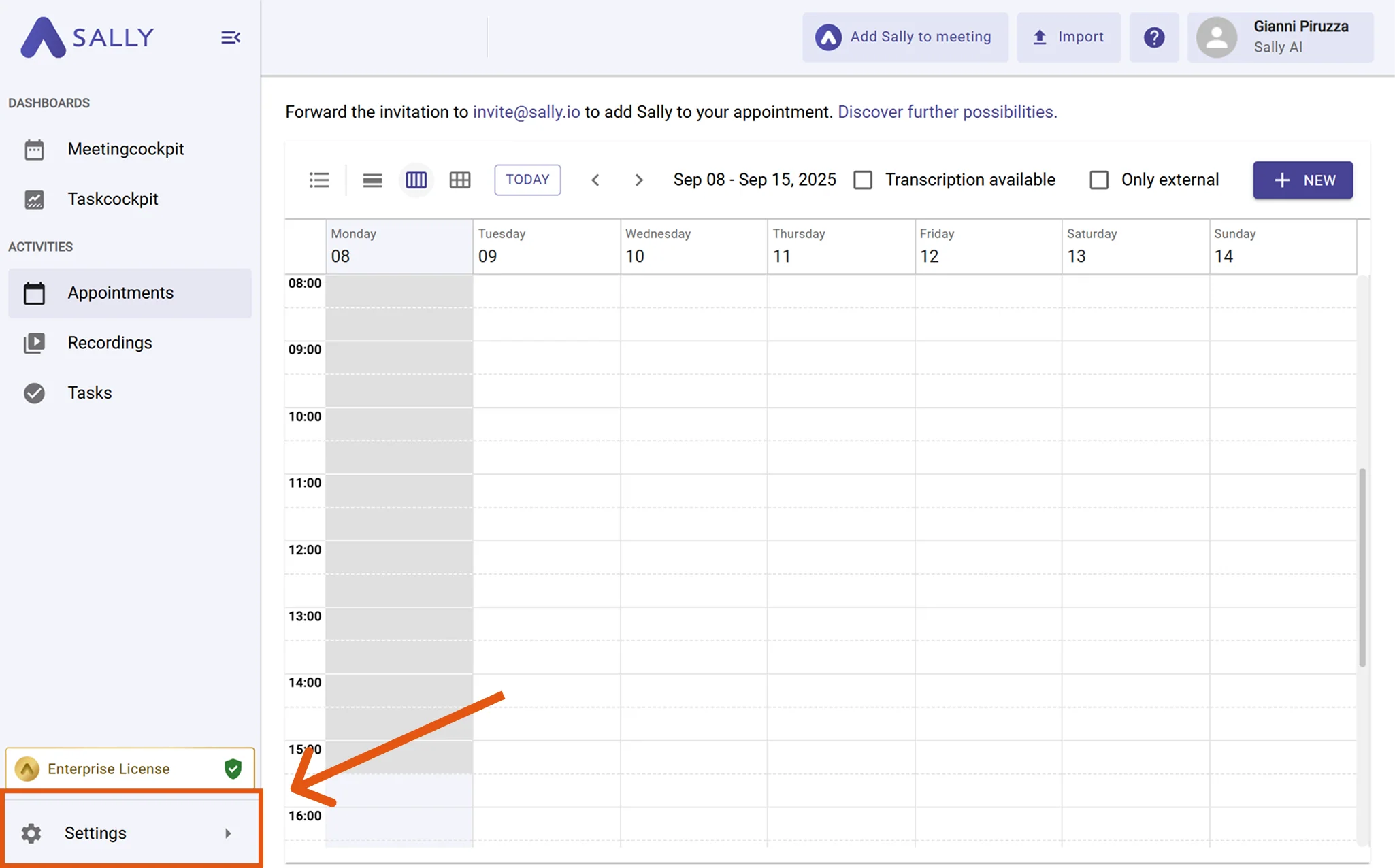
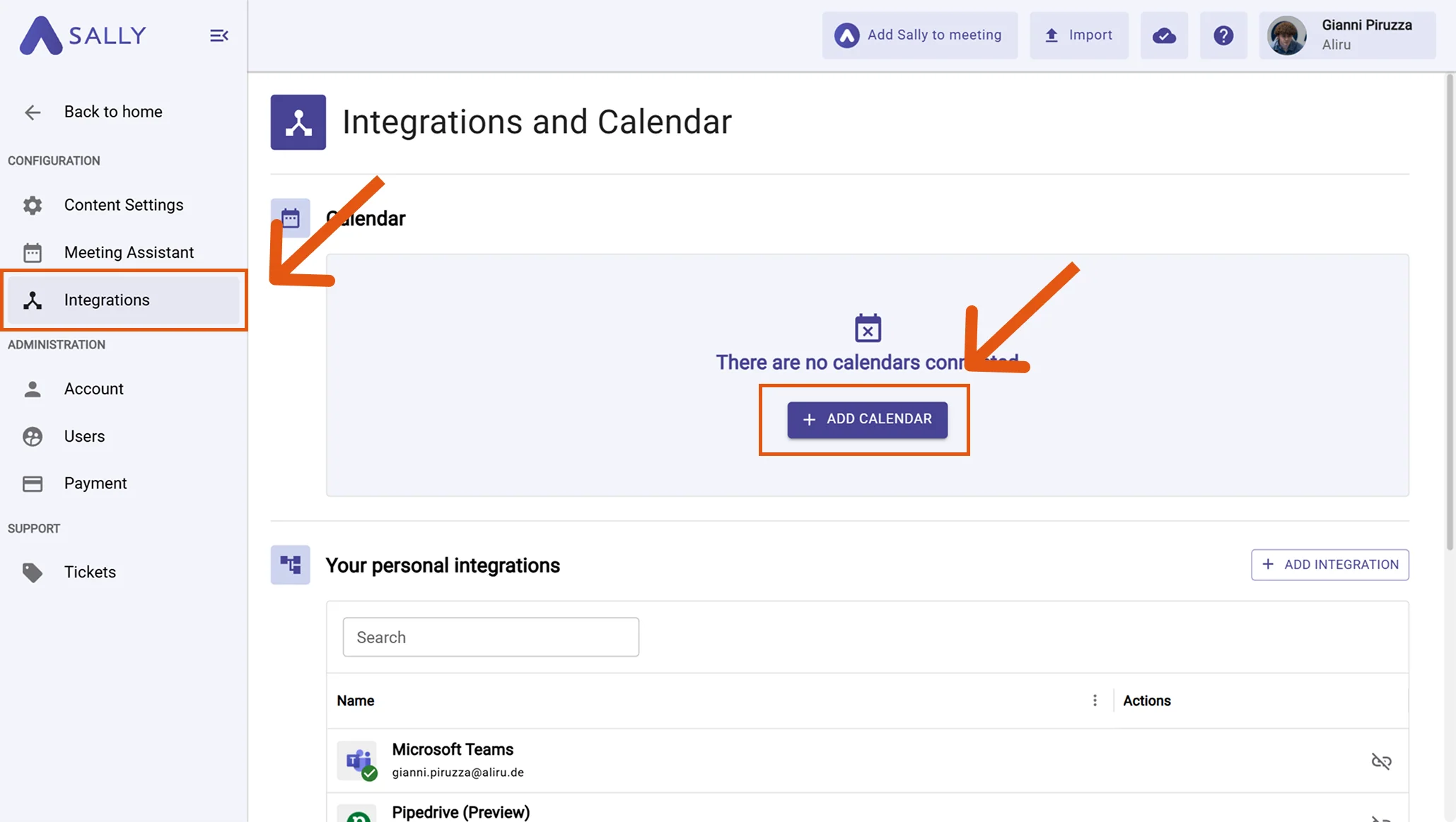
- Select “Integrations.”
- Click “+ Add calendar.”
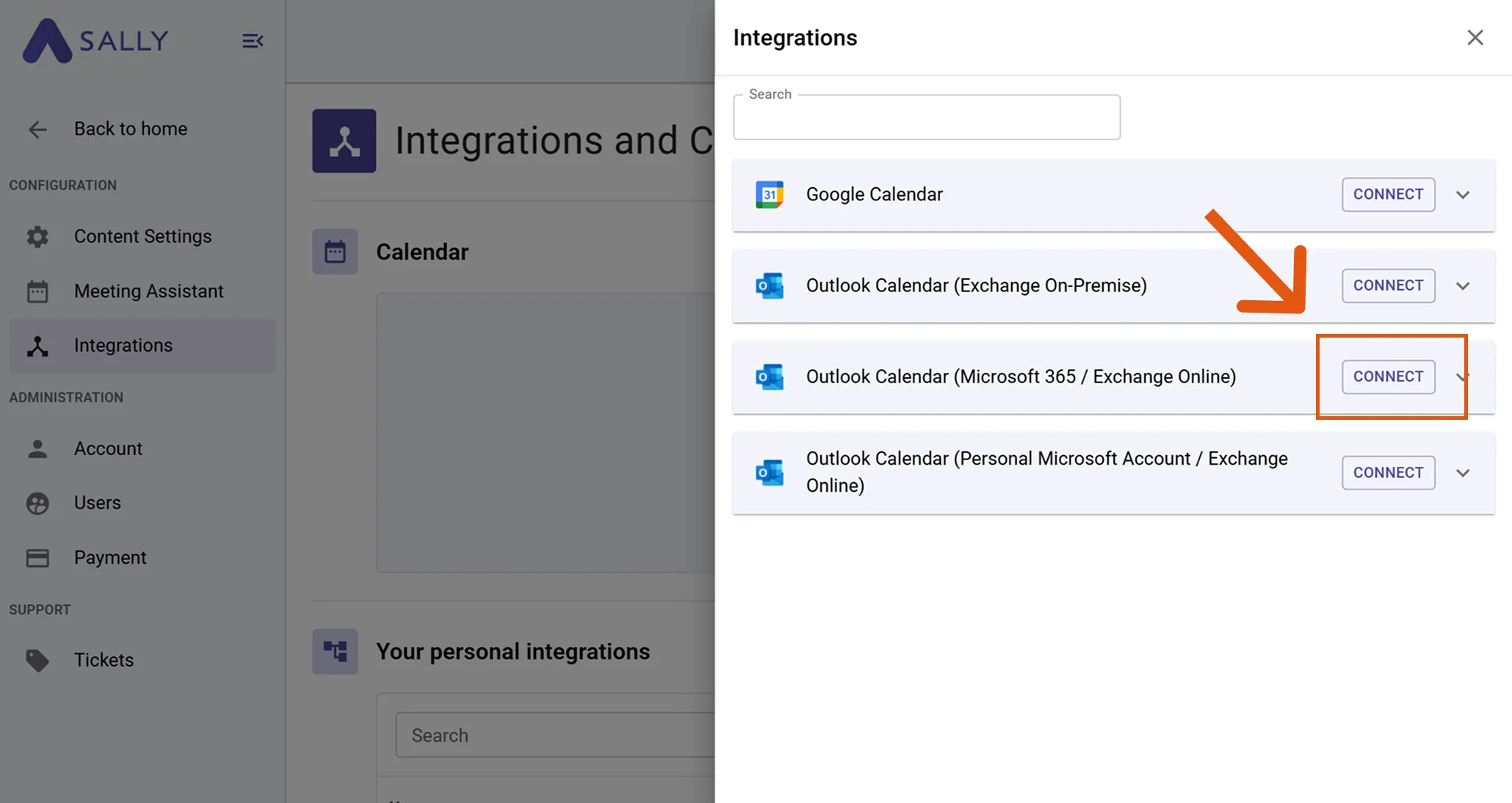
- Select “Outlook Calendar (Microsoft 365 / Exchange Online)” and click “Connect.”
- Sign in with your "Work, school, or university account" and grant the required permissions to complete the integration. After a successful sign-in, your calendar will be synced with Sally.
When connecting an Outlook calendar for the first time, an admin login is required to approve the Sally app for the tenant.
After that, all users can connect their calendars normally.
- (Optional) On the Integrations page, click the gear icon next to your connected Outlook Calendar to open the configuration dialog.
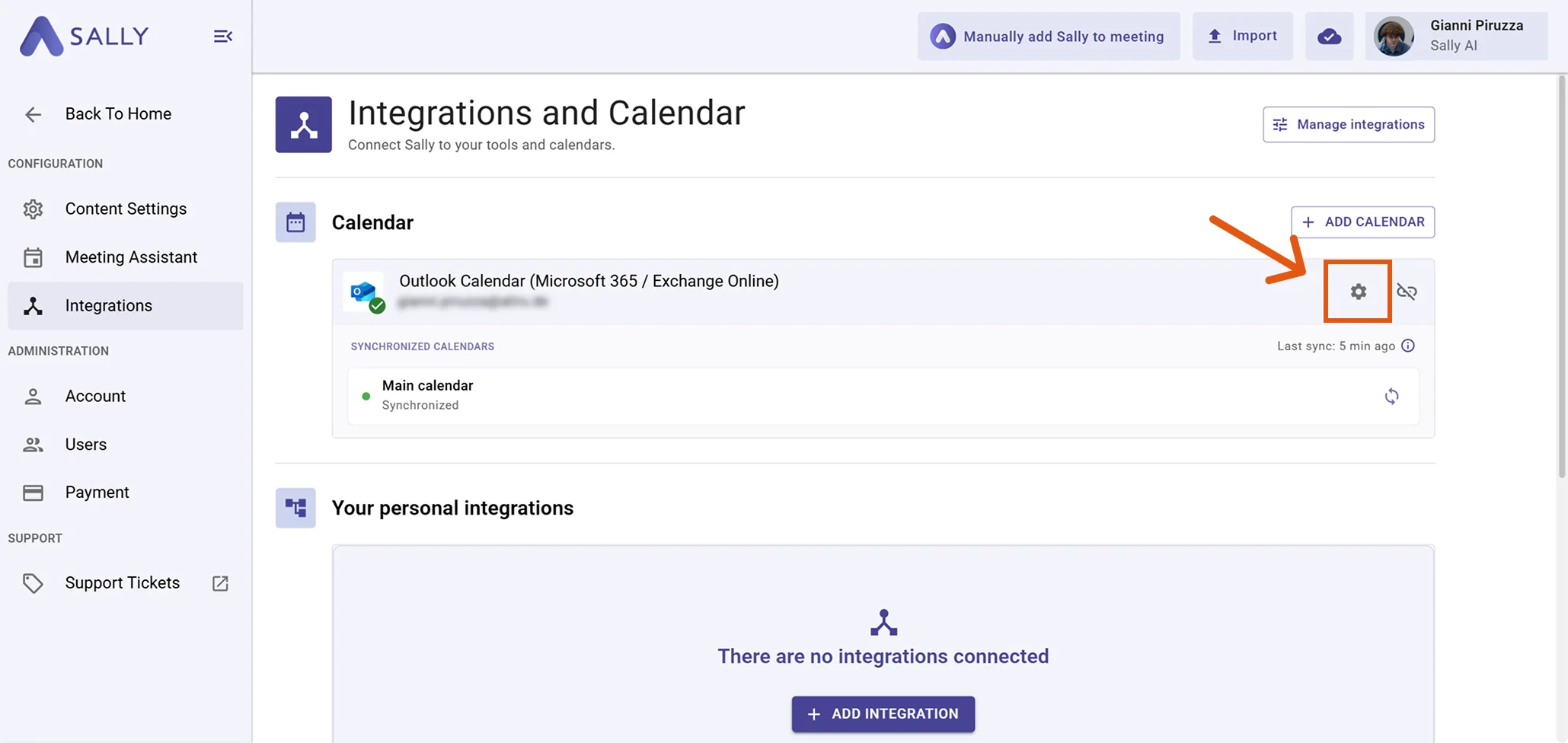
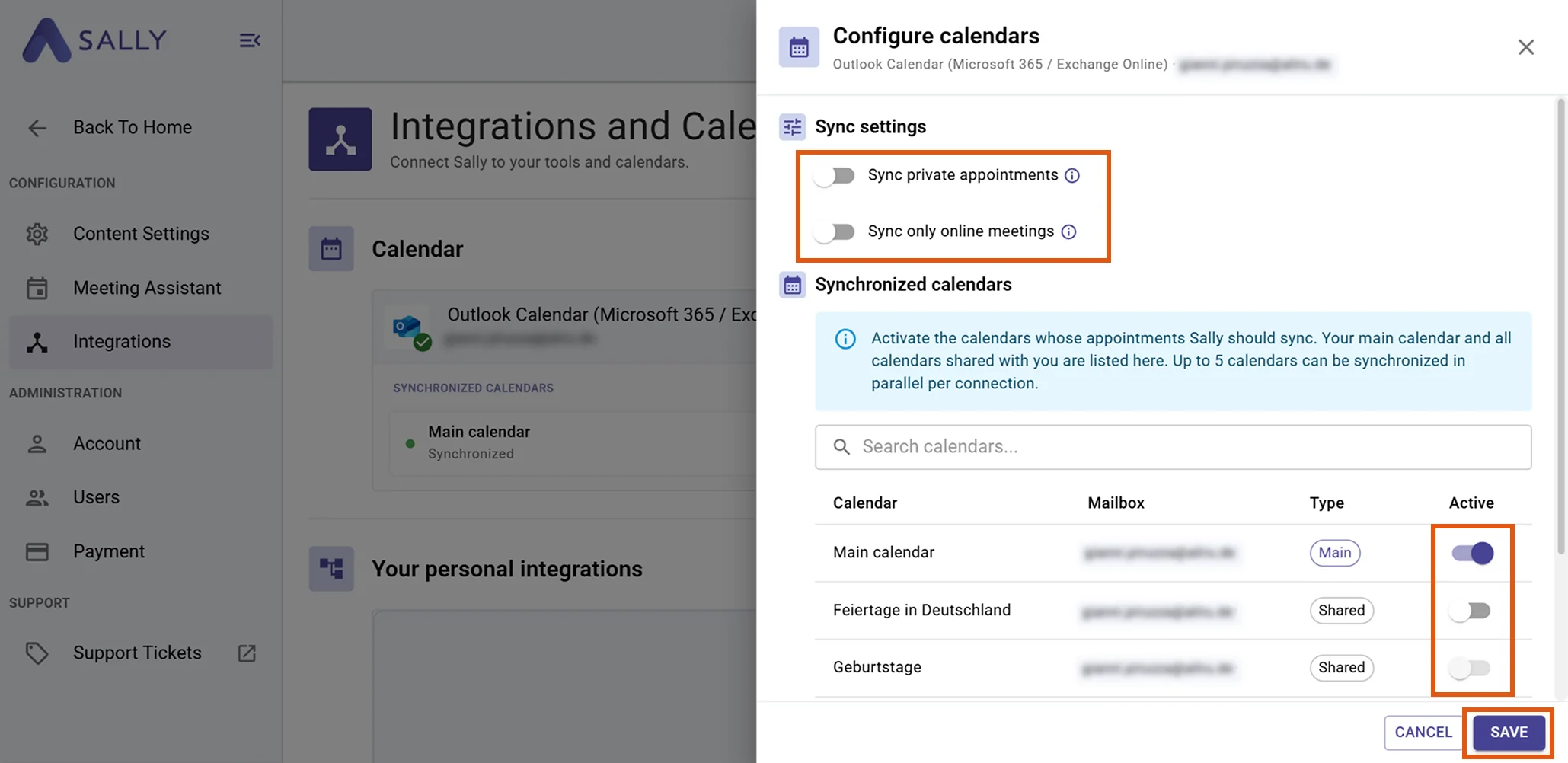
In the "Configure calendars" dialog you can adjust the sync settings and select which calendars Sally should sync:
- "Sync private appointments": Enable this toggle if you want Sally to also sync your private appointments.
- "Sync only online meetings": Enable this toggle if you only want to sync appointments that contain an online meeting link (e.g. Microsoft Teams, Google Meet, Zoom).
- Synchronized calendars: Activate the calendars whose appointments Sally should sync. Your main calendar and all calendars shared with you are listed here. Up to 5 calendars can be synchronized in parallel per connection. Click "Save" to apply your changes.
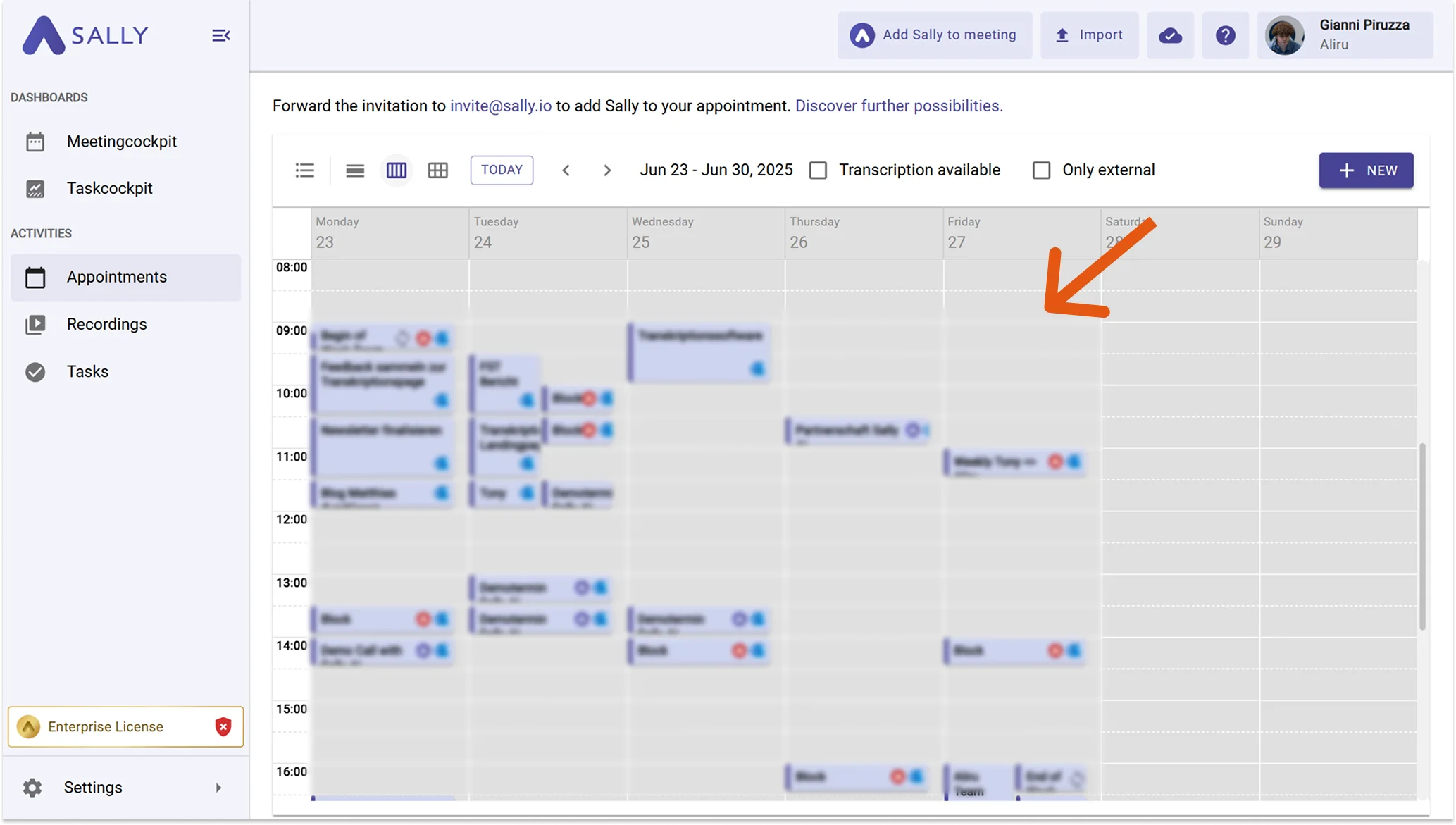
- After the connection is successful, your Outlook calendar meetings will appear in Sally.
Synchronization may take a few minutes. Restart Sally if necessary.
1.1.1 Technical OAuth permissions for work accounts (Microsoft 365 / Azure AD)
For the integration with Outlook Calendar (Microsoft 365 / Exchange Online), Sally uses OAuth 2.0 for authorization.
The following scopes define which areas Sally may access on behalf of the signed-in user.
-
Sally only reads this information to technically establish and maintain the connection to the user account.
-
Sally does not perform any independent changes. Actions are only executed based on explicit user interaction.
-
API endpoints are only called within the context of an active action triggered by the user within the platform.
Technical overview of the required scopes
| Scope | Type | What Microsoft technically allows | How Sally uses this scope |
|---|---|---|---|
offline_access | Delegated | Issues a long-lived access token | Sally stores an access token to maintain the connection. No calendar data is modified. |
openid | Delegated | OpenID Connect identity verification | Sally reads the unique user ID to correctly authenticate the account. |
profile | Delegated | Access to basic profile data | Sally reads basic profile information (e.g. display name) to identify the signed-in account. |
User.Read | Delegated | Read basic user information | Sally reads basic information of the signed-in user for authentication. No changes are made to the account. |
Calendars.ReadWrite.Shared | Delegated | API permission for calendar access | This scope is technically required for Microsoft to allow the calendar integration. Sally does not create, modify, or delete calendar events. |
Contacts.ReadWrite.Shared | Delegated | API permission for contact access | Part of Microsoft's permission model. Sally does not read contact lists or modify contact data. |
OnlineMeetings.ReadWrite | Delegated | API permission for online meeting resources | Technically required by Microsoft for calendar integration. Sally does not create or modify online meetings. |
1.2 Connect a personal account
Here you sign in with a personal Microsoft account (e.g. Outlook.com, Hotmail, Live). This option is intended for private Outlook accounts.
- Open Settings in the left sidebar.
- Select “Integrations.”
- Click “+ Add calendar.”
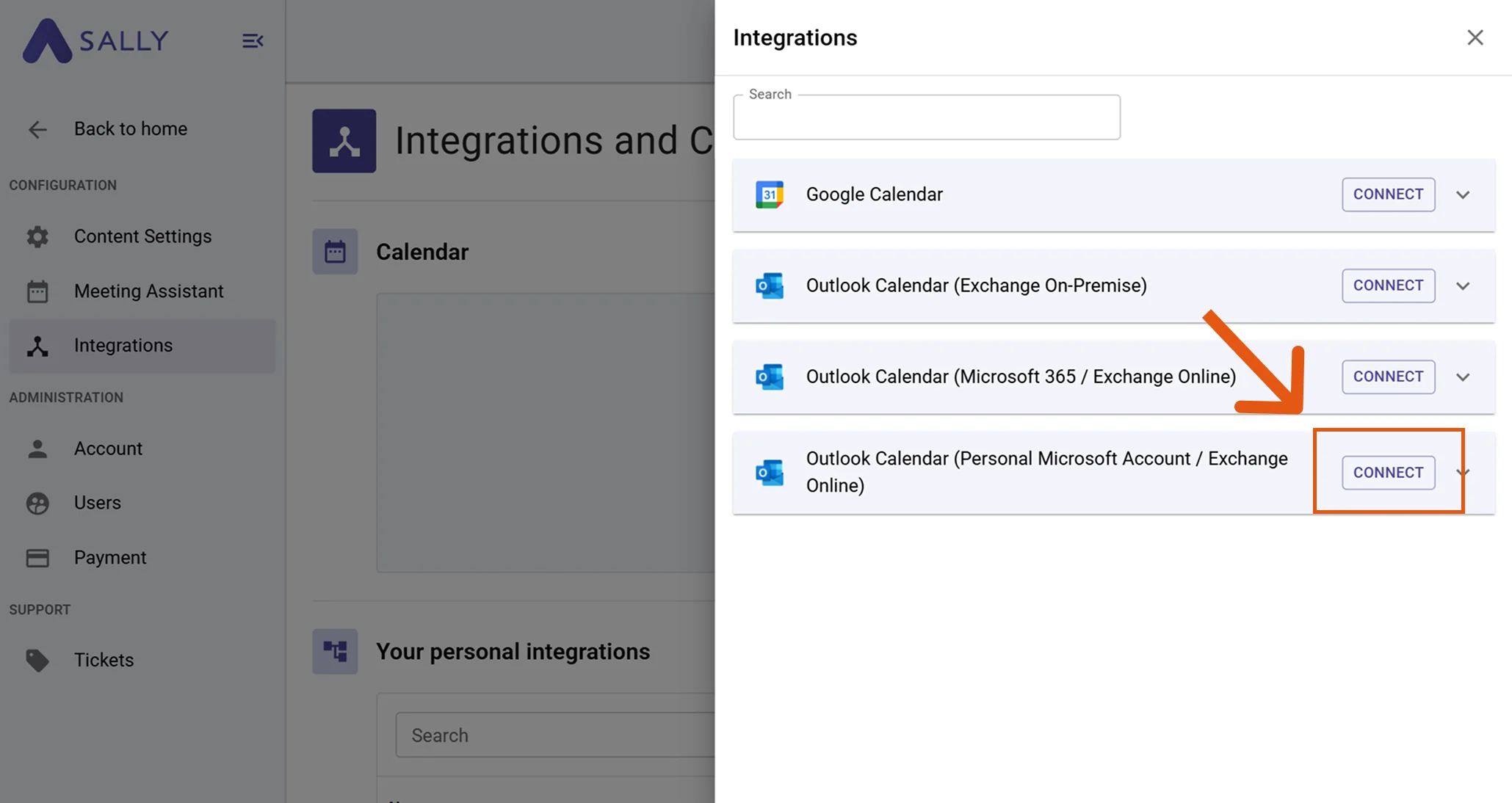
- Select “Outlook Calendar (Personal Microsoft Account / Exchange Online)” and click “Connect.”
-
Sign in with your Microsoft account and grant the required permissions to complete the integration. After a successful sign-in, your calendar will be synced with Sally.
-
(Optional) On the Integrations page, click the gear icon next to your connected Outlook Calendar to open the configuration dialog.
In the "Configure calendars" dialog you can adjust the sync settings and select which calendars Sally should sync:
- "Sync private appointments": Enable this toggle if you want Sally to also sync your private appointments.
- "Sync only online meetings": Enable this toggle if you only want to sync appointments that contain an online meeting link (e.g. Microsoft Teams, Google Meet, Zoom).
- Synchronized calendars: Activate the calendars whose appointments Sally should sync. Your main calendar and all calendars shared with you are listed here. Up to 5 calendars can be synchronized in parallel per connection. Click "Save" to apply your changes.
- After the connection is successful, your Outlook calendar meetings will appear in Sally.
Synchronization may take a few minutes. Restart Sally if necessary.
1.1.2 Technical OAuth permissions for personal Microsoft accounts
For the integration with Outlook Calendar (personal Microsoft account), Sally also uses OAuth 2.0.
The following scopes define which areas Sally may access on behalf of the signed-in user.
-
Sally only reads this information to technically establish and maintain the connection to the user account.
-
Sally does not perform any independent changes. Actions are only executed based on explicit user interaction.
-
API endpoints are only called within the context of an active action triggered by the user within the platform.
Technical overview of the required scopes
| Scope | Type | What Microsoft technically allows | How Sally uses this scope |
|---|---|---|---|
email | Delegated | Access to the user's email address | Sally reads the email address to uniquely identify the account. |
offline_access | Delegated | Issues a long-lived access token | Sally stores an access token to maintain the connection. |
openid | Delegated | OpenID Connect identity verification | Sally uses this scope to securely authenticate the account. |
User.Read | Delegated | Read basic user information | Sally reads basic information of the signed-in user for authentication. |
Calendars.ReadWrite | Delegated | API access to calendar data | This scope is technically required for the calendar integration. Sally does not independently modify calendar events. |
Contacts.ReadWrite | Delegated | API access to contact data | Part of Microsoft's permission model. Sally does not read contact lists or modify contact data. |
2. How to connect Outlook Calendar (Exchange On-Premise)
- Open Settings in the left sidebar.
- Select Integrations.
- Press + Add Calendar.
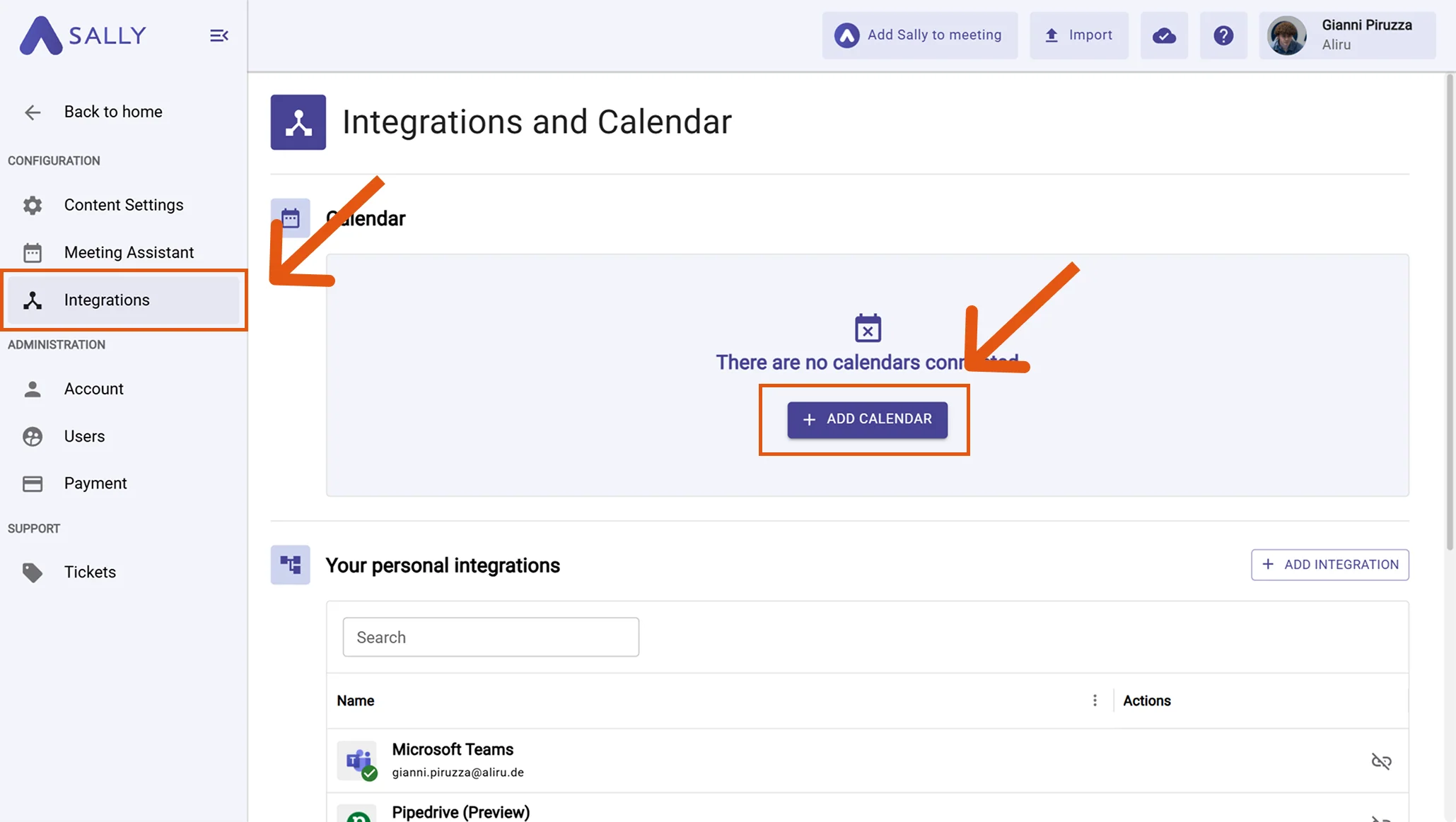
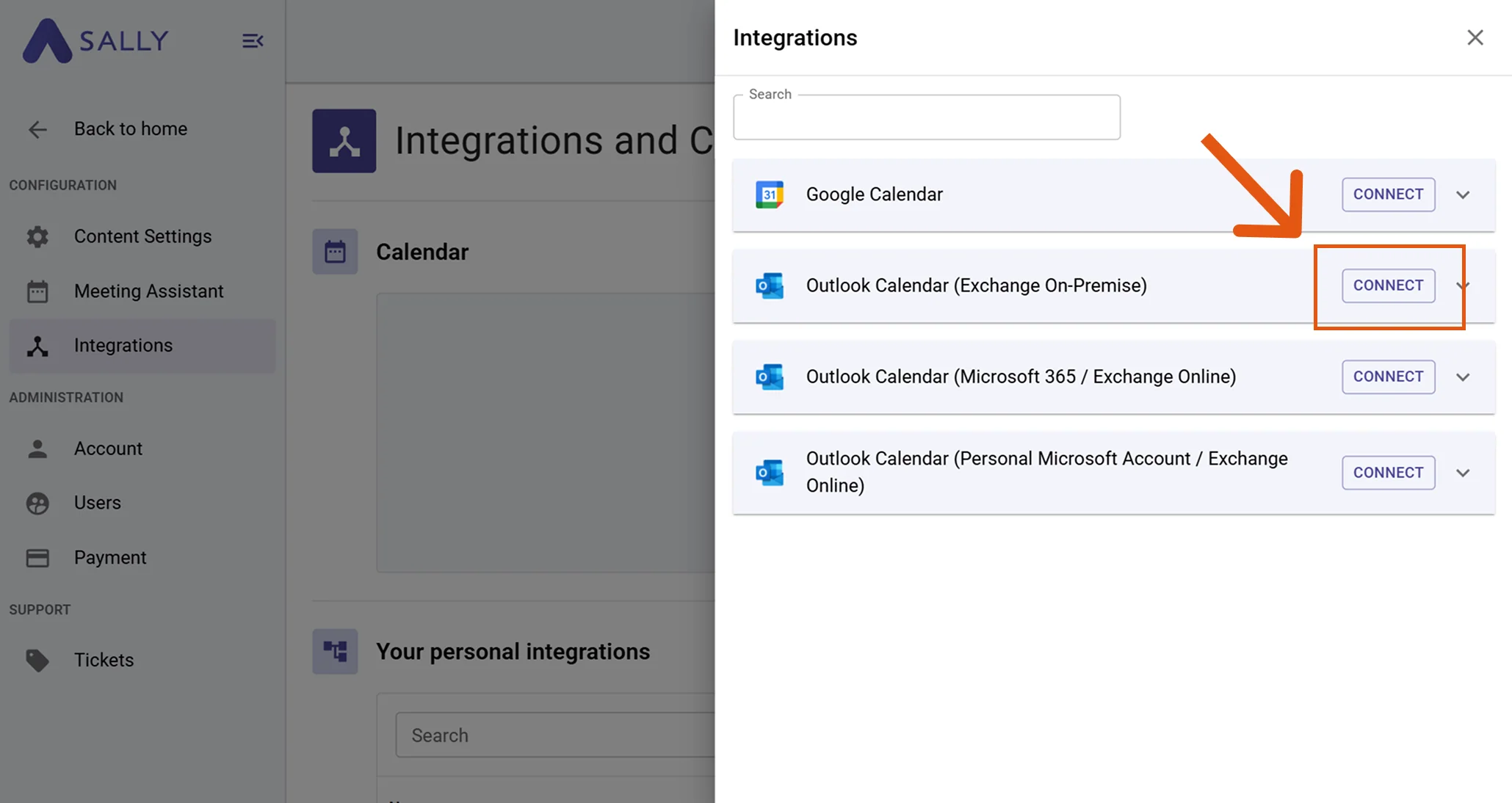
- Choose Outlook Calendar (Exchange On-Premise) and click Connect.
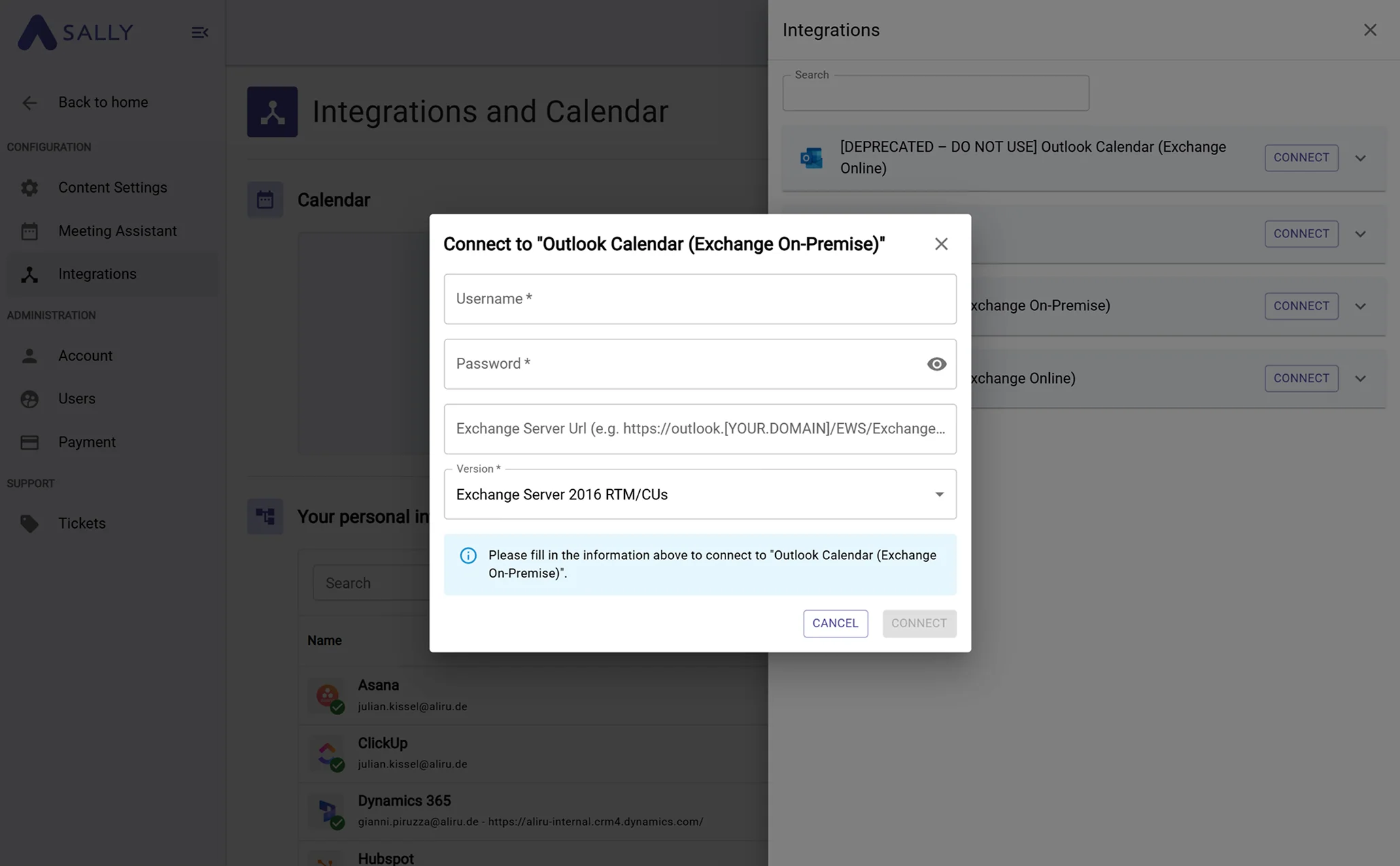
- Enter your login data and server information, then click "Connect" to complete the integration:
- Username
- Password
- Exchange Server URL
- Version
An Exchange Server URL often looks like this:
https://outlook.yourcompany.com/EWS/Exchange.asmx
You usually receive this information from your internal IT department.
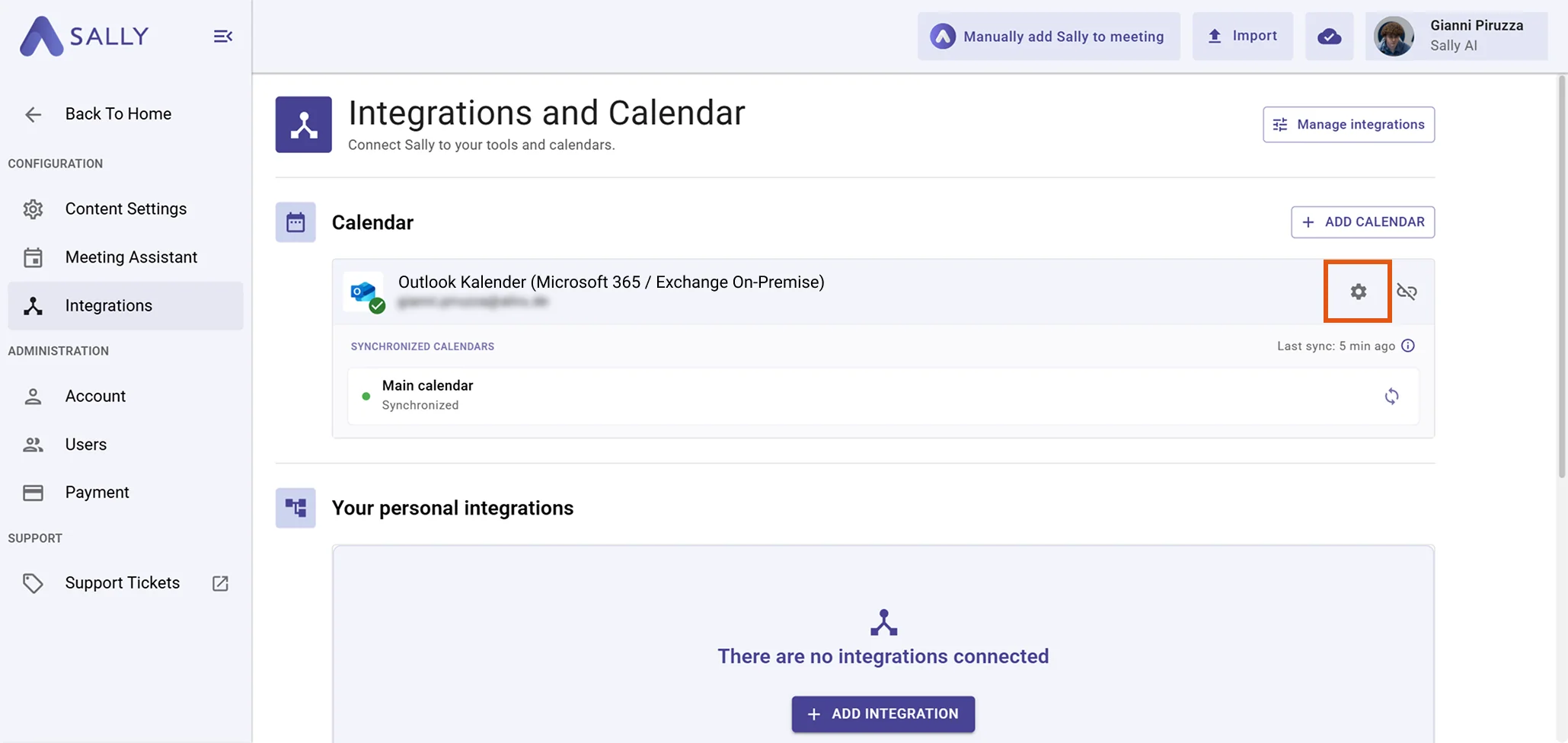
- (Optional) On the Integrations page, click the gear icon next to your connected Outlook Calendar (Exchange On-Premise) to open the configuration dialog.
In the "Configure calendars" dialog you can adjust the sync settings and select which calendars Sally should sync:
- "Sync private appointments": Enable this toggle if you want Sally to also sync your private appointments.
- "Sync only online meetings": Enable this toggle if you only want to sync appointments that contain an online meeting link (e.g. Microsoft Teams, Google Meet, Zoom).
- Synchronized calendars: Activate the calendars whose appointments Sally should sync. Your main calendar and all calendars shared with you are listed here. Up to 5 calendars can be synchronized in parallel per connection. Click "Save" to apply your changes.
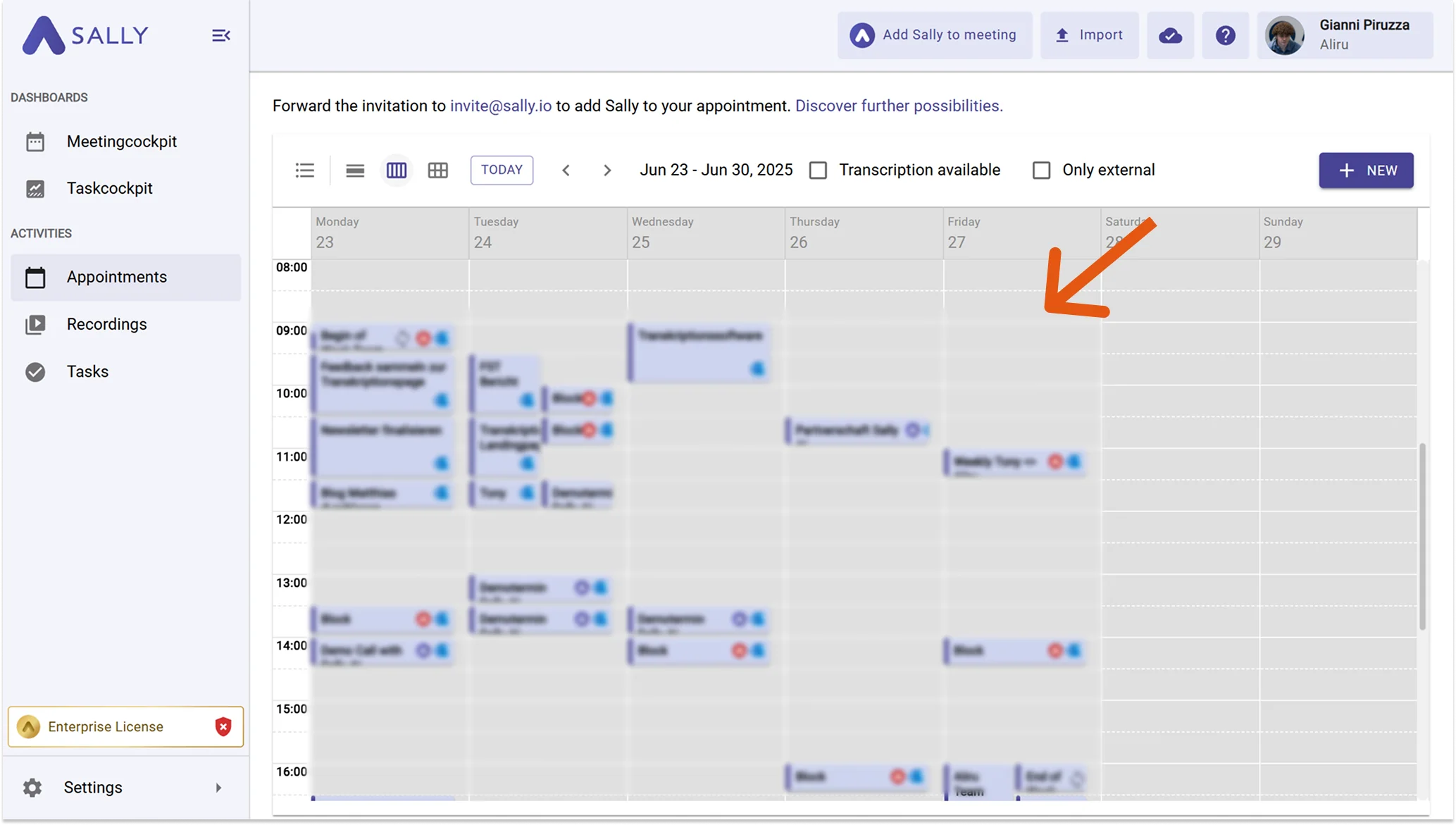
- Once connected, your Outlook On-Premise events will appear in Sally.
Synchronization may take a few moments. Restart Sally if necessary.
3. Connect Microsoft 365 Rooms
In addition to personal calendars, Sally can also sync Microsoft 365 room calendars. This is useful if you regularly book meeting rooms and want Sally to automatically pick up appointments scheduled in those rooms.
Room calendars are loaded directly from your Microsoft 365 tenant. Up to 5 rooms can be synchronized in parallel per connection. Connecting room calendars requires admin consent for the Sally app in your tenant.
- Open Settings in the left sidebar, select Integrations, and click + Add Calendar.
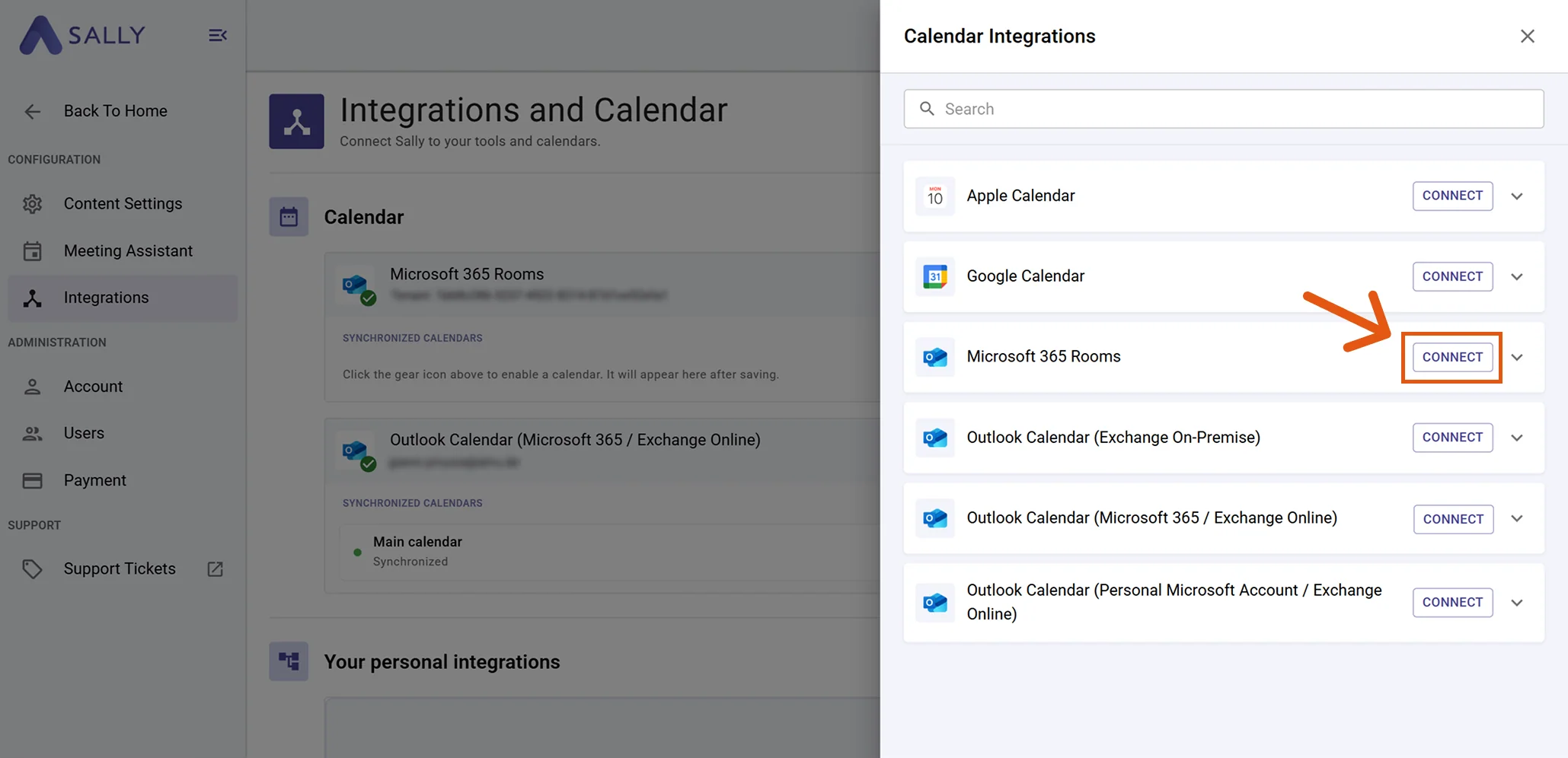
- In the Calendar Integrations panel, choose Microsoft 365 Rooms and click Connect. Sign in with an account that has access to the room mailboxes in your Microsoft 365 tenant and grant the required permissions.
-
After the connection is established, click the gear icon next to Microsoft 365 Rooms on the Integrations page to open the "Configure room calendars" dialog.
In the dialog you can:
- Adjust the sync settings ("Sync private appointments" and "Sync only online meetings") for the room calendars.
- Activate the rooms whose appointments Sally should sync. All rooms available in your Microsoft 365 tenant are listed here. Use the search field to quickly find a specific room. Click "Save" to apply your changes.
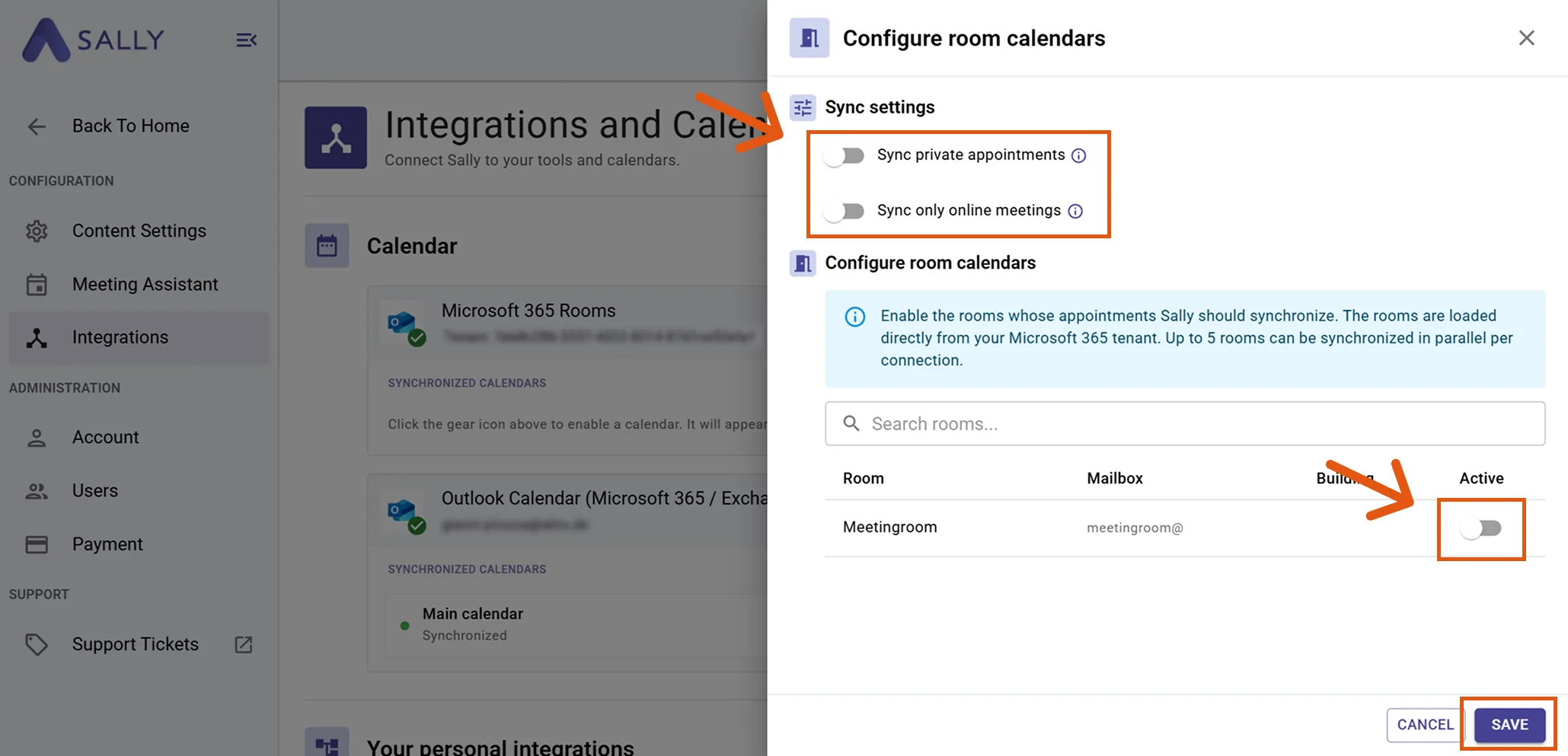
- Once saved, the activated room calendars will be synchronized and their appointments will appear in Sally just like personal calendar events.
3.1 Technical Microsoft Graph permissions for room calendars
Connecting room calendars requires extended Application Permissions on Microsoft Graph. These are granted once by a Microsoft 365 tenant administrator via Admin Consent.
Read-only: Sally never writes back into the room calendars — neither appointments, attendees, nor locations.
Connection: Granted once by a Microsoft 365 tenant administrator via Admin Consent. After that, token refresh and webhook reconciliation run fully automatically.
Application Permissions on Microsoft Graph
| Permission | What Sally needs it for |
|---|---|
Calendars.Read | Read all appointments in the connected room mailboxes — including hybrid meetings (on-site + remote) and meetings where no Sally user is invited. Updates and cancellations are propagated via Microsoft Graph webhooks within seconds. |
Place.Read.All | List the available rooms of the tenant from the Places Directory (/places/microsoft.graph.room) — so the admin can choose in Sally via toggle which rooms should be synchronized. |
Once successfully connected, you now can set whether and when Sally should automatically join your meetings.