Sally AI webhook integration: The complete A-Z guide
With webhooks, Sally can instantly send data to other tools as soon as something happens, for example, sending a meeting summary directly to your automation platform the moment it's ready.
This guide explains webhooks from scratch and walks you through a complete example.
Quick navigation
- What is a webhook (simple explanation)?
- Prerequisites
- Create a webhook URL in your tool
- Create a webhook in Sally
- JSON body & field reference
- Check the connection and view logs
- Execute Webhook manually
- FAQ & Troubleshooting
1. What is a webhook and how does it work?
A webhook is simply an internet address (URL) that another tool or system gives you, for example Zapier, Make, n8n, Power Automate or your own backend.
Whenever something specific happens in Sally, for example, when a summary is created, Sally automatically sends a POST request to that URL.
Comparison:
- API = you actively request data from another system.
- Webhook = the system automatically sends you data when something happens.
Typical webhook use cases:
- Automatically send summaries to an automation platform
- Create tasks in your workflow tools (Zapier, Make, n8n, Power Automate)
- Trigger backend actions when a meeting ends
2. What are the prerequisites?
To connect Sally to another tool via webhook, you need:
- Access to the target tool
Example: Zapier, Make, n8n, Power Automate, or a custom backend.
Without an account in the target tool, you cannot create a webhook endpoint.
- Permission to create or access a webhook URL
This URL always comes from the target tool.- In tools like Zapier, Make, n8n, Power Automate → you find it inside the workflow setup.
- In custom systems → developers usually provide it.
Check whether your role, for example Admin or Owner, is allowed to create webhooks.
- A Sally account with integration permissions
- Webhooks (Personal): you can create these for your own account at any time.
- Organization-wide webhooks: Only with the right permissions
The webhook URL always comes from the target system, never from Sally.
Without it, Sally has nowhere to send data.
3. How do you create a webhook URL in your tool?
The steps differ depending on your system but the principle is always the same:
- Open your target tool. For Zapier, Make, n8n and Power Automate there is a guide of its own that walks through the whole flow.
- Create an incoming webhook (sometimes called “Listener URL”, “Trigger URL”, or “Endpoint”).
- Copy the generated Webhook URL.
If unsure, search your tool's documentation for “create webhook” + tool name.
4. How do you create a webhook in Sally?
Once your target tool has given you a webhook URL, for example in Zapier, Make, n8n, Power Automate or your own backend, you enter it in Sally. One dialog covers everything: when Sally sends, where to, how Sally identifies itself, and which fields go into the body.
Step-by-step
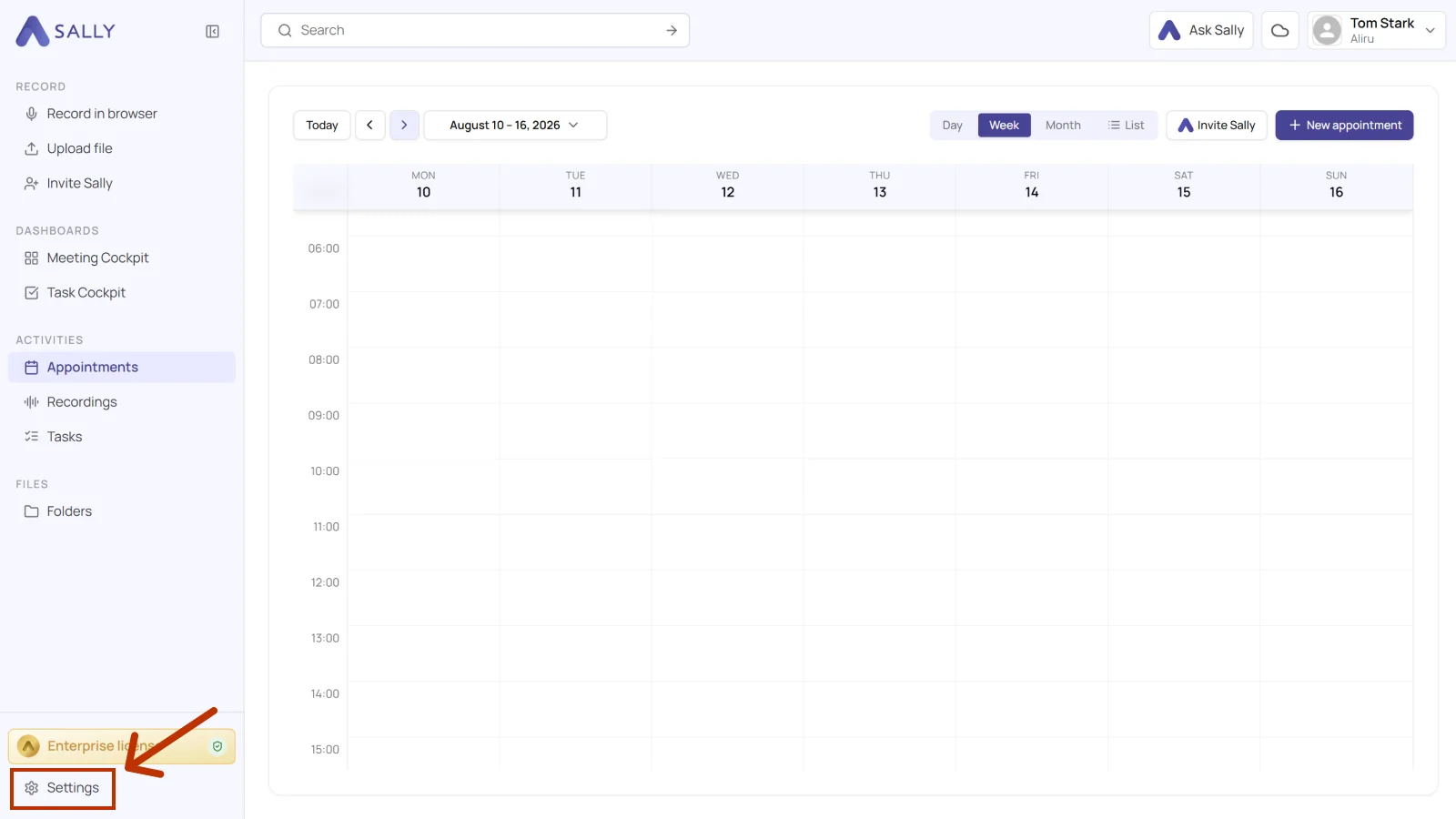
- In Sally, open Settings in the bottom-left of the sidebar.
- Under Configuration, select Integrations and open the Webhooks tab. Click Create webhook in the section you need.
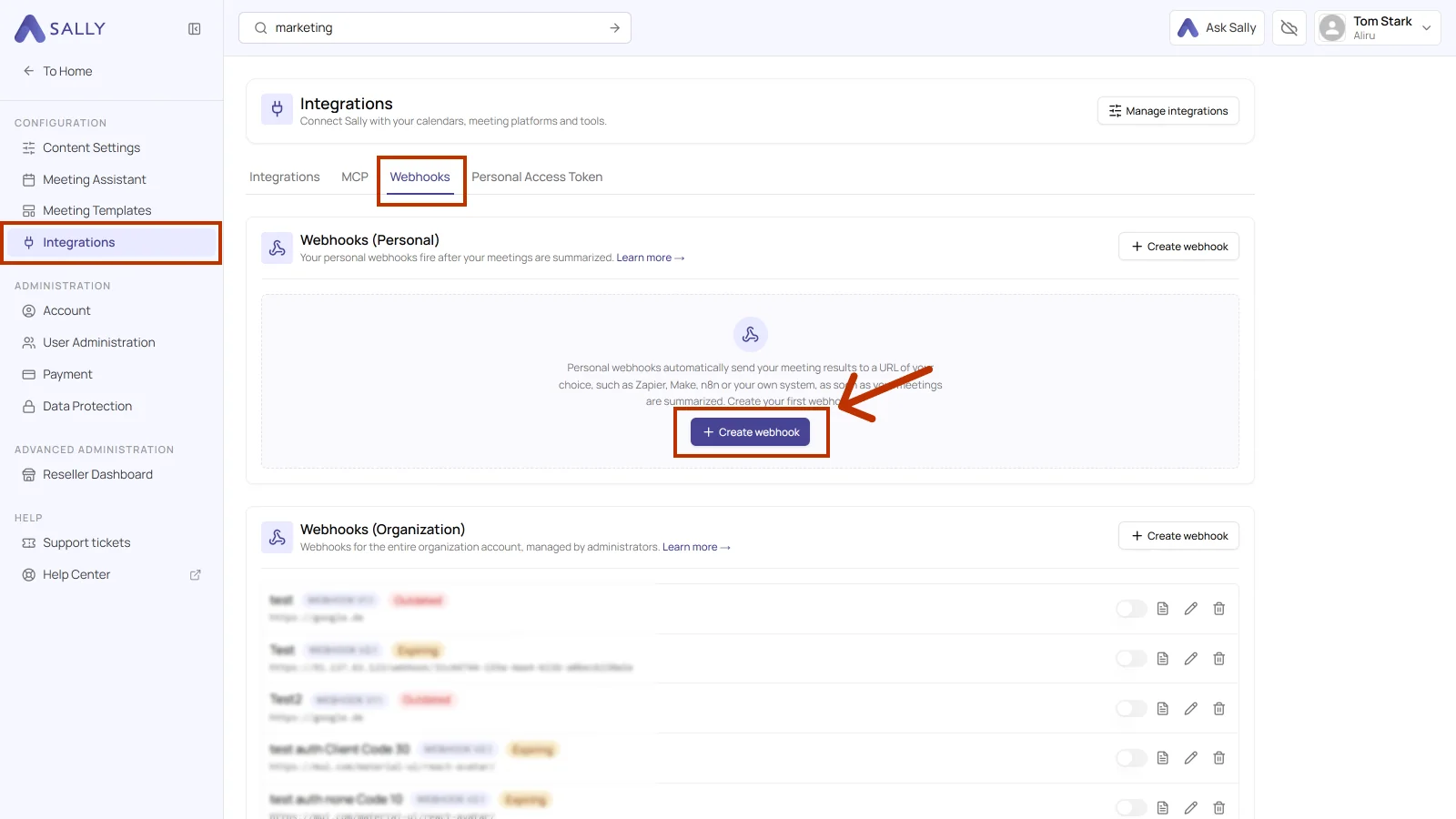
Webhooks (Personal) fire after your own meetings are summarized. Webhooks (Organization) apply to the entire organization account and are managed by administrators. The section you create the webhook in decides its scope, and that cannot be changed afterwards.
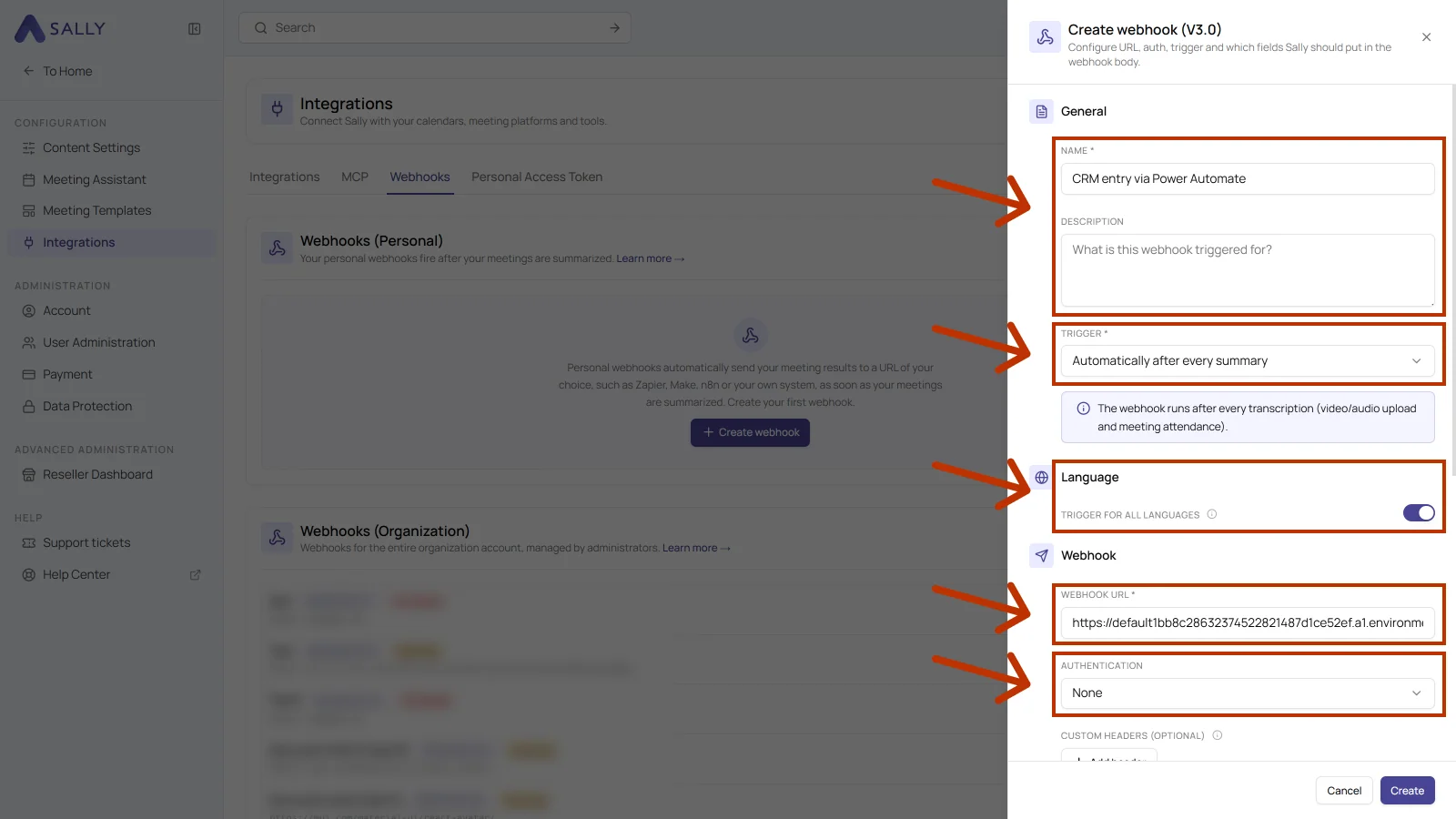
- Fill out the upper part of the Create webhook dialog: Name, an optional Description, the Trigger, the all-languages switch under Language, the address from your target tool under Webhook URL, and the Authentication.
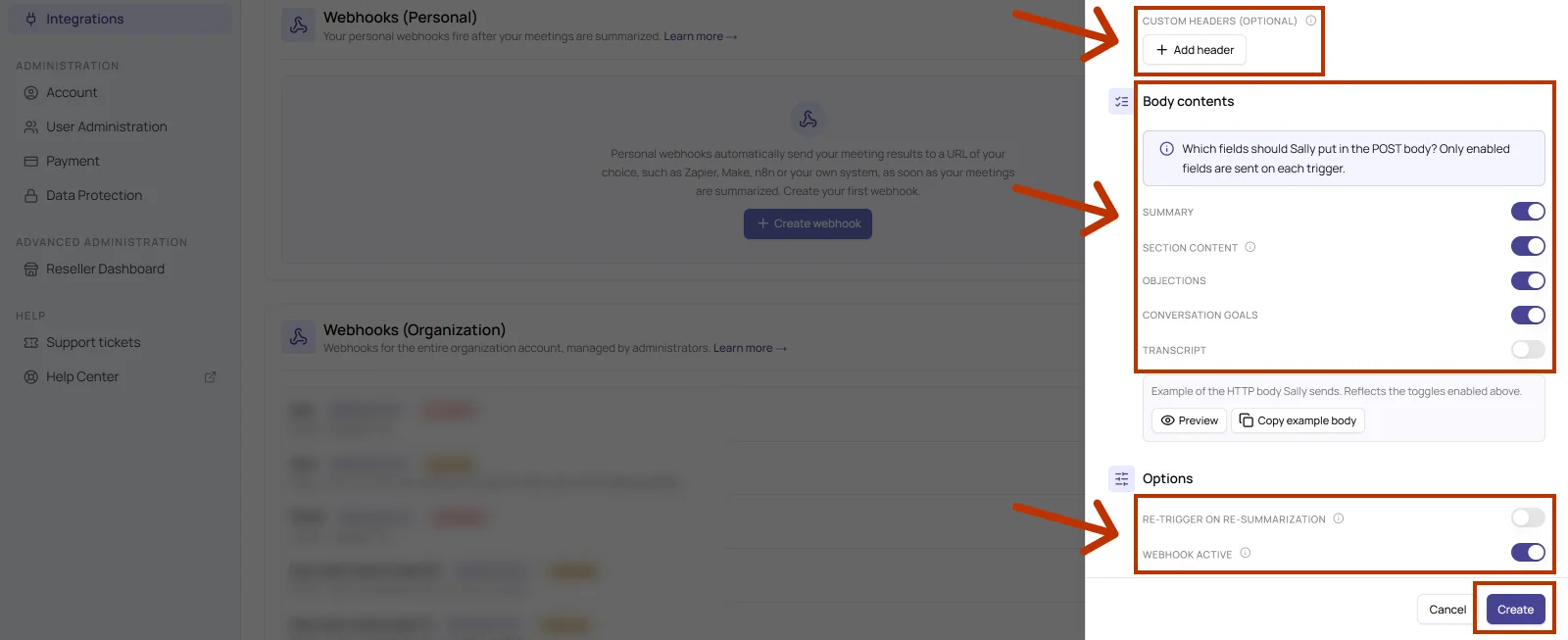
- Scroll down in the dialog. Custom headers is where you add your own headers, Body contents decides what Sally sends along, and Options decides when the webhook fires. Then click Create.
The table below explains every field in the dialog.
| Field | What it does |
|---|---|
| Name | Required. Display name of the webhook. Pick something you will recognize later, for example "CRM entry via Power Automate". |
| Description | Optional. A note on what the webhook is for. Useful once several webhooks run side by side. |
| Trigger | Required. Decides when Sally sends. Automatically after every summary runs the webhook after every transcription, so after a video or audio upload and after a meeting Sally attended. |
| Trigger for all languages | On, the webhook fires regardless of the language the summary was created in. Off, it only fires for the languages you select. |
| Webhook URL | Required. The address your target tool gave you. It always comes from there, never from Sally. |
| Authentication | Defines how Sally identifies itself to the target system. • None: no Authorization header is sent. Enough for open listeners such as a Catch Hook in Zapier or an HTTP trigger in Power Automate. • Basic Auth: Sally sends a username and password as a basic-auth header, common for internal APIs. • Raw: you enter the whole Authorization header yourself, for example Bearer xyz123 or ApiKey abc123. • Client certificate (PFX plus password): for mTLS, only needed when the target explicitly requires a client certificate. |
| Custom headers (optional) | Add header lets you add your own headers, for example x-api-key or x-tenant-id, to secure requests or steer workflows in the target system. |
| Body contents | Decides which fields end up in the POST body: Summary, Section content, Objections, Conversation goals and Transcript. Only enabled fields are sent on each trigger. The less you send, the smaller and faster the request. |
| Preview and Copy example body | Shows the body Sally would send with the switches you picked, and copies it. Handy for generating a schema in the target system or checking field names. |
| Re-trigger on re-summarization | Off, the webhook fires only the first time. On, Sally also sends when a summary is generated again. |
| Webhook active | Turns the webhook on. Off, it stays in place without you having to delete it. |
- The new webhook then appears in the list, with its body version and the target address.
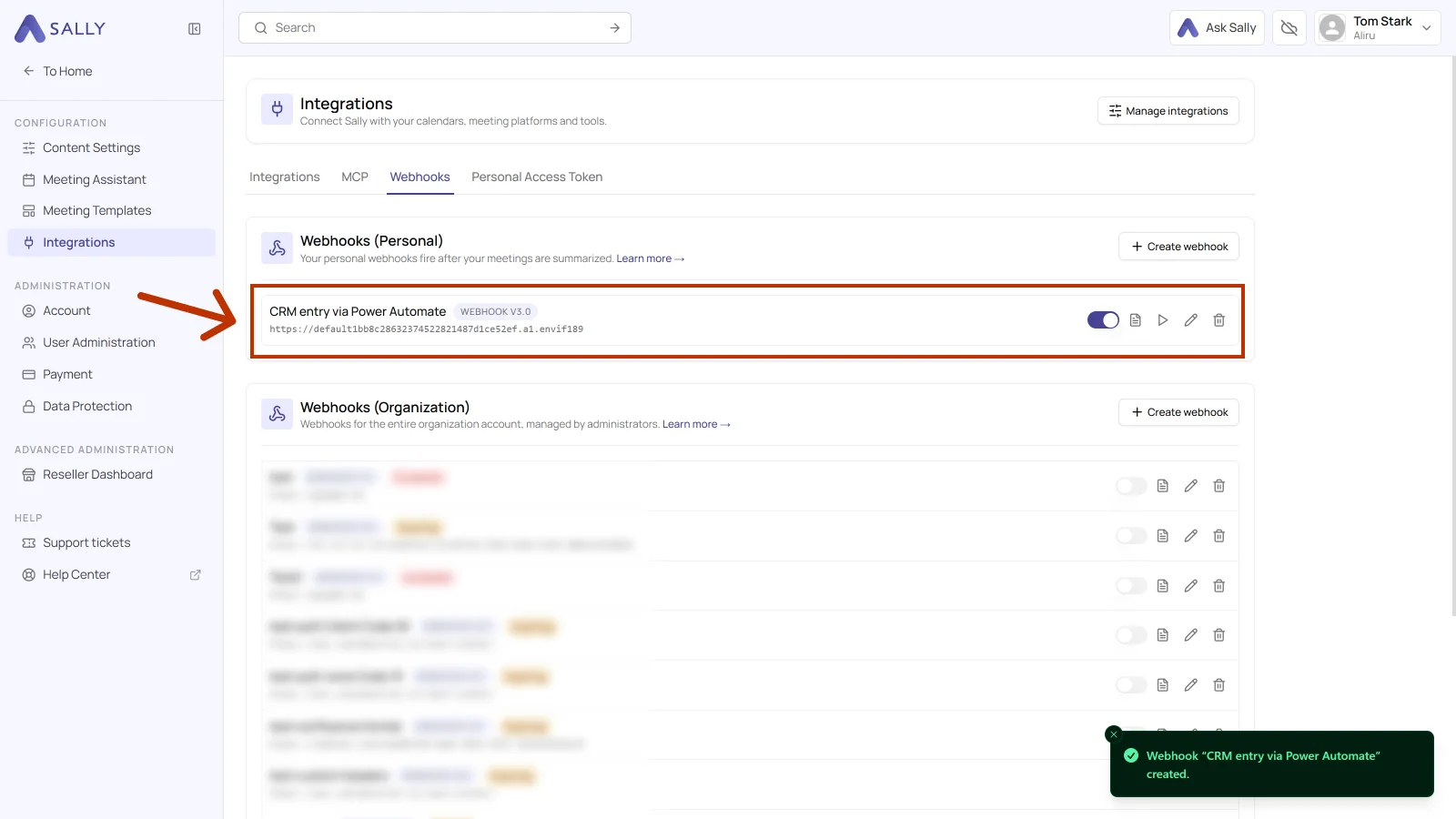
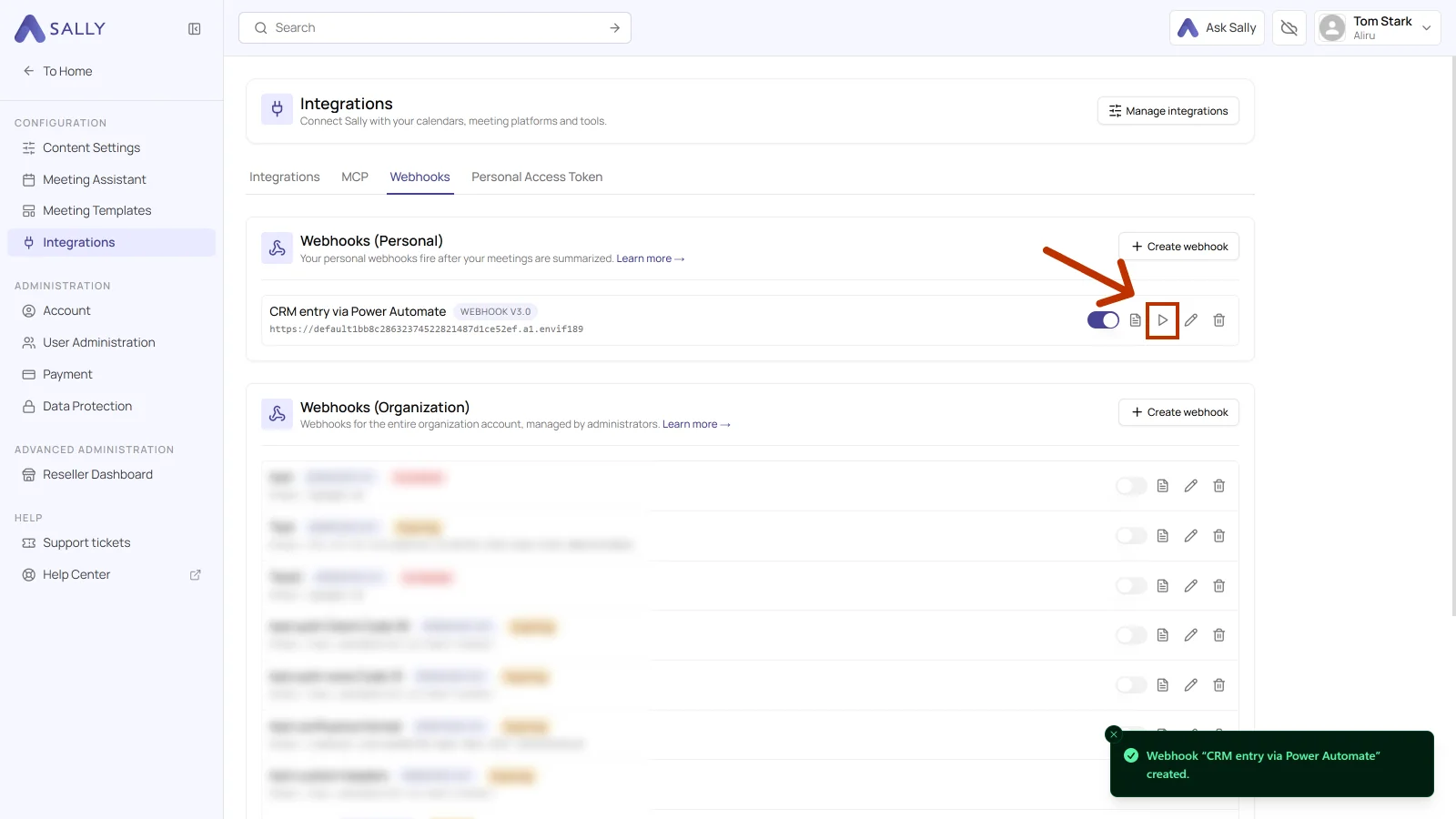
Every webhook row has five controls: the switch that puts it on hold without deleting it, the document icon for the logs, the play icon for the test, the pencil icon for editing, and the trash icon.
Each webhook shows its body version next to its name. Sally creates new webhooks in the current version; older ones are labelled: Expiring means the version is still served but no longer developed, Outdated means you should create the webhook again. The version determines the shape of the body, so after re-creating an old webhook, check in the target system that all fields still arrive.
5. JSON body & field reference
You can look at the body Sally will send before you need it in the target system. Open the webhook with the pencil icon in its row. Under Body contents there is an example that mirrors exactly the switches you set. Preview expands it and Copy example body puts it on your clipboard.
In the create dialog the example is still empty, which is why this goes through the edit dialog.
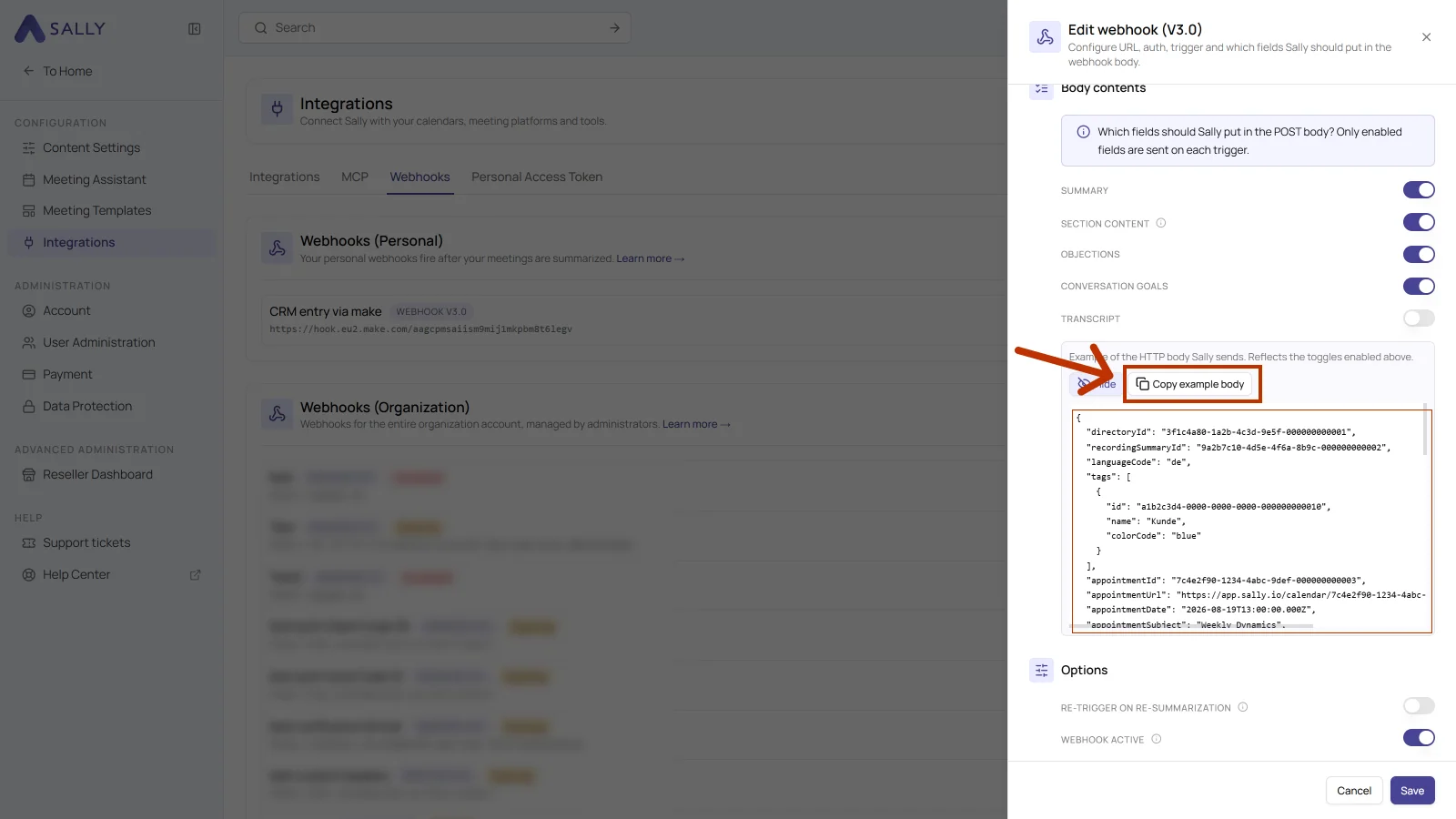
You need this body in the target system, for example to generate a schema in Power Automate or to check field names in n8n. Which fields it contains depends on the switches under Body contents. The base fields about the appointment and the recording are always included.
A webhook's body version is shown next to its name in the list and cannot be switched afterwards. How to spot older webhooks is explained further up.
Further down you find:
- the complete JSON body to copy, switchable per version right above the code block
- a reference for every field as a table
5.1 JSON example (copyable)
- Webhook V3.0
- Webhook V2.2
- Webhook V2.1 (Legacy integrations)
V3.0 merges the content blocks. Where V2.2 sent topics, decisions, tasks, customInsights and meetingTypeItems separately, every section is now an entry in one shared sections list, with sectionTypeCode as its type and outputFormatCode as its output format.
Newly added are tags, appointmentId, appointmentUrl, recordingTitle, recordingCreatedOn and the conversationGoals list. Objections now also carry response, resolved and timeStamp.
Renamed: attendees[].invitationStatus to invitationStatusCode, attendees[].attendenceStatus to attendanceStatusCode, and in the transcript parts startTimeStamp and endTimeStamp to startTime and endTime. Dropped: transcriptParts[].emphases.
Which blocks end up in the body depends on the switches under Body contents: Summary delivers summary and combinedFullSummaryHTML, Section content delivers sections, Objections delivers objections, Conversation goals delivers conversationGoals, Transcript delivers transcriptParts. The fields about the appointment, the recording and the people involved are always included.
{
  "directoryId": "3f1c4a80-1a2b-4c3d-9e5f-000000000001",
  "recordingSummaryId": "9a2b7c10-4d5e-4f6a-8b9c-000000000002",
  "languageCode": "de-de",
  "tags": [
    {
      "id": "a1b2c3d4-0000-0000-0000-000000000010",
      "name": "Kunde",
      "colorCode": "blue"
    }
  ],
  "appointmentId": "7c4e2f90-1234-4abc-9def-000000000003",
  "appointmentUrl": "https://app.sally.io/calendar/7c4e2f90-1234-4abc-9def-000000000003",
  "appointmentDate": "2026-08-19T13:00:00.000Z",
  "appointmentSubject": "Weekly Dynamics",
  "meetingUrl": "https://teams.microsoft.com/l/meetup-join/19%3ameeting_...",
  "meetingPlatform": "MicrosoftTeams",
  "recordingFileUrl": "https://media.sally.io/recordings/example.mp4",
  "recordingTitle": "Weekly Dynamics",
  "recordingCreatedOn": "2026-08-19T13:32:00.000Z",
  "attendees": [
    {
      "name": "Max Mustermann",
      "email": "max.mustermann@kunde.de",
      "userId": null,
      "invitationStatusCode": 20,
      "attendanceStatusCode": 20
    }
  ],
  "users": [
    {
      "userId": "b2c3d4e5-0000-0000-0000-000000000020",
      "firstName": "Erika",
      "lastName": "Beispiel",
      "email": "erika.beispiel@deinefirma.de"
    }
  ],
  "summary": "Kurze Zusammenfassung des Meetings in Klartext.",
  "combinedFullSummaryHTML": "<h2>Zusammenfassung</h2><p>Vollständige Zusammenfassung als HTML.</p>",
  "sections": [
    {
      "id": "c3d4e5f6-0000-0000-0000-000000000030",
      "sectionTypeCode": 30,
      "title": "Themen",
      "outputFormatCode": 20,
      "content": "Die im Meeting besprochenen Themen als Text."
    }
  ],
  "objections": [
    {
      "objection": "Der Preis ist zu hoch.",
      "response": "ROI innerhalb von 6 Monaten aufgezeigt.",
      "resolved": true,
      "timeStamp": 512
    }
  ],
  "conversationGoals": [
    {
      "goal": "Budget geklärt?",
      "achieved": true,
      "response": "Budget von 20.000 EUR bestätigt."
    }
  ],
  "transcriptParts": [
    {
      "id": "d4e5f6a7-0000-0000-0000-000000000040",
      "speakerName": "Erika Beispiel",
      "startTime": 0,
      "endTime": 4.2,
      "sortOrder": 0,
      "text": "Willkommen zum Weekly Dynamics Meeting."
    }
  ]
}
attendees[].userId: Per attendee, Sally now also returns the Sally directory user ID when the attendee's email matches a Sally account with active access to the triggering company. External guests still appear withname+emailonly anduserId: null.users(top-level), New array listing all Sally users involved in the appointment: the uploader of the recording plus all technical owners of every appointment that shares the same online meeting ID (i.e. recurring series). Deduplicated byuserIdand filtered to active users with active directory access.recordingFileUrl(top-level), Direct CDN link to the recording's media file, in the same format as in the Sally frontend (e.g.https://d39wo8p5549a9e.cloudfront.net/<filename>). Only present when the recording is released for download, otherwisenull(see the field reference for the exact release conditions).
Receivers can now map a transcript unambiguously to a Sally account instead of guessing via email, useful because email addresses are not reliably present for appointments without calendar binding. Fully additive: existing V2.1 subscriptions keep their previous payload and do not break.
{
  "directoryId": "00000000-0000-0000-0000-000000000001",
  "recordingSummaryId": "00000000-0000-0000-0000-000000000001",
  "languageCode": "string",
  "appointmentDate": "0000-01-01T00:00:00.000Z",
  "appointmentSubject": "string",
  "attendees": [
    {
      "name": "string",
      "email": "string",
      "invitationStatus": 0,
      "attendenceStatus": 0,
      "userId": "00000000-0000-0000-0000-000000000001"
    }
  ],
  "users": [
    {
      "userId": "00000000-0000-0000-0000-000000000001",
      "firstName": "string",
      "lastName": "string",
      "email": "string"
    }
  ],
  "meetingUrl": "string",
  "meetingPlatform": "webex|msteams|zoom|googlemeet",
  "recordingFileUrl": "string",
  "summary": "string",
  "combinedFullSummaryHTML": "string",
  "topics": [
    {
      "summary": "string",
      "description": "string",
      "startTimeStamp": 0.0,
      "endTimeStamp": 0.0
    }
  ],
  "decisions": [
    {
      "summary": "string",
      "description": "string",
      "startTimeStamp": 0.0,
      "endTimeStamp": 0.0
    }
  ],
  "tasks": [
    {
      "subject": "string",
      "description": "string",
      "responsiblePersonName": "string",
      "responsiblePersonEmail": "string",
      "dueDate": "0000-01-01T00:00:00.000Z"
    }
  ],
  "objections": [
    {
      "objection": "string"
    }
  ],
  "customInsights": [
    {
      "id": "00000000-0000-0000-0000-000000000001",
      "name": "string",
      "result": "string"
    }
  ],
  "meetingTypeItems": [
    {
      "summary": "string",
      "description": "string"
    }
  ],
  "transcriptParts": [
    {
      "id": "00000000-0000-0000-0000-000000000001",
      "speakerName": "string",
      "startTimeStamp": 0.0,
      "endTimeStamp": 0.0,
      "text": "string",
      "emphases": "string",
      "sortOrder": 0
    }
  ]
}
V2.1 is an older schema and is kept unchanged so that existing integrations keep working. Newly created webhooks get the current version from Sally, at the moment V3.0.
{
  "directoryId": "00000000-0000-0000-0000-000000000001",
  "recordingSummaryId": "00000000-0000-0000-0000-000000000001",
  "languageCode": "string",
  "appointmentDate": "0000-01-01T00:00:00.000Z",
  "appointmentSubject": "string",
  "attendees": [
    {
      "name": "string",
      "email": "string",
      "invitationStatus": 0,
      "attendenceStatus": 0
    }
  ],
  "meetingUrl": "string",
  "meetingPlatform": "webex|msteams|zoom|googlemeet",
  "summary": "string",
  "combinedFullSummaryHTML": "string",
  "topics": [
    {
      "summary": "string",
      "description": "string",
      "startTimeStamp": 0.0,
      "endTimeStamp": 0.0
    }
  ],
  "decisions": [
    {
      "summary": "string",
      "description": "string",
      "startTimeStamp": 0.0,
      "endTimeStamp": 0.0
    }
  ],
  "tasks": [
    {
      "subject": "string",
      "description": "string",
      "responsiblePersonName": "string",
      "responsiblePersonEmail": "string",
      "dueDate": "0000-01-01T00:00:00.000Z"
    }
  ],
  "objections": [
    {
      "objection": "string"
    }
  ],
  "customInsights": [
    {
      "id": "00000000-0000-0000-0000-000000000001",
      "name": "string",
      "result": "string"
    }
  ],
  "meetingTypeItems": [
    {
      "summary": "string",
      "description": "string"
    }
  ],
  "transcriptParts": [
    {
      "id": "00000000-0000-0000-0000-000000000001",
      "speakerName": "string",
      "startTimeStamp": 0.0,
      "endTimeStamp": 0.0,
      "text": "string",
      "emphases": "string",
      "sortOrder": 0
    }
  ]
}
5.2 Explanation of all JSON fields (V3.0)
The table describes the body in V3.0. If one of your webhooks still runs an older version, the example in the matching tab above shows how its body is built.
In V3.0 the webhook sends the numeric codes straight from the database, recognizable by the Code suffix in the field name. The public Sally API deliberately returns the same things as strings, so summary, tasks, html, accepted or attended, and without that suffix. If you integrate both, you handle two formats.
| Field Name | Type | Description |
|---|---|---|
directoryId | string (GUID) | Unique ID of your Sally organization. Used to identify which workspace the webhook originates from. |
recordingSummaryId | string (GUID) | Unique ID of the generated summary. Can be used to fetch or match data later. |
languageCode | string | Language the summary was generated in. Sally sends language and region in lower case with a hyphen, for example en-us or de-de. |
tags | Array | Tags attached to the recording. Empty array when none are set. |
tags[].id | string (GUID) | Unique ID of the tag. |
tags[].name | string | Display name of the tag, for example Kunde. |
tags[].colorCode | string | Colour of the tag as chosen in Sally. |
appointmentId | string (GUID) | null | ID of the appointment. null when the recording does not belong to a calendar appointment, for example after a file upload. |
appointmentUrl | string (URL) | null | Direct link to the appointment in Sally. null when no appointment is linked. |
appointmentDate | string (ISO date) | Date and time of the meeting or recording. |
appointmentSubject | string | Title or subject of the meeting (from the calendar or manually provided). |
meetingUrl | string | Link to the online meeting (Teams, Zoom, Webex, etc.). |
meetingPlatform | string | Platform on which the meeting took place (webex, msteams, zoom, googlemeet). |
recordingFileUrl | string (URL) | null | New in V2.2. Direct CDN link to the recording's media file, in the same format as in the Sally frontend (e.g. https://d39wo8p5549a9e.cloudfront.net/<filename>). Only present when the recording is released for download, otherwise null. A recording is released only if all of the following apply: it is still active (not deleted by retention), it is not archived, the matching recording type is not blocked by download restrictions, and both the recording itself and all linked appointments have the relevant recording type (video or audio) active. |
recordingTitle | string | Title of the recording. |
recordingCreatedOn | string (ISO date) | When the recording was created in Sally. |
attendees | Array | List of all meeting participants. |
attendees[].name | string | Name of the participant. |
attendees[].email | string | Email address of the participant. |
attendees[].userId | string (GUID) | null | New in V2.2. Sally directory user ID if the attendee's email matches a Sally account with active access to the triggering company. null for external guests, unknown emails, or users without directory access. |
attendees[].invitationStatusCode | number | Numeric invitation status: 10 = declined, 20 = accepted, 30 = accepted tentatively, 40 = no response, 50 = organizer, 100 = unknown. Was called invitationStatus in V2.2. |
attendees[].attendanceStatusCode | number | Numeric attendance status: 10 = did not attend, 20 = attended, 100 = unknown. Was called attendenceStatus in V2.2. |
users | Array | New in V2.2. List of Sally users involved in the appointment: the uploader of the recording and all technical owners of every appointment sharing the same online meeting ID. Deduplicated by userId, filtered to active users with active (non-blocked) directory access. Empty if no Sally user has access anymore (e.g. after a license removal). |
users[].userId | string (GUID) | New in V2.2. Sally directory user ID. Unique identifier within the company account. |
users[].firstName | string | New in V2.2. First name of the user, current value from the Sally profile. May be empty if not maintained. |
users[].lastName | string | New in V2.2. Last name of the user, current value from the Sally profile. May be empty if not maintained. |
users[].email | string | New in V2.2. Email address of the user, current value from the Sally profile. |
summary | string (Markdown) | Compact main summary of the meeting. |
combinedFullSummaryHTML | string (HTML) | Full formatted summary in HTML, ideal for CRMs, ticketing systems, or emails. |
sections | Array | The sections of the summary. Replaces the former topics, decisions, tasks, customInsights and meetingTypeItems lists. Only included when Section content is switched on. |
sections[].id | string (GUID) | Unique ID of the section. |
sections[].sectionTypeCode | number | Type of the section: 10 = summary, 20 = tasks, 30 = topics, 40 = decisions, 50 = custom list, 60 = free text, 100 = unknown. 10 to 40 are the standard types, 50 and 60 are your own sections with their own prompt. |
sections[].title | string | Heading of the section as set in the meeting template. |
sections[].outputFormatCode | number | Output format of the content: 10 = HTML, 20 = Markdown, 100 = unknown. |
sections[].content | string | The generated content of the section, in the format outputFormatCode states. |
objections | Array | Objections or concerns mentioned during the meeting. |
objections[].objection | string (Markdown) | The formulated objection. |
objections[].response | string | How the objection was answered in the conversation. |
objections[].resolved | boolean | Whether the objection was resolved during the conversation. |
objections[].timeStamp | number | Point in the conversation in seconds where the objection came up. |
conversationGoals | Array | The conversation goals from the meeting template and whether they were met. Only included when Conversation goals is switched on. |
conversationGoals[].goal | string | The goal as worded in the meeting template. |
conversationGoals[].achieved | boolean | Whether the goal was met in the conversation. |
conversationGoals[].response | string | The passage from the conversation Sally bases its assessment on. |
transcriptParts | Array | Each recognized transcript segment, structured by speaker and time. |
transcriptParts[].id | string (GUID) | Unique ID of the transcript segment. |
transcriptParts[].speakerName | string | Name of the speaker. |
transcriptParts[].startTime | number | Start time of the passage in seconds. Was called startTimeStamp in V2.2. |
transcriptParts[].endTime | number | End time of the passage in seconds. Was called endTimeStamp in V2.2. |
transcriptParts[].text | string | Spoken content. |
transcriptParts[].sortOrder | number (int) | Sequential number indicating the order of the segment in the full transcript. Ascending: lower = earlier, higher = later. |
6. Check the connection and view logs
The quickest way to see whether the connection works is the built-in test. After that the logs help: Sally logs every trigger, so you can see what was sent to your target system and how it responded. That narrows a problem down fast: no entry in the log means the trigger never fired, so the cause is on Sally's side. An entry with an error status means the cause is in the target system, so the address, the permissions, or the expected format.
6.1. Test the connection
The test sends a real request to your address, so you do not have to wait for the next meeting.
- Click the play icon in the webhook row. It sits between the document icon and the pencil.
- In the Test webhook dialog, pick an existing recording under Meeting for the test and click Send test.
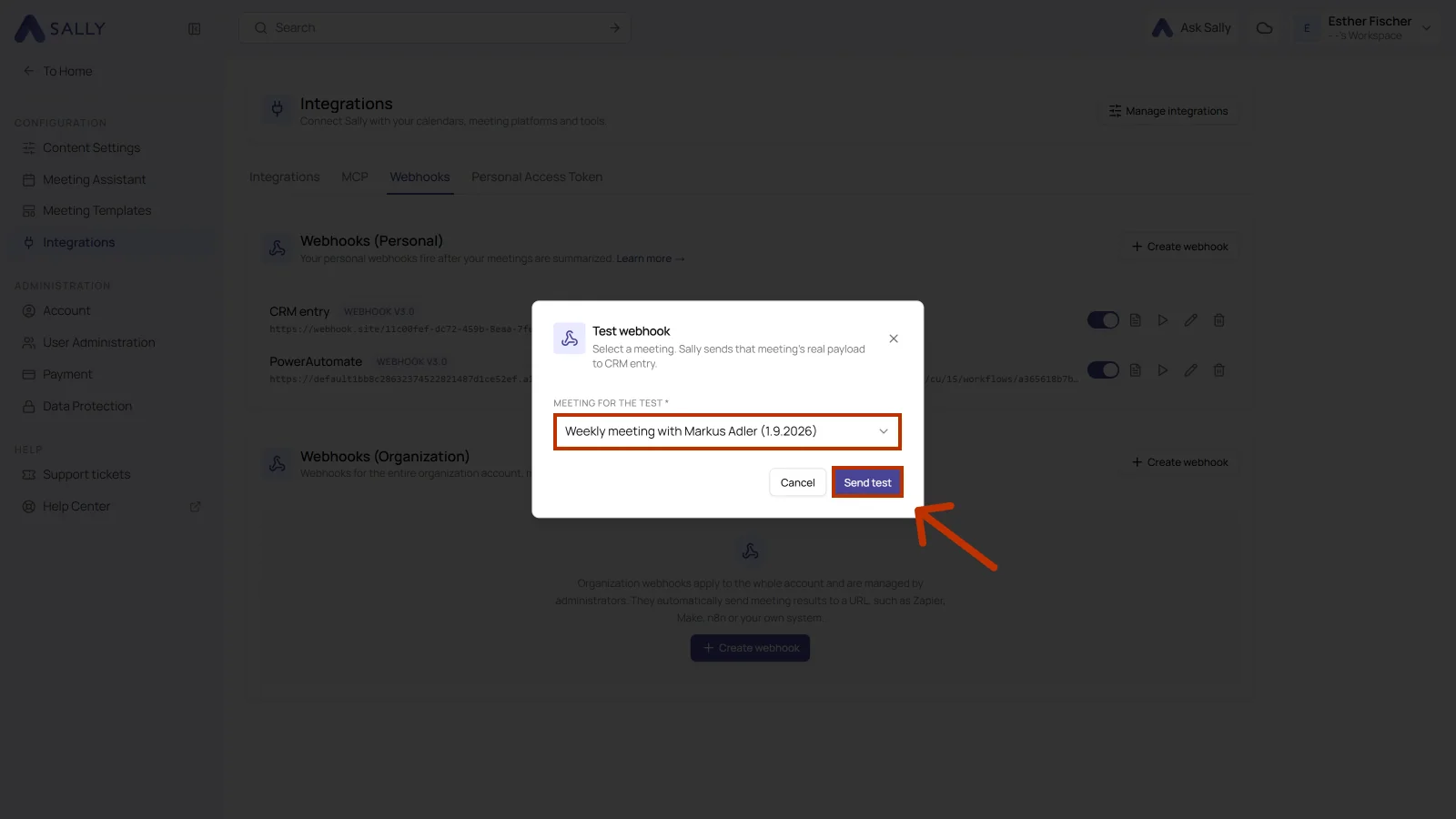
Sally sends the real payload of the meeting you picked to your address, not placeholder data. So the content of that meeting lands in the target system. Pick a recording whose data does no harm there, or use a test address.
The test then appears as its own entry in the logs, with its HTTP status and all details. That way one step tells you whether the address is right, whether the target system is reachable, and whether authentication works.
6.2. Where to find the logs
Open the Webhooks tab and click the document icon on your webhook. In the row it sits directly to the right of the switch.
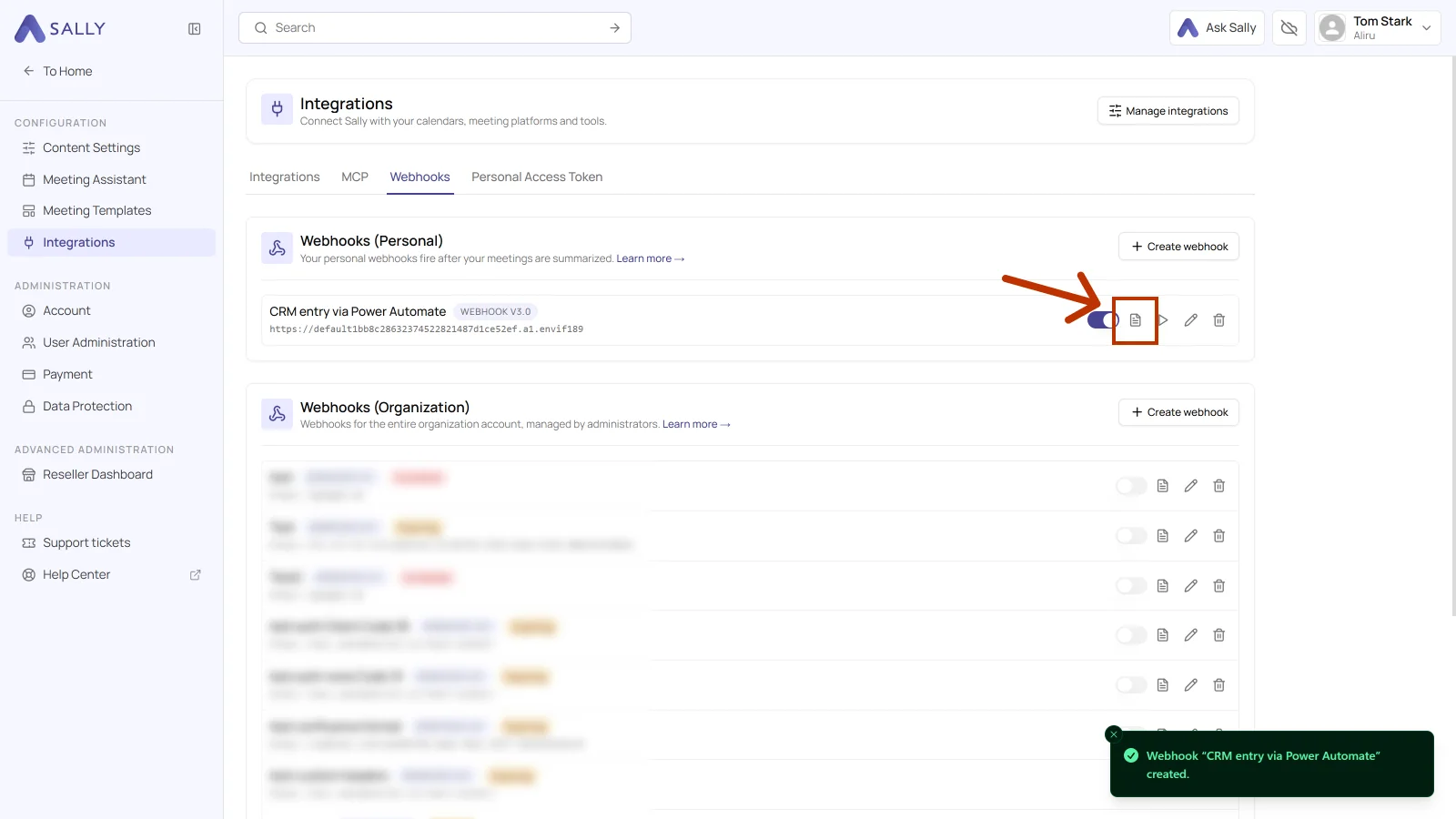
Each entry stands for one delivery attempt. The list has four columns: Status with the HTTP code the target system returned, Time of the delivery, Message when something failed, and the Request URL it went to. Search logs filters the list.
The arrow on the right opens a single entry. Overview repeats the status, the time and the address, and below it sit the full Request body and the Response body, each with an icon to copy it. That is the view you use to check whether the fields your target system expects really arrive, and what it answered.
The list shows the last 100 runs, newest first, and it has a search field. Webhook logs are kept for 90 days and then deleted automatically, so there is nothing to clean up by hand.
6.3. Send an entry again
Sally can send exactly the same body to the same address once more. There are two ways: the icon on the right of the row in the list, or the Re-run button in the top right of an opened entry. Useful when you have changed the address, adjusted the authentication, or the target system was unreachable on the first attempt.
No new meeting is created and no new summary is generated, it really is the same record going out again. The new attempt shows up as its own entry in the list, so you can see whether it worked this time.
6.4. What do the HTTP status codes mean?
The status comes from the target system, not from Sally. It tells you whether the request arrived and where to look when something fails.
| Status | Meaning | What you can do |
|---|---|---|
| 200 OK, 202 Accepted, 204 No Content | The target system accepted the request. | Nothing. If nothing happens there anyway, check the run history of your workflow. |
| 400 Bad Request | The target system does not understand the body. | Use Details to compare the body that was sent with what the target expects. If you changed the body contents, generate any stored schema again. |
| 401 Unauthorized, 403 Forbidden | The target system rejects the request. | Check the authentication and the custom headers in the webhook, and whether the credentials are still valid in the target system. |
| 404 Not Found, 410 Gone | Nothing answers at this address any more. | Most common cause: the workflow in the target tool was deleted or switched off. Check it and enter the address again if needed. |
| 429 Too Many Requests | Too many requests in a short time, or a limit in your target tool has been reached. | Send less content, or use a queue in the target system. |
| 500, 502, 503, 504 | The target system was unreachable or failed with an error. | Trigger it again later, see executing a webhook manually, and check the run history in the target system. |
6.5. Common issues and quick fixes
| Issue | Typical signs | Quick fix |
|---|---|---|
| Wrong address | Requests fail or reach the wrong endpoint | Compare the address in the log with the one you expect. Watch for typos, missing paths and stale test addresses. |
| Missing or wrong authentication | 401 Unauthorized or 403 Forbidden | Check keys, tokens, and the headers the target system requires. |
| Body does not match the target system | Errors despite successful delivery | Use Details to check the data that went out. The target system may expect different field names or a different body version. |
| Too many requests | 429 Too Many Requests | Send less content, or use queues and delays in the target system. |
| Target system unavailable | 5xx errors | Check that the target system is reachable, then trigger the webhook manually. |
| Test mode not active | No reaction, for example in n8n | Make sure the workflow in the target system is listening when you use a test address. |
| Webhook switched off | No log entry at all | Check the switch in the webhook row and the Webhook active switch in the dialog. |
7. How do you execute a webhook manually?
Besides the automatic run, you can trigger a webhook yourself for a single recording. Use this when you are in a recording and want exactly its data handed over again. If you only want to check whether the connection works at all, the test is the shorter route, and a record that already went out is best sent again from the log.
- Open the recording whose data you want to send.
- Click Integrations in the top right and select Run webhook manually under Webhooks.
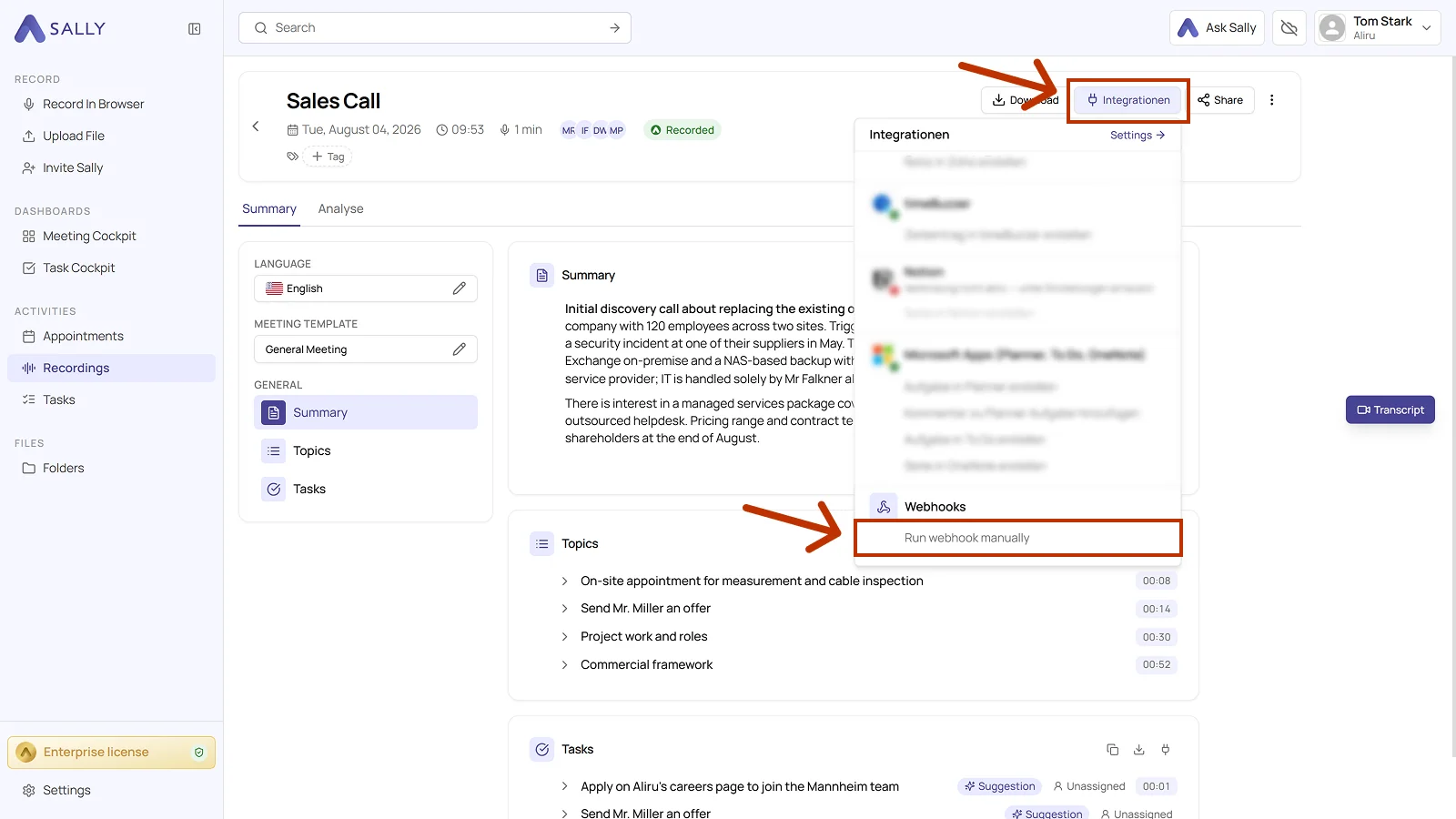
Sally then sends the same body to the same target as it would on an automatic run. What applies:
- No new meeting is created and no new summary is generated.
- No automatic event is waited for.
- The delivery appears as its own entry in the logs, with its status, time, address and the full request body.
So you can test changes in the target system, make up for a failed delivery, or hand the data over again without repeating the meeting.
8. FAQ & troubleshooting
- My webhook isn't sending anything. What should I do?
- Which language does the content arrive in?
- How long are logs stored?
- Can I use multiple webhooks at the same time?
- What is the difference between a personal and a company-wide webhook?
- What happens if my target system is unreachable?
- Can I customize the webhook body content?
- Can I edit a webhook after creating it?
- How can I test my webhook without running a meeting?
- What HTTP method does Sally use for webhooks?
- Can I temporarily disable a webhook without deleting it?
- Are webhooks also triggered for uploaded recordings?
- My target system receives the data but doesn't process it correctly.
My webhook isn't sending anything. What should I do?
- Check whether the triggering event (e.g. summary created) actually occurred.
- Make sure the switch in the webhook row is turned on.
- Open the logs with the document icon and check whether an entry exists. If it does, the HTTP status tells you what went wrong.
- If there is no log entry, the webhook never fired. Check that it sits in the right section, so under Webhooks (Personal) or under Webhooks (Organization).
Which language does the content arrive in?
The language of the content follows the summary, not the webhook. Under Language in the dialog you only decide whether the webhook fires for every language: on, Sally sends regardless of the summary language; off, only for the languages you select.
Which language it was is in the body, in the languageCode field.
How long are logs stored?
Webhook logs are kept for 90 days for security and traceability, then deleted automatically. You do not have to clean anything up.
Can I use multiple webhooks at the same time?
Yes. You can create as many webhooks as you need, both in the personal and company-wide scope. Each webhook can have its own URL, authentication, and individually configured body. That way you can feed Zapier, Make and your own backend at the same time.
What is the difference between a personal and a company-wide webhook?
- Personal webhook: Only triggers for meetings of the user who created the webhook.
- Webhook (Organization): triggers for all meetings across the entire organization account, no matter who ran the meeting.
The scope is set when you create the webhook, depending on whether you create it under Webhooks (Personal) or under Webhooks (Organization). It cannot be changed afterwards.
What happens if my target system is unreachable?
If the target system is unreachable when Sally sends, for example on a 5xx error or a timeout, Sally records the failed attempt in the log. Once the target is reachable again, trigger the webhook manually from the recording.
Can I customize the webhook body content?
Yes. The dialog has a Body contents section with switches for Summary, Section content, Objections, Conversation goals and Transcript. Only enabled fields are sent. Preview shows what the body looks like with the switches you picked, and Copy example body puts it on your clipboard.
Can I edit a webhook after creating it?
Yes. Open the Webhooks tab and click the pencil icon in the webhook row. There you can change the address, the authentication, the headers and the body contents. Changes apply from the next run onwards. The body version of an existing webhook cannot be switched, for that you create it again.
How can I test my webhook without running a meeting?
There are two ways, both without a new meeting. The play icon in the webhook row starts the test, where you pick the recording whose payload gets sent. Or you open a recording and trigger the webhook from there. Either way Sally sends the same body as on an automatic run, and the delivery lands as its own entry in the logs.
What HTTP method does Sally use for webhooks?
Sally always sends webhook data as an HTTP POST request with a JSON body (Content-Type: application/json).
Can I temporarily disable a webhook without deleting it?
Yes. Every row in the Webhooks tab has a switch. Turned off, Sally sends no data to the address, but the configuration stays. The same switch is in the dialog under Options as Webhook active.
Are webhooks also triggered for uploaded recordings?
Yes. Webhooks are triggered whenever the configured event occurs, regardless of whether the meeting was recorded live or uploaded as a file. Once Sally has created the summary, the webhook is sent.
My target system receives the data but doesn't process it correctly. What could be wrong?
Check the following:
- Open the log entry and use Details to compare the body that was sent with the format your target system expects.
- Check the body version shown next to the webhook in the list. If it is labelled Outdated or Expiring, create the webhook again.
- Ensure that field names and data types match what the target system expects. Some fields are sent as Markdown or HTML (see the field reference).
- If your tool expects a different date format, you will need to convert the ISO 8601 format (
2025-03-15T00:00:00.000Z) in your target system accordingly.