Sally MCP with OpenHands (OpenDevin)
OpenHands (formerly OpenDevin) is an open-source platform for autonomous software agents. The Model Context Protocol (MCP) is an open standard that lets AI tools connect to external data sources. OpenHands supports MCP servers natively, both in OpenHands Cloud and in the Agent SDK. Once connected, agents can query your Sally meetings, summaries, and transcripts as part of automated workflows, for example to gather context from past discussions, compile action items, or feed transcript data into downstream tasks.
For background on the Sally MCP Connector, available tools, and security best practices, see the General Setup Guide.
Quick navigation
- Create a Personal Access Token in Sally
- Set up the MCP connection in OpenHands
- Alternative: Using the OpenHands SDK
- Access scope
- Troubleshooting
- An OpenHands Cloud account at app.all-hands.dev, or the OpenHands SDK installed locally (
pip install openhands-ai). - An active Sally user with access to at least one company account.
- Sally MCP enabled for your company account (admin setting).
Sally accepts both OAuth 2.1 and a Personal Access Token. For remote servers, the OpenHands MCP settings offer a url and an api_key field and no browser login, so the token route is the one that works in the UI. OpenHands can run OAuth through its CLI, SDK or TOML config instead; see OAuth 2.1 with Dynamic Client Registration if you go that way.
1. Create a Personal Access Token in Sally
A Personal Access Token (PAT) is the credential the OpenHands agent uses to authenticate against the Sally MCP endpoint. You create it once.
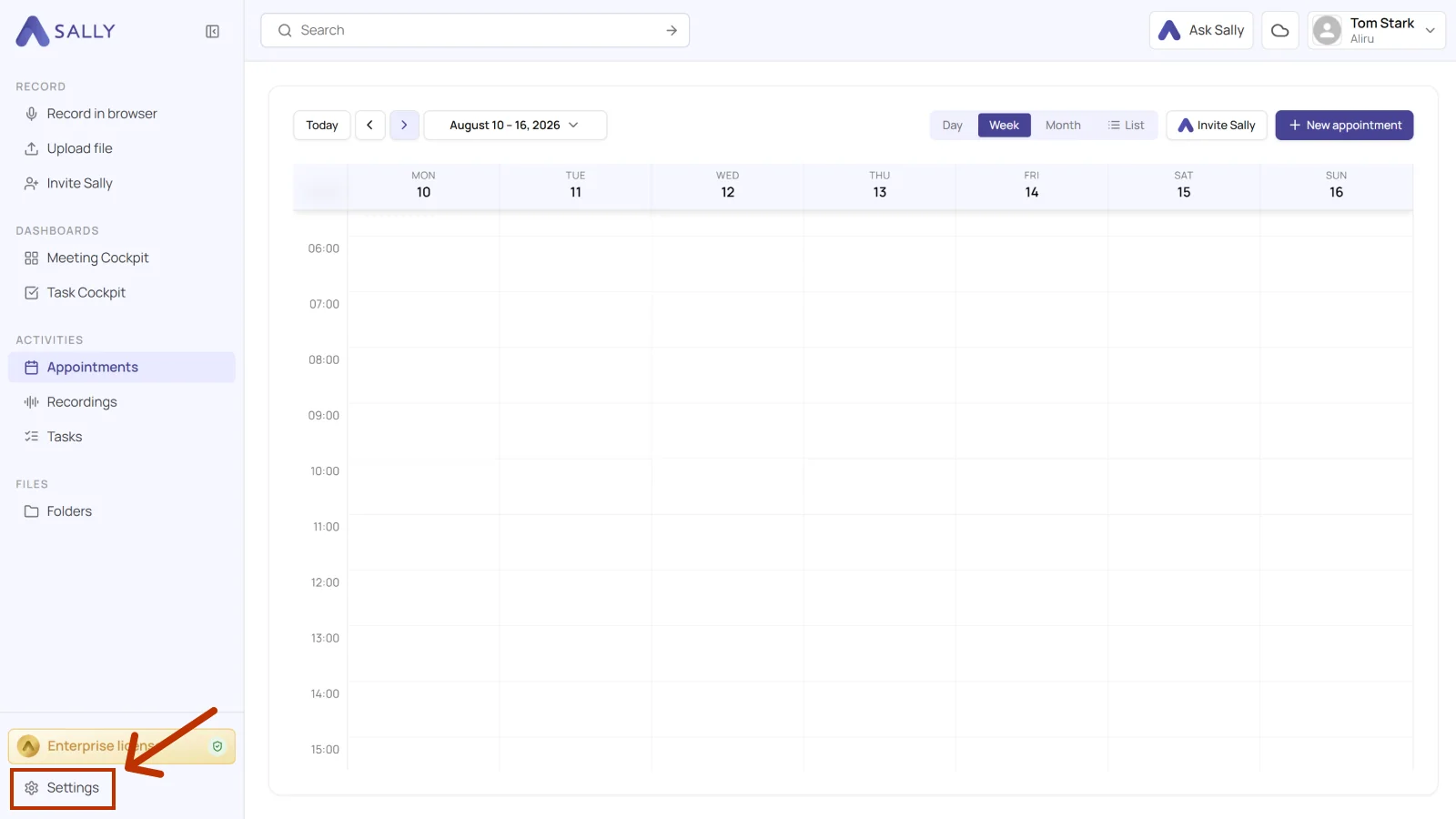
- Open Settings in the bottom-left of the sidebar.
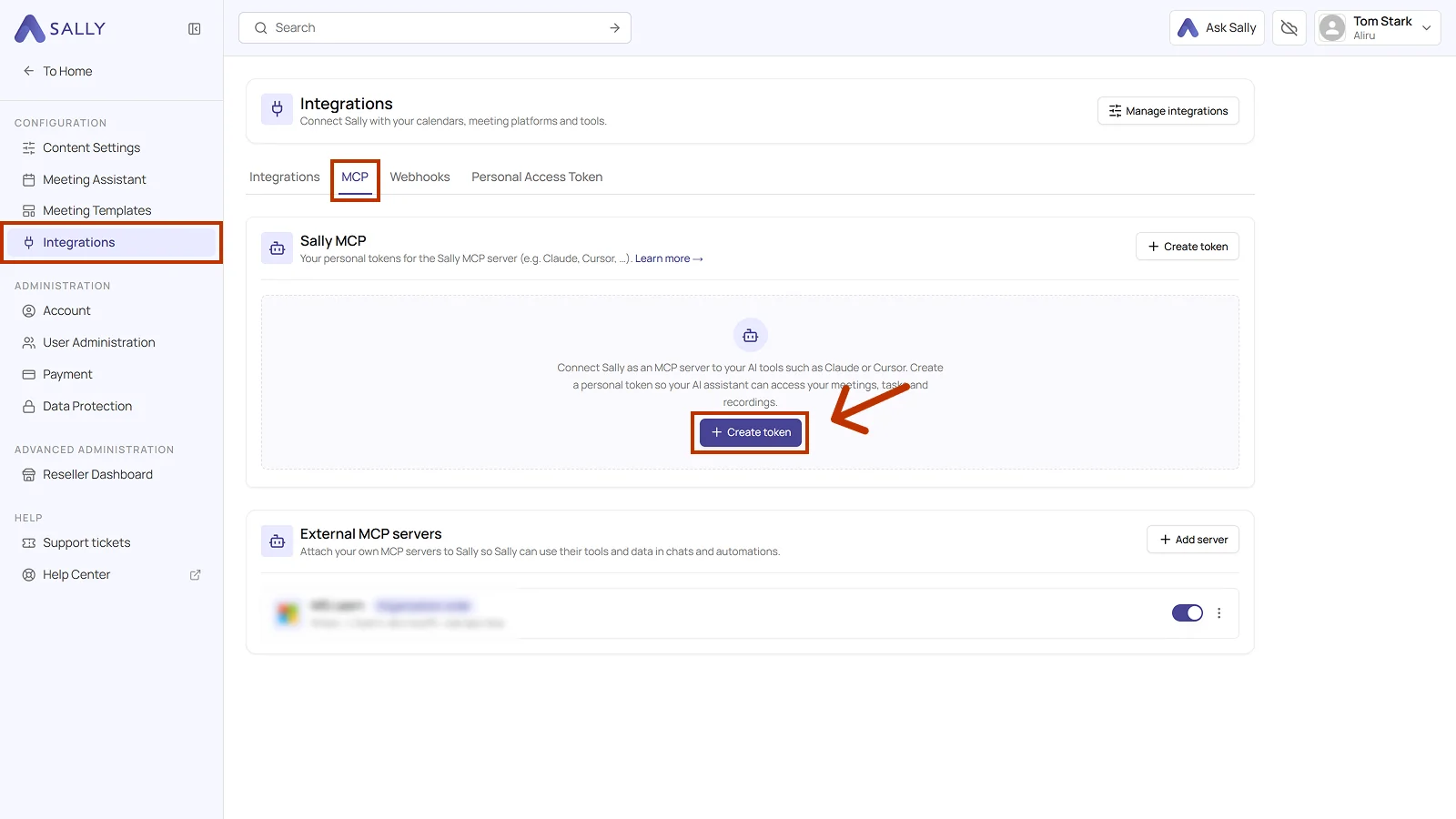
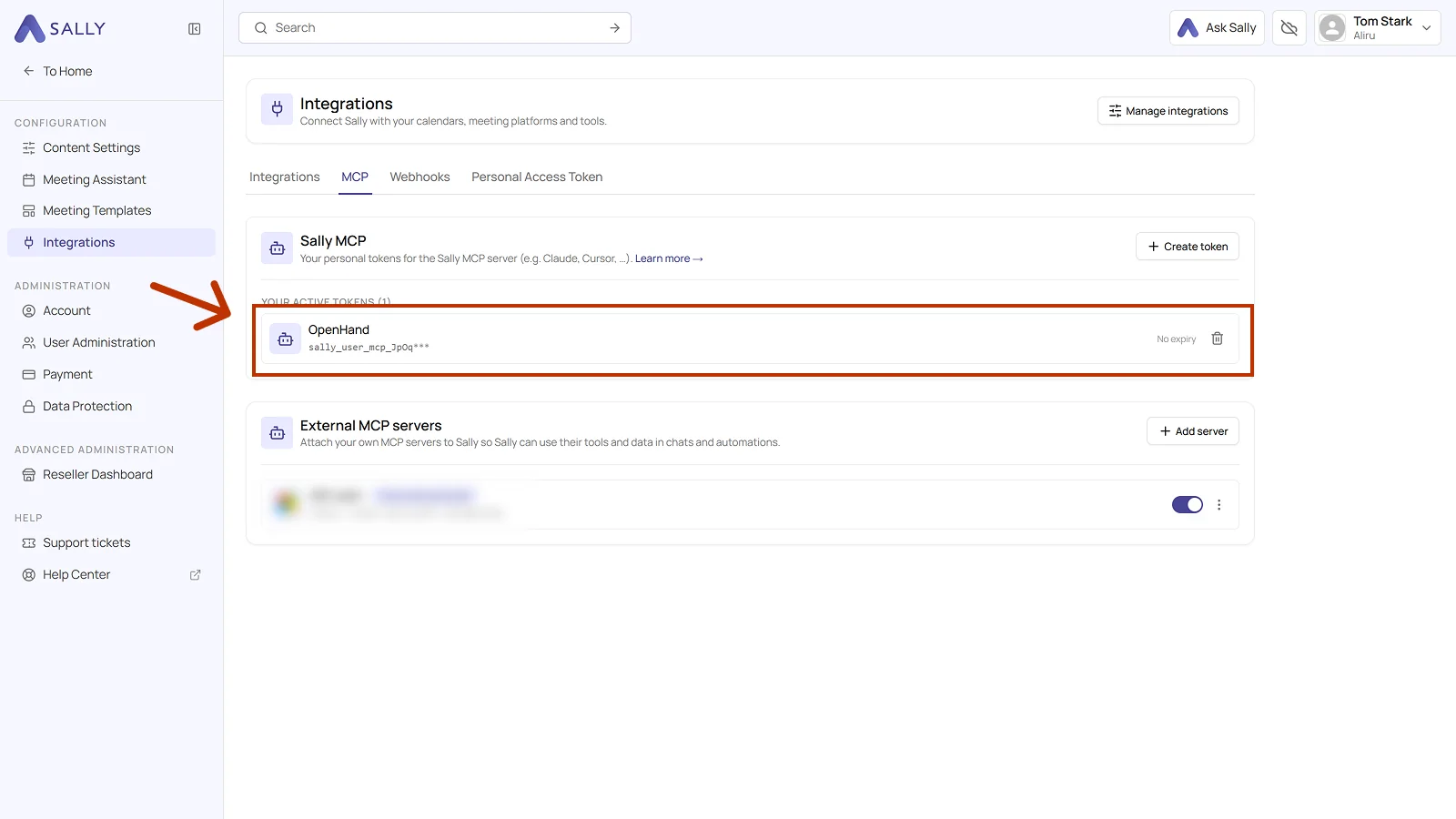
- Under Configuration, select Integrations and open the MCP tab. Click Create token under Sally MCP. With no token yet, the button sits in the middle, otherwise in the top right corner.
-
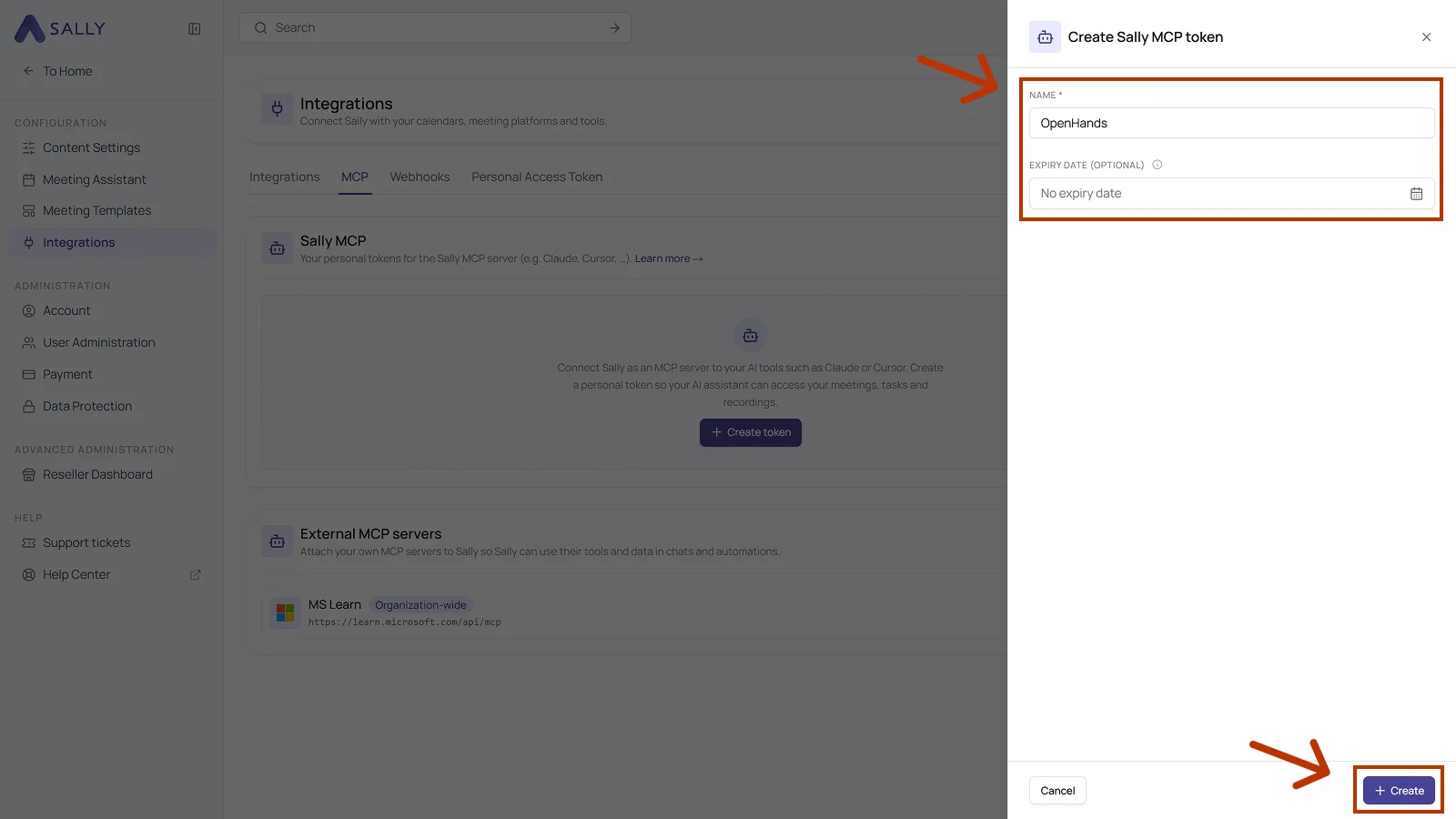
Fill out the Create Sally MCP token dialog:
- Name: required. Pick a label that helps you recognize the token later.
- Expiry date (optional): set a date if the token should expire by itself. Without one, it does not expire.
Then click Create.
- Sally shows the full token exactly once. Copy it right away with the icon on the right of the field and store it in a password manager or a secure secret store. Once you close the dialog, there is no way to retrieve it again.
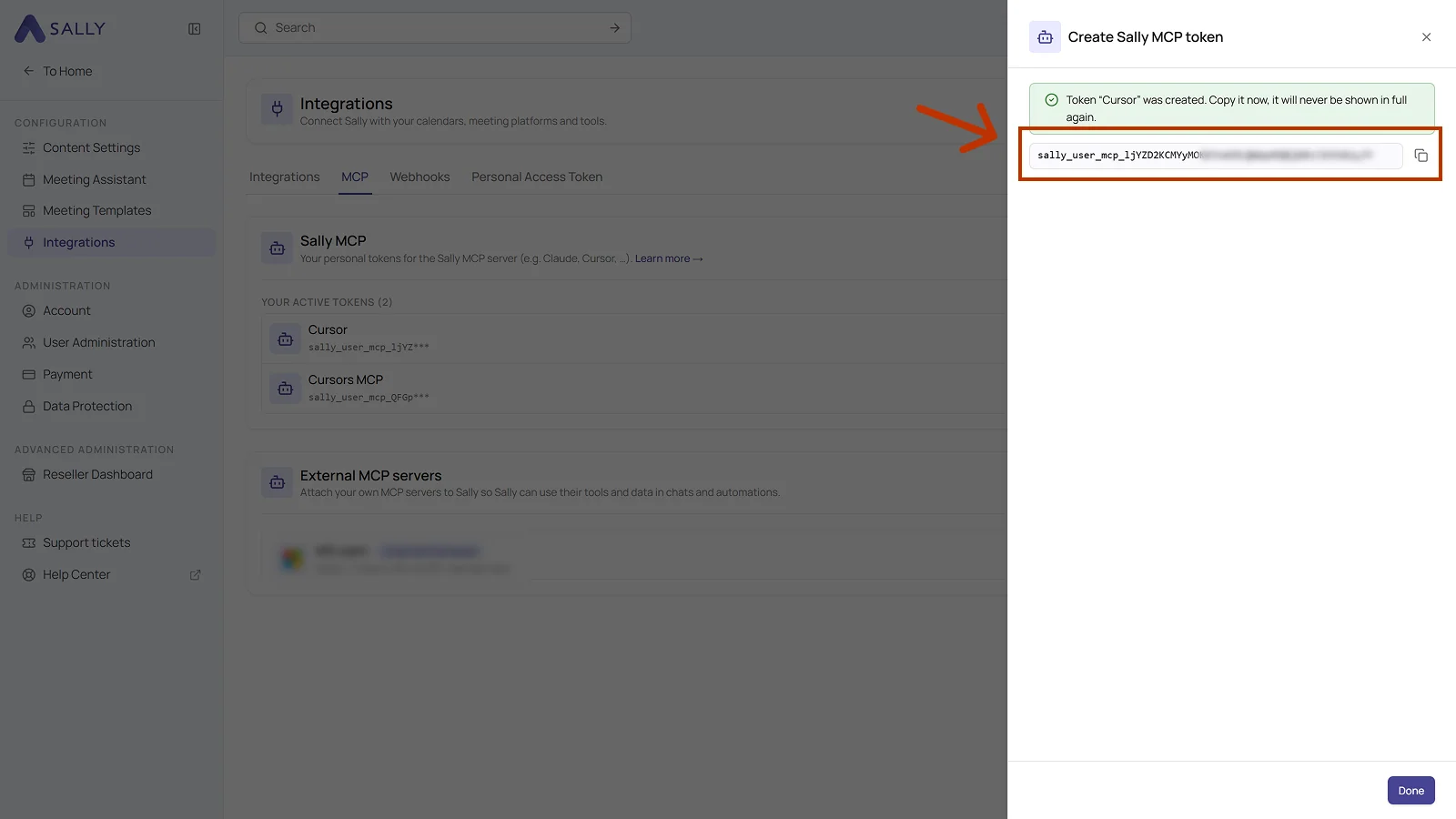
The token grants read access to every appointment, recording and summary your Sally user sees in this organization account. Do not share it over chat, e-mail or tickets, store it in a password manager instead.
- Click Done. The token then sits under Your active tokens, with its beginning, its expiry date and a trash icon. The trash icon takes the token's access away. If you need to replace a token, simply create a new one afterwards.
2. Set up the MCP connection in OpenHands
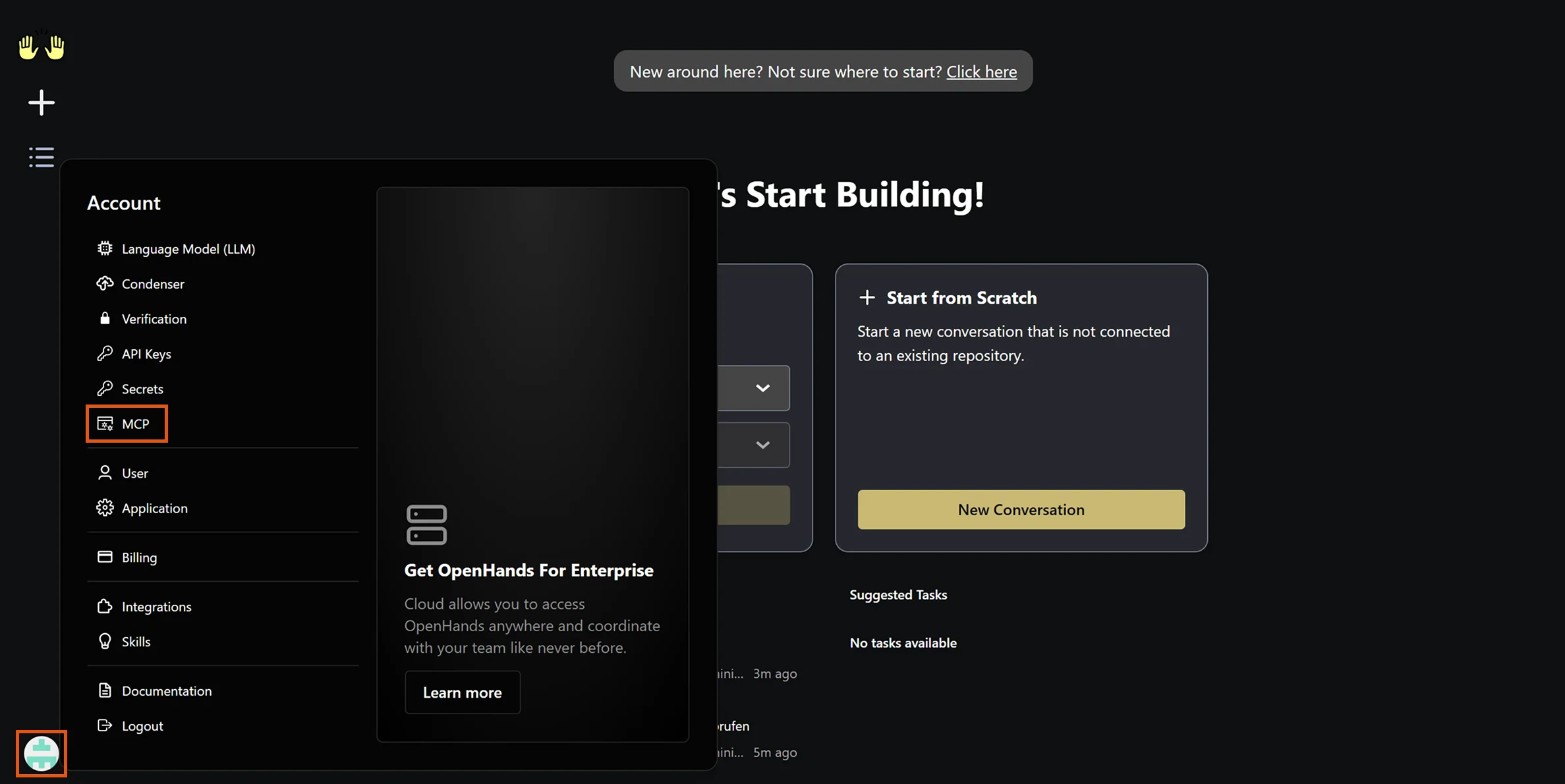
- In OpenHands Cloud, click the profile icon in the bottom-left corner.
- In the menu that appears, select MCP.
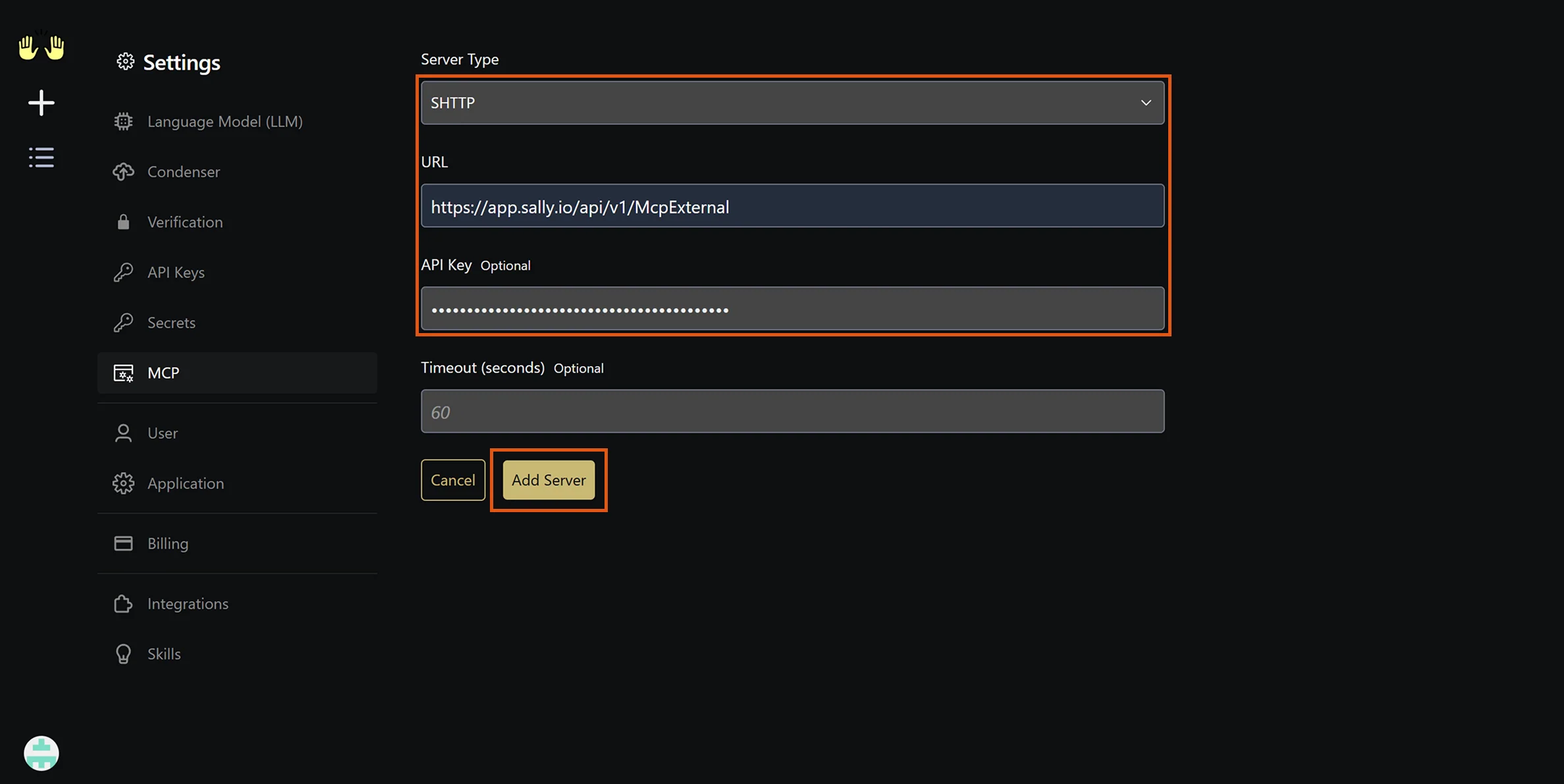
- Click Add Server in the top right. In the configuration form, fill in the following fields.
- Set Server Type to SHTTP.
The dropdown defaults to SSE. Sally uses the newer Streamable HTTP protocol, so you must switch to SHTTP. If you leave it on SSE, the connection will fail.
- Enter the following URL:
https://app.sally.io/api/v1/McpExternal - In the API Key field, paste the complete Sally token, i.e.
sally_user_mcp_...with prefix. Do not writeBearerin front of it. - Timeout (seconds) is optional and can stay empty. OpenHands then works with 60 seconds, which the field also shows as a grey placeholder.
Sally requests typically complete in 1-3 seconds, so 60 seconds is more than enough. For very large queries (e.g. long transcripts of multiple meetings), you can increase the value later by editing the server entry via the pencil icon.
- Click Add Server.
OpenHands does not show a success message after saving the server. The entry simply appears in the server list, which only confirms that the configuration was saved, not that the connection actually works. You need to test it in a real conversation:
- Return to the start page by clicking the OpenHands logo in the top left.
- Under Start from Scratch, click New Conversation.
- Ask a real Sally question, for example:
"What was discussed at the last meeting?"
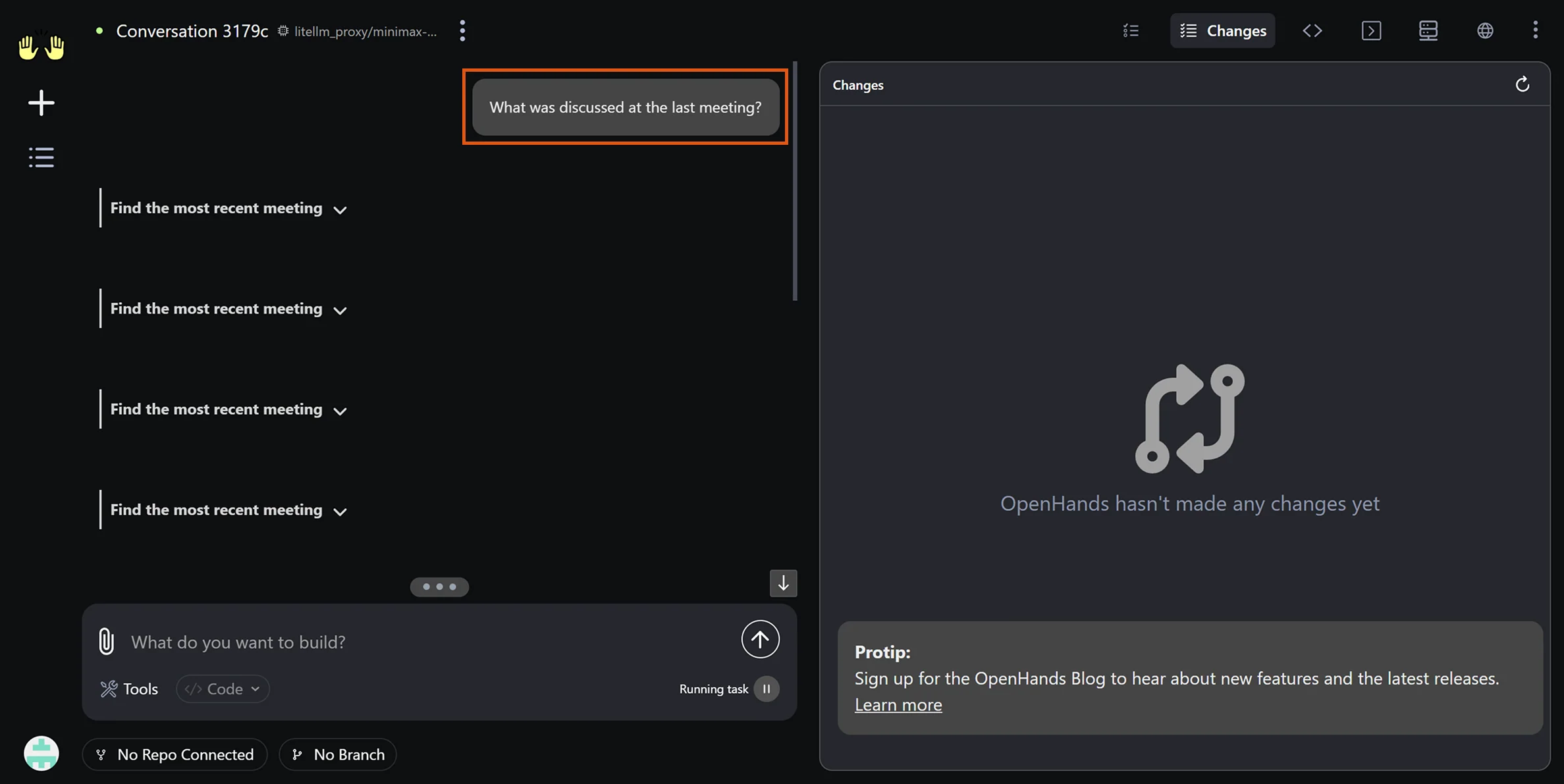
If the agent calls the Sally tools (search_appointments, get_recordings, get_summary, search_summaries, get_transcription) and returns actual meeting content, the integration is working.
For the agent to call Sally tools, a language model must be configured under Settings → Language Model (LLM). OpenHands Cloud includes the openhands/minimax-m2.5 model by default, which works out of the box. Stronger models (Claude, GPT) can be added via your own API keys but are not required for Sally calls.
3. Alternative: Using the OpenHands SDK
If you use the OpenHands Agent SDK instead of the Cloud UI, you can pass the Sally MCP config programmatically.
mcp_config = {
    "mcpServers": {
        "sally": {
            "url": "https://app.sally.io/api/v1/McpExternal",
            "headers": {
                "Authorization": "Bearer YOUR_SALLY_TOKEN"
            }
        }
    }
}
Replace YOUR_SALLY_TOKEN with the token you created in Step 1.
For production workflows, store the token in an environment variable instead of hard-coding it:
import os

sally_token = os.environ["SALLY_MCP_TOKEN"]

mcp_config = {
    "mcpServers": {
        "sally": {
            "url": "https://app.sally.io/api/v1/McpExternal",
            "headers": {
                "Authorization": f"Bearer {sally_token}"
            }
        }
    }
}
Then set the variable before running: export SALLY_MCP_TOKEN=sally_user_mcp_abc123...
Pass the config to your agent and run it:
from openhands.sdk import Agent, LLM

llm = LLM(model="anthropic/claude-sonnet-4-20250514")

agent = Agent(
    llm=llm,
    tools=[],
    mcp_config=mcp_config,
)

result = agent.run(
    "Search my Sally meetings from the last 14 days about the product roadmap "
    "and summarize the key decisions."
)
print(result)
The agent calls search_appointments or search_summaries to find relevant meetings, then uses get_summary or get_transcription to extract details.
4. Access scope
The Sally MCP connector only returns meetings tied to your own Sally user or explicitly shared with you. The table below sums up what is and isn't reachable through your token:
| Source | Accessible via MCP? |
|---|---|
| Your own meetings (you are the owner / technical owner) | Yes |
| Meetings shared with you via a recording folder (directly or through one of your teams) | Yes |
| Meetings of users for whom you have been set as deputy ("Vertretung") | No |
Even if you have been granted deputy ("Vertretung") rights for another user inside Sally, those meetings are not exposed through MCP. The connector currently only surfaces your own recordings and recordings explicitly shared with you via folders. If you need a deputy's meetings in your AI tool, ask the owner to share them through a recording folder.
5. Troubleshooting
| Issue | Fix |
|---|---|
| Agent only mentions its built-in tools (Bash, Browser etc.), no Sally tools | Check the Server Type (must be SHTTP, not SSE). Check the token format: only the raw sally_user_mcp_... value, without a Bearer prefix. |
| Agent calls a Sally tool but gets 401 Unauthorized | Delete the token in Sally and create a new one, then edit the server entry in OpenHands via the pencil icon and paste the new token. |
| Requests time out | Edit the server entry and increase the Timeout value from 60 to 120 or higher. |
| Sally tools appear but are never called | Check the language model. Weaker models sometimes ignore available tools. Try switching to a stronger model. |
For more troubleshooting tips, see the General Setup Guide → Troubleshooting.