Sally MCP with Cursor
Cursor is an AI-powered code editor that supports MCP servers through its built-in settings UI and a project-level config file. The Model Context Protocol (MCP) is an open standard that lets AI tools connect to external data sources. By adding the Sally MCP endpoint, you can query your meetings, summaries, and transcripts directly while coding, for example to look up a decision from a sprint review, check action items, or pull a transcript without switching to another app.
For background on the Sally MCP Connector, available tools, and security best practices, see the General Setup Guide.
Quick navigation
- Create a Personal Access Token in Sally
- Set up the MCP connection in Cursor
- Access scope
- Troubleshooting
- Cursor installed (download from cursor.com).
- An active Sally user with access to at least one company account.
- Sally MCP enabled for your company account (admin setting).
Sally accepts both a Personal Access Token and OAuth 2.1, and Cursor can do either. This guide takes the token route because it works the same in every Cursor version. One thing to expect: Cursor starts its own OAuth flow whenever a server publishes OAuth discovery metadata, which Sally does, so it may open a Sally login window on first start even though a token header is configured. Either way you end up with a working connection. Background in OAuth 2.1 with Dynamic Client Registration.
1. Create a Personal Access Token in Sally
A Personal Access Token (PAT) is the credential Cursor uses to authenticate against the Sally MCP endpoint. You create it once.
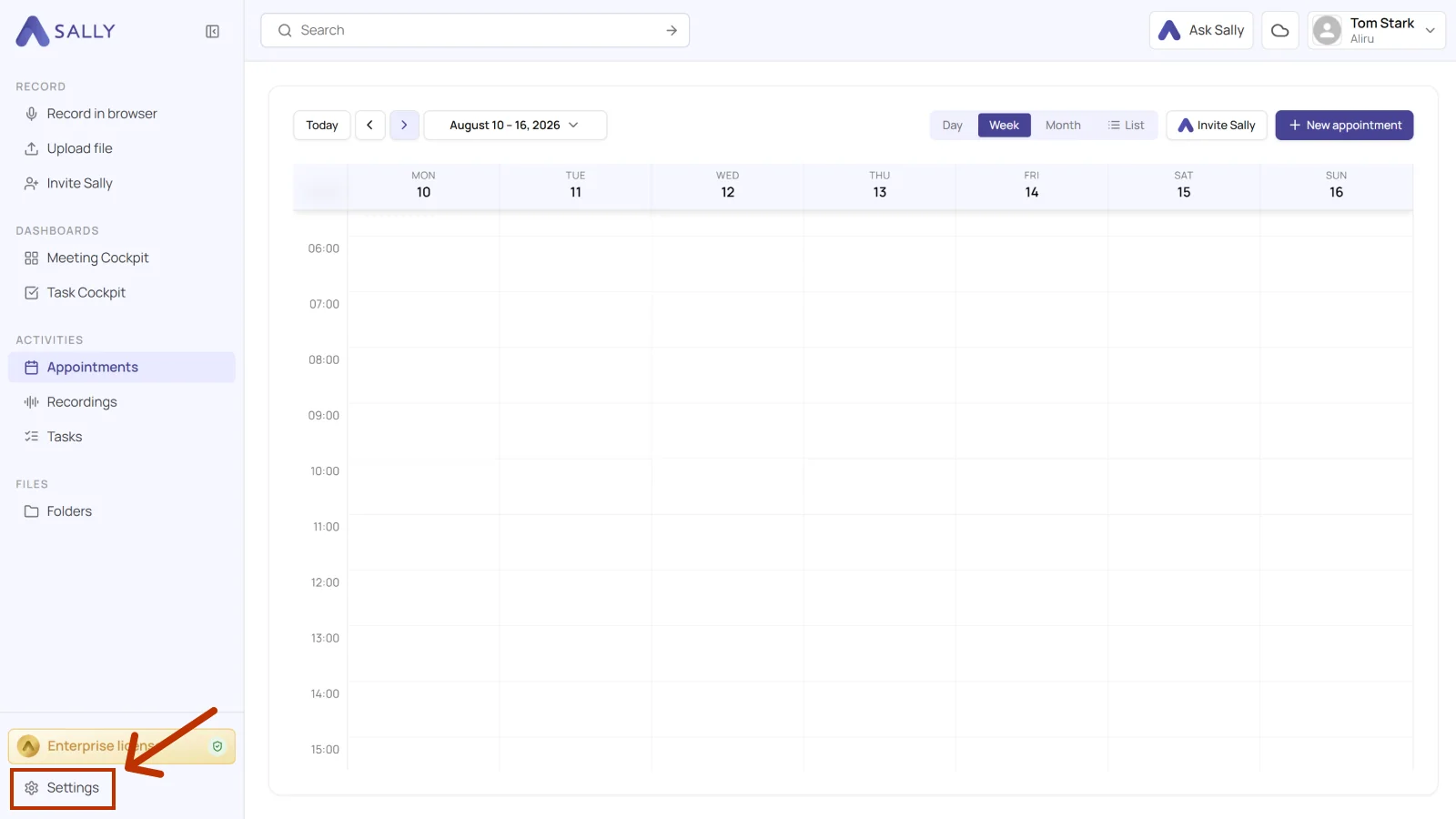
- Open Settings in the bottom-left of the sidebar.
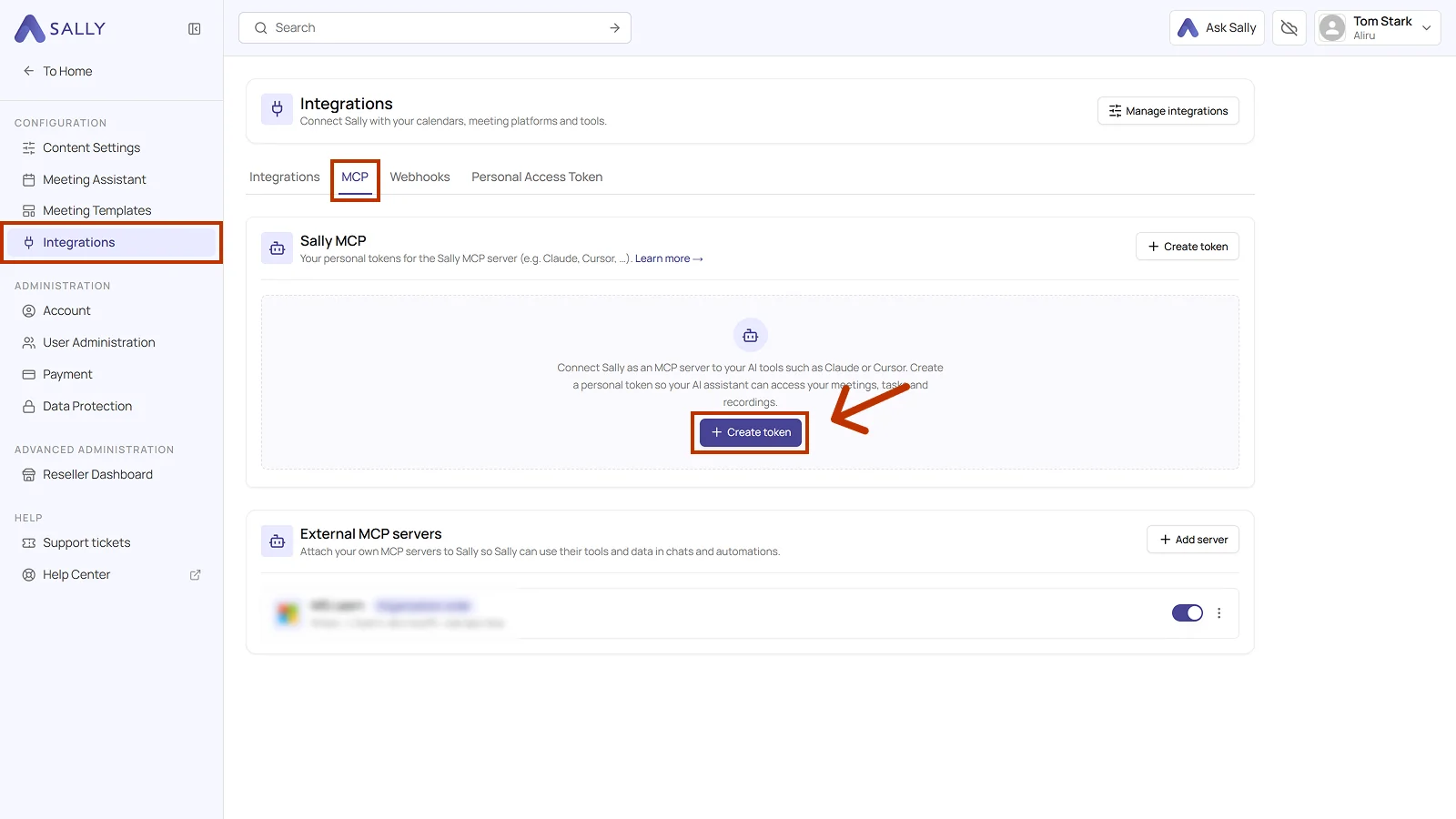
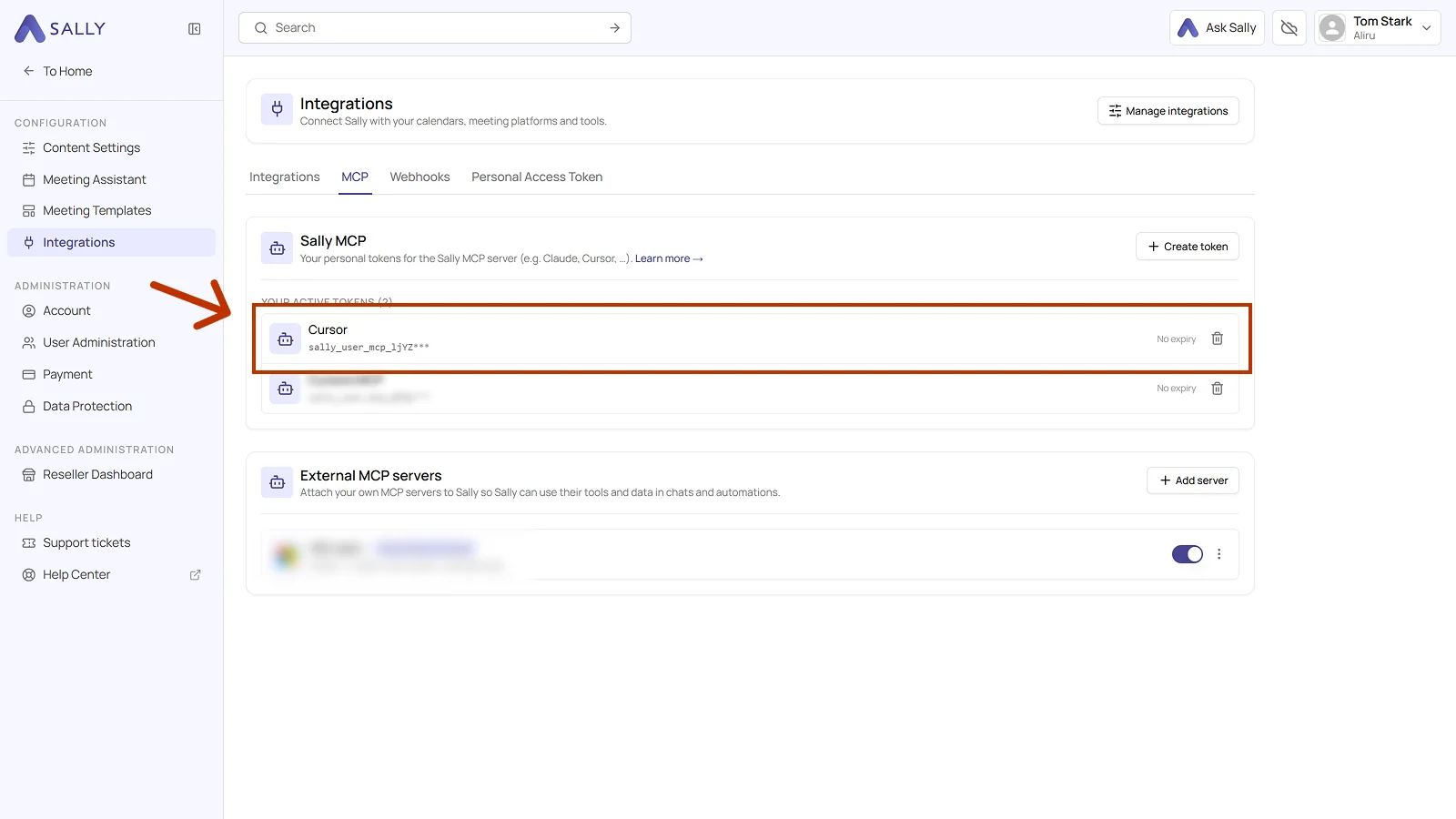
- Under Configuration, select Integrations and open the MCP tab. Click Create token under Sally MCP. With no token yet, the button sits in the middle, otherwise in the top right corner.
-
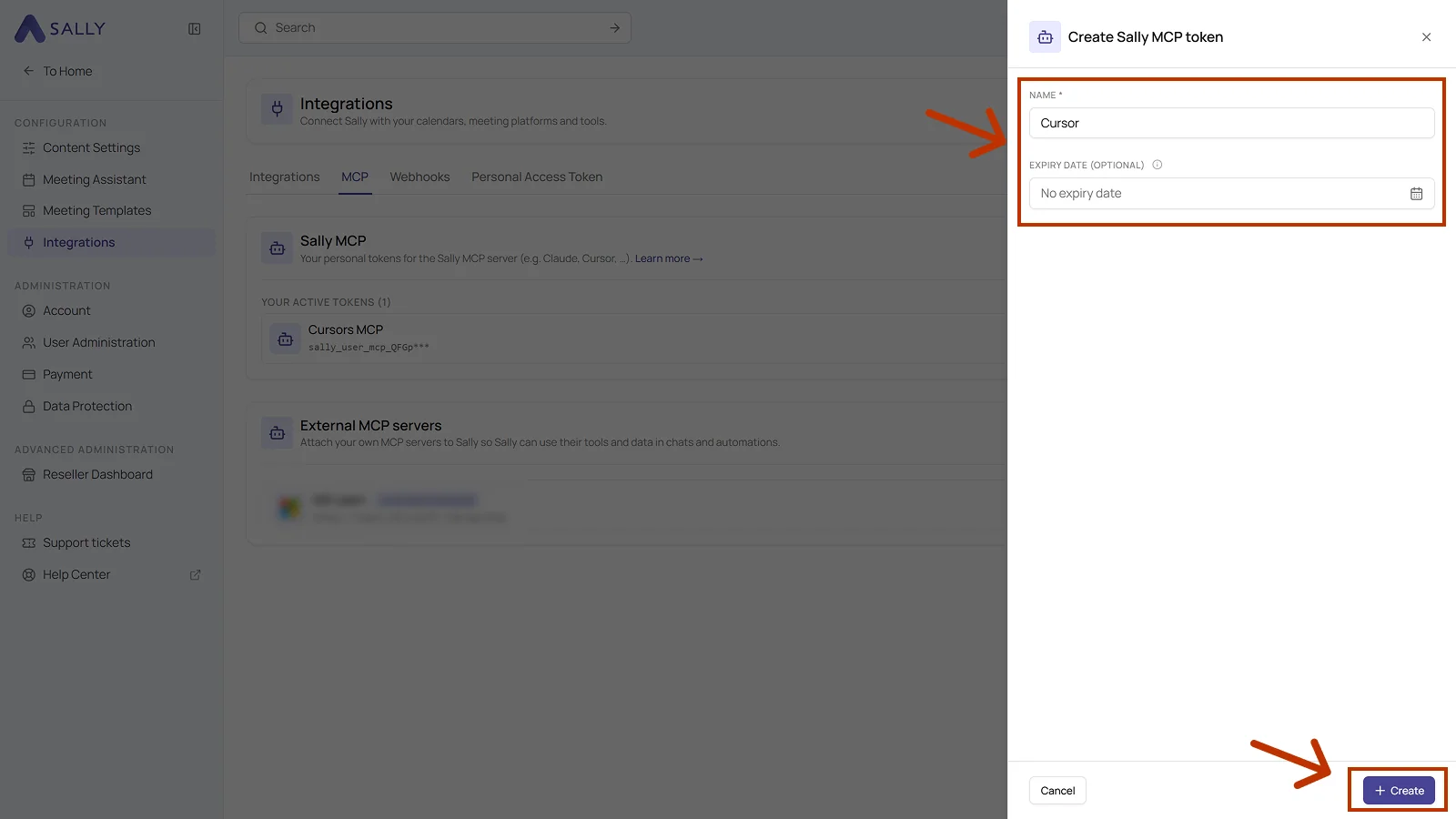
Fill out the Create Sally MCP token dialog:
- Name: required. Pick a label that helps you recognize the token later.
- Expiry date (optional): set a date if the token should expire by itself. Without one, it does not expire.
Then click Create.
- Sally shows the full token exactly once. Copy it right away with the icon on the right of the field and store it in a password manager or a secure secret store. Once you close the dialog, there is no way to retrieve it again.
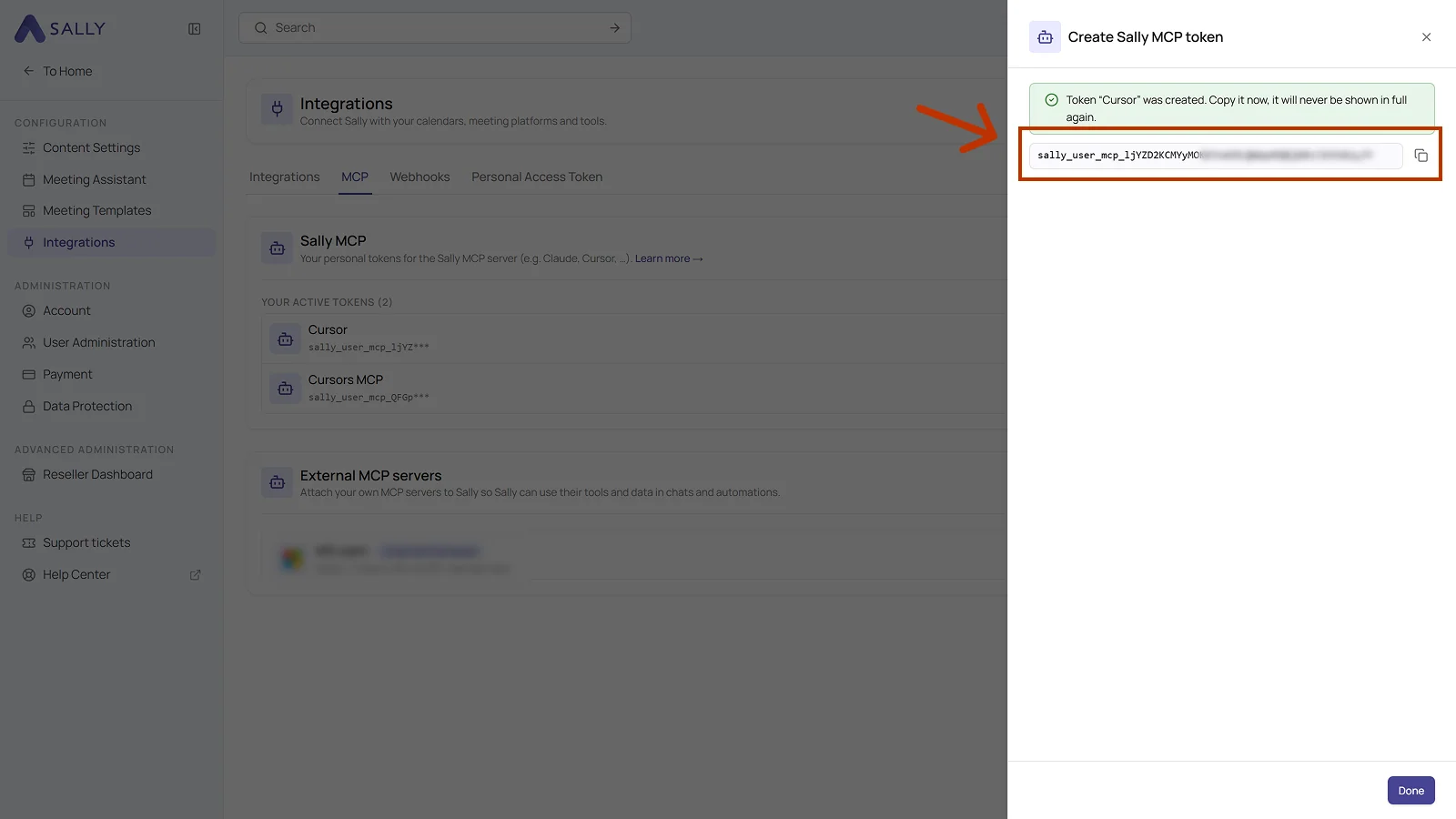
The token grants read access to every appointment, recording and summary your Sally user sees in this organization account. Do not share it over chat, e-mail or tickets, store it in a password manager instead.
- Click Done. The token then sits under Your active tokens, with its beginning, its expiry date and a trash icon. The trash icon takes the token's access away. If you need to replace a token, simply create a new one afterwards.
2. Set up the MCP connection in Cursor
Option A: Via the Cursor settings UI
- Open Cursor.
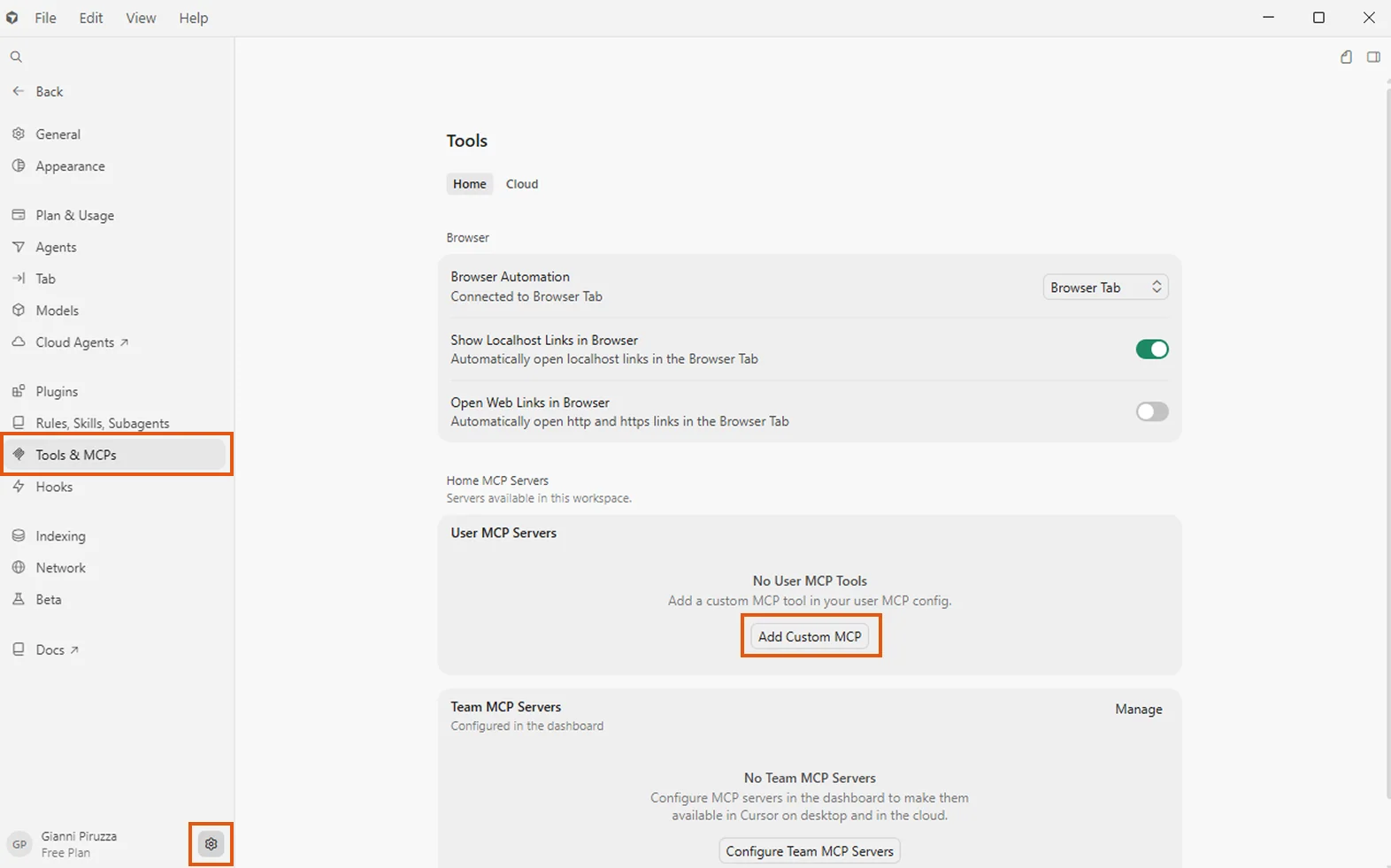
- Click the gear icon in the bottom-left corner to open Settings.
- Navigate to Tools & MCPs in the left sidebar.
- Under User MCP Servers, click Add Custom MCP.
-
Enter the following details:
- Name:
sally - Type:
http(or Streamable HTTP if listed) - URL:
https://app.sally.io/api/v1/McpExternal - Headers:
Authorization: Bearer YOUR_SALLY_TOKEN
- Name:
-
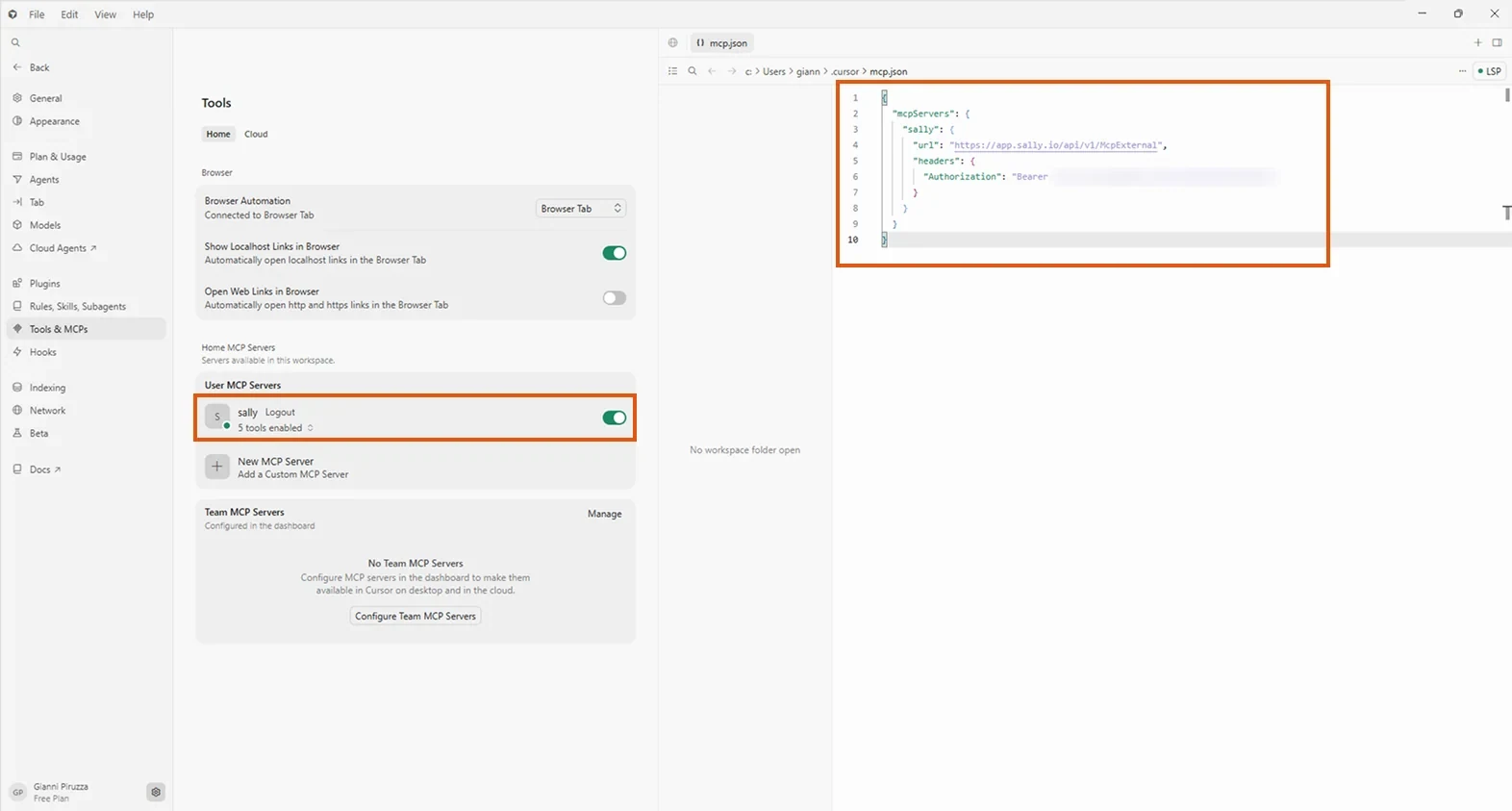
Save. The Sally MCP server now appears under User MCP Servers with its tools enabled.
Option B: Via the project config file
Create or edit the file .cursor/mcp.json in your project root:
{
  "mcpServers": {
    "sally": {
      "type": "http",
      "url": "https://app.sally.io/api/v1/McpExternal",
      "headers": {
        "Authorization": "Bearer YOUR_SALLY_TOKEN"
      }
    }
  }
}
Replace YOUR_SALLY_TOKEN with the token you created in Step 1, then save the file.
The settings UI configures Sally globally (available in all projects). The .cursor/mcp.json file scopes the server to a single project. Choose whichever fits your workflow. If both are present, the project config takes precedence.
Once configured, verify the connection:
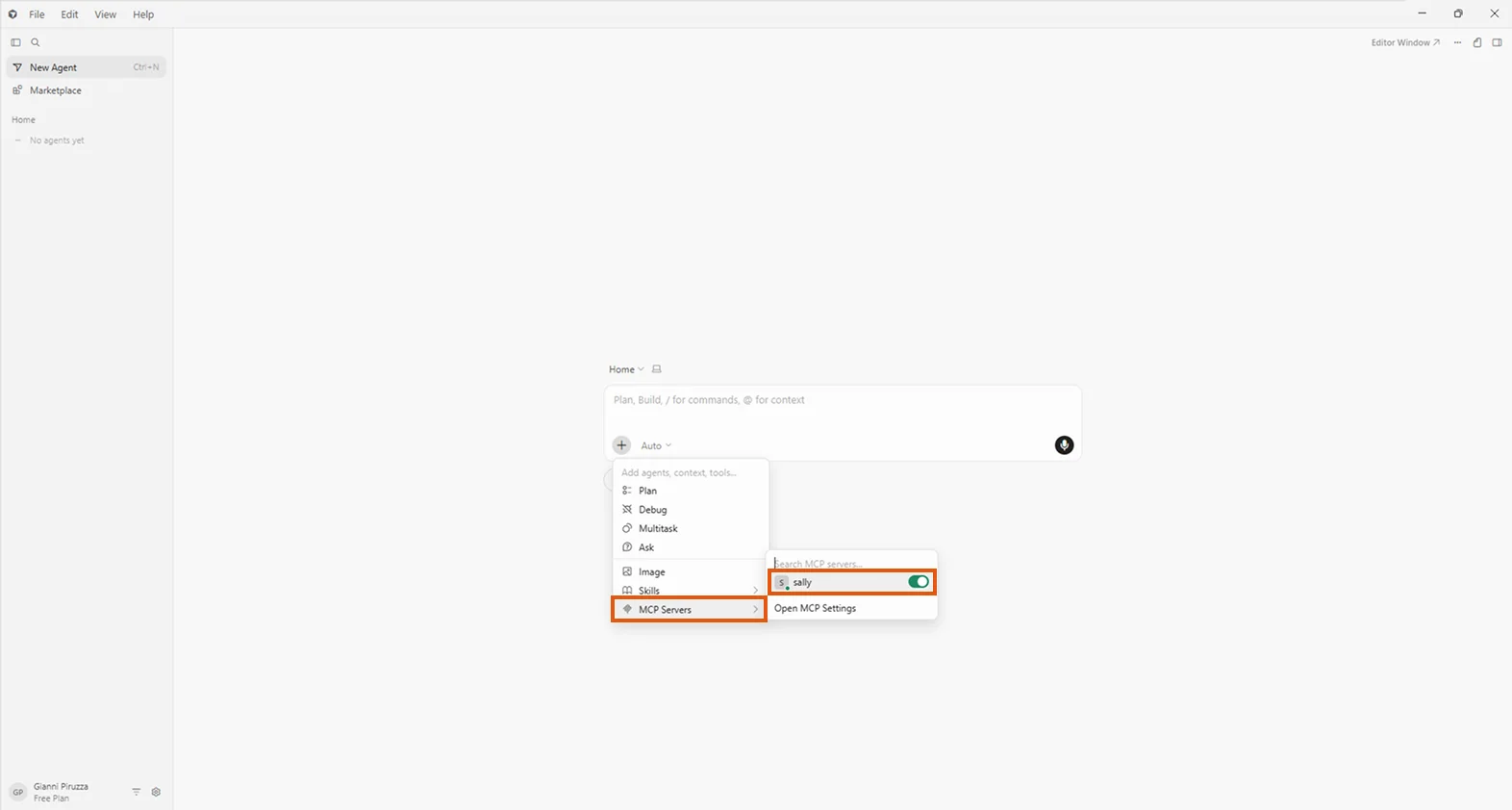
- Open a new agent panel in Cursor.
- Click the + button and open MCP Servers. Verify that sally is listed and toggled on.
- Ask:
"Which Sally tools are available?"
Cursor should list the five Sally tools. Try a real query:
"Search my Sally meetings from the last 7 days that mention the Q3 planning."
3. Access scope
The Sally MCP connector only returns meetings tied to your own Sally user or explicitly shared with you. The table below sums up what is and isn't reachable through your token:
| Source | Accessible via MCP? |
|---|---|
| Your own meetings (you are the owner / technical owner) | Yes |
| Meetings shared with you via a recording folder (directly or through one of your teams) | Yes |
| Meetings of users for whom you have been set as deputy ("Vertretung") | No |
Even if you have been granted deputy ("Vertretung") rights for another user inside Sally, those meetings are not exposed through MCP. The connector currently only surfaces your own recordings and recordings explicitly shared with you via folders. If you need a deputy's meetings in your AI tool, ask the owner to share them through a recording folder.
4. Troubleshooting
| Issue | Fix |
|---|---|
| Sally tools don't appear | Restart Cursor after adding the config. Check that .cursor/mcp.json is valid JSON. |
| Unauthorized or Invalid token | Check that the full token is in place, including sally_user_mcp_ at the start. Delete it in Sally and create a new one if needed. |
| MCP section not found in settings | Update Cursor to the latest version. MCP support was added in early 2025. |
| Results are empty | Make sure the Sally user behind the token has accessible meetings. Check access rules. |
For more troubleshooting tips, see the General Setup Guide → Troubleshooting.