Sally MCP connector: The complete setup guide
With the Sally MCP Connector you can query your Sally data (appointments, recordings, summaries, and transcripts) directly from any AI tool that speaks the Model Context Protocol (MCP), for example Claude Desktop, Claude Web, ChatGPT, Cursor, Windsurf, or an MCP-capable IDE. Once connected, your AI assistant can search meetings, read summaries, and pull transcripts without leaving the conversation.
This guide covers both ways to authenticate, OAuth 2.1 with Dynamic Client Registration and a Personal Access Token (PAT), and shows how to register the Sally MCP server with your AI tool. The setup is the same everywhere: point your client at the Sally MCP URL, then either let it run the OAuth flow or pass a token as a Bearer header.
Quick navigation
- What is the Sally MCP Connector?
- Prerequisites
- Authentication: OAuth 2.1 or Personal Access Token
- Register Sally with your MCP client
- Verify the connection
- Available tools
- Troubleshooting
- Security notes
1. What is the Sally MCP connector?
The Model Context Protocol (MCP) is an open standard that lets AI clients and agents talk to external data sources through a standardized server interface. A growing number of tools support it, for example Claude Desktop, Claude Web and Claude Code from Anthropic, ChatGPT (via Connectors), editors and IDE assistants like Cursor, Windsurf, Zed and VS Code (Copilot Chat, Continue, Cline), as well as custom agents built on MCP SDKs. Sally exposes an MCP endpoint, so any of these clients can read your meeting data on demand.
| Property | Value |
|---|---|
| MCP Endpoint | https://app.sally.io/api/v1/McpExternal |
| Auth | OAuth 2.1 with Dynamic Client Registration (recommended), or Bearer token (Personal Access Token, format sally_user_mcp_…) |
| Access | Read-only on the data your Sally user sees in the selected company account |
| Scope | Per user and company account |
Typical use cases:
-
Search meetings by topic: quickly find every conversation that mentioned a specific product, project, or customer.
"Search my Sally meetings from the last 30 days that mention the kickoff with customer XY and summarize the key points."
-
Bundle open action items across meetings: let your AI assistant pull all to-dos from several conversations instead of clicking through summaries manually.
"Give me a list of all open action items from my meetings this week, grouped by owner."
-
Trace decisions: find out when and why a decision was made.
"Which meeting is where we decided to migrate to Postgres 16, and what were the reasons?"
-
Brief yourself before a follow-up: have your AI assistant summarize the latest state before you head into a follow-up call.
"I have a call with Acme tomorrow. Summarize the last two meetings with them, including open items and objections."
-
Deep-dive into transcripts: pull a full transcript into your AI tool to clarify details the summary may not cover.
"Pull the transcript of Tuesday's discovery call and show me every passage where the customer talks about pricing."
-
Draft follow-ups on demand: generate a ready-to-send email or Slack message from the meeting content.
"Draft a follow-up email for this morning's meeting covering all action items we discussed."
-
Spot team-wide patterns: analyze multiple calls for recurring themes or objections.
"Which objections have come up most often in our sales calls over the last 4 weeks?"
2. Prerequisites
- An active Sally user with access to at least one company account.
- Sally MCP enabled for your company account (admin setting). If your admin has disabled it, the connection is refused and the Sally MCP section shows no Create token button.
- Any MCP-capable client, for example Claude Desktop, Claude Web, ChatGPT, Cursor, Windsurf, Zed, VS Code (via Copilot Chat, Continue, or Cline), Claude Code or another CLI agent, or a custom agent built on an MCP SDK.
- Only for the
mcp-remotefallback (stdio-only clients): Node.js 18 or newer (runnode -vto check).
A connection always covers one user × one company account. With OAuth 2.1 it is bound to the company account that is active for your user at the moment you authorize; with a token, to the account the token was created in. If you have access to several company accounts and want your MCP client to see all of them, register one connector per company account.
3. Authentication: OAuth 2.1 or Personal Access Token
Sally offers two ways to authenticate an MCP client. Both grant the same read-only access to the same data, they differ only in how the credential reaches the client.
| Method | Best suited for | What it looks like in practice |
|---|---|---|
| OAuth 2.1 (recommended) | Company-wide rollouts, plus every client that offers a plain URL or custom-connector field, for example Claude, ChatGPT, Cursor or VS Code | You enter the Sally MCP URL, the client opens a Sally login window, you sign in and confirm. Nothing to copy, no secret in a config file. |
| Personal Access Token | Clients without OAuth support, stdio-only clients, scripts and custom agents | You create a token in Sally once and paste it into the client's config as a Bearer token. |
If your client has a URL field or a "custom connector" dialog, choose OAuth 2.1. It is the safer route: no long-lived secret gets copied around, every user authorizes their own Sally context, and IT can roll the connector out centrally without handing out tokens. Fall back to a Personal Access Token only when your client cannot speak OAuth.
3.1. OAuth 2.1 with Dynamic Client Registration (recommended)
The Sally MCP endpoint is a standards-compliant OAuth 2.1 protected resource. An MCP client can therefore discover everything it needs by itself: it calls the endpoint without a credential, receives a 401 with a WWW-Authenticate header pointing at Sally's metadata, registers itself through Dynamic Client Registration (RFC 7591), and then runs a normal authorization-code flow with PKCE.
For you, that means: give the client nothing but the MCP URL. Everything else happens in the browser.
Step-by-step
- Open the MCP or connector settings of your client and add a new server with the URL
https://app.sally.io/api/v1/McpExternal. - Leave client ID and client secret empty. Sally registers your client automatically, that is exactly what Dynamic Client Registration does.
- Save, then click Connect (the wording differs per client). A Sally login window opens in your browser.
- Sign in with your Sally account, through SSO if your company uses it, and confirm the authorization.
- The client marks the connection as active and the five Sally tools show up.
Because clients register themselves, an admin only has to distribute the Sally MCP URL once, for example in a shared Claude workspace or in a self-hosted chat tool. Every user then authorizes their own Sally account the first time they use it and only ever sees their own data. Combined with SSO, the sign-in is a single click. No tokens have to be created, handed out or rotated, and nobody has to store a secret.
Technical details
| Property | Value |
|---|---|
| Protected resource metadata | https://app.sally.io/.well-known/oauth-protected-resource/api/v1/McpExternal (RFC 9728) |
| Authorization server metadata | https://app.sally.io/.well-known/oauth-authorization-server (RFC 8414) |
| Authorization endpoint | https://app.sally.io/oauth/authorize |
| Token endpoint | https://app.sally.io/api/v1/oauth/token |
| Client registration | https://app.sally.io/api/v1/oauth/register (Dynamic Client Registration, RFC 7591) |
| Revocation endpoint | https://app.sally.io/api/v1/oauth/revoke |
| Grant types | authorization_code, refresh_token |
| PKCE | Required, S256 |
| Client authentication | none (public clients) and client_secret_post |
| Scopes | mcp:read, mcp:write |
Sally advertises the scopes mcp:read and mcp:write, but the current tool set only reads data. No MCP client can change anything in Sally, see Available tools.
3.2. Create a Personal Access Token
A Personal Access Token (PAT) is the credential your MCP client uses to authenticate against the Sally MCP endpoint when it cannot speak OAuth. You create it once per client.
Step-by-step
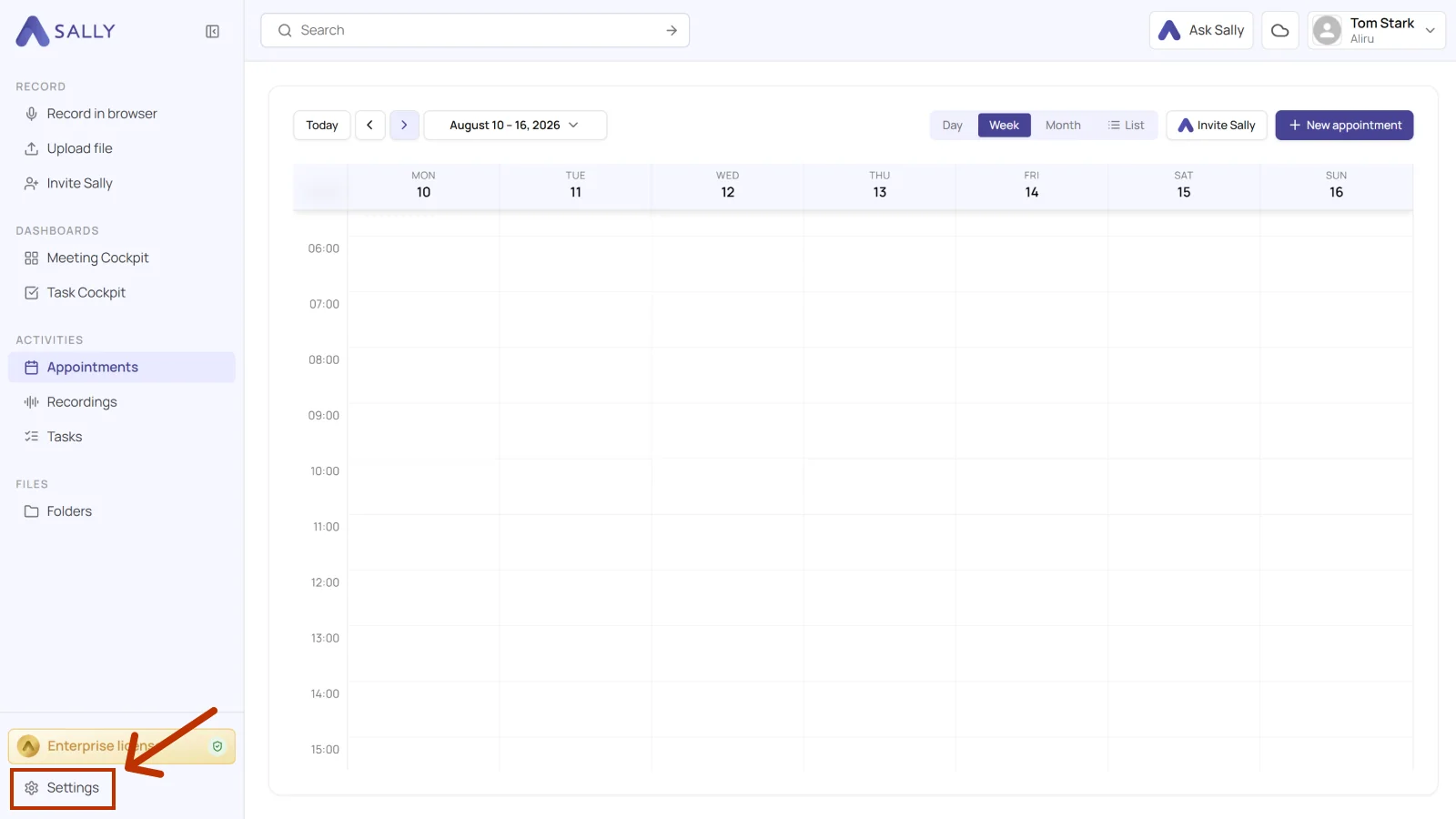
- Open Settings in the bottom-left of the sidebar.
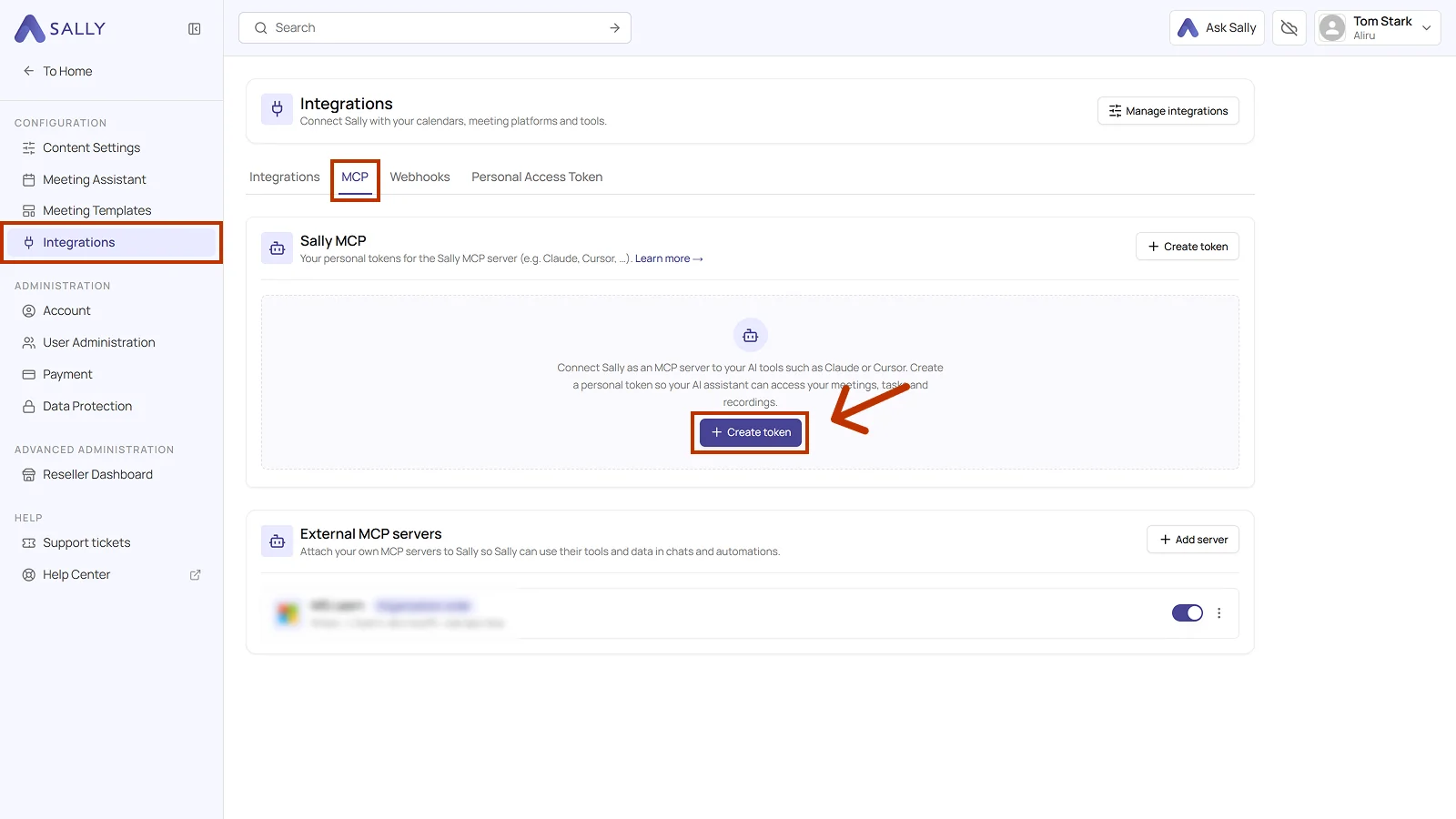
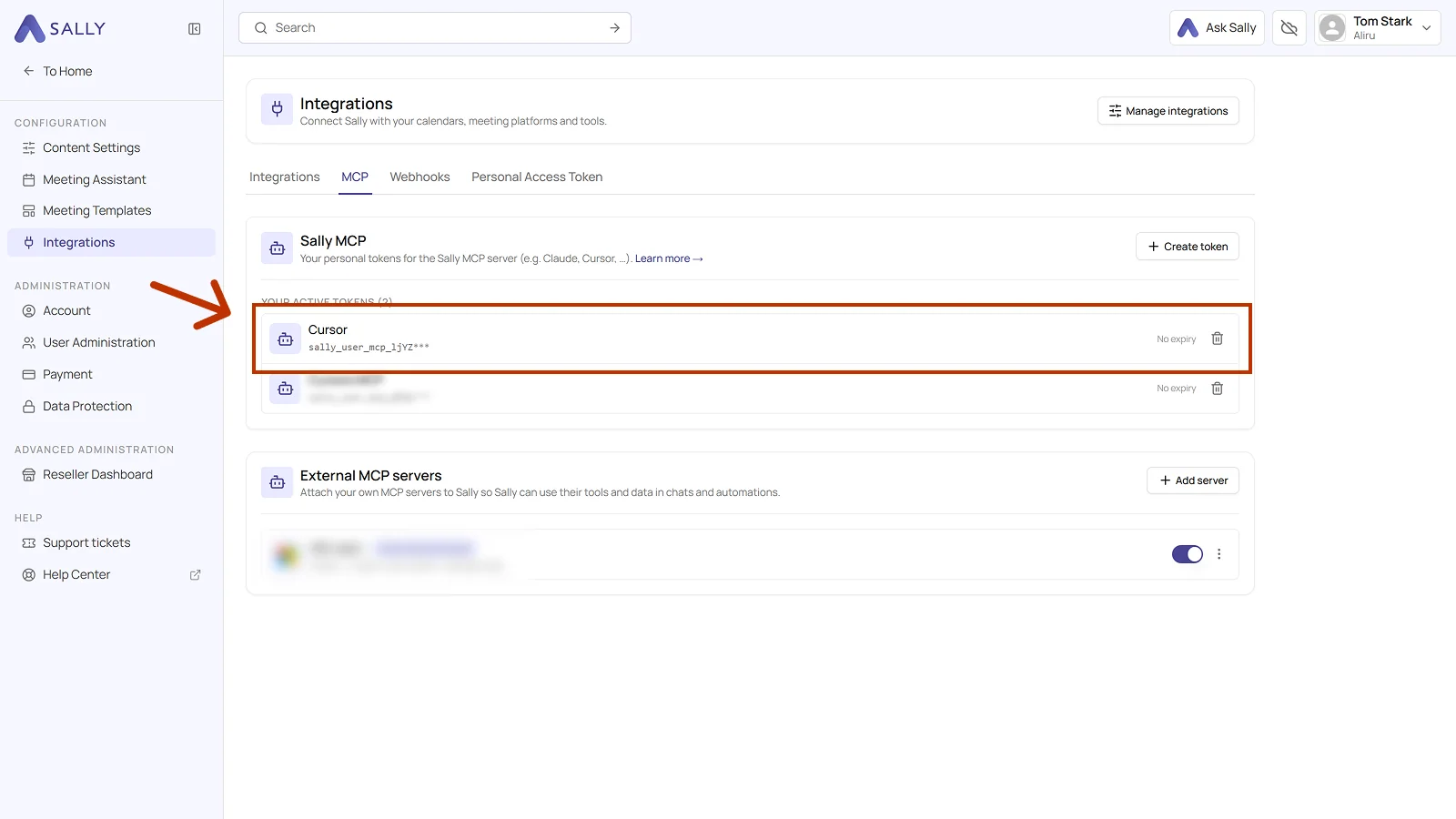
- Under Configuration, select Integrations and open the MCP tab. Click Create token under Sally MCP. With no token yet, the button sits in the middle, otherwise in the top right corner.
-
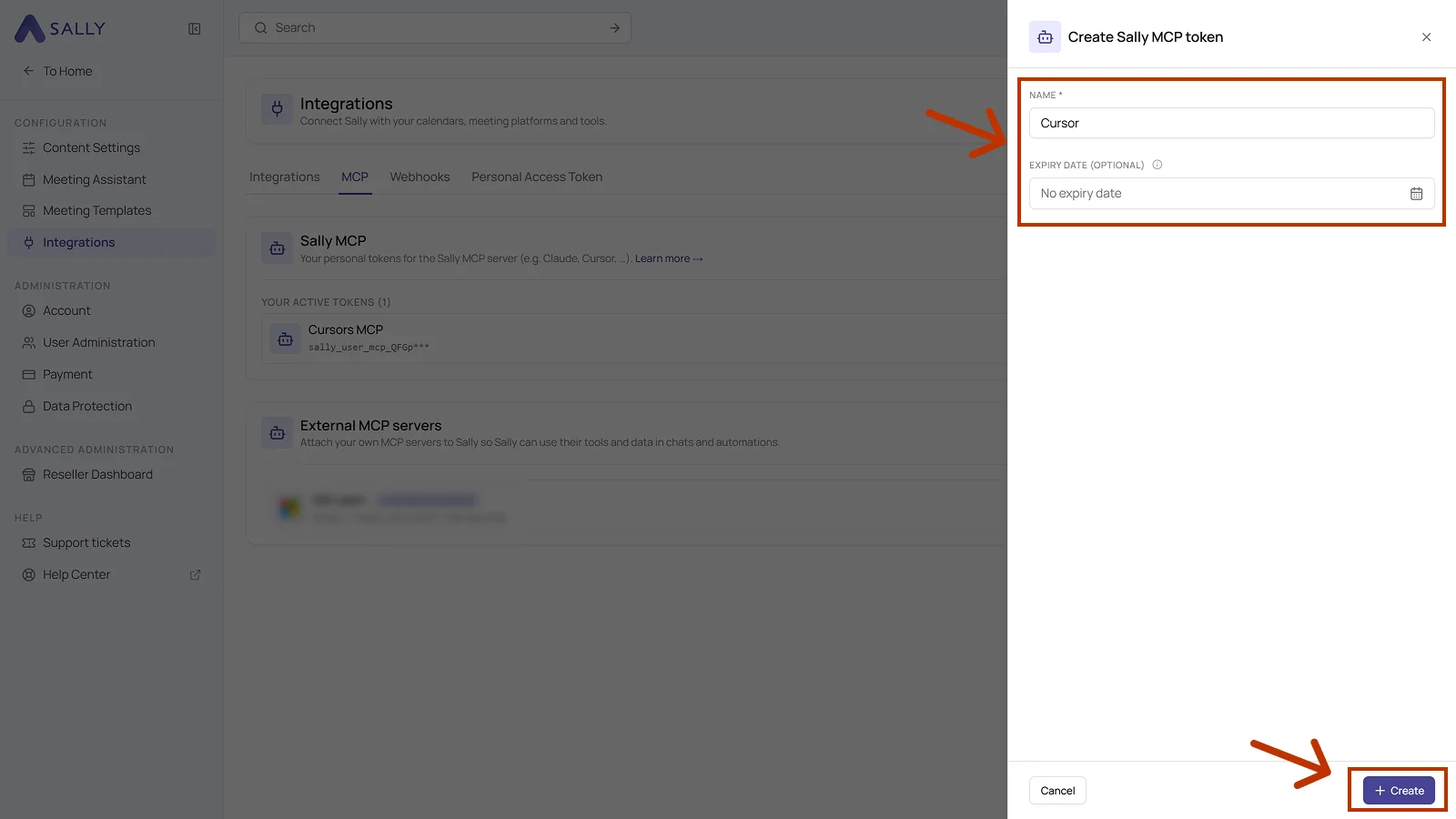
Fill out the Create Sally MCP token dialog:
- Name: required. Pick a label that helps you recognize the token later.
- Expiry date (optional): set a date if the token should expire by itself. Without one, it does not expire.
Then click Create.
- Sally shows the full token exactly once. Copy it right away with the icon on the right of the field and store it in a password manager or a secure secret store. Once you close the dialog, there is no way to retrieve it again.
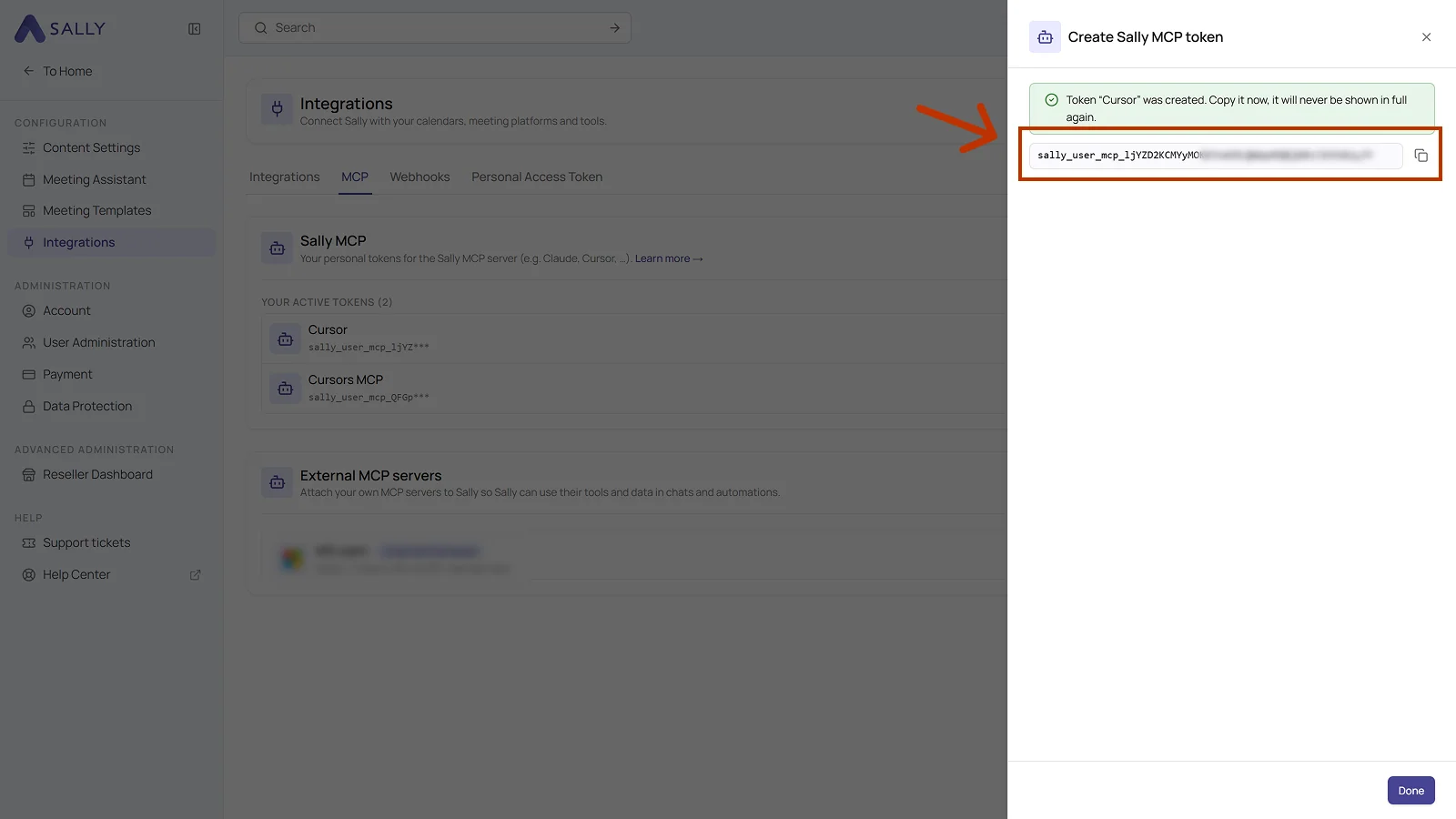
The token grants read access to every appointment, recording and summary your Sally user sees in this organization account. Do not share it over chat, e-mail or tickets, store it in a password manager instead.
- Click Done. The token then sits under Your active tokens, with its beginning, its expiry date and a trash icon. The trash icon takes the token's access away. If you need to replace a token, simply create a new one afterwards.
4. Register Sally with your MCP client
The Sally endpoint is a standard HTTP-based MCP server that accepts both OAuth 2.1 and Bearer-token authentication. Every MCP-capable tool provides a way to register such a server. The labels and menu paths differ between products, the values you enter do not.
4.1. Values to enter
The steps below describe the token route. If your client supports OAuth, you do not need any of it: enter the URL, connect, and authorize in the browser, see OAuth 2.1 with Dynamic Client Registration.
For the token route, the setup works the same way in every MCP client: point the client at Sally's server address and give it your personal token. Most clients use a small JSON config file for this; a few (typically web products like claude.ai or ChatGPT) offer a custom-connector dialog instead. The values are identical either way.
1. Copy this snippet
{
  "mcpServers": {
    "sally": {
      "type": "http",
      "url": "https://app.sally.io/api/v1/McpExternal",
      "headers": {
        "Authorization": "Bearer YOUR_SALLY_TOKEN"
      }
    }
  }
}
Replace YOUR_SALLY_TOKEN with the complete token you created in Section 3. It starts with sally_user_mcp_, which is part of the token and goes in with it. Keep exactly one space between Bearer and the token, and keep the quotation marks around the whole value.
What's in the snippet, line by line:
| Line | What it means |
|---|---|
"sally" | A label for the connection, pick any name you like, sally is a sensible default. |
"type": "http" | The connection method. Sally uses standard HTTP MCP. |
"url": "https://app.sally.io/api/v1/McpExternal" | The Sally MCP address. Always this exact URL. |
"Authorization": "Bearer sally_user_mcp_…" | Your login: the word Bearer, a space, then your personal token. This is how Sally knows it's you. |
2. Paste it into your client's config file
Open your MCP client's config file in a plain text editor (Notepad, TextEdit, VS Code, or similar, not Word or Pages, those insert hidden formatting that breaks the file) and paste the snippet you just copied. Save the file.
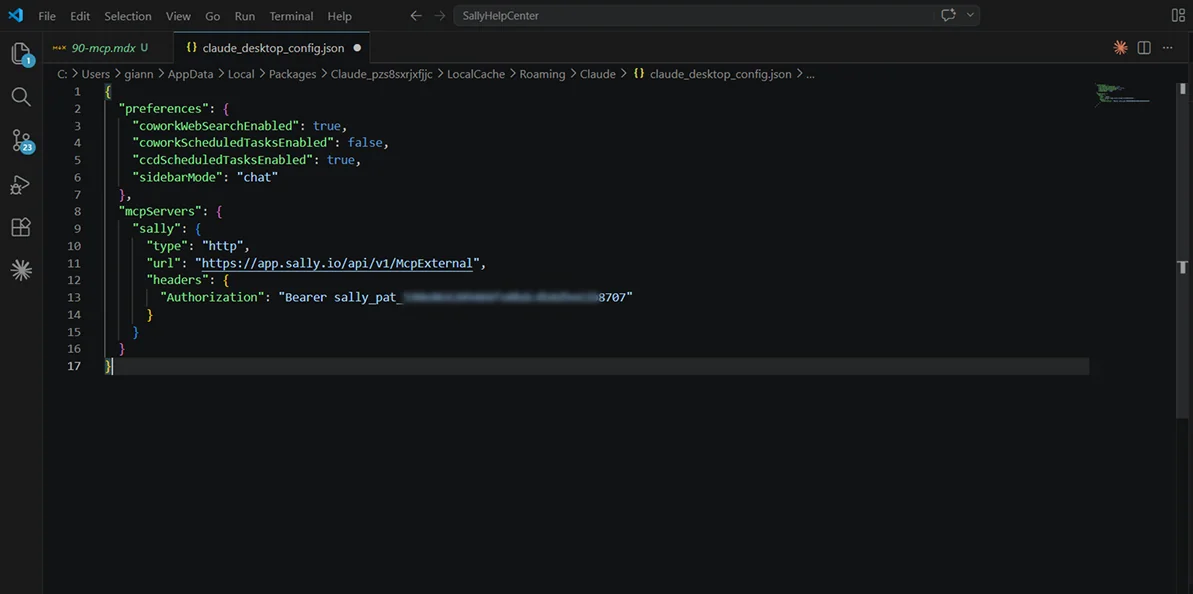
Keep the existing blocks (in the screenshot, that's "preferences"). Add "mcpServers" next to them as a sibling, with a comma between the two. Do not replace the file's contents. The file must always start with a single { and end with a single }, with no trailing commas.
Some clients, for example Claude in the browser, ChatGPT, and similar web products, don't use a JSON file. They offer a Custom connector dialog. Paste the URL https://app.sally.io/api/v1/McpExternal and your token into the matching fields there; no file editing needed.
3. Restart your client and test
Close the client completely and open it again so it picks up the new config. Start a new conversation and ask "Which Sally tools are available?". You should see the five tools from Section 6.
4.2. Where to find the MCP settings in common tools
Exact menu paths change as products evolve; check each tool's own documentation for the current location. As a starting point:
- Claude (web, Desktop, Code, Cowork): Settings → Connectors → Customize → Add custom connector. One connector covers all Claude products, no JSON and no PAT needed. See the Claude guide.
- ChatGPT: Sally AI is available as a native ChatGPT app. Open Apps in the sidebar, search for Sally, click the Sally AI tile, then Connect. No JSON, no PAT, see the ChatGPT guide.
- Cursor / Windsurf / Zed: the app's settings under MCP / Model Context Protocol (JSON form above).
- VS Code: via MCP-capable extensions like Copilot Chat, Continue, or Cline (their own MCP server lists).
- CLI agents: register the server via the agent's MCP config command (JSON form above).
- Custom agent on an MCP SDK: connect a Streamable-HTTP MCP client to the URL and attach the
Authorizationheader on each request.
4.3. Fallback: mcp-remote for stdio-only clients
Some older clients cannot speak HTTP MCP directly and only support stdio-based MCP servers. In that case, route the connection through the mcp-remote proxy. Requires Node.js 18 or newer on your machine (node -v shows your version).
{
  "mcpServers": {
    "sally": {
      "command": "npx",
      "args": [
        "-y",
        "mcp-remote",
        "https://app.sally.io/api/v1/McpExternal",
        "--header",
        "Authorization: Bearer YOUR_SALLY_TOKEN"
      ]
    }
  }
}
Use the same JSON form your client accepts, just swap the "type": "http" block for the "command": "npx" block above. After saving, fully restart the client.
5. Verify the connection
Start a new conversation in your MCP client (Claude, ChatGPT, Cursor, VS Code, etc.) and try a simple query:
"Search my Sally appointments from the last 30 days for anything about 'kickoff'."
The client should call the search_appointments tool and return results. You can also ask explicitly for the available tools:
"Which Sally tools are available?"
6. Available tools
The Sally MCP server currently exposes five tools:
| Tool | Purpose |
|---|---|
search_appointments | Filter appointments by subject, attendee, or time range. Full-text search with prefix matching, includes linked recordings. |
search_summaries | Full-text search across meeting summaries: which meetings mentioned topic X? |
get_recordings | Paginated list of recordings you can access in the selected company account, including metadata. |
get_summary | Return the summary for a recording, optionally with details (key facts, decisions, to-dos, custom insights). |
get_transcription | Full transcript of a recording as plain text with timestamps. |
get_recordingsEach recording returned by get_recordings includes an optional recordingFileUrl field. When the recording is released for download, it holds the direct CDN link to the media file (same format as in the Sally frontend, e.g. https://d39wo8p5549a9e.cloudfront.net/<filename>). If the recording is not released for download, the value is null.
A recording is released only if it is still active (not deleted by retention), not archived, the matching recording type is not blocked by download restrictions, and both the recording itself and all linked appointments have the relevant recording type (video or audio) active.
Access rule: a recording is visible to you if at least one of the following applies:
- You are the owner of the recording.
- You are the technical owner of the related appointment.
- The recording is stored in a recording folder shared with you or a team you belong to.
What MCP can and cannot see
The table below sums up which meetings the Sally MCP connector returns for your token:
| Source | Accessible via MCP? |
|---|---|
| Your own meetings (you are the owner / technical owner) | Yes |
| Meetings shared with you via a recording folder (directly or through one of your teams) | Yes |
| Meetings of users for whom you have been set as deputy ("Vertretung") | No |
Even if you have been granted deputy ("Vertretung") rights for another user inside Sally, those meetings are not exposed through MCP. The MCP connector currently only surfaces your own recordings and recordings explicitly shared with you via folders. If you need a deputy's meetings in your AI tool, ask the owner to share them through a recording folder.
7. Troubleshooting
| Issue | Cause | Fix |
|---|---|---|
| Invalid or expired token | Token was deleted, expired, or pasted incorrectly. | Check the token in Sally, and delete it and create a new one if needed. |
| Sally MCP is disabled in this organization | Your company admin has turned Sally MCP off. | Ask your admin whether this was intentional. |
| Connector shows no status or is red | The client cannot reach the endpoint, or the config is malformed. | Check your client's MCP logs. For Claude Desktop: • Windows: %APPDATA%\Claude\logs\mcp-server-sally.log• macOS: ~/Library/Logs/Claude/mcp-server-sally.logOther clients (ChatGPT, Cursor, VS Code, etc.) have their own connector/MCP log views, check the tool's documentation. |
Tools return 404 | The requested ID does not exist, or you do not have access to it. | Confirm the recording/summary exists in Sally and that the access rule applies. |
mcp-remote fails to start | Node.js is missing or outdated. | Install Node.js 18 or newer and confirm with node -v. |
| Client reports that Dynamic Client Registration is not supported | The client version is too old to complete the OAuth discovery. Sally itself supports it. | Update the client, or connect with a Personal Access Token instead. |
| The Sally login window opens but the connection stays inactive | The authorization was cancelled, or the browser blocked the redirect back to the client. | Run the connect step again and confirm the authorization. Allow pop-ups for the client if needed. |
8. Security notes
- Prefer OAuth 2.1 wherever the client supports it. No long-lived secret ever leaves Sally, access tokens are short-lived and refreshed automatically, and a single client's access can be withdrawn again without affecting the others.
- Both methods provide read-only access, but that includes every appointment, recording, and summary your Sally user sees in the selected company account. Treat the access as sensitive.
- Do not share tokens via Slack, email, or support tickets. Use a password manager.
- If a token is lost or possibly compromised, delete it right away under Settings → Integrations → MCP tab with the trash icon, then create a new one. Deleting takes the old token's access away immediately.
- Prefer one token per client (Claude Desktop, Claude Web, ChatGPT, Cursor, your IDE, etc.). That way you can revoke a single device or tool without breaking the others.
- Admins can disable Sally MCP for the whole company account at any time; existing tokens stop working immediately.