Sally MCP with ChatGPT
ChatGPT supports the Model Context Protocol (MCP) through its native Apps directory. Sally AI is available as a built-in ChatGPT app, so connecting it takes only a few clicks. Once connected, you can ask ChatGPT to search your Sally meetings, pull summaries, list open follow-ups, or read full transcripts directly inside any conversation.
Quick navigation
- An active ChatGPT account (free or paid).
- An active Sally user with access to at least one company account.
1. Connect the Sally AI app in ChatGPT
You can skip the search steps below and open the app page directly: chatgpt.com/apps/sally-ai. Then continue with step 5 (Connect).
- Open ChatGPT at chatgpt.com and sign in.
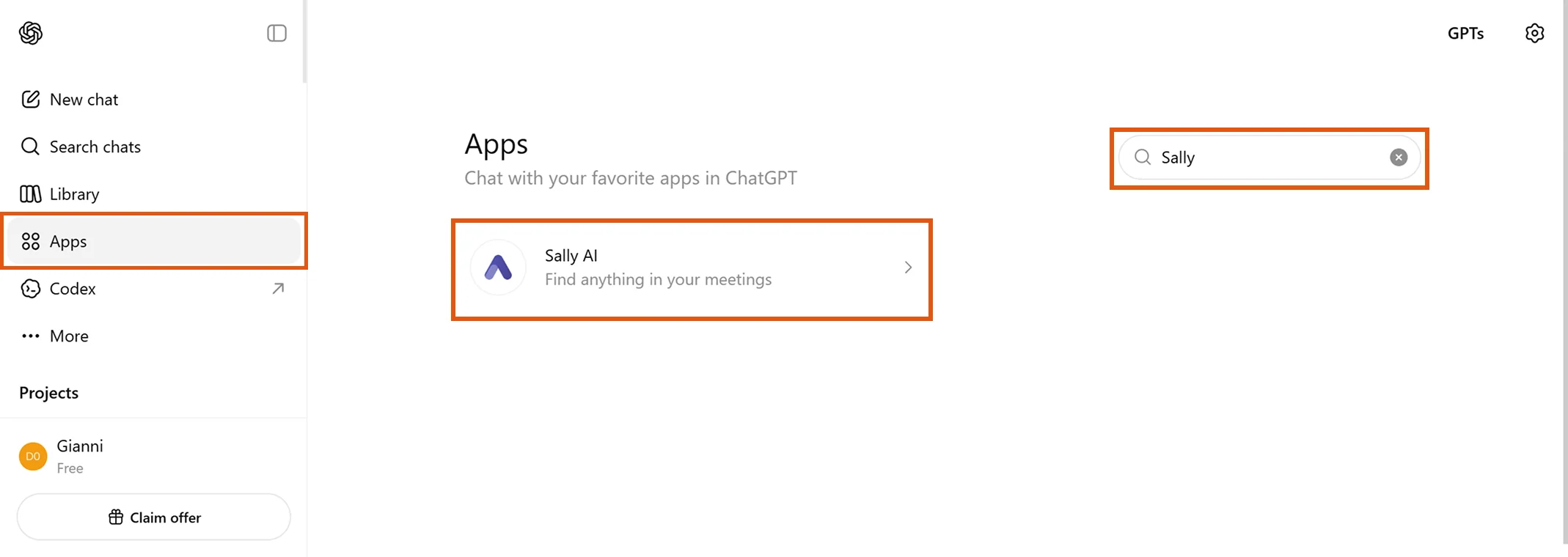
- In the left sidebar, click Apps.
- In the search field on the top right, type "Sally".
- Click the Sally AI tile.
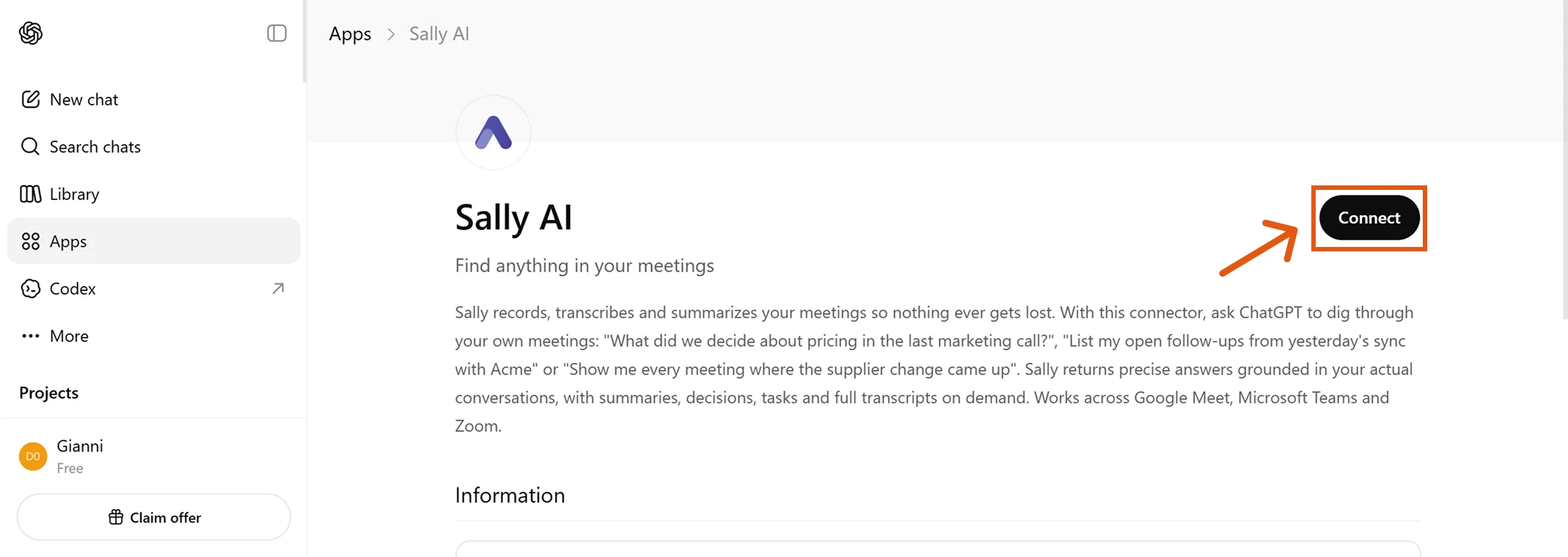
- On the Sally AI app page, click Connect in the top right.
- A login window opens. Sign in with your Sally account and pick your default company account.
The connection is bound to the Sally user you sign in with. If you have access to several company accounts in Sally, ChatGPT sees the data of the account that is active for your user during the connection. To switch, disconnect the app and reconnect from a session where the account you want is the active one.
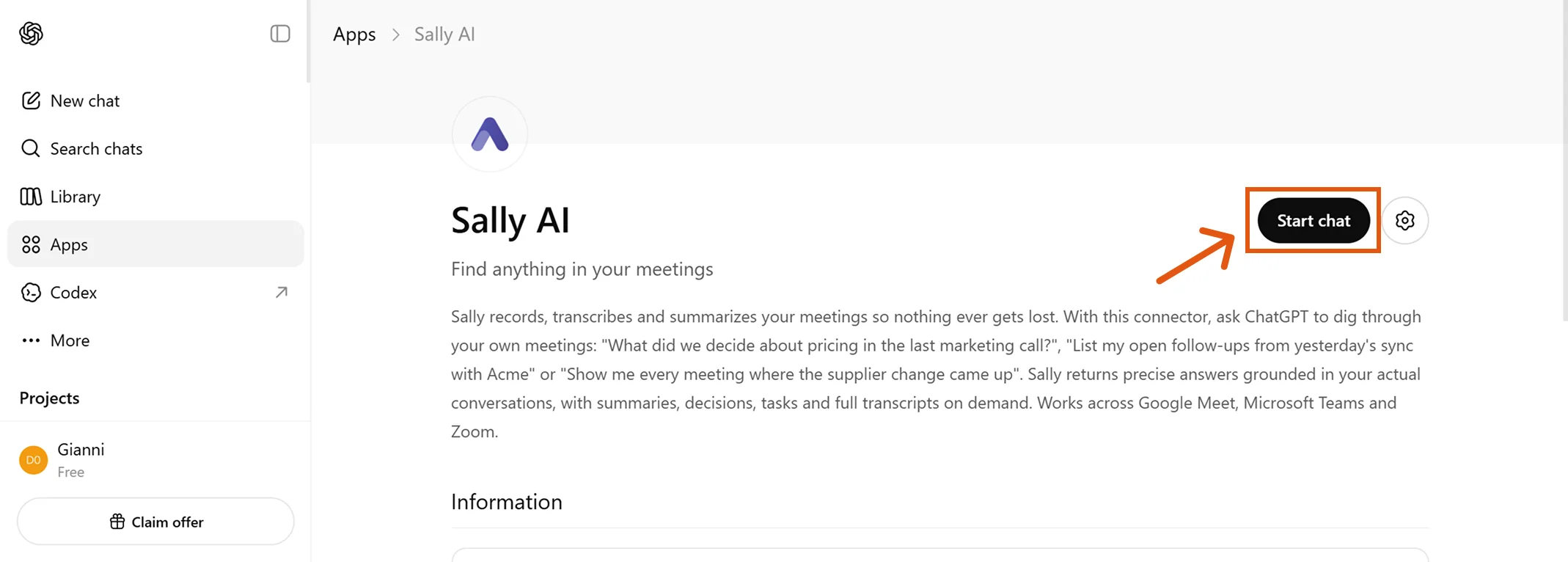
- After a successful login, the Connect button changes to Start chat. Sally AI is now connected.
2. Use Sally inside a chat
You can talk to Sally in two ways:
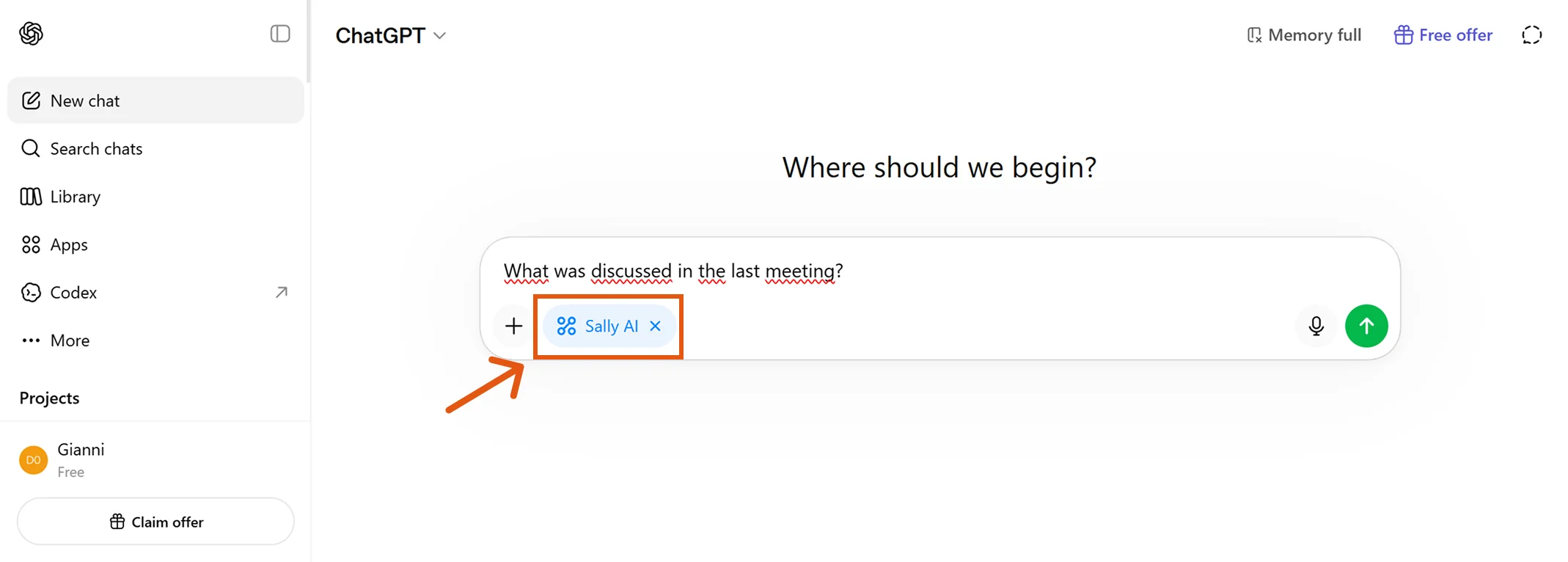
- From the Sally AI app page: click Start chat. ChatGPT opens a new conversation with the Sally AI app preselected in the input bar.
- From any chat: type
@in the message field and pick Sally AI, or click the+icon and choose Sally AI from your connected apps.
Ask anything that relates to your meetings, for example:
"What was discussed in my last meeting?"
"List the open action items from this week's calls, grouped by owner."
"Pull the transcript of yesterday's discovery call and show every passage where pricing came up."
"Summarize the last two meetings with Acme and include all decisions."
ChatGPT routes your request to the Sally MCP server, which returns appointments, summaries, decisions, tasks, or transcripts depending on the question. Replies are grounded in your actual meeting content.
3. Access scope
The Sally AI app only returns meetings tied to your own Sally user or explicitly shared with you. The table below sums up what is and isn't reachable through the ChatGPT connection:
| Source | Accessible via ChatGPT? |
|---|---|
| Your own meetings (you are the owner / technical owner) | Yes |
| Meetings shared with you via a recording folder (directly or through one of your teams) | Yes |
| Meetings of users for whom you have been set as deputy ("Vertretung") | No |
Even if you have been granted deputy ("Vertretung") rights for another user inside Sally, those meetings are not exposed through MCP. The connector currently only surfaces your own recordings and recordings explicitly shared with you via folders. If you need a deputy's meetings in ChatGPT, ask the owner to share them through a recording folder.
4. Troubleshooting
| Issue | Fix |
|---|---|
| Sally AI tile is missing in the Apps directory | Make sure you are signed in to ChatGPT and that the Apps section is available in your plan and region. Refresh the page. |
| Login fails or the connection is rejected | Ask your Sally admin whether MCP is enabled for your company account. Without it, the connection cannot be established. |
| Sally AI returns no results | Confirm that your Sally user has at least one accessible meeting. Use app.sally.io to verify visibility. Deputy meetings are not included, see access scope. |
| You see data from the wrong company account | Disconnect the Sally AI app in ChatGPT, switch your active company account in Sally, then reconnect from ChatGPT. |
| Sally AI seems disconnected after some time | Open the Sally AI app page in ChatGPT and click Connect again to refresh the session. |
For more troubleshooting tips, see the General Setup Guide → Troubleshooting.