Sally MCP with Claude
The Model Context Protocol (MCP) is an open standard that lets AI tools connect to external data sources. Claude supports MCP through custom connectors, so you can add Sally directly in your Claude account in just a few clicks. Once connected, you can search your Sally meetings, read summaries, list open follow-ups, and pull transcripts directly in a Claude conversation, for example to prepare for an upcoming call, recap action items, or find what was discussed in a past meeting.
You set the connector up once, and it works across all Claude products: Claude on the web, Cowork, Claude Code, and Claude Desktop.
Quick navigation
- An active Claude account. Custom connectors are available on paid Claude plans (Pro, Max, Team, and Enterprise).
- An active Sally user with access to at least one company account.
- Sally MCP enabled for your company account (admin setting).
1. Add Sally as a custom connector
You add the connector once on the web at claude.ai. After that, it is automatically available in all your Claude products (Cowork, Claude Code, and Claude Desktop).
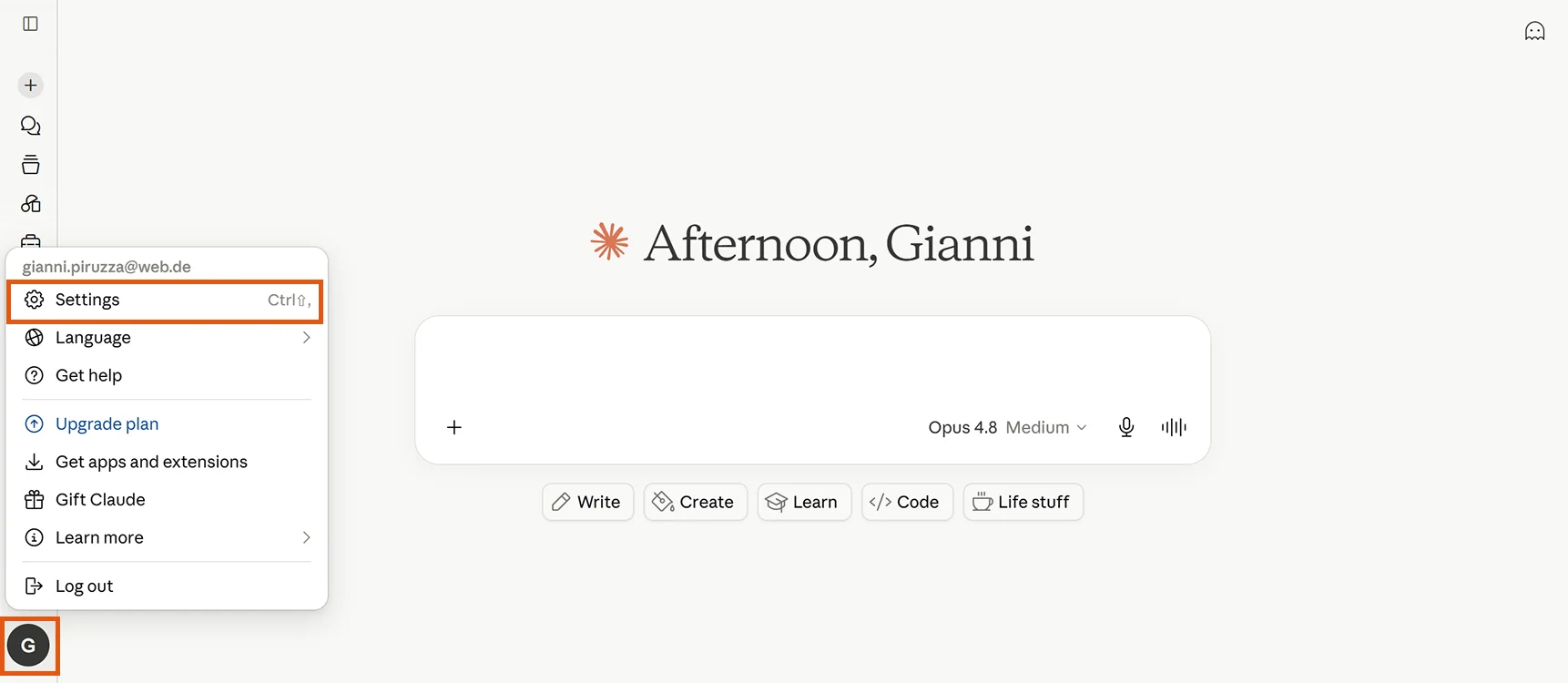
- Open Claude at claude.ai and sign in. Click your profile icon in the bottom-left corner and choose Settings.
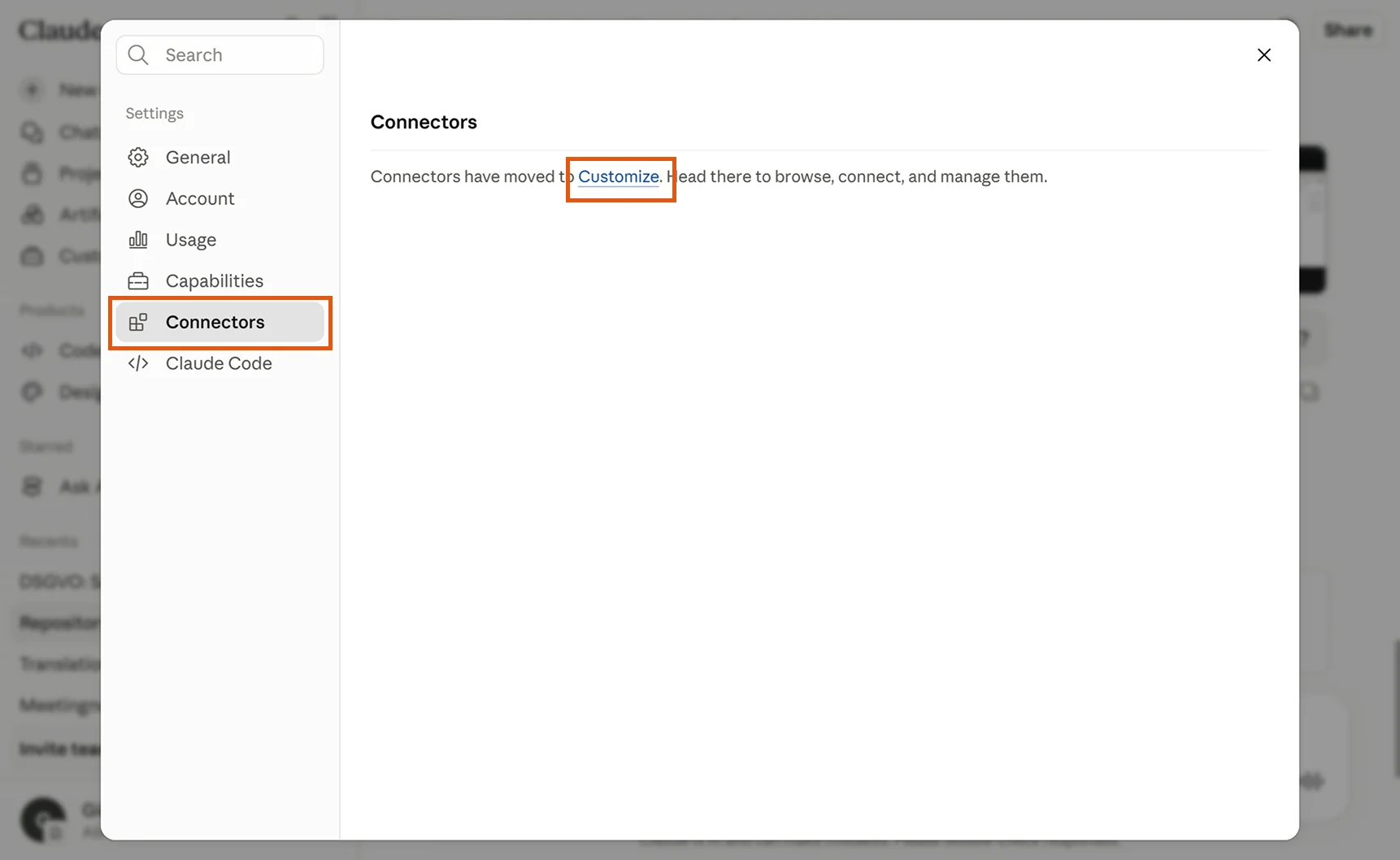
- Go to Connectors. Claude shows a note that connectors have moved. Click the Customize link to open the connector management area.
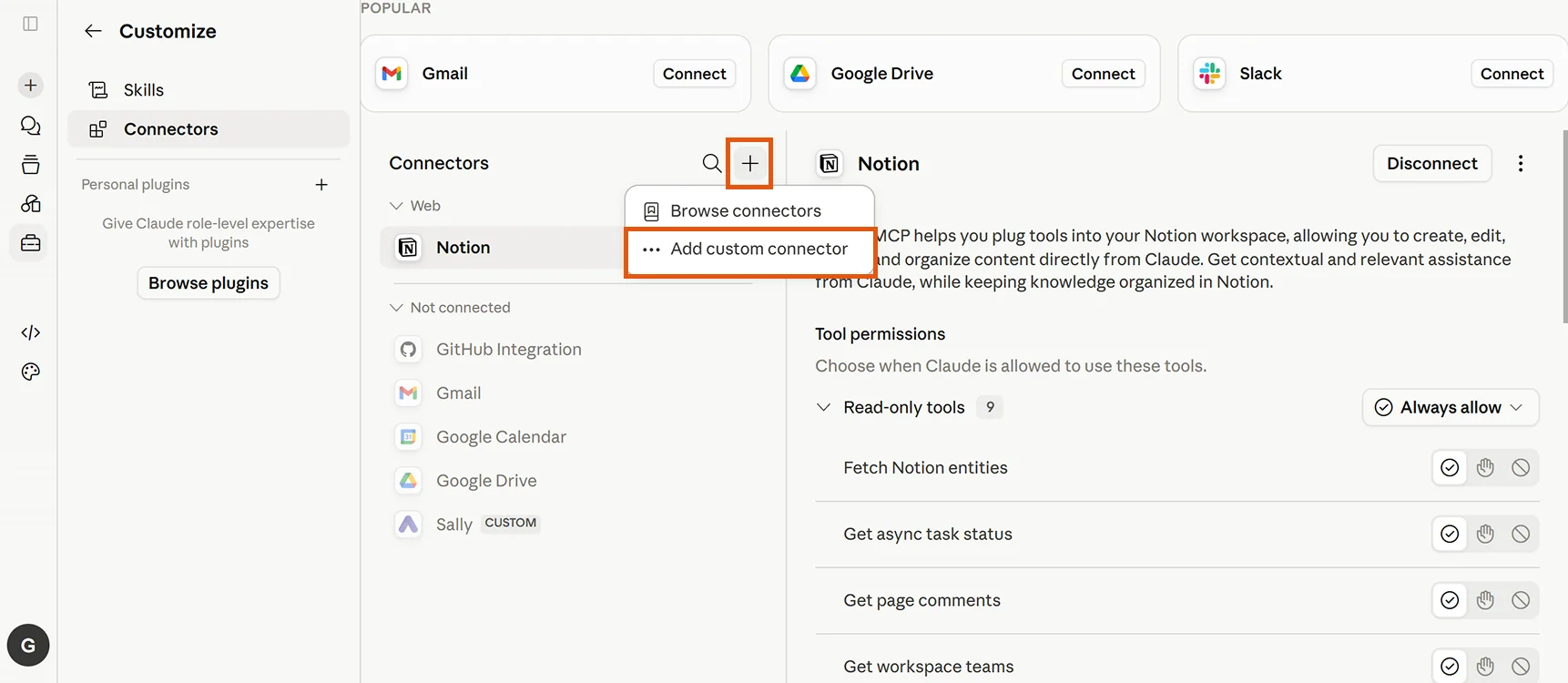
- In Customize → Connectors, click the + next to "Connectors" and choose Add custom connector.
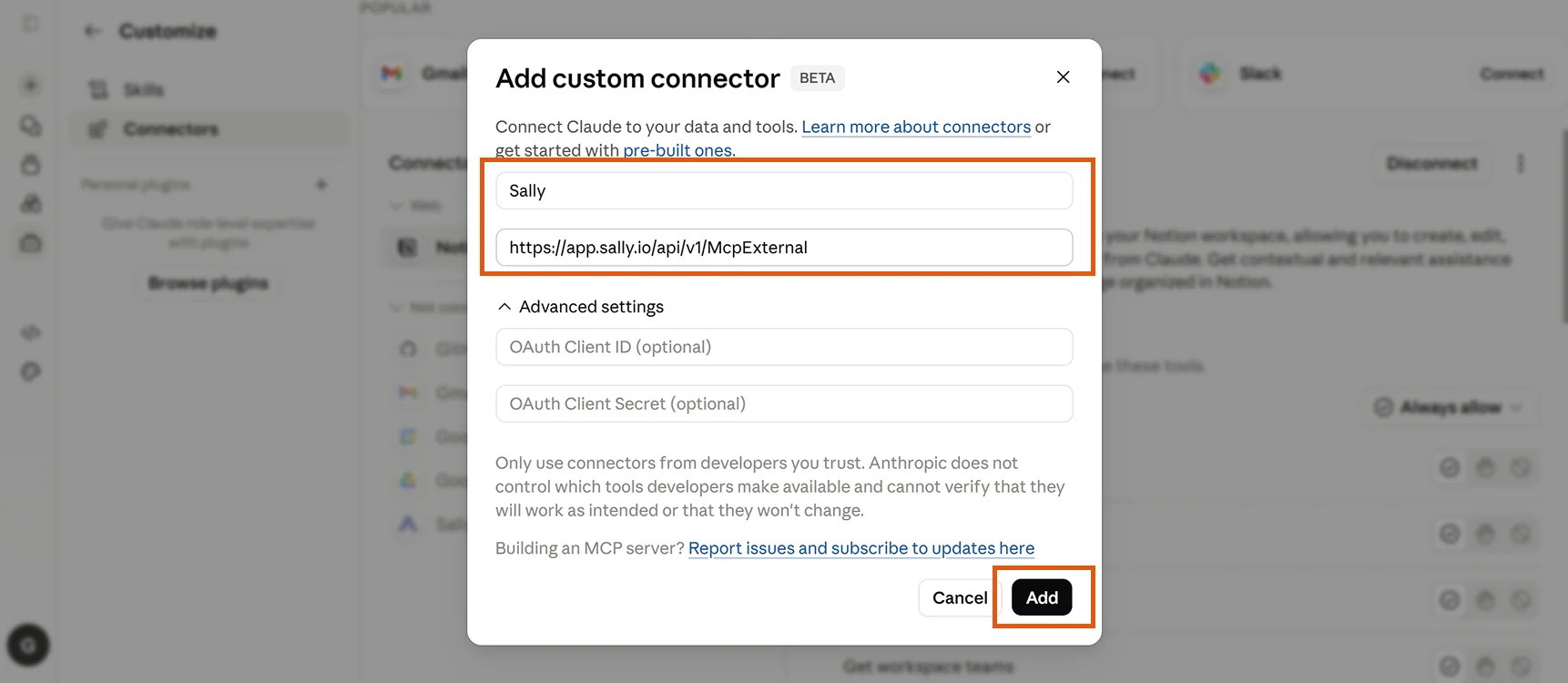
- Give the connector a name (e.g. "Sally") and paste the Sally MCP URL into the URL field. Leave the OAuth fields under "Advanced settings" empty.
https://app.sally.io/api/v1/McpExternal
Sally is an OAuth 2.1 protected resource with Dynamic Client Registration (RFC 7591). Claude reads the sign-in address straight from the Sally server metadata and registers itself there as a client automatically. That is why the connector needs neither a client ID nor a client secret. Those two fields exist for services where an admin has to create the client manually up front.
-
Click Add.
-
You are taken back to the Connectors page. Select Sally in the list and click Connect. A Sally login window opens. Sign in with your Sally account and confirm the authorization to finish the connection.
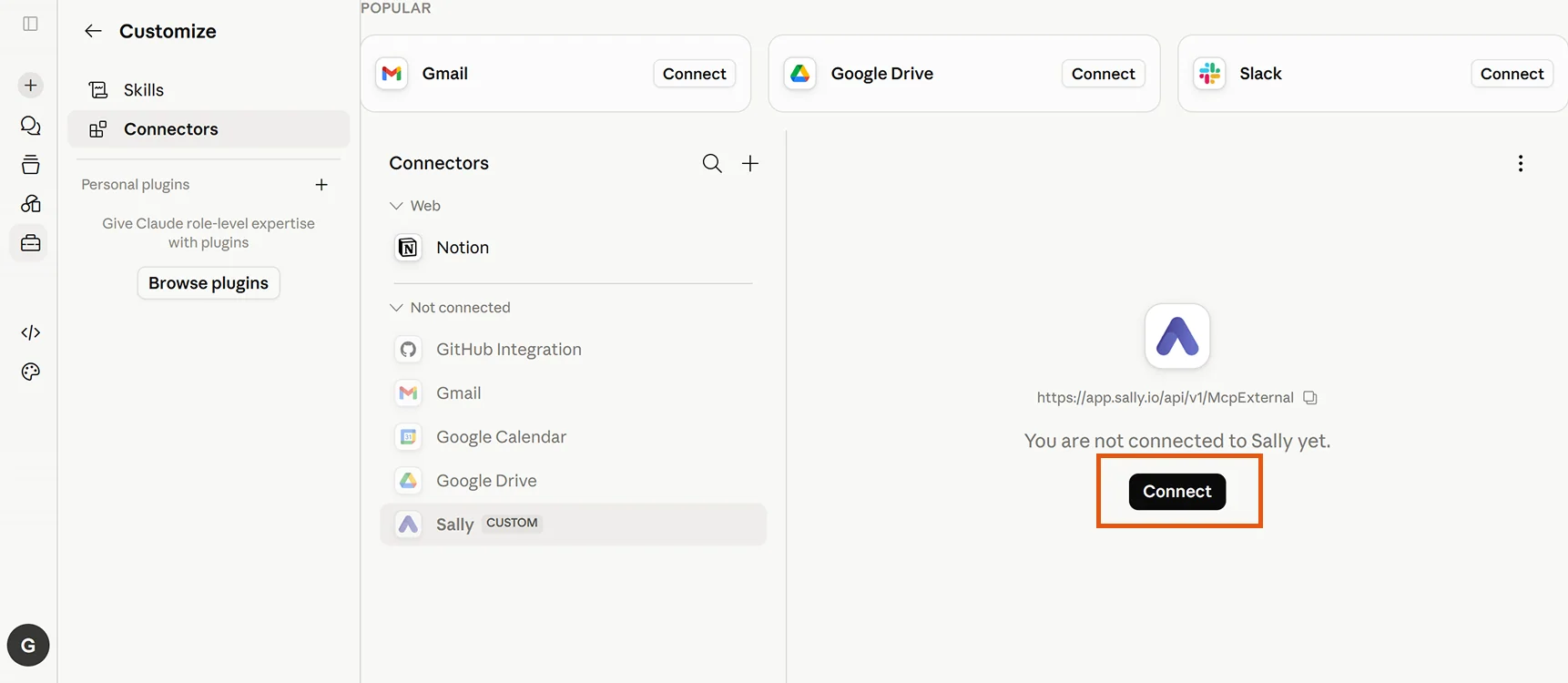
When you connect, Claude receives a short-lived access token for your user, so no personal access token has to be created or pasted anywhere. Admins can therefore hand out the connector URL company-wide without distributing credentials, and every user authorizes their own Sally account. Details in the general setup guide.
The connection is bound to the Sally user you sign in with. If you have access to several company accounts in Sally, Claude sees the data of the account that is active for your user during the connection. To switch, disconnect the connector and reconnect from a session where the account you want is the active one.
2. Use Sally in Claude
Once the connector shows as connected, start a new conversation in any Claude product and ask something that relates to your meetings, for example:
"What was discussed in my last meeting?"
"List the open action items from this week's calls, grouped by owner."
"Pull the transcript of yesterday's discovery call and show every passage where pricing came up."
"Summarize the last two meetings with Acme and include all decisions."
Claude routes your request to the Sally MCP server, which returns appointments, summaries, decisions, tasks, or transcripts depending on the question. The first time Claude calls a Sally tool, it may ask for your permission. Confirm, and subsequent Sally requests are handled automatically.
Because the connector belongs to your Claude account, it is available everywhere you use Claude: on the web, in Cowork, in Claude Code, and in Claude Desktop. You do not need to repeat the setup per device or per app.
3. Access scope
The Sally connector only returns meetings tied to your own Sally user or explicitly shared with you. The table below sums up what is and isn't reachable through the connection:
| Source | Accessible via Claude? |
|---|---|
| Your own meetings (you are the owner / technical owner) | Yes |
| Meetings shared with you via a recording folder (directly or through one of your teams) | Yes |
| Meetings of users for whom you have been set as deputy ("Vertretung") | No |
Even if you have been granted deputy ("Vertretung") rights for another user inside Sally, those meetings are not exposed through MCP. The connector currently only surfaces your own recordings and recordings explicitly shared with you via folders. If you need a deputy's meetings in Claude, ask the owner to share them through a recording folder.
4. Troubleshooting
| Issue | Fix |
|---|---|
| "Add custom connector" is missing | Custom connectors require a paid Claude plan (Pro, Max, Team, or Enterprise). Check your plan, then reopen Settings → Connectors → Customize. |
| Login fails or the connection is rejected | Ask your Sally admin whether MCP is enabled for your company account. Without it, the connection cannot be established. |
| Sally tools don't appear after connecting | Reopen the connector under Customize → Connectors, confirm it shows as connected, and start a new conversation. |
| Sally returns no results | Confirm that your Sally user has at least one accessible meeting at app.sally.io. Deputy meetings are not included, see access scope. |
| You see data from the wrong company account | Disconnect the connector in Claude, switch your active company account in Sally, then reconnect. |
| Sally seems disconnected after some time | Open Customize → Connectors, select Sally, and click Connect again to refresh the session. |
For more troubleshooting tips and the full list of available tools, see the General Setup Guide.