Sally MCP with Claude Code
Claude Code is Anthropic's command-line interface (CLI) for Claude. Unlike Claude Desktop or other graphical tools, the entire setup happens in a terminal. Once connected, you can search your Sally meetings, read summaries, and pull transcripts directly in a Claude Code conversation, for example to prepare for an upcoming call, recap action items, or find what was discussed in a past meeting.
- Node.js 18 or later installed. Check in your terminal with
node -v. If not installed, download from nodejs.org. - An Anthropic account with a Claude Pro, Team, or Enterprise subscription (or an Anthropic API key with credit).
- An active Sally user with access to at least one company account.
- Sally MCP enabled for your company account (admin setting).
Quick Navigation
1. Create a Personal Access Token in Sally
A Personal Access Token (PAT) is the credential Claude Code uses to authenticate against the Sally MCP endpoint. You create it once.
- Log in to Sally at app.sally.io.
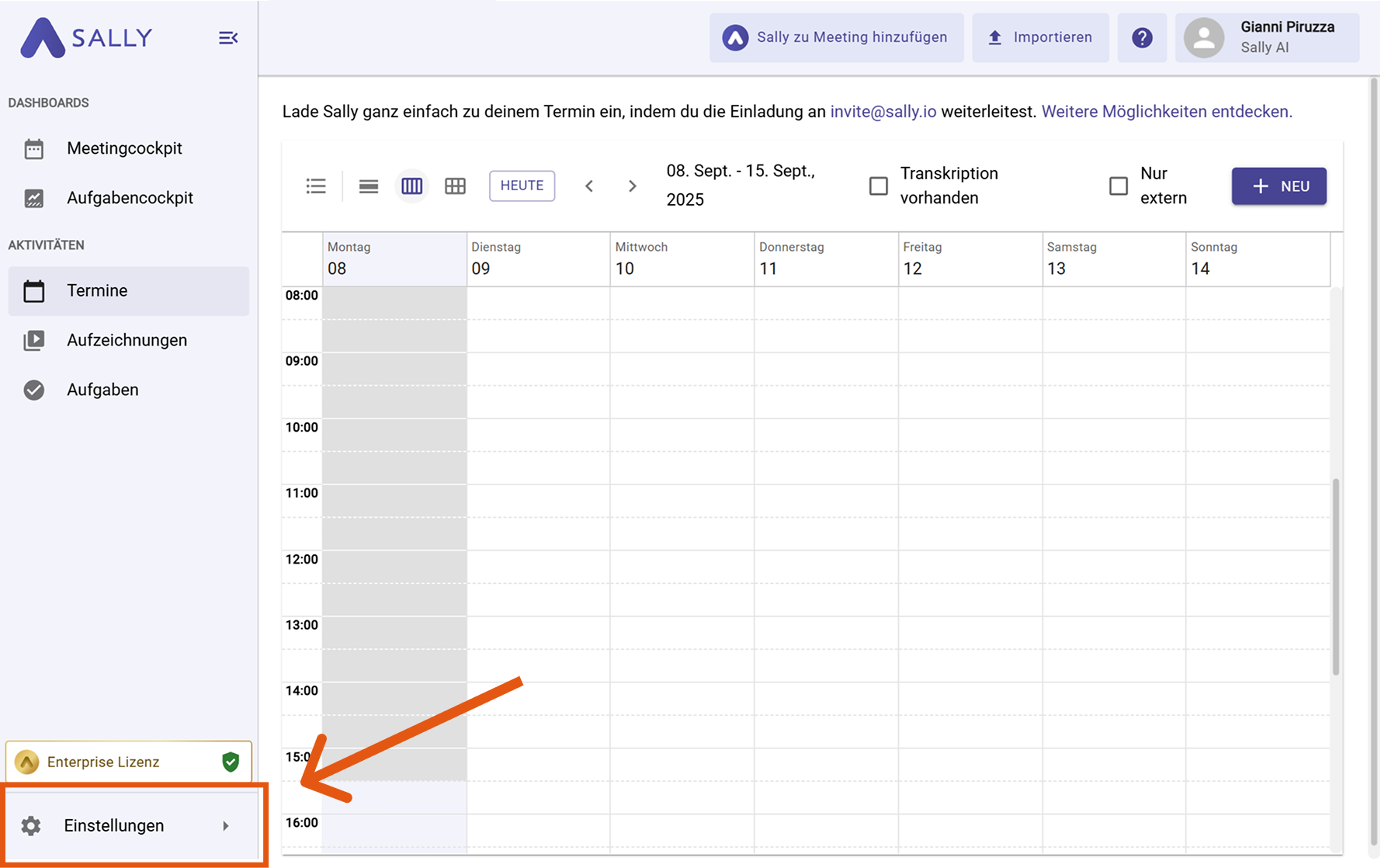
- Open Settings in the bottom-left of the sidebar.
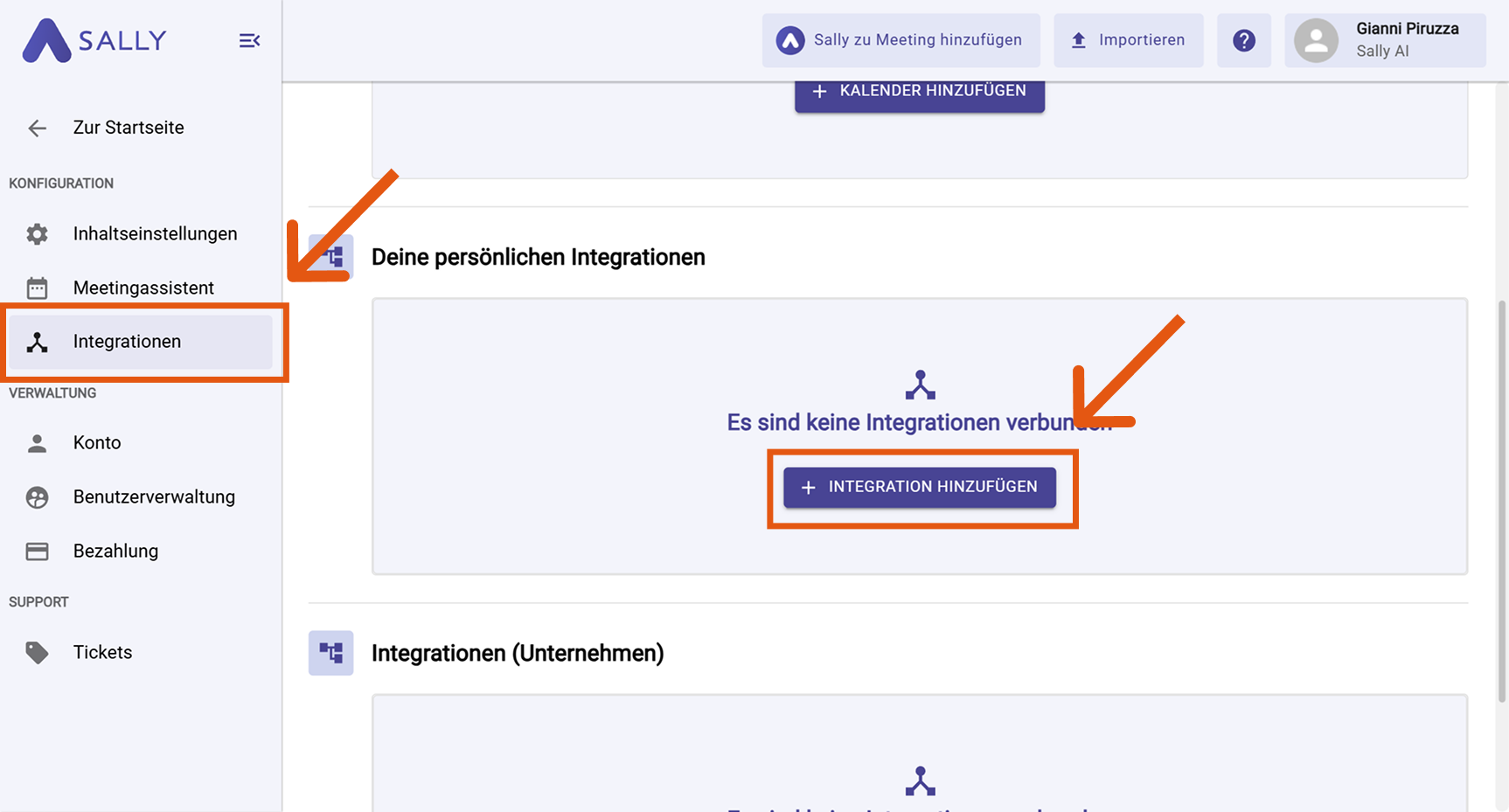
- In Settings, choose "Integrations". Under "Your personal integrations", click "+ Add integration".
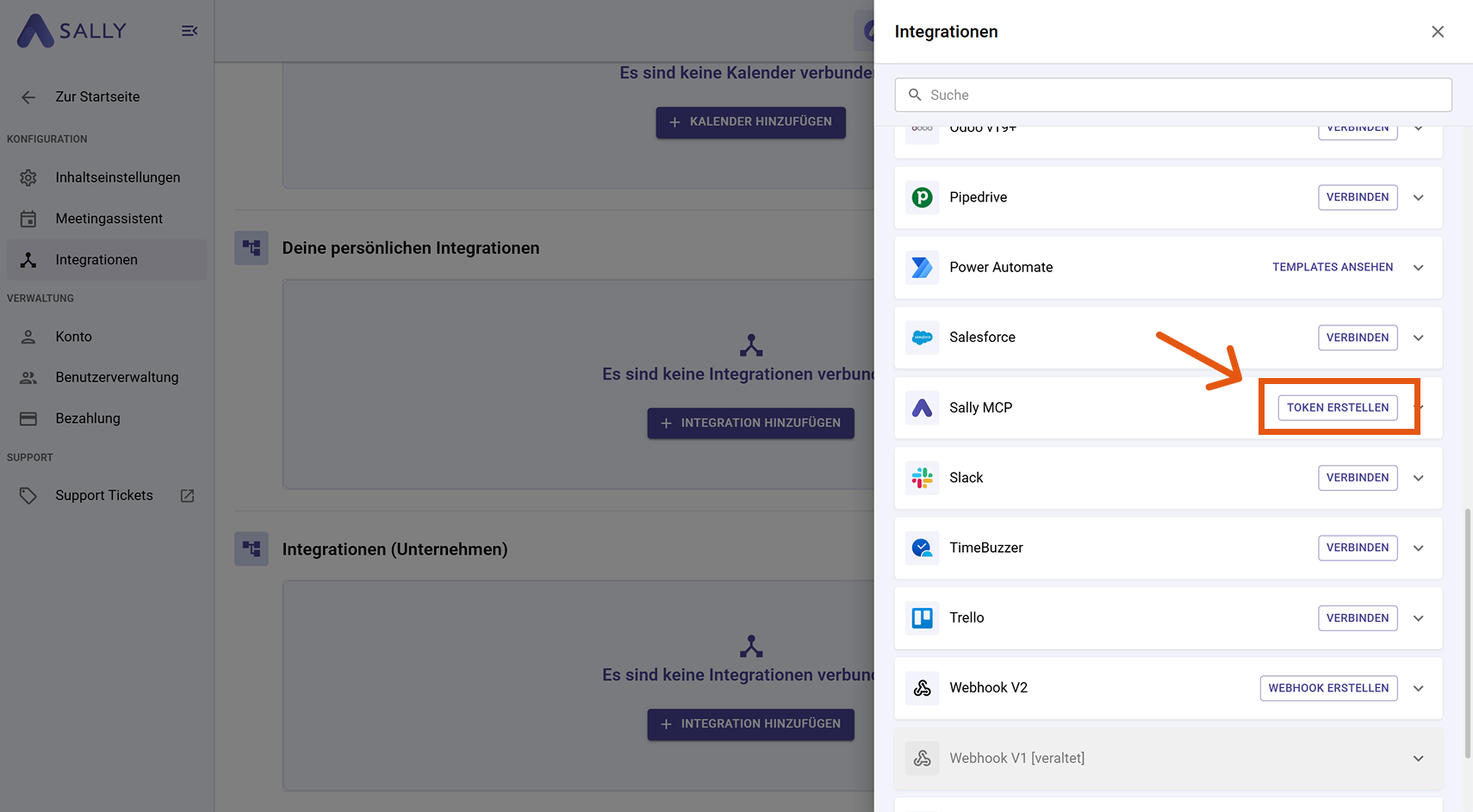
- In the integration drawer, find "Sally MCP" and click "Create Token".
-
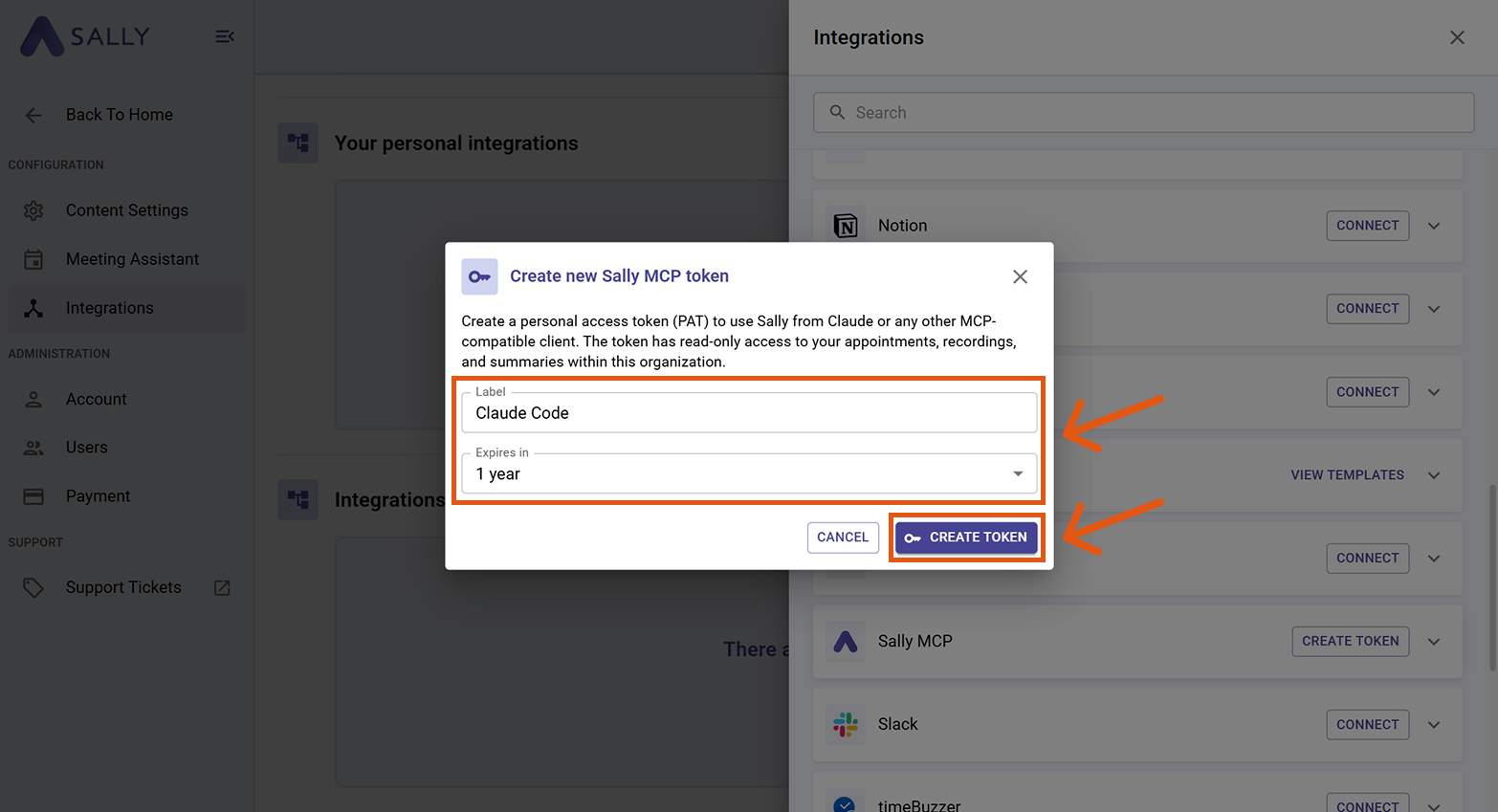
Fill out the "Create new Sally MCP Token" dialog:
- Name: a label that helps you recognize the token later (e.g. "Claude Code").
- Expires: choose a lifetime: 30 days, 90 days, 1 year, 2 years, or Never.
Then click "Create Token".
- Sally displays the full token exactly once. Copy it immediately and store it in a password manager or secure secret store. Once you close the dialog, the clear-text value is gone: you cannot view it again, only regenerate it.
The token grants read access to every appointment, recording, and summary your Sally user sees in this company account. Do not paste it into Slack, email, or tickets. Store it in a password manager.
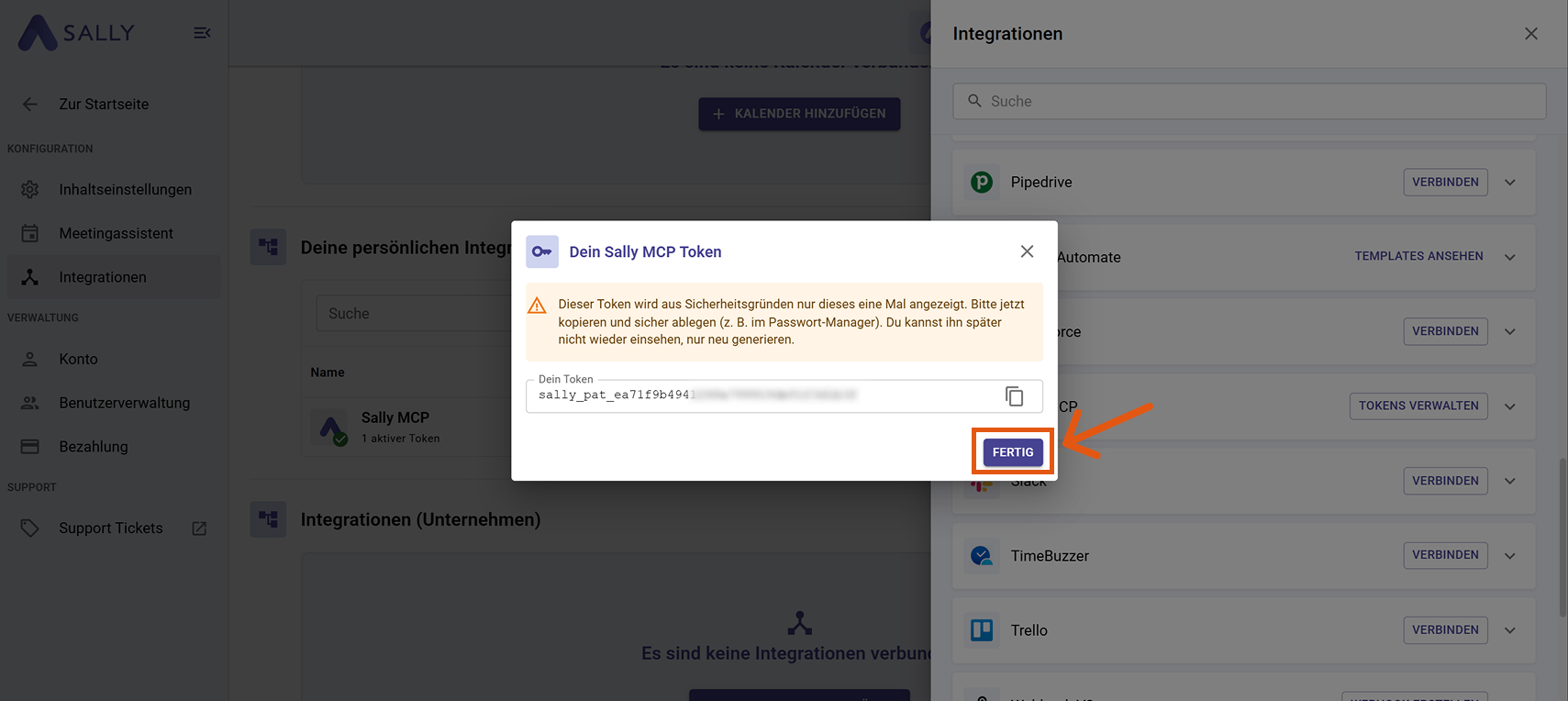
- Click "Done".
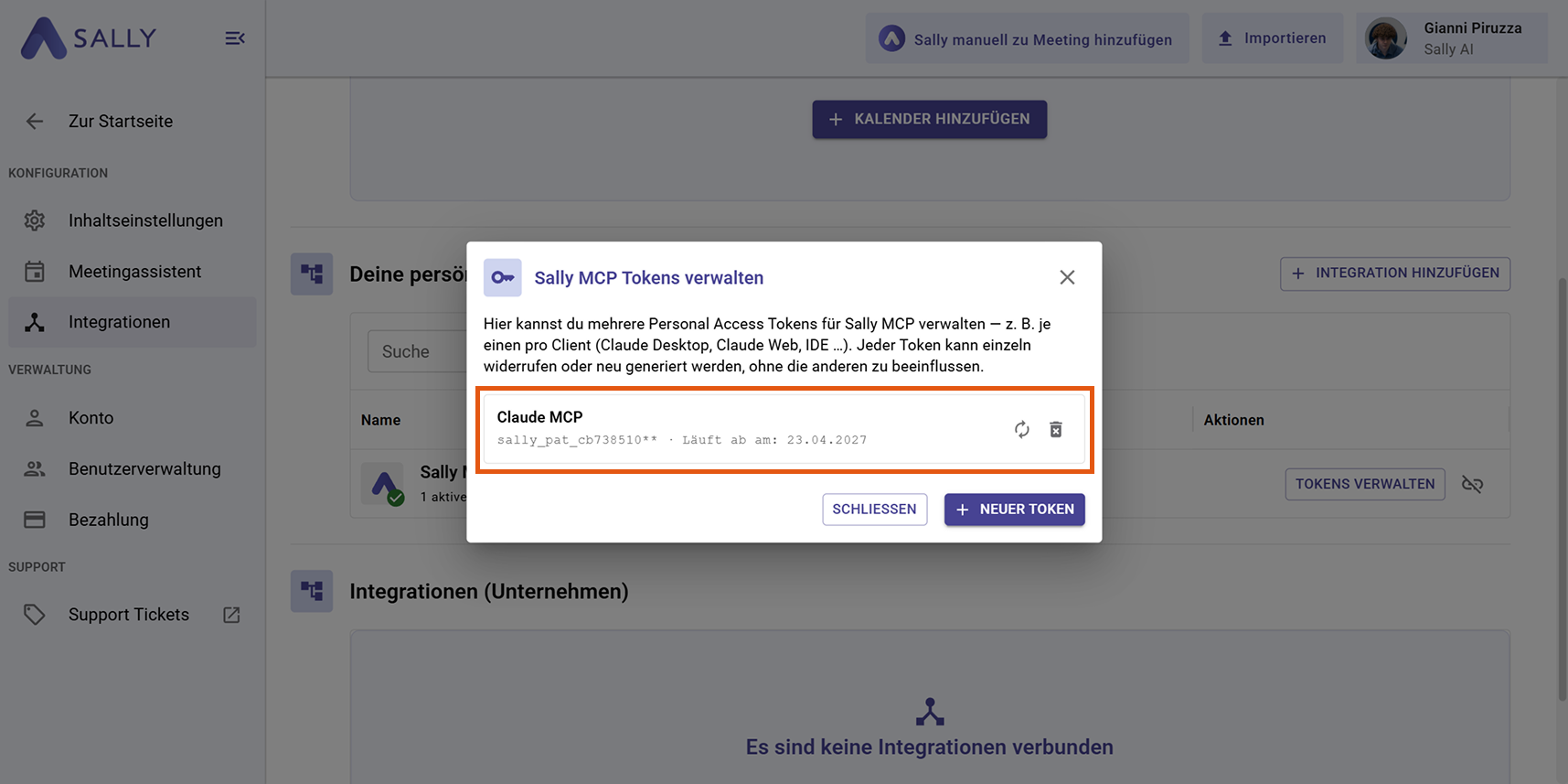
You can return to Settings → Integrations → Sally MCP → "Manage Tokens" at any time to regenerate, revoke, or create additional tokens. Regenerating invalidates the old token immediately, so update it in any client that still uses it.
2. Set Up the MCP Connection in Claude Code
2.1 Install Claude Code
If Claude Code is already set up on your machine, skip to 2.2 Set up the MCP connection →.
- Open a terminal (PowerShell on Windows, Terminal on macOS) and install Claude Code globally:
npm install -g @anthropic-ai/claude-code
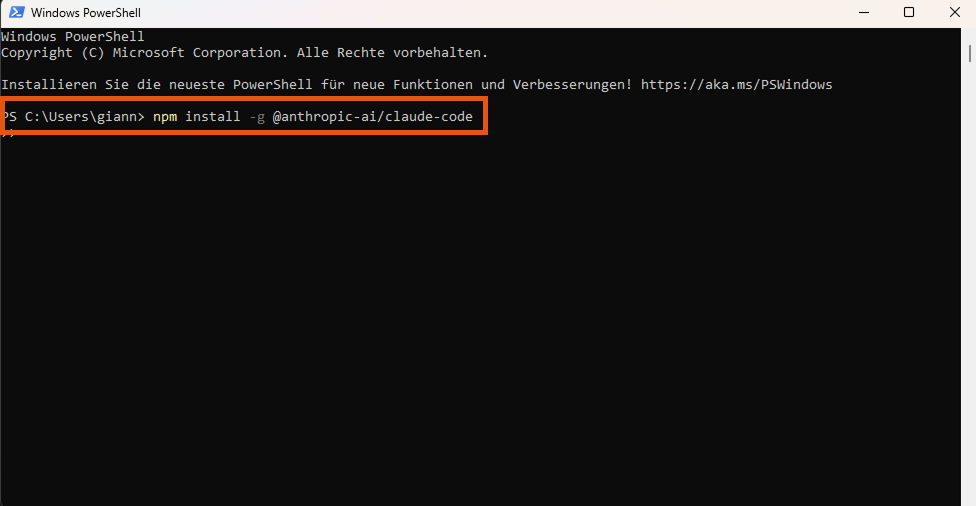
If npm reports added X packages or changed X packages, the installation was successful.
- Type
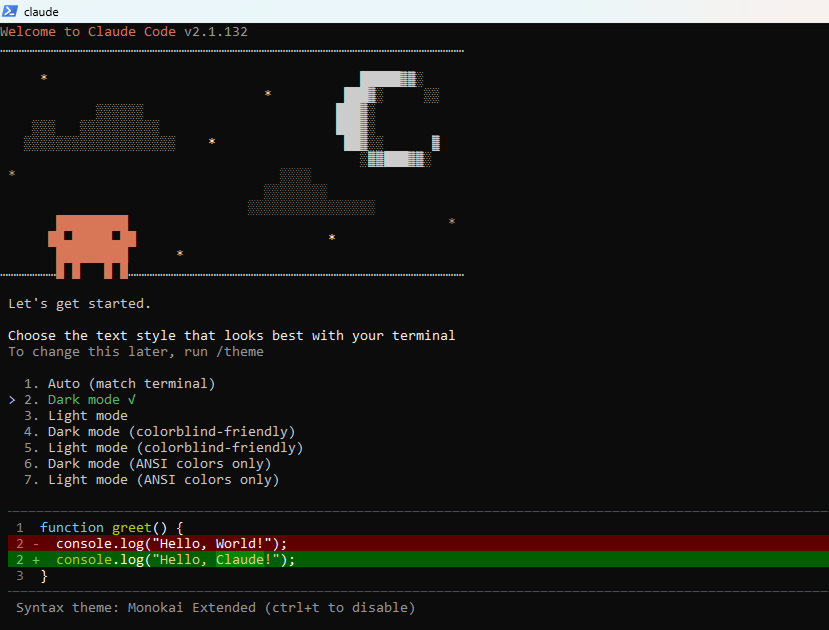
claudein the terminal and press Enter. On the first launch, Claude Code asks you to pick a theme and confirm a few settings. Use the arrow keys and Enter to step through them.
- Claude Code then starts the login flow. It opens a browser window automatically (or shows a URL if the browser does not open on its own). In the browser, log in with your Anthropic account and confirm the authorization dialog.
Type c in the terminal to copy the login URL to your clipboard. Open a browser manually, paste the URL, and follow the login flow.
- After a successful login, the terminal returns to the Claude Code prompt automatically. Before adding Sally, exit Claude Code by typing
/exit. You are now back in the normal terminal prompt (e.g.PS C:\Users\...>on Windows).
2.2 Set Up the MCP Connection
The claude mcp add command is not entered inside the Claude Code prompt. It runs in the normal terminal shell.
- Run the following command in one line. Replace
sally_pat_PASTE_YOUR_TOKEN_HEREwith the full token from Step 1 (keep thesally_pat_prefix):
claude mcp add --transport http --scope user sally https://app.sally.io/api/v1/McpExternal --header "Authorization: Bearer sally_pat_PASTE_YOUR_TOKEN_HERE"

If successful, the terminal prints:
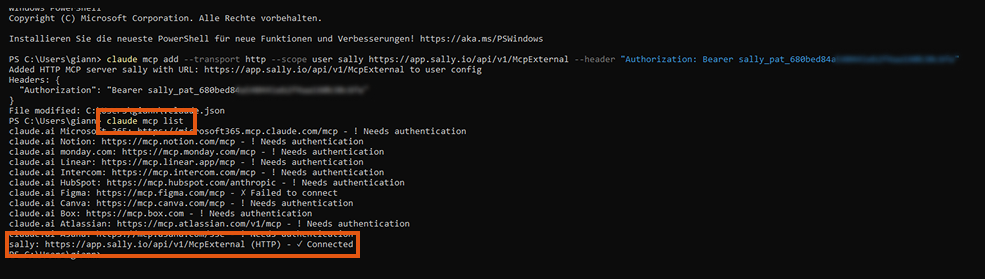
Added HTTP MCP server sally with URL: https://app.sally.io/api/v1/McpExternal to user config
Headers: {
  "Authorization": "Bearer sally_pat_..."
}
File modified: C:\Users\...\.claude.json
What the flags mean:
| Flag | Purpose |
|---|---|
--transport http | Sally uses HTTP transport (no stdio proxy needed). |
--scope user | Makes Sally available in all your projects, not just the current folder. This is the right choice for Sally because it is not project-specific. |
sally | The internal name under which the tools appear. |
--header "Authorization: Bearer ..." | Passes your Sally token as a Bearer header. |
Claude Code supports three scopes for MCP servers:
--scope local(default): only in the current folder, only for you.--scope project: stored in a.mcp.jsonfile inside the project, shared with the team.--scope user: for you across all projects. Recommended for Sally.
Claude Code saves the MCP configuration in ~/.claude.json (Windows: %USERPROFILE%\.claude.json). The token is stored in plain text. Do not share this file or commit it to a repository.
The claude mcp add command contains the token, so it will appear in your PowerShell or Bash history. If this is a concern, clear the relevant history entry after running the command, or set the token via an environment variable:
# Option: set token as environment variable first
export SALLY_TOKEN="sally_pat_YOUR_TOKEN"
claude mcp add --transport http --scope user sally https://app.sally.io/api/v1/McpExternal --header "Authorization: Bearer $SALLY_TOKEN"
unset SALLY_TOKEN
- Start Claude Code again with
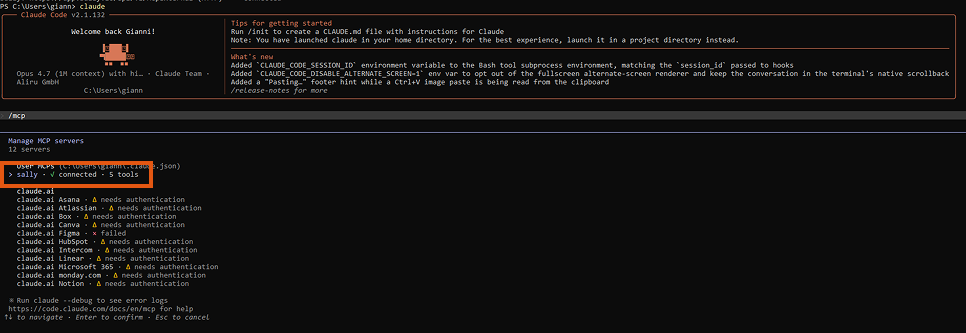
claude. Inside the Claude Code prompt, type/mcp. Sally should appear under "User MCPs" with ✓ connected · 5 tools.
You can also run claude mcp list in the normal terminal (before starting Claude Code) to confirm Sally appears with status ✓ Connected.
Besides Sally, the /mcp list may show additional claude.ai entries (Asana, Atlassian, Notion, Microsoft 365, etc.). These are connectors already configured in your claude.ai account that are synchronized automatically. They are independent of Sally and can be ignored.
Try a real query to confirm everything works:
"What was discussed in my last Sally meeting?"
The first time Claude Code calls a Sally tool, it asks for your permission. Confirm, and subsequent Sally requests will be handled automatically.
3. Troubleshooting
| Issue | Fix |
|---|---|
npm: command not found or npm is not recognized | Node.js is not installed or not in the PATH. Install Node.js (version 18 or later) from nodejs.org and restart the terminal. |
error: missing required argument 'name' during mcp add | The command was sent incomplete. It must be a single line from claude to the closing quote after the token. |
/mcp shows Sally as ✗ failed instead of ✓ connected | Most common cause: wrong token format. The token must follow Bearer (with a space) exactly once, including the sally_pat_ prefix. Remove the entry with claude mcp remove sally and add it again. |
| Tools are recognized but calls return a 401 error | The token is invalid or from a dev environment. Create a new token at app.sally.io (production). Remove the old entry with claude mcp remove sally and add the new token. |
| Browser does not open during login | Type c in the terminal to copy the login URL to your clipboard. Open a browser manually and paste the URL. |
| Cannot paste the code from the browser into the terminal | Instead of Ctrl+V, use Ctrl+Shift+V. Alternatively: right-click the PowerShell title bar → Edit → Paste. |
For more troubleshooting tips, see the General Setup Guide → Troubleshooting.