How does automated meeting attendance work in Sally AI?
Sally can join your meetings on her own, without an invitation, provided your calendar is connected and your participation mode allows it.
This is especially useful if you want Sally to attend recurring or routine meetings without having to invite her each time.
Quick navigation
1. How does Auto-Join work?
Two things have to be in place before Sally joins on her own:
- Your calendar is connected to Sally.
- Automatic meeting attendance is set to any mode other than "Never automatically".
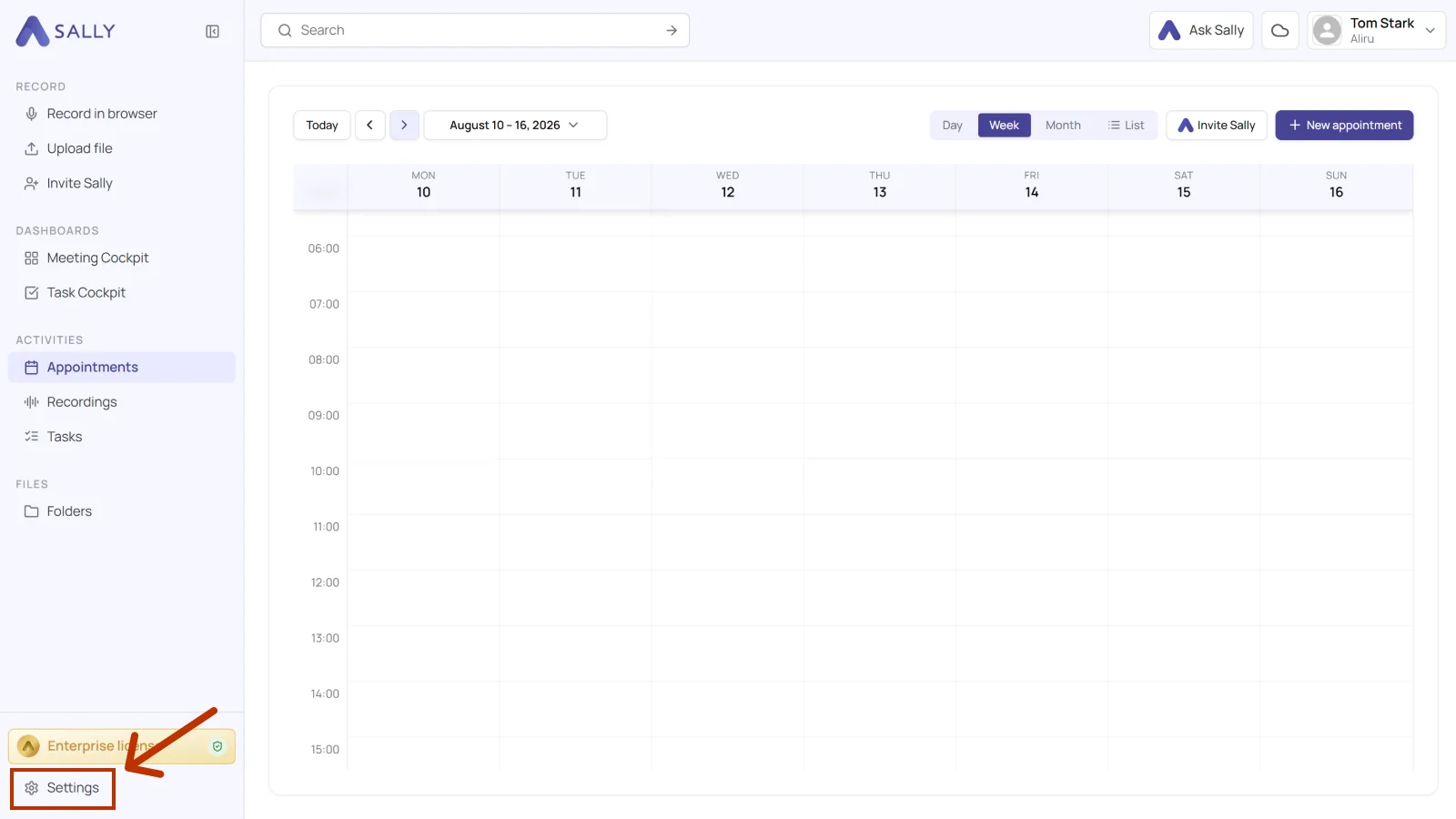
You'll find the setting in the bottom left corner under Settings.
Then select Meeting assistant, open Bot settings, and expand the Automatic meeting attendance section. Sally joins your meetings according to the participation mode you choose here.
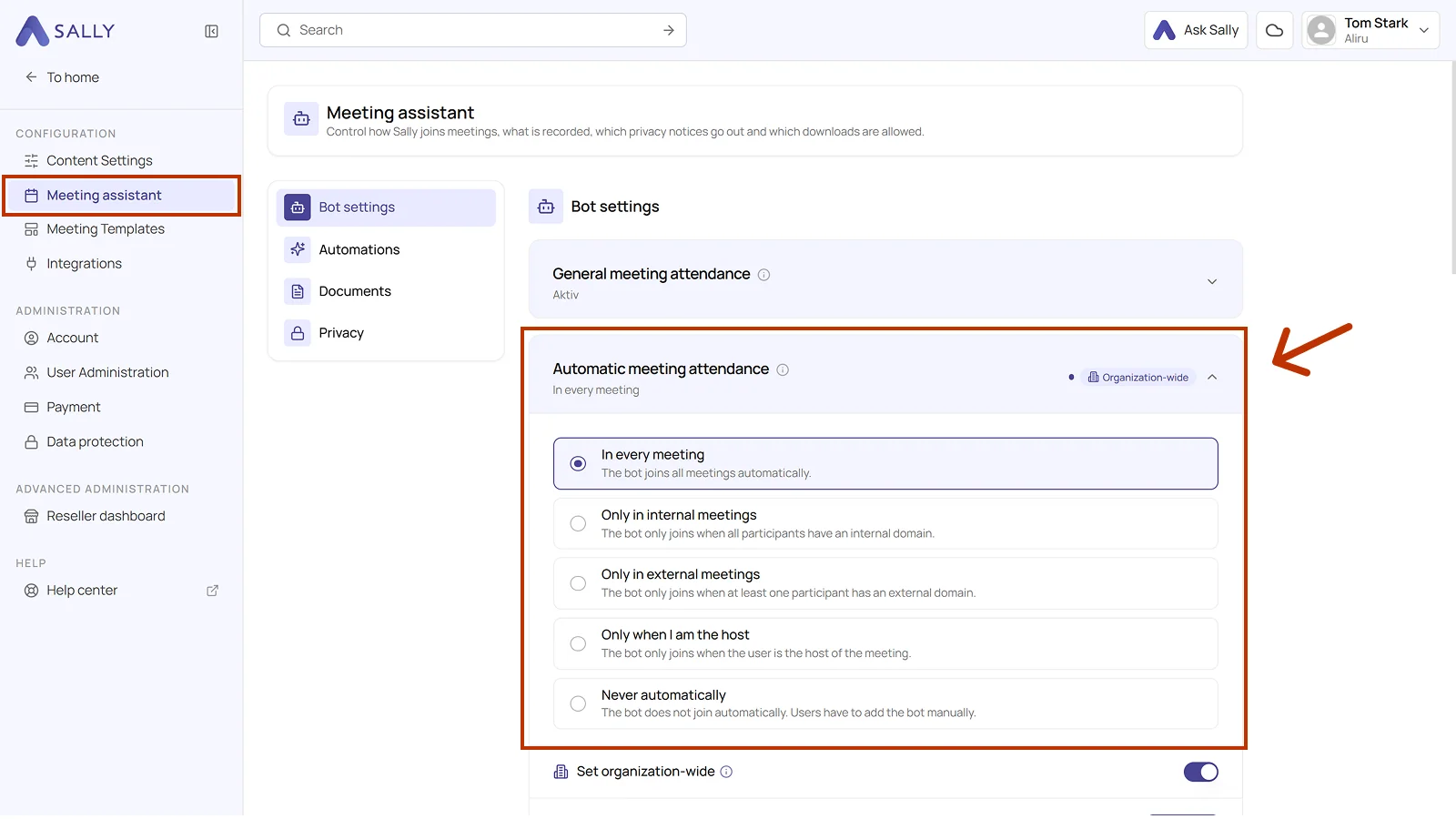
As an owner or admin you can apply the selected mode to your whole company with Set organization-wide. Members cannot do that. The section then shows the Organization-wide label.
2. What participation modes are available?
2.1. In every meeting
Sally automatically joins every meeting on your connected calendar, regardless of who the participants are or which domains they belong to.
Perfect if Sally should take notes in every meeting, internal or external, so nothing slips through and you never have to invite her by hand.
2.2. Only in internal meetings
Sally only joins meetings in which all participants have a domain marked as internal. As soon as one participant uses a different domain, the meeting counts as external.
Which domains count as internal?
The domains of your members are added as internal automatically. Freemail providers such as gmail or gmx are excluded. You can manage the list yourself and mark any domain as internal or remove that mark:
-
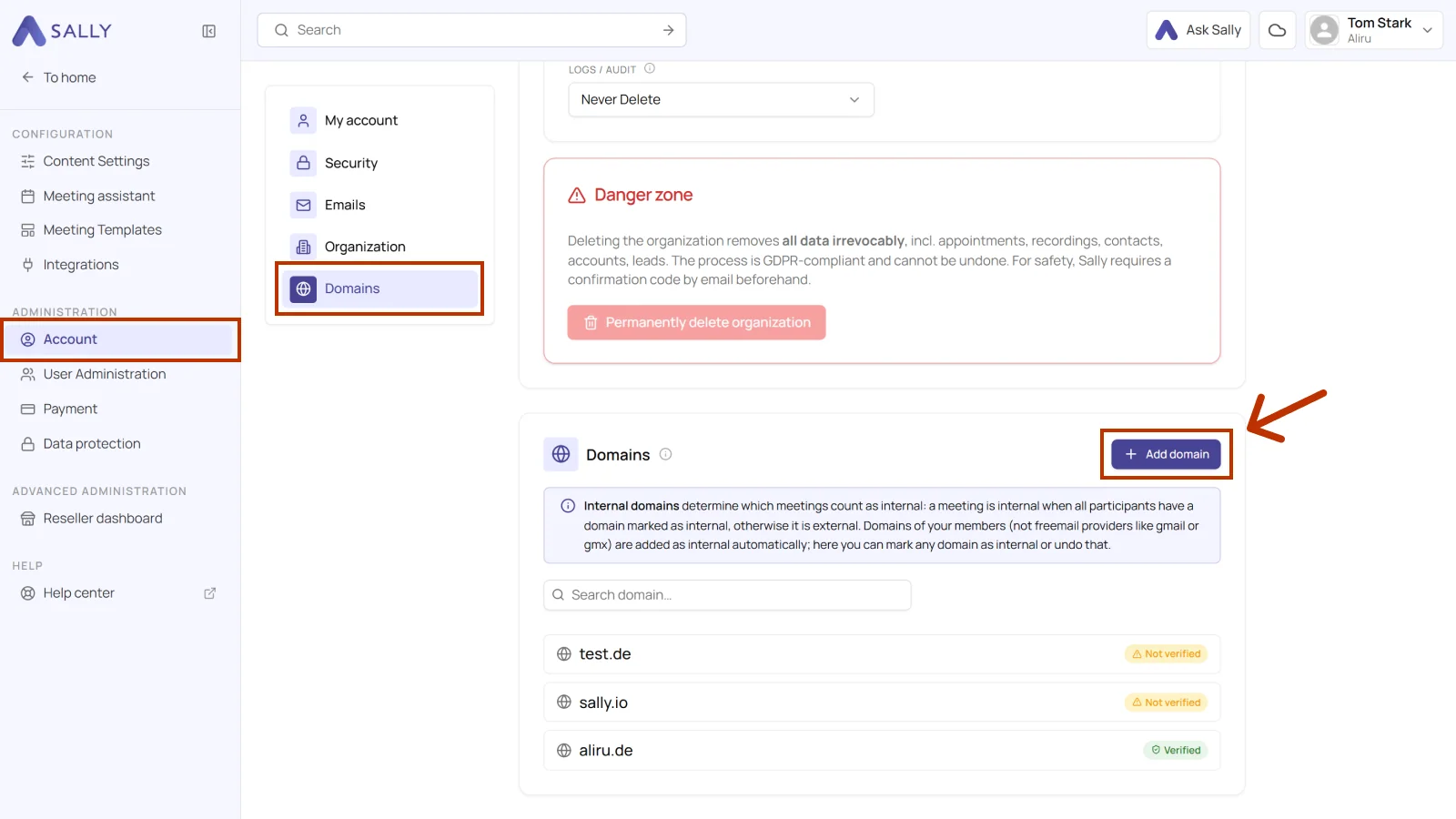
Go to Settings and select Account.
-
Open the Domains tab.
-
Click + Add domain.
-
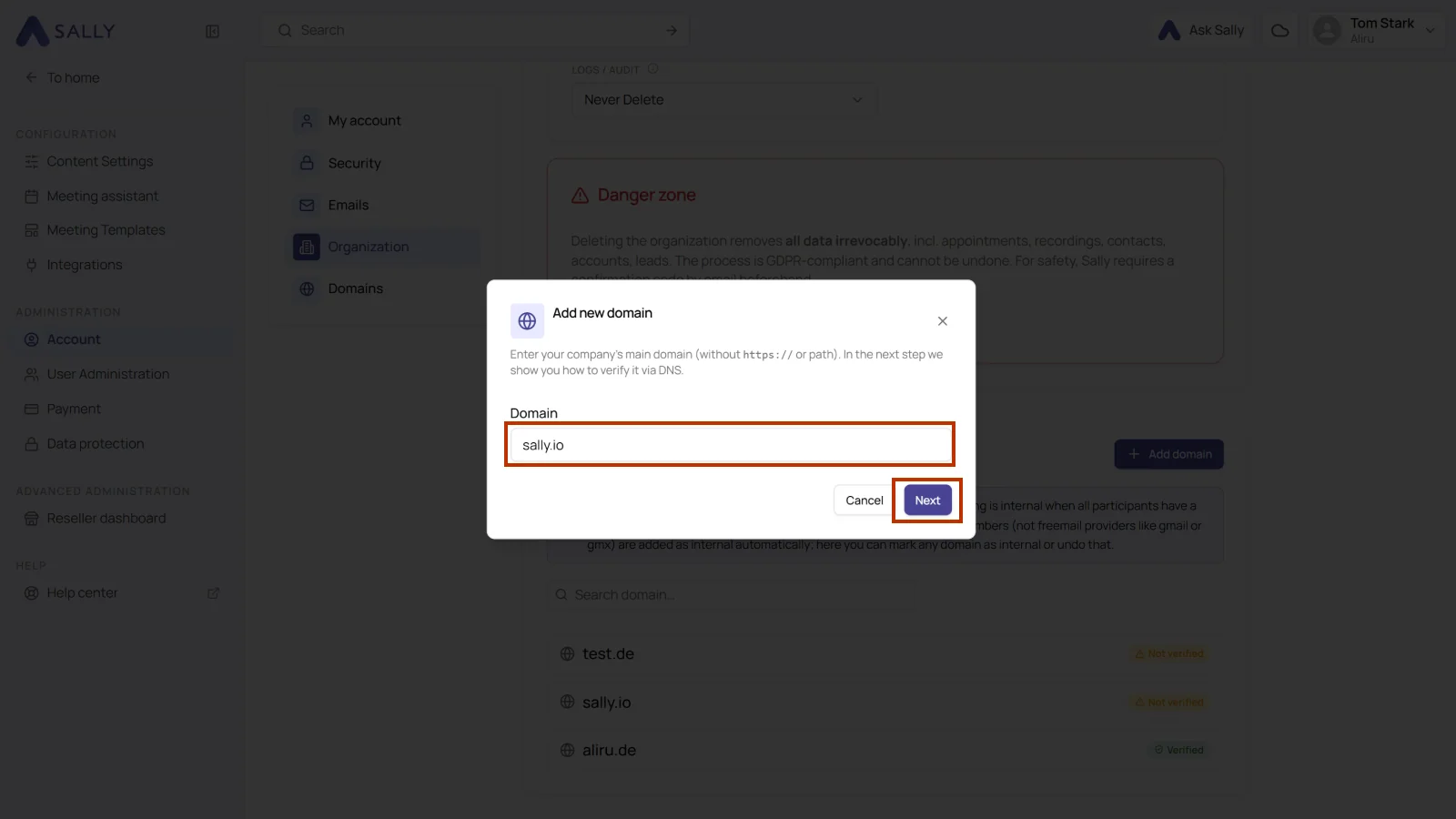
Enter your company's main domain, without
https://and without a path. -
Click Next. Sally then shows you how to verify the domain via DNS.
- From now on, Sally automatically joins all meetings in which every participant's email address matches an internal domain.
Perfect if you want Sally to attend only internal team syncs, department stand-ups, or project meetings, without joining external client calls.
2.3. Only in external meetings
Sally only joins meetings in which at least one participant has an external domain.
Great for customer-facing teams, sales, or account managers who only want Sally in external demos, onboarding sessions, or partner meetings, avoiding internal chatter.
2.4. Only when I am the host
Sally only joins meetings you personally organize.
Helpful if you only want Sally in meetings you own. She stays out of the ones where you are just a guest.
2.5. Never automatically
Sally never joins by herself. You can still invite her manually via email or meeting link when needed.
Recommended if you want full manual control, for example when meeting topics vary in sensitivity or Sally's attendance is only occasionally required.
Tip: How to keep full manual control
If you prefer to control Sally's attendance manually, set the participation mode to Never automatically and invite her only when needed.