How to remove Sally AI from a meeting
You can remove Sally from a running meeting at any time.
There are two ways to do it:
- Kick Sally from the meeting → She still writes a summary of everything up to that point.
- Remove Sally via “opt out” → Everything recorded so far is deleted for good and no summary is created.
Quick navigation
1. How to kick Sally from a meeting
Please note
The example below shows how to remove Sally in Microsoft Teams. It works the same way in Google Meet, Zoom and Webex: open the participant list, select Sally and remove her from the meeting.
How it works:
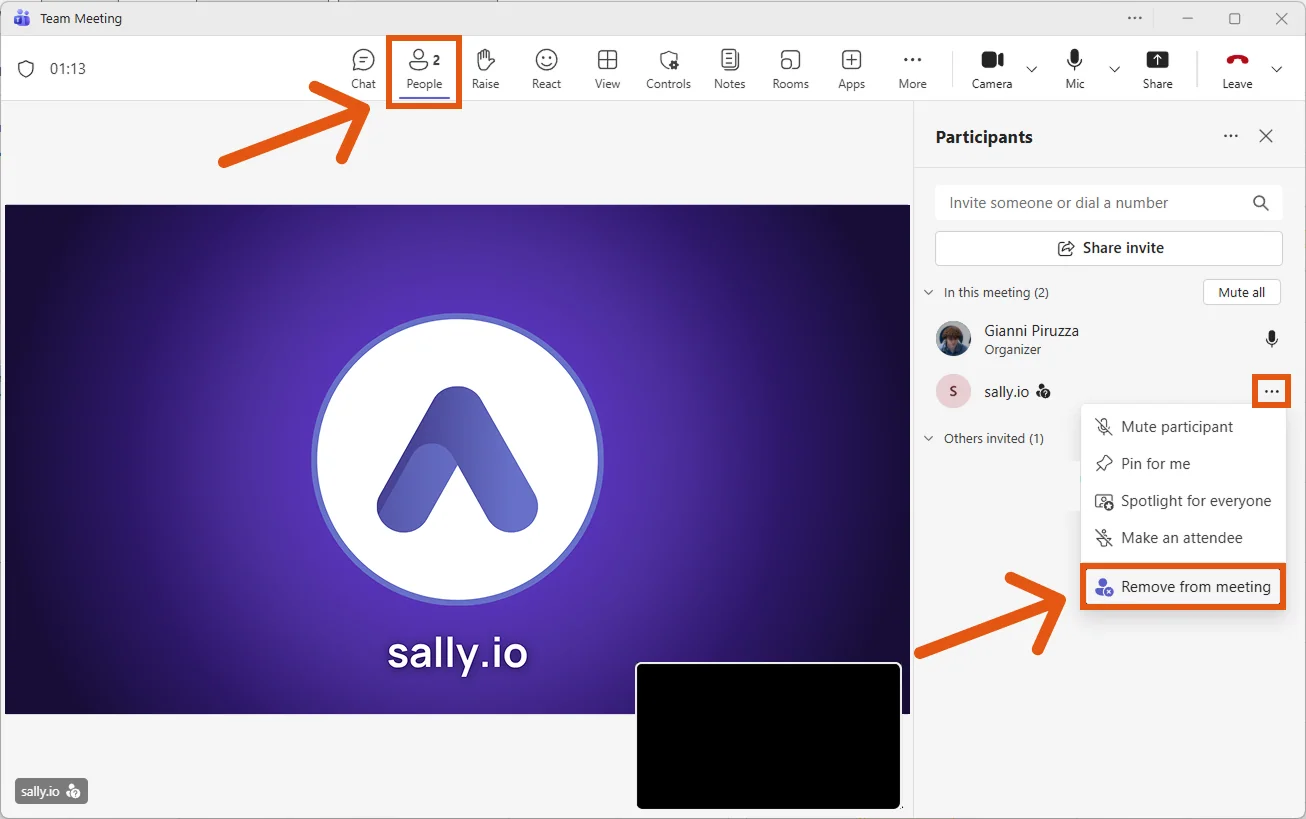
- Open the “People” panel in the meeting.
- Locate sally.io in the participant list.
- Click the three dots next to Sally.
- Select “Remove from meeting.”
Once Sally has been removed:
- The recording stops.
- Sally writes a summary of everything up to that point.
- The meeting continues normally without Sally.
2. How to opt out and permanently delete recorded data
Use the opt-out function when you want no summary at all and every recording permanently deleted. That is the right choice when confidential topics come up and nothing should be documented.
How it works:
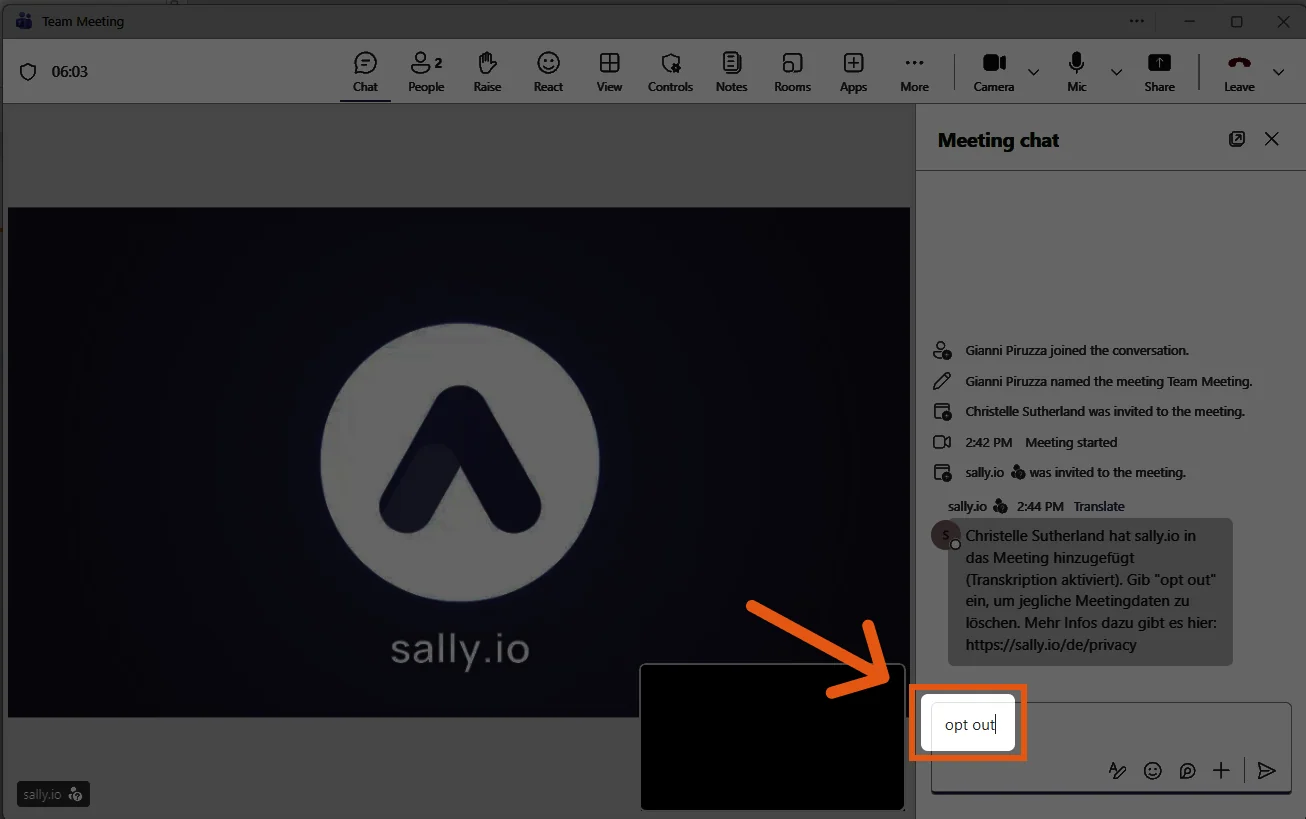
- Open the meeting chat.
- Type Opt out
- Send the message.
What happens next?
- Sally immediately leaves the meeting.
- No summary is generated.
- All recorded data up to that point is permanently deleted.
- There is no way to get the data back.