How to record and transcribe on-site meetings with Sally AI
Sally also captures your on-site meetings. Record the conversation with the Sally app on your phone and she creates a transcript and summary, just like for your online meetings.
Quick navigation
- How to download the Sally app
- How to transcribe your on-site meeting
- Troubleshooting and common questions
1. How to download the Sally app
1.1. How to download Sally on Android
If you are using an Android device, you can download Sally directly from the Google Play Store:
→ Direct link: Sally AI on Google Play
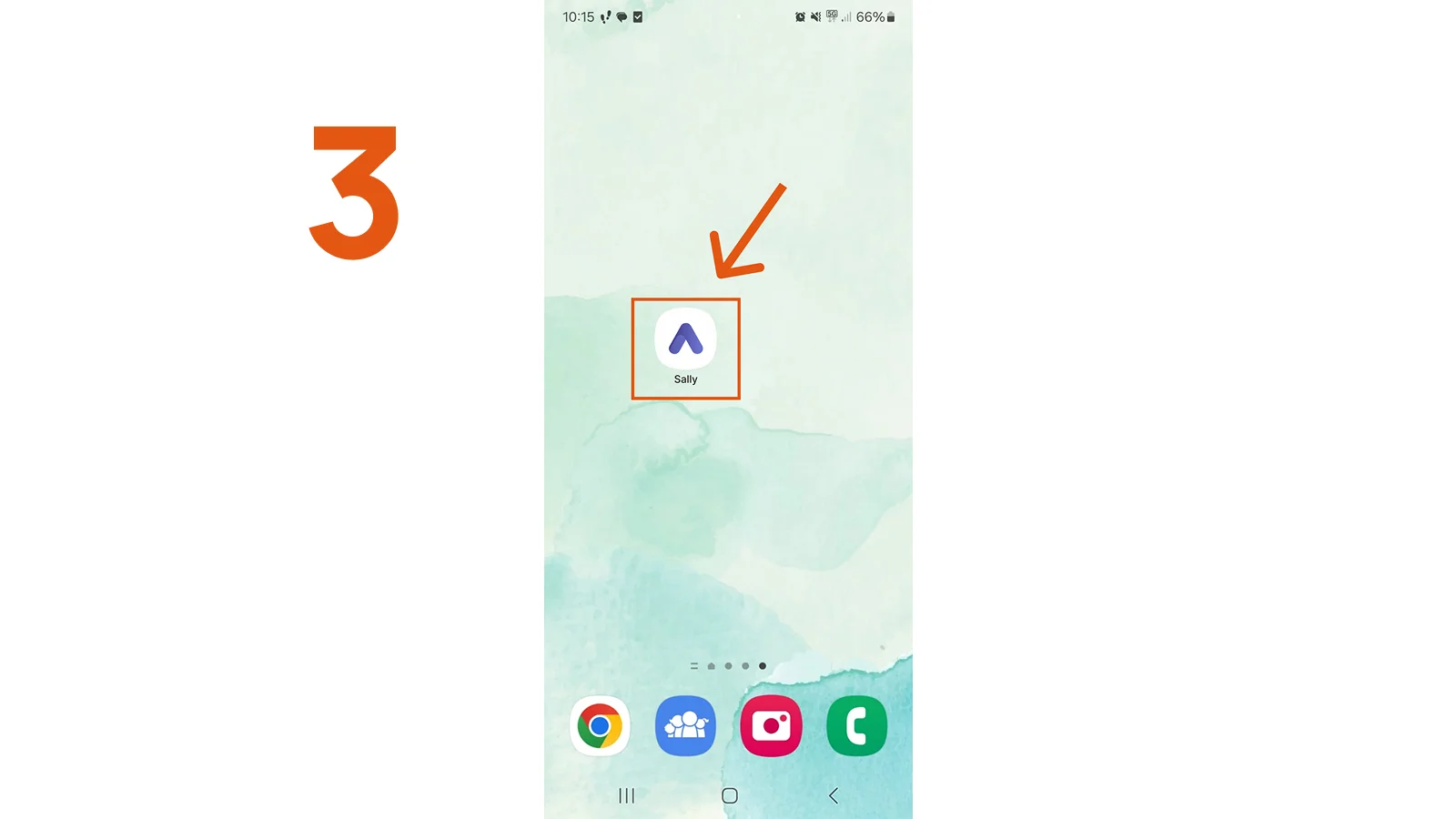
- Open the Google Play Store.
- Search for Sally AI and install the app.
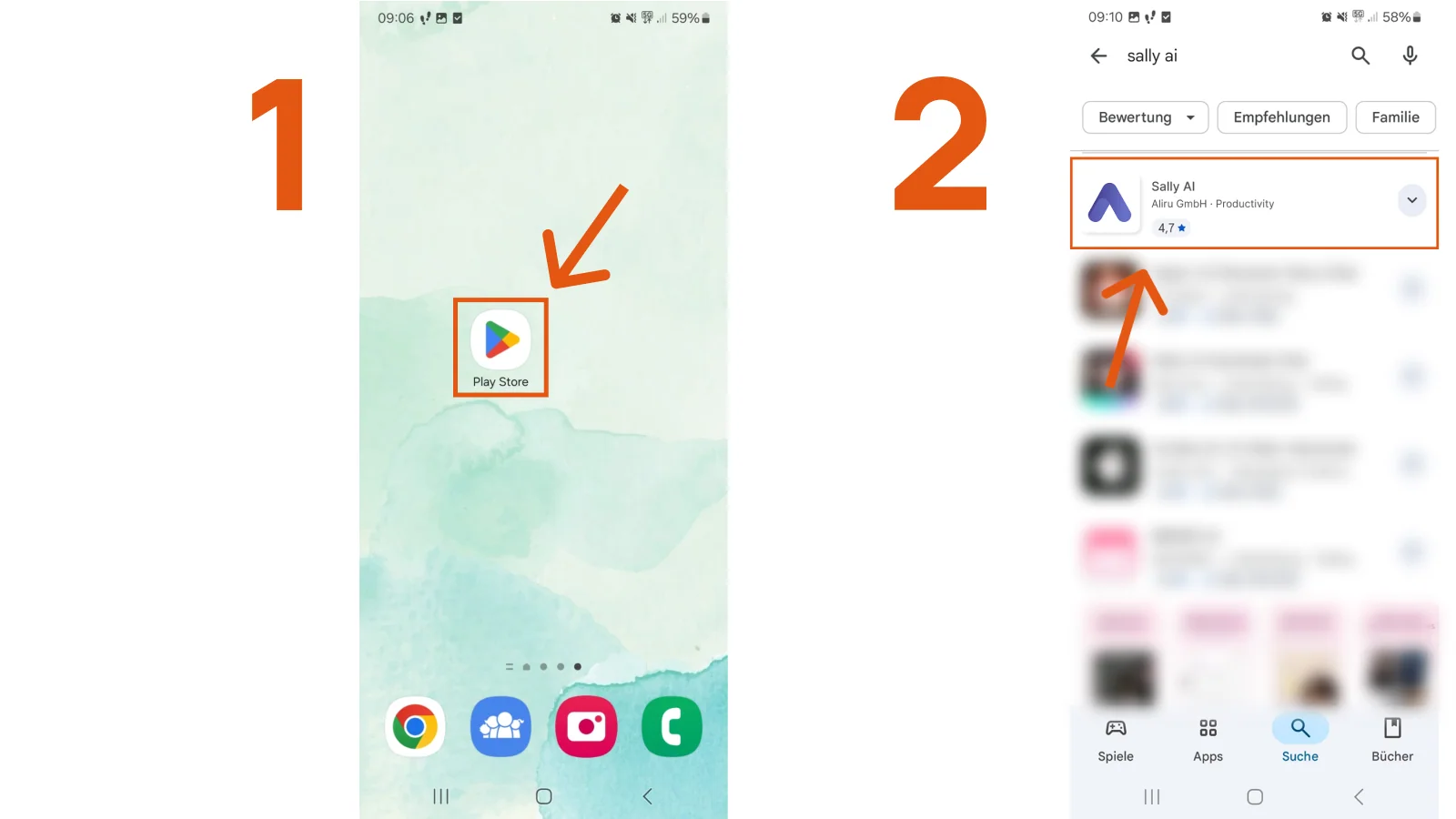
- Once installed, Sally appears on your home screen.
1.2. How to download Sally on Apple
If you are using an Apple device (iPhone), you can download Sally directly from the App Store:
→ Direct link: Sally AI on the App Store
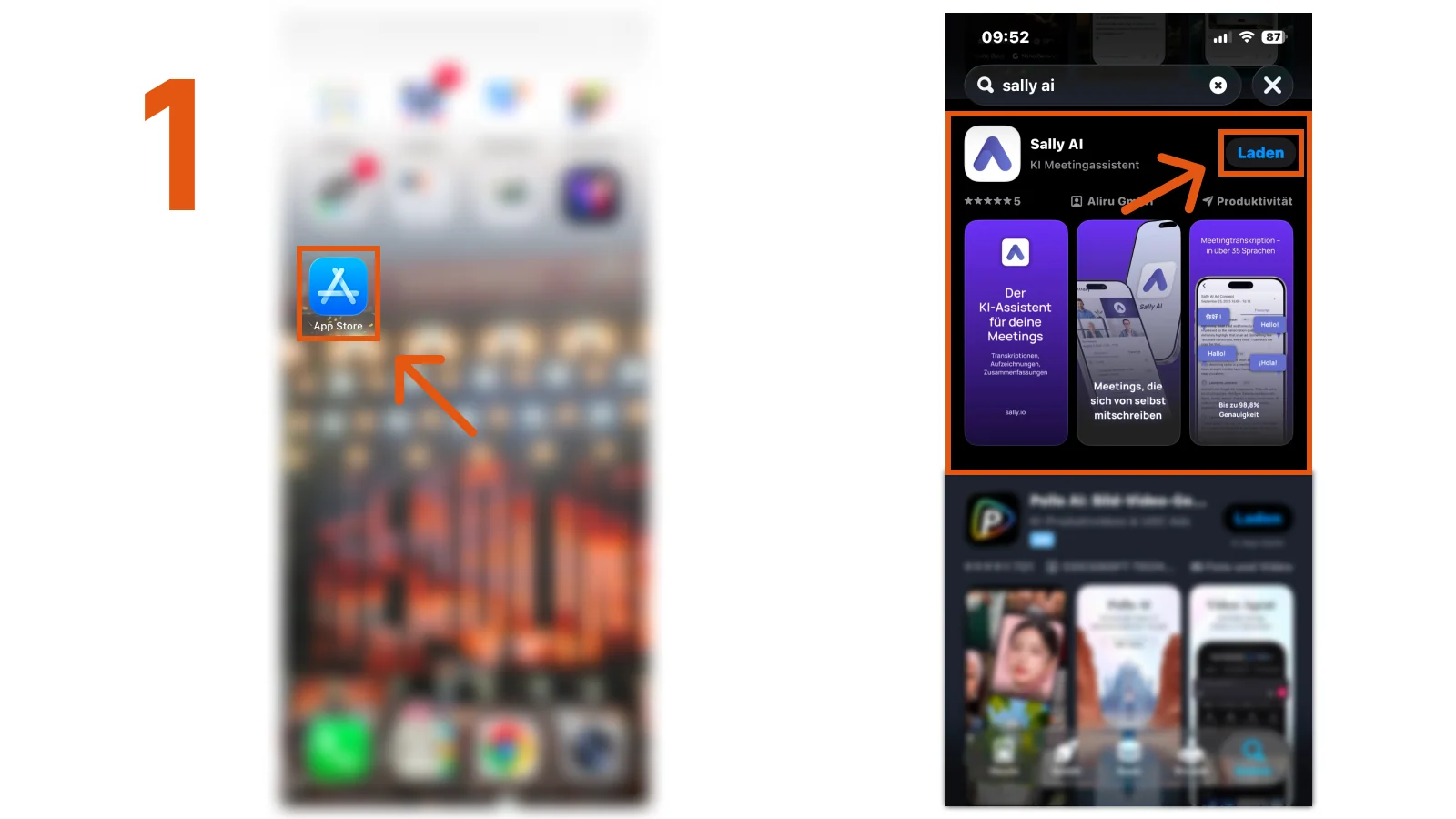
- Open the App Store.
- Search for Sally AI and install the app.
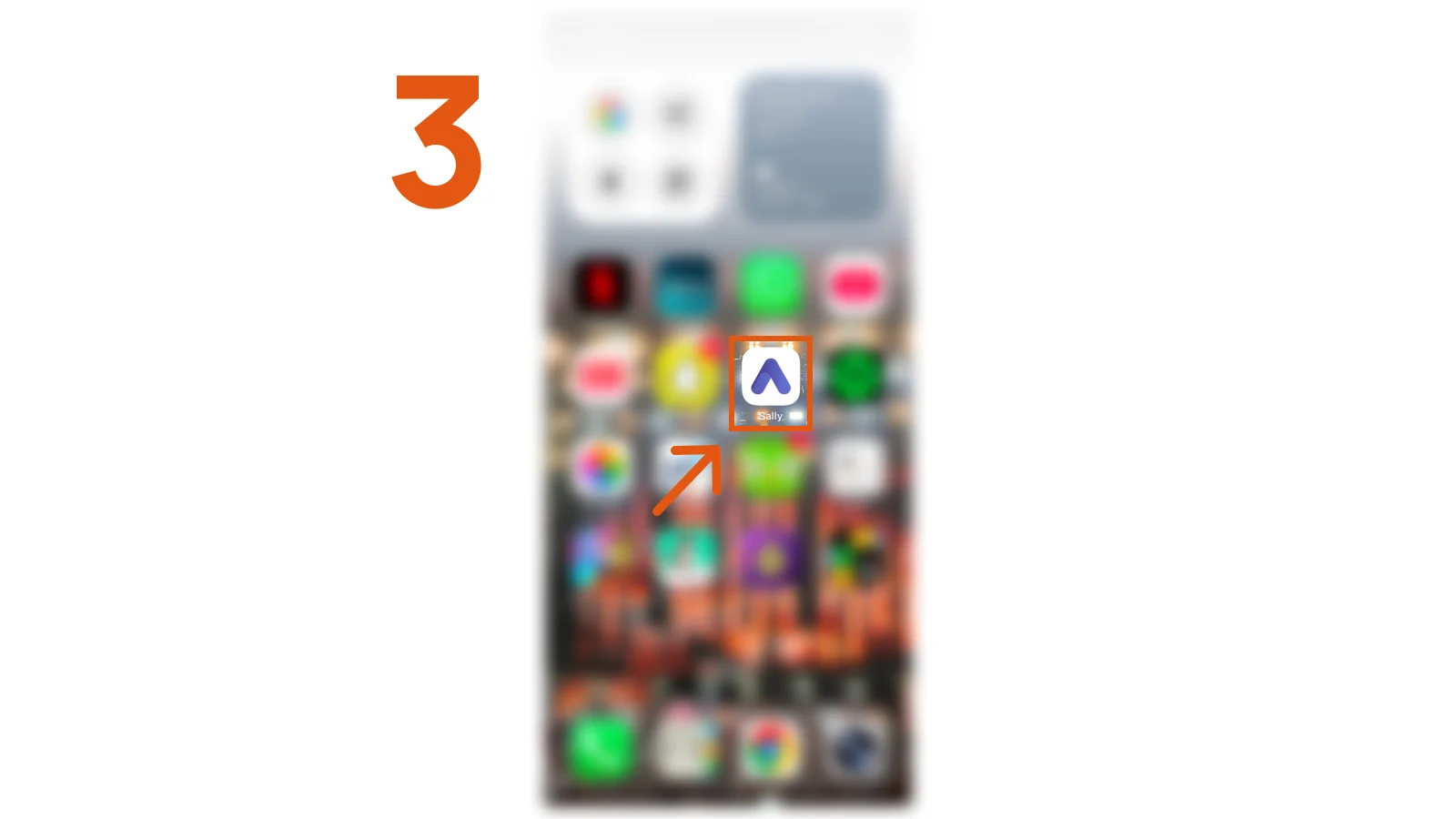
- After installation, you will find Sally on your home screen.
2. How to transcribe your on-site meeting
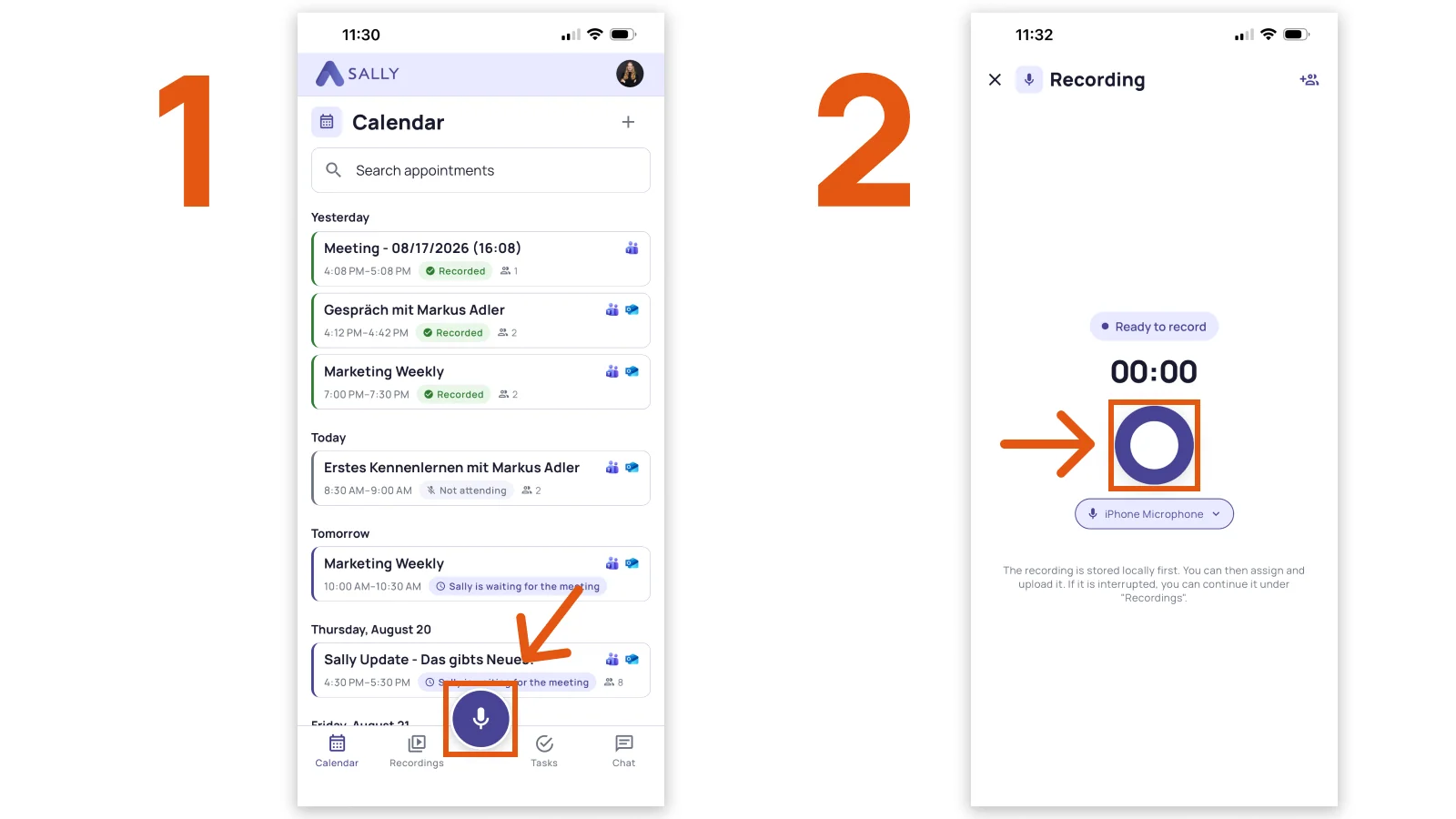
- Open the Sally app and tap the microphone icon to start a new recording.
- The recording screen opens and shows "Ready to record". Tap the round record button to start.
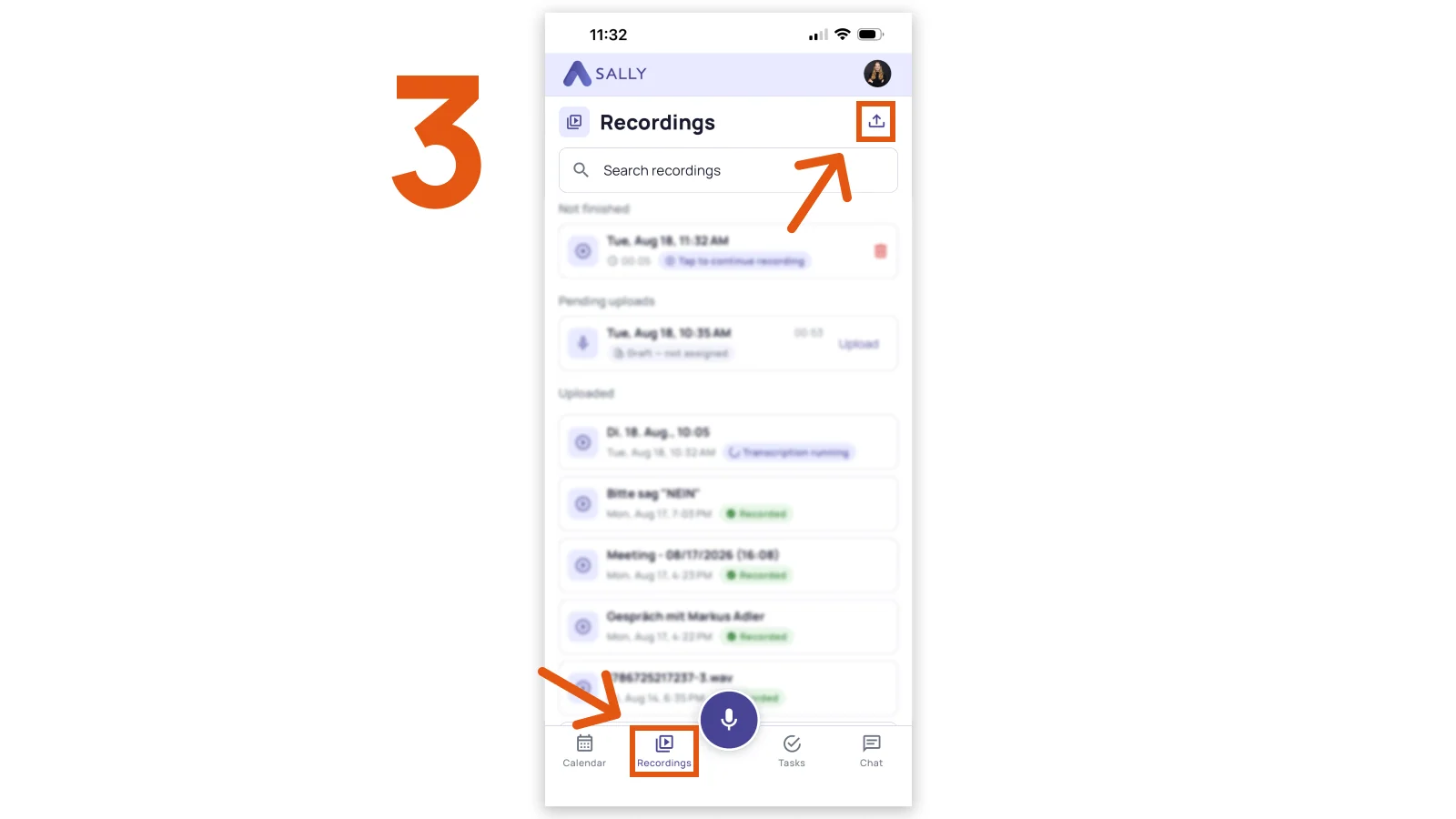
- You can also upload an existing audio or video file: switch to the "Recordings" tab and tap the upload icon in the top right corner.
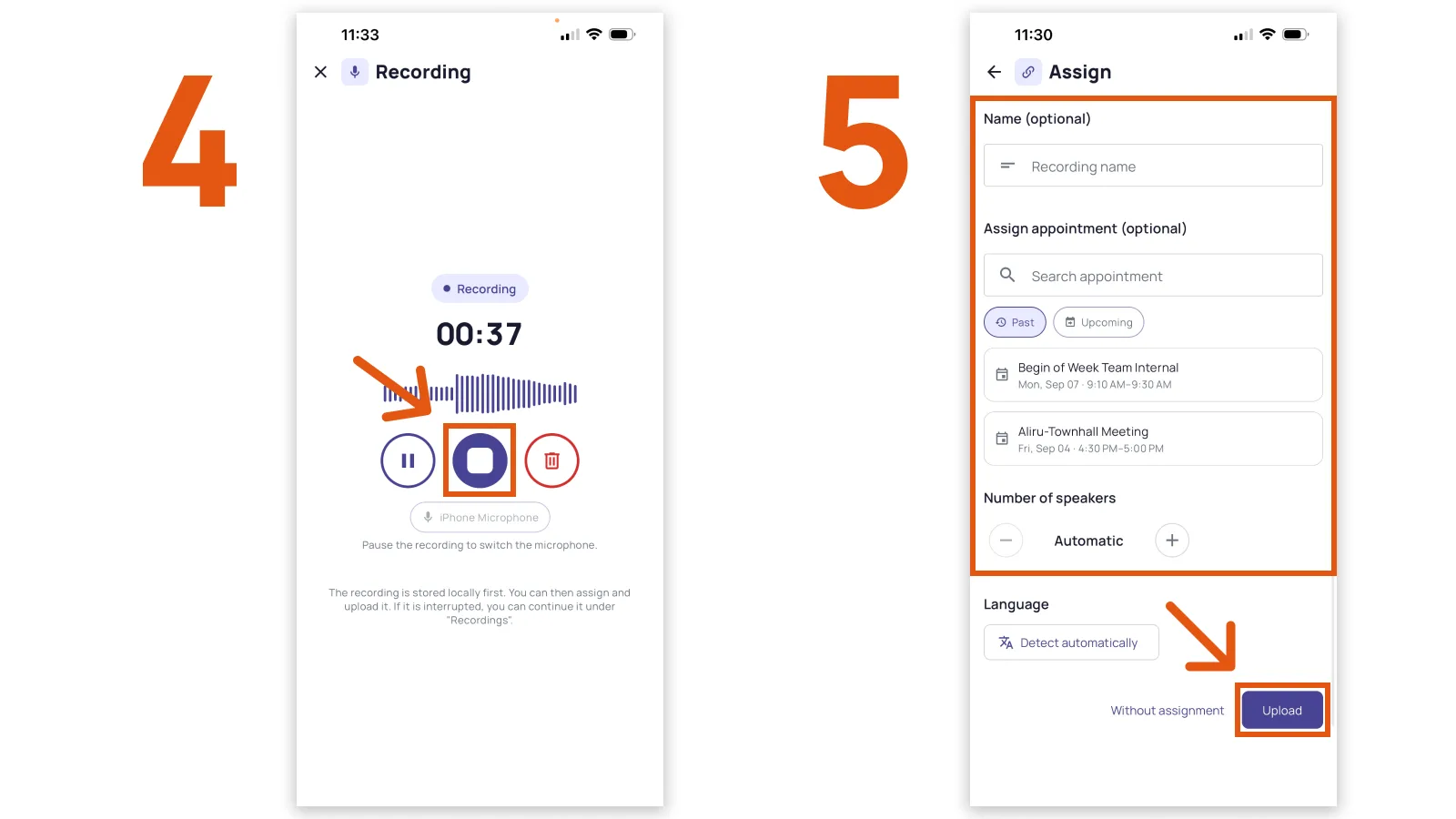
- During the meeting, you can pause the recording anytime. When the meeting is over, tap the stop button.
If a call comes in while you're recording, Sally pauses the recording automatically. If the Sally app was only running in the background when the call arrived, the recording stays paused until you reopen the app. If it was actively in the foreground, the recording continues on its own after the call. Resuming from the background is a limitation of iOS and Android. See 3.10. What happens if I receive a phone call during a recording? for details.
-
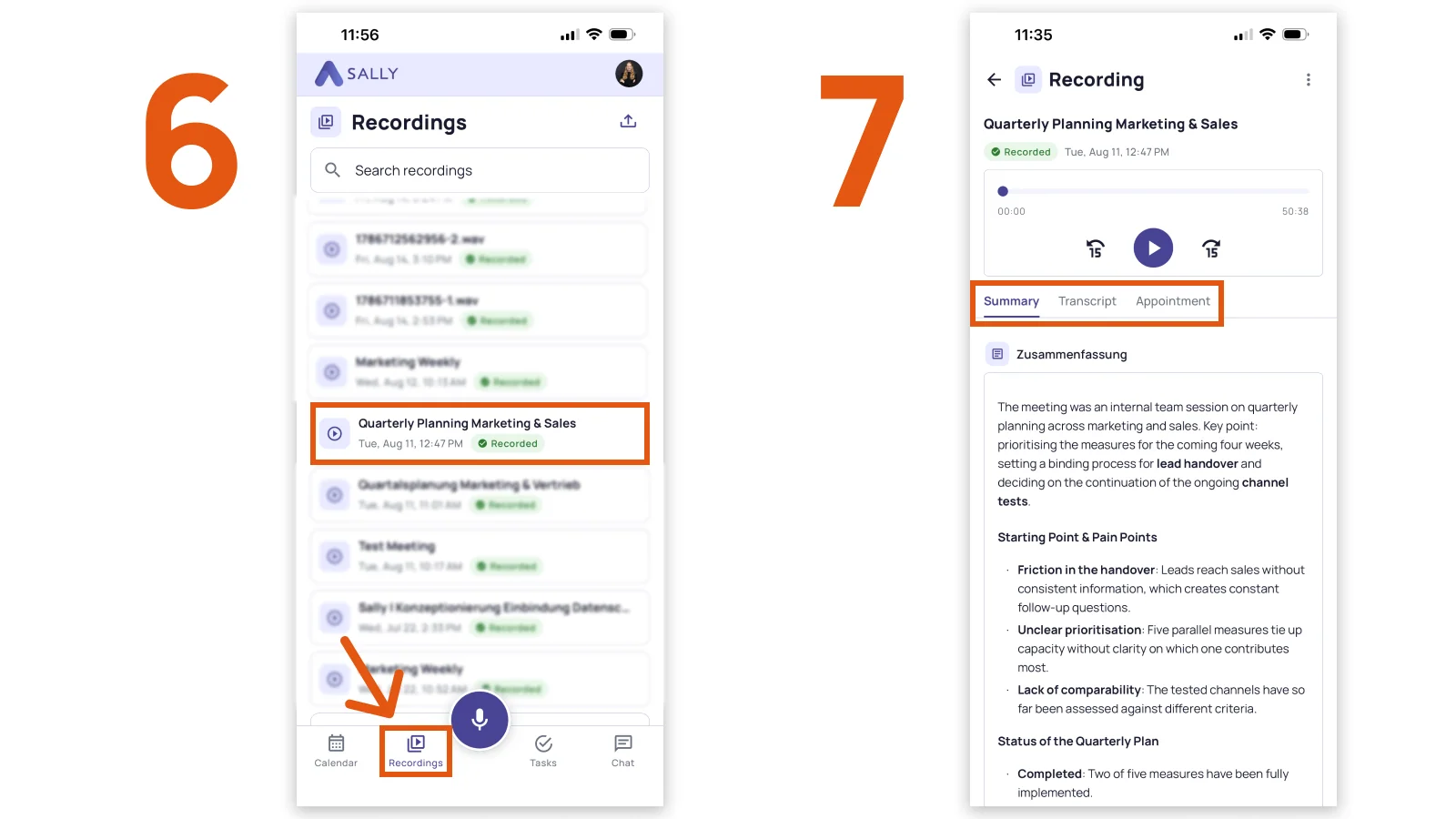
The "Assign" screen opens and you can now do the following:
- Add a name for the recording (optional)
- Assign an appointment (optional), either from your past or your upcoming appointments
- Set the number of speakers, or leave it on Automatic
- Choose the language for transcription, or leave it on Detect automatically
- Then tap Upload. If you do not want to link the recording to an appointment, tap Without assignment
Link your recording to a calendar appointment and all your meeting notes stay in one place. That keeps the team on the same page and makes it easy to look things up later.
For a usable transcript, record for at least 30 seconds.
- After the transcription is complete, you'll find your recording under the "Recordings" tab.
If you linked the recording to a meeting in your calendar, you also find it under the "Calendar" tab.
- Tap the recording to open it. The detail view has three tabs: Summary, Transcript and Appointment.
3. Troubleshooting: Common questions & recording issues
Common issues:
- 3.1. Recording was stopped accidentally: what should I do?
- 3.2. Where can I find my recording files (iOS)?
- 3.3. Where can I find my recording files (Android)?
- 3.4. Sally does not start recording (Android)
- 3.5. How do I select a microphone?
- 3.6. The app is unresponsive or freezes
- 3.7. My screen turns off after a while. Does that stop the recording?
- 3.8. No audio or very quiet recording
- 3.9. How to send diagnostic logs to support
- 3.10. What happens if I receive a phone call during a recording?
- 3.11. How can I stop calls from interrupting a recording (iOS)?
3.1 Recording was stopped accidentally
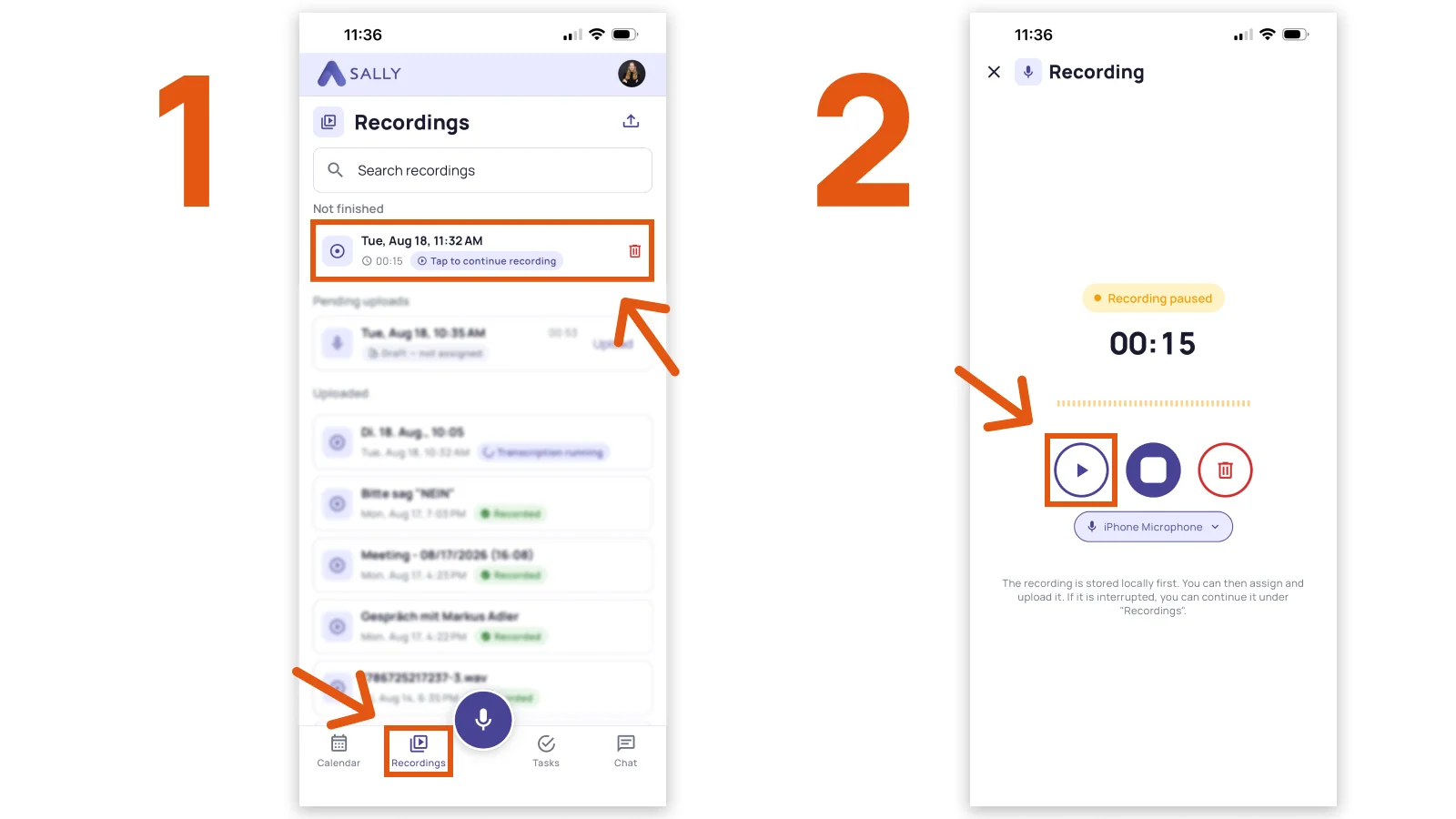
If a recording is stopped unintentionally, it is not lost. You can easily access and resume it directly within the app.
How to access pending recordings:
- Open the "Recordings" tab.
- At the top you will find the "Not finished" section with all interrupted recordings.
- Tap the entry marked "Tap to continue recording".
- Tap the play button to resume the recording.
3.2. Where can I find my recording files (iOS)?
Sally stores ongoing and aborted recordings locally on your smartphone. You can access them at any time and manually upload them to Sally. This makes it easy to forward your recordings to our support team if anything goes wrong during the upload.
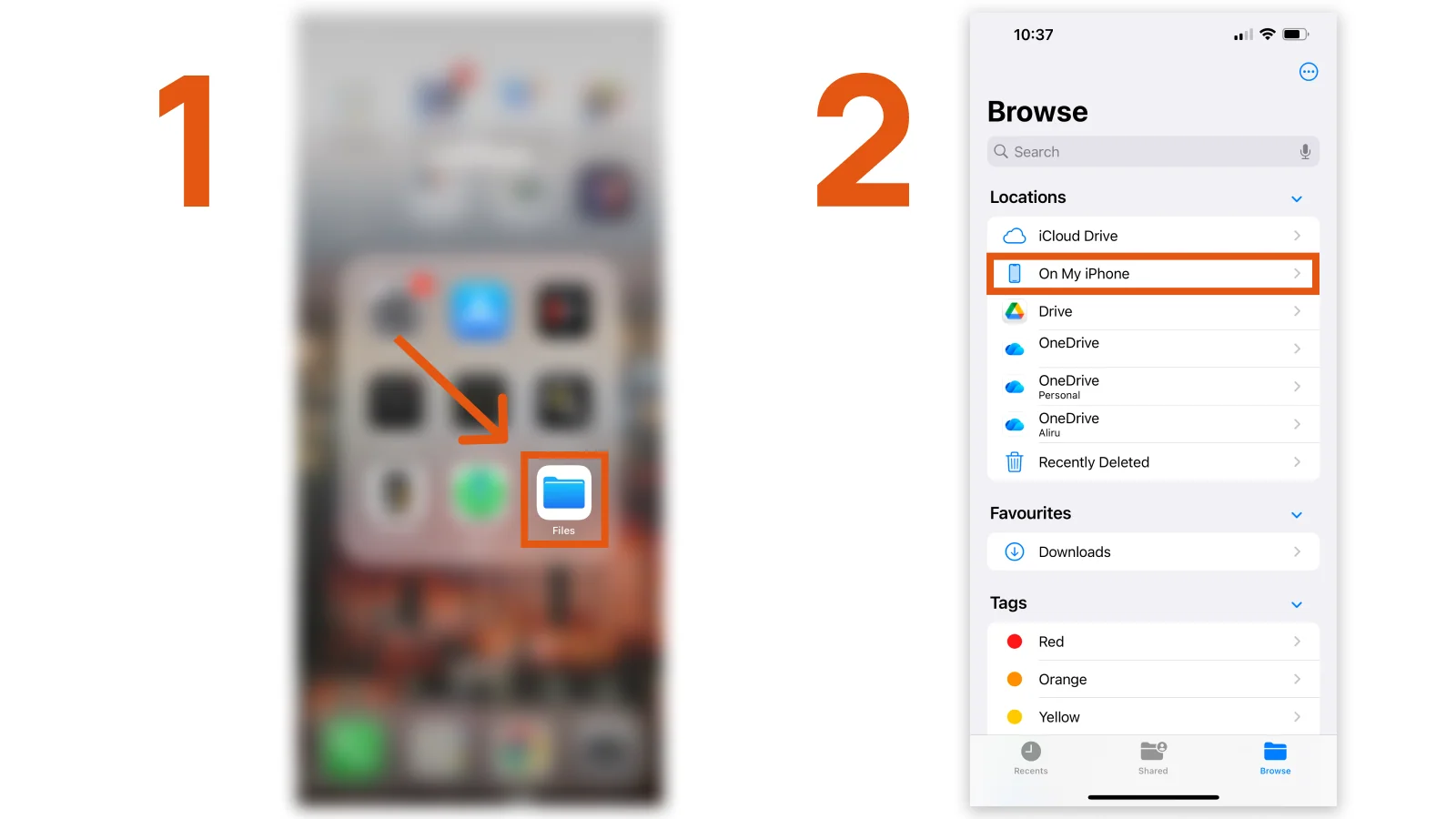
How to find saved recordings on your iPhone:
- Open the "Files" app on your iPhone.
- Tap "On My iPhone".
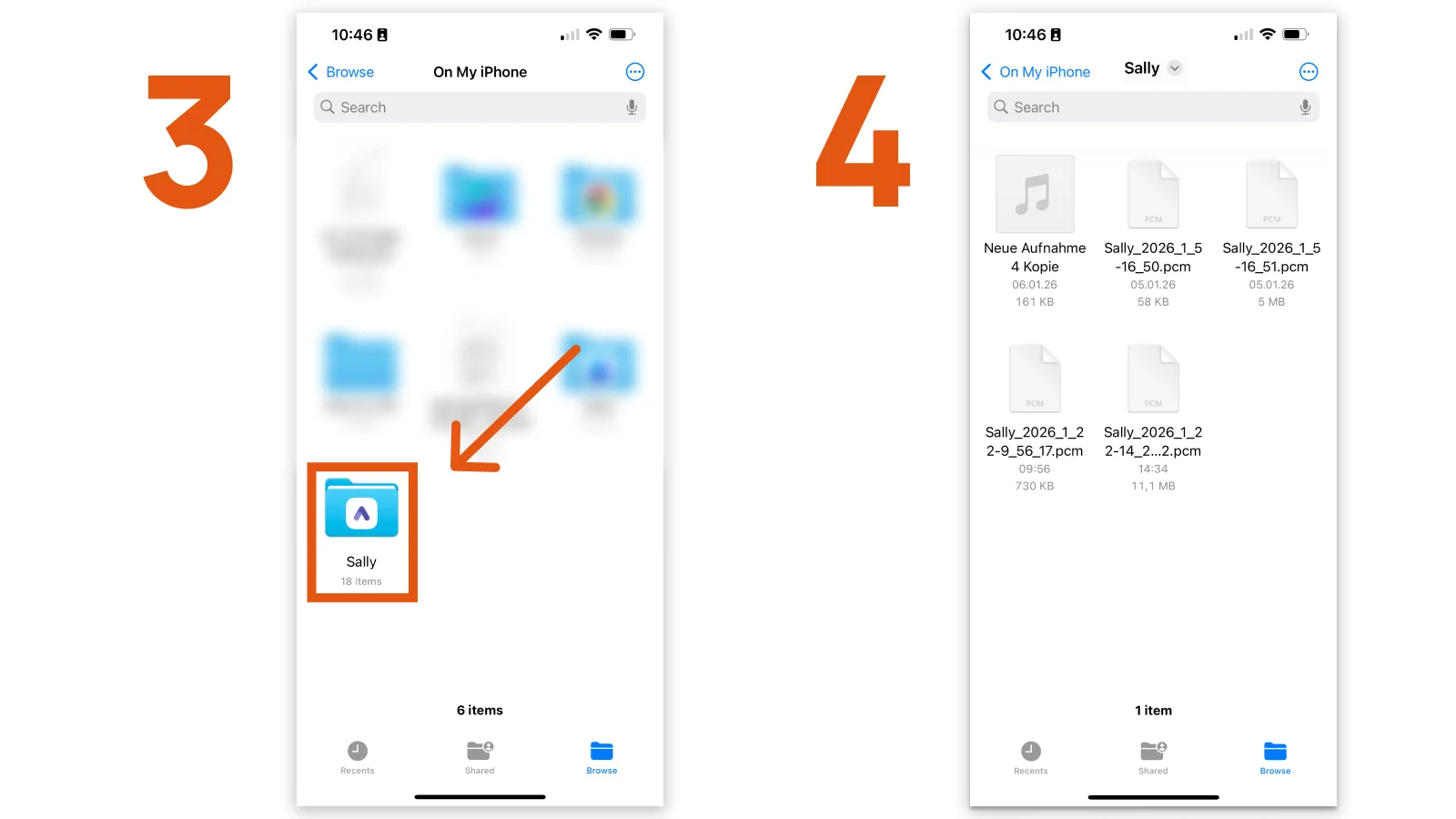
- Open the Sally folder.
- Here you will find all saved recordings and uploads.
- You can download the
.pcmfile and upload it to Sally again, where it is processed automatically. The section on uploading an existing recording walks you through it.
3.3. Where can I find my recording files (Android)?
Starting with the latest version of the Sally app from the Google Play Store, recording files are also accessible on Android devices. This makes it easy to forward your recordings to our support team if anything goes wrong during the upload.
How to find saved recordings on your Android phone:
- Connect your phone to your computer via USB, or open the File Manager app directly on your phone.
- Navigate to Internal Storage → Download → SallyRecordings.
- There you will find the audio recordings as
.pcmfiles. - You can upload the
.pcmfile to Sally again, where it is processed automatically. The section on uploading an existing recording walks you through it.

The .pcm files contain the raw recorded audio. Once a recording has been uploaded to Sally, the app automatically converts it into a playable .mp3. The .pcm files are no longer deleted automatically after upload. Instead, they are kept in the SallyRecordings folder and only removed after 2 months.
3.4. Sally does not start recording (Android)
If nothing happens when you start a recording or the timer stays at 00:00, this is usually caused by missing microphone permissions.
When you open the app for the first time, you are asked whether Sally is allowed to access the microphone.
👉 If this request was denied, recording cannot be started. In this case, you need to enable the permission manually in the Android settings:
Settings → Apps → Sally → Permissions → Microphone → "Allow while using the app".
Afterwards, restart the app.
3.5. How do I select a microphone?
If you have connected an external microphone to your smartphone, you can select it for recording your on-site meetings.
Here's how:
- Tap the Record button on the home screen.
- Then select the connected microphone from the list of available devices.
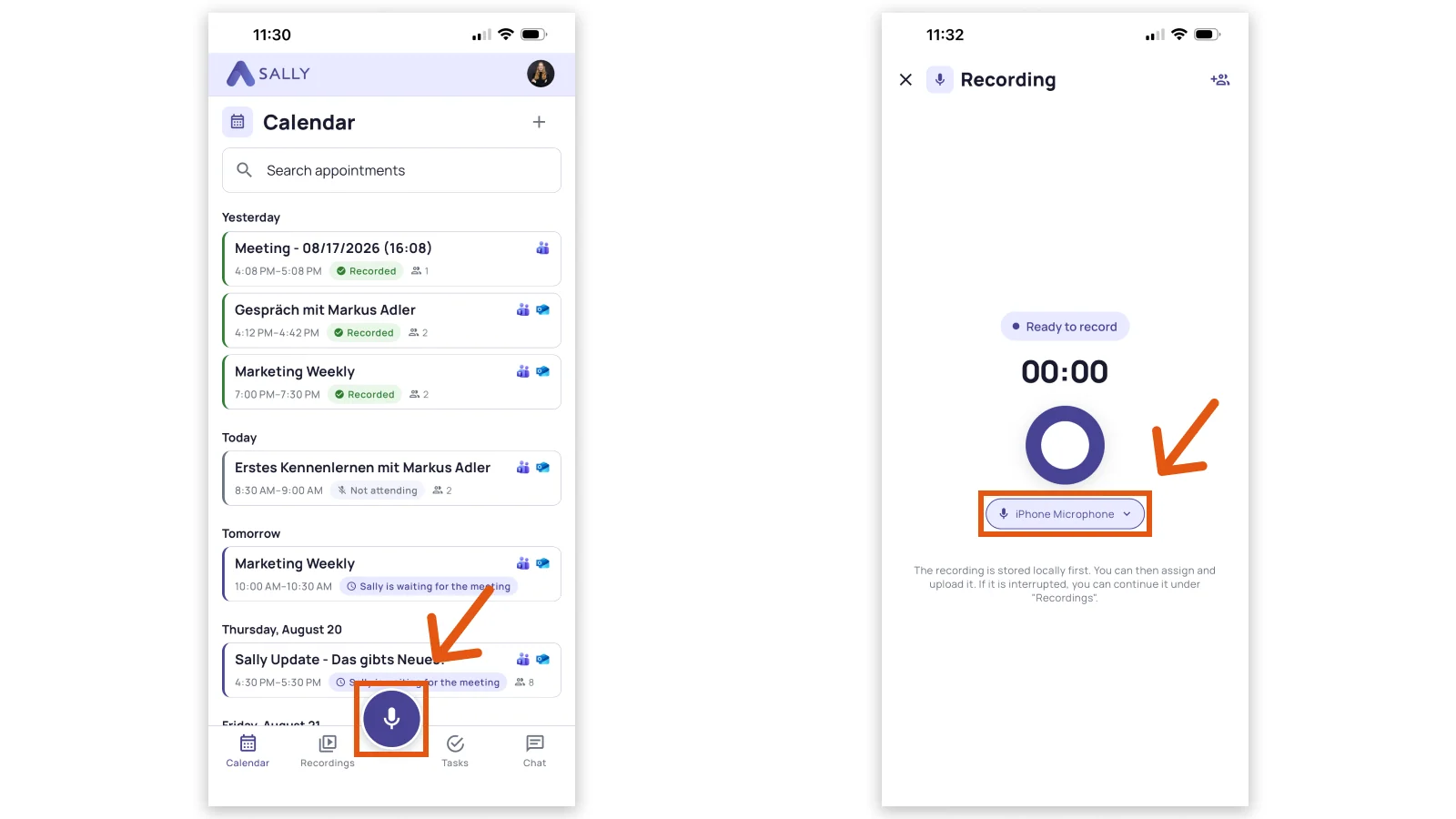
Make sure the microphone is properly connected before starting the recording. To switch the microphone during a running recording, you have to pause the recording first.
3.6. The app is unresponsive or freezes
If Sally does not respond during a recording or when starting the app, first check your internet connection. An unstable or missing connection can cause recordings or uploads to get stuck.
👉 If the issue persists, fully close Sally and reopen the app.
3.7. My screen turns off after a while. Does that stop the recording?
No. Sally is designed to keep the screen turned on during an active recording.
This ensures that you can always see that the recording is running and maintain full control over starting and stopping it.
3.8. No audio or very quiet recording
If the transcription is empty or your voice is barely audible, this may be caused by distance or a connected external device.
👉 Keep your smartphone within arm's length and check whether a Bluetooth device (e.g. headphones, speaker, or car system) is connected. Disconnect it and start the recording again.
3.9. How to send diagnostic logs to support
If you experience persistent issues with recording, uploading, or the app in general, you can send us diagnostic logs so we can investigate the problem.
The Sally app automatically writes a technical log in the background (logging is enabled by default).
How to access and send diagnostic logs:
- Go to Settings → About Sally → Diagnostics.
- You will see three options:
- "Send to Support": opens your email app with the log already attached. This is the quickest way.
- "Copy to Clipboard": copies the log content so you can paste it into a chat or email.
- "Delete Log": permanently deletes the logs. Only use this if you are sure you no longer need them.
- Send logs as soon as possible after the issue occurs. The log is limited to 2 MB, and older entries are automatically discarded.
- Send logs before continuing work: before starting a new recording, reinstalling the app, or deleting logs, send the logs first.
- If you previously disabled logging, you will see a red notice on the Diagnostics page with a toggle to re-enable it. After re-enabling, events are logged again going forward (not retroactively).
The logs never leave your device unless you actively press one of the buttons.
3.10. What happens if I receive a phone call during a recording?
Sally pauses the recording automatically when a call comes in. What happens next depends on whether the Sally app was actively in the foreground or only running in the background when the call came in:
- The app was actively open: The recording continues on its own after the call ends. You don't need to do anything.
- The app was only running in the background: The recording stays paused until you bring Sally back to the foreground. As soon as you open the app, the recording continues automatically. You don't need to tap the play button manually.
Resuming from the background is a limitation of iOS and Android.
3.11. How can I stop calls from interrupting a recording (iOS)?
On the iPhone you can prevent incoming calls from interrupting your recording by turning on Do Not Disturb. With the right settings, calls are blocked while you record, so Sally keeps recording without any pause.
How to set it up:
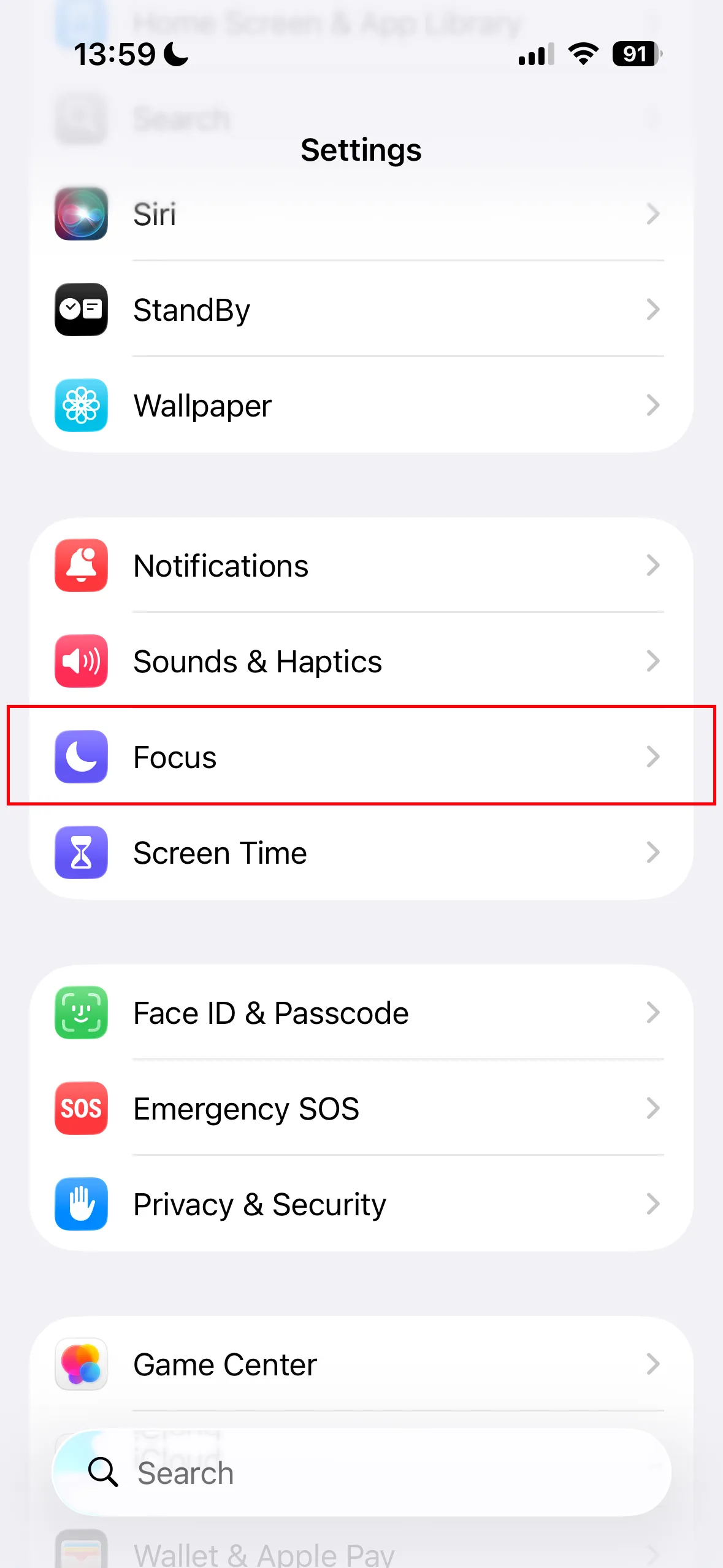
- Open Settings and tap Focus.
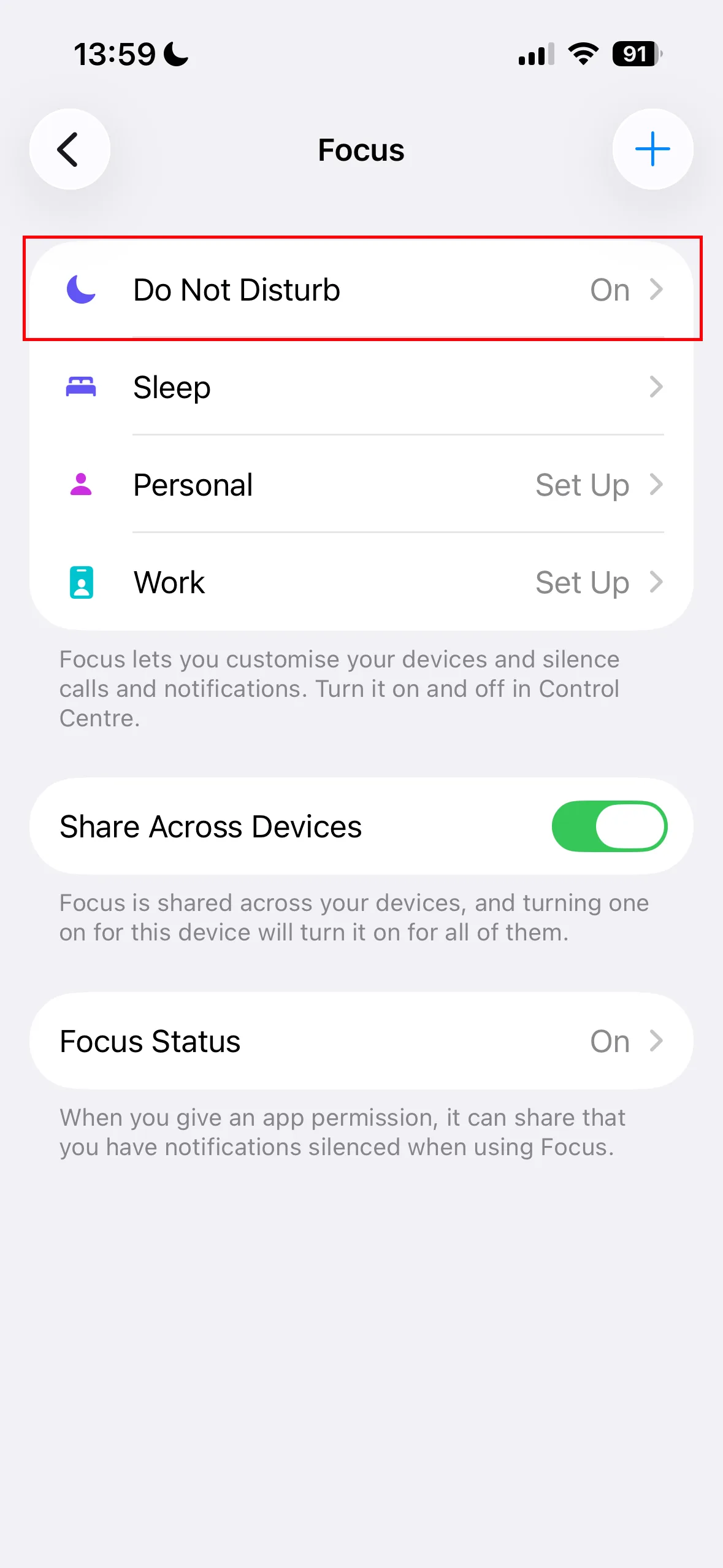
- Tap Do Not Disturb.
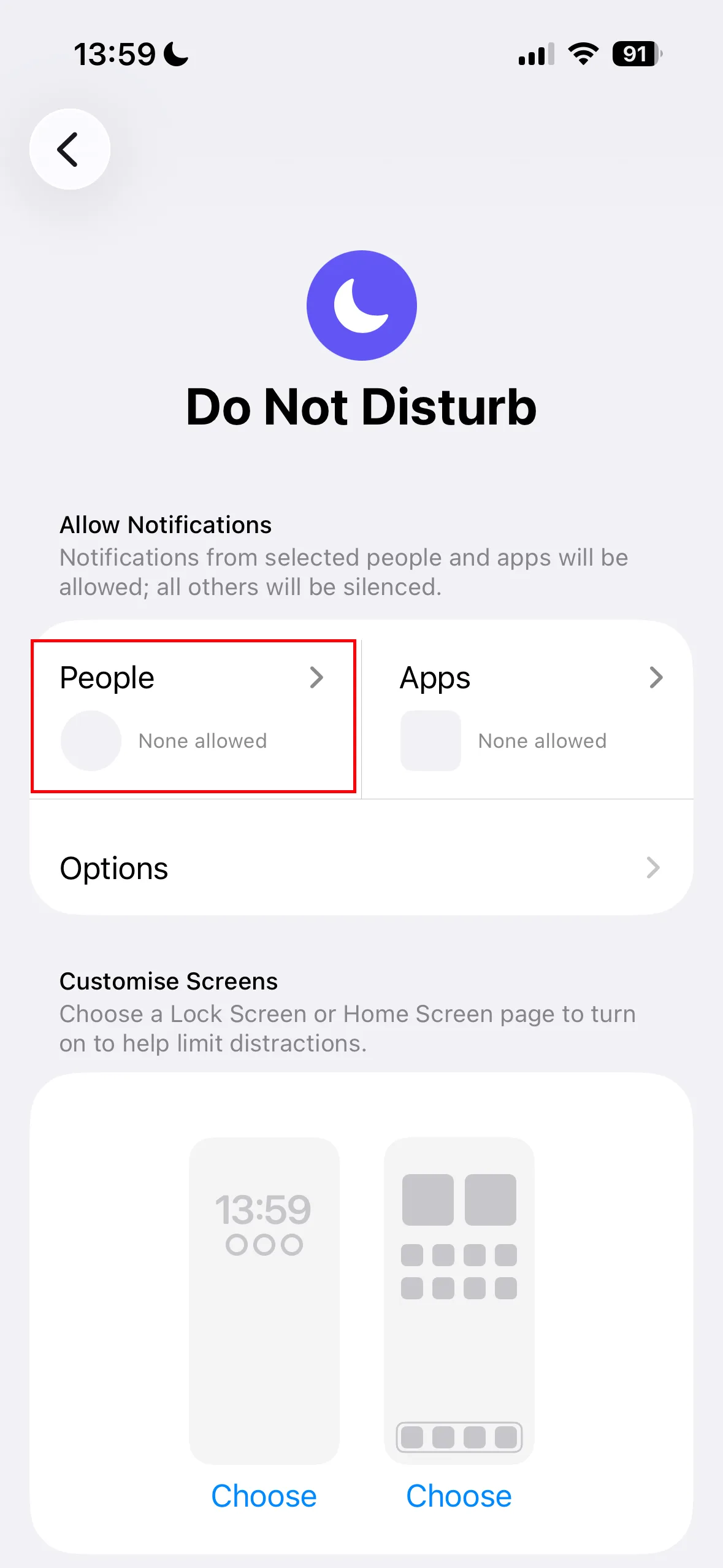
- Under Allow Notifications, tap People.
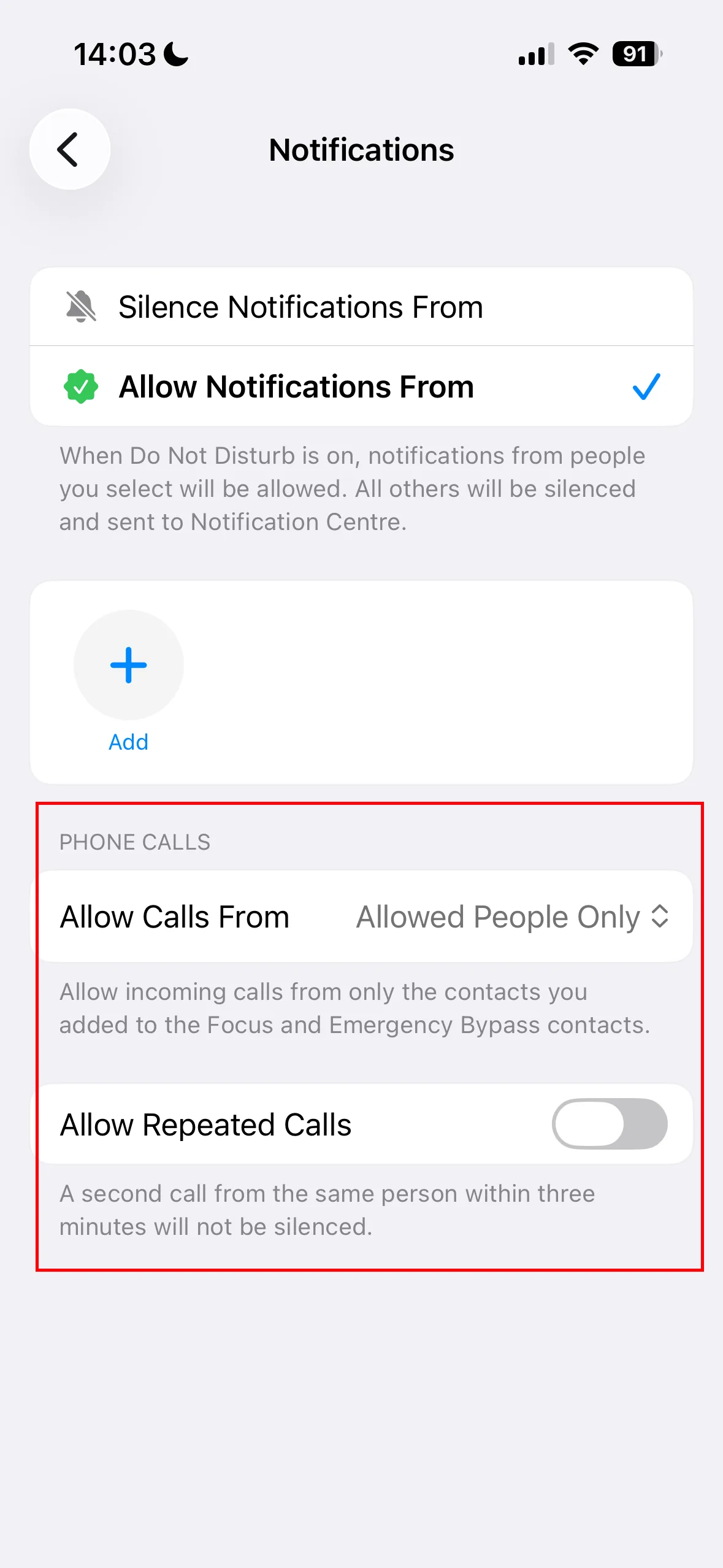
- Under Phone Calls, set Allow Calls From to Allowed People Only and turn Allow Repeated Calls off. This makes sure no call gets through while Do Not Disturb is active.
- Turn on Do Not Disturb whenever you start a recording. The quickest way is through the Control Centre: swipe down from the top-right corner and tap Do Not Disturb.
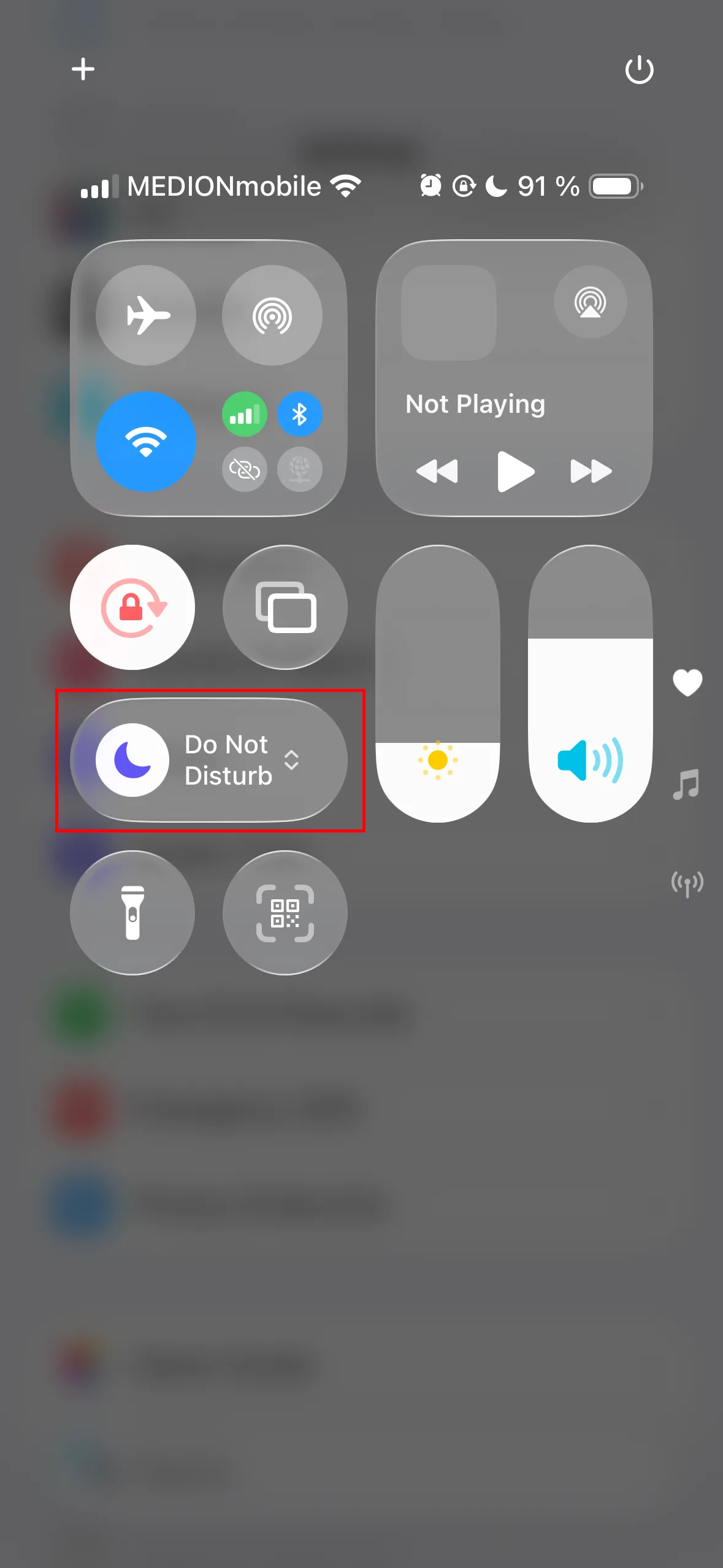
As long as Do Not Disturb is active, incoming calls are silenced and your recording keeps running without interruption. Remember to turn it off again after the meeting.
This option is not available on Android. On Android, incoming calls will still pause the recording. See 3.10. for what happens in that case.