How to manually invite Sally AI to a meeting
Besides automatic attendance, there are two ways to manually add Sally to your meetings:
- Via meeting link: Copy the URL of your online meeting and paste it directly into Sally. This is the fastest way to add Sally to a spontaneous or already running meeting, even without a connected calendar.
- Via invitation & email: Add Sally as a guest to your calendar invitation or send her an email with the meeting details. This works like inviting any other colleague and is ideal for planned or recurring meetings.
Quick navigation
Option 1: Via meeting link
Even without a connected calendar, you can add Sally to any meeting, you just need the meeting link.
Find out how to get your meeting link:
Steps
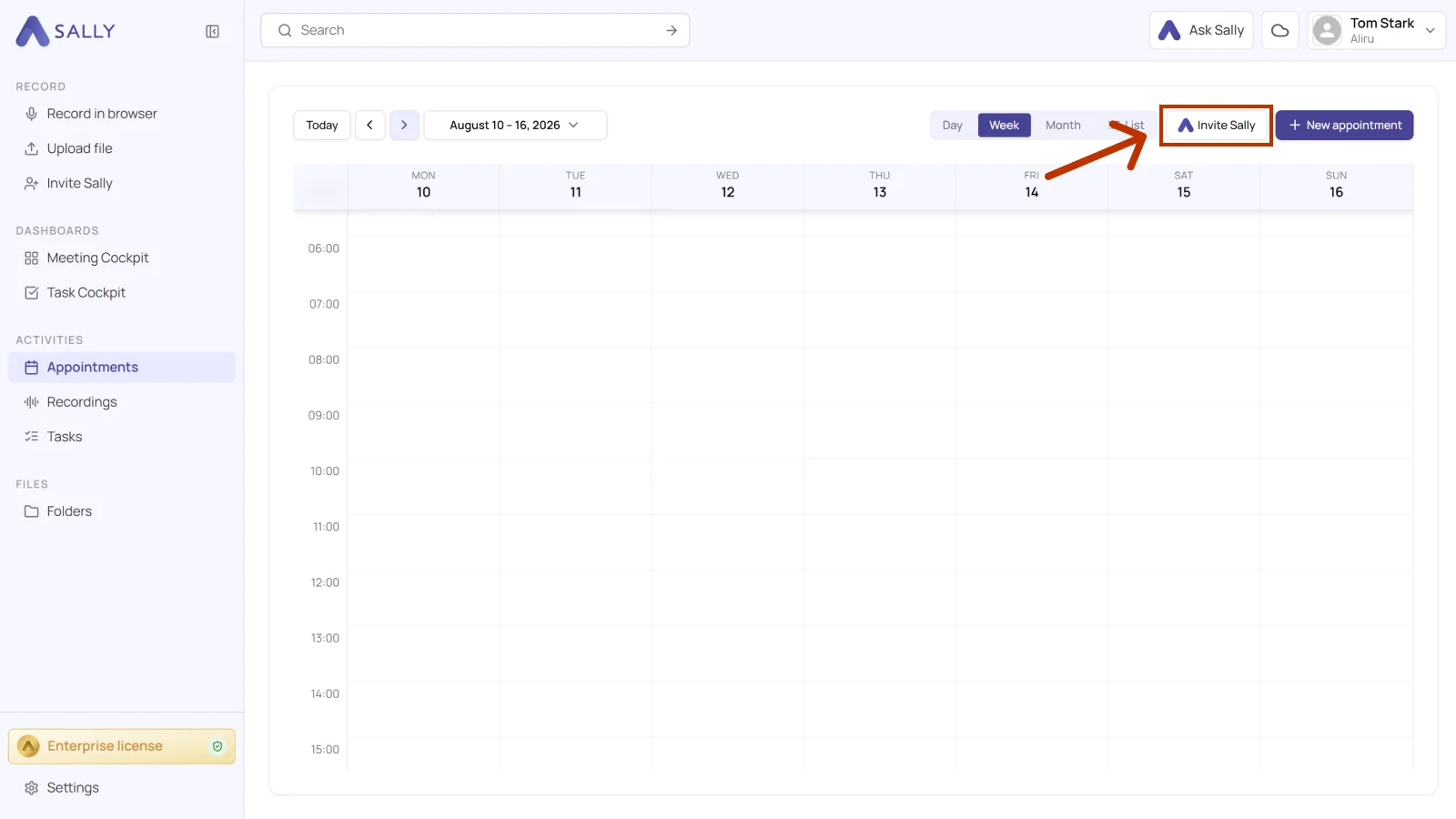
- Open the Appointments tab and click Invite Sally in the top right corner.
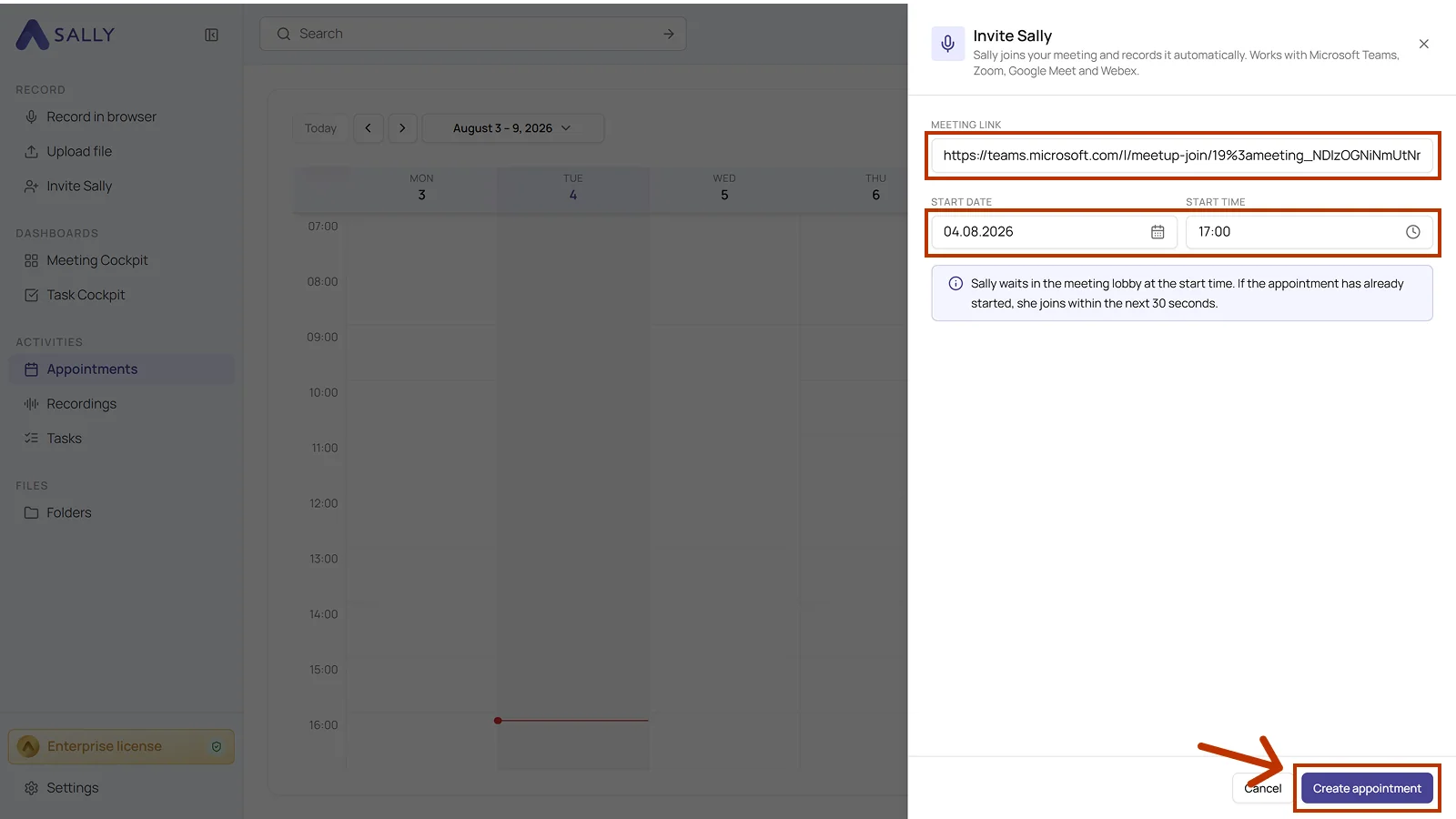
- Paste the meeting link into the Meeting link field.
- Set the start date and the start time.
- Click Create appointment to confirm.
- Sally will join your meeting automatically.
Sally waits in the meeting lobby from the start time onwards. If the meeting has already started, she joins within the next 30 seconds.
Option 2: Via invitation & email
Invite Sally just like any other colleague, using her dedicated email address: invite@sally.io
2.1 Before the meeting
- Copy Sally's email: invite@sally.io
- Create a new meeting in your calendar.
- Add the email as an optional participant:
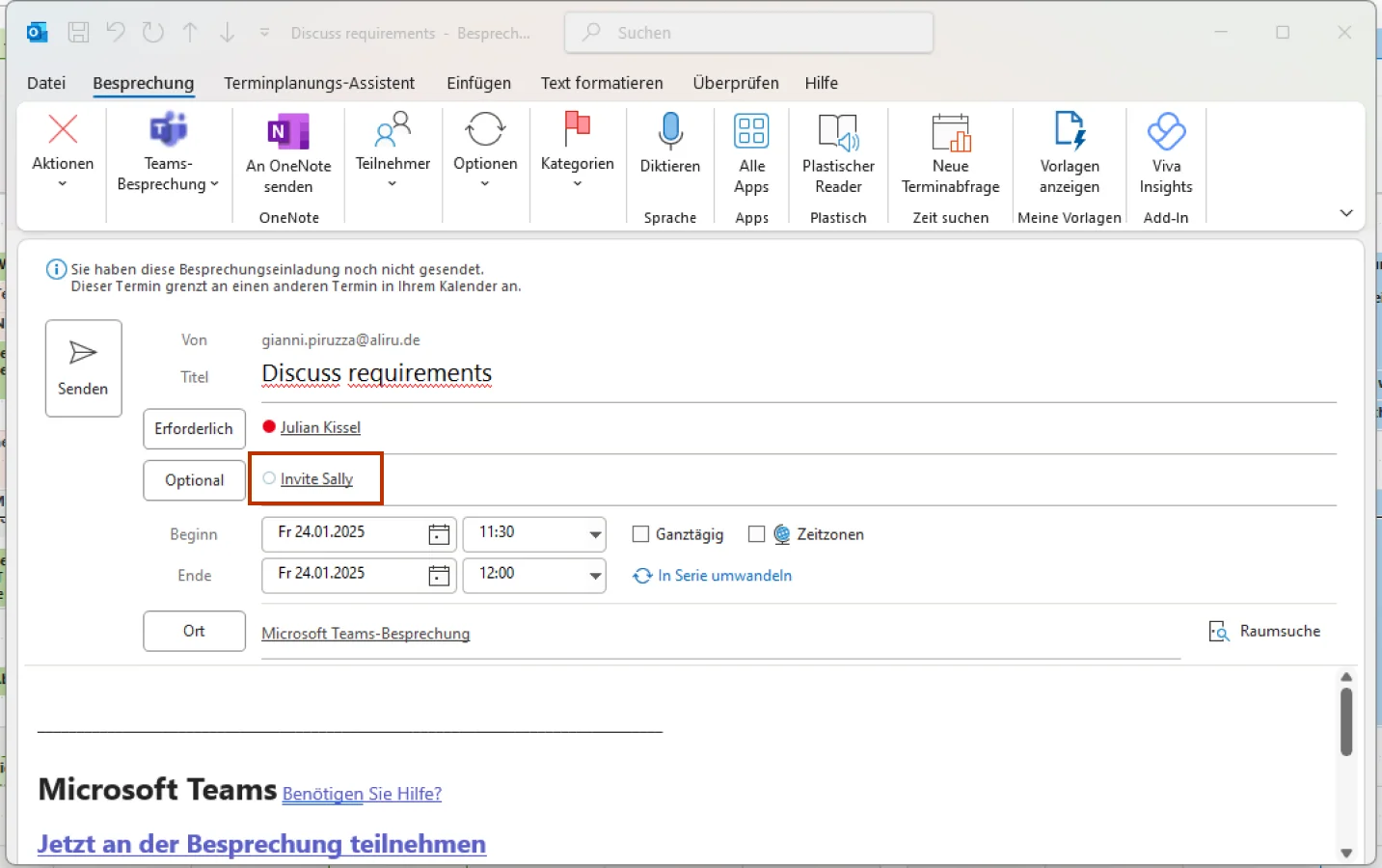
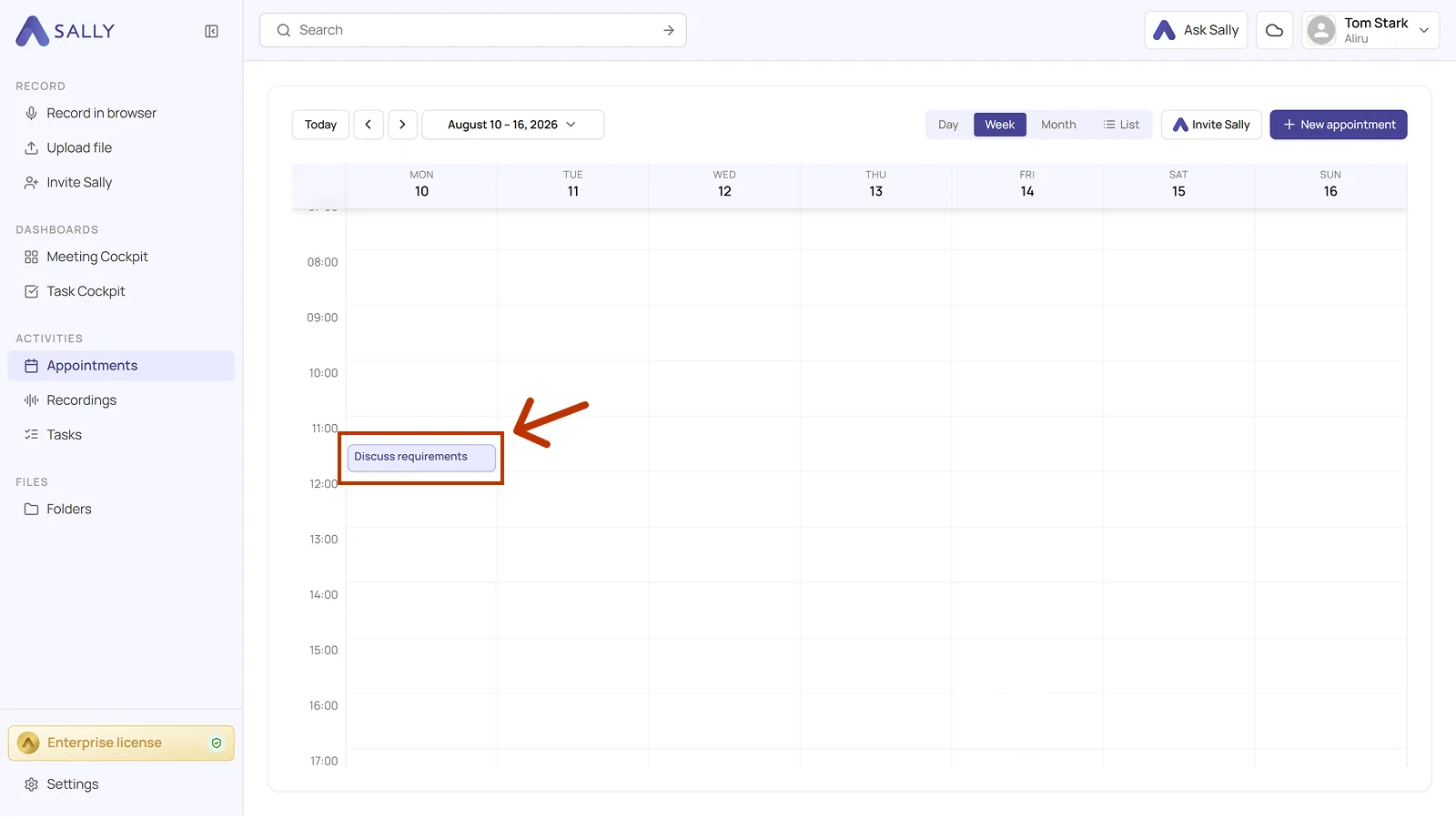
- Send the meeting invitation. Sally joins automatically when the meeting starts, and the appointment appears in your Appointments tab.
2.2 During an ongoing meeting
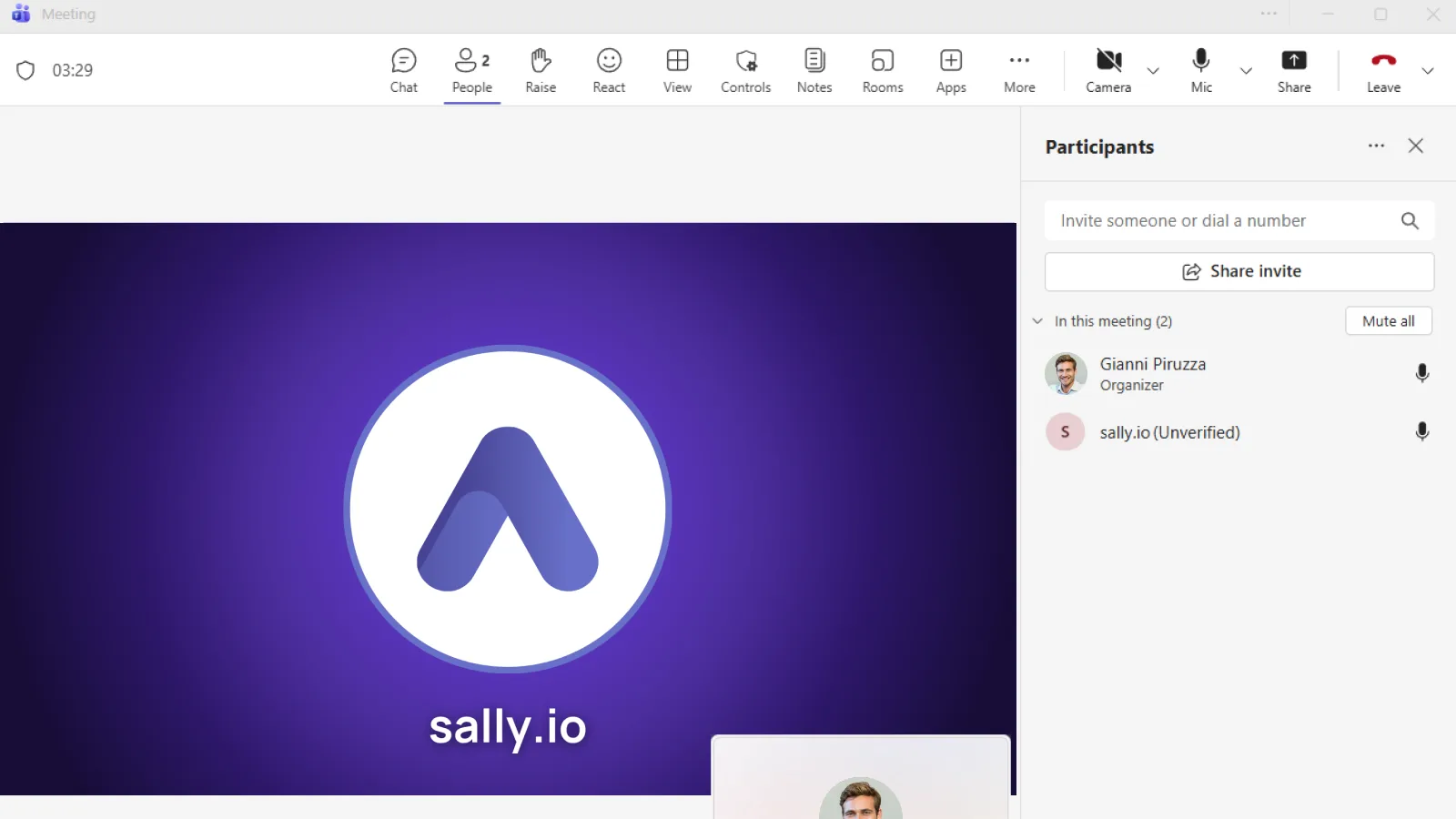
You can also invite Sally while a meeting is already in progress. Example using Microsoft Teams:
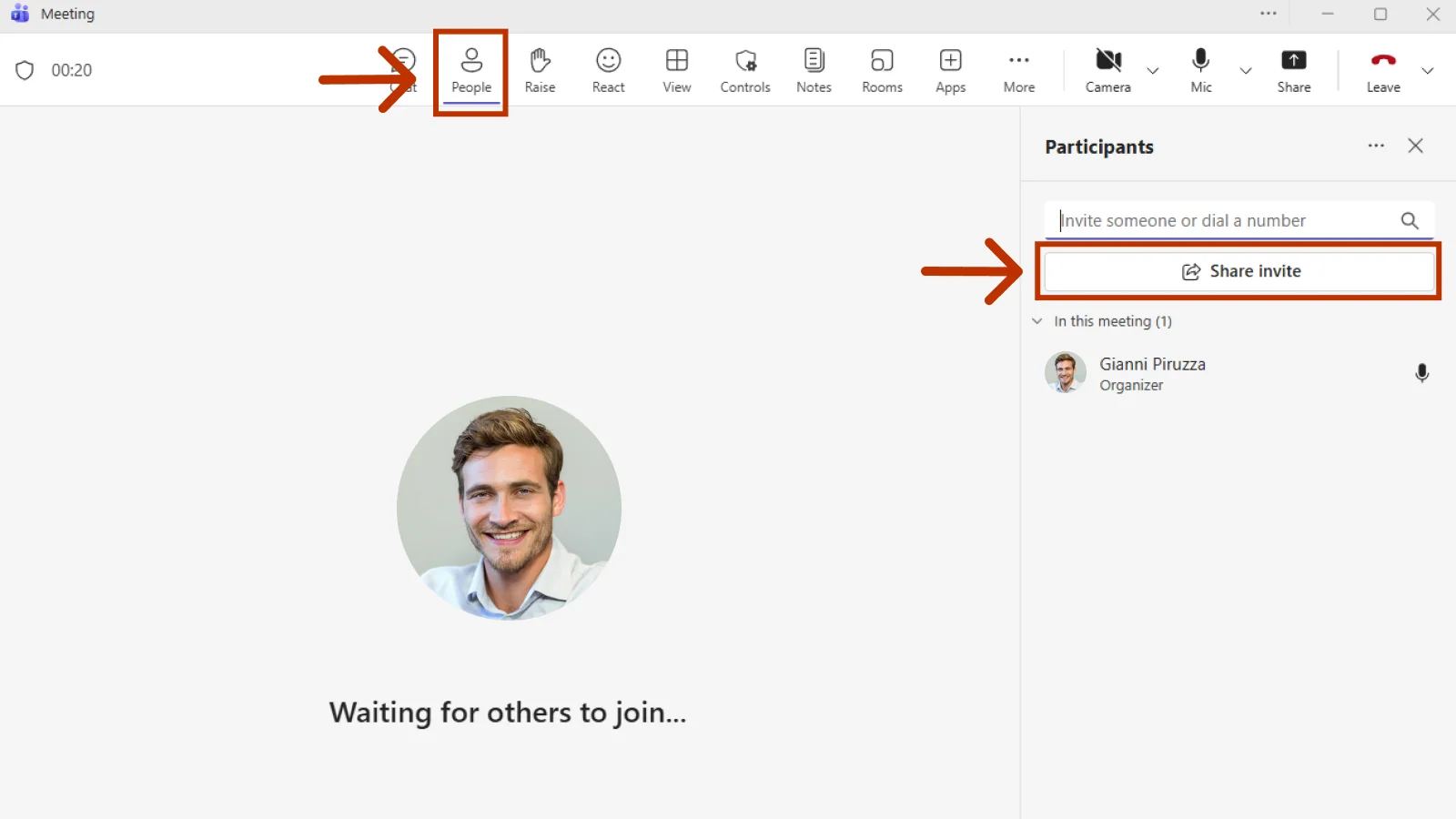
- Open the participant panel ("People" icon) → click "Share invite".
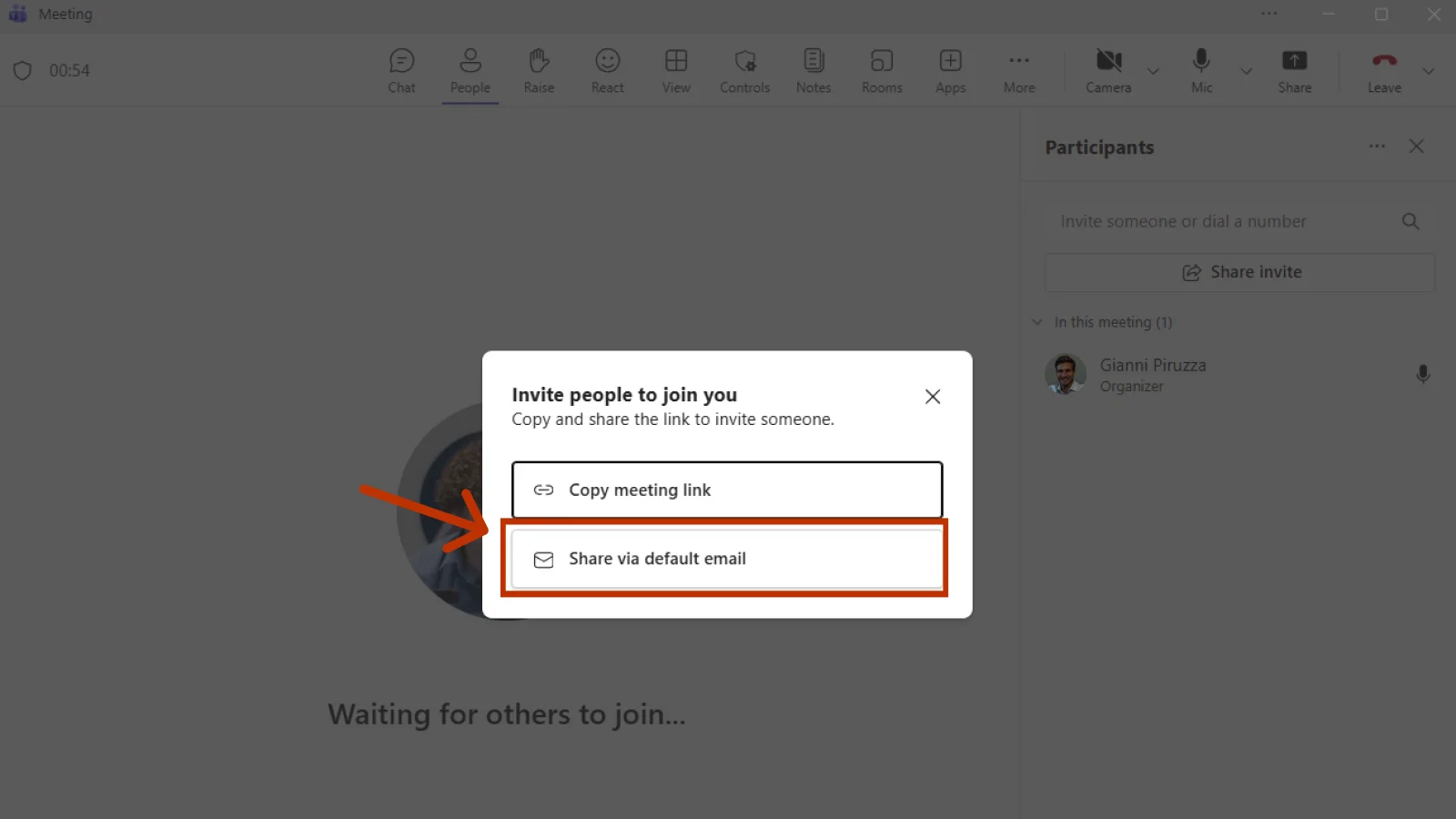
- Click "Share via default email".
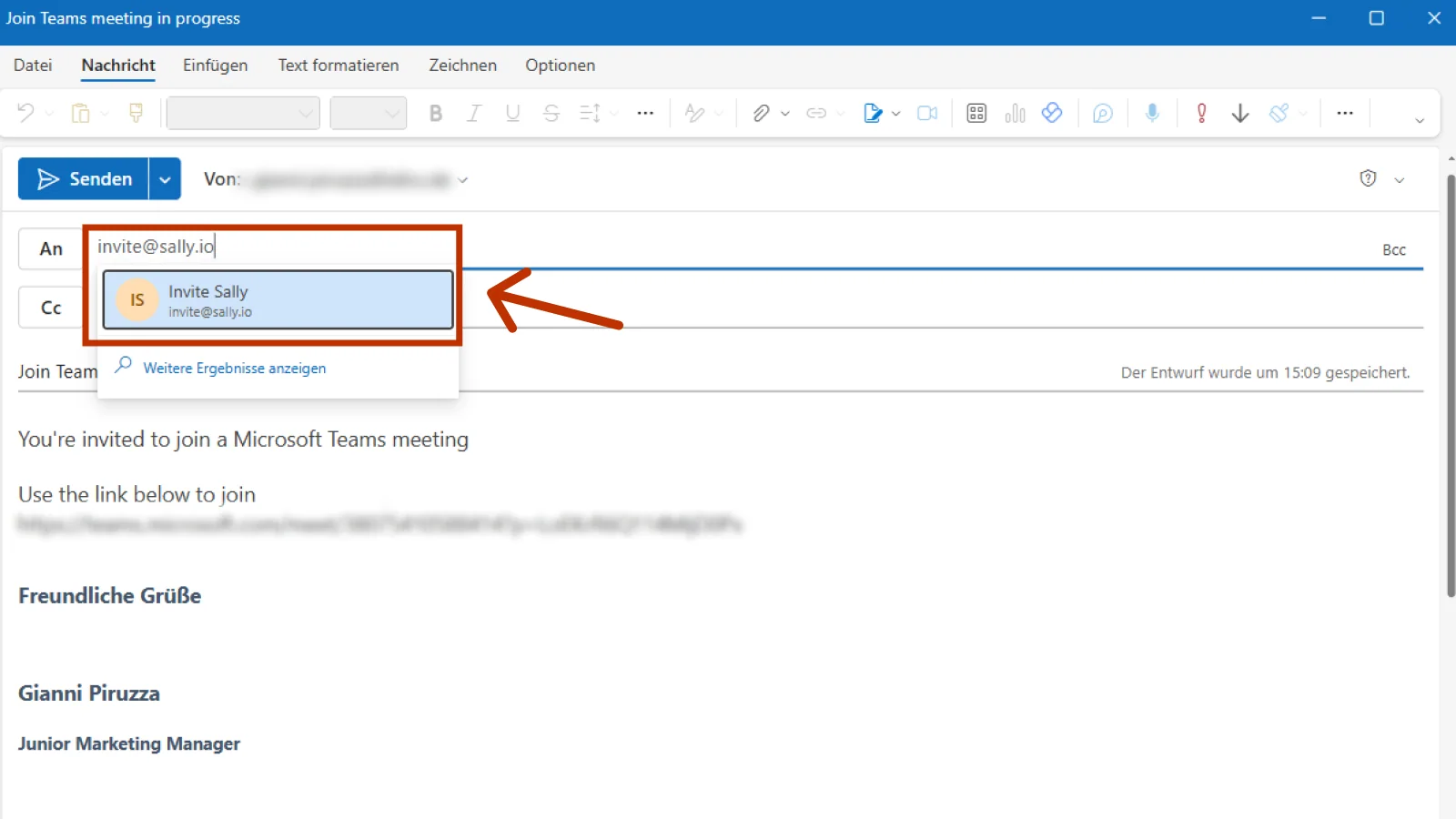
- Add invite@sally.io and send.
- Sally appears in the lobby within a minute. Admit her to the meeting.
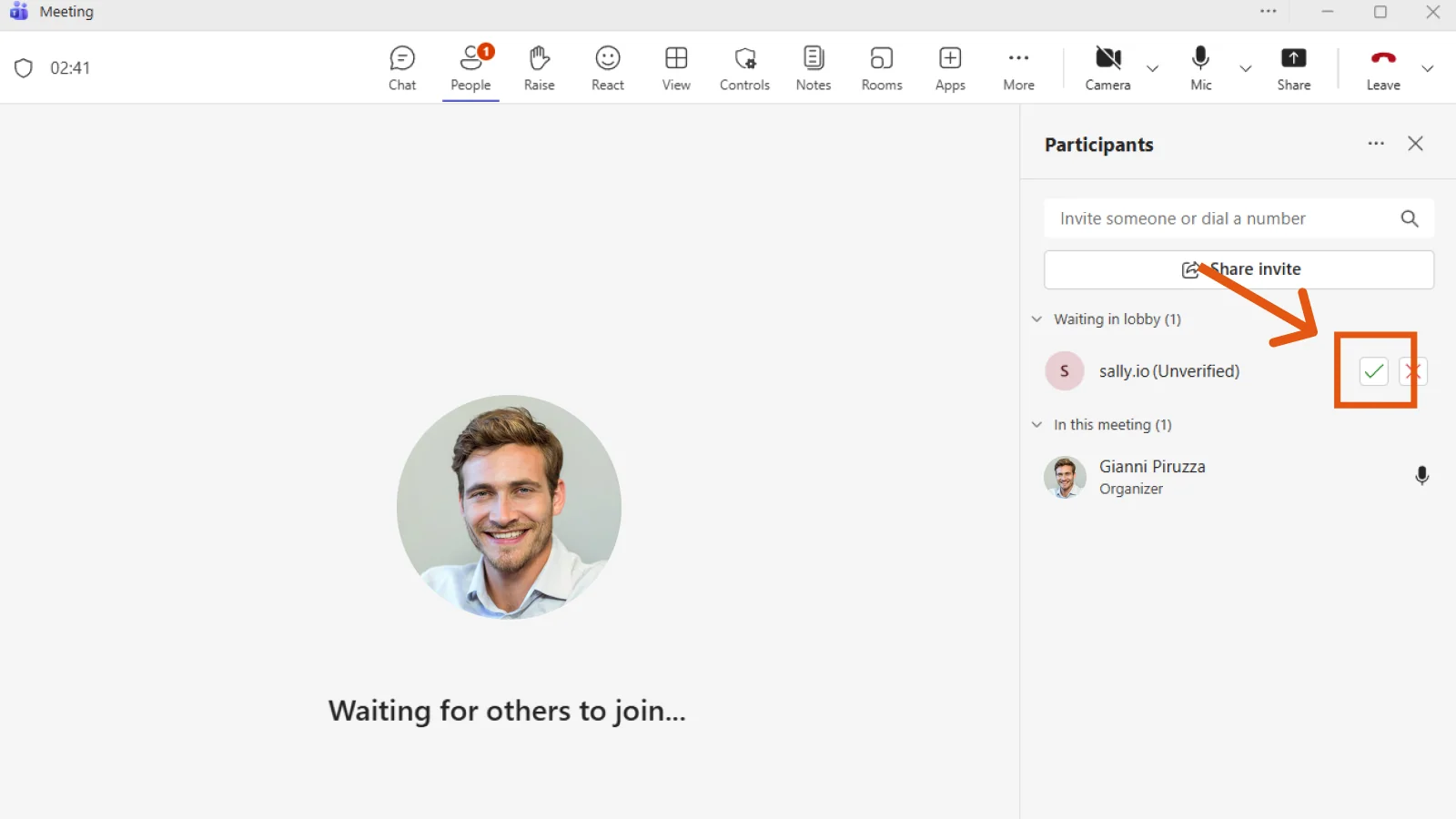
- Sally is now part of the meeting and will create the transcript and summary.
2.3 Invite via plain email
Alternatively, send an email to invite@sally.io with all meeting details:
Subject: Meeting Invitation – Marketing Sync on DD.MM.YYYY
To: invite@sally.io

Hello Sally,

please join the following meeting:

Title: Marketing Sync
Date: DD.MM.YYYY
Time: XX:XX – XX:XX
Time zone: CET
Meeting link: [link]
Participants: max.mustermann@company.com, anna.beispiel@company.com
The more complete the details, the more reliably Sally joins. If the date, the time or the meeting link is missing, she cannot join at all.