How to connect your calendar to Sally AI
Once your calendar is connected, you manage your appointments straight from Sally. You can then:
- See all your upcoming meetings in one place
- Add Sally to meetings automatically (no need to invite her manually each time)
- Choose which meetings Sally joins
Sally then joins your meetings on her own to record and transcribe them. If you would rather keep control, limit her to certain meetings in the settings.
How do I connect my calendar to Sally?
-
Open the Appointments tab in the main menu. As long as no calendar is connected, Sally shows the Connect your calendar card there.
-
Click Connect on your provider: Google Calendar, Microsoft 365 (Outlook), Outlook.com (personal account), Apple iCloud Calendar, CalDAV Calendar, or Exchange (On-Premise).
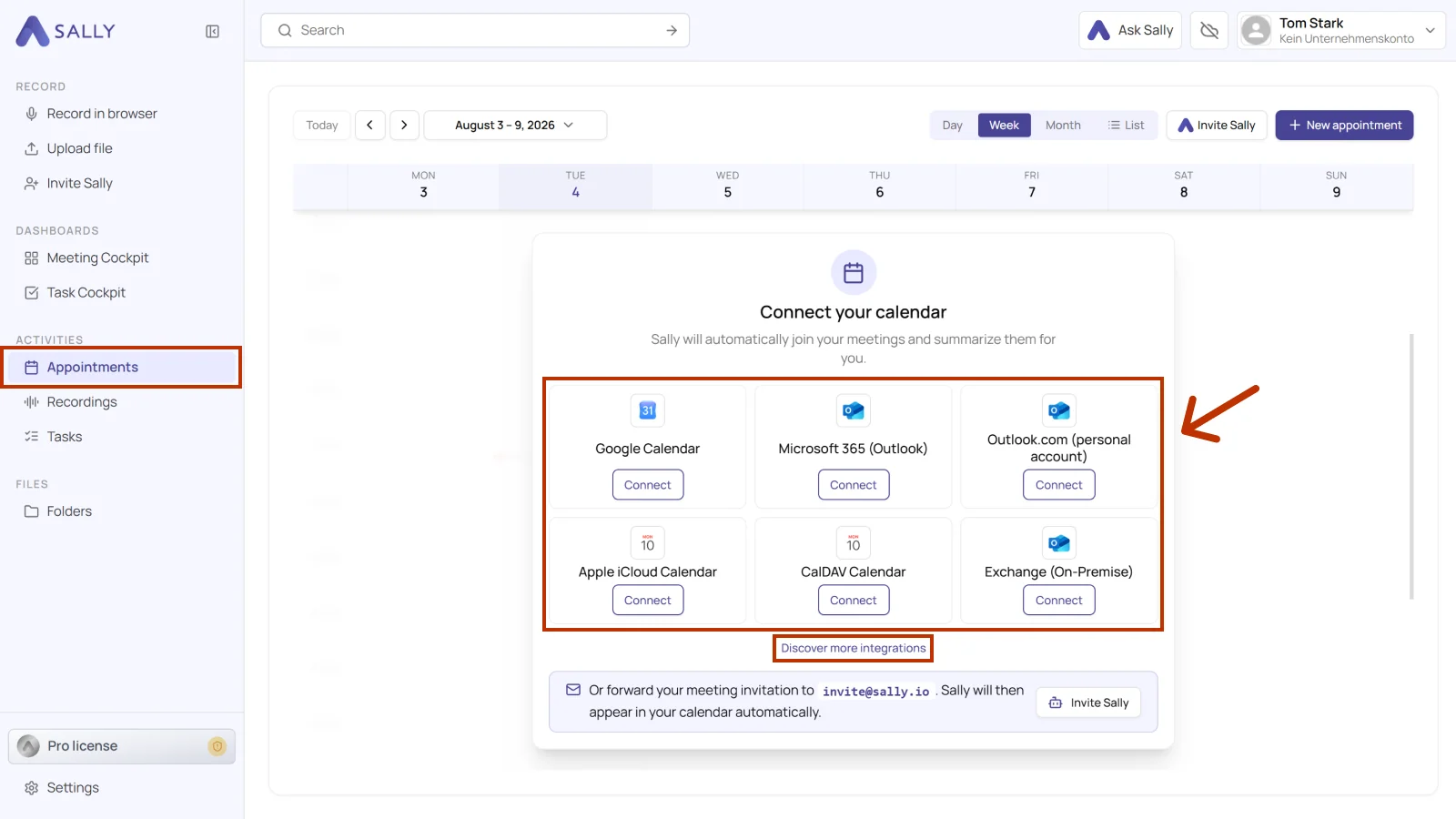
Can't see the calendar you're looking for? Click Discover more integrations to open the full integration list, where you'll also find Zoom, for example.
- Sign in to your calendar account and confirm the access permissions.
The first time someone connects an Outlook calendar, an admin has to approve the Sally app for the tenant. After that, everyone can connect their own calendar as usual.
- Once the integration is complete, you can find all your appointments in the Appointments tab. (If they do not show up right away, reload the page.)
For Sally to join and transcribe your meetings, you need to grant all requested permissions during the sign-in process.
You can also manage your calendar connections at any time under Settings → Integrations, for example to add another calendar or disconnect an existing one.