How to create your Sally AI account
How do I sign up for Sally AI?
Before Sally can transcribe your meetings, you need an account. It takes four steps.
-
Open the registration page: Sign up now
-
Create your account with your email address, then accept the terms and the privacy policy.
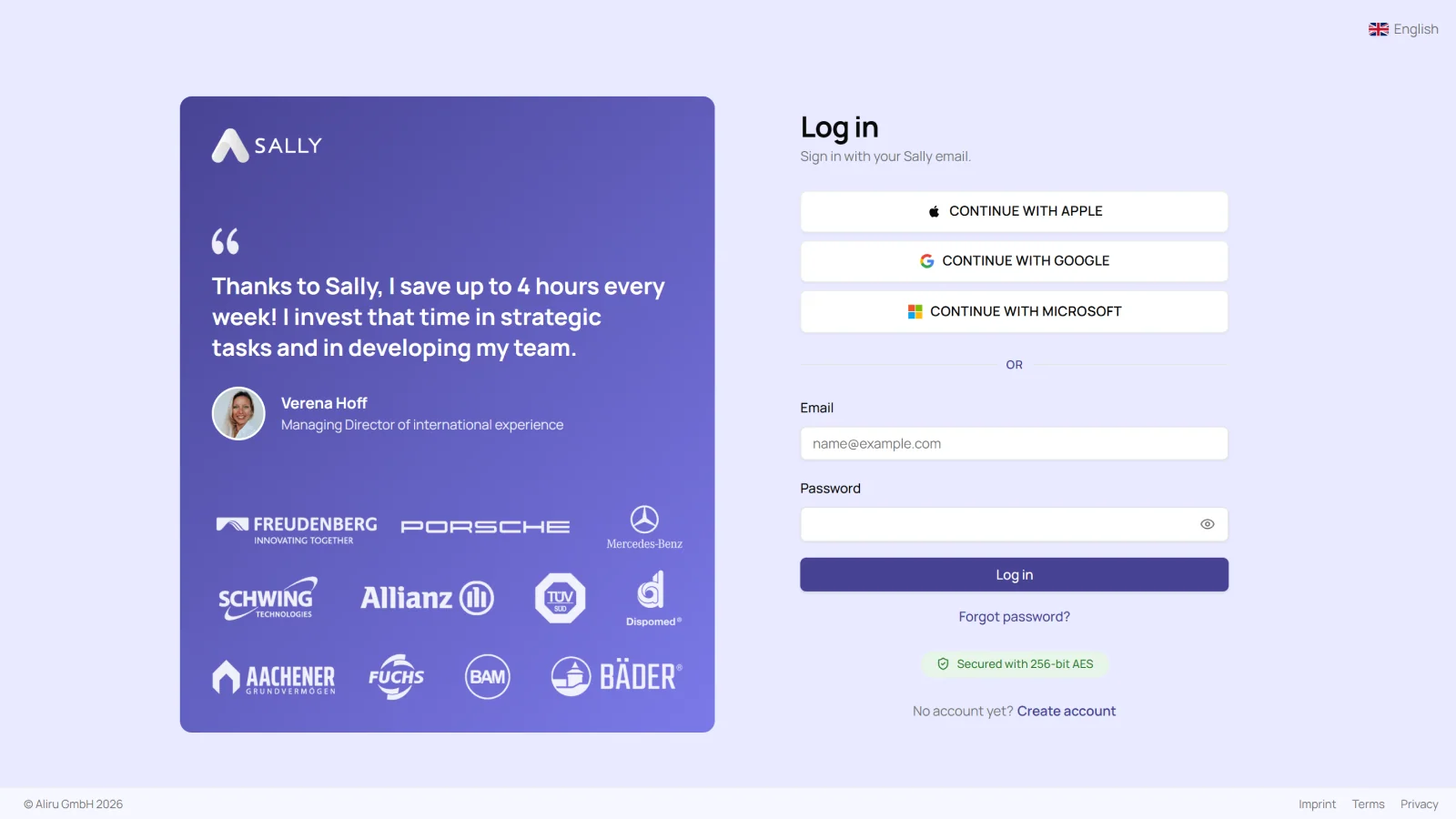
To keep your data safe, use a password of at least 12 characters with a few numbers and special characters.
Prefer Single Sign-On? You can also create your Sally account with Microsoft, Google, or Apple directly from the login page. See the SSO Login guide for details and admin consent options.
- After you register, a short onboarding walks you through five steps. It only takes a few minutes. Sally asks for a few basics to set up your organization and to better understand how you plan to use the tool. You can also connect your calendar directly during onboarding to get started right away.
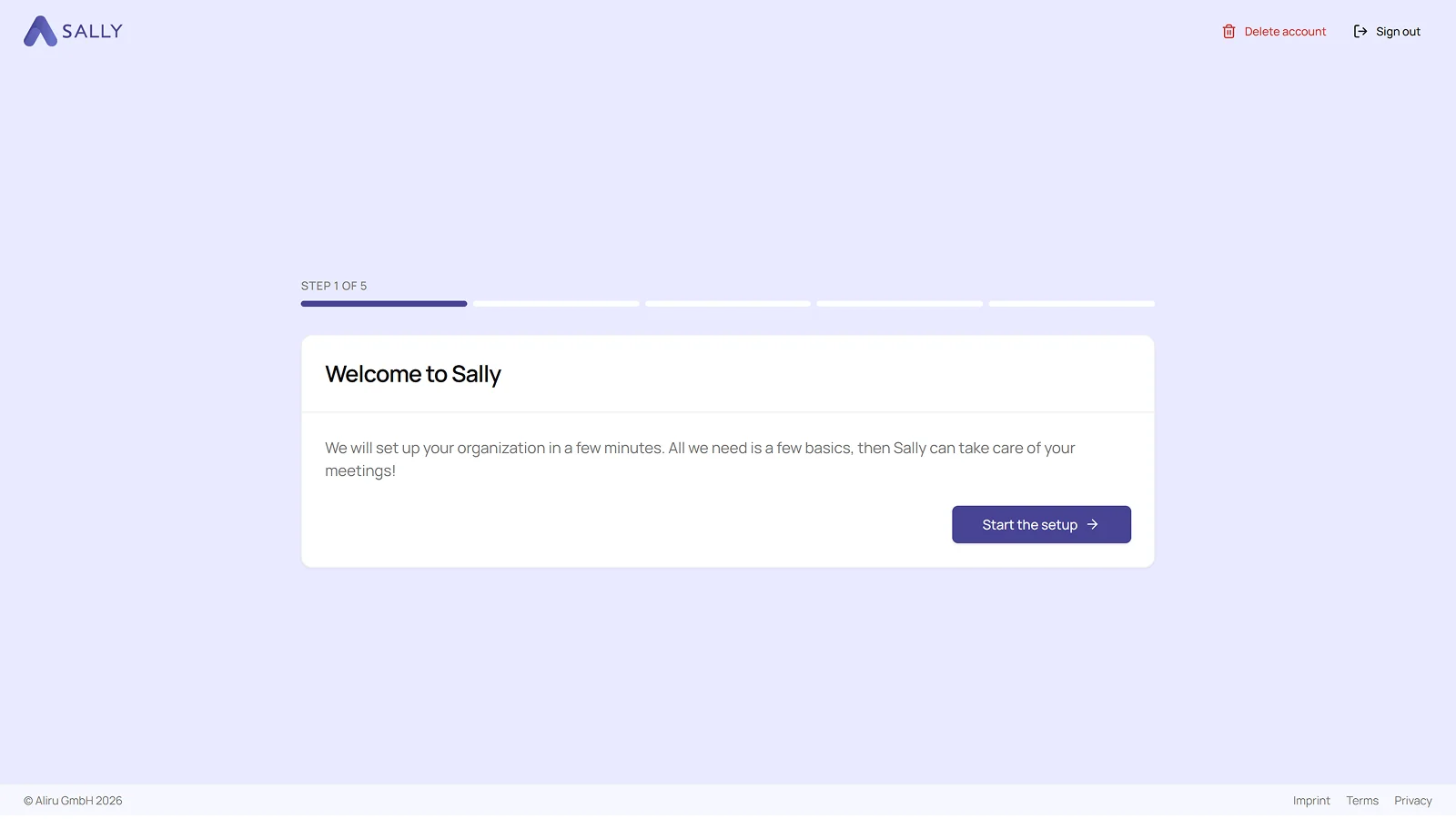
Your name is only required for registration and is used to personalize your account. Your data will be kept confidential and will not be used for other purposes.
- Once onboarding is done, your account is ready. Sally takes you to the dashboard. In the bottom-left corner, above Settings, you can check your license status at any time, including whether your free 30-day trial is still running.
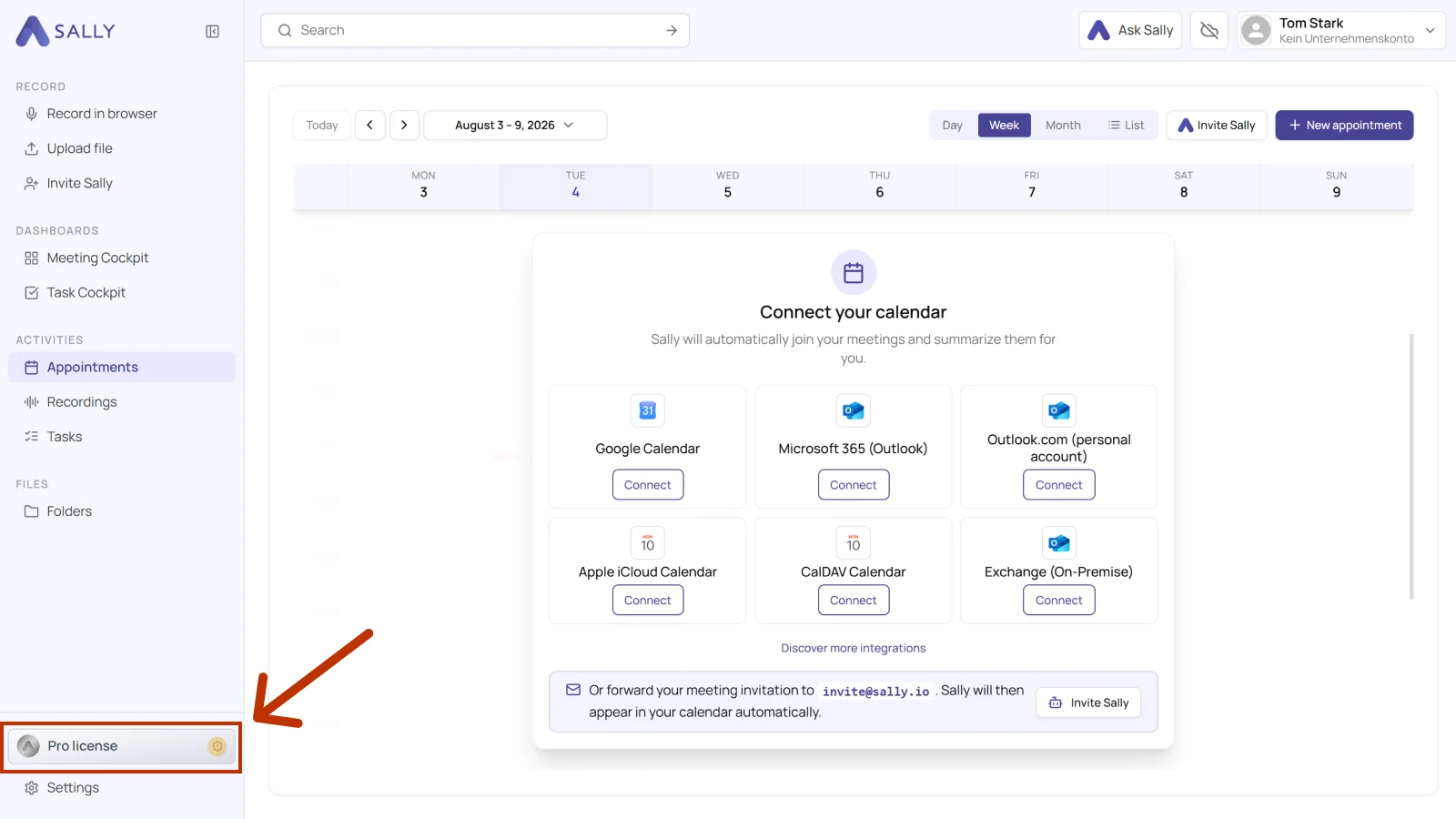
You can activate your access at any time, during the trial or after it, and use Sally without limits. Activate your license shows how.
Next, connect your calendar so Sally can join your meetings on her own.