How to connect Google Calendar with Sally AI
Once your Google Calendar is connected, Sally can read your meetings (with the right permissions) and join them without a separate invitation. All your scheduled events then show up right in Sally.
Quick navigation
1. How to connect Google Calendar
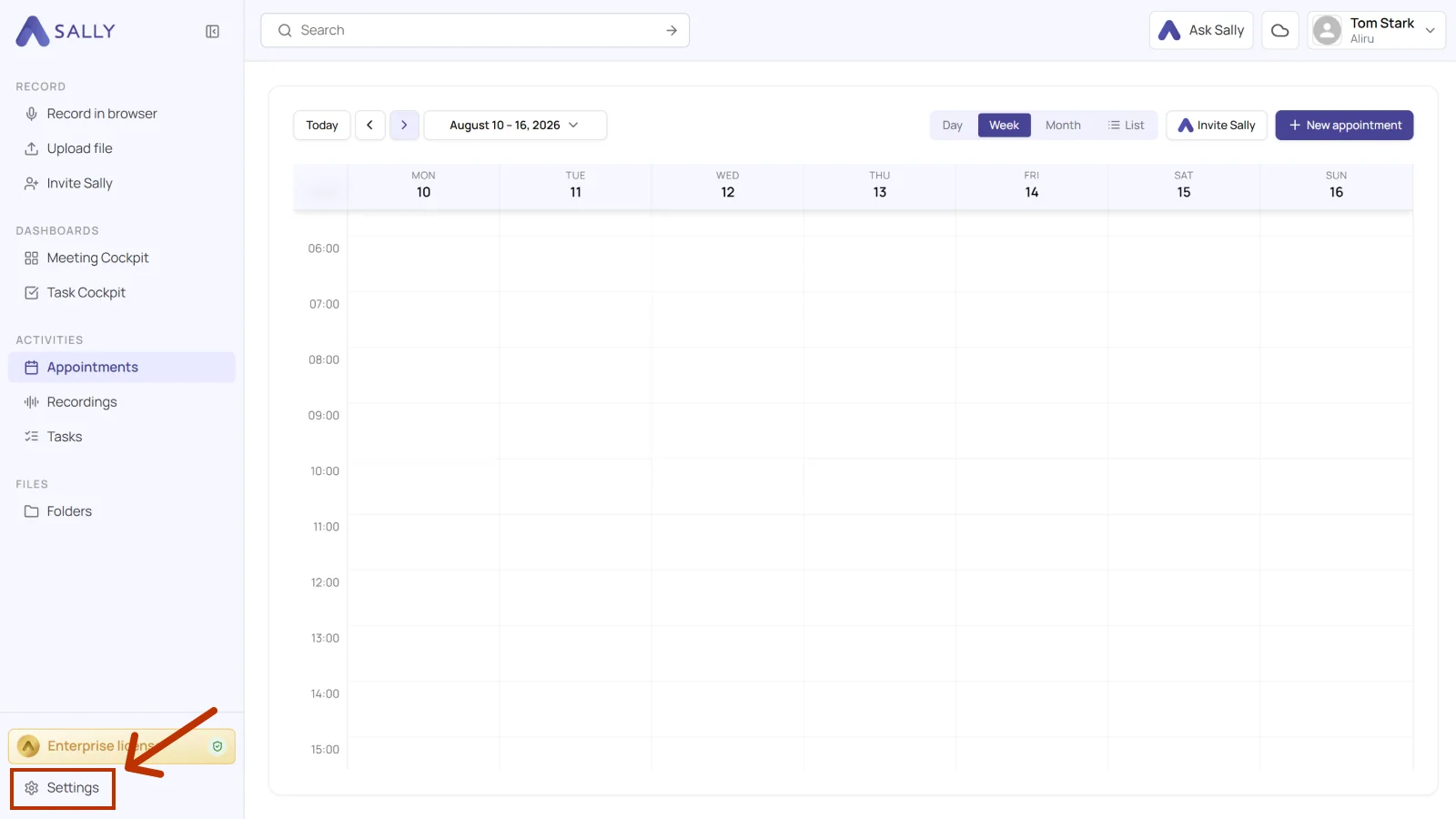
- Open Settings at the bottom of the left sidebar.
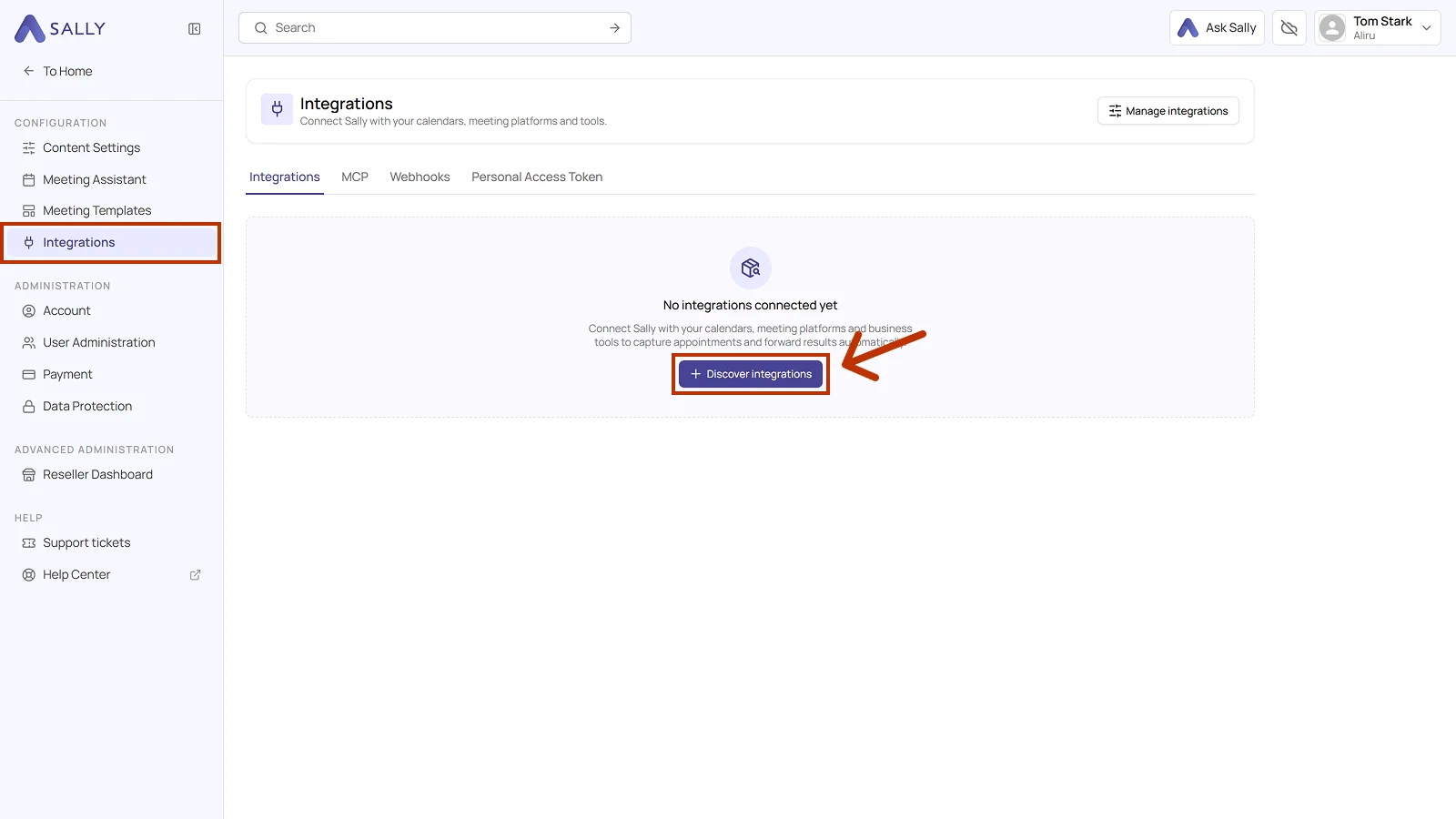
- Under Configuration, select Integrations and click Discover integrations.
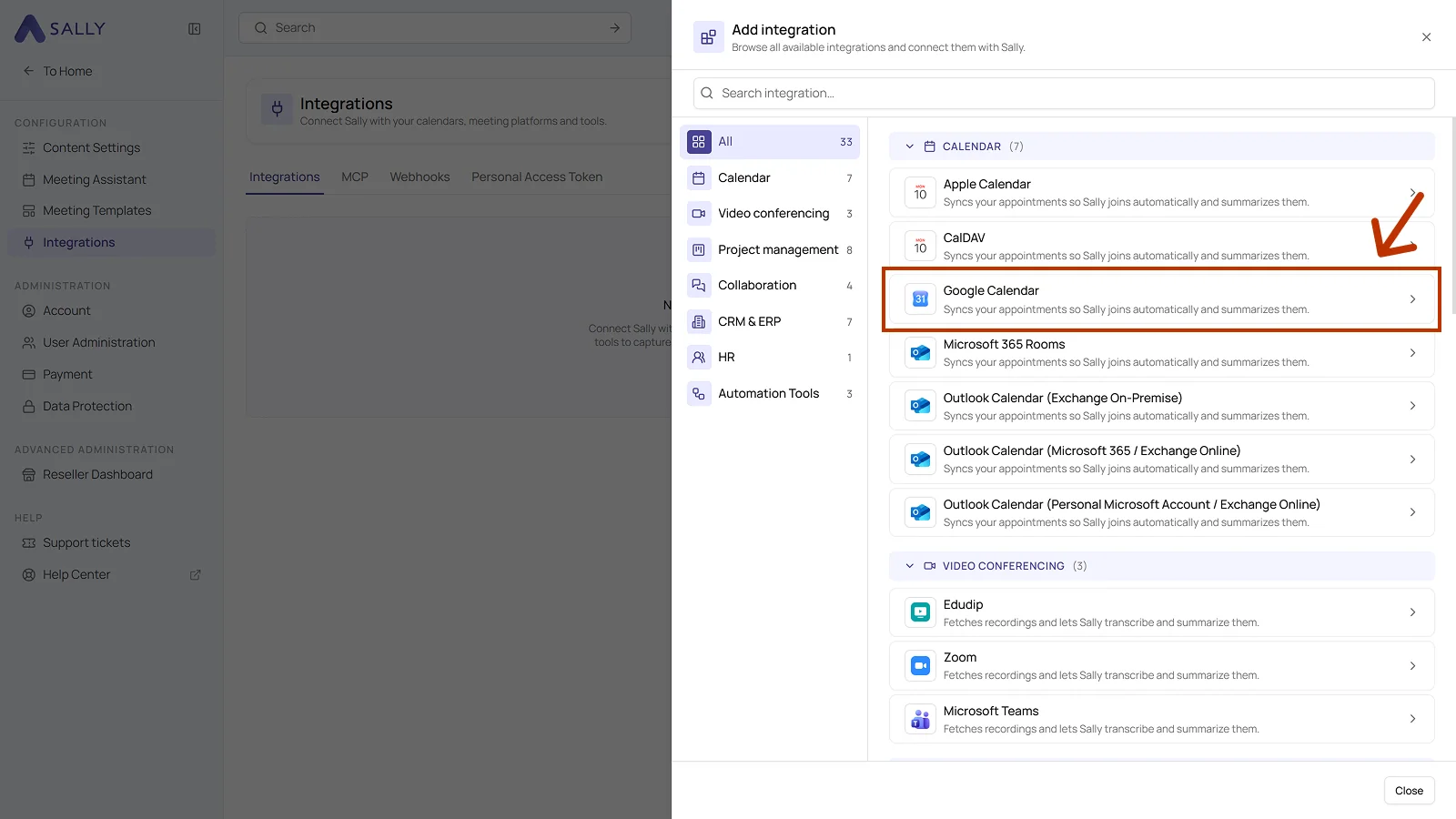
- Pick Google Calendar from the Calendar section of the list. You can also find an integration directly through the search field at the top.
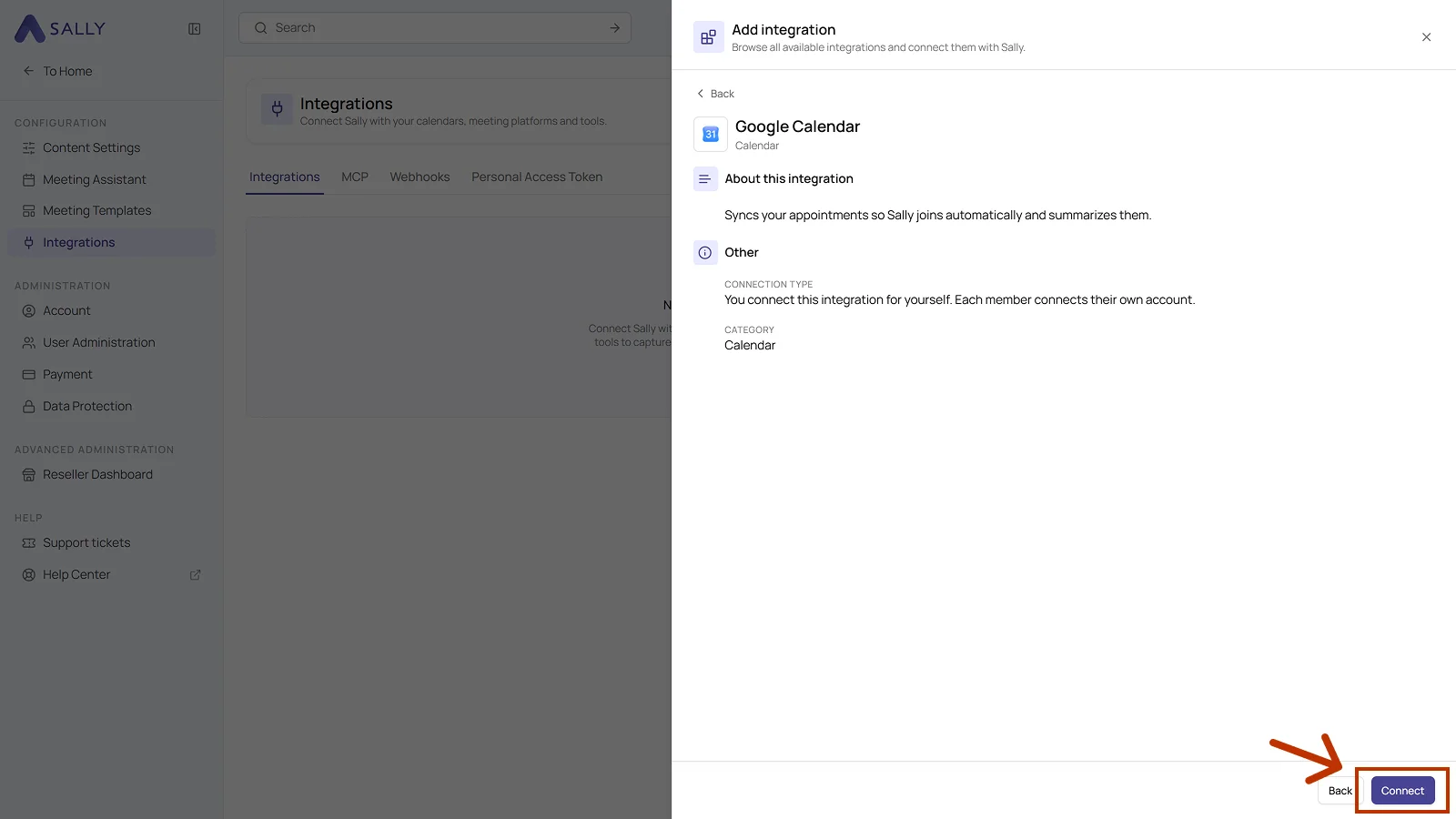
- The panel describes the integration and notes that every member connects their own account. Click Connect in the bottom right corner.
-
Sign in with your Google account and you are connected.
-
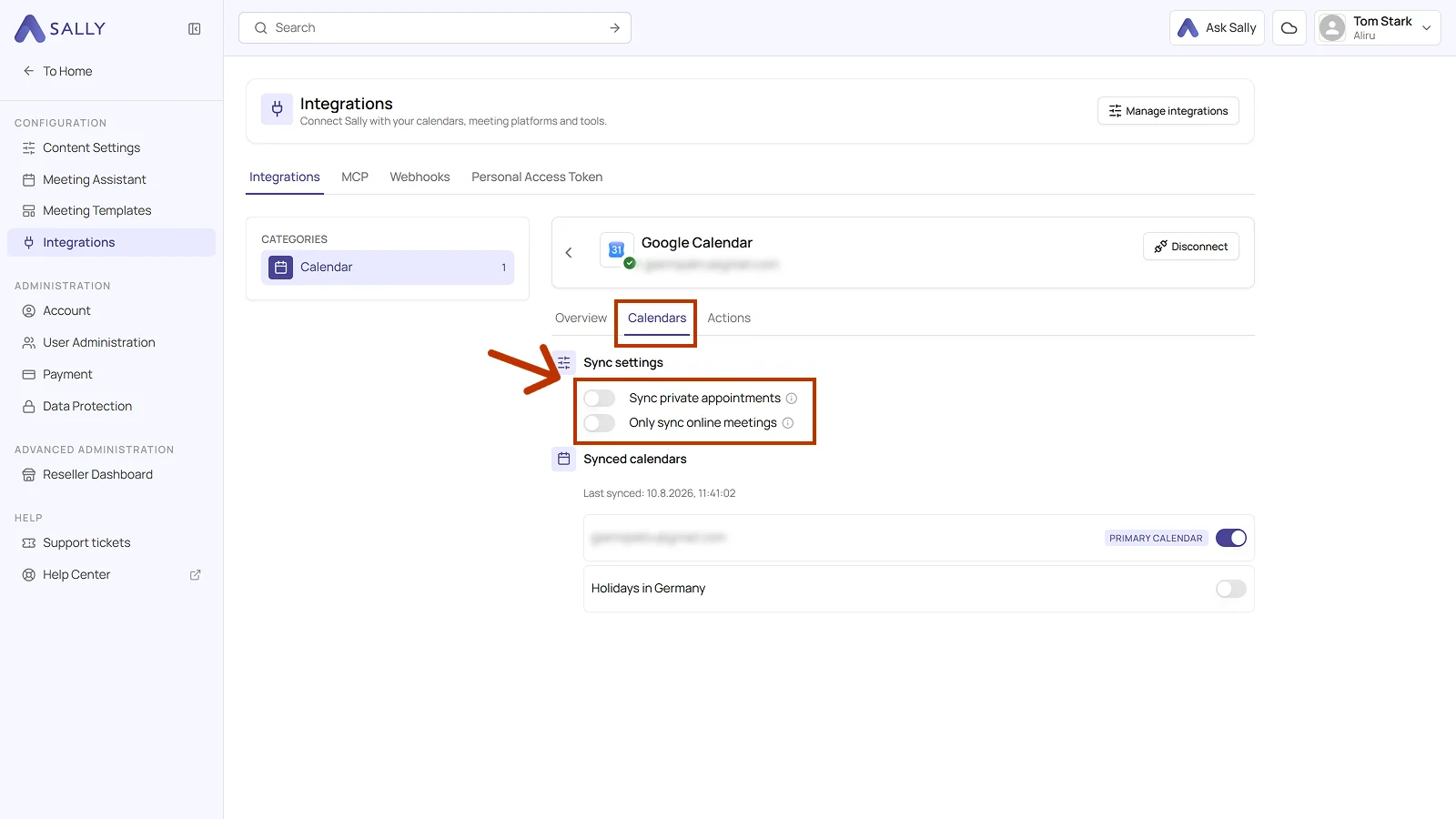
(Optional) Open the Calendars tab of the connected integration. Under Sync settings you get two toggles:
- Sync private appointments: enable it if you want Sally to sync your private appointments as well.
- Only sync online meetings: enable it if you only want to sync appointments that carry an online meeting link, for example Microsoft Teams, Google Meet, or Zoom.
Below that, Synced calendars shows which calendars Sally includes. Your main calendar is marked as Primary calendar, and you can add further calendars such as public holidays one by one. Use Disconnect in the top right corner to remove the integration again.
- Once connected, you will see all your appointments in Sally.
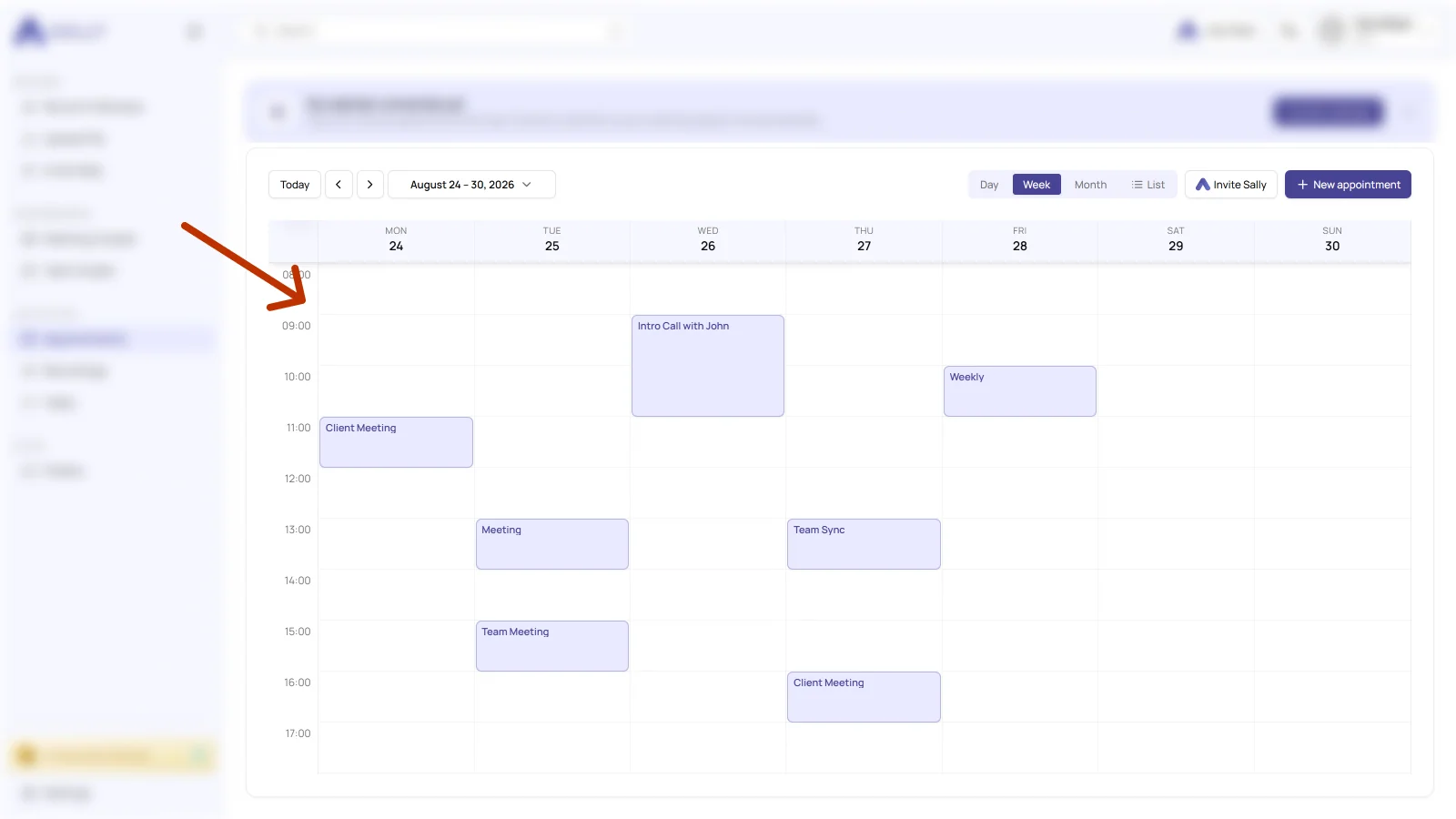
Synchronization may take a few moments. Restart Sally if necessary.
Once the connection is in place, you can set whether and when Sally should automatically join your meetings.
Whether a calendar may be connected at all is up to owners and admins, see managing calendars for your users.
2. Required OAuth scopes
For the integration with Google Calendar, Sally uses OAuth 2.0 for authorization. The following scopes define which areas Sally can access on behalf of the authenticated user.
-
Sally accesses this information solely to technically establish and maintain the connection to the user account.
-
Sally does not make any autonomous changes. Actions are performed exclusively upon the explicit initiative of the user.
-
API endpoints are only called within the scope of an active action initiated by the user within the platform.
Technical overview of required scopes
| Scope | What Google technically allows with this scope | How Sally uses this scope |
|---|---|---|
openid | OpenID Connect identity verification | Sally reads the unique user ID to properly authenticate the connected Google account. |
https://www.googleapis.com/auth/userinfo.email | Access to the user's email address | Sally reads the email address to uniquely identify the connected account. |
https://www.googleapis.com/auth/userinfo.profile | Access to basic profile information | Sally reads basic profile data (e.g., display name) for authentication and account identification. No profile data is modified. |
https://www.googleapis.com/auth/calendar.readonly | Read access to calendar data | Sally reads relevant calendar information to correctly recognize meetings within the integration context. No events are modified. |
https://www.googleapis.com/auth/calendar.events | API permission for calendar events | Part of Google's calendar integration permission model. Sally does not create, edit, or delete calendar events within the Google account. |