How to integrate Azure DevOps with Sally AI
Connect Sally AI with Azure DevOps to turn what came out of a meeting into real work, right on your project boards. With the Sally Azure DevOps integration you create work items or add comments to existing ones in one click, so nothing gets typed twice and your board stays current.
Quick navigation
- How to connect Azure DevOps with Sally AI
- How to send insights to Azure DevOps
- Required OAuth scopes
1. How do I connect Azure DevOps with Sally AI?
Follow these steps to enable the Sally Azure DevOps integration.
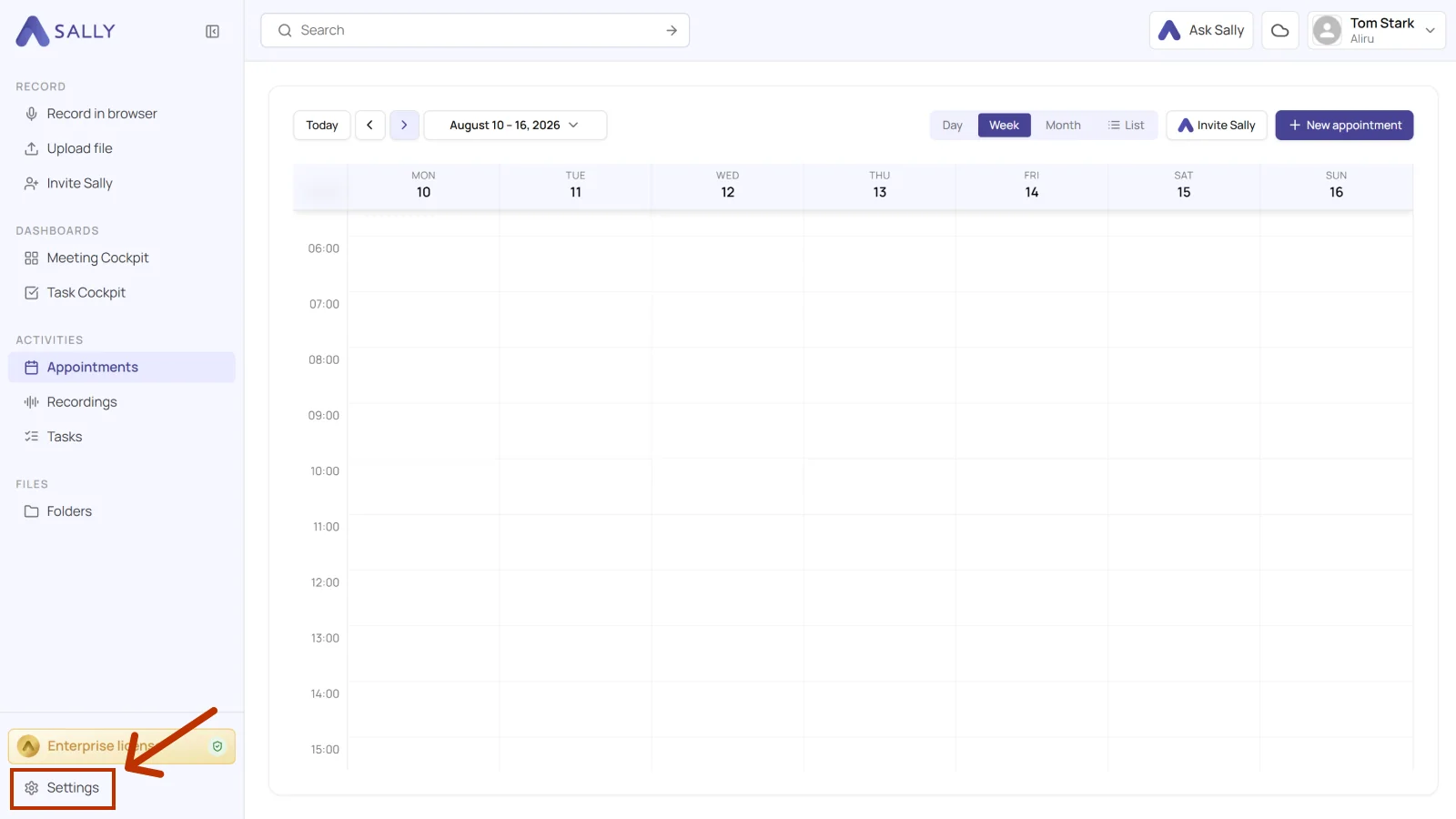
- Open Settings from the bottom-left corner of the sidebar.
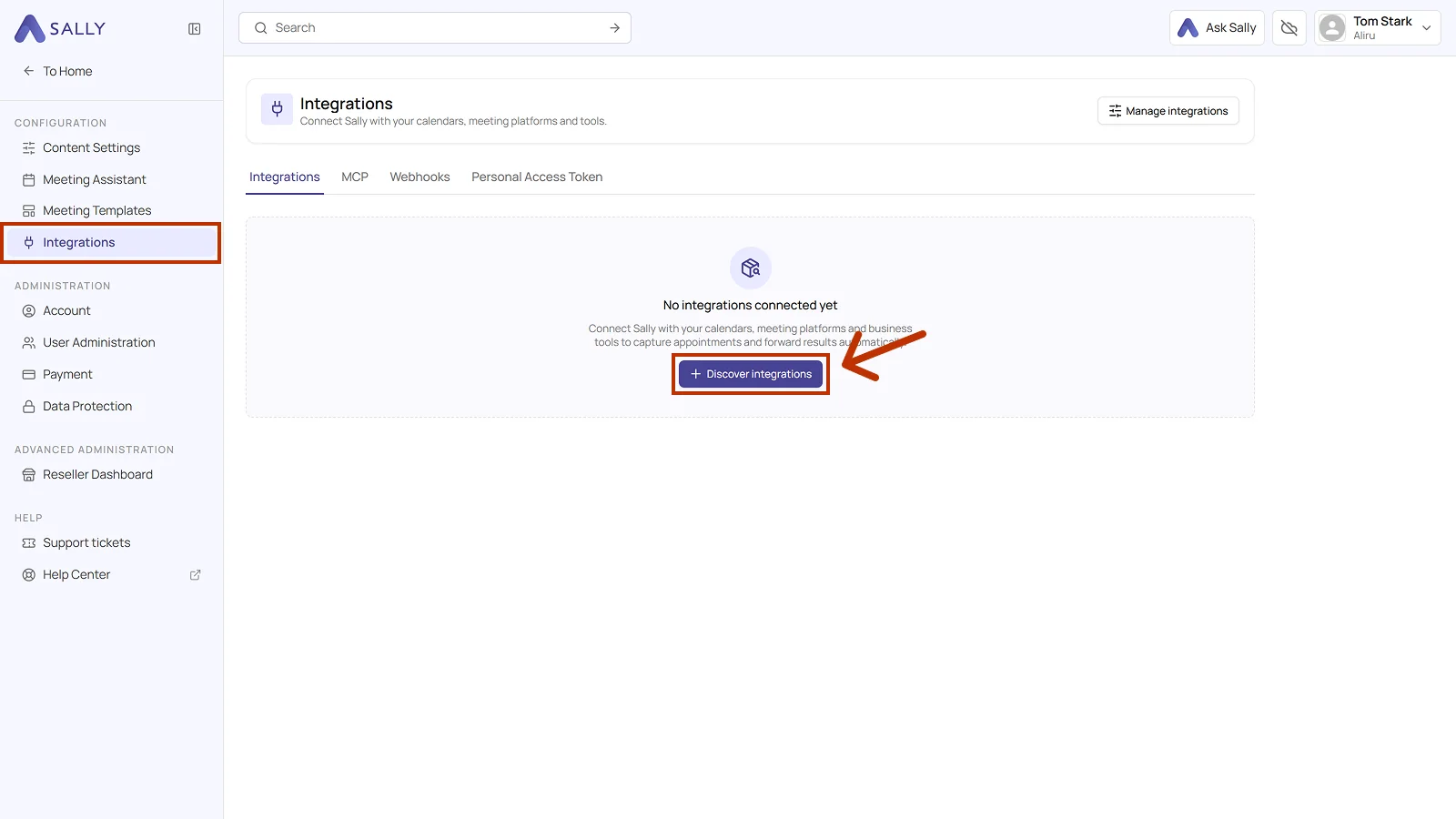
- Under Configuration, select Integrations. If no integration is connected yet, click Discover integrations, otherwise click Add integration in the top right corner.
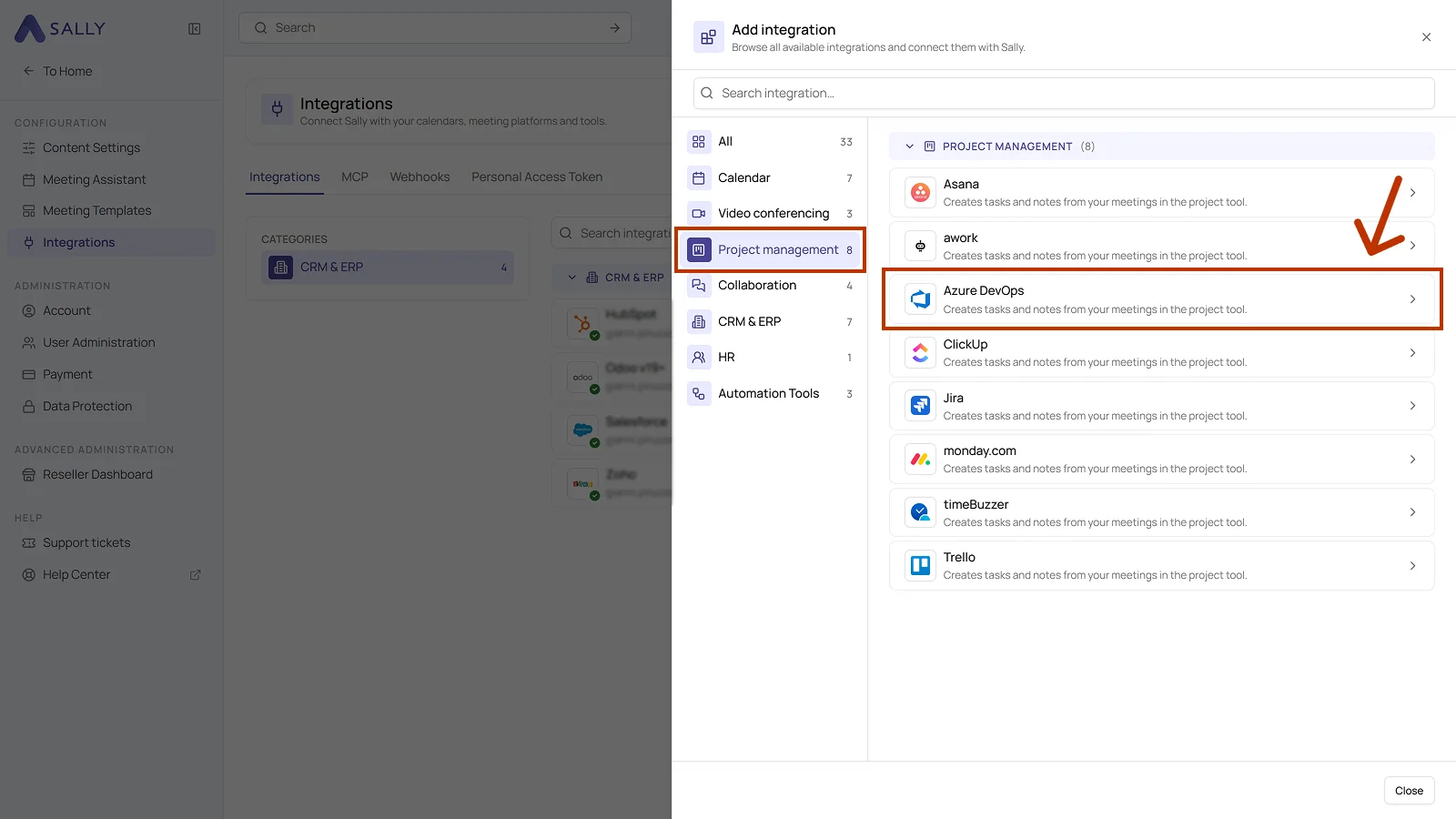
- In the Add integration panel, pick the Project management category on the left and then Azure DevOps.
- In the Connect Azure DevOps dialog, enter your organization's address and click Connect. Sally then redirects you to the login.
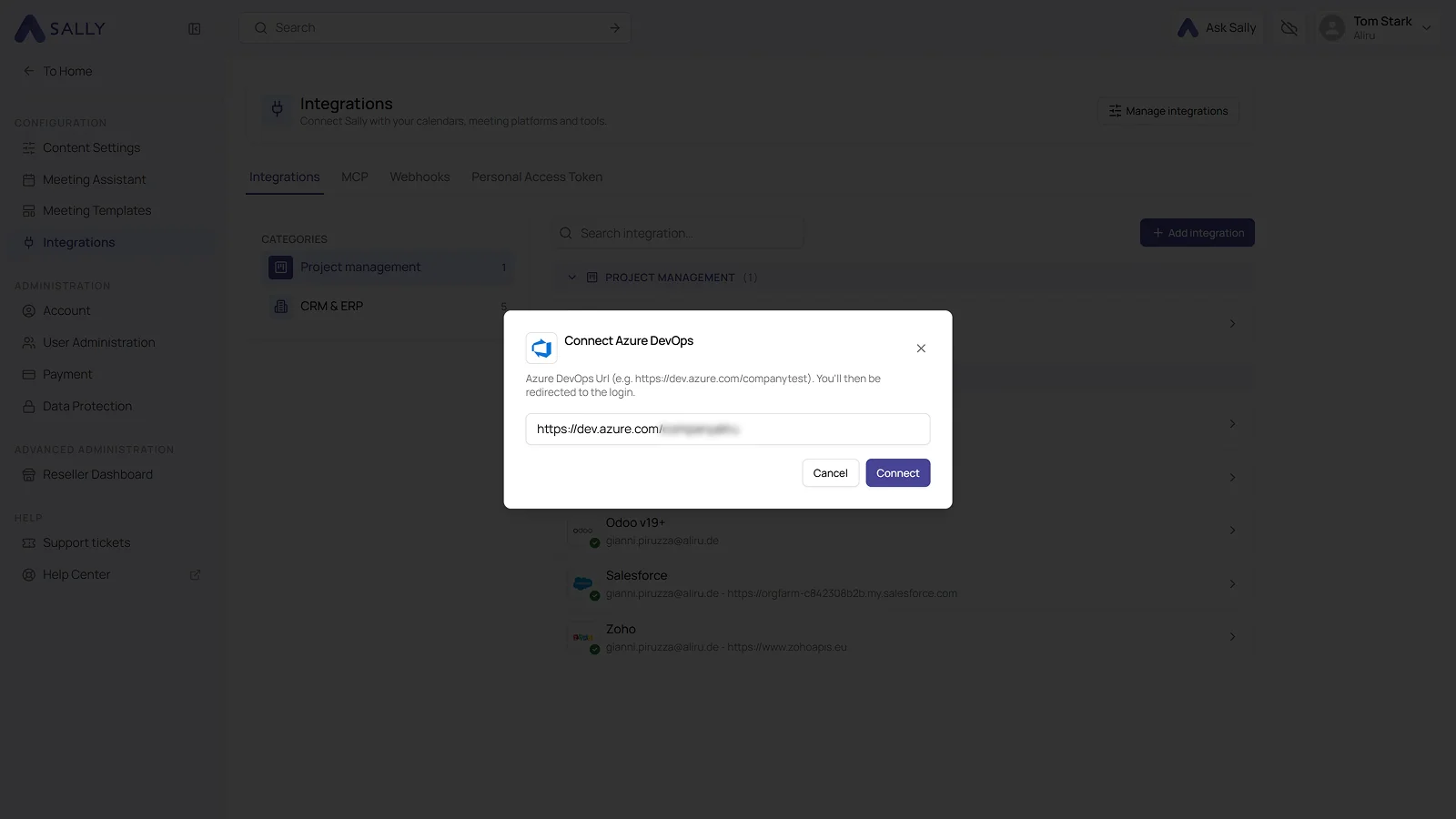
Enter only your organization's base URL in the dialog, without a project, repository, or path.
Example
- Full URL to a pull request:
https://dev.azure.com/fabrikam/ProjectX/_git/WebPortal/pullrequest/860 - What to enter in Sally:
https://dev.azure.com/fabrikam
If your URL looks like https://dev.azure.com/<org>/<project>/..., the https://dev.azure.com/<org> part is enough.
- After the login, Azure DevOps appears in the list under the Project management category. Disconnect in the top right corner ends the connection whenever you need to.
1.1. Which actions may Sally use?
A connected integration has two tabs, Overview and Actions. The Actions tab defines what Sally offers through this integration, in the Sally chat and after the meeting.
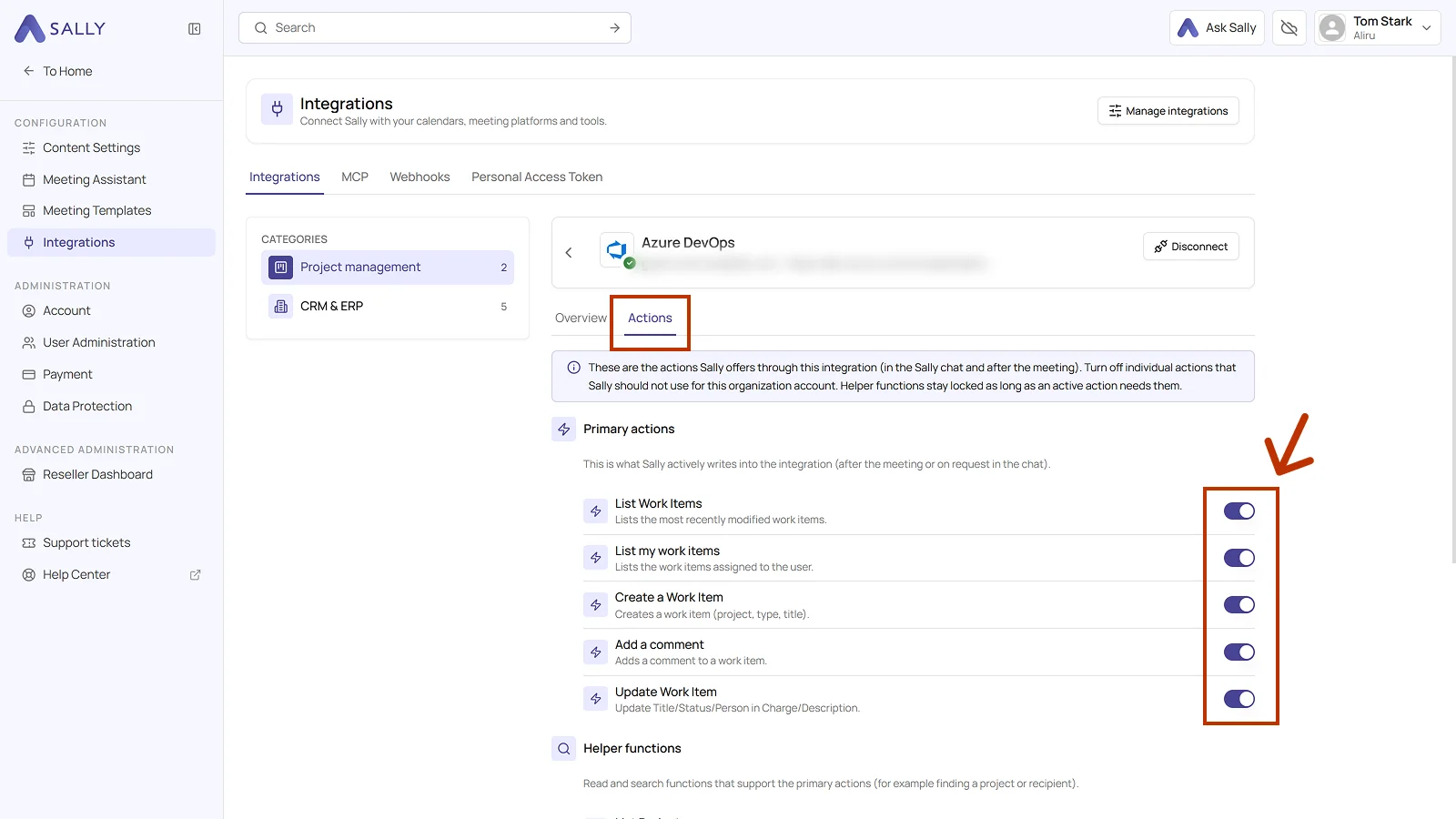
Primary actions are what Sally actively writes into Azure DevOps, meaning listing, creating, updating, and commenting on work items. Each action explains what it does in the line below it.
Use the toggle on the right to take out a single action that Sally should not use for this organization account.
Not every action shows up in the selection at the meeting. Sally uses some of them itself, in the chat or as part of another action. Leave them switched on so the integration works in full, and switch off only what Sally really should not do in this organization account.
Below that sit the helper functions, the read and search functions that support the primary actions, for example finding a project or a recipient. They stay locked as long as an active action needs them.
2. How do I send meeting insights to Azure DevOps?
Once Azure DevOps is connected, you can send meeting insights from Sally to Azure DevOps with a single click, so they land in the right project.
You can:
2.1. Create a work item in Azure DevOps
Turn a Sally insight into an Azure DevOps work item.
- Open the meeting in Sally.
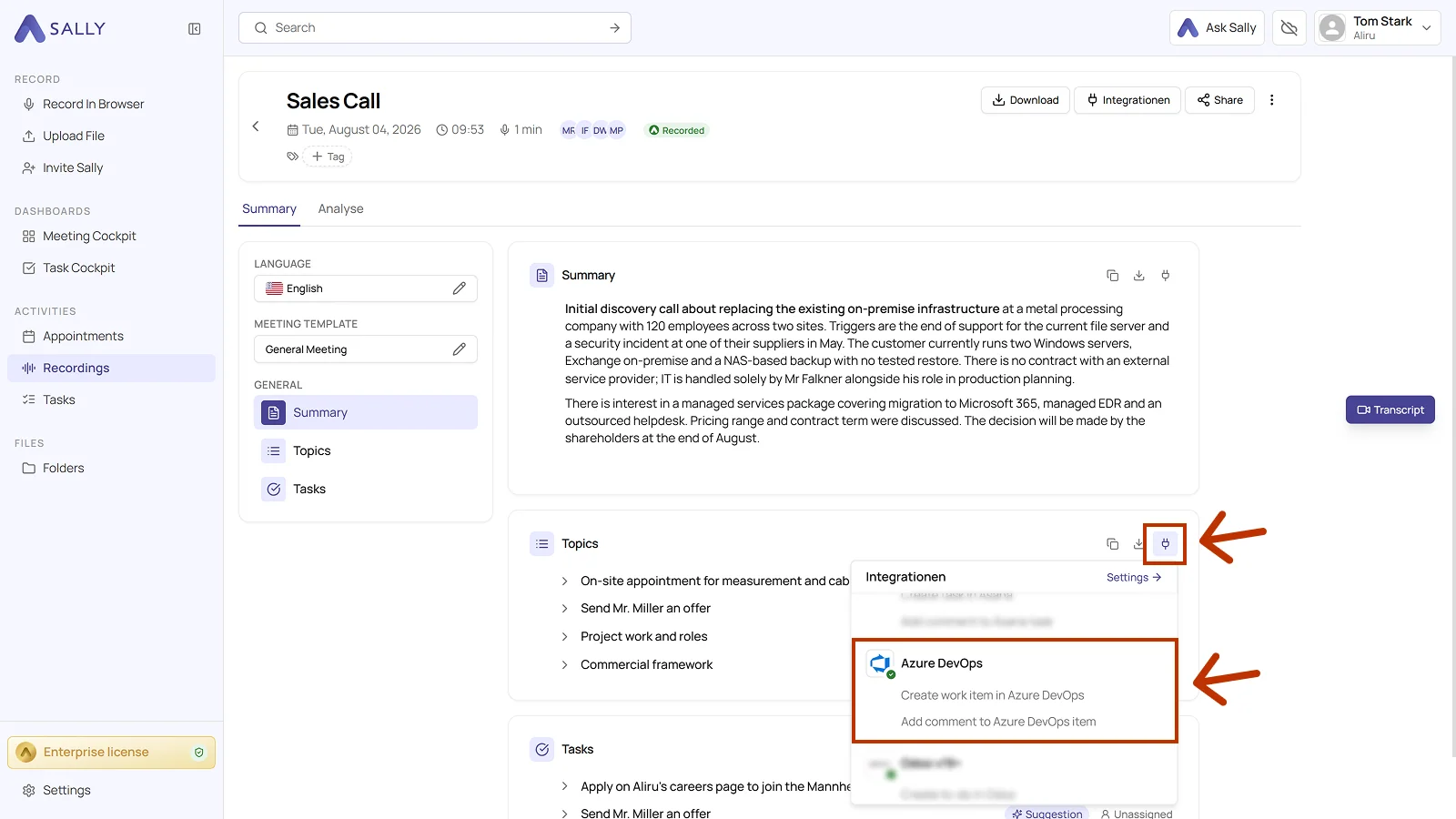
- In the summary, hover over a block or over a single entry and click the plug icon. In the list, choose Create work item in Azure DevOps under Azure DevOps.
- Fill in the dialog. Project, Work item type, and Title are required, and the title already comes prefilled from Sally. Assigned to, Area, and Iteration are optional. The description also comes from the summary and can be edited in the editor.
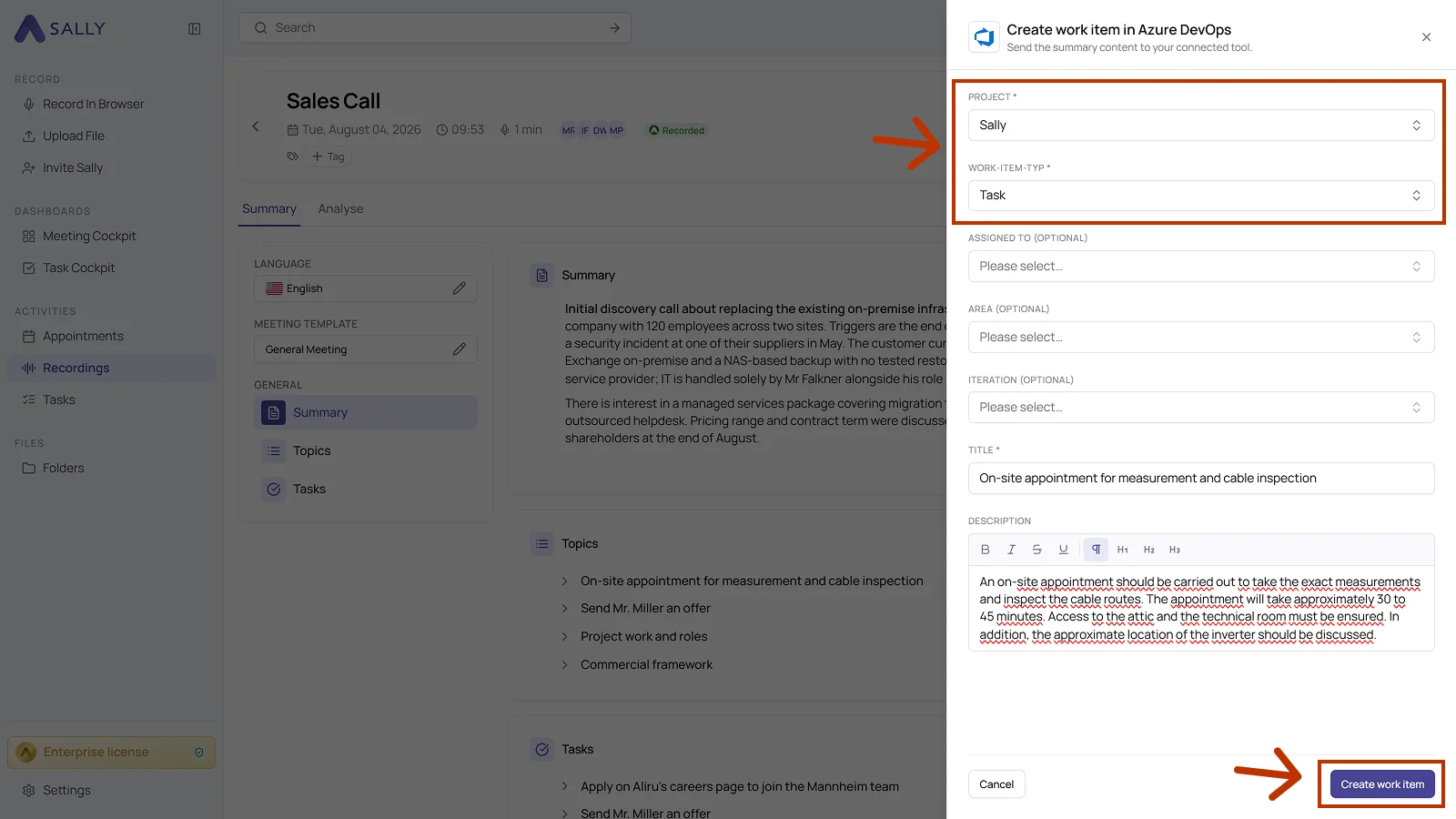
- Click Create work item to send it to Azure DevOps.
2.2. Add a comment to an Azure DevOps item
Add meeting context to an existing work item, which is handy for updates, extra information, or decisions.
- Open the meeting in Sally.
- Click the plug icon on the block or on the entry and choose Add comment to Azure DevOps item under Azure DevOps.
- In the dialog, pick the project and then the work item the comment belongs to. Both fields are required.
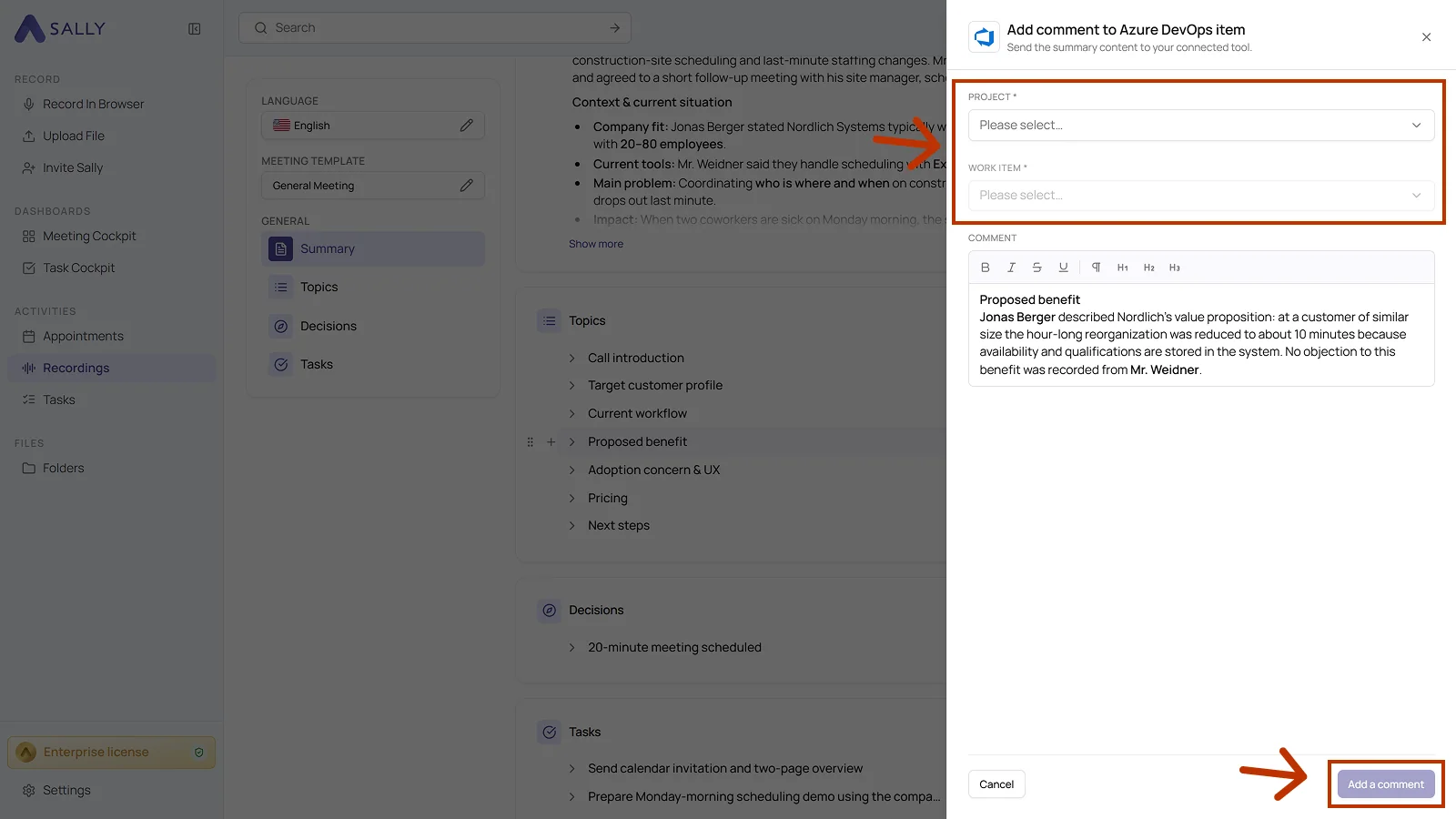
- The comment field holds the text from the summary. Adjust it in the editor if you like, then click Add a comment.
3. What OAuth scopes does the Azure DevOps integration require?
For the integration with Azure DevOps, Sally uses OAuth 2.0 for authorization. The following scopes define which areas Sally can access on behalf of the authenticated user.
-
Sally accesses this information solely to technically establish and maintain the connection to the user account.
-
Sally does not make any autonomous changes. Actions are performed exclusively upon the explicit initiative of the user.
-
API endpoints are only called within the scope of an active action initiated by the user within the platform.
Technical overview of required scopes
| Scope | Type | What Microsoft technically allows with this scope | How Sally uses this scope |
|---|---|---|---|
user_impersonation | Delegated | API access in the context of the authenticated user | Part of the Azure authentication model. Sally uses this scope solely for the technical execution of the integration within the authenticated user session. |
vso.work_write | Delegated | API permission for work item objects | Technically defined within the Azure DevOps OAuth model. Sally does not independently modify existing work items outside explicitly user-initiated actions. |
vso.code_write | Delegated | API permission for repository resources | Part of the Microsoft permission model. Sally does not modify source code or independently access repositories. |
vso.project_write | Delegated | API permission for project configuration | Technically provided by Microsoft for integrations. Sally does not modify project configurations. |
vso.wiki_write | Delegated | API permission for wiki resources | Part of the OAuth model. Sally does not independently create or modify wiki content. |
vso.taskgroups_write | Delegated | API permission for task group resources | Technically required within the integration permission structure. Sally does not independently manage task groups. |
vso.memberentitlementmanagement | Delegated | Access to organization and license information | Part of Microsoft's API structure. Sally does not modify user or license configurations. |
vso.profile | Delegated | Access to user profile information | Sally reads basic profile information for authentication purposes. No profile data is modified. |
email | Delegated | Access to the user's email address | Sally reads the email address to uniquely identify the connected account. |
User.Read | Delegated | Read basic user information | Part of Microsoft Identity authentication. |
profile | Delegated | Access to basic profile data | Sally reads basic account information for identification purposes. |
openid | Delegated | OpenID Connect authentication | Secure authentication via Microsoft Identity. |
offline_access | Delegated | Issuance of long-lived access tokens | Enables a stable connection without repeated login. No Azure DevOps data is modified. |