How to integrate Notion with Sally AI
Connect Sally with Notion to store meeting summaries directly as structured Notion pages.
With the Sally Notion integration you move whole meeting summaries into Notion and keep editing, documenting or sharing them there. A few clicks turn every meeting into clean documentation inside your Notion workspace.
Quick navigation
- How to connect Notion with Sally AI
- How to create a Notion page from a meeting summary
- Required permissions
1. How do I connect Notion with Sally AI?
Follow these steps to activate the Sally-Notion integration:
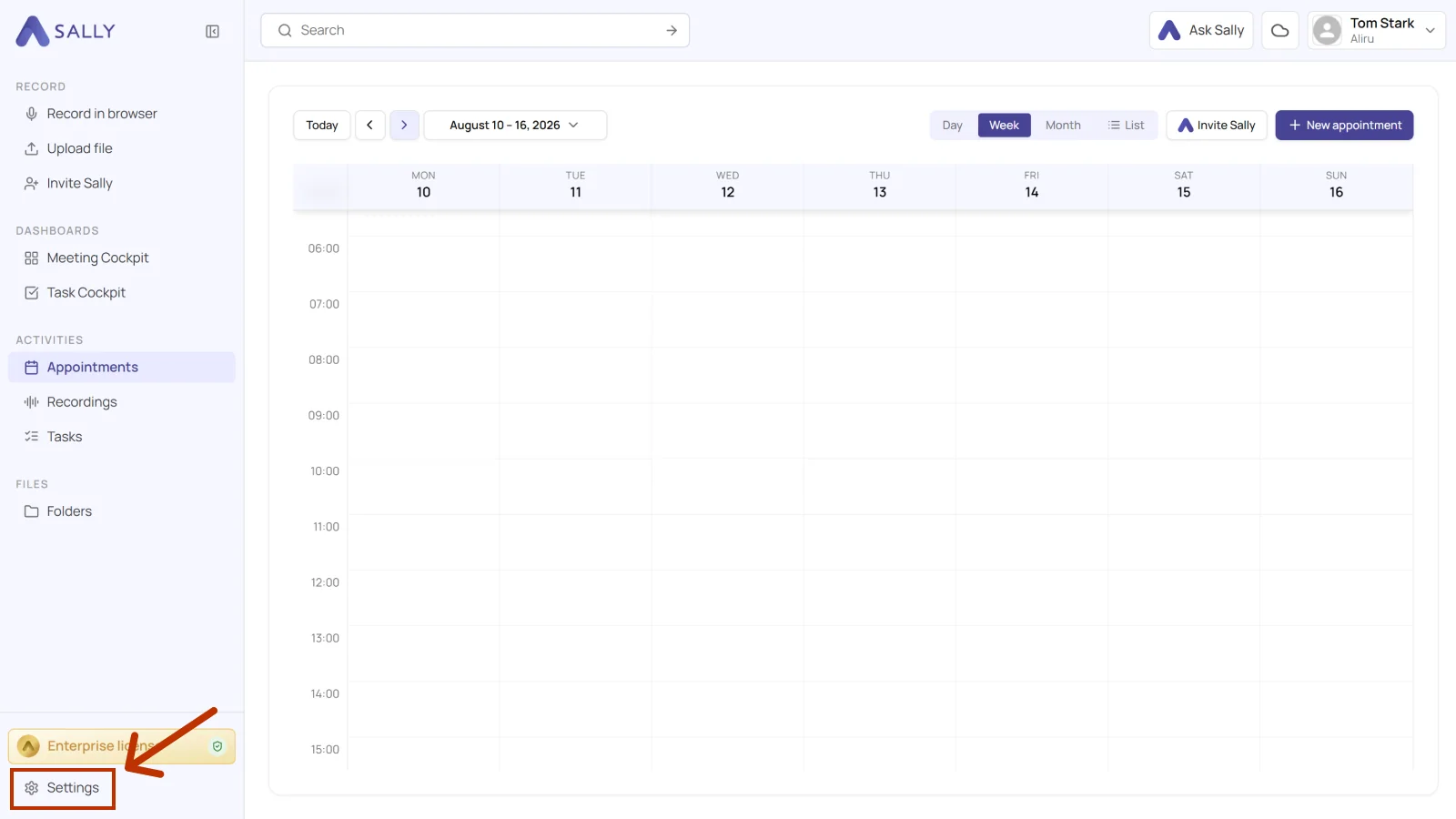
- Open Settings from the bottom-left corner of the sidebar.
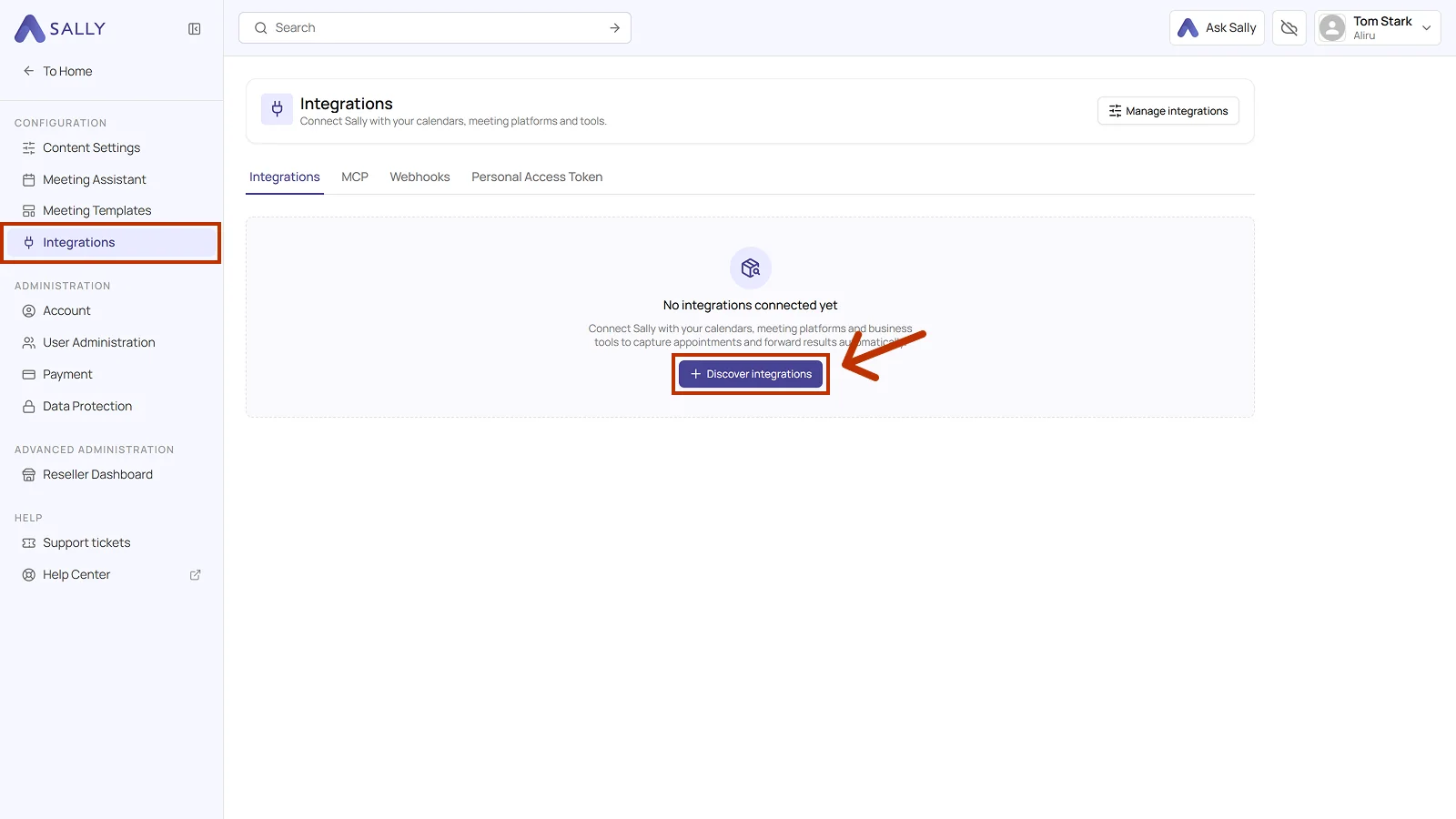
- Under Configuration, select Integrations. If no integration is connected yet, click Discover integrations, otherwise click Add integration in the top right corner.
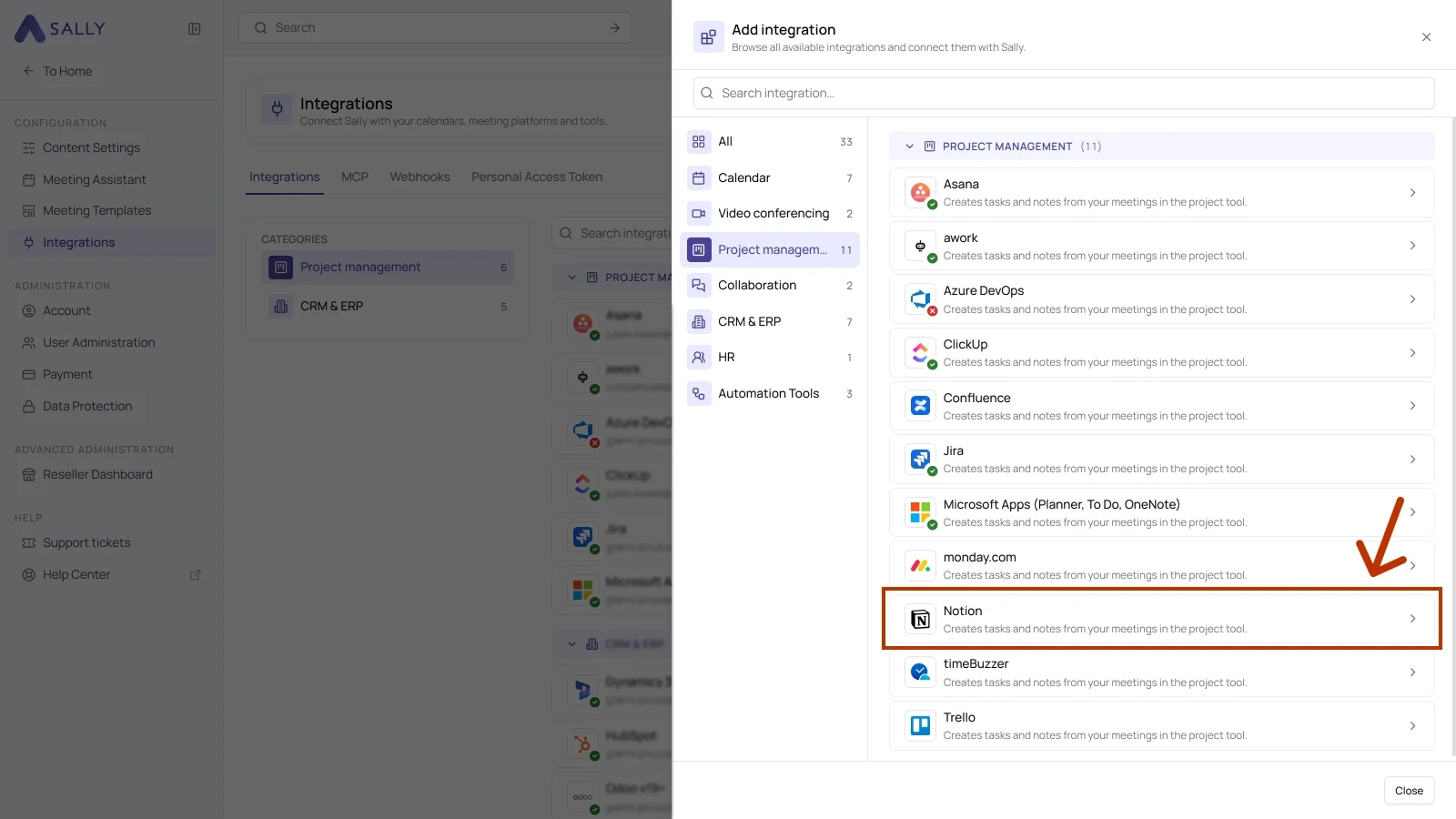
- In the Add integration panel, pick the Project management category on the left and then Notion. Confirm the access in Notion and choose the workspace Sally should be connected to.
- After the authorization, Notion appears in the list under the Project management category. Disconnect in the top right corner ends the connection whenever you need to.
1.1. Which actions may Sally use?
A connected integration has two tabs, Overview and Actions. The Actions tab defines what Sally offers through this integration, in the Sally chat and after the meeting.
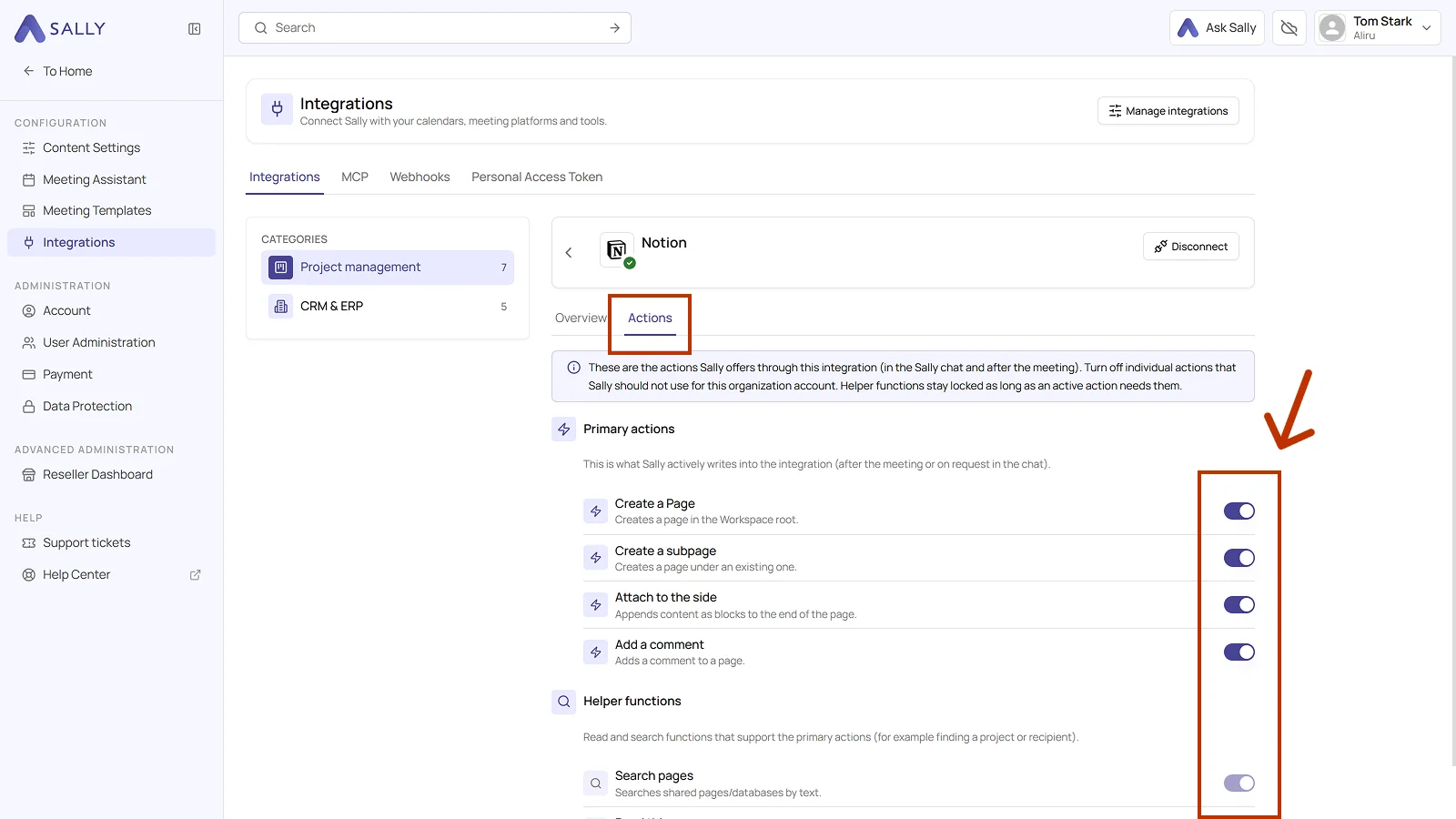
Primary actions are what Sally actively writes into Notion, meaning creating pages and subpages, appending content to an existing page, and commenting on pages. Each action explains what it does in the line below it.
Use the toggle on the right to take out a single action that Sally should not use for this organization account.
Not every action shows up in the selection at the meeting. Sally uses some of them itself, in the chat or as part of another action. Leave them switched on so the integration works in full, and switch off only what Sally really should not do in this organization account.
Below that sit the helper functions, the read and search functions that support the primary actions, for Notion the search across shared pages and databases. They stay locked as long as an active action needs them.
2. How do I create a Notion page from a meeting summary?
Once Notion is connected, you can export meeting summaries directly as a Notion page.
The Notion integration always transfers the complete meeting summary, not a single entry.
- Open the recording in Sally.
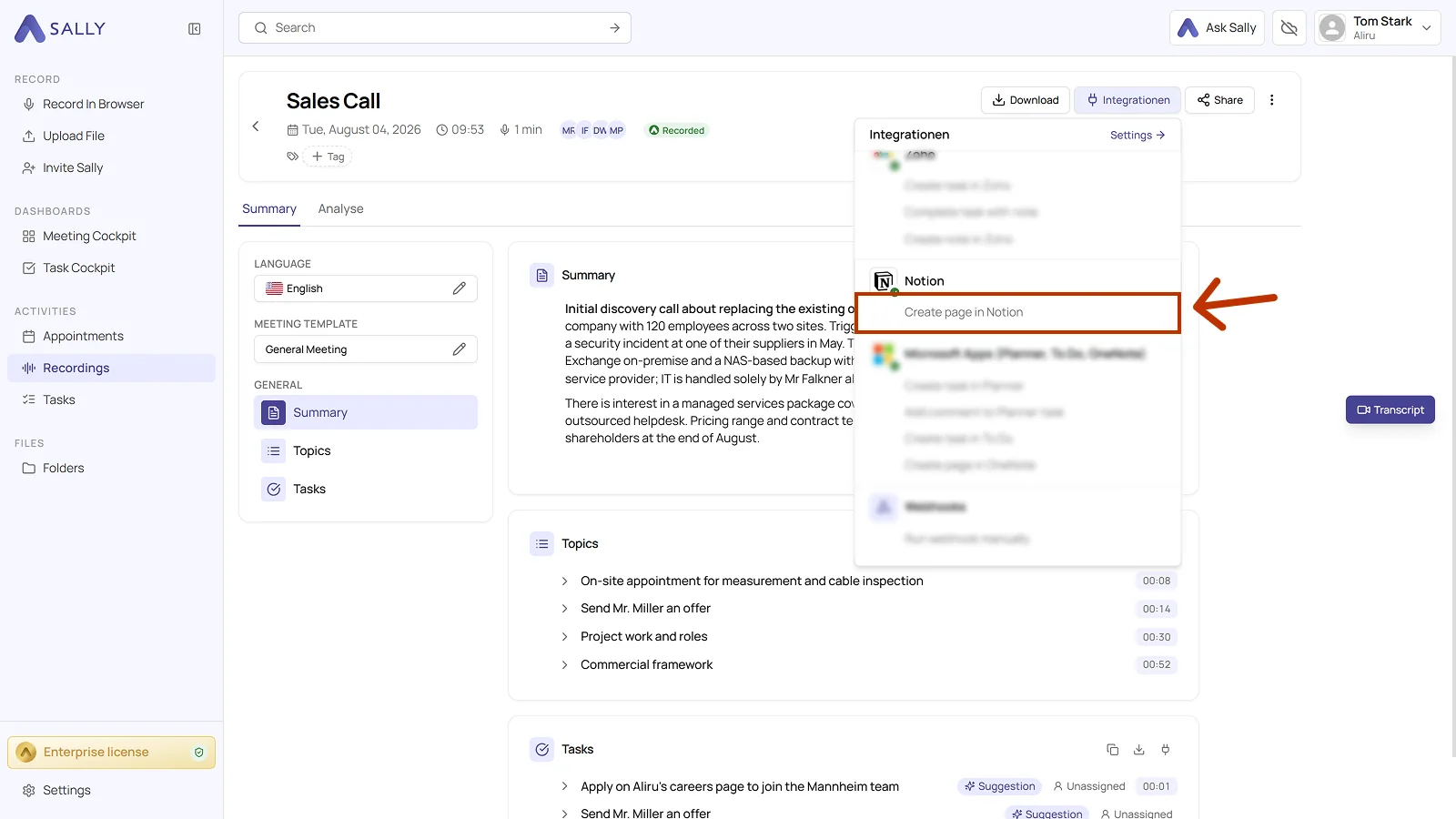
- Click Integrations in the top right corner and choose Create page in Notion under Notion.
- The Create page in Notion dialog holds the complete summary: the running text plus topics, decisions, and tasks. You can adjust the text in the editor before it is transferred.
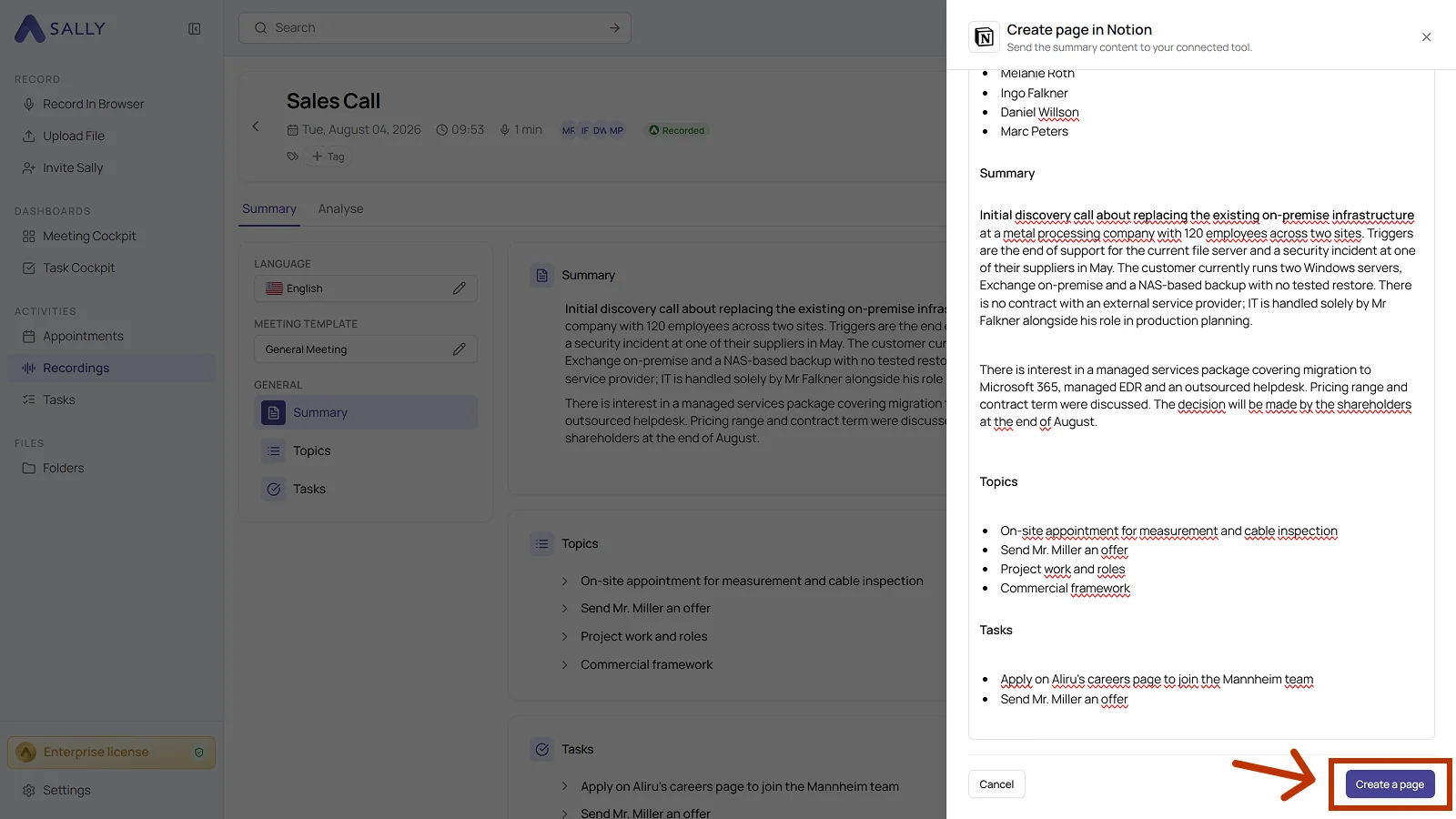
- Click Create a page to create the page in Notion.
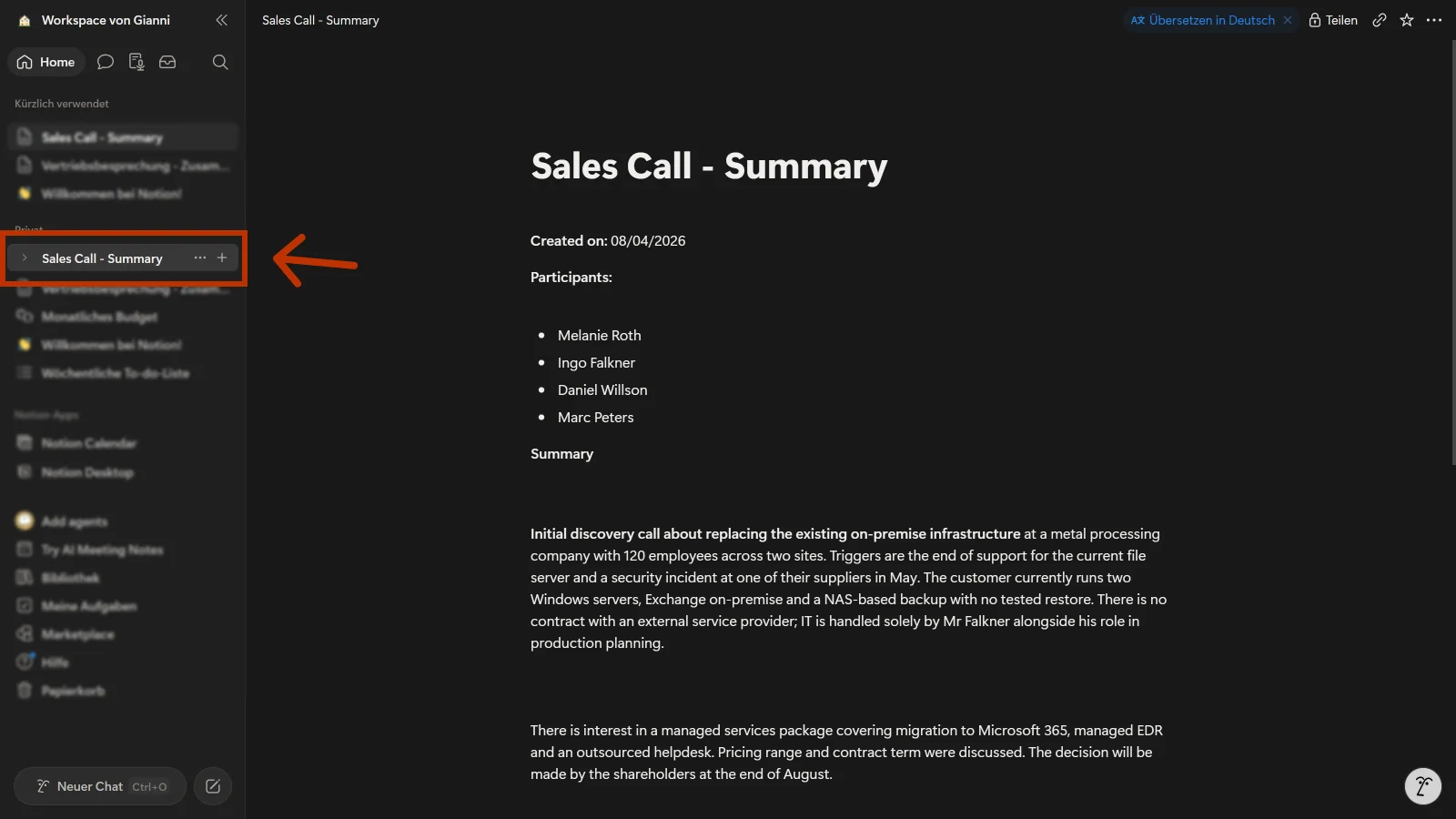
- You then find the page in your connected Notion workspace, holding the summary with its creation date, the participants, and all sections.
Use the dialog to tidy up the summary before the export: sharpen the tasks, add owners, or bring in context. Notion then holds exactly the version your team should read.
3. What permissions does the Notion integration require?
For the Notion integration, Sally uses the official Notion integration authorization. The following permissions define which areas Sally can access on behalf of the user.
-
Sally reads this information solely to technically establish and maintain the connection to the Notion workspace.
-
Sally does not make autonomous changes in Notion. Content is only created or modified when the user explicitly triggers an action within Sally.
-
API endpoints are only called as part of an active action initiated by the user within the platform.
Technical overview of the required permissions
| Capability | What Notion technically allows | How Sally uses this permission |
|---|---|---|
Read content | Access to content within Notion pages and databases | Sally can read content to structure meeting insights within existing Notion pages or databases. |
Update content | Update existing content | Sally can update content on a page if the user exports meeting results to an existing page. |
Insert content | Create new content or pages | Sally creates new Notion pages or inserts content such as meeting summaries, tasks, or decisions. |
Read comments | Access comments within Notion pages | Technically required when comments exist on Notion pages. Sally does not actively process these comments for its own purposes. |
Insert comments | Create new comments | Sally can optionally add comments if meeting results should be documented as comments. |
Read user information including email addresses | Access basic user information including the email address | Sally uses this information solely to uniquely associate the authorized Notion account. No further processing occurs outside authentication. |