Transcription explained
A transcript is a written record of everything that was said during a meeting, call, or audio/video recording. Instead of listening to the full conversation again, you can read it, search for specific statements, and use it as a reliable source of documentation.
Sally automatically creates highly accurate transcriptions using advanced AI-based speech recognition. Depending on audio quality and conditions, Sally achieves a transcription accuracy of up to 98.8% and supports more than 35 languages. Transcripts are the foundation for summaries, tasks, decisions, and further AI-driven insights.
Quick Navigation
1. How transcriptions are created
1.1. Audio capture and processing
Transcriptions are created from audio sources that come either from live meetings (for example via microphone input or supported meeting platforms) or from manually uploaded audio and video files, which do not necessarily have to be linked to a scheduled meeting.
Regardless of the source, Sally first extracts the audio track and prepares it for further processing. This includes normalizing volume levels, reducing background noise, and optimizing speech clarity to ensure the best possible transcription quality.
1.2. Speech-to-text transcription
Once the audio is prepared, Sally uses advanced speech-to-text models to convert spoken language into written text. These models analyze sound waves, identify speech patterns, and map them to words, punctuation, and sentence structures.
The transcript is always created in the language spoken during the recording, ensuring an accurate representation of what was actually said.
The transcript always matches the spoken meeting language. Summaries, however, are generated in your personal language settings. You can change your language preferences here.
1.3. Continuous improvement & data protection
Sally continuously improves transcription quality by refining its speech recognition technology. Improvements include better handling of accents, speaking speed, terminology, and sentence flow.
Sally never uses customer recordings or transcripts to train its AI models.
All AI training is performed exclusively on proprietary and licensed datasets, ensuring full data privacy and compliance.
2. Where to find transcriptions
You can access your transcriptions in two main places.
2.1. Within the appointment
- Open the desired meeting in Sally.
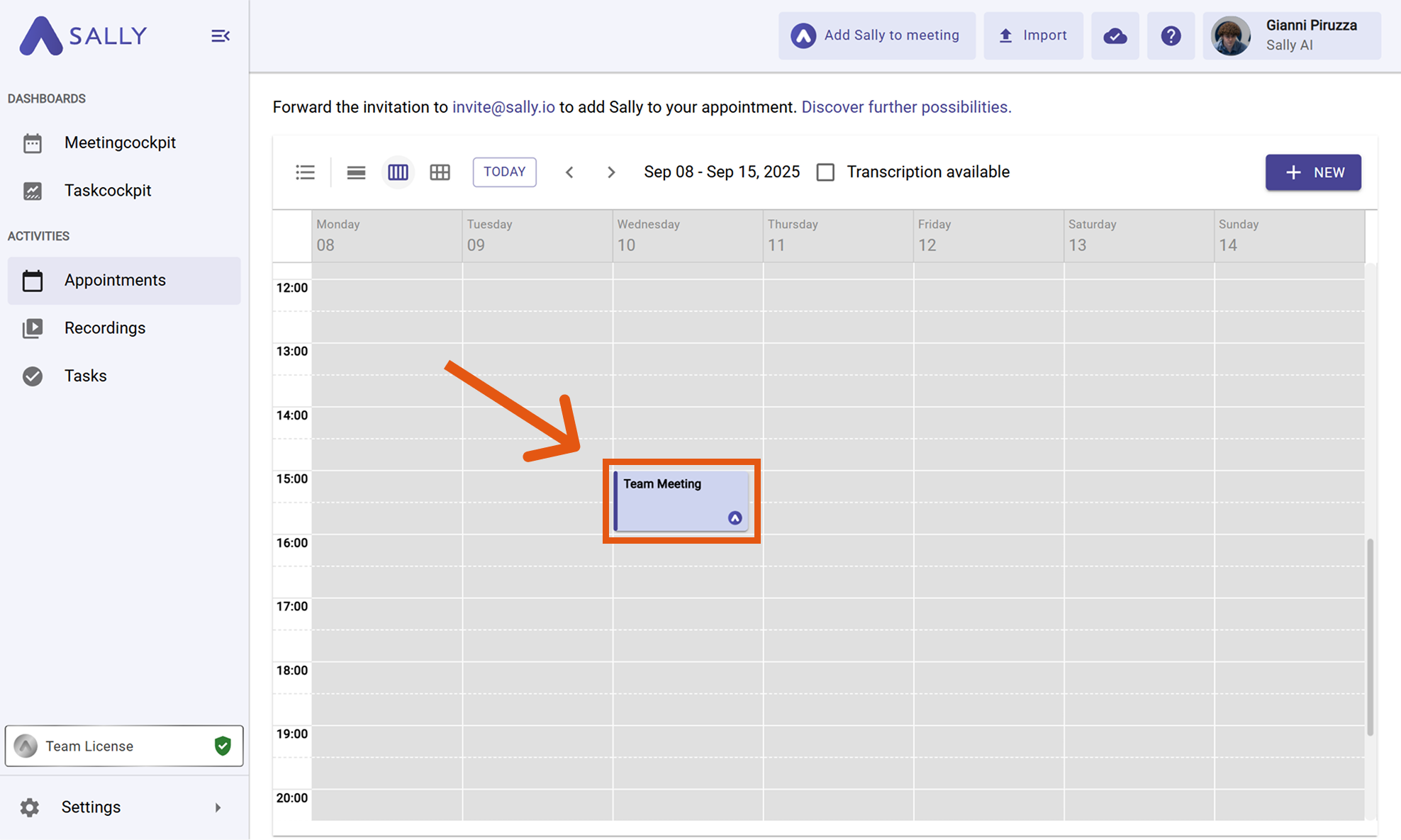
- Switch to the Transcript tab.
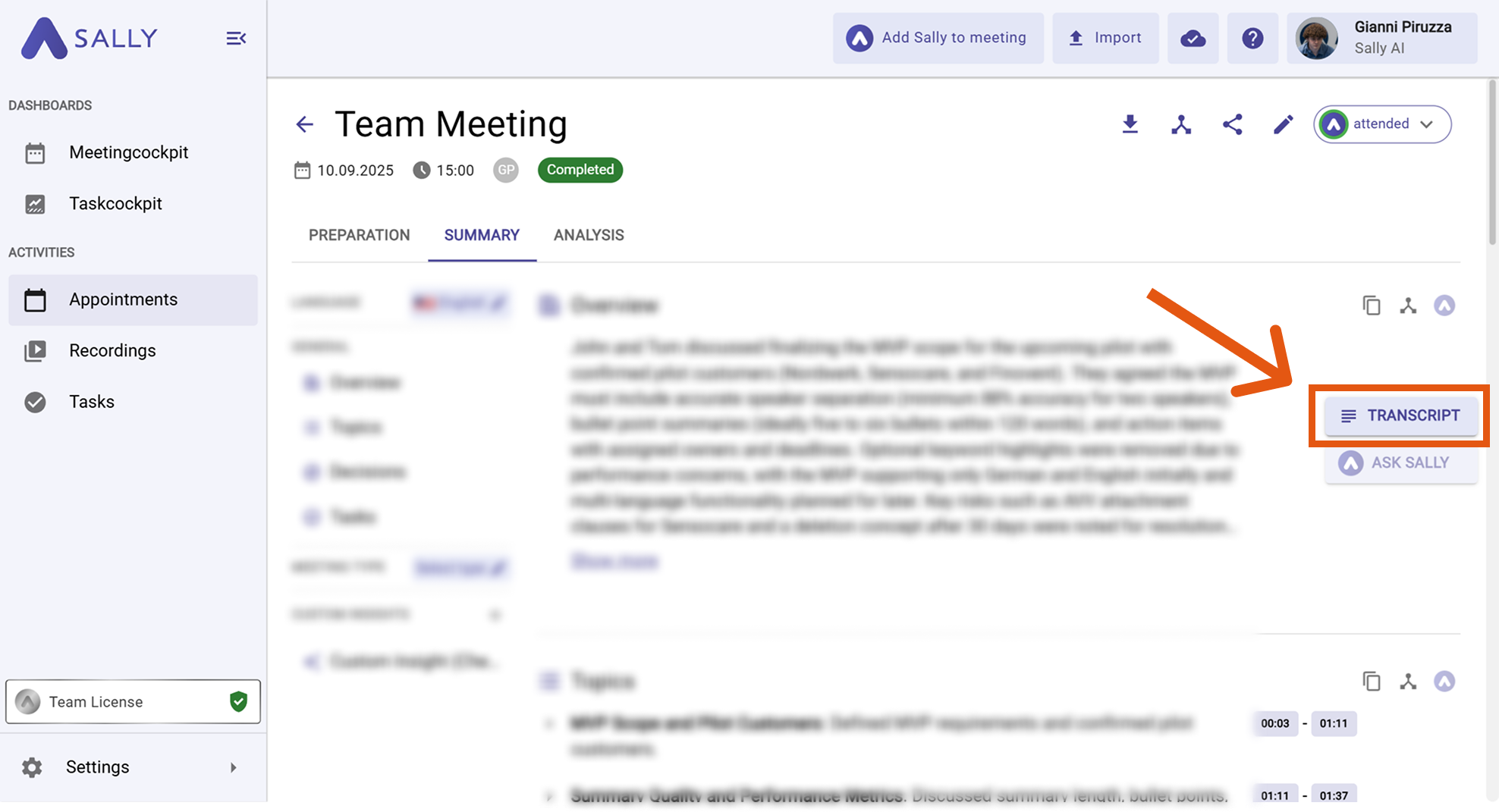
After opening the transcript, a right-hand sidebar appears. In this sidebar, you’ll find the full transcript as well as the corresponding audio or video recording (if these are enabled in your settings).
2.2. In the Recordings section
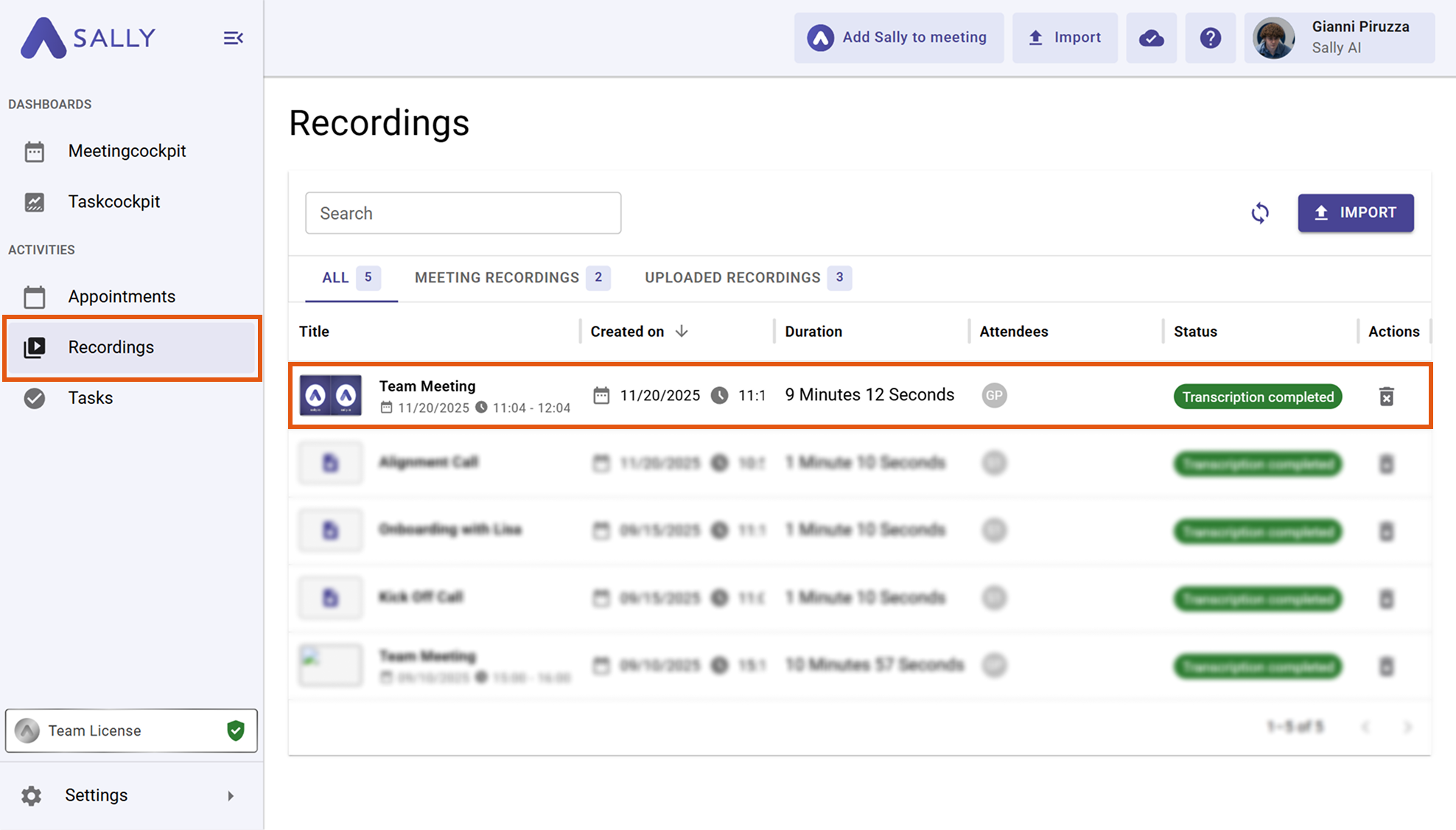
- Go to the Recordings tab.
- Click on the recording you want to review.
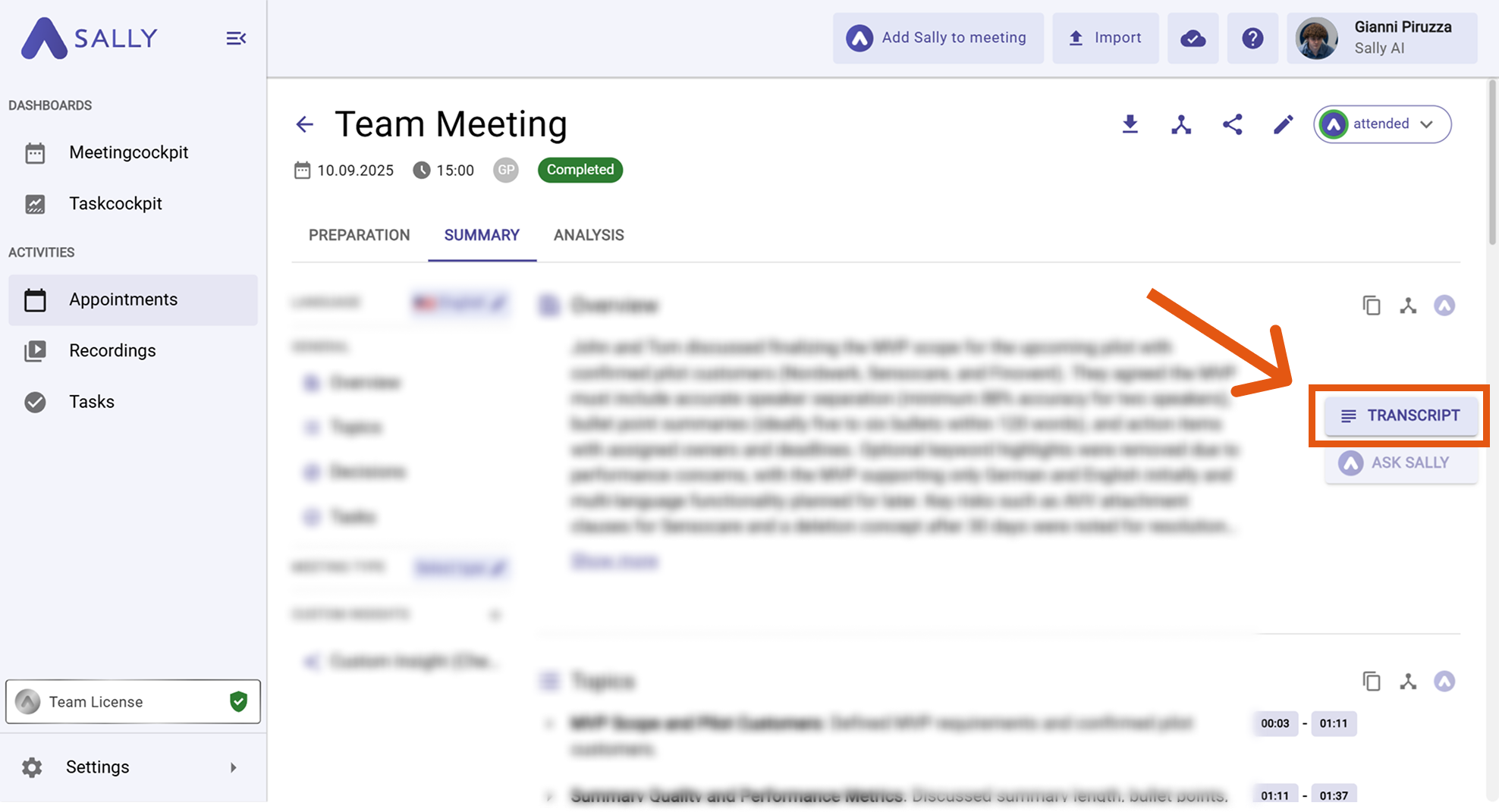
- Switch to the Transcript tab.
3. Transcription limits
To ensure reliable performance and fair usage, the following limits apply.
3.1. Usage limits
| Limit type | Details |
|---|---|
| Maximum recording length | Up to 10 hours per audio or video |
| Maximum upload size (Starter) | Up to 1 GB |
| Maximum upload size (Pro) | Up to 5 GB |
| Maximum upload size (Enterprise) | Up to 5 GB |
3.2. Supported upload formats
Sally supports a wide range of common audio and video formats.
| Type | Supported formats |
|---|---|
| Video | mp4, mkv, avi, mov, webm |
| Audio | mp3, aac, wav, flac, ogg, amr, m4a, opus |
Transcriptions ensure that every spoken word can be revisited, searched, and reliably documented – whether for quick reviews or detailed follow-up work.