How to Integrate awork with Sally AI
Connect Sally AI with awork to turn meeting insights into real work – directly in the right project and task list. With the Sally–awork integration you can create tasks, add comments, update statuses, and log time entries with one click, avoid double entry, and keep your projects up to date.
Quick Navigation
1. How do I connect awork with Sally AI?
Follow these steps to enable the Sally–awork integration.
-
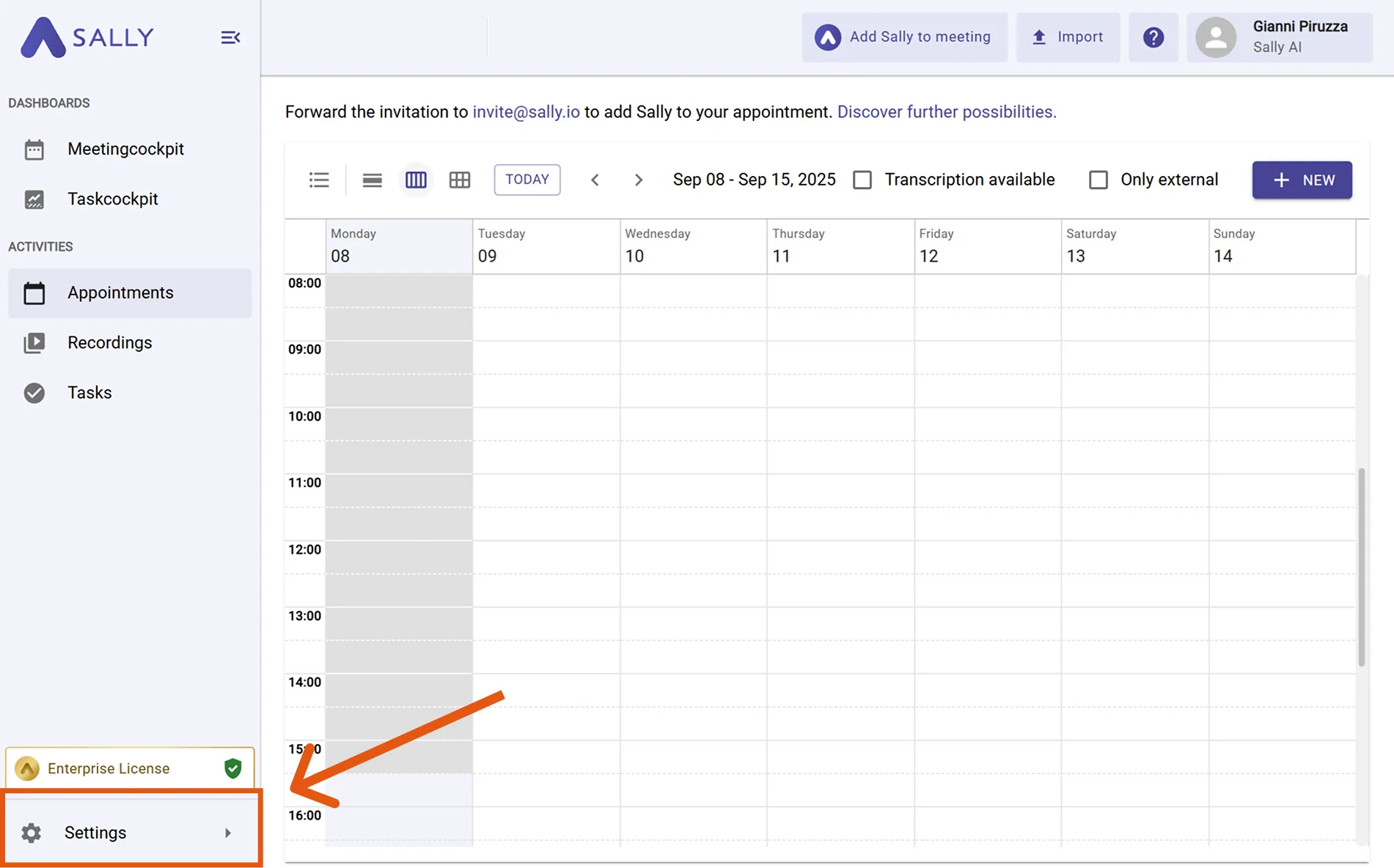
Open Settings in the left sidebar.
Figure 1: Go to Settings -
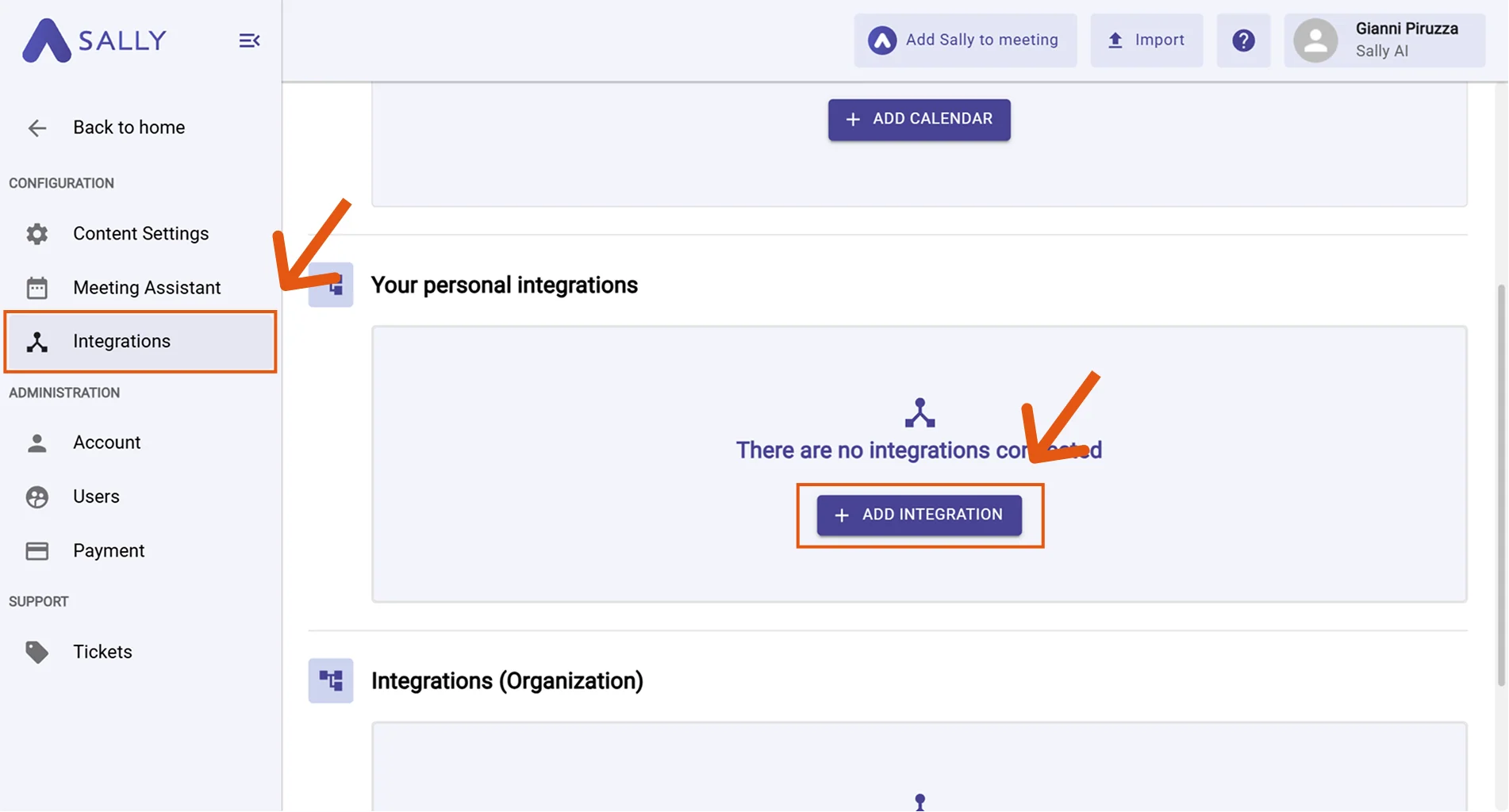
Go to Integrations and click "+ Add integration" under "Your personal integrations."
Figure 2: Add integration -
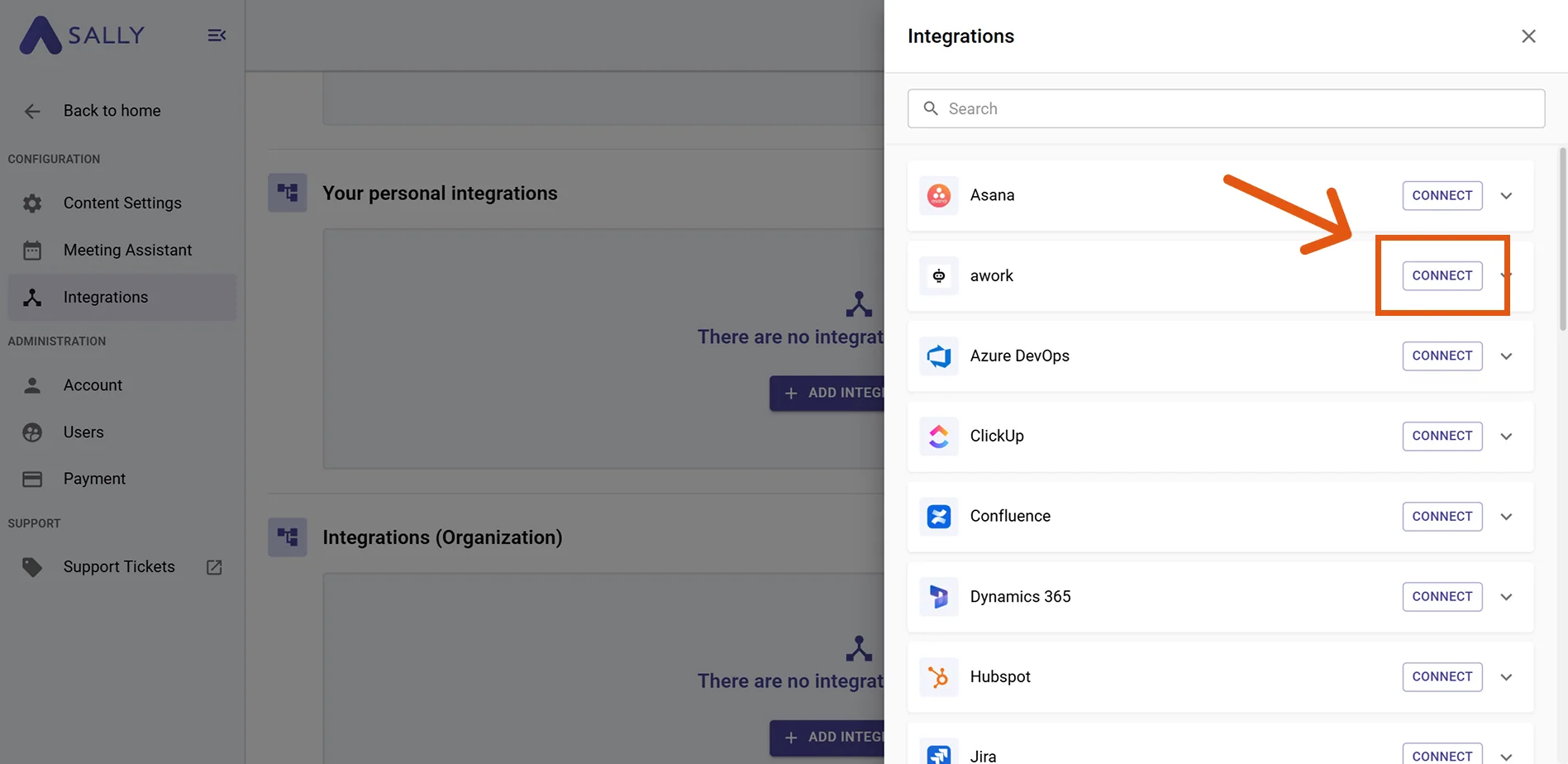
Select awork and hit Connect. Complete the authorization flow in awork.
Figure 3: Select awork → Connect -
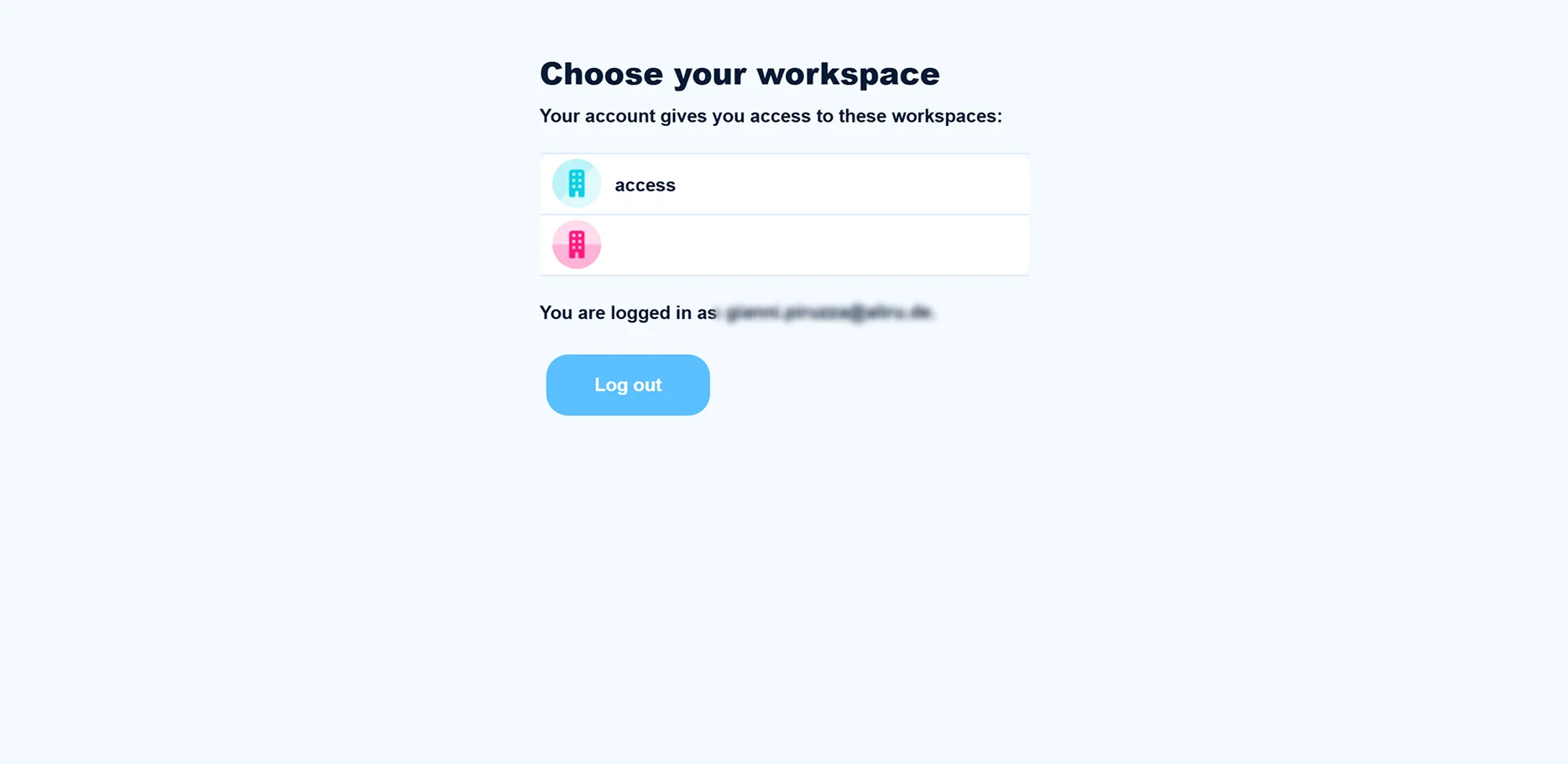
Log in with your awork account and select the appropriate workspace during the login process that you want to connect with Sally.
Important note on workspace selectionThe integration is set up only for the selected workspace. If you work with multiple workspaces, make sure to choose the correct one here—otherwise, the connection will not be available in other workspaces.
Figure 4: Select workspace during awork login -
After a successful connection, awork will appear under “Your personal integrations”.
2. How do I send meeting insights to awork?
Once awork is connected, you can send meeting insights from Sally to awork with a single click - so they land in the right project and task list.
You can:
- Create a task in awork
- Add a comment in awork
- Change a task status in awork
- Create a time entry in awork
- Create task → New, owned work item with assignee, task list, and due date.
- Add comment → Additional context on an existing task, without creating new items.
- Change task status → Update the progress of an existing task without creating new items.
- Create time entry → Log time spent directly from the meeting context.
2.1. Create a task in awork
Turn a Sally insight into a brand-new task in awork.
-
Open the desired meeting in Sally.
-
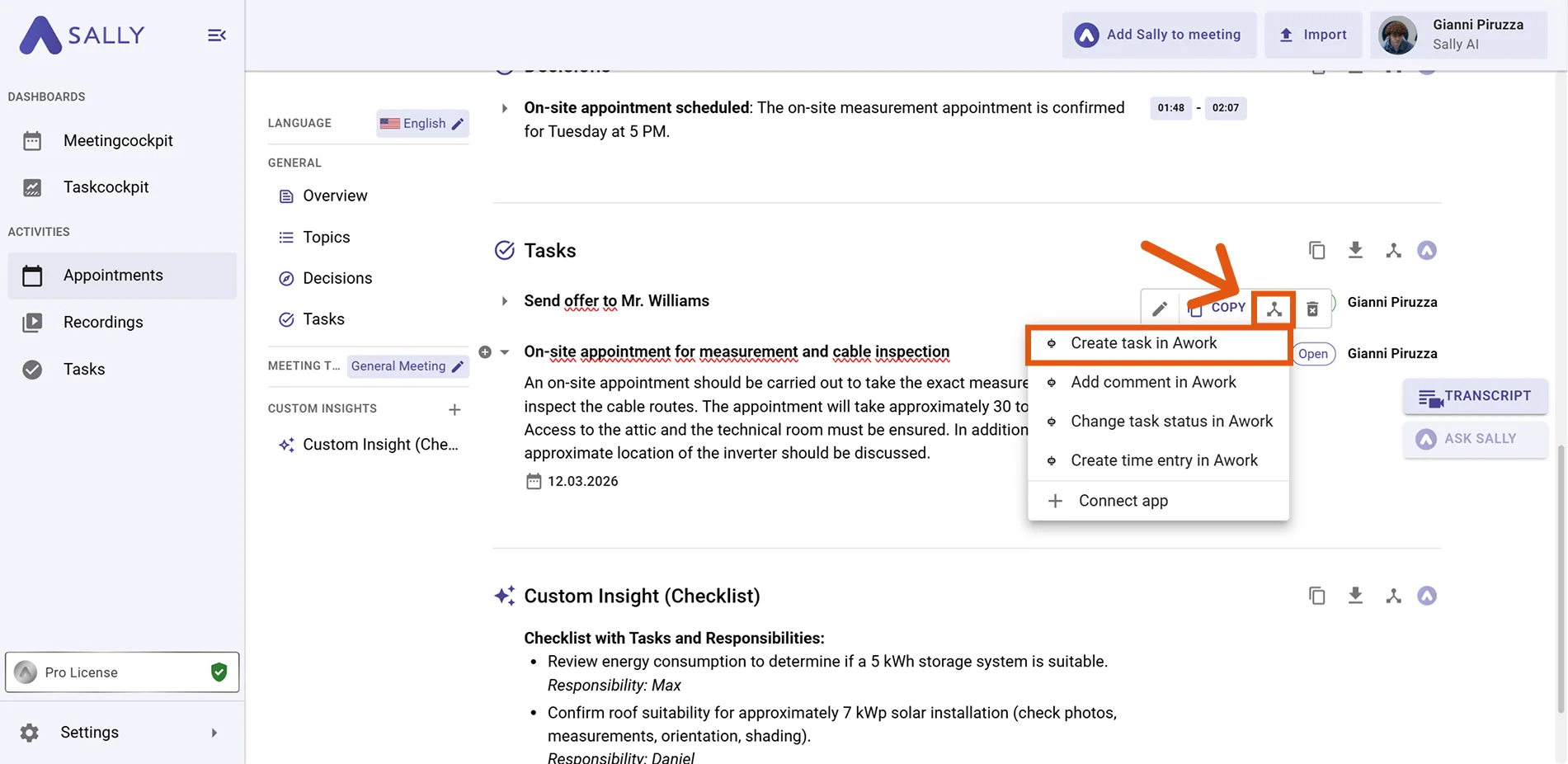
Hover any insight, decision, or task in the summary, click the awork icon, then choose "Create task in awork."
Figure 5: Choose Create task in awork -
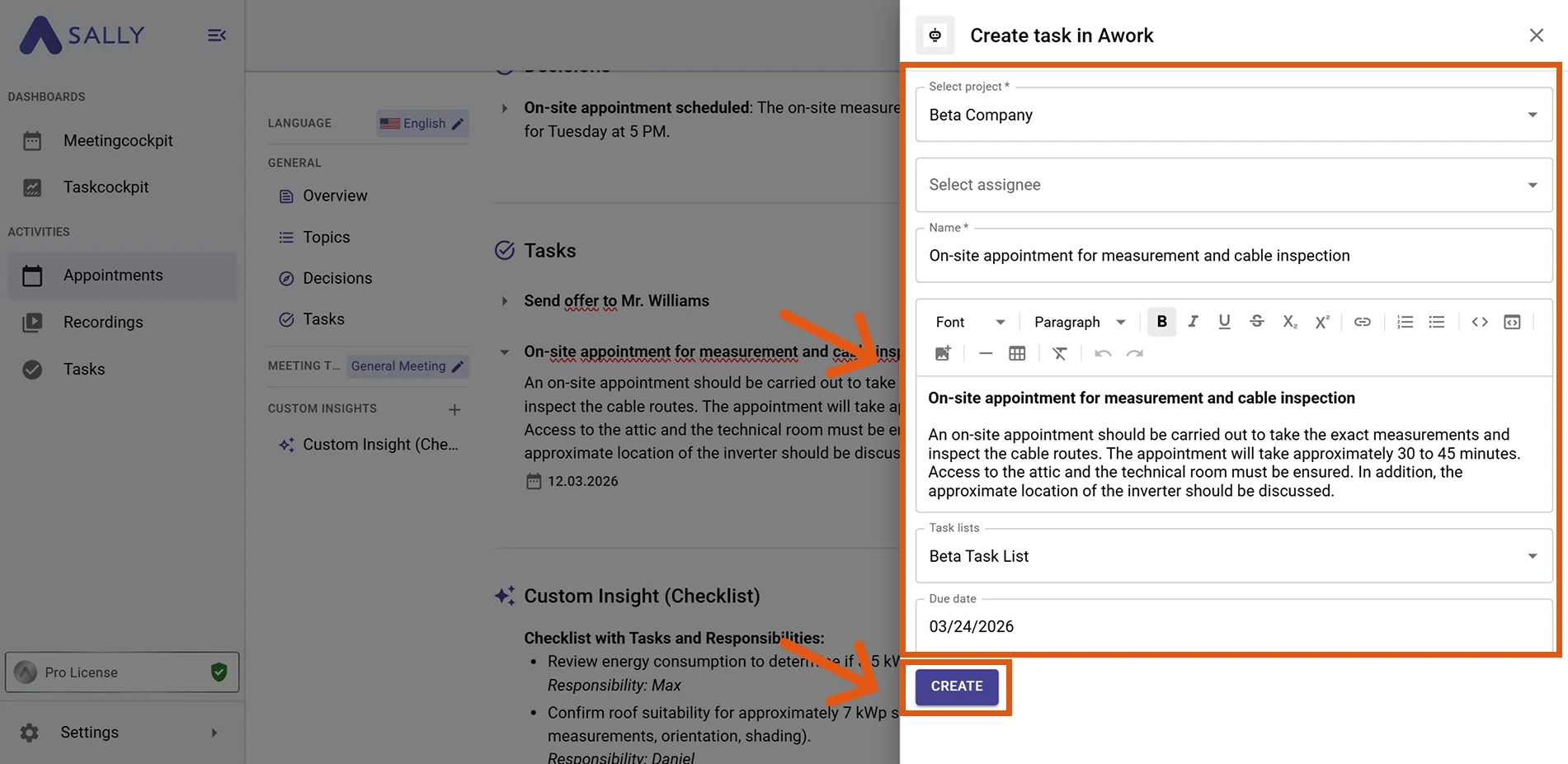
Fill in the creation form (required fields are marked with
*). Typically:- Project* (e.g., the relevant client or team project)
- Assignee (recommended)
- Name* (prefilled from Sally – editable)
- Description (prefilled from Sally – editable)
- Task list (recommended)
- Due date (optional)
-
Click Create to send it to awork.
Figure 6: Fill the awork task fields and Create -
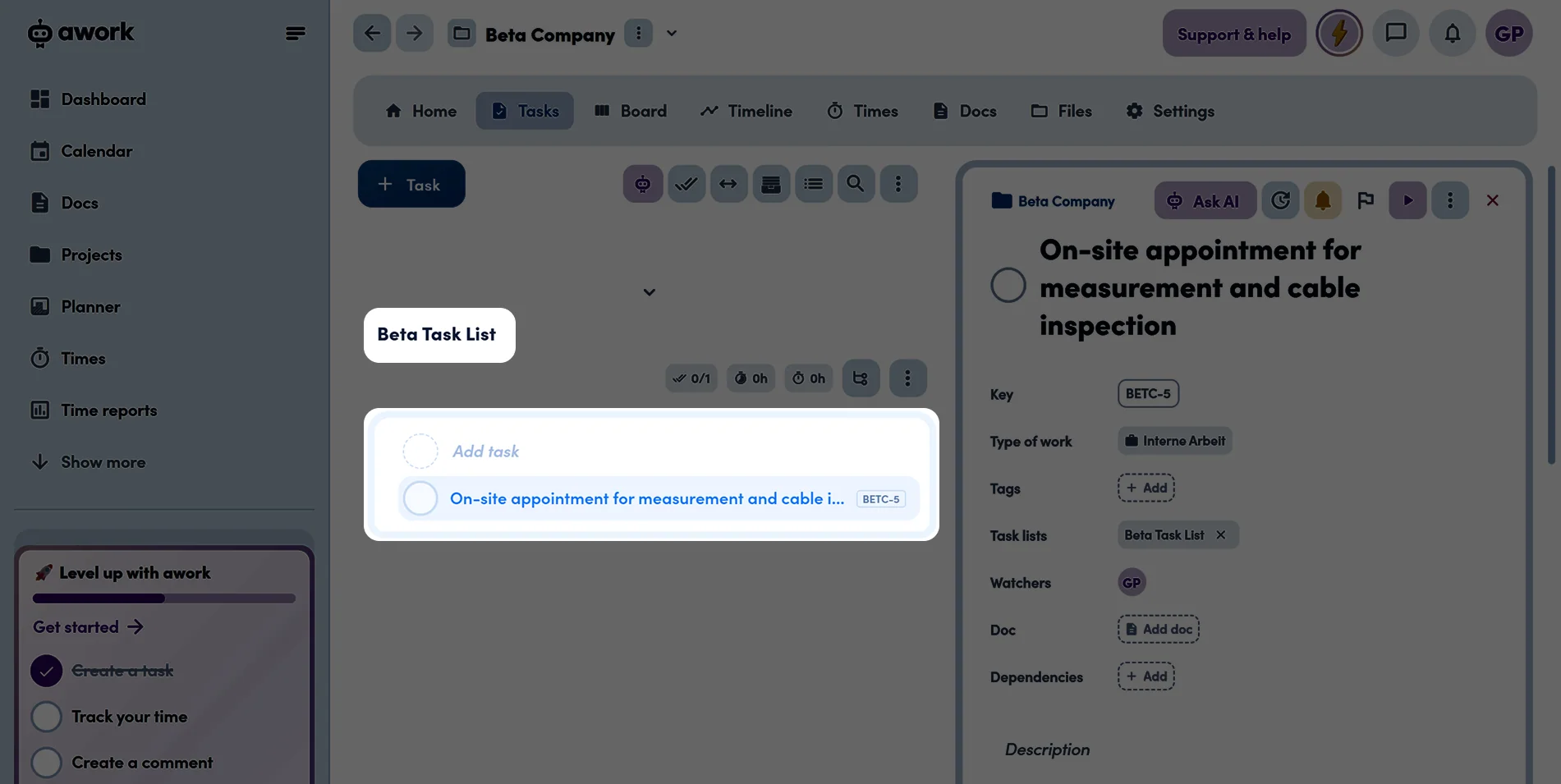
The task appears in the selected awork task list.
Figure 7: Task created in awork
Add as much context as possible (Project, Assignee, Task list, Due date). Richer tasks reduce follow-up questions and improve reporting in awork.
2.2. Add a comment in awork
Attach meeting context to an existing awork task — perfect for updates, decisions, or notes.
-
Open the desired meeting in Sally.
-
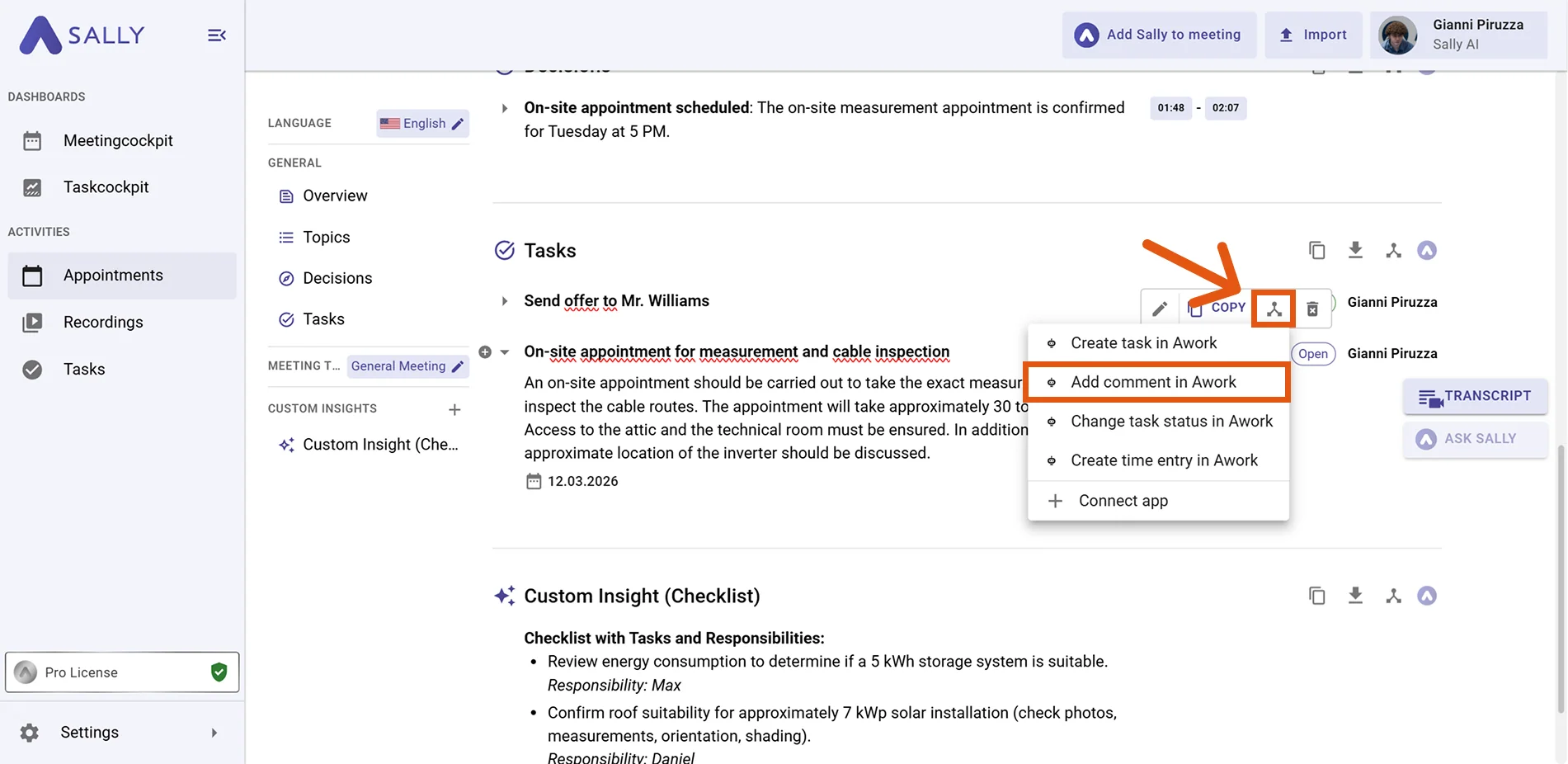
Hover any insight, decision, or task in the summary, click the awork icon, then choose "Add comment in awork."
Figure 8: Choose Add comment in awork -
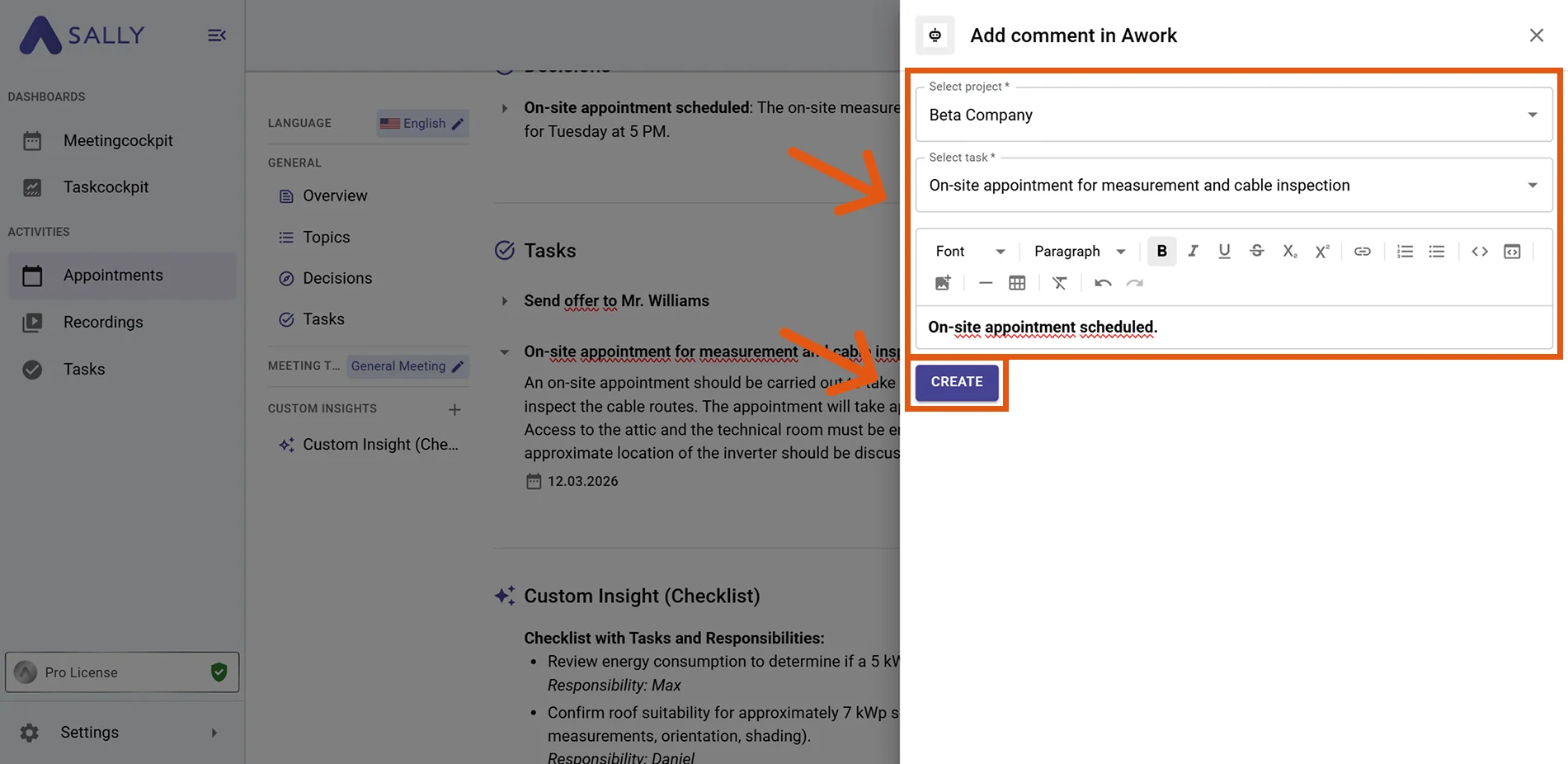
Fill in the comment form (required fields are marked with
*). Typically:- Project* (select the project containing the task)
- Task* (select the existing task to comment on)
- Comment (prefilled from Sally – editable)
-
Click Create to add the comment in awork.
Figure 9: Fill the comment fields and Create -
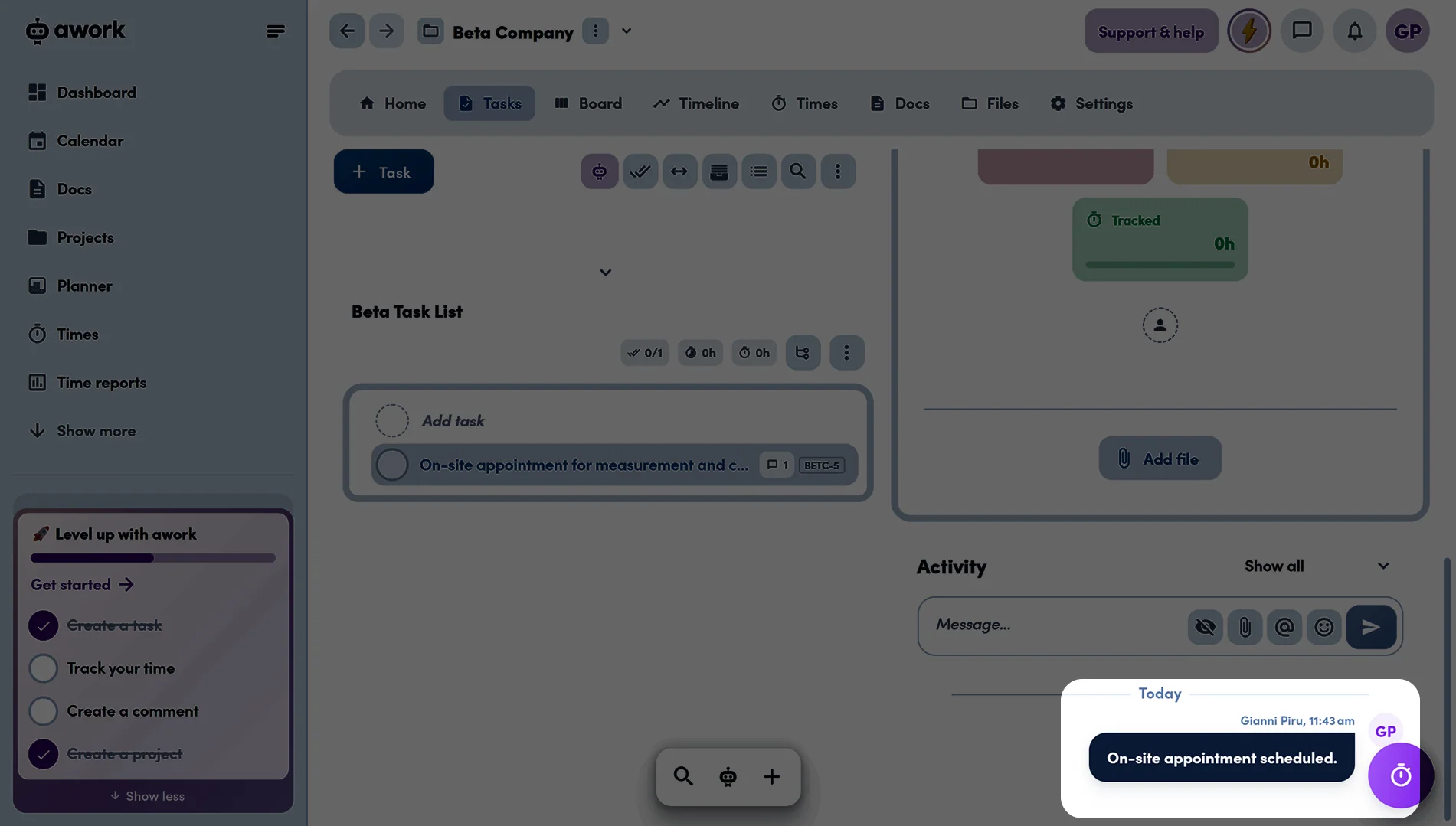
The comment appears in the Activity section of the awork task.
Figure 10: Comment added in awork
Use comments to keep existing tasks up to date with meeting outcomes — without creating duplicate work items.
2.3. Change a task status in awork
Update the status of an existing task in awork directly from a meeting — no context switching required.
-
Open the desired meeting in Sally.
-
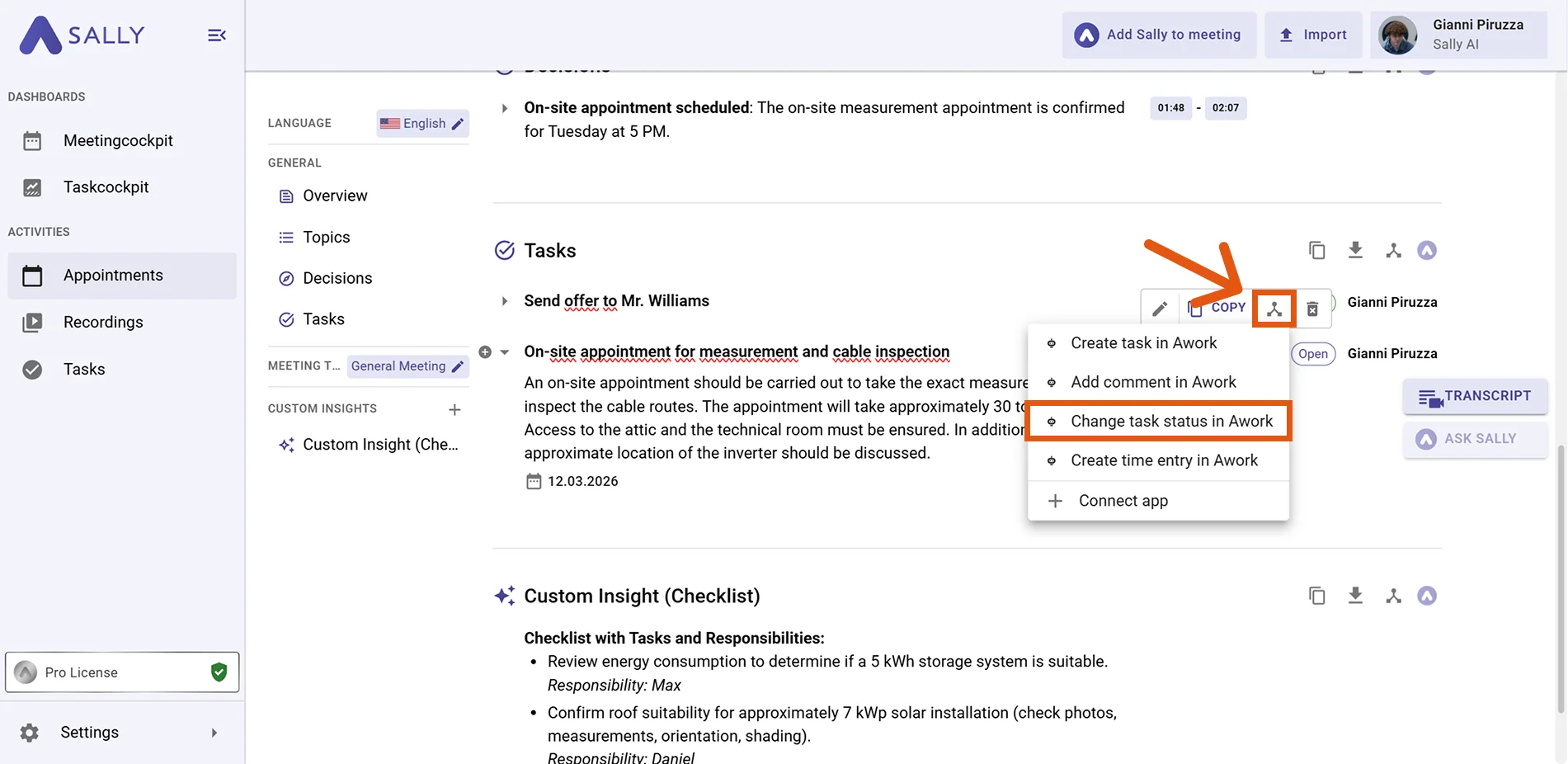
Hover any insight, decision, or task in the summary, click the awork icon, then choose "Change task status in awork."
Figure 11: Choose Change task status in awork -
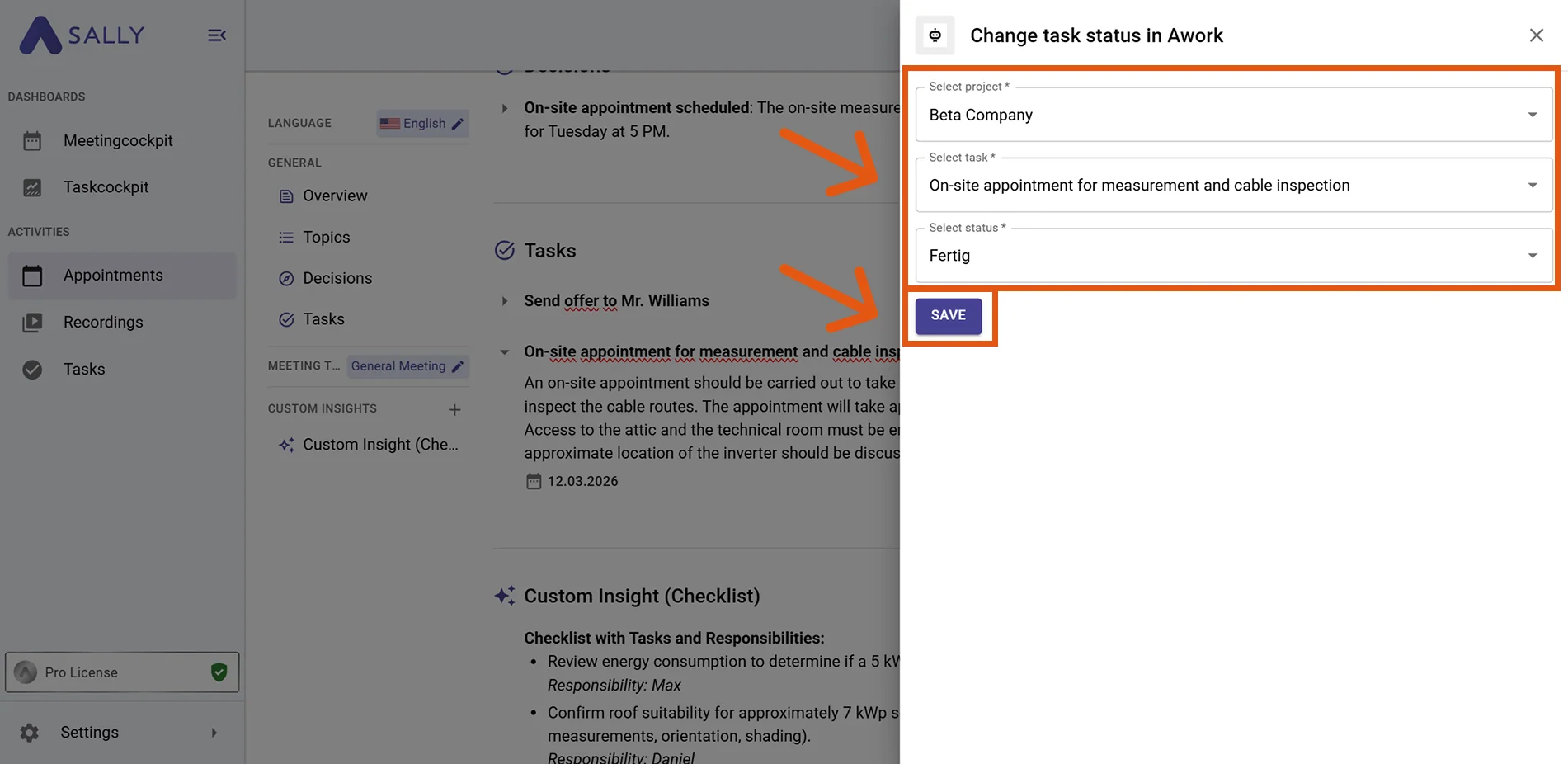
Fill in the status form (required fields are marked with
*). Typically:- Project* (select the project containing the task)
- Task* (select the task to update)
- Status* (e.g., Done / Fertig)
-
Click Save to update the status in awork.
Figure 12: Select the new status and Save -
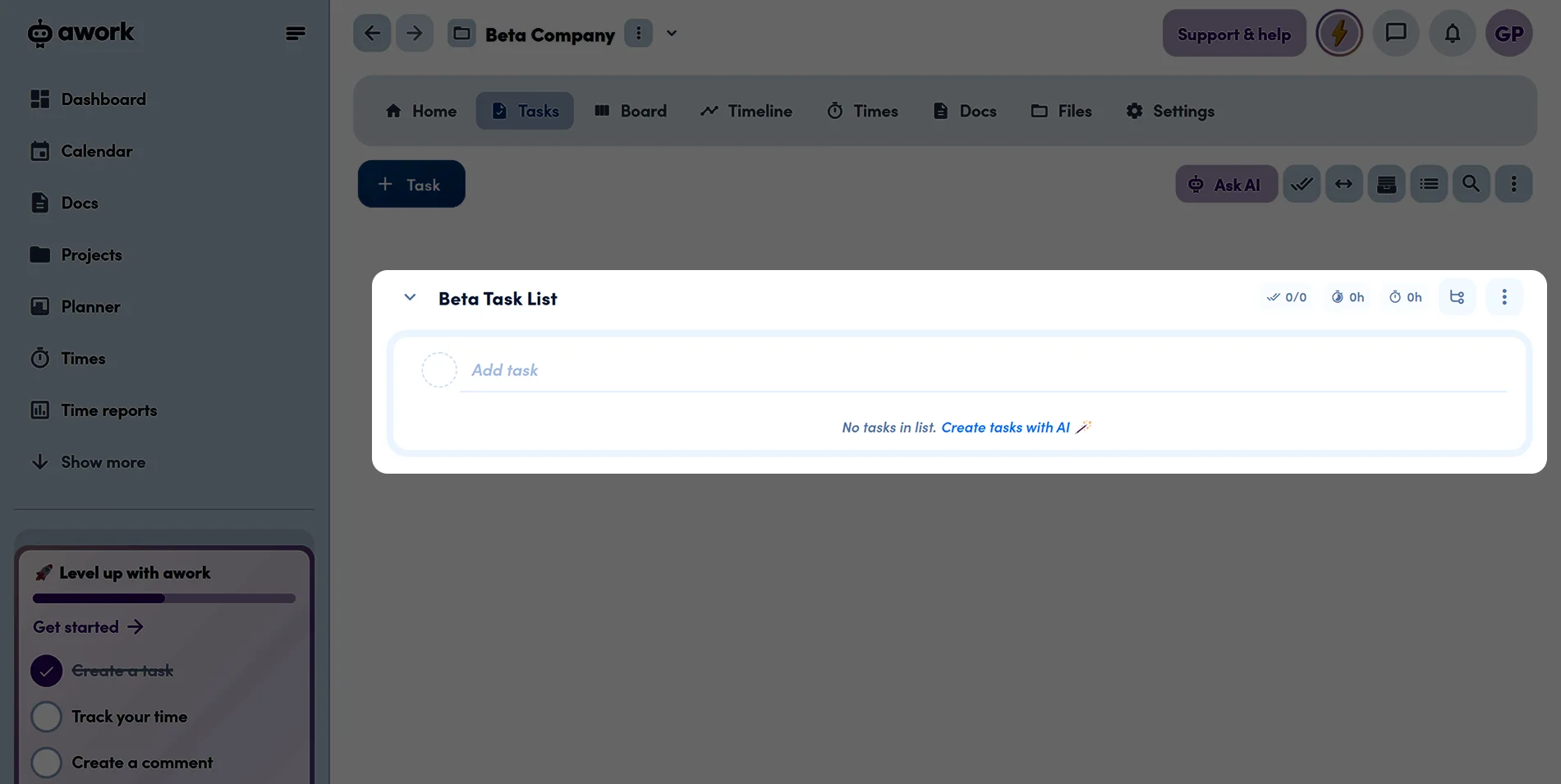
The task status is updated in awork immediately. In the example shown, the task was set to "Done" — it therefore disappears from the active task list and is marked as completed in awork.
Figure 13: Task status updated in awork
Use status updates to close out tasks that were resolved during the meeting — right from the meeting summary.
2.4. Create a time entry in awork
Log the time spent on a task directly from a Sally meeting insight — without leaving the meeting summary.
-
Open the desired meeting in Sally.
-
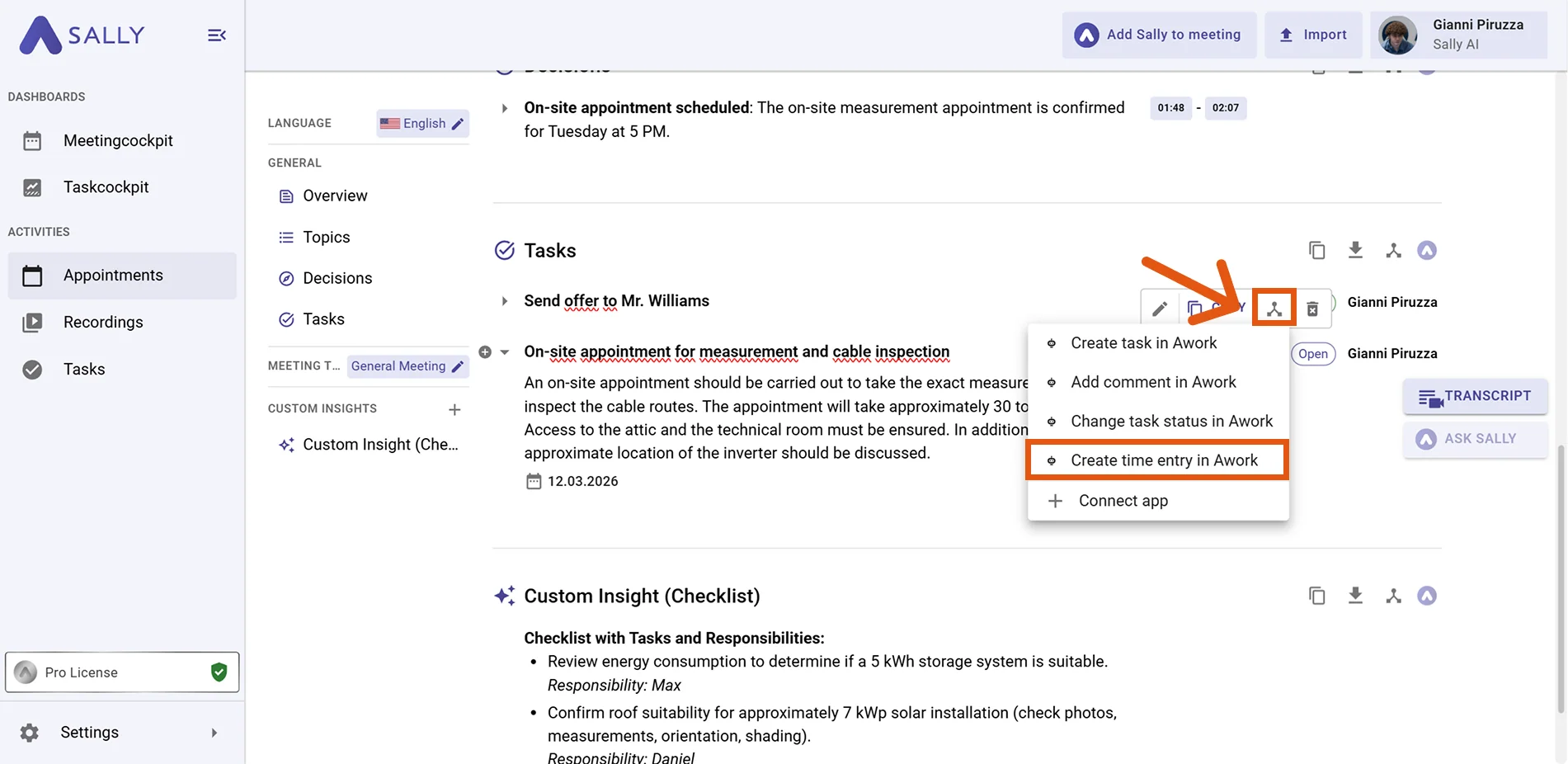
Hover any insight, decision, or task in the summary, click the awork icon, then choose "Create time entry in awork."
Figure 14: Choose Create time entry in awork -
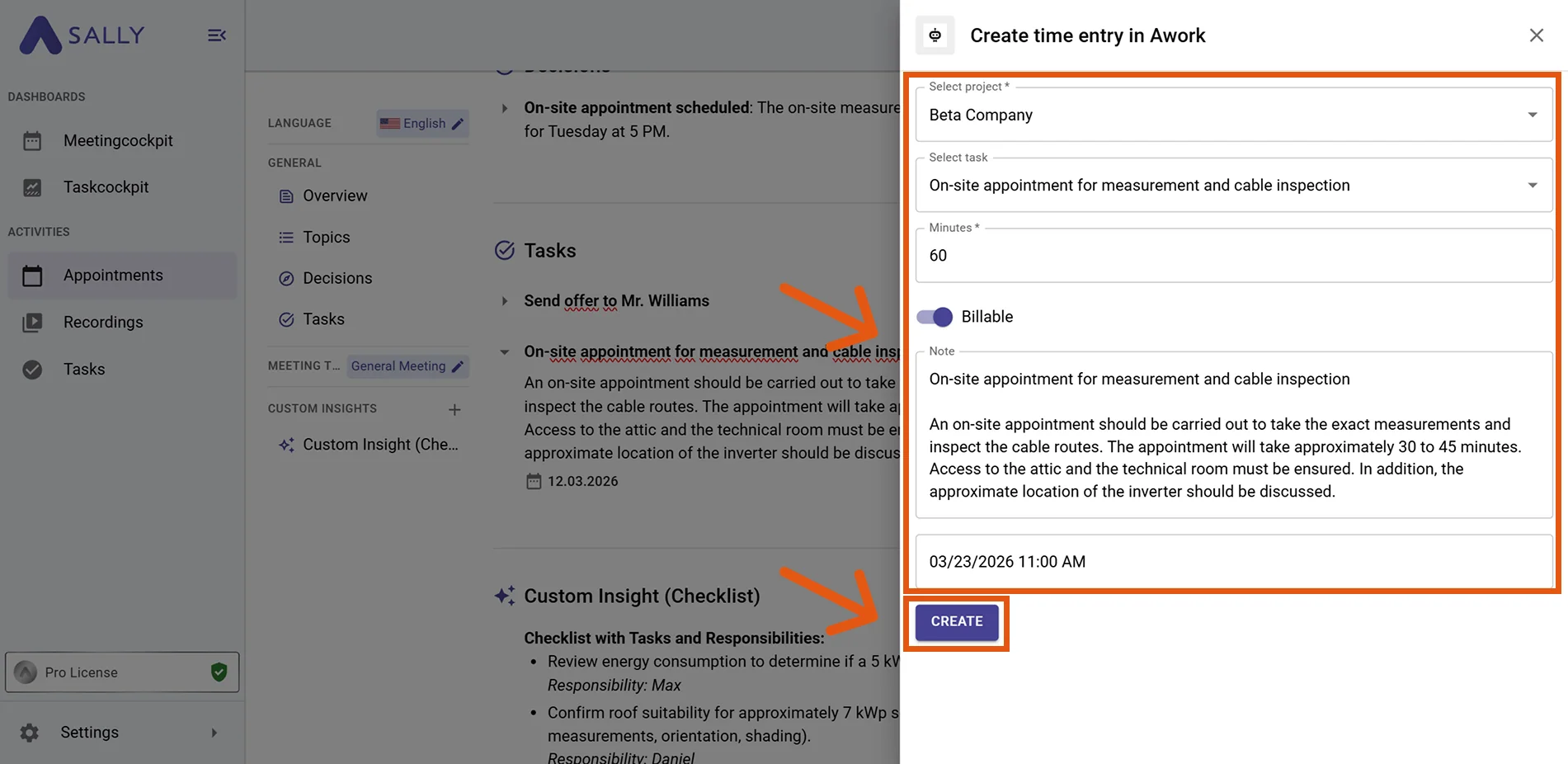
Fill in the time entry form (required fields are marked with
*). Typically:- Project* (select the relevant project)
- Task* (select the task to log time against)
- Minutes* (duration to log)
- Billable (toggle on/off as needed)
- Note (prefilled from Sally – editable)
- Date / Time (prefilled with current date and time – editable)
-
Click Create to log the time entry in awork.
Figure 15: Fill the time entry fields and Create -
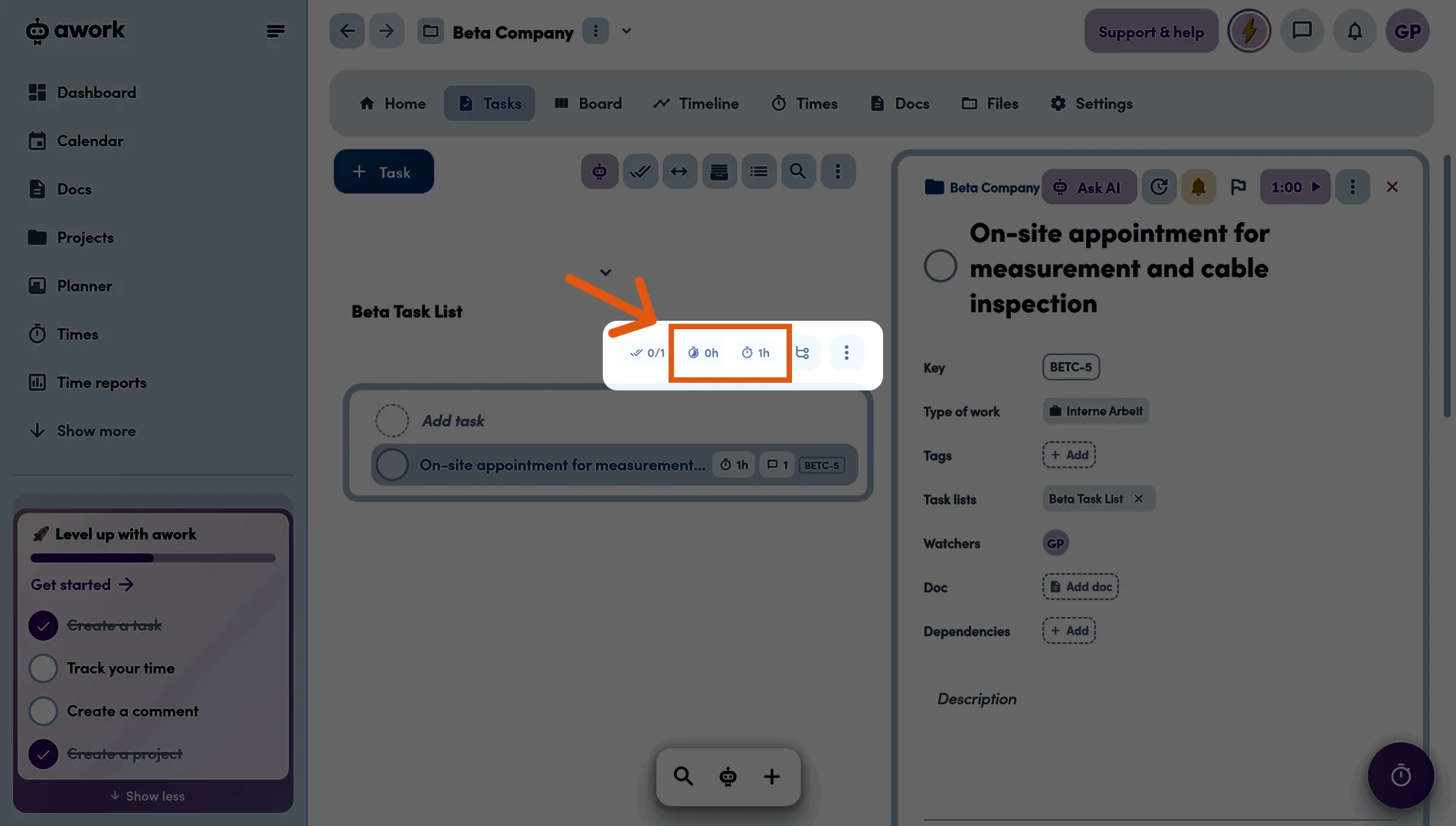
The time entry appears on the awork task, visible in the task's time tracking overview.
Figure 16: Time entry logged in awork
Log time entries immediately after the meeting while context is still fresh — and toggle Billable to keep your project billing accurate.