Odoo Integration
Connect Sally AI with Odoo to automatically store detected meeting insights directly as to-dos, activities, or chatter messages in your Odoo system.
With the Sally Odoo integration, you can transfer insights from meetings to Odoo with just one click, assign responsibilities, and keep your ERP or CRM up to date — without duplicate entries.
Quick navigation
1. Connect Odoo with Sally
Follow these steps to set up the Sally Odoo integration.
- Open Settings in the left sidebar.
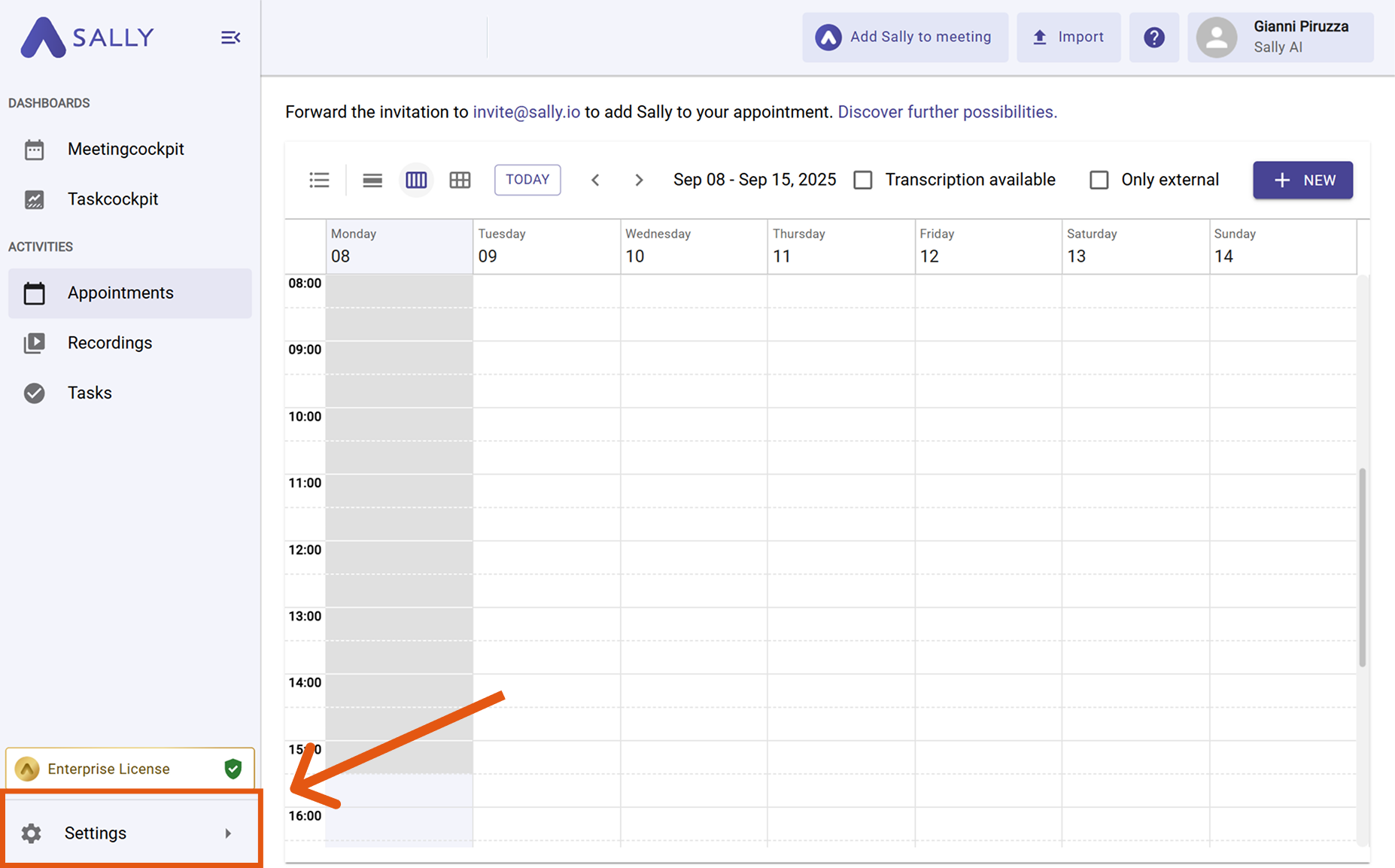
Figure 1: Go to Settings
- Go to Integrations and click “+ Add integration” under “Your personal integrations”.
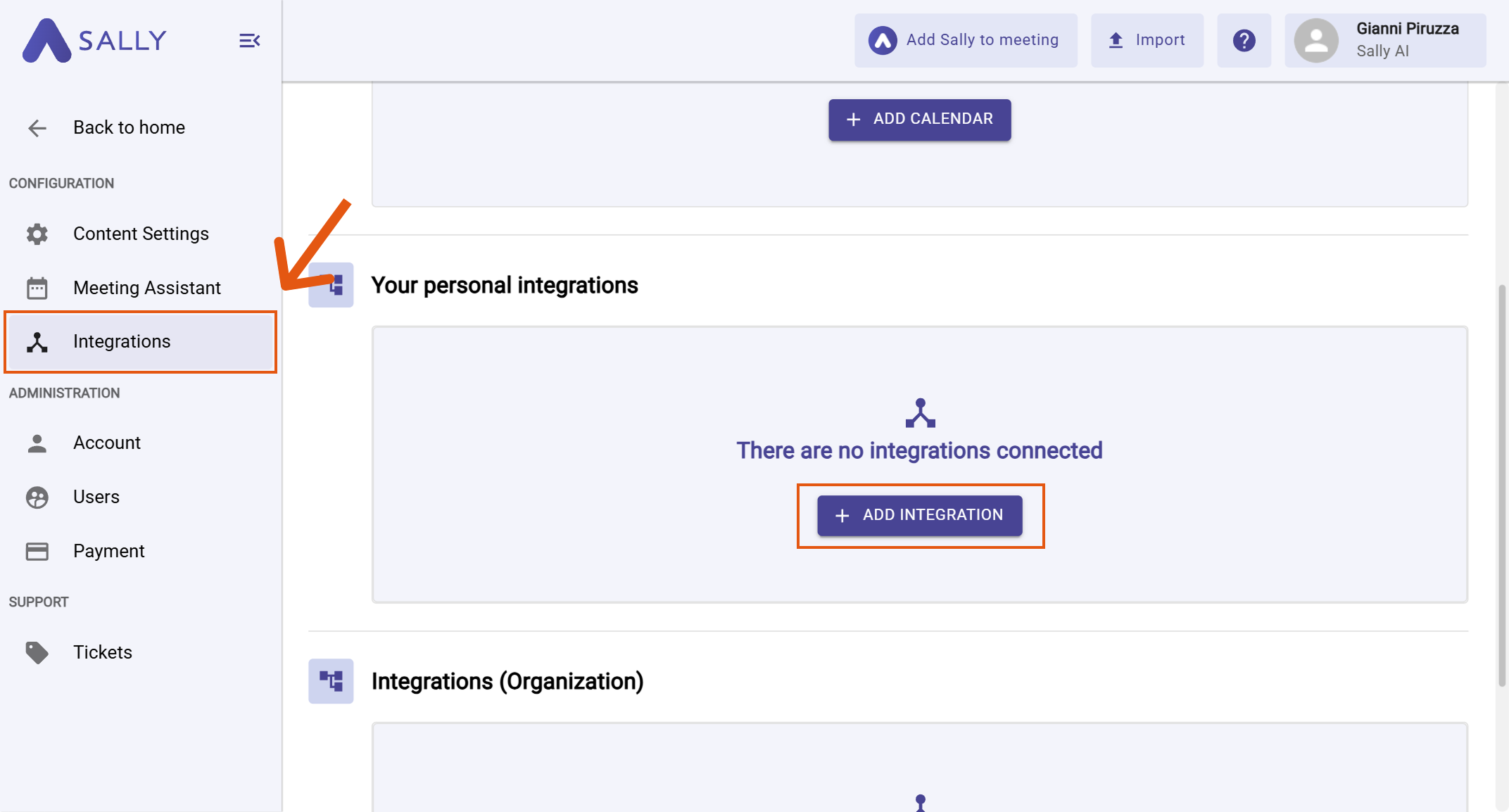
Figure 2: Add integration
- Select Odoo v19+ and click Connect.
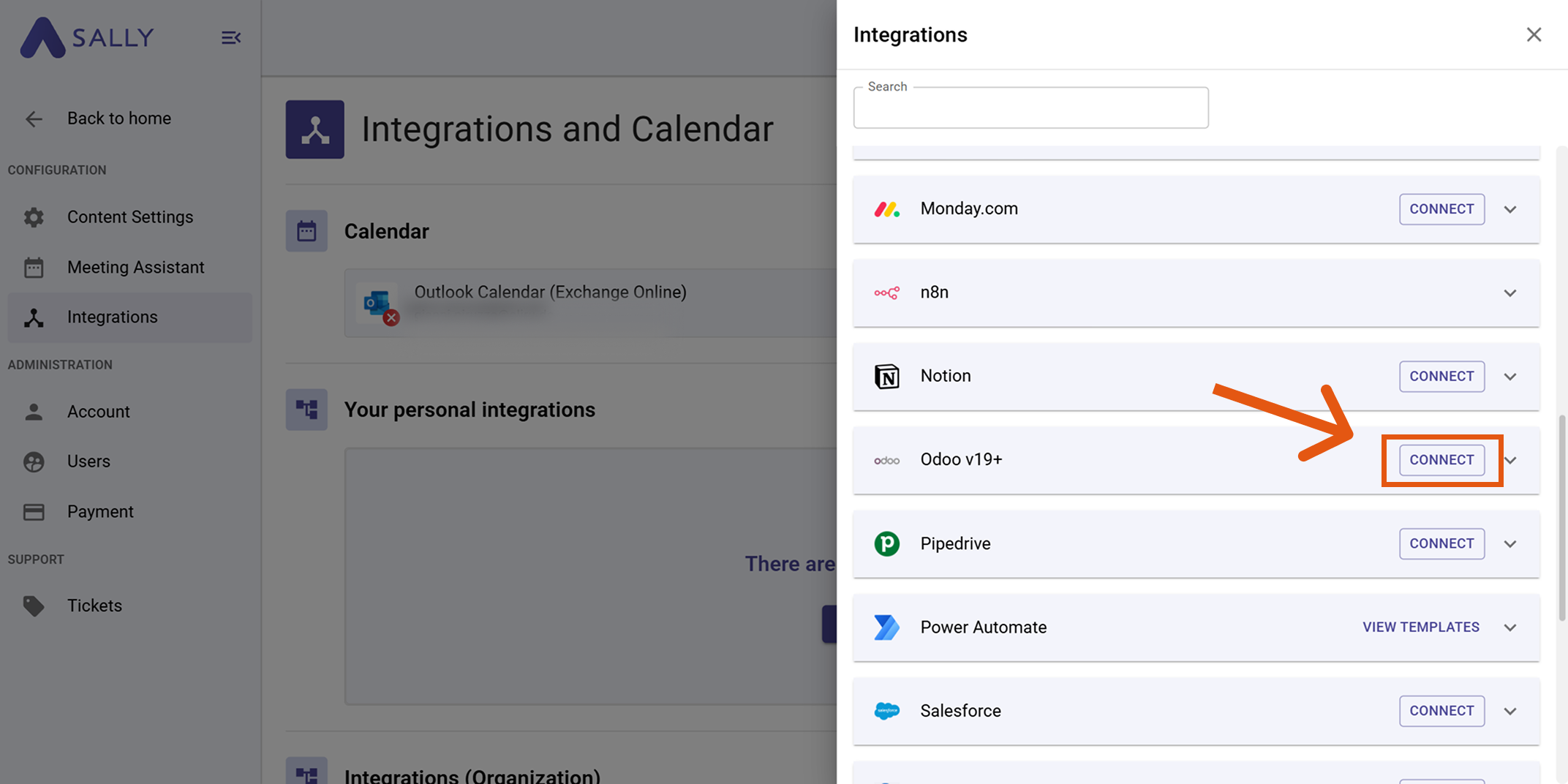
Figure 3: Connect Odoo integration
- Enter your API key and Odoo host. You can find instructions on how to create an API key in Odoo here.
The Odoo host must be entered as a plain hostname (domain).
✅ Example:
mycompany.odoo.com
❌ Incorrect:
https://mycompany.odoo.com/odoo/crm
mycompany.odoo.com/odoo/crm
Enter only the domain without https:// and without additional paths.
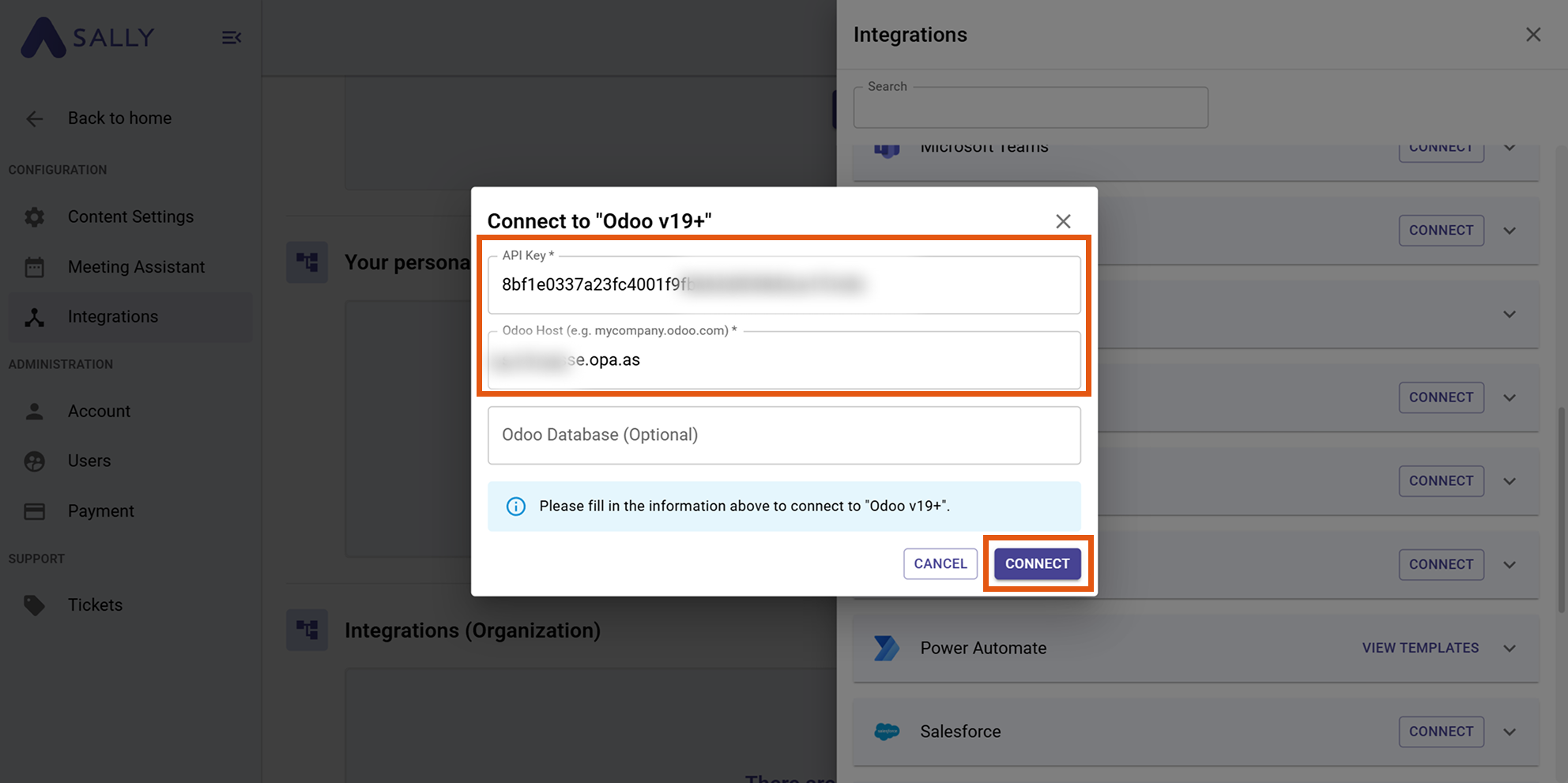
Figure 3: Connect Odoo integration
After a successful connection, Odoo will appear under “Your personal integrations.”
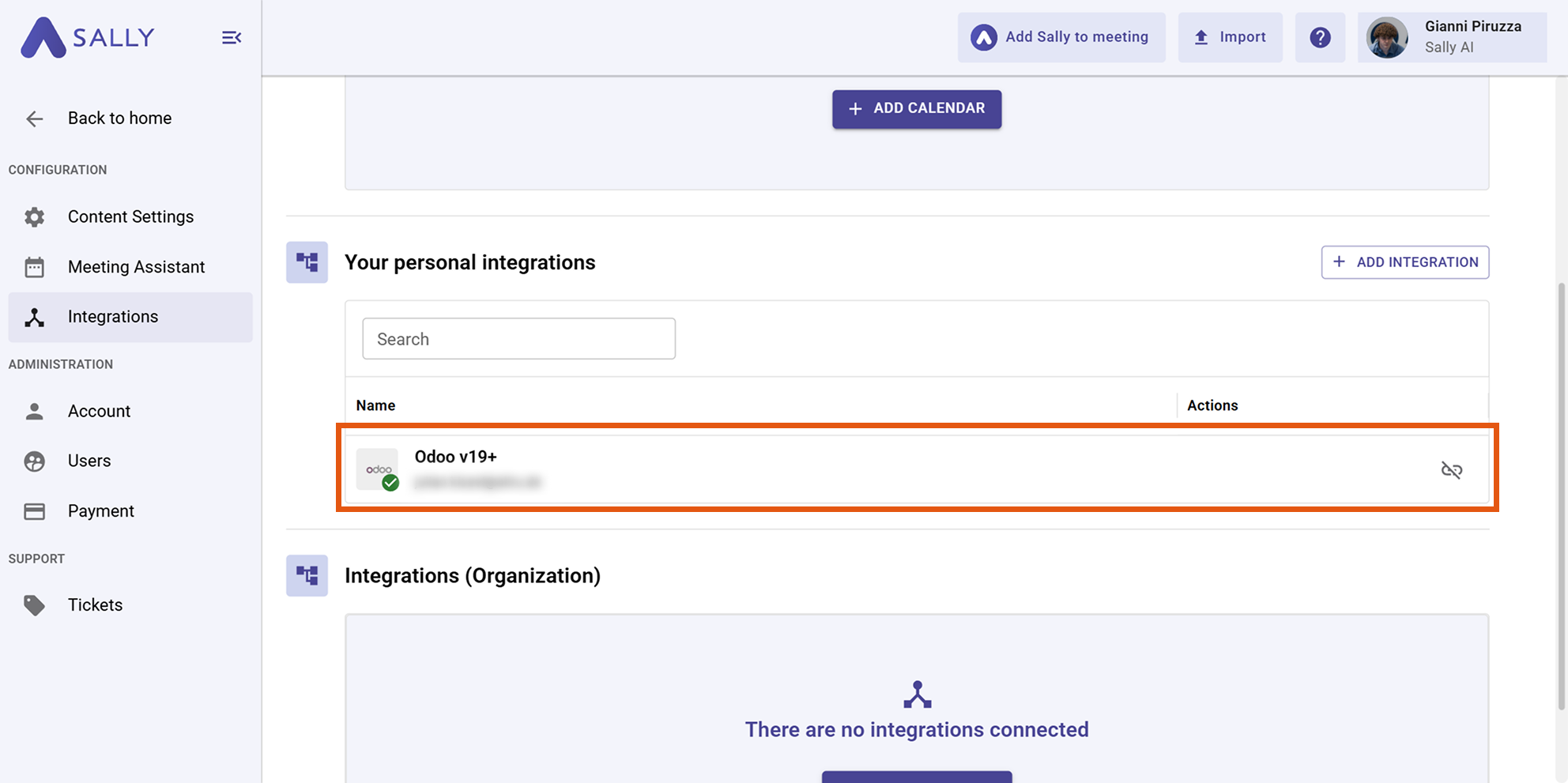
Figure 7: Odoo is connected
API key in Odoo
To establish the connection, Sally requires an API key from your Odoo account.
4.1. In Odoo, open your user profile and go to Change My Preferences.
4.2. Switch to the Security tab.
4.3. Scroll to the API Keys section and click Add API Key.
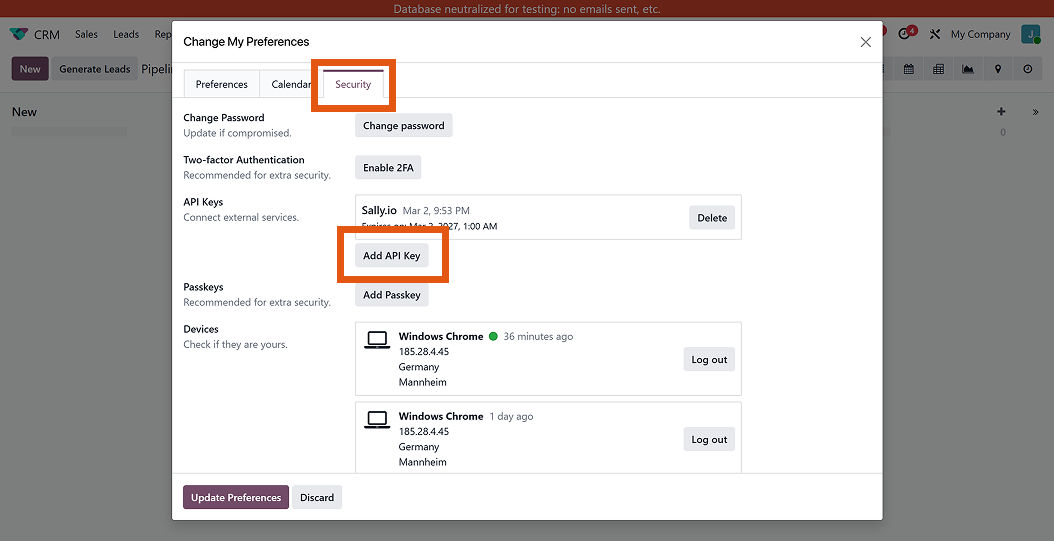
Figure 4: Open security settings
4.4. Enter a name for the key (e.g., Sally Integration) and click Generate key.
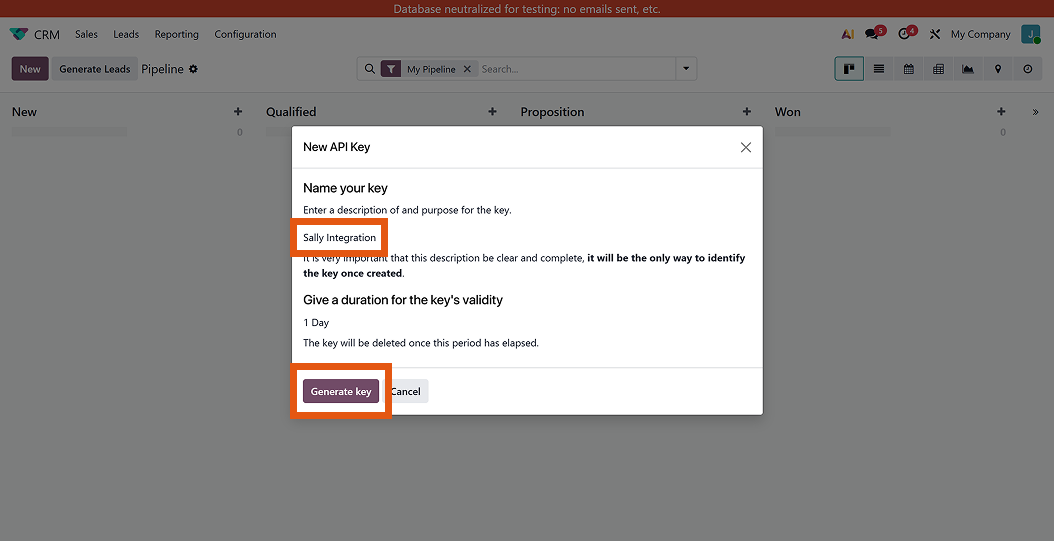
Figure 5: Generate API key
- Copy the generated API key.
The API key is only displayed once in full. Make sure to store it securely or copy it directly into the Sally integration.
2. Send insights to Odoo
Once Odoo is connected, you can send meeting insights from Sally to Odoo with just one click.
You can:
- Create a To-Do in Odoo
- Create an Activity To-Do in Odoo
- Complete an Activity To-Do in Odoo with feedback
- Create a Chatter message in Odoo
2.1. Create a To-Do in Odoo
Convert a meeting insight into a personal Odoo To-Do or a To-Do within a project.
-
Open the desired meeting in Sally and navigate to the summary.
-
Hover over an insight or task and click the integration icon.
-
Select “Create To-Do in Odoo”.
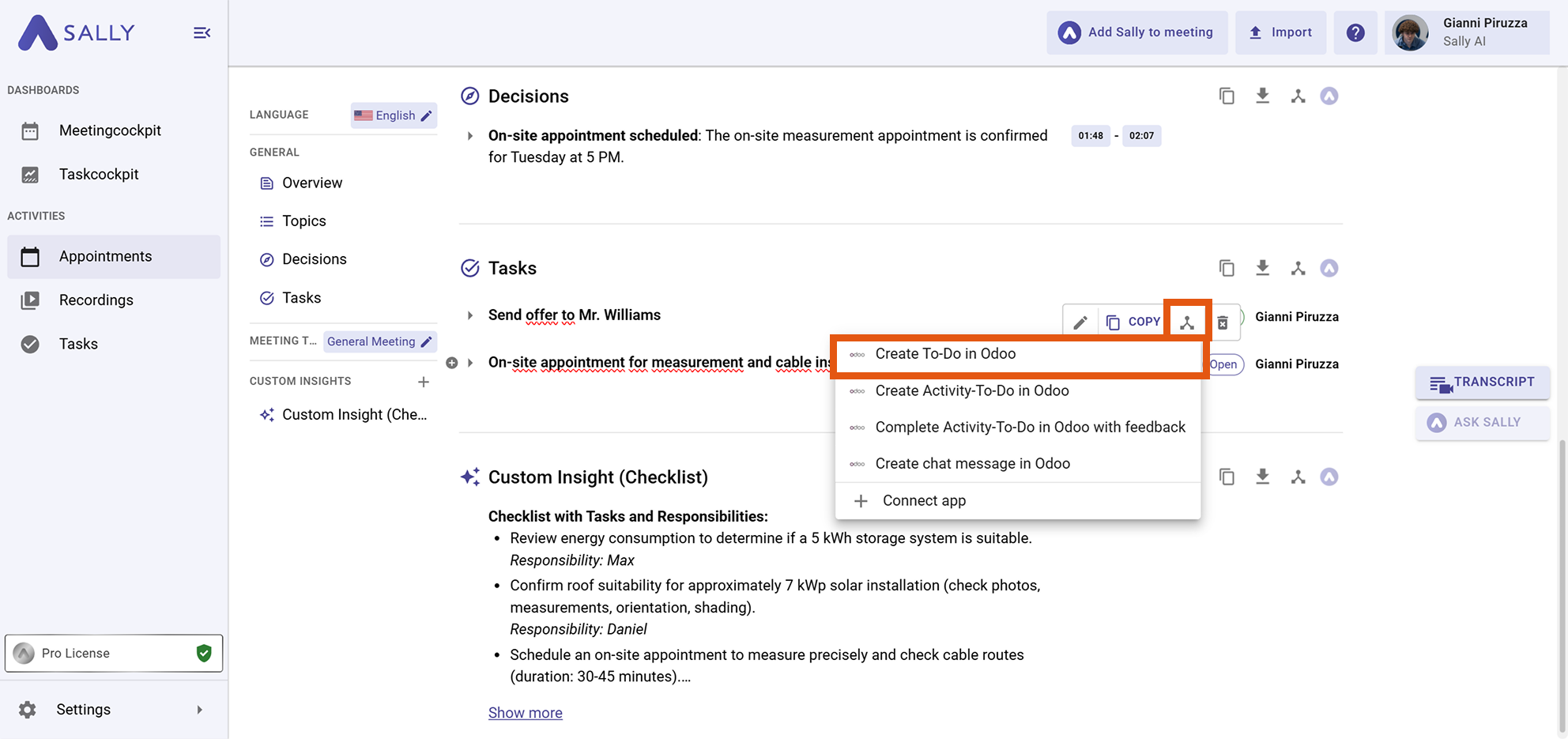
Figure 8: Select Odoo action
- Fill out the creation form:
- Name*
- Description
- Assigned to
- Due date
- Priority
- Project (If you leave this field empty, the To-Do will automatically be created as a personal Odoo To-Do.)
- Click Create to send the To-Do to Odoo.
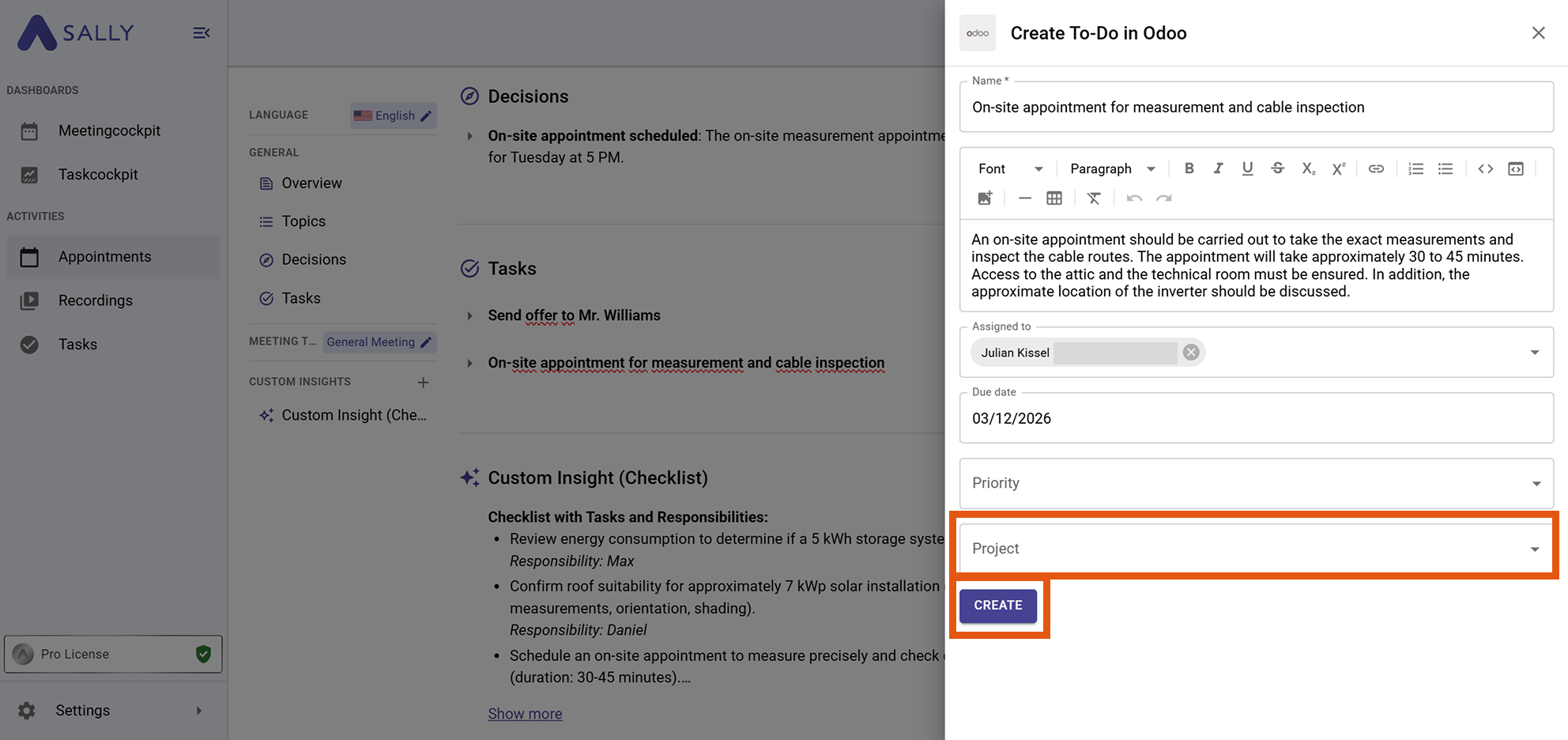
Figure 9: Create To-Do
- The task identified by Sally has been successfully added to the inbox of your personal or project-related To-Do list.
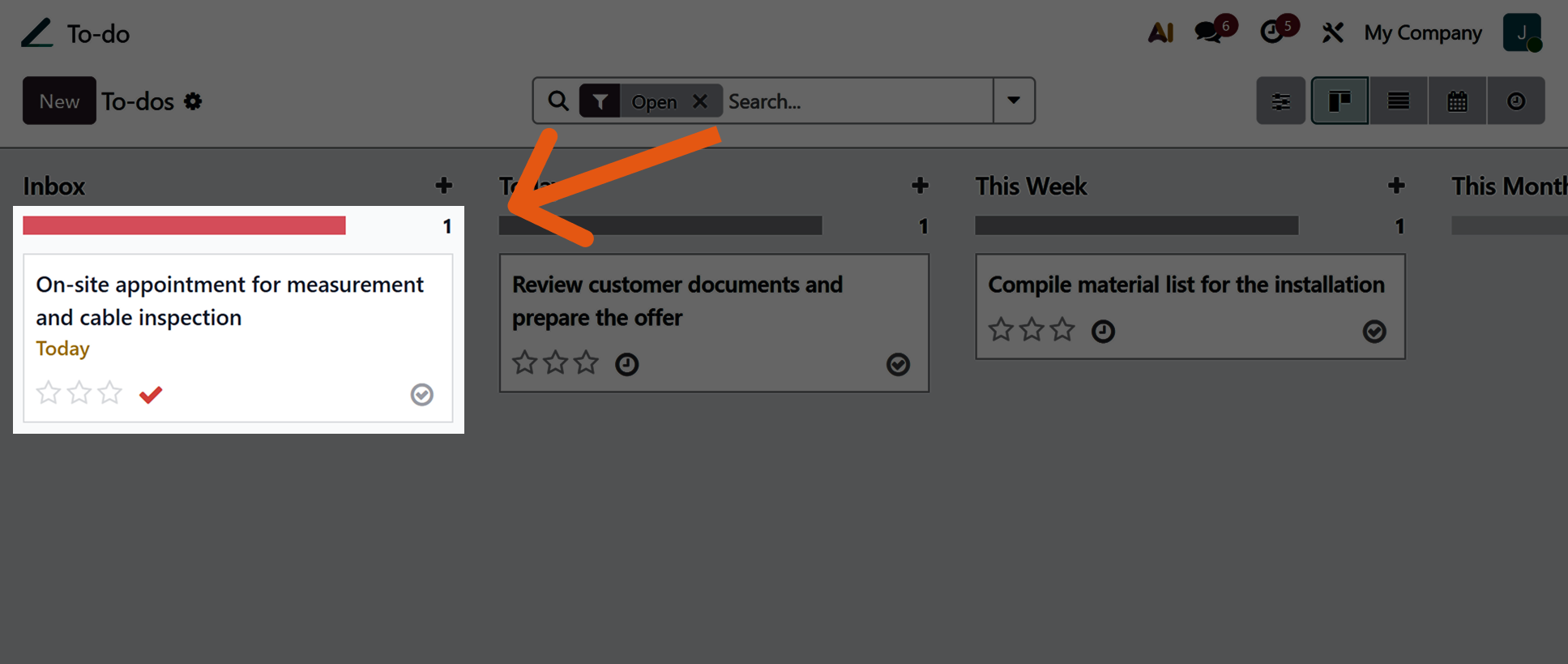
Figure 9: Create To-Do
2.2. Create an Activity To-Do in Odoo
You can also create insights as an Odoo activity To-Do linked to a specific record (e.g. Lead, Opportunity, or Contact).
-
Open the desired meeting in Sally and navigate to the summary.
-
Hover over an insight or task and click the integration icon.
-
Select “Create Activity To-Do in Odoo”.
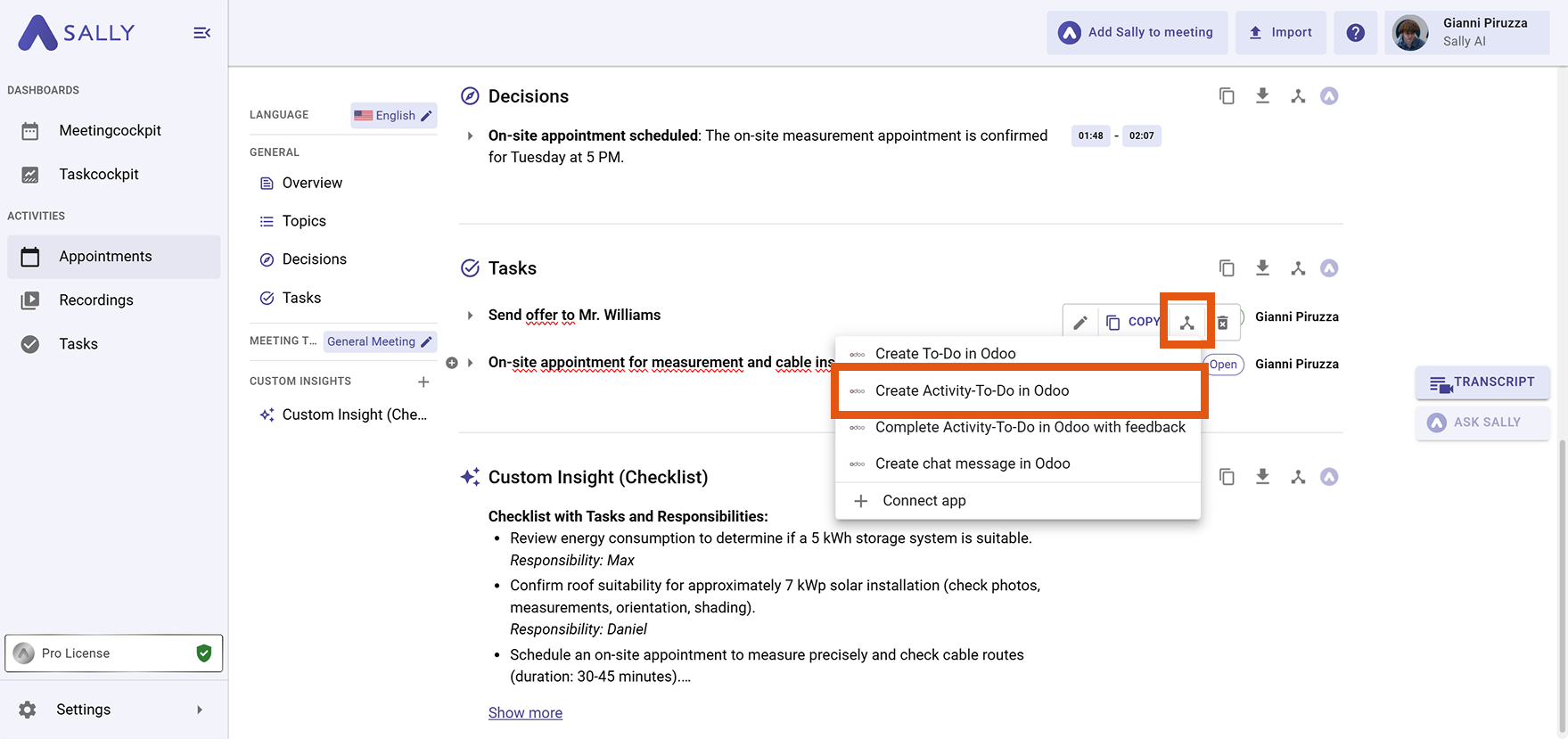
Figure 10: Select Activity To-Do
- Select a responsible user and optionally link a related record:
- Lead / Opportunity
- To-Do
- Contact / Customer
- Project
- Ticket
- Click Create.
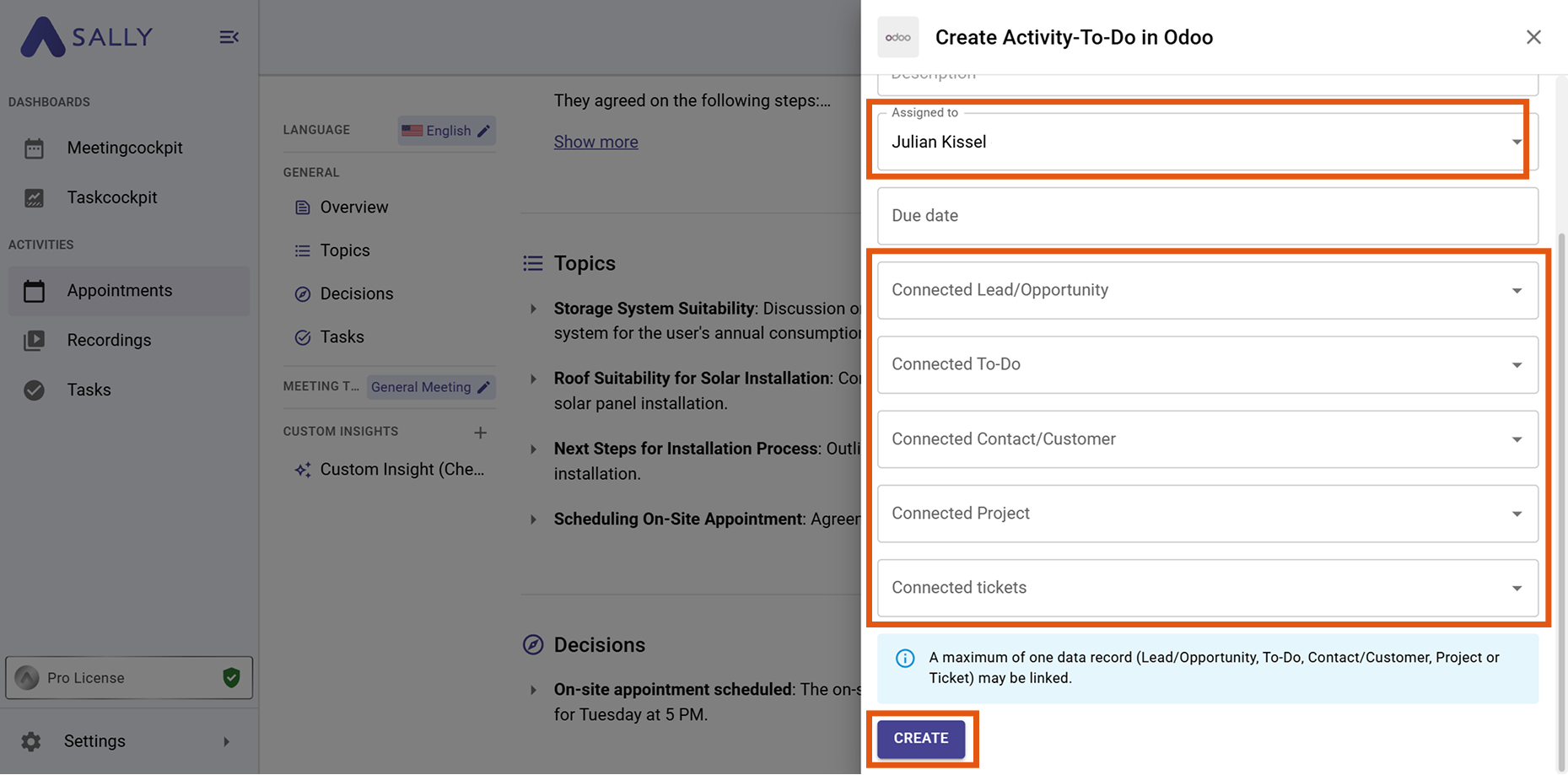
Figure 11: Create activity
- The insight detected by Sally has now been successfully added to your target record (in this example, a Lead).
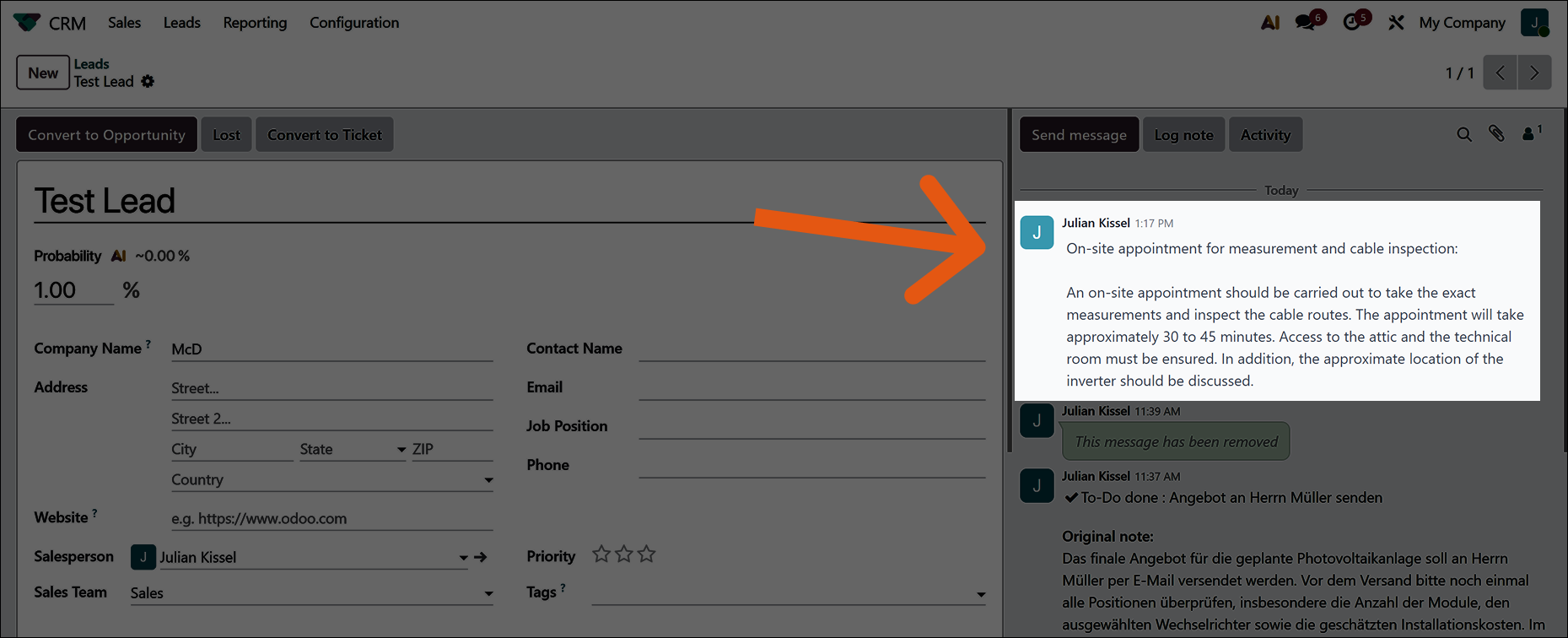
Activity To-Do in Odoo
2.3. Complete an Activity To-Do in Odoo with feedback
You can complete an existing Odoo activity directly from Sally and add feedback at the same time.
-
Open the desired meeting in Sally and navigate to the summary.
-
Hover over an insight or task and click the integration icon.
-
Select “Complete Activity To-Do in Odoo with feedback”.
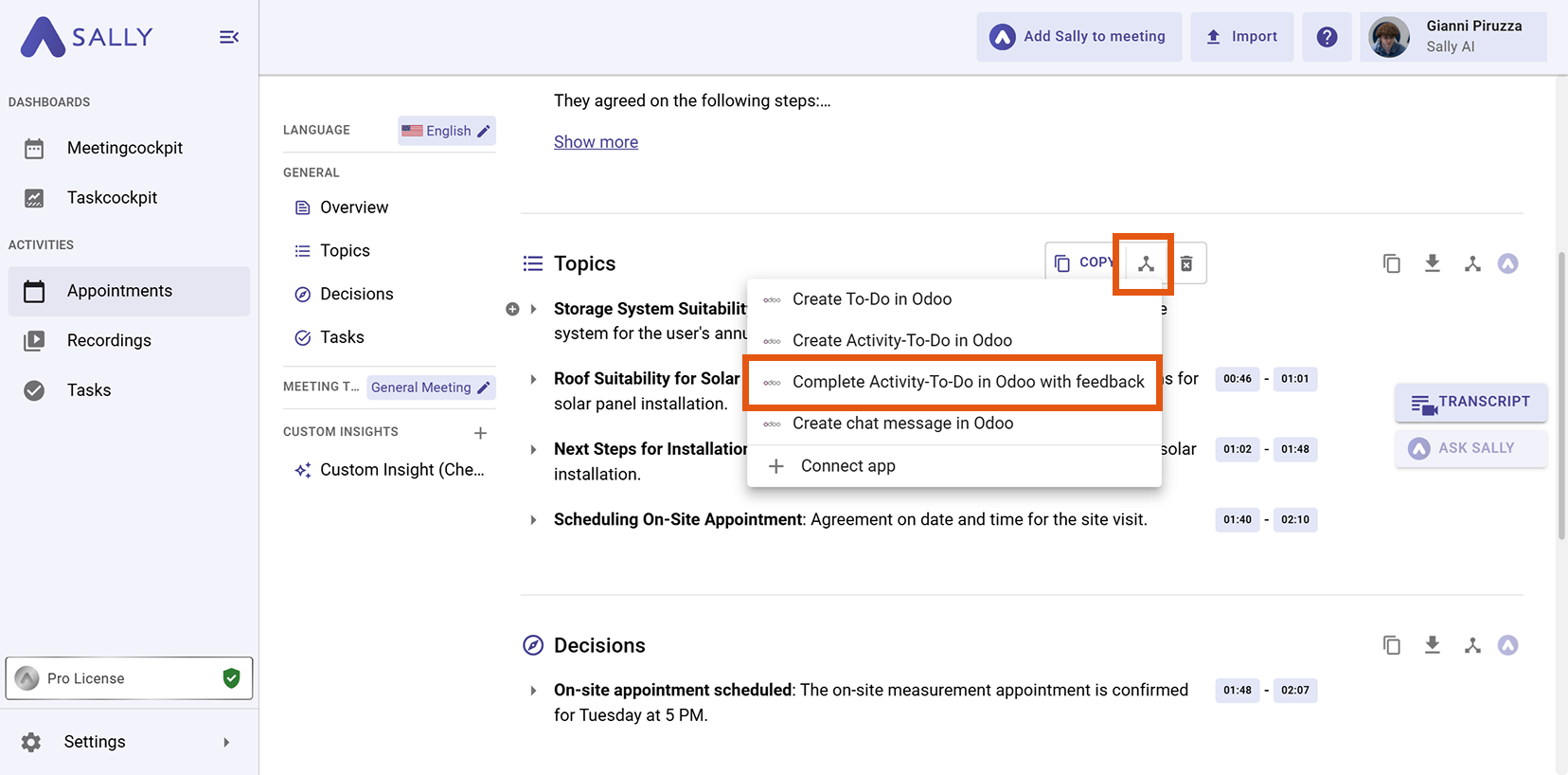
Figure 12: Complete activity with feedback
-
Select an existing activity To-Do and add feedback or additional information.
-
Click Create to complete the activity.
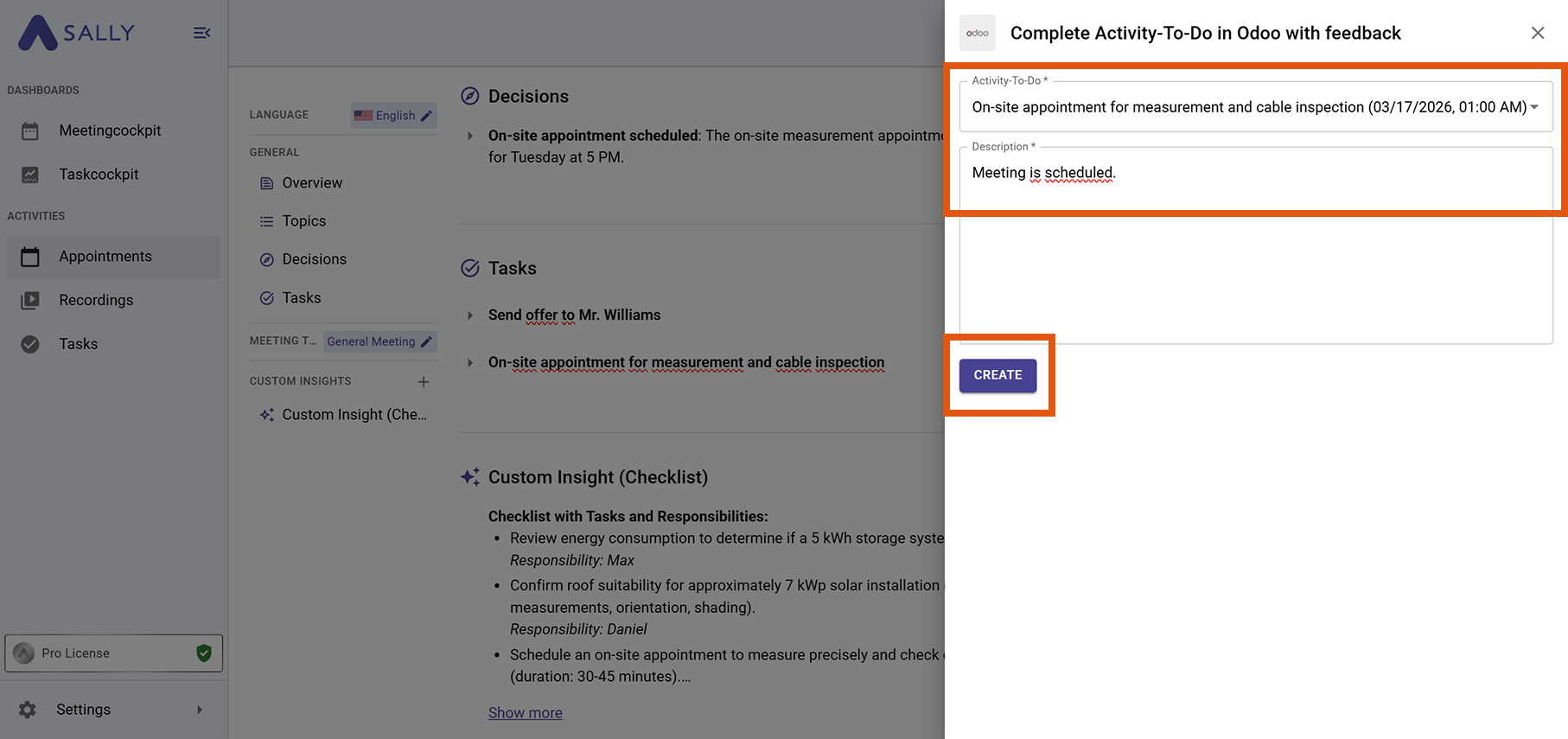
Figure 13: Add feedback
- The activity To-Do has been successfully completed and updated with feedback.
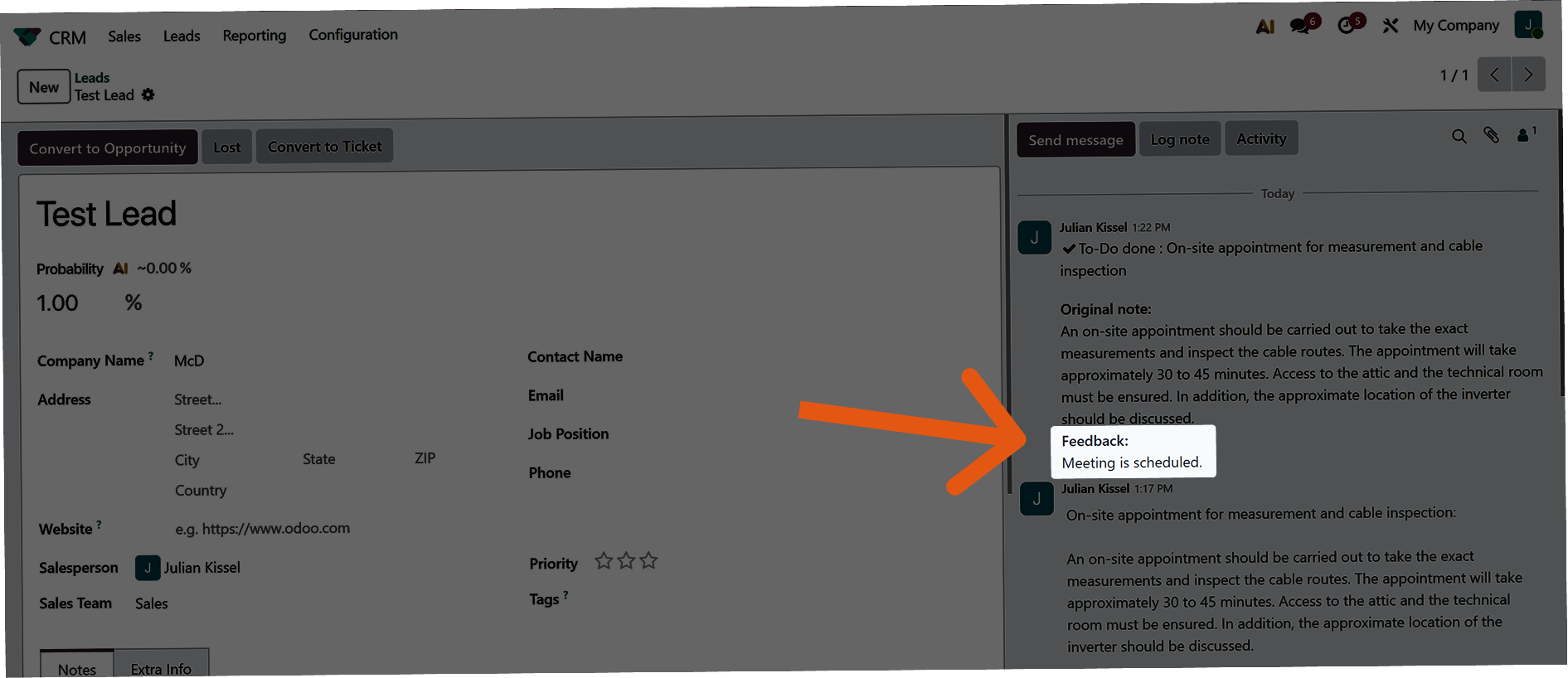
Feedback added
2.4. Create a Chatter message in Odoo
You can also store meeting context directly in Odoo as a Chatter message.
-
Open the desired meeting in Sally and navigate to the summary.
-
Hover over an insight or task and click the integration icon.
-
Select “Create Chatter message in Odoo”.
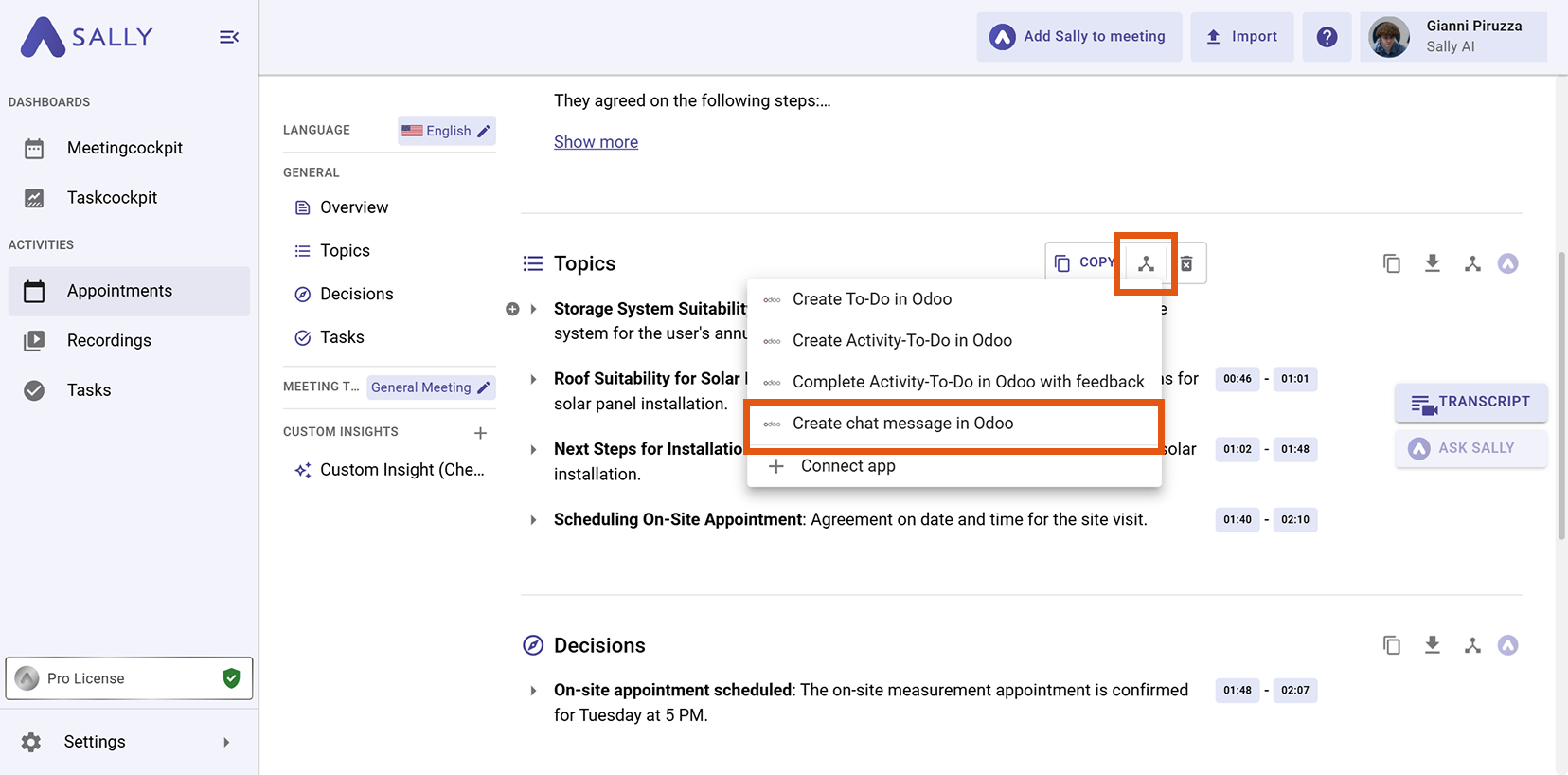
Figure 14: Select chatter message
- Link the message to a record, for example:
- Lead / Opportunity
- To-Do
- Contact / Customer
- Project
- Ticket
- Click Create to send the message to Odoo.
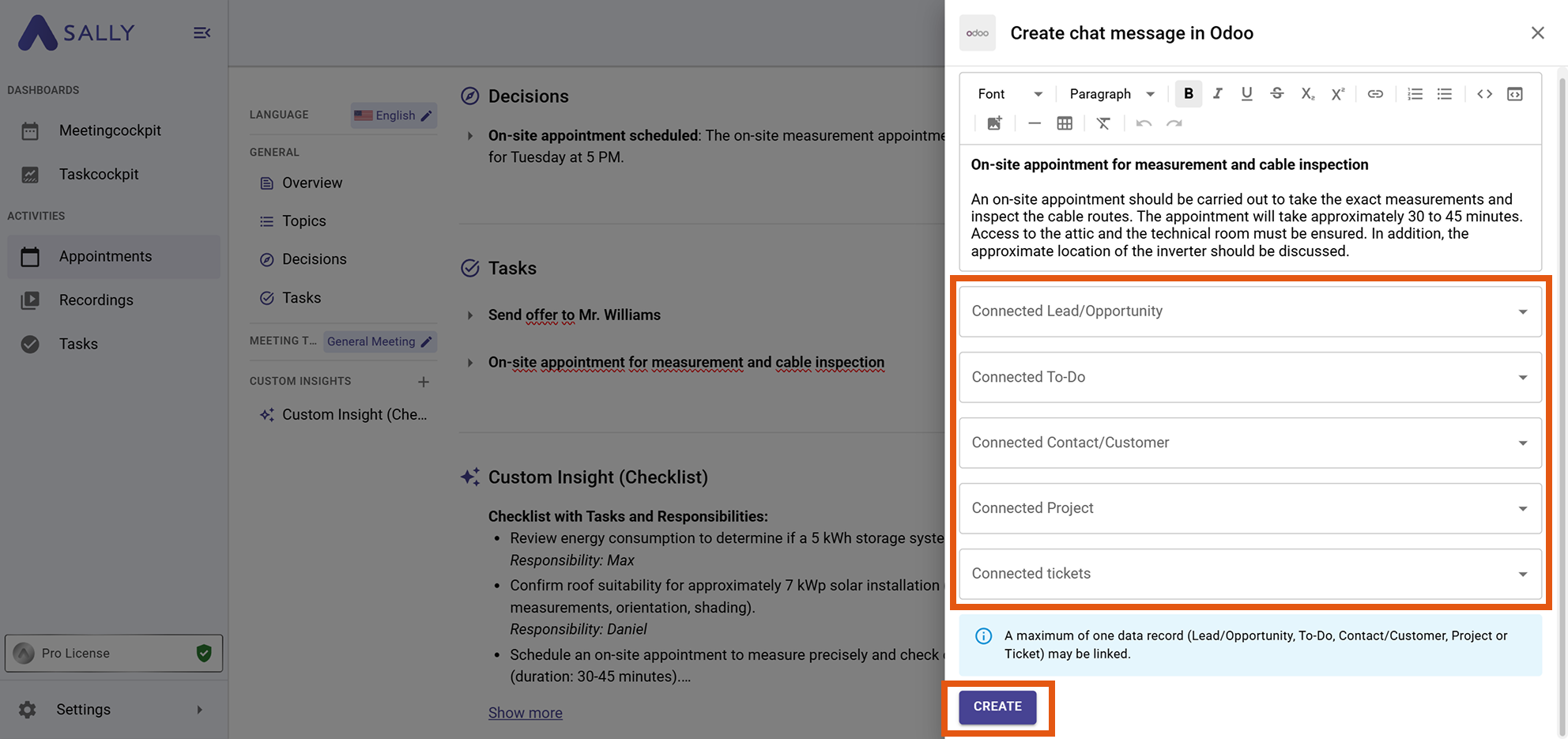
Figure 15: Create chatter message
- The chatter message has now been successfully added to the linked activity To-Do.
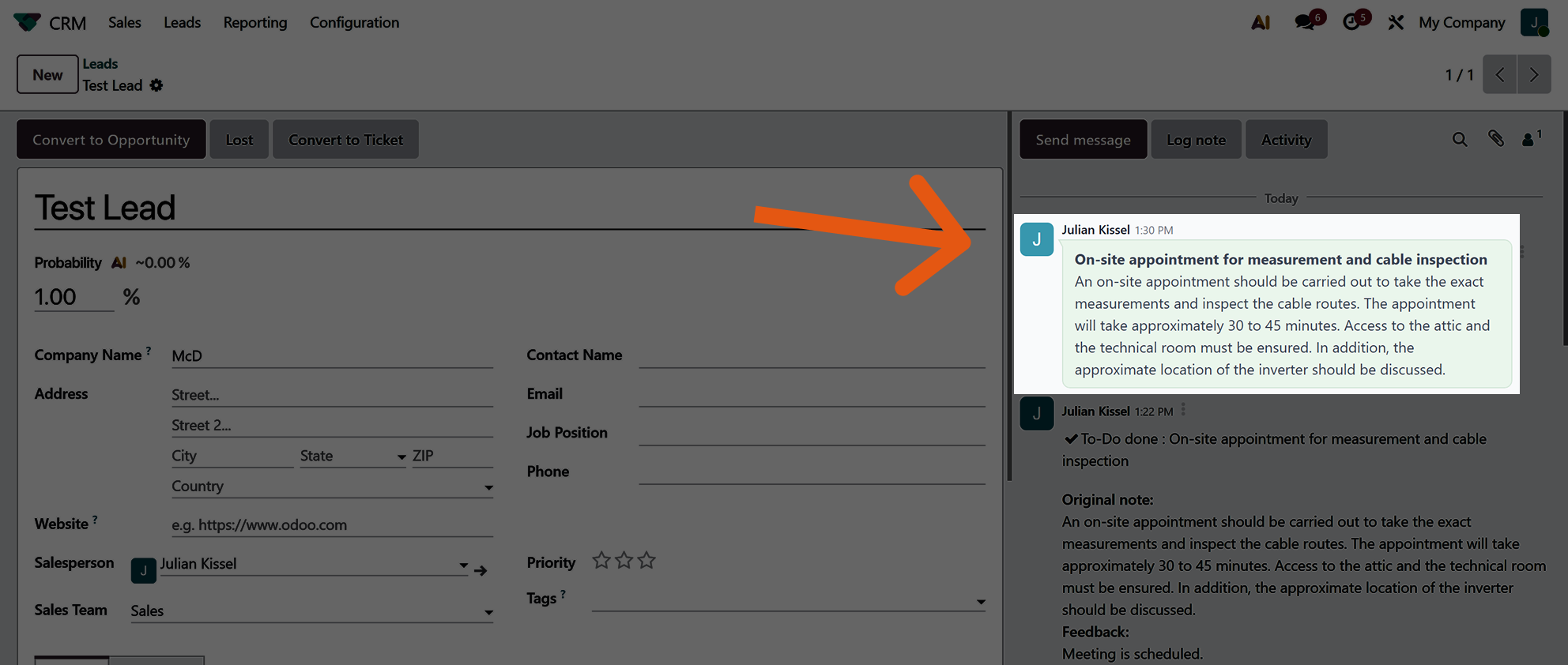
Chatter message added in Odoo