April 21, 2026: Meeting folders

Bring order to your meetings. 📁
Sort your recordings into folders, build your own structure with sub-folders, and share selected folders with individual people or whole teams.
What's new?
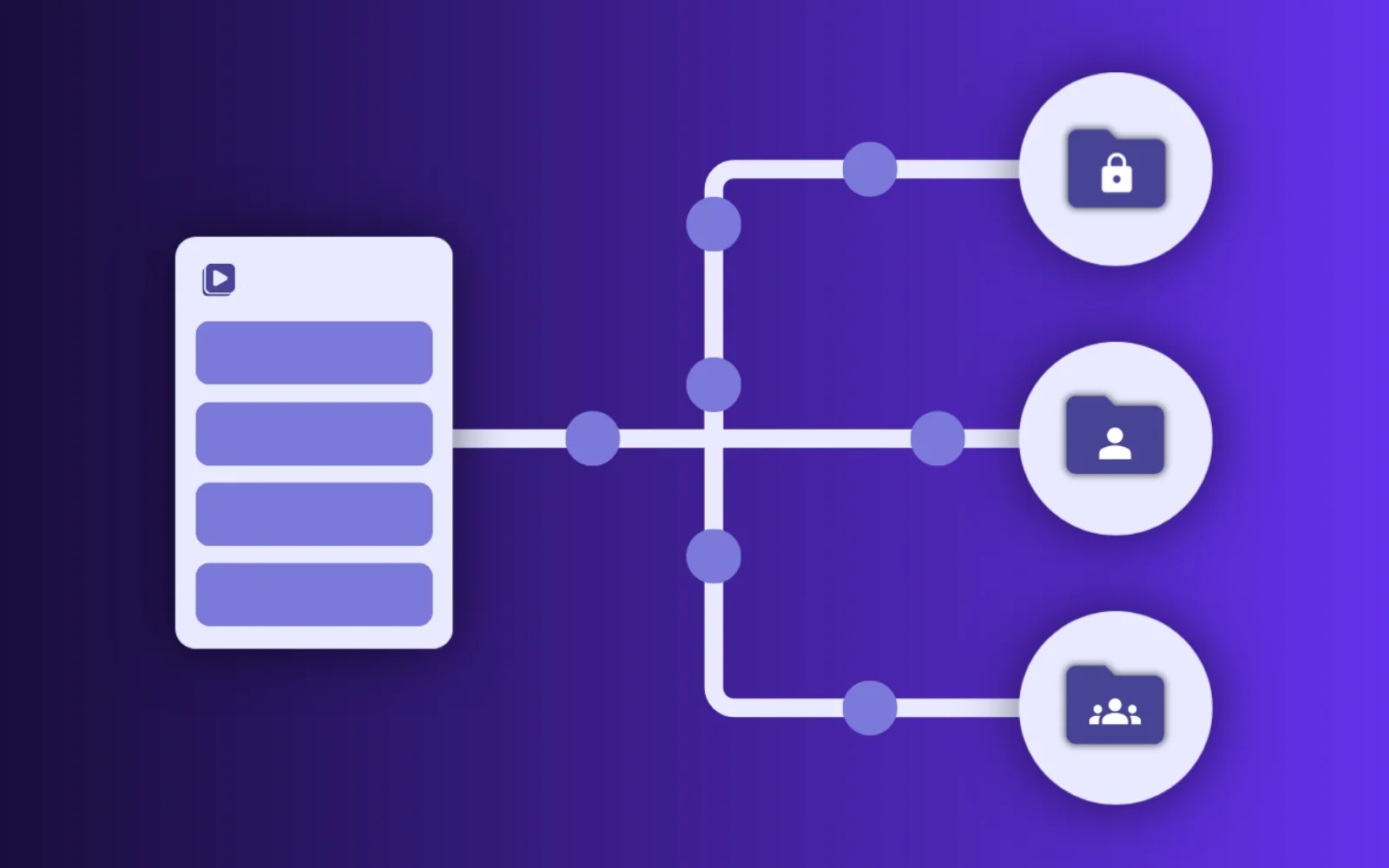
Instead of scrolling through one long list of recordings, you can now organize meetings the way you think about them: by project, client, quarter, or topic. Three folder types are available from the sidebar:
- My folders: folders you created yourself.
- Shared with me: folders other people shared with you.
- Teams: folders shared with an entire team.
For each folder or sub-folder you can decide who sees it and whether they can just view or also edit its contents.
How it works
- In the left sidebar, open Folders and click Create folder under "My folders".
- Enter a clear title and, optionally, a description. Under Share with, add people or teams with Can read or Can edit permission.
- Open the folder, create sub-folders if you want finer structure, and add recordings via Add recording.
A recording can live in several folders at once, so the same meeting can sit in both a project folder and a client folder without being duplicated.
Why it matters
Folders turn your recording list from a flat timeline into a structure that matches how you actually work. Shared team folders make sure everyone involved in a project finds the relevant meetings, without you having to forward links every time.
👉 Learn more in the Organize Meetings in Folders guide.