How to organize meetings in folders
Sally lets you organize your meetings in folders so you can group related recordings and summaries. Folders help you quickly find meetings by project, client, or topic, instead of scrolling through a long list. You can keep folders private or share them with individual colleagues and entire teams, and you can have new recordings filed into a folder automatically.
- Favorites: folders you marked with the star icon.
- My folders: folders you created yourself.
- Shared with me: folders other people have shared with you.
- Team folders: folders shared through one of your teams.
Quick navigation
- Set up and manage a folder
- Create a team for shared folders
- Find folders shared with you
- Common questions
1. Set up and manage a folder
Setting up your own folder happens in three steps: you create the folder, optionally build a structure with sub-folders, and then add your recordings. You can revisit and adjust any of these steps at any time.
1.1. Create and share a folder
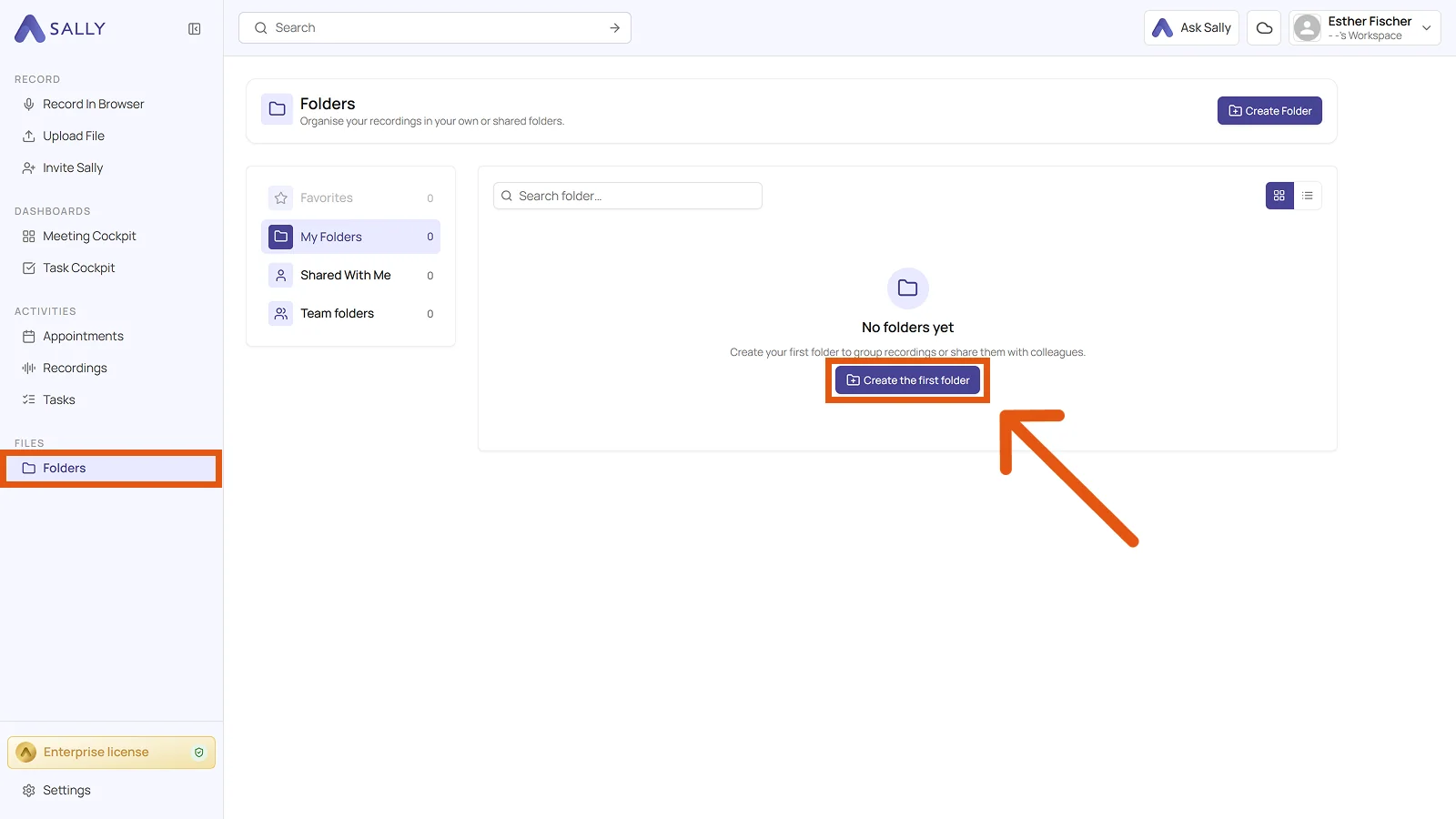
- In the left sidebar under Files, click Folders, then Create Folder in the top right. While you have no folders yet, the same button also sits in the middle of the page, where it reads Create the first folder.
-
In the "Create a new folder" panel, fill in a Name under General, the only mandatory field, and optionally a Description. The description later shows up with the folder in the overview and helps your team see what the folder is for.
-
(Optional) Under Share with, give access right away. Add person picks individual colleagues, Add team picks a whole team. To the right of each entry you set the permission:
- Can read: the person can open the folder and all recordings in it.
- Can edit: the person can also add recordings, remove them, and create sub-folders.
The bin icon takes an access away again. Members and permissions can be changed later at any time through the folder’s settings.
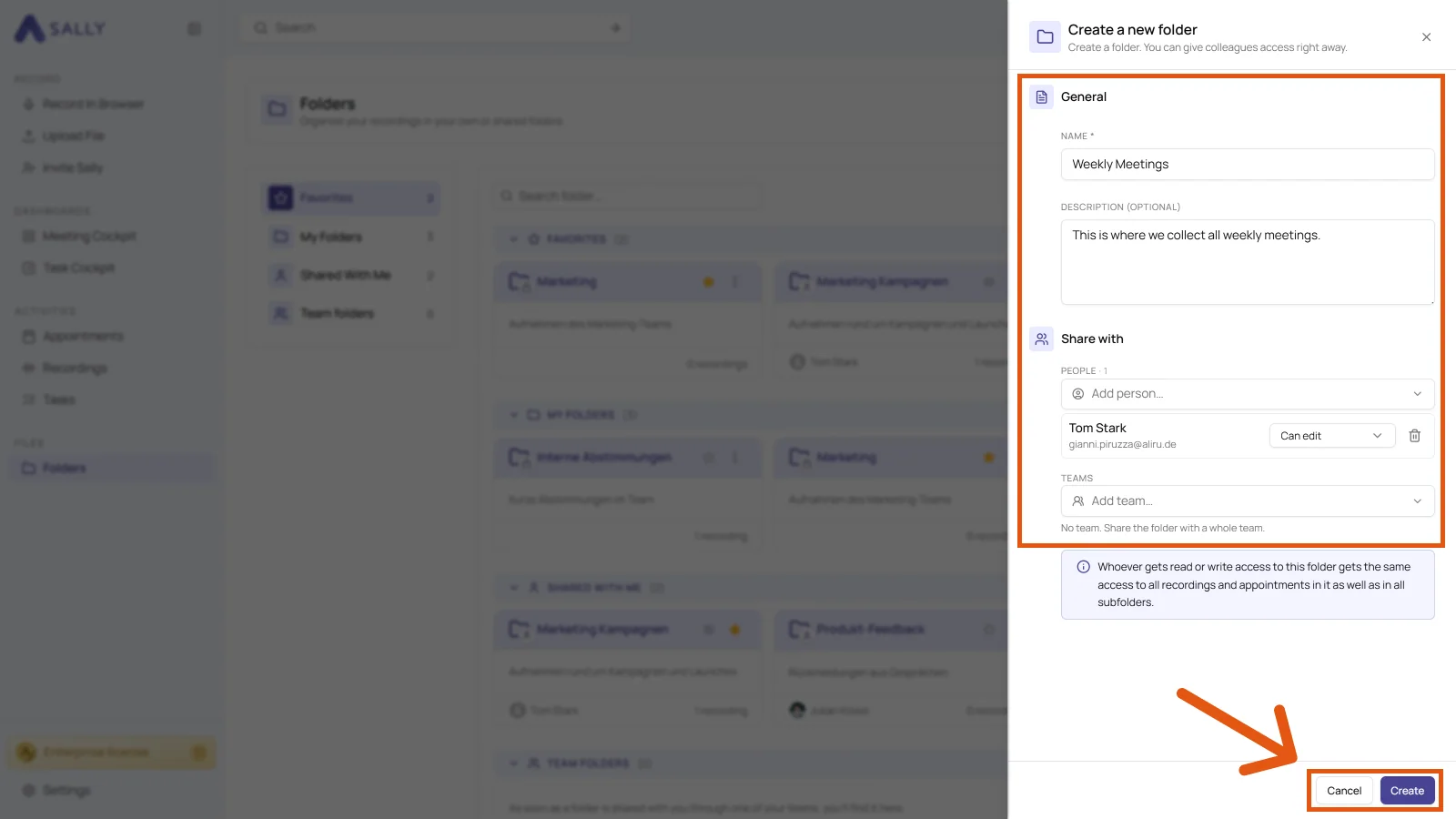
- Click Create in the bottom right.
- Whoever gets read or write access to a folder gets the same access to all recordings and appointments in it as well as in all sub-folders.
- To open a shared folder, the invited person needs at least a Pro license. A plain user account cannot open it, not even with Can read.
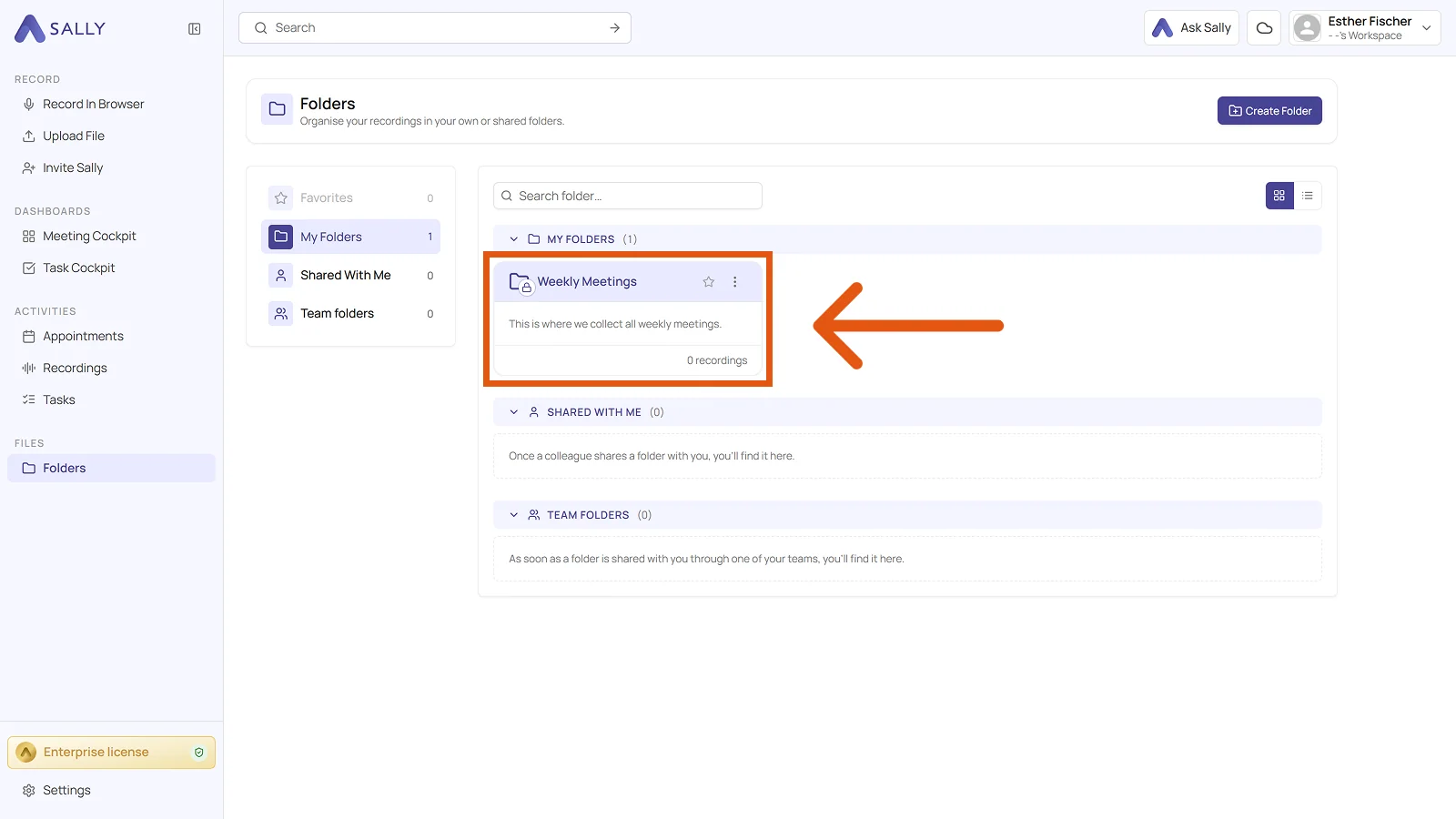
- The folder then sits under My folders. The star icon makes it a favorite, and the three-dot menu lets you edit or delete it.
1.2. Add sub-folders
For finer structure, create sub-folders inside a folder, for example per quarter, project phase, or client.
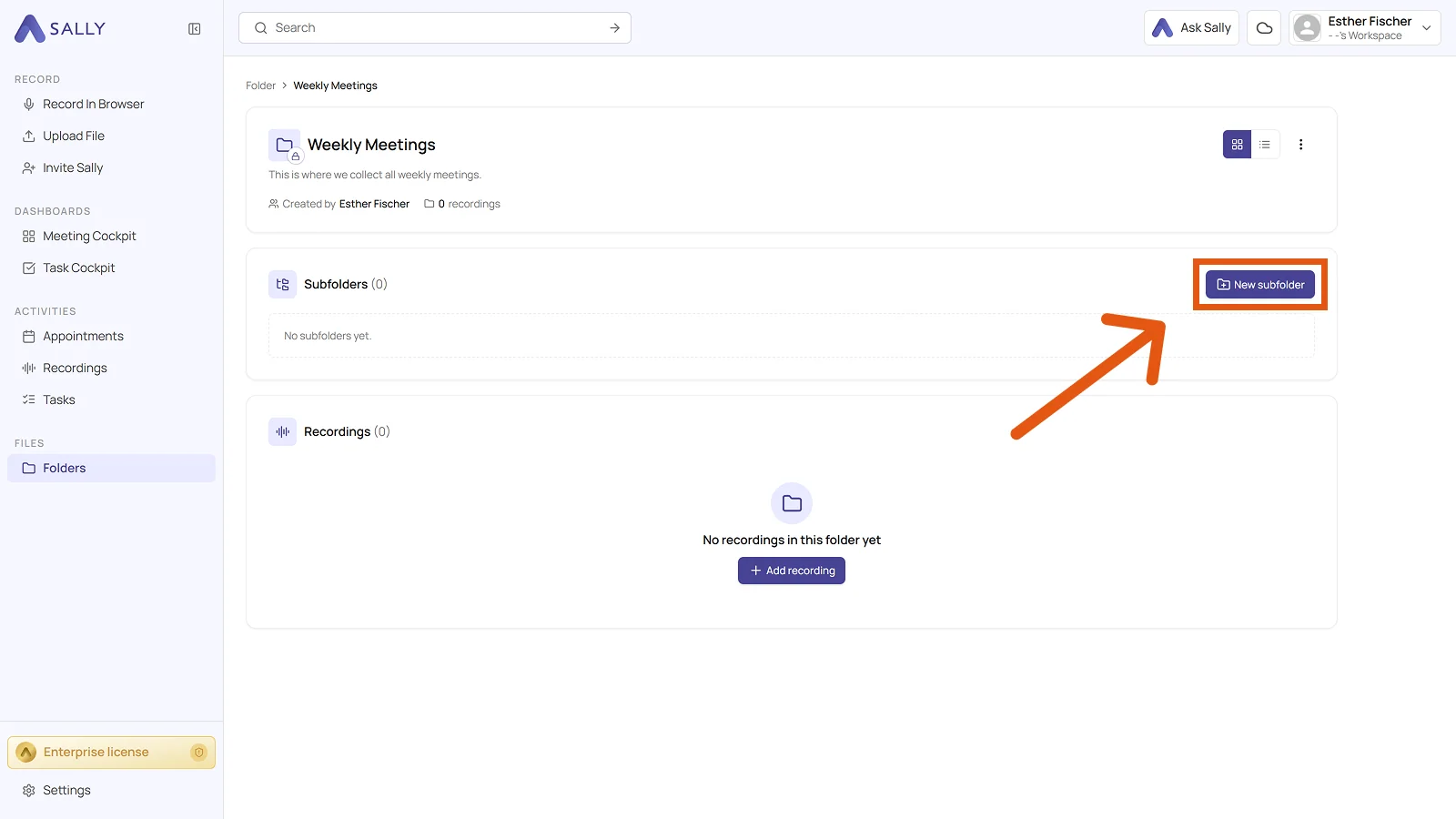
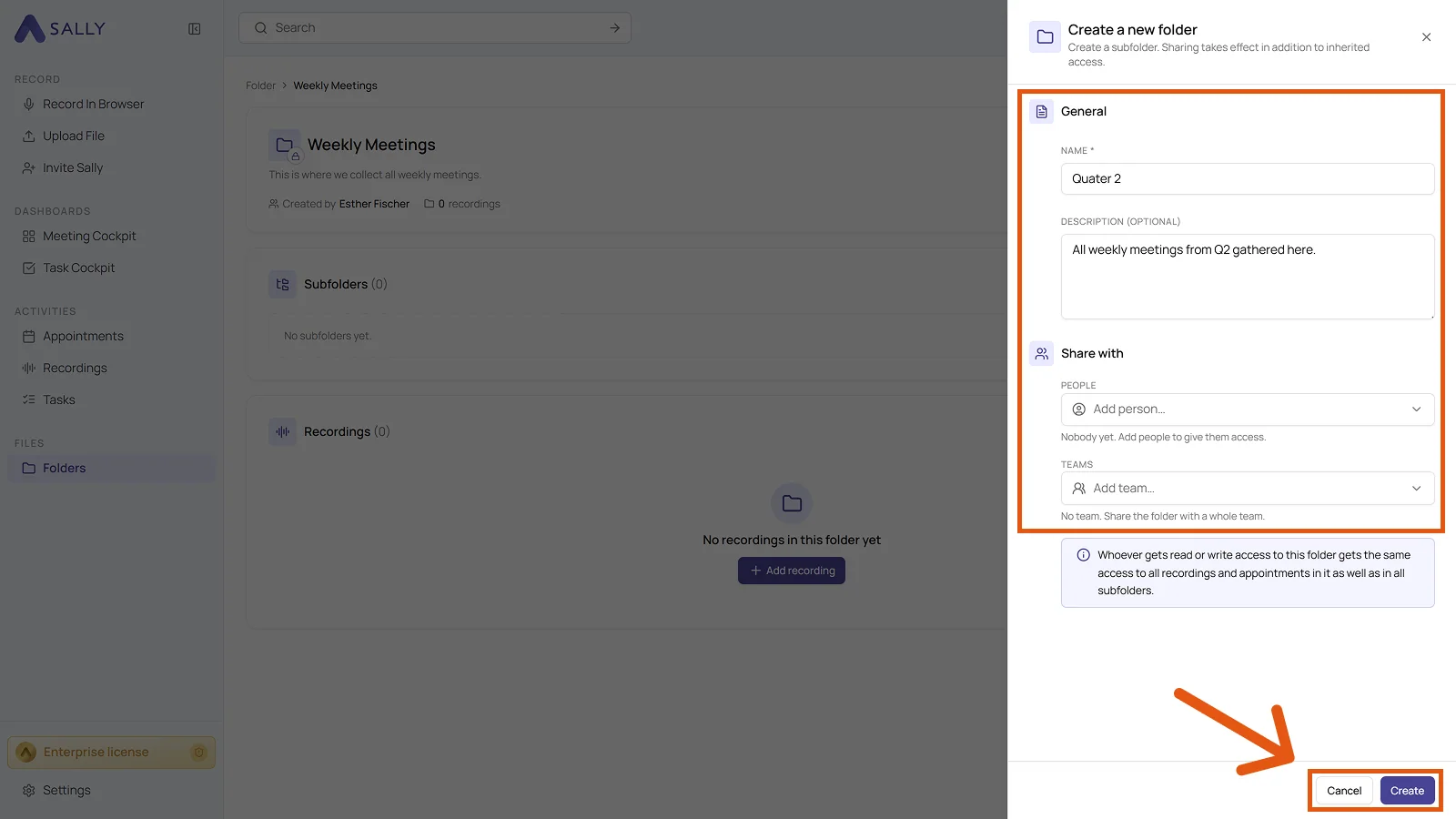
- Open the folder you want to divide up and click New subfolder in the Subfolders section.
-
Fill in a Name and optionally a Description. A sub-folder can be shared under Share with as well, and that sharing applies on top of the access it inherits from the folder above it.
-
Click Create.
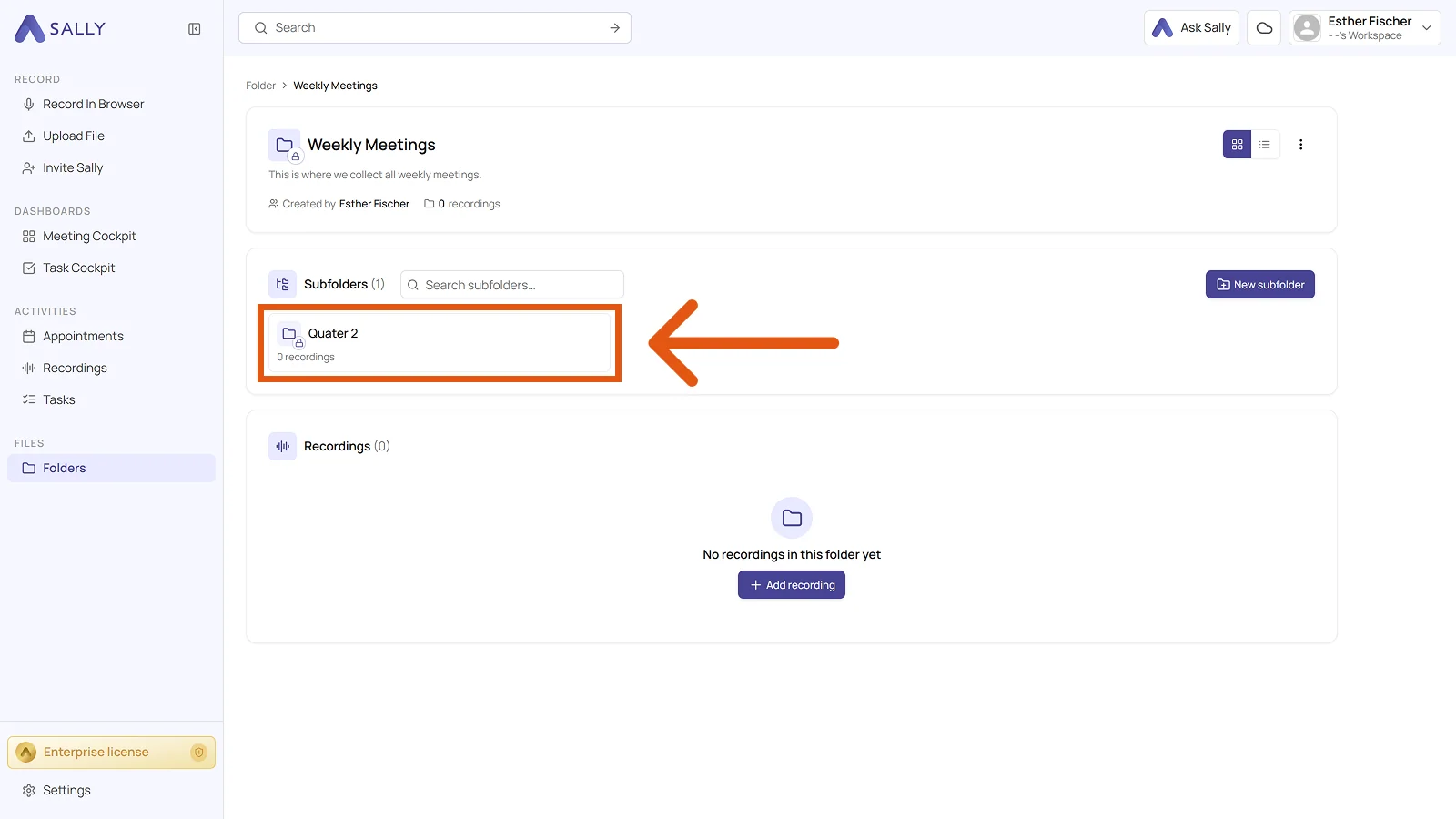
The sub-folder then sits in the Subfolders section, ready to use.
1.3. Add recordings to a folder
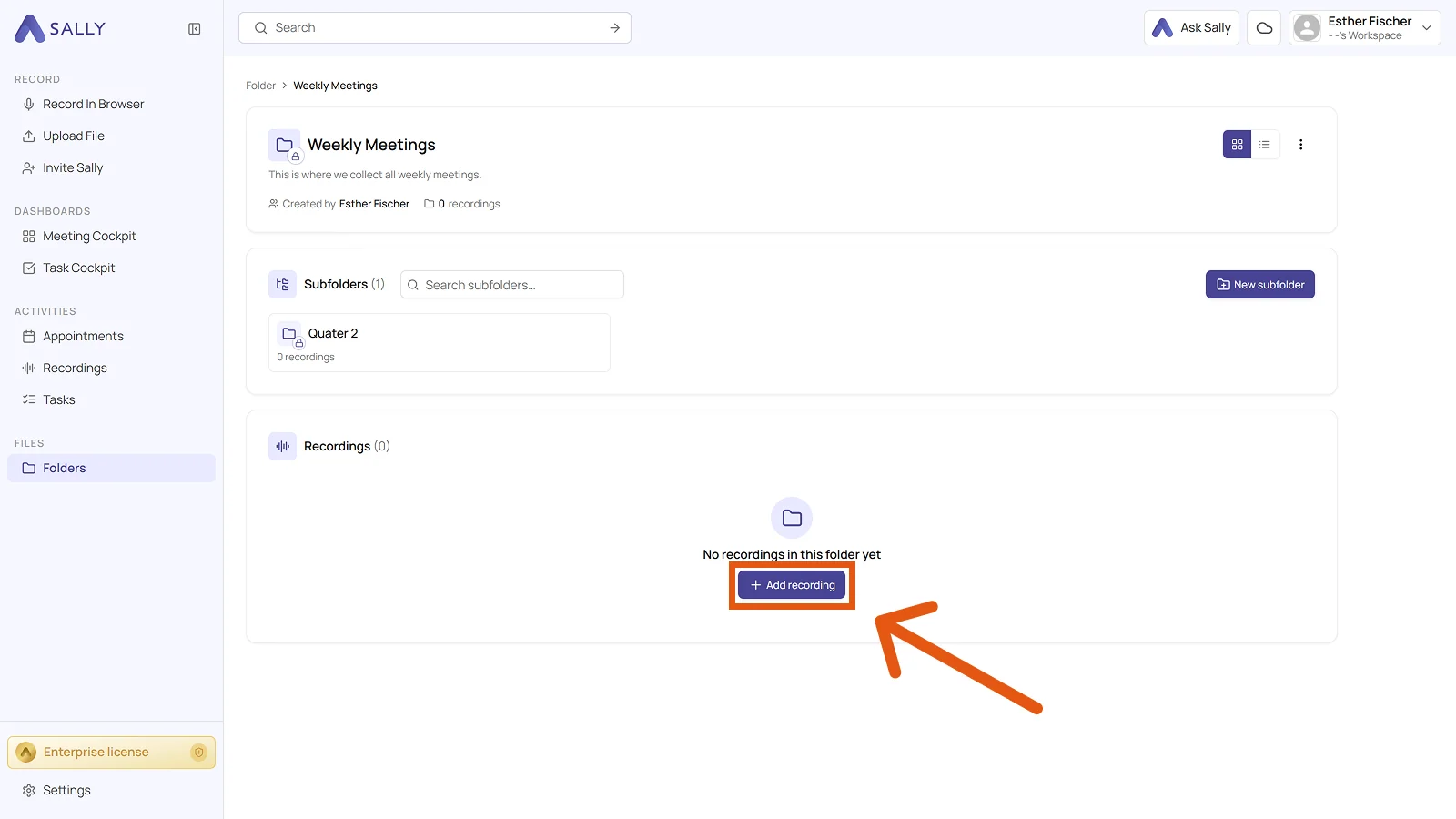
- Open the folder and click Add recording in the Recordings section.
-
In the "Add recordings" dialog, type a search term and click Search. Participants, Time period, and Sorting narrow the results down further.
-
Tick the checkbox for every recording that belongs in the folder. You can pick several at once.
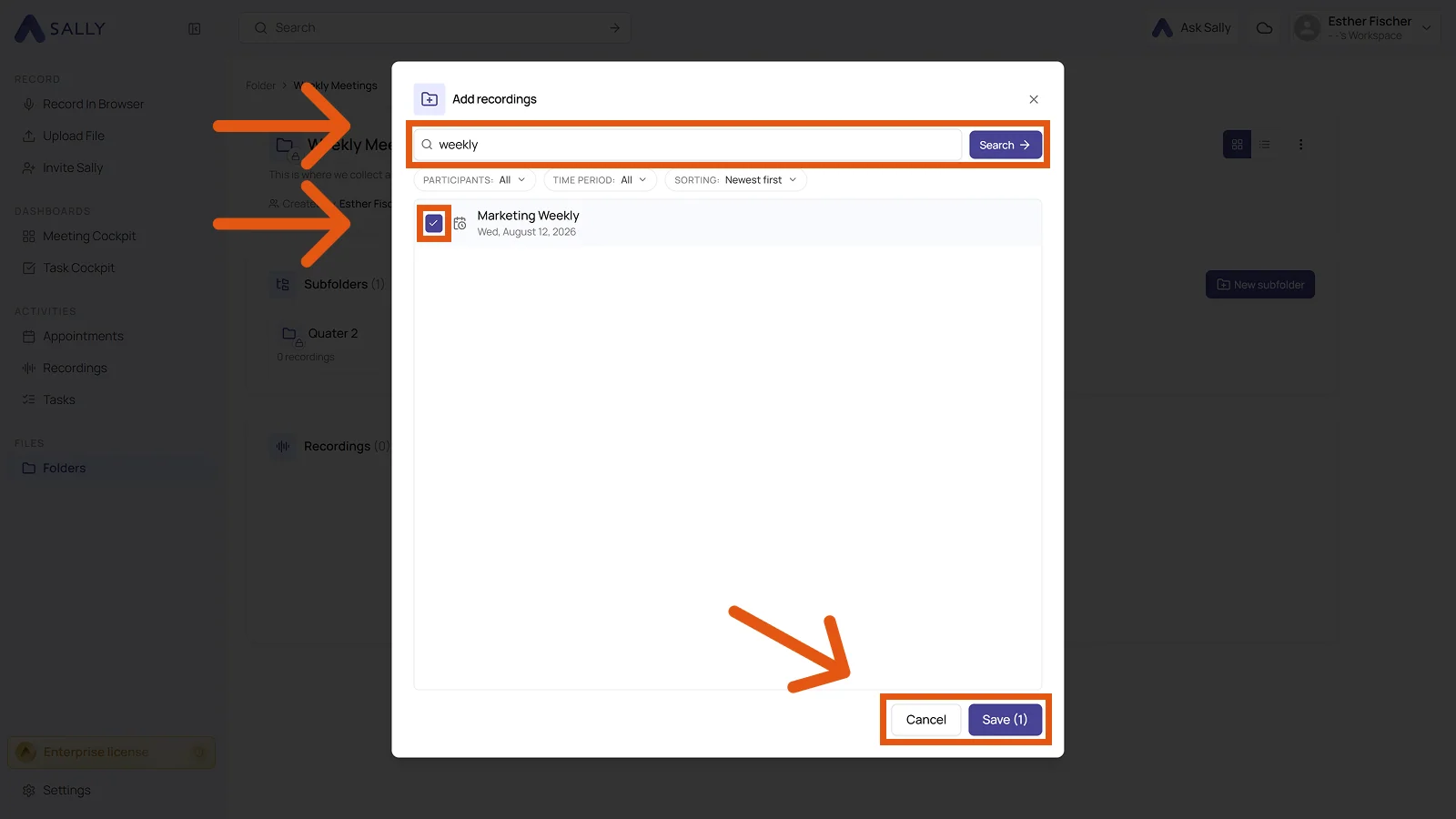
- Click Save. The number in brackets tells you how many recordings you picked.
A recording can be in several folders at once. That way the same meeting can sit in a project folder and a client folder without being duplicated.
2. Create a team for shared folders
If you share folders with the same group again and again, a team is worth setting up. Every member then gets access to the folders shared with that team automatically.
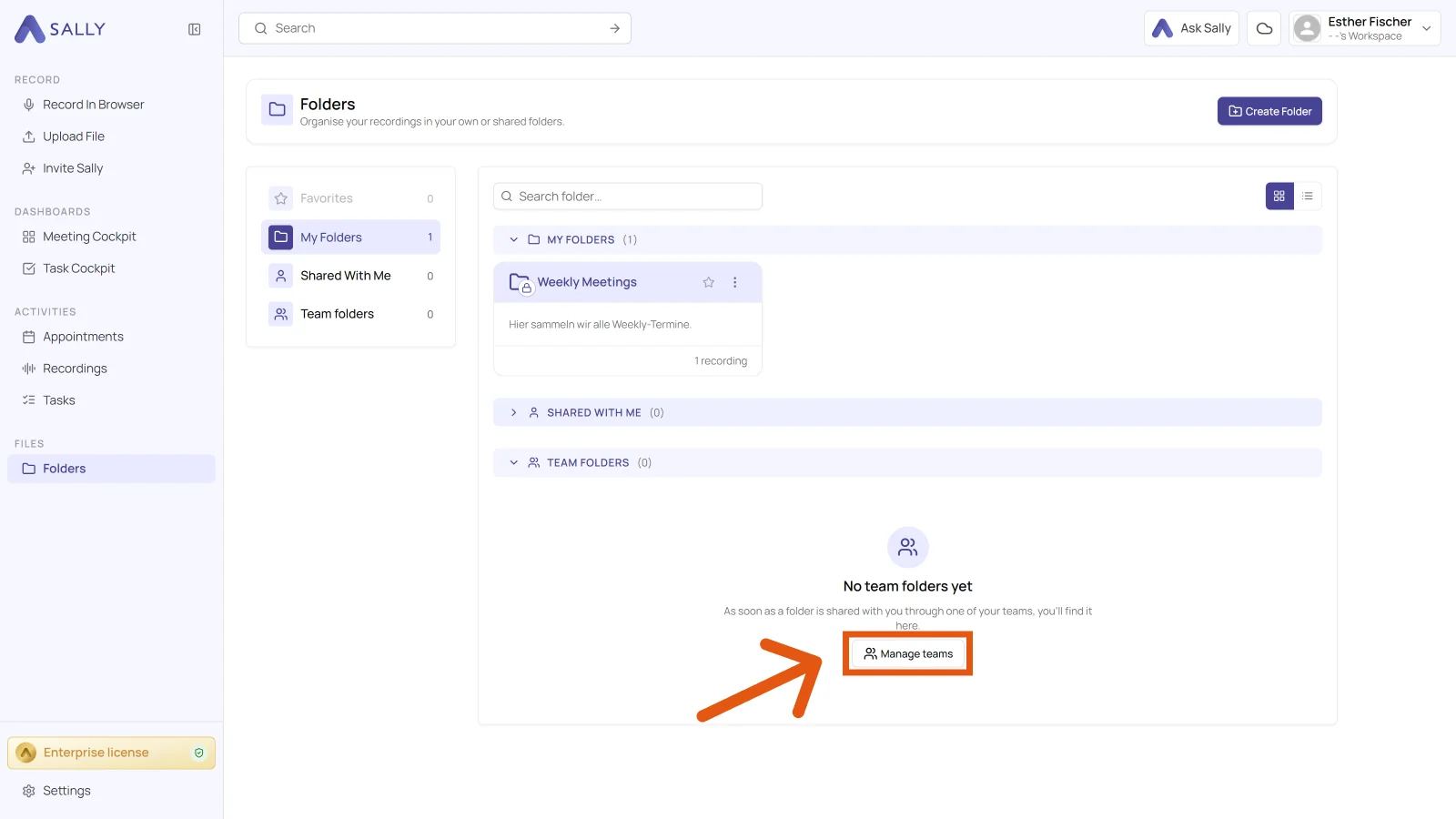
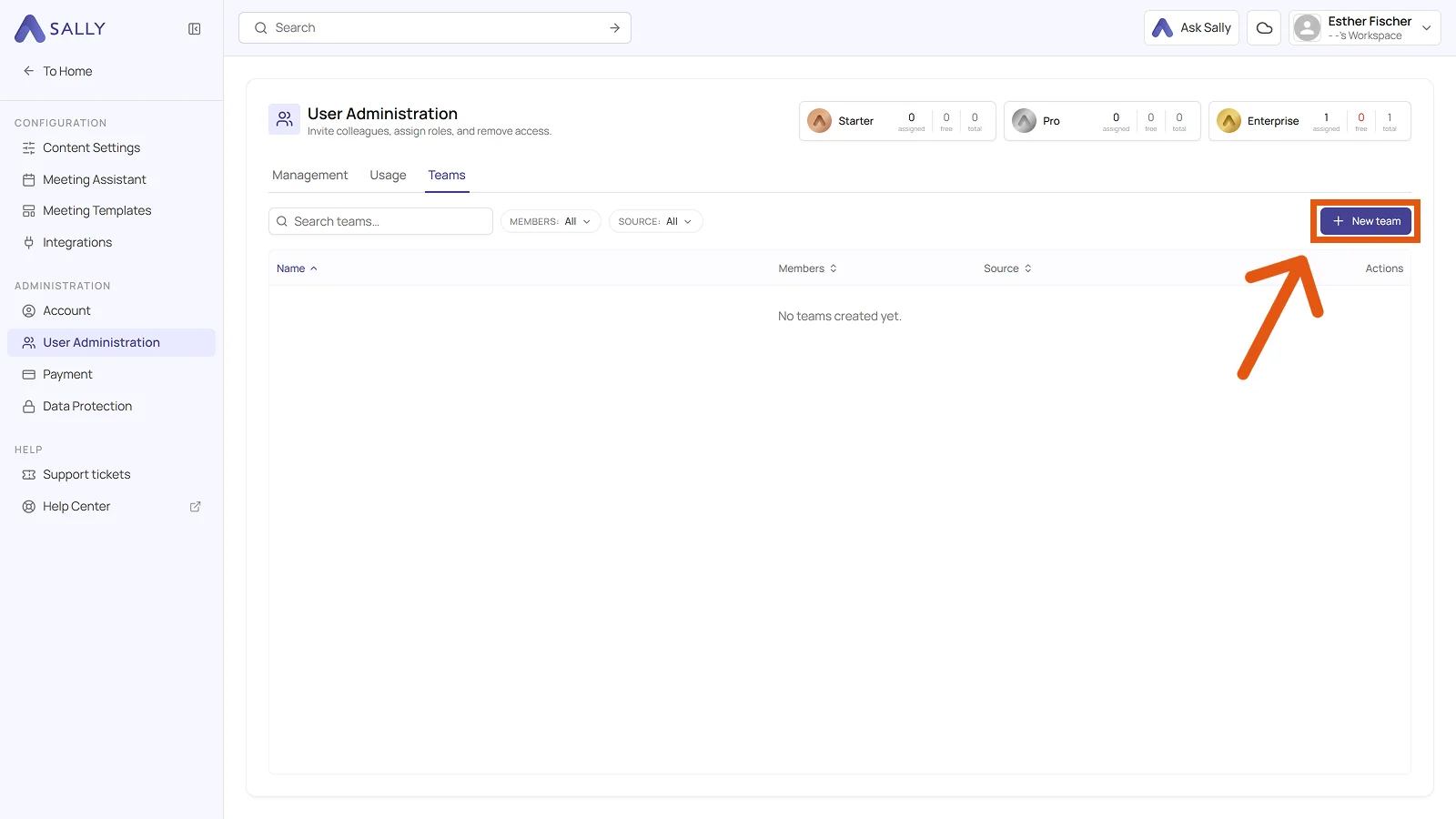
- Open Folders and click Manage teams in the Team folders section. The same place is reachable through Settings, User Administration, and the Teams tab.
- Click + New team in the top right.
-
Fill in a Name and optionally a Code for internal reference, a cost center or department number for example.
-
Use Add member to bring the people in. You can add or remove members at any time later.
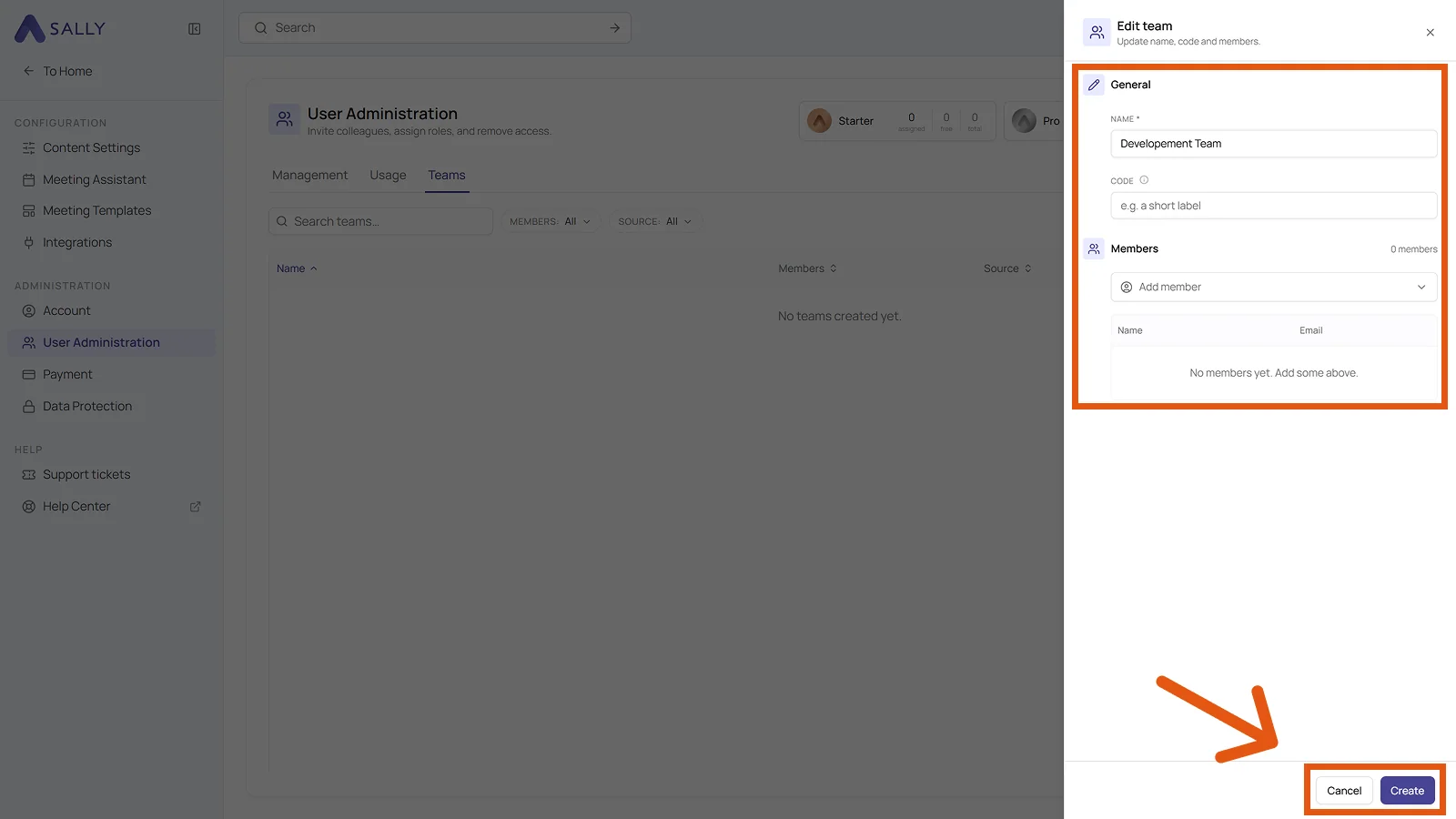
- Click Create. The team is then available under Teams whenever you create or edit a folder.
Teams are created and maintained in User Administration, which is typically only open to admins. If you cannot create a team yourself, contact an admin on your account.
3. Find folders shared with you
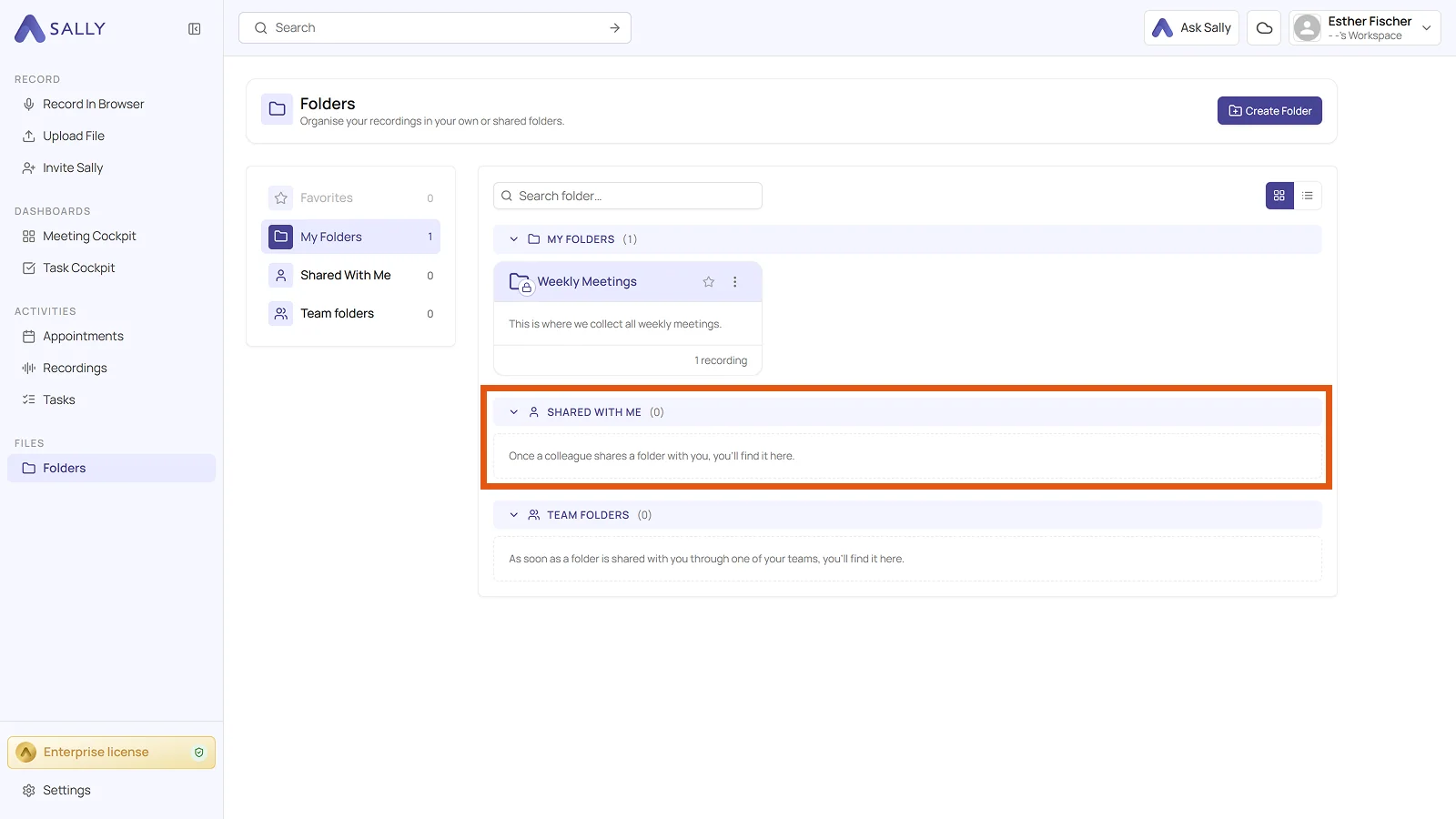
Folders other people have shared with you sit under Shared with me. Folders shared through one of your teams sit under Team folders.
-
In the left sidebar under Files, open Folders.
-
Pick Shared with me or Team folders on the left, or expand the matching section in the list. As soon as someone shares a folder with you, it appears there on its own.
4. Common questions
How do I file recordings into folders automatically?
Give the meetings a tag and build an automation with the action Add to folder. From then on, every new recording carrying that tag lands in the folder on its own. File recordings automatically walks through all three steps.
How can recordings be sorted into folders without doing it by hand?
Through the same rule. Sally can even set the tag from a keyword in the appointment title, so recurring meetings are filed without anyone touching them. See File recordings automatically.
Can a recording sit in several folders?
Yes. The same meeting can belong to a project folder and a client folder at once, and it is not duplicated by that.
What is the difference between folders and tags?
The folder is the filing place, a tag describes what the meeting was about. An automation reads the tag to decide which folder a recording belongs in.
Why can a colleague not open a folder I shared?
Opening a shared folder needs at least a Pro license. A plain user account cannot open it, not even with Can read permission.