How to Customize Document Settings in Sally AI
Before you download a transcript or summary as a document, you can adjust the document settings to control its design and layout.
These settings let you define how your meeting reports look - from colors and logos to footers and download restrictions - so your exported files always match your company's style.
Quick Navigation
- What does a Sally AI document look like?
- How do I access document settings?
- What document settings can I configure?
- 3.1. Summary detail level
- 3.2. Logo for reports
- 3.3. Font
- 3.4. Accent color
- 3.5. Footer
- 3.6. Page numbers
- 3.7. Download restrictions
1. What does a Sally AI document look like?
Documents in Sally are used to store, share, or send meeting summaries and transcripts in a clean, professional layout.
They include key meeting information such as the title, date, attendees, location, and summary.
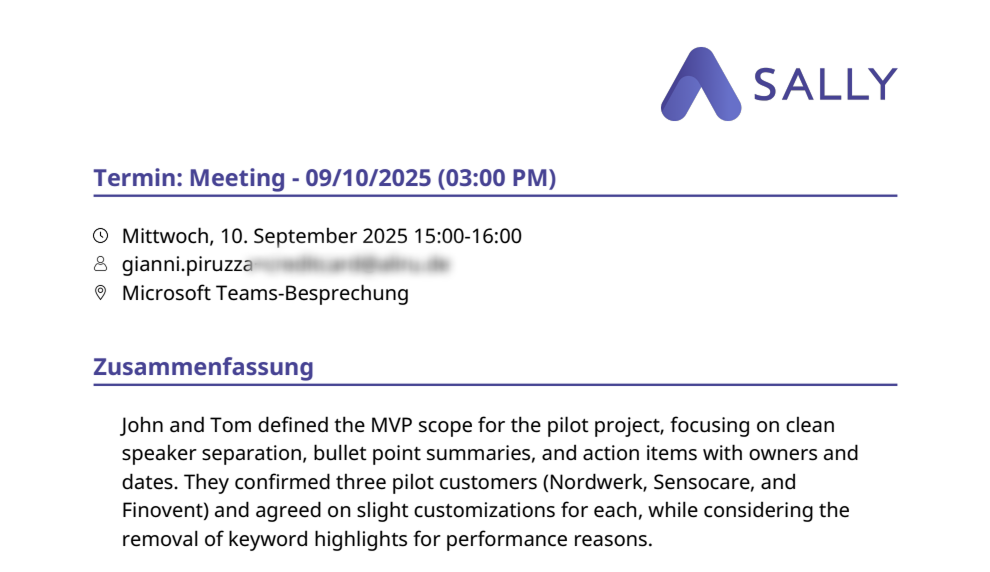
By adjusting your document settings, you can:
- Add your company logo for consistent branding
- Use your own accent color for visual alignment
- Include a footer with company details or disclaimers
- Restrict certain downloads to maintain privacy and compliance
These options ensure that every report you generate looks polished and aligned with your organization's standards.
2. How do I access document settings?
To open the document settings:
- Go to Settings in the main navigation bar on the left.
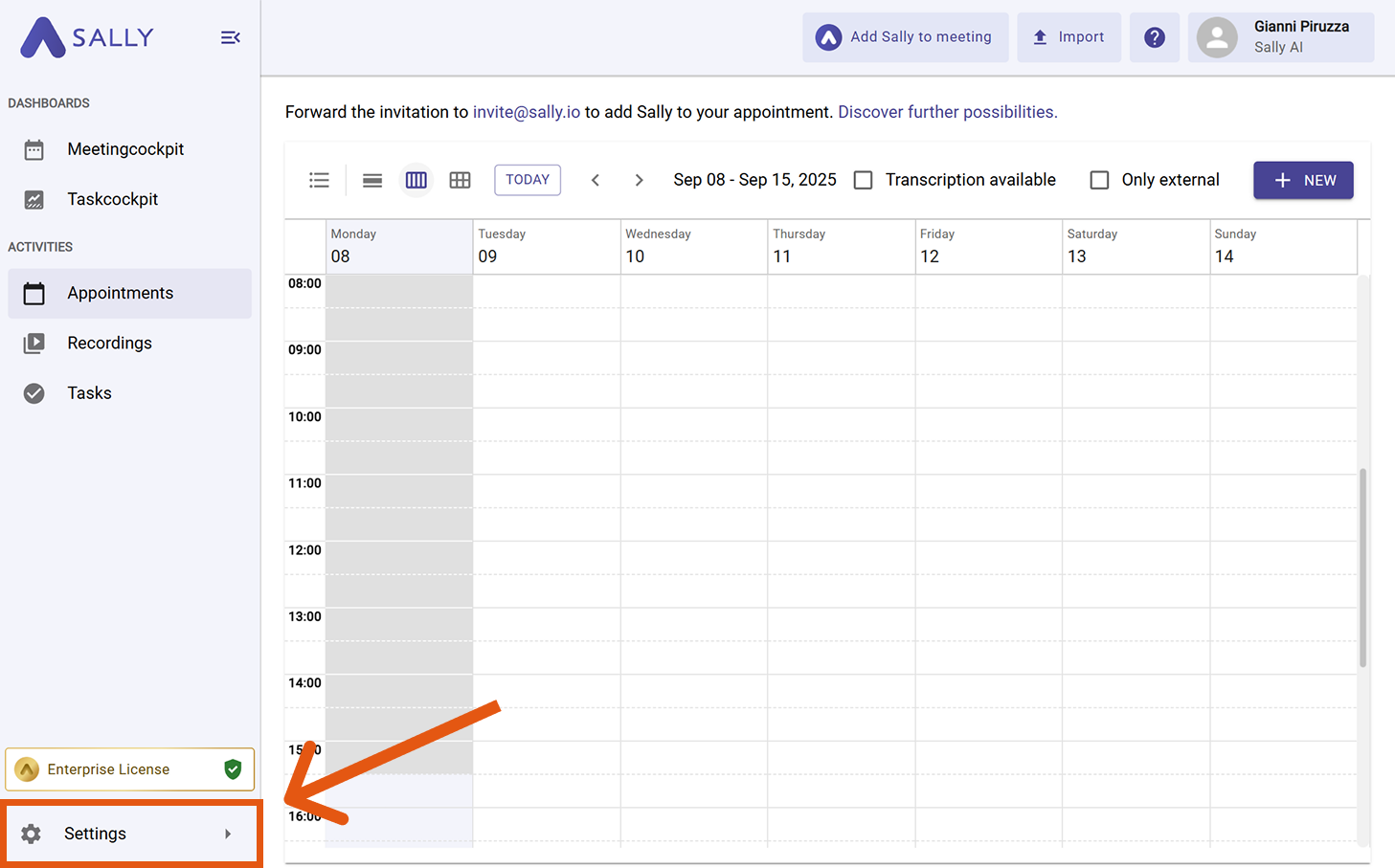
- Select Meeting Assistant under Configuration.
- Scroll down to the Downloads section.
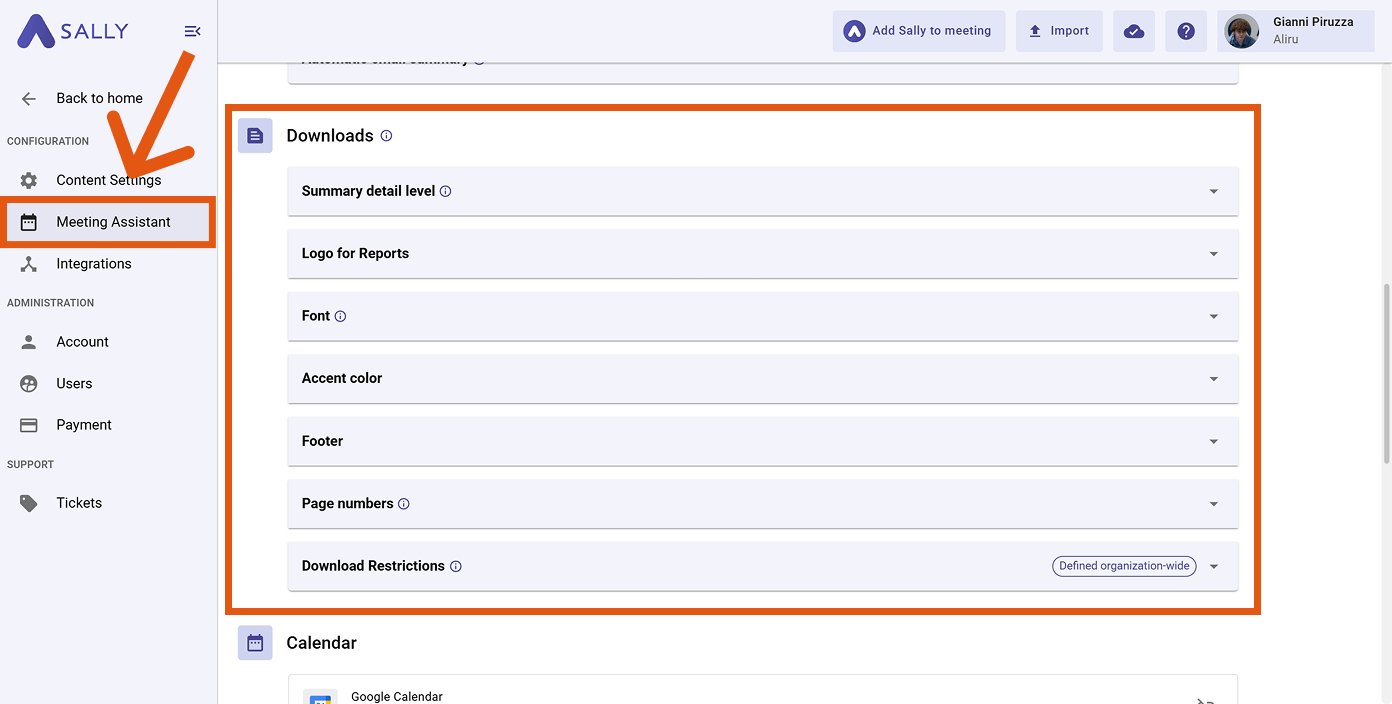
Here, you'll find all available customization options such as logo, color, footer, and download permissions.
To modify a specific setting, simply expand the corresponding tab.
In the following sections, we'll walk you through all available document settings, so you can decide which adjustments make the most sense for your team.
3. What document settings can I configure?
3.1. Level of detail in the summary
Sally allows you to determine the level of detail in your downloaded summaries.
These settings define how detailed content such as topics and tasks will appear in exported reports.
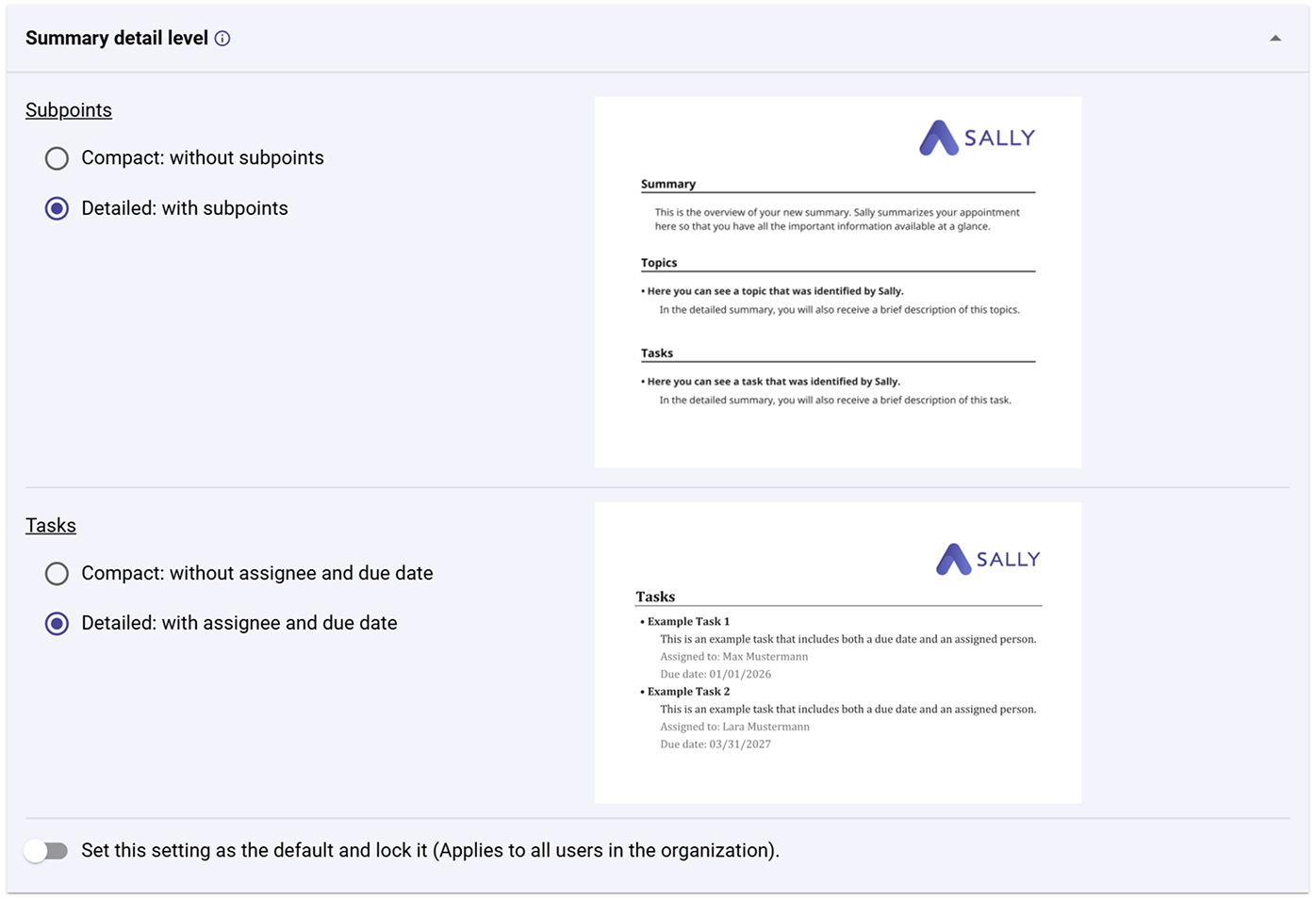
You can configure two areas individually:
Subpoints
Decide whether topics and sections of the summary should include additional descriptions.
-
Compact: Without subpoints
Sally only displays the main sections of your summary — clear, short, and easy to scan. -
Detailed: With subpoints
Each section of the summary is expanded with short descriptions. This is ideal if you want more context without reading the full transcript.
Tasks
You can also define how detailed tasks should appear in exported reports.
-
Compact: Without assignee and due date
Tasks are displayed only as a short list. -
Detailed: With assignee and due date
Tasks additionally include information about the responsible person and the due date.
This format is especially useful for structured meeting notes or project discussions, where tasks should be clearly assigned.
3.2. Logo for reports
You can choose which logo is displayed in your exported reports.
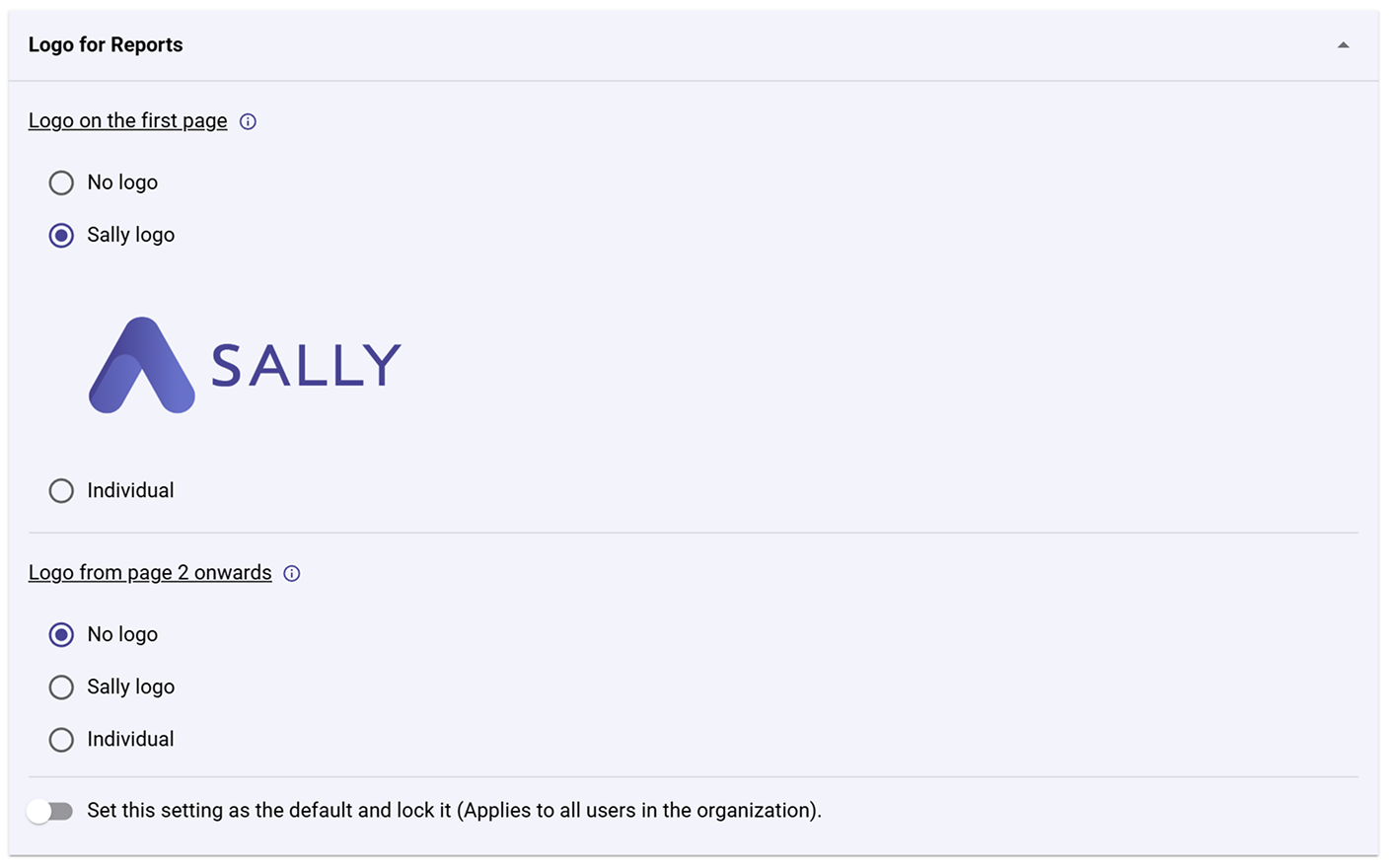
You can configure the logo separately for the first page and for all following pages.
Logo on page 1
- No logo – The document will not display a logo on the first page.
- Sally logo – Use the default Sally logo on the first page.
- Custom – Upload your organization's logo.
Logo from page 2
For all following pages, you can also define which logo should appear:
- No logo – No logo will be displayed on the following pages.
- Sally logo – The Sally logo appears on all remaining pages.
- Custom – Use your own logo on the following pages.
This setting is particularly useful if you want a prominent title branding on the first page and a more subtle logo on subsequent pages.
If this logo setting should apply to all users in your organization, enable “Set and lock this setting as the default.”
3.3. Font
You can customize the font of your exported reports to better match your company's branding guidelines or your personal preferences.
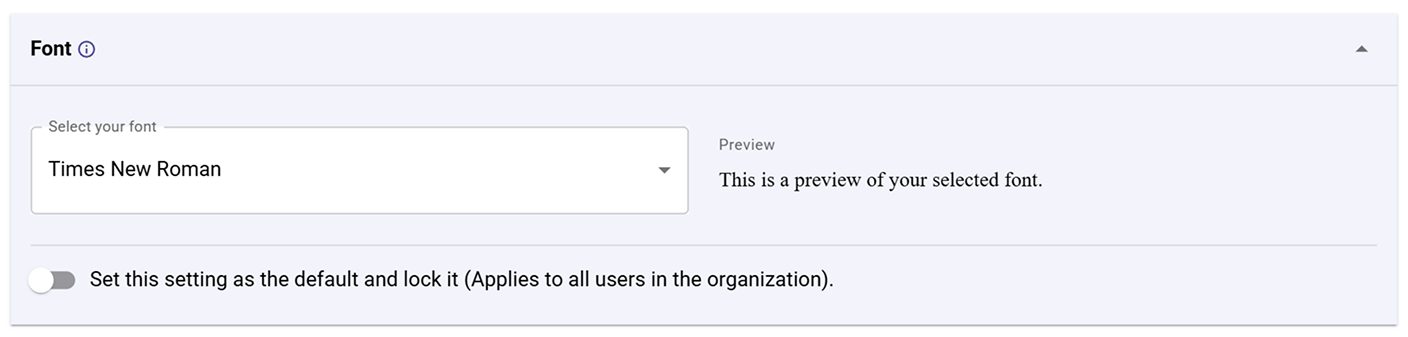
Simply select a font from the list. A live preview instantly shows how the text will appear in your exported documents.
This setting affects, among other things:
- Headings
- Body text
- Summaries and lists
- Other text content in the exported document
You can currently choose from the following fonts in Sally:
- Arial
- Calibri
- Courier New
- Georgia
- Helvetica
- Noto Sans
- Segoe UI
- Tahoma
- Times New Roman
- Trebuchet MS
- Verdana
If this font should apply to all users in your organization, enable “Set and lock this setting as the default.”
3.4. Accent Color
Select your desired accent color to define the look of headlines and other visual highlights in the document.
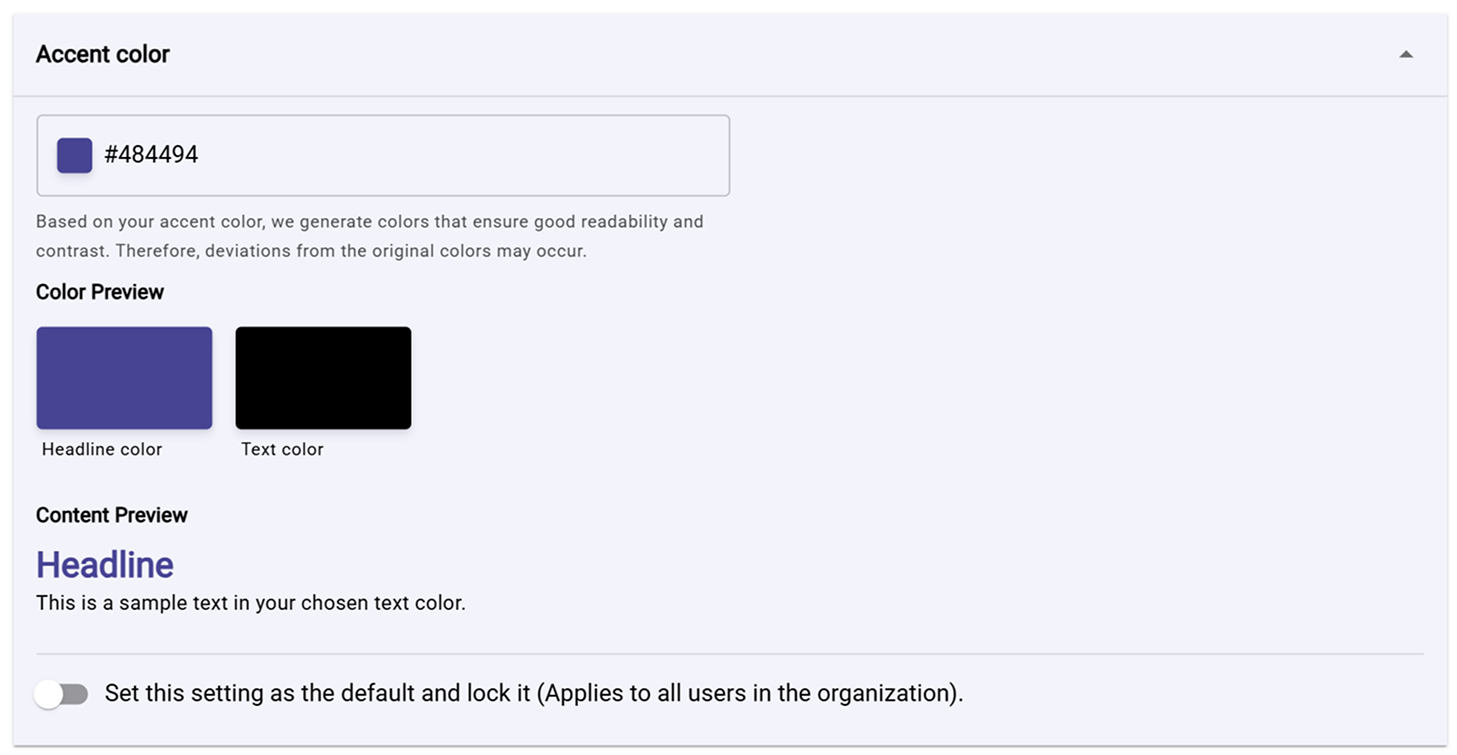
- Match your company's brand color
- Use neutral tones for formal client-facing reports
A live preview shows how your color choice affects headline and text colors.
If you want this accent color setting to apply to all users in your organization, activate “Set this setting as the default and lock it.”
3.5. Footer
Add one, two, or three footers at the bottom of your reports.
Each field can contain any text - such as contact information, company name, or legal disclaimers.
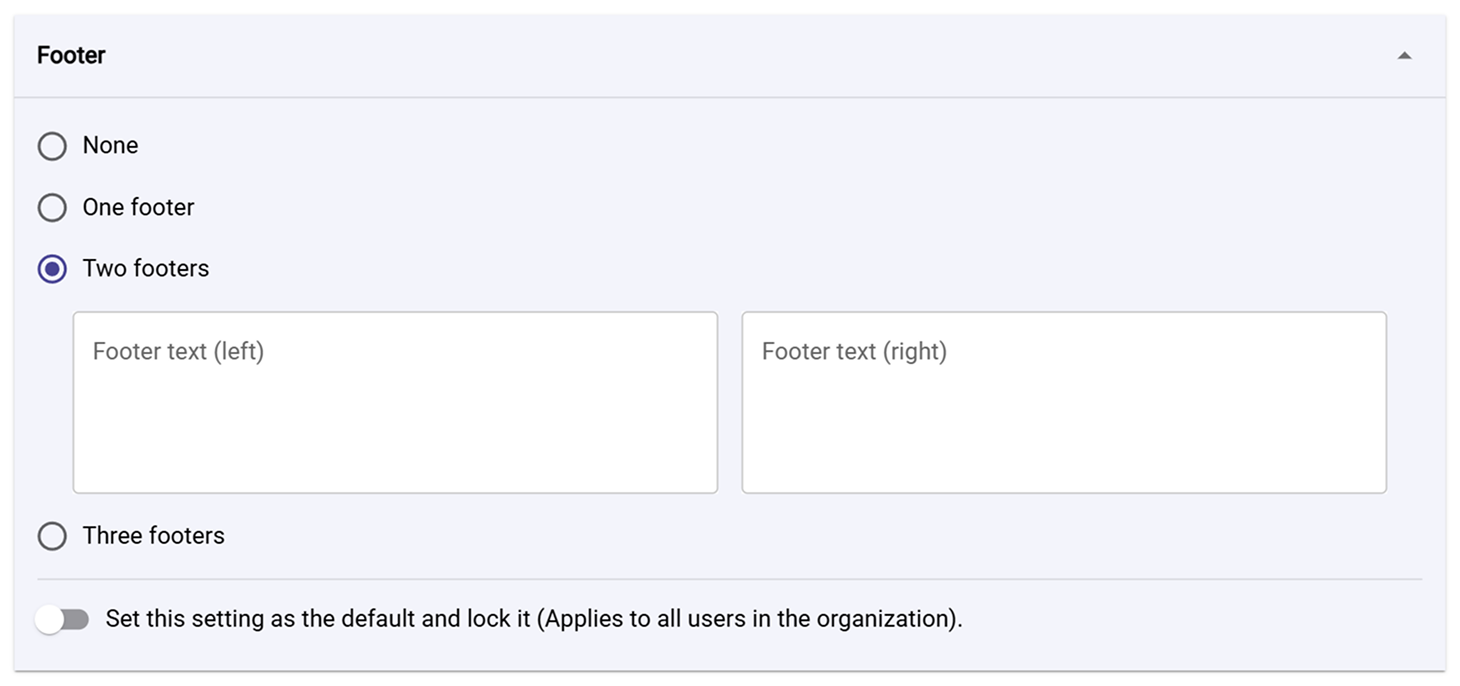
Options:
- None – No footer
- One footer – A single footer line
- Two footers – Left and right footer fields
- Three footers – Add more detailed information
If you want this footer setting to apply to all users in your organization, activate “Set this setting as the default and lock it.”
3.6. Page numbers
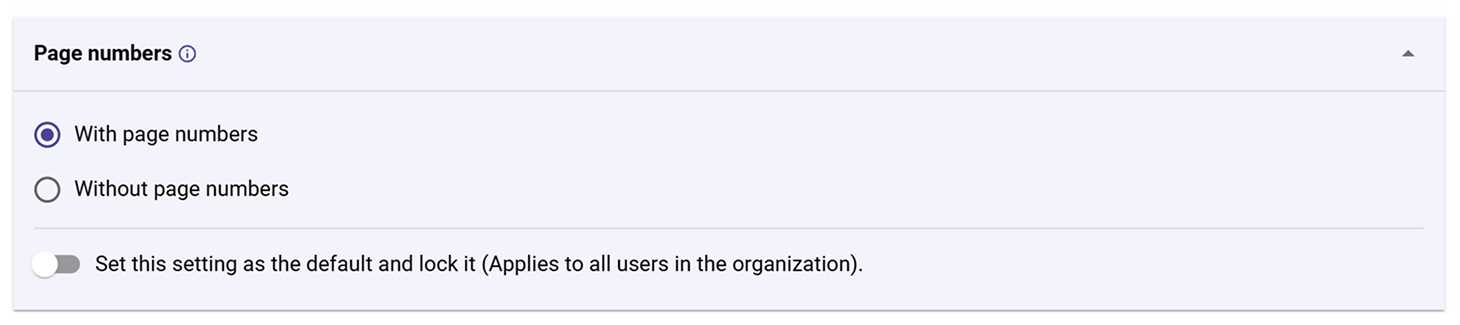
You can decide whether your exported meeting reports should include page numbers or not.
Available options:
- With page numbers – Each page of the document receives a page number. This is especially useful for longer meeting notes or reports.
- Without page numbers – The document will be exported without page numbers.
Page numbers make it easier to structure, reference, or print documents, especially when they contain multiple pages.
If this setting should apply to all users in your organization, enable “Set and lock this setting as the default.”
3.7. Download Restrictions
Administrators can restrict which file types users are allowed to download - helping protect sensitive information.
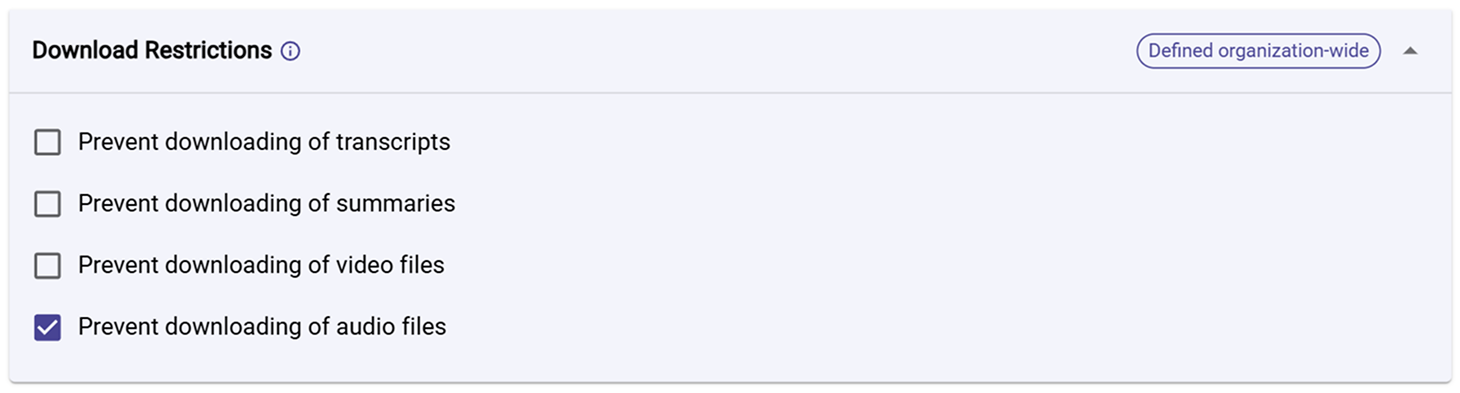
Available options:
-
Prevent downloading of transcripts
Users won't be able to export or save written transcripts of meetings as files. This is useful when internal discussions should stay within Sally. -
Prevent downloading of summaries
Blocks users from downloading Sally's automatically generated summaries. This ensures that sensitive insights remain in the system and aren't shared externally. -
Prevent downloading of video files
Disables the option to download meeting video recordings. Videos can still be viewed within Sally but not exported to local storage. -
Prevent downloading of audio files
Stops users from saving the raw audio recordings of meetings. This helps reduce data exposure and comply with stricter privacy rules.
Restrictions are defined organization-wide, meaning all users follow the same rules.