How to Manage User Roles and Permissions in Sally AI
User roles define what different users are allowed to see and do inside Sally.
They help teams clearly separate responsibilities (for example administration vs. daily usage), reduce the risk of unintended changes, and keep account management clear and scalable as your organization grows.
Each user in Sally is assigned exactly one role, which determines their permissions across settings, users, licenses, and content.
Quick Navigation:
1. How do I assign user roles in Sally AI?
-
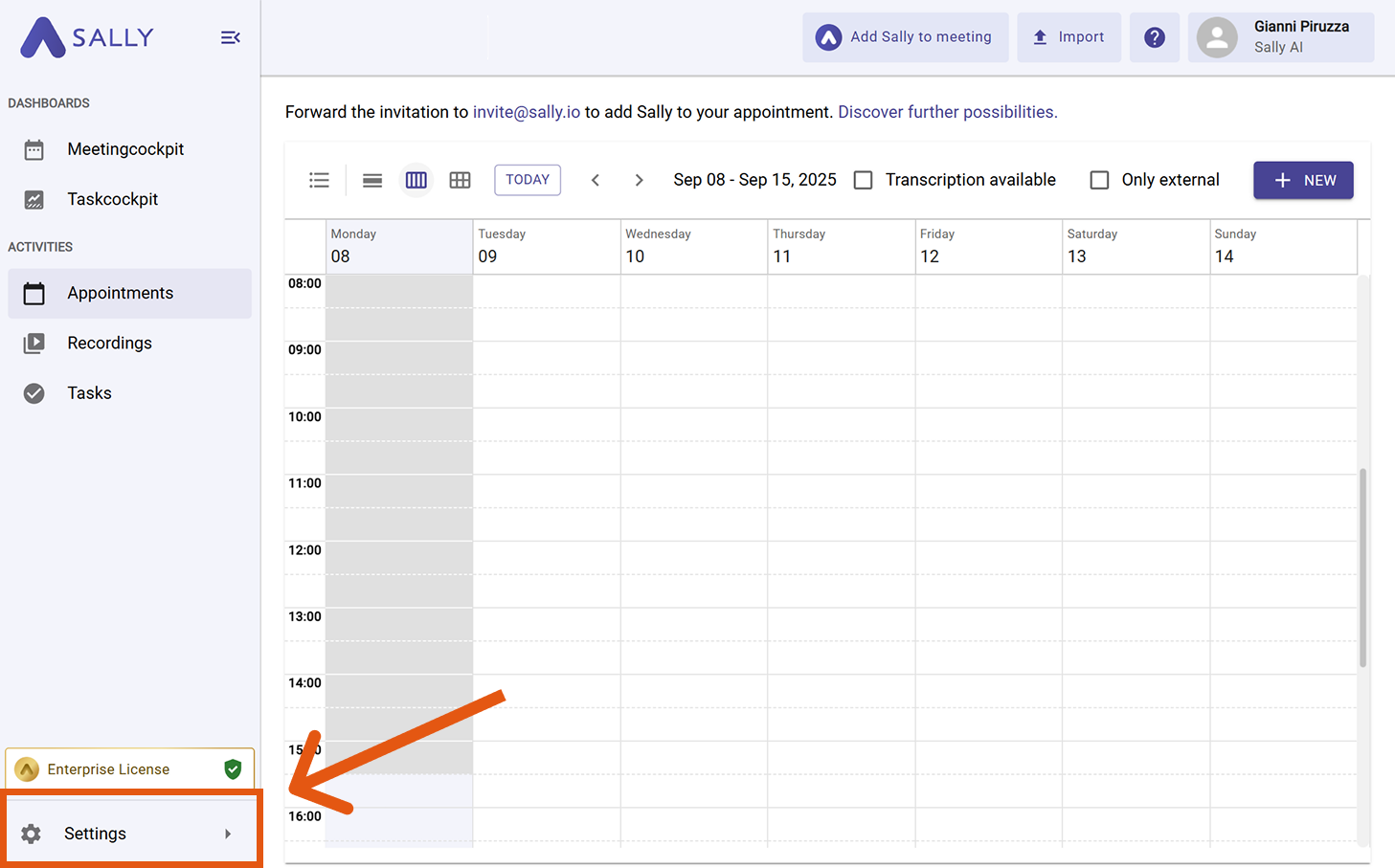
Go to Settings.
Go to Settings -
Open the tab Users.
-
Under the Management tab, select the user whose role you want to edit.
-
Choose the role from the Role dropdown (Owner, Admin, or Member).
Choose the role
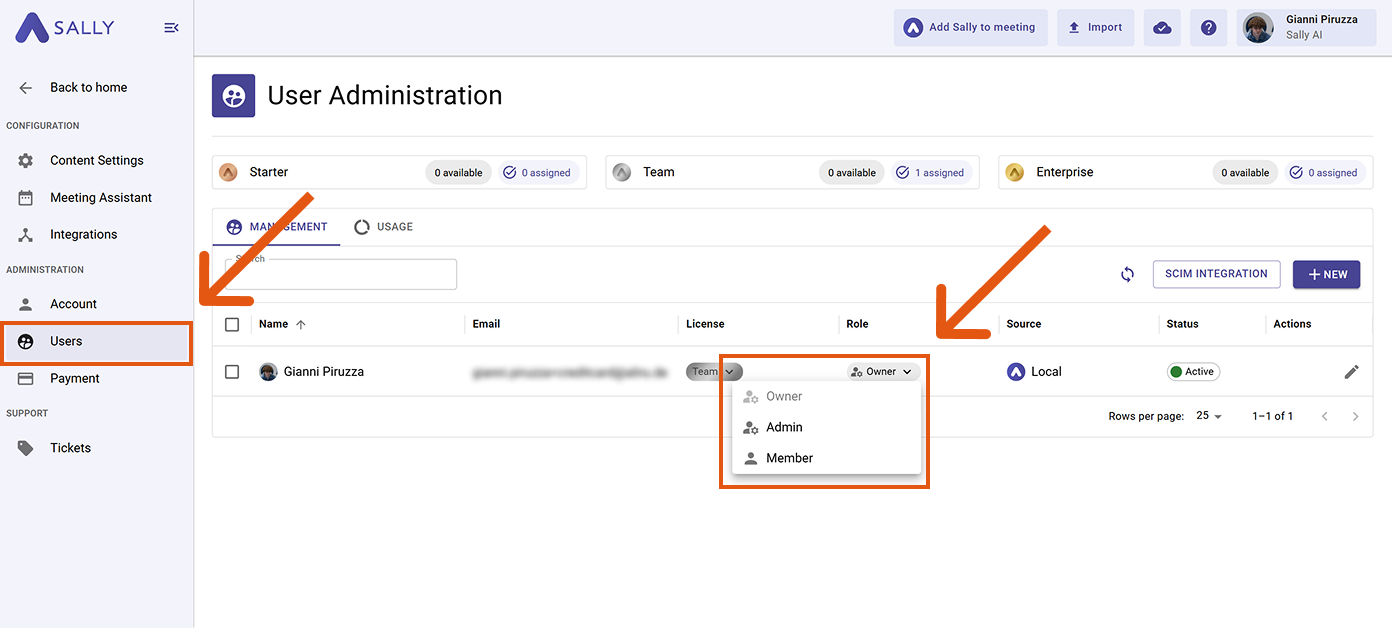
Changes are applied immediately.
The next section provides a detailed overview of the permissions for each user role in Sally.
2. What permissions does each user role have?
The table below shows which actions are available for each user role in Sally.
Permissions are grouped by functional areas to make responsibilities and access levels transparent.
2.1. Role definitions (summary)
-
Owner
Owners have full administrative access to the organization. In addition, they cannot be removed, blocked, or downgraded by Admins or Members. -
Admin
Admins can manage the entire organization account, with the exception of changing or removing Owners. -
Member
Members cannot change organization-wide settings. They can only manage their own personal settings and integrations.
2.2. Permissions matrix
Category | Permission | Owner | Admin | Member |
|---|---|---|---|---|
| Billing | Create subscription | ✅ | ✅ | ❌ |
| Change subscription (licenses, billing cycle, etc.) | ✅ | ✅ | ❌ | |
| Update billing information | ✅ | ✅ | ❌ | |
| View / download invoices | ✅ | ✅ | ❌ | |
| Cancel subscription | ✅ | ✅ | ❌ | |
| User management | Invite users | ✅ | ✅ | ❌ |
| Edit users | ✅ | ✅ | ❌ | |
| Delete users | ✅ | ✅ | ❌ | |
| Assign licenses | ✅ | ✅ | ❌ | |
| Assign roles | ✅ Owner ✅ Admin ✅ Member | ❌ Owner ✅ Admin ✅ Member | ❌ | |
| Change user status (active / blocked) | ✅ Owner ✅ Admin ✅ Member | ❌ Owner ✅ Admin ✅ Member | ❌ | |
| User impersonation | ✅ Owner ✅ Admin ✅ Member | ❌ Owner ✅ Admin ✅ Member | ❌ | |
| Enable / manage SCIM | ✅ | ✅ | ❌ | |
| Account | Change personal account settings | ✅ | ✅ | ✅ |
| Change own password | ✅ | ✅ | ✅ | |
| Change organization settings | ✅ | ✅ | ❌ | |
| Delete account | ✅ | ❌ | ❌ | |
| Meeting assistant | Allow / block Sally from attending meetings | ✅ personal ✅ organisation-wide | ✅ personal ✅ organisation-wide | ✅ personal ❌ organisation-wide |
| Automatic meeting participation rules | ✅ personal ✅ organisation-wide | ✅ personal ✅ organisation-wide | ✅ personal ❌ organisation-wide | |
| Integrations | Connect calendar | ✅ | ✅ | ✅ |
| Add personal integrations | ✅ | ✅ | ✅ | |
| Create/manage company integrations | ✅ | ✅ | ❌ | |
| Content settings | Meeting quality benchmarks (create, edit, activate, delete) | ✅ | ✅ | ❌ |
| Custom insights | ✅ personal ✅ organisation-wide | ✅ personal ✅ organisation-wide | ✅ personal ❌ organisation-wide | |
| Vocabulary | ✅ personal ✅ organisation-wide | ✅ personal ✅ organisation-wide | ✅ personal ❌ organisation-wide |
This matrix provides a clear overview of personal vs. organization-wide permissions and helps teams maintain control, security, and accountability across Sally.