Create & sync tasks
Sally automatically identifies potential tasks from your meetings and shows them in the summary as task suggestions. You can then decide whether to:
- add the suggested tasks directly to your list,
- sync them with your connected tools,
- or manually create new tasks if something is missing.
This helps you stay on top of your next steps without rewriting or copying information.
Before syncing tasks, make sure your preferred tool is connected.
Quick navigation
1. Where to find your tasks
- In the left sidebar, go to Appointments.
- Open your meeting.
- Select the Summary tab.
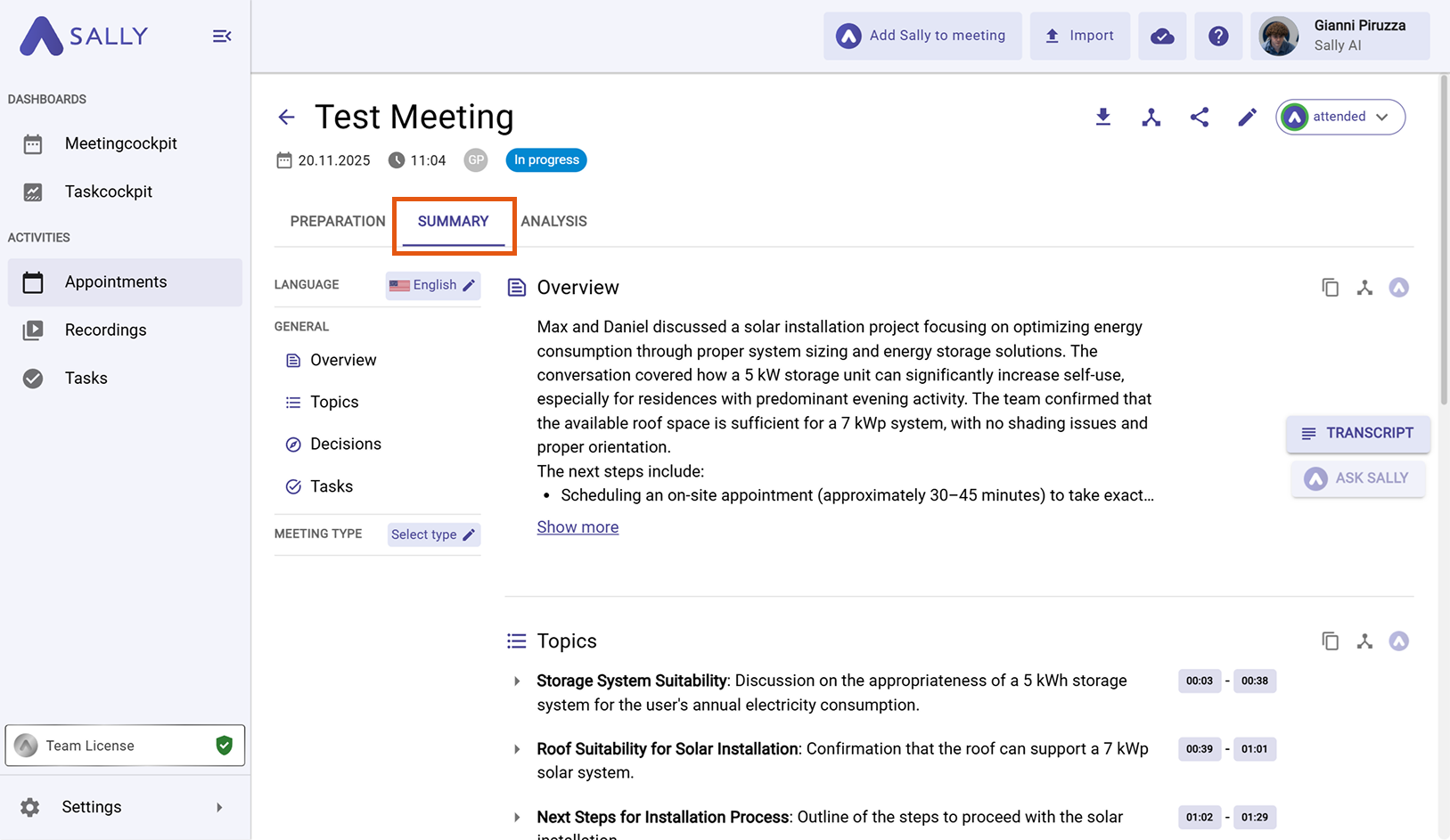
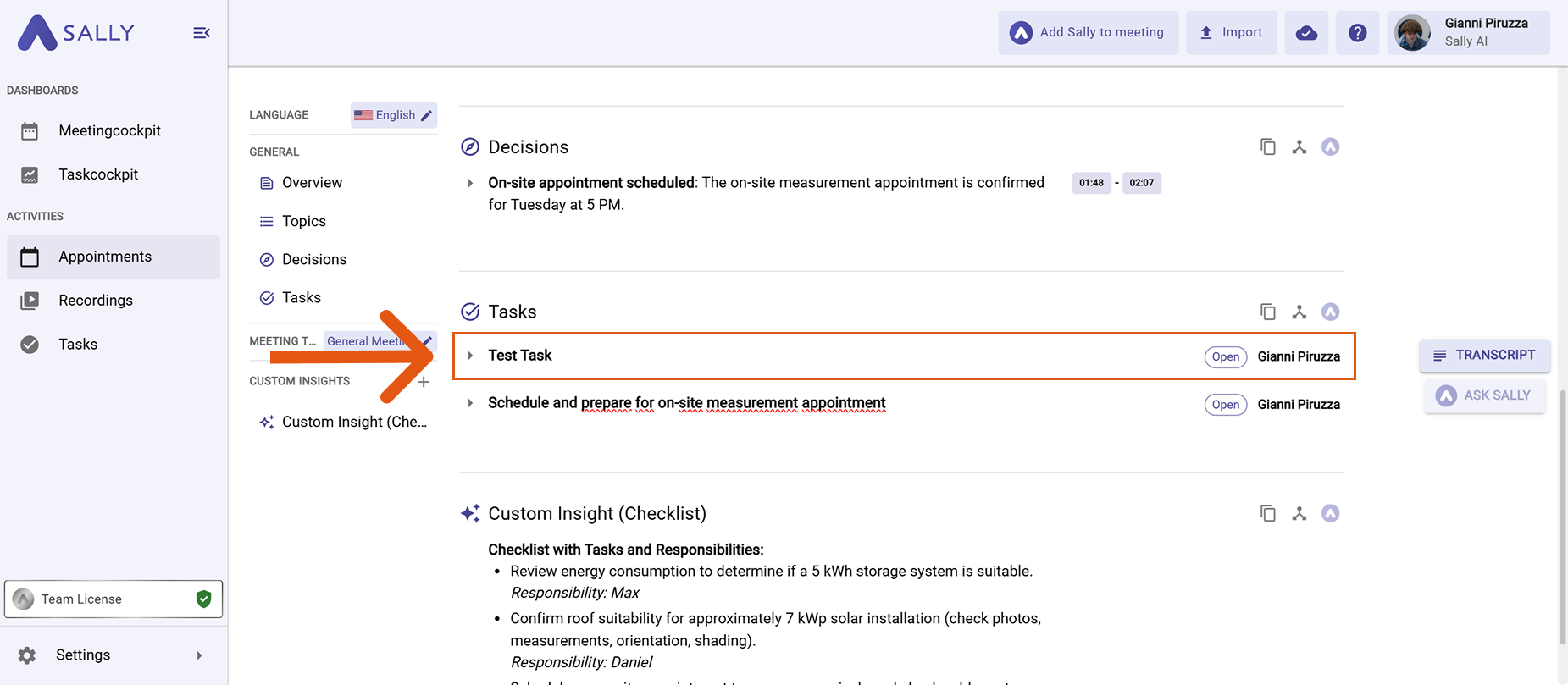
- Scroll down to the Tasks panel.
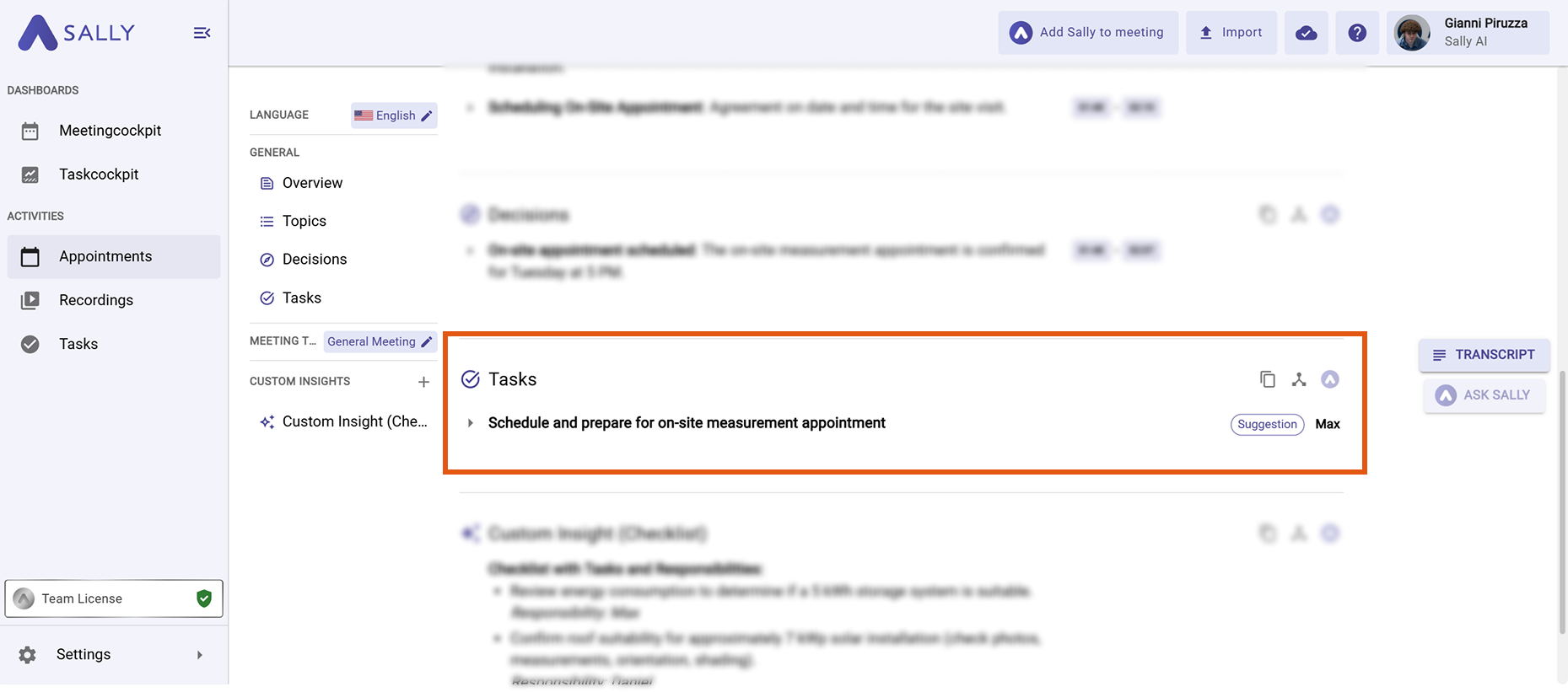
Here you’ll find all tasks Sally recognized. From here, you can edit them, sync them, or add new tasks.
2. Create a new task
If you want to add a task that Sally didn’t detect, follow these steps:
- Hover over any task. Click the “+ icon” that appears on the left.
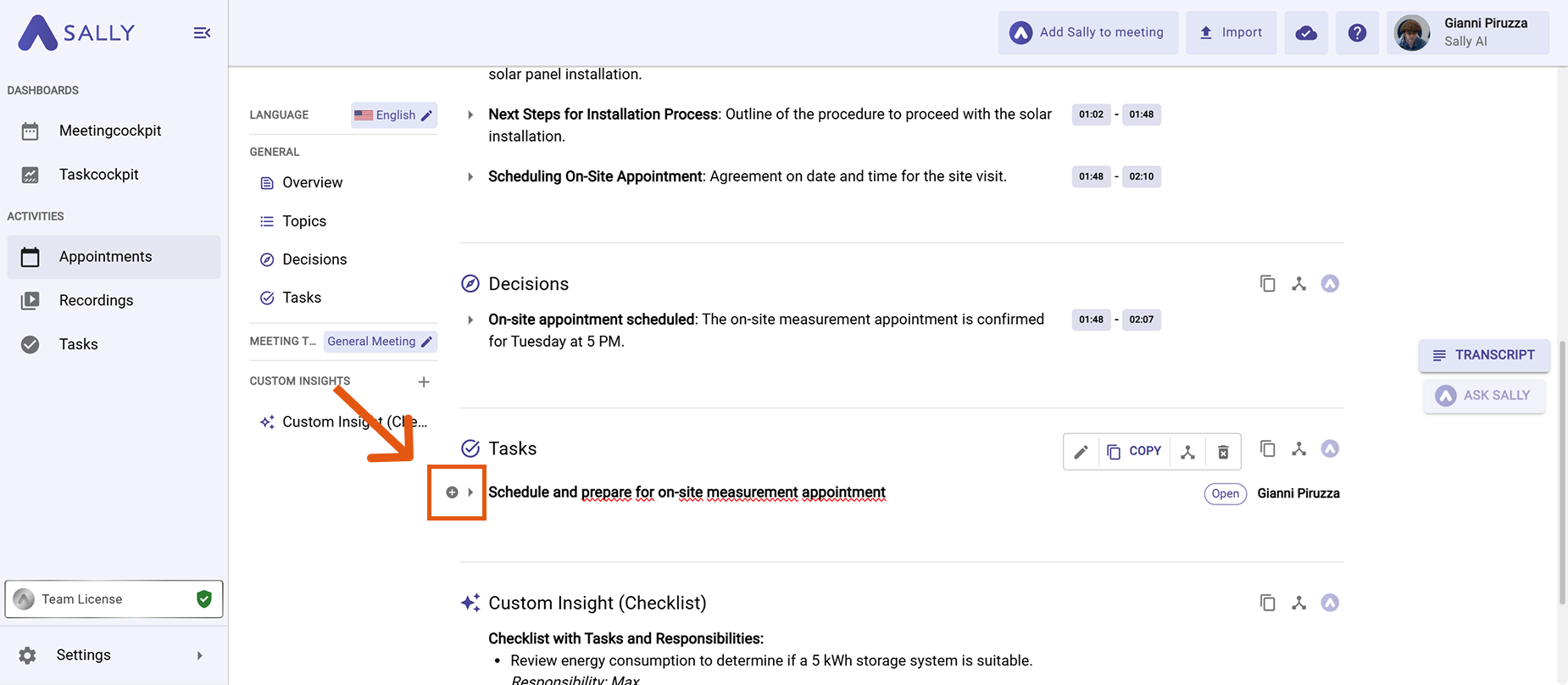
- Fill in the fields for Title, Assigned to, Due date, and Description.
- Click Create to save the task.
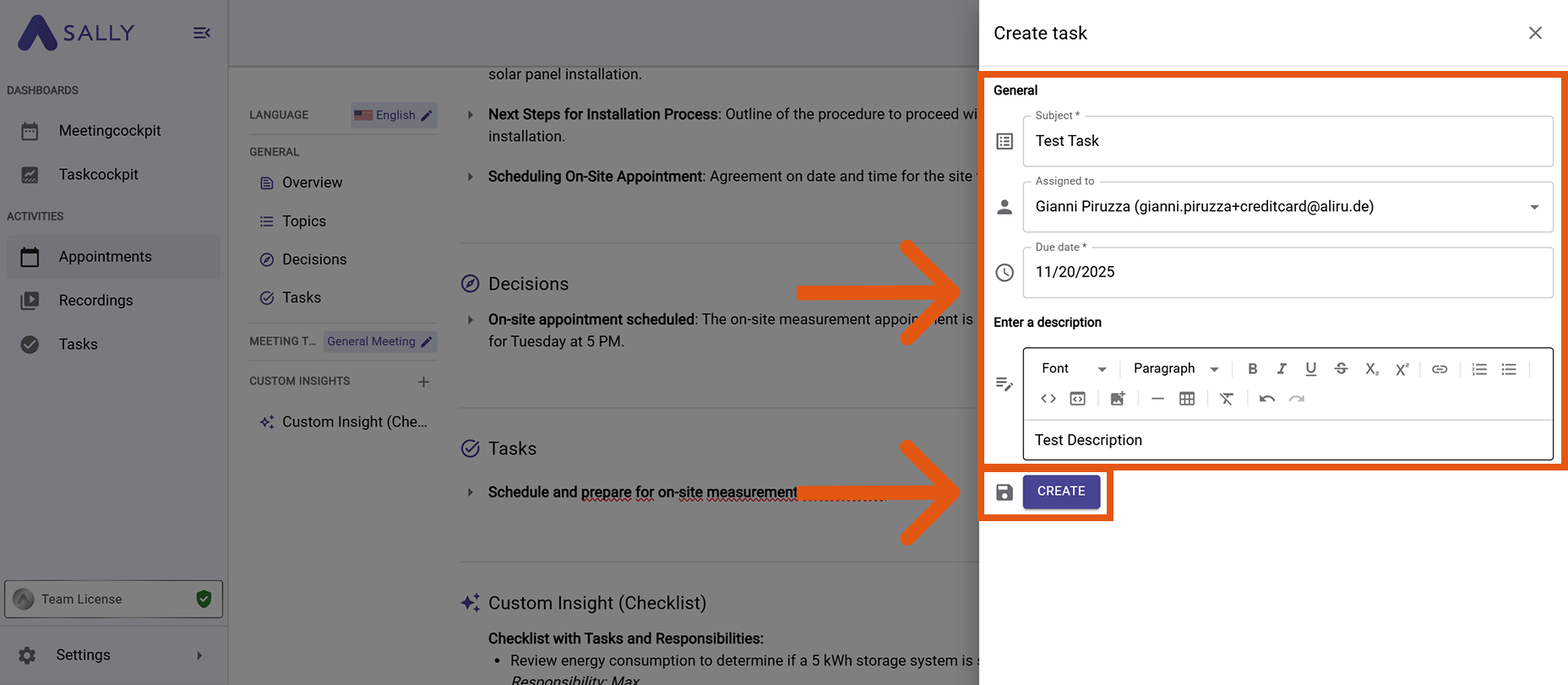
- Once created, the task will appear in your list.
3. Add suggested tasks
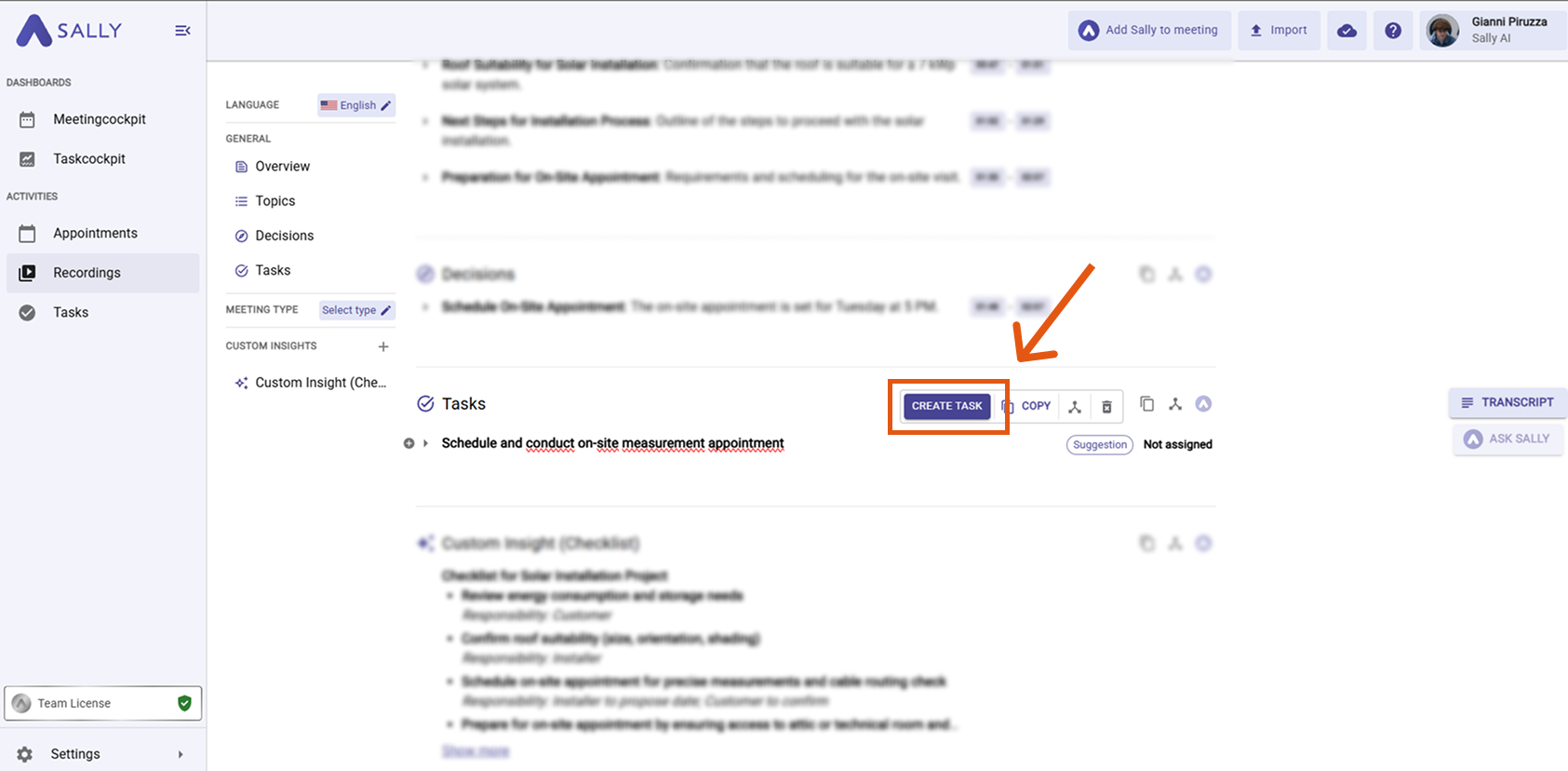
Sally marks proposed items as Suggestion. To convert one into a task:
- Hover over the suggested item and click “Create Task”.
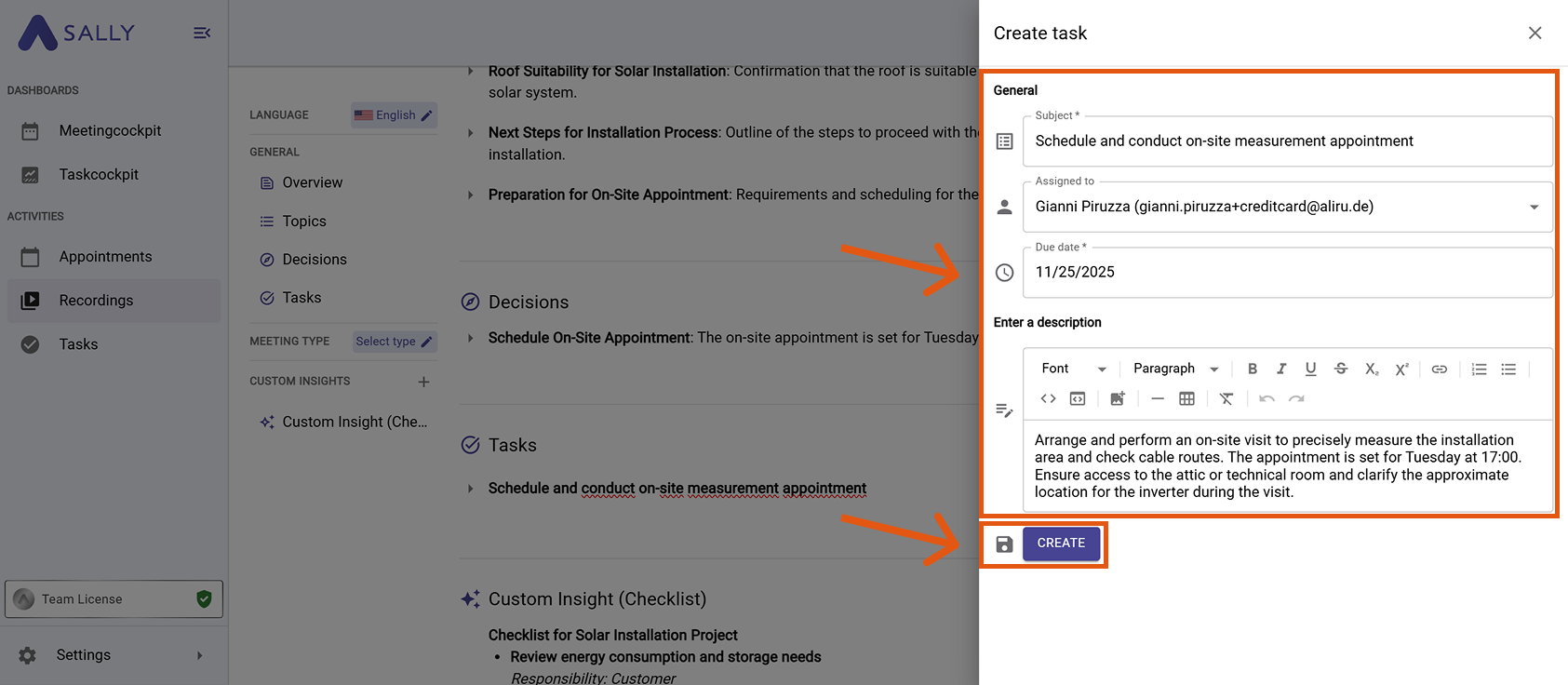
- Review the Title, add or update Assigned to, select the correct Due date, and check the Description.
- Click Create to confirm.
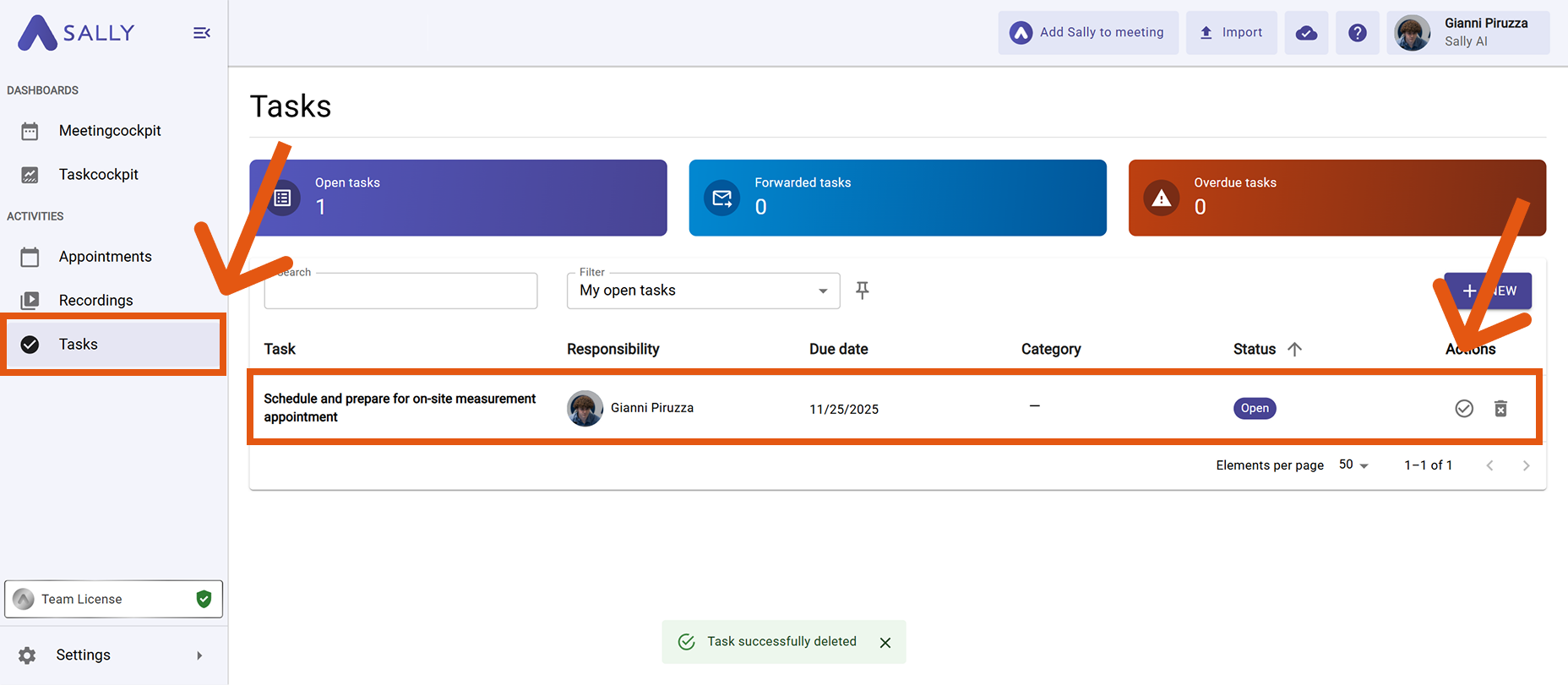
- After creating or accepting a task, you will find it in the Tasks section in the left sidebar.
There you’ll see a clear overview of:
- the number of open, forwarded, and overdue tasks
- the assignee
- the due date
- the current status
4. Sync tasks to your tools
You can send any task directly to your connected tools — such as Salesforce, Microsoft Teams, Pipedrive, and many more.
Before syncing, make sure your tools are properly connected to Sally.
How to sync your tasks — example using Salesforce:
- Hover over the task you want to sync.
- The logos of your connected tools will appear next to the task.
- Click the logo of the tool you want to sync to.
- Choose how the task should be saved in the system (for tasks: choose Task).
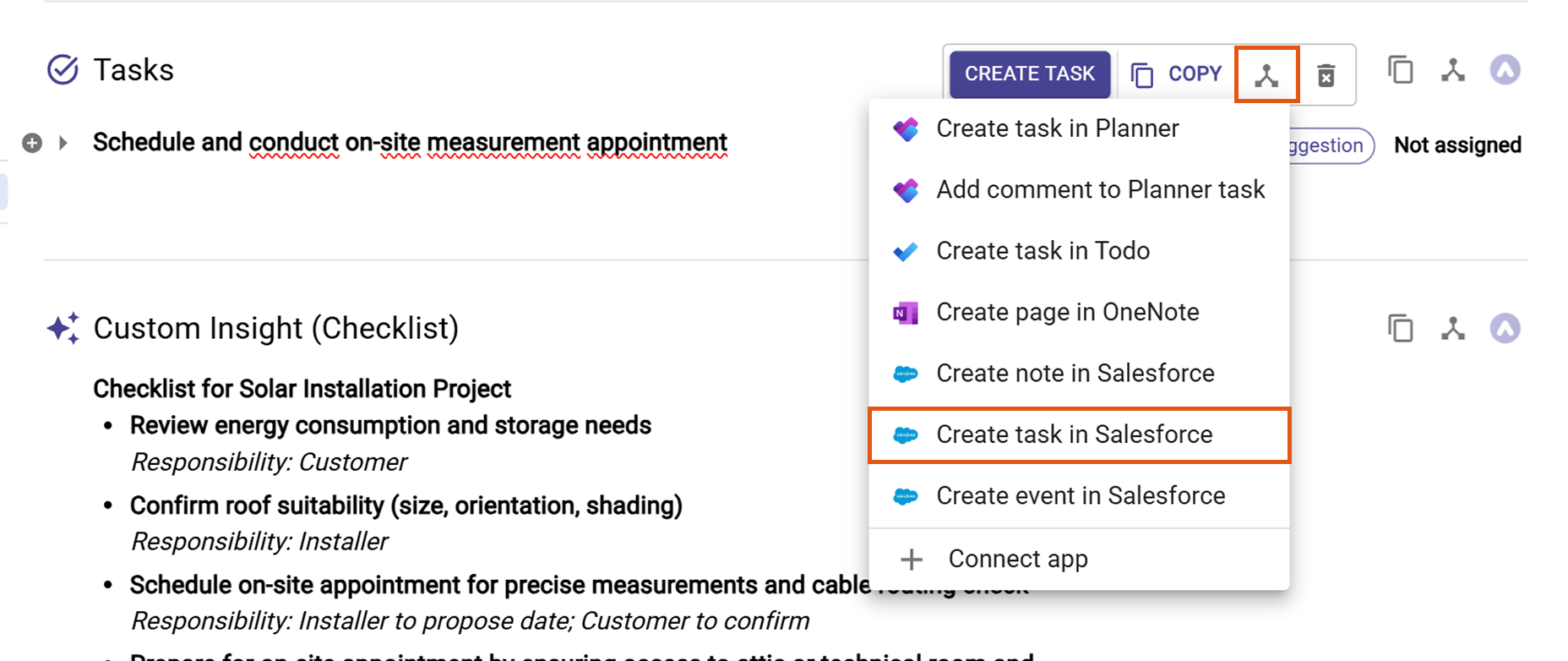
- Review all fields in the form.
In the example below, Salesforce is shown. Salesforce requires a linked instance — such as Lead, Account, Contact, Opportunity, or Case — so the task is stored in the correct location.
The same principle applies to other integrations, but available instance types vary by tool.
You can explore all options in the Integration & Automation section.
Enter the exact name of the instance to ensure correct assignment.
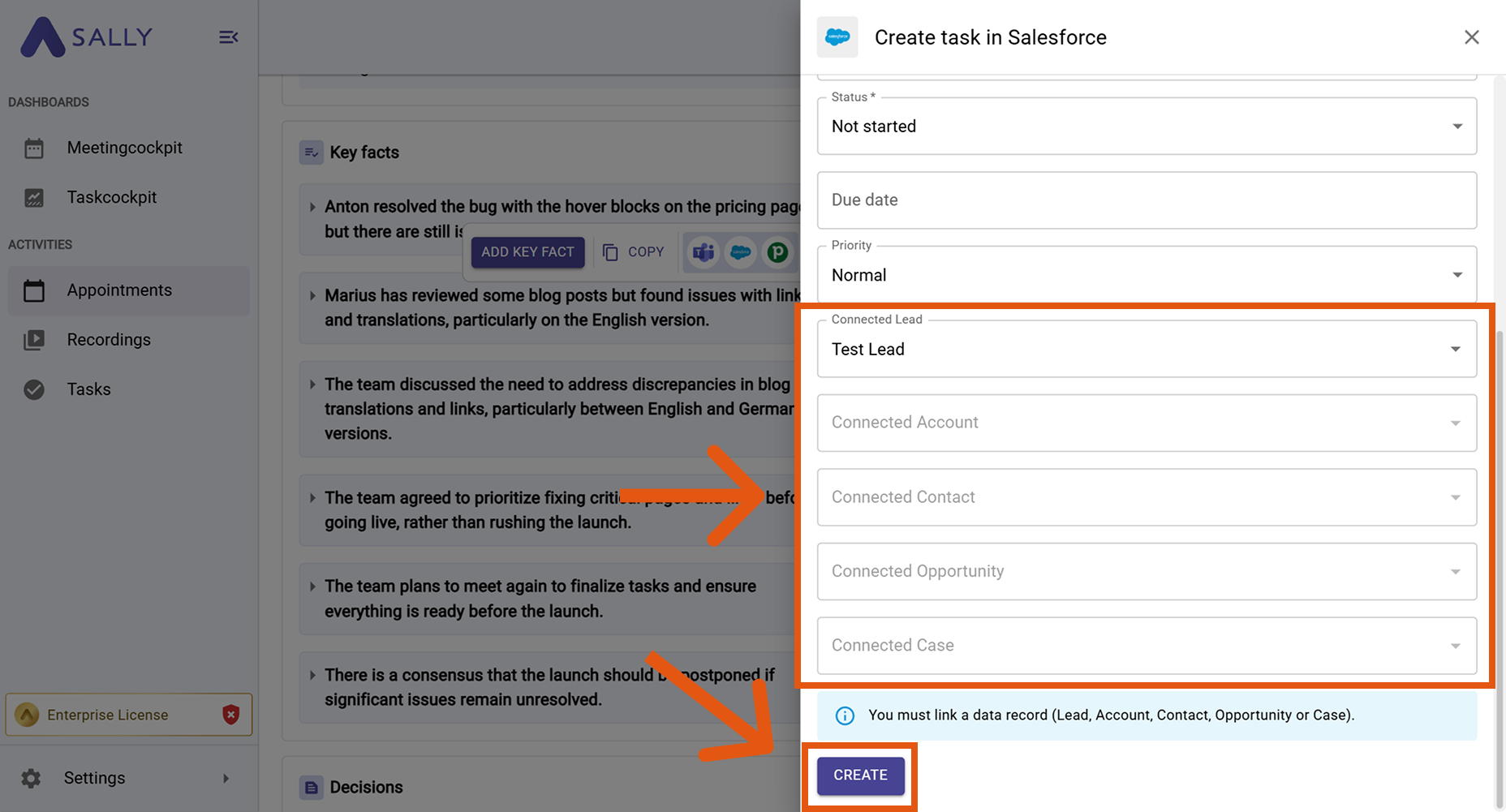
- Click Create to complete the process.
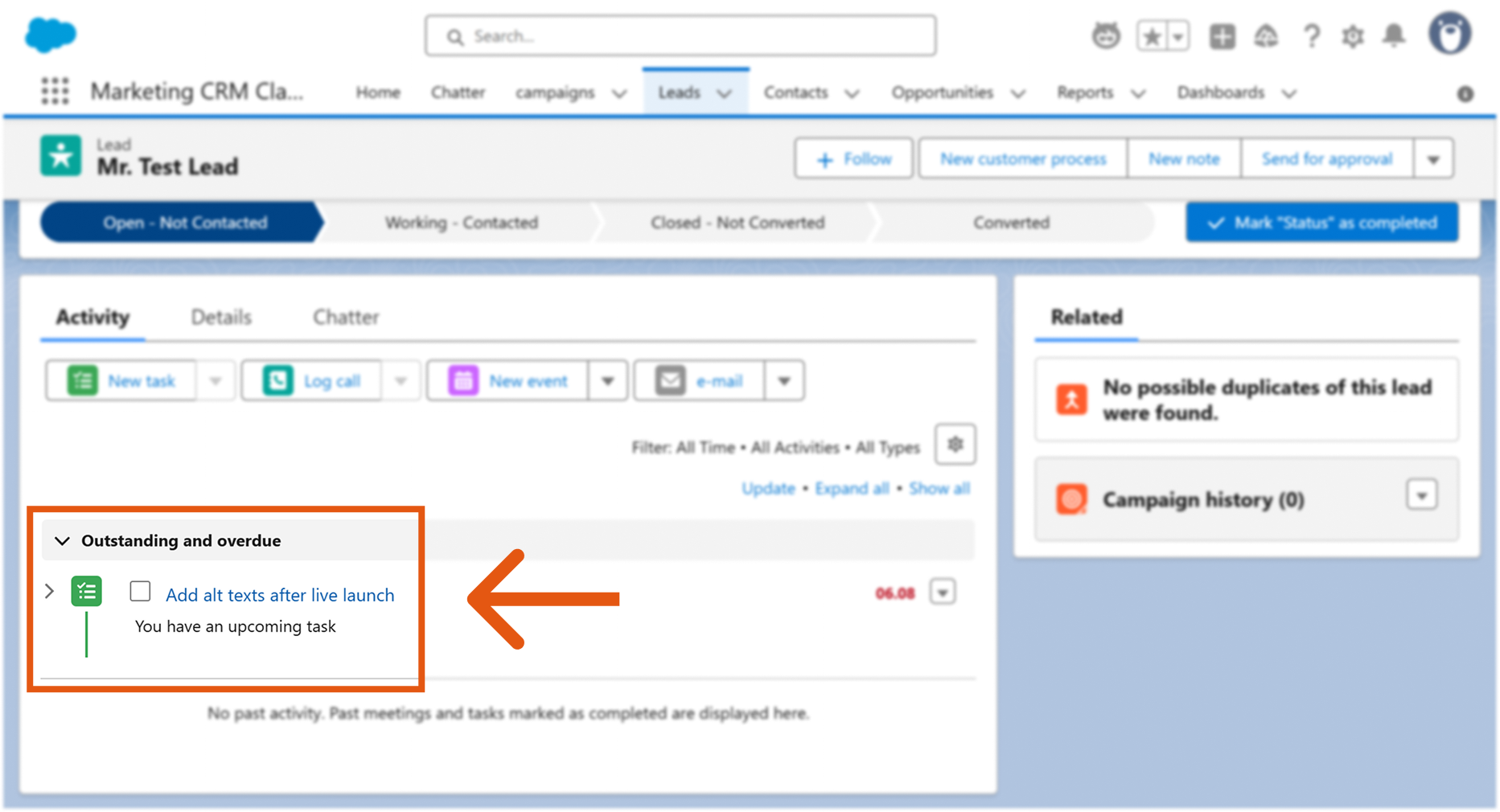
- You will now find the task in the assigned instance (in this example, in Salesforce).
With these steps, you can create new tasks, add suggested tasks from your meeting summaries, and sync them with your tools — all directly inside Sally, without leaving the meeting view.