How to Remove Sally AI from a Meeting
Sally can be removed from an ongoing meeting at any time.
There are two ways to do this:
- Kick Sally from the meeting → A summary will be generated up to that point.
- Remove Sally via “opt out” → All recorded data up to that point will be permanently deleted. No summary will be created.
Quick Navigation
1. How to Kick Sally from a Meeting
Please note
In the following example, we demonstrate how to remove Sally in Microsoft Teams. The same principle applies to Google Meet, Zoom, and Webex: simply open the participant list, select Sally, and remove her from the meeting.
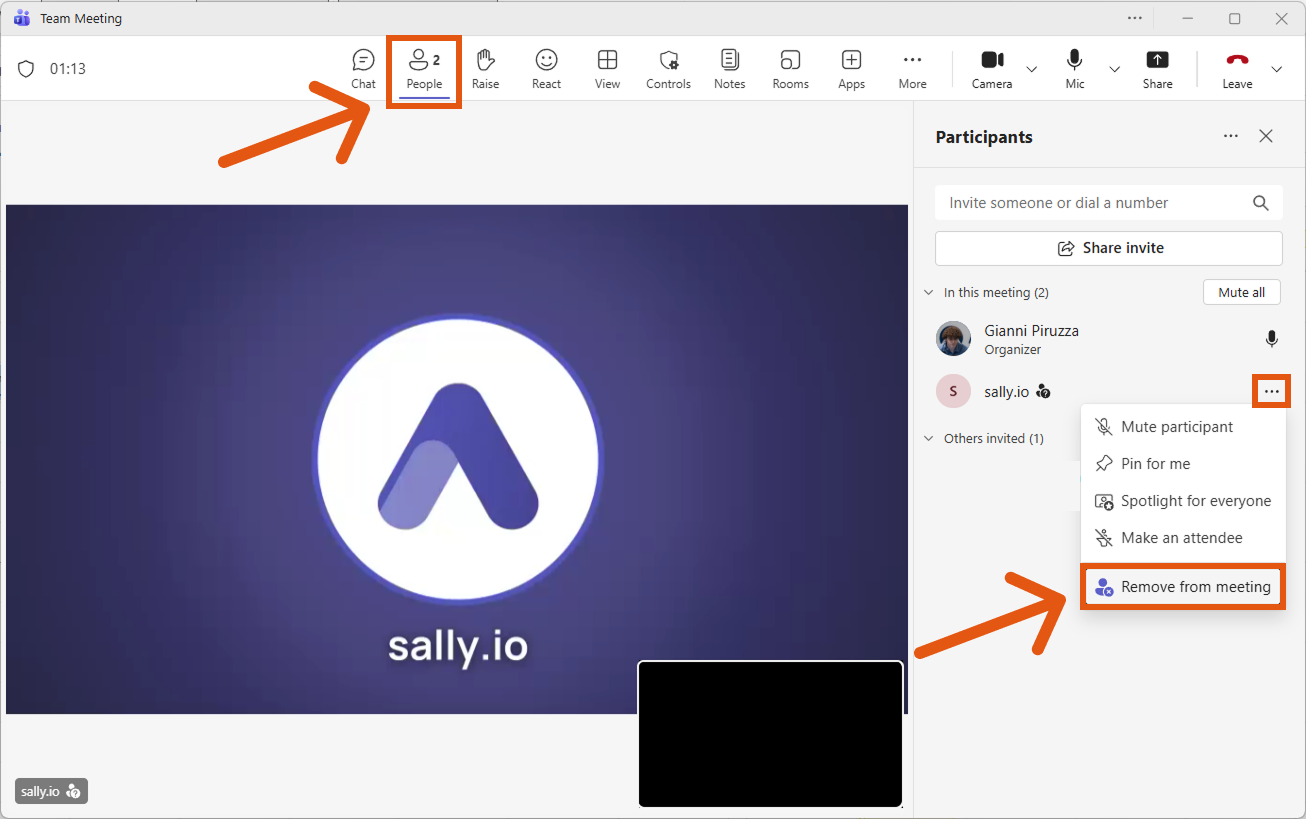
How it works:
- Open the “People” panel in the meeting.
- Locate sally.io in the participant list.
- Click the three dots next to Sally.
- Select “Remove from meeting.”
Once Sally has been removed:
- The recording stops.
- A summary is automatically generated up to that point.
- The meeting continues normally without Sally.
2. How to Opt Out and Permanently Delete Recorded Data
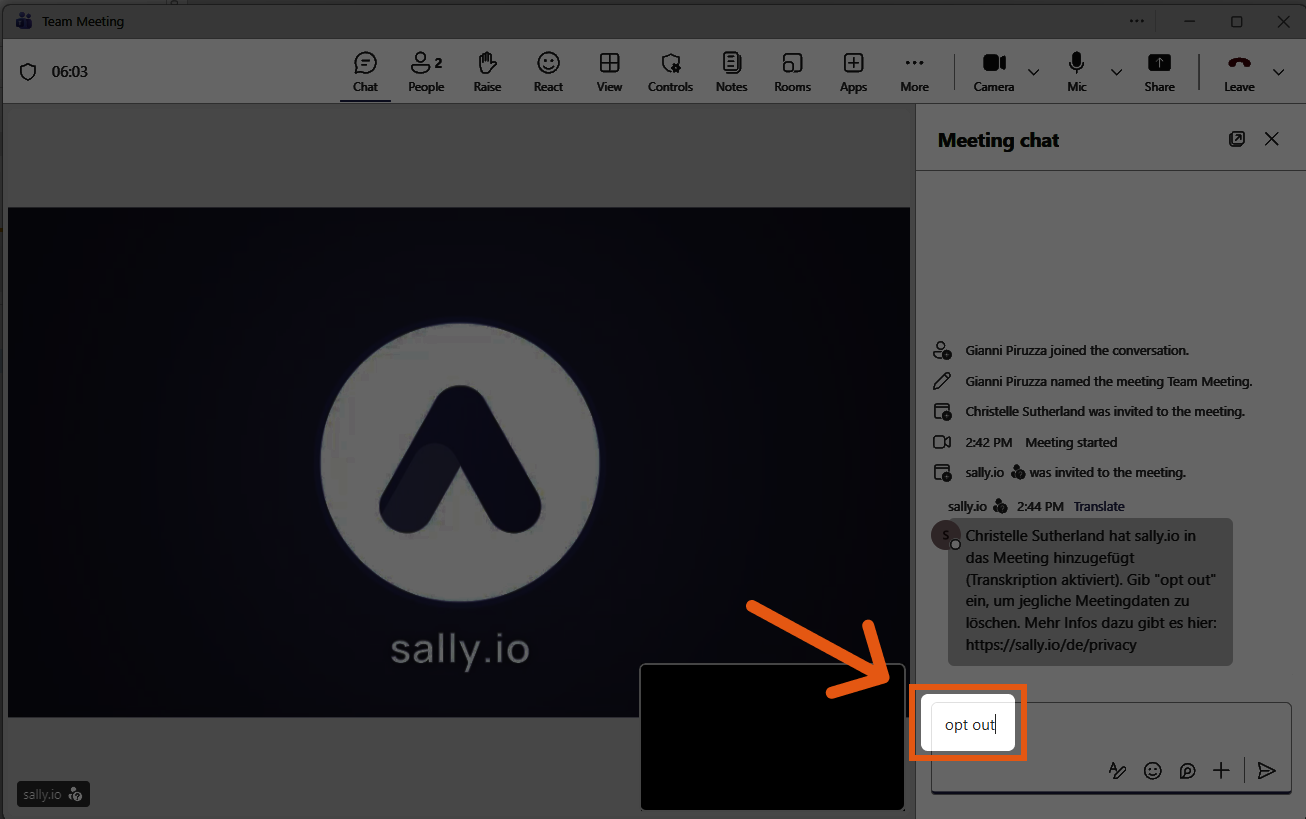
If you do not want Sally to generate a summary and want all recorded data up to that point to be permanently deleted, you can use the opt-out function. This is particularly useful when confidential topics were discussed and no documentation is desired.
How it works:
- Open the meeting chat.
- Simply type: Opt out
- Send the message.
What happens next?
- Sally immediately leaves the meeting.
- No summary is generated.
- All recorded data up to that point is permanently deleted.
- Data recovery is not possible.