How to Share Meeting Summaries in Sally AI
You can share meeting summaries directly from Sally with colleagues or clients. Use a link to quickly forward the summary in a chat or messenger. Choose email if you want a professional report layout with password protection and an expiration date.
Quick Navigation
1. Share via link
-
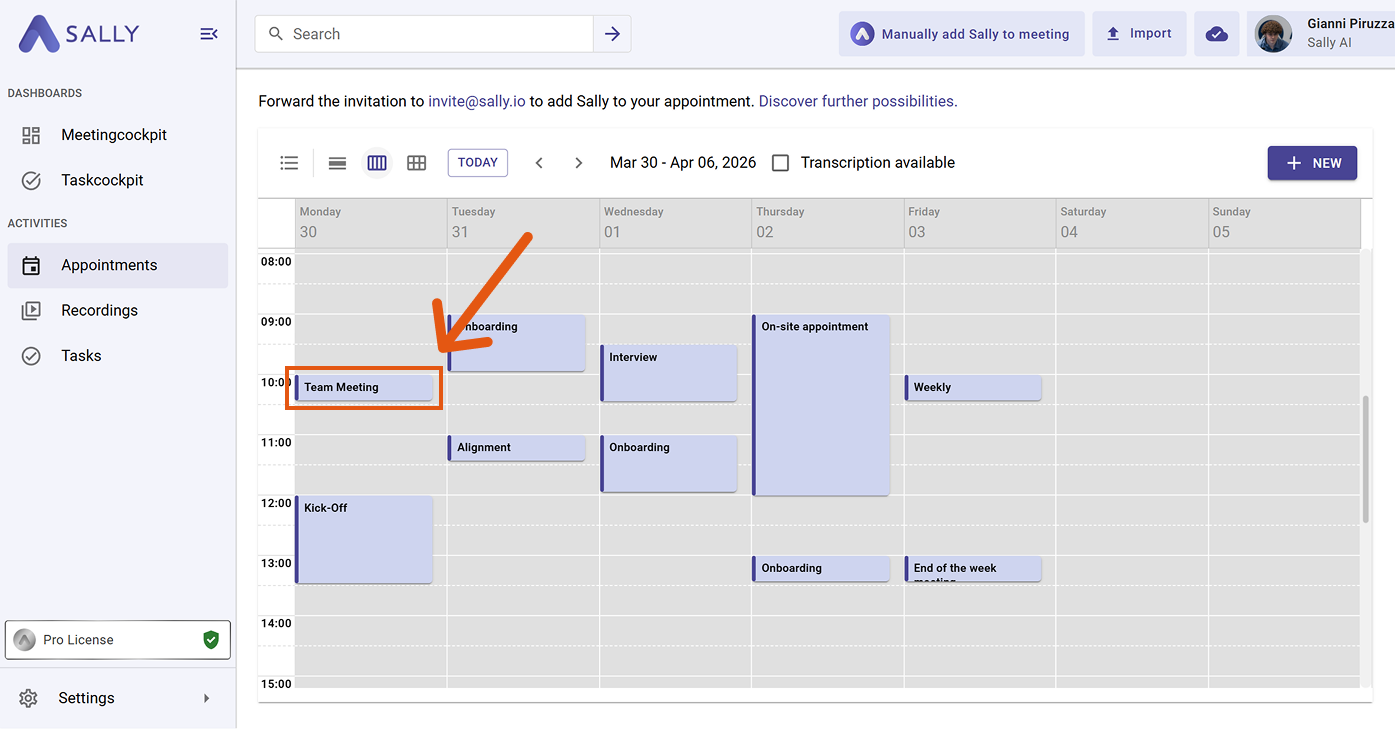
Go to the desired meeting in your calendar.
infoYou can also open the meeting via the "Recordings" tab in the left sidebar.
Select appointment -
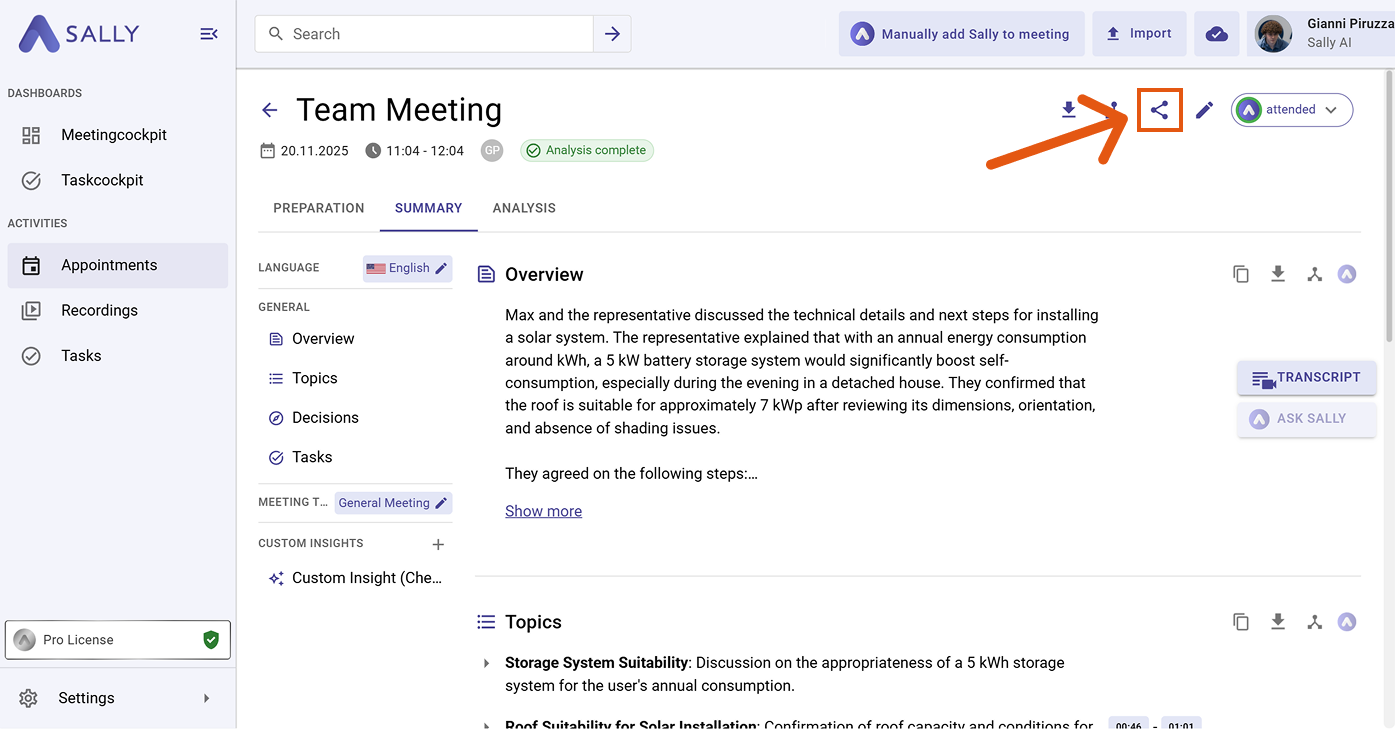
Click the share icon in the top-right corner of the summary view.
Click the share icon -
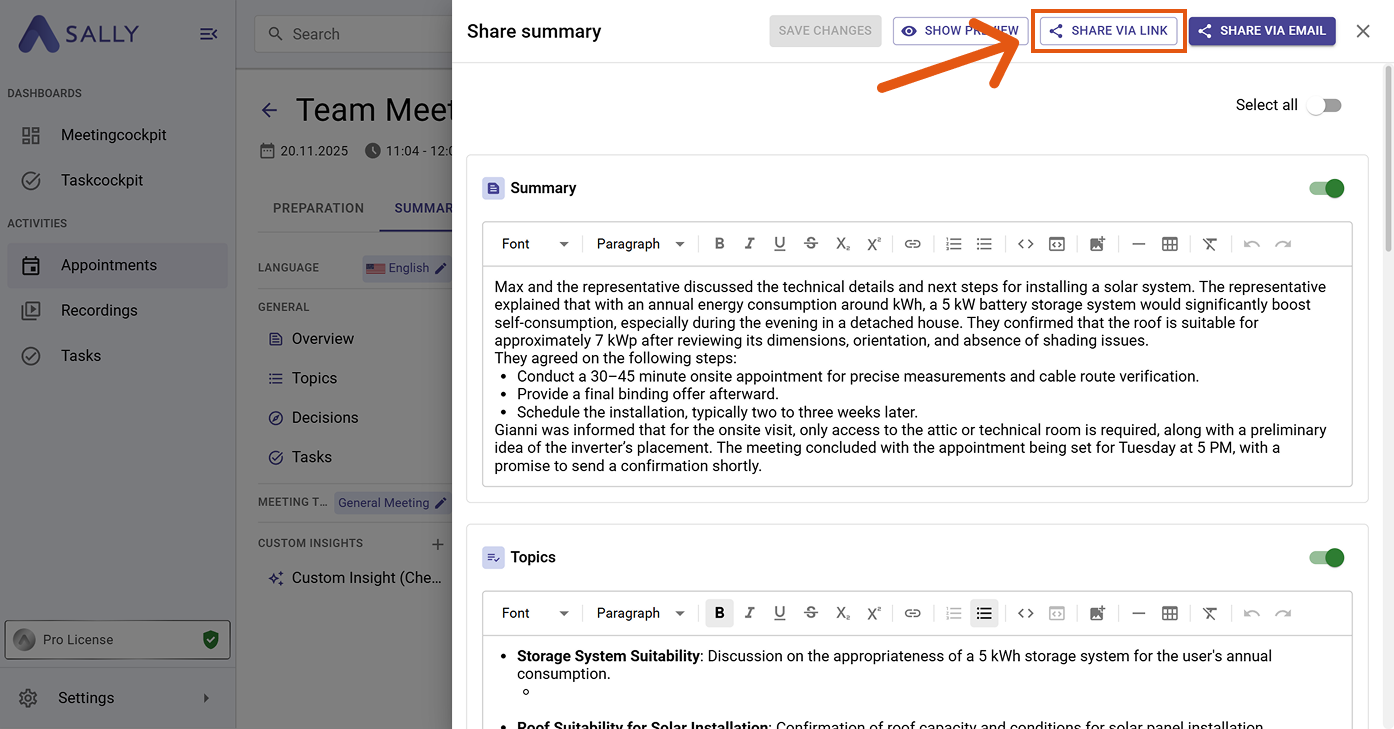
In the "Share summary" dialog, select the "Share via link" tab. You can choose which sections to include using the toggles on the right side. Edit the content directly in the dialog if needed.
Select sections and share via link -
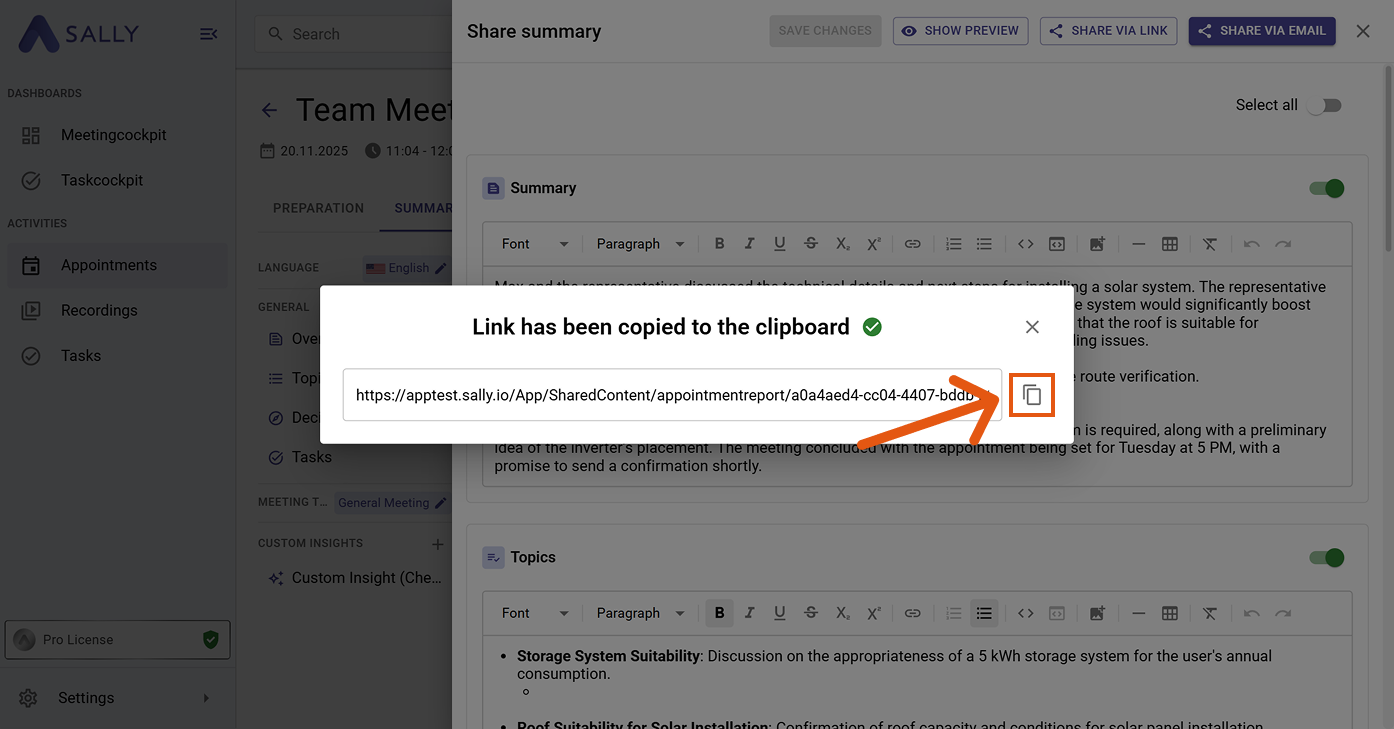
Click the copy button next to the generated link.
infoAnyone with the link can access the shared summary.
Link copied to clipboard
2. Share via email
-
Go to the desired meeting in your calendar.
infoYou can also open the meeting via the "Recordings" tab in the left sidebar.
Select appointment -
Click the share icon in the top-right corner of the summary view.
Click the share icon -
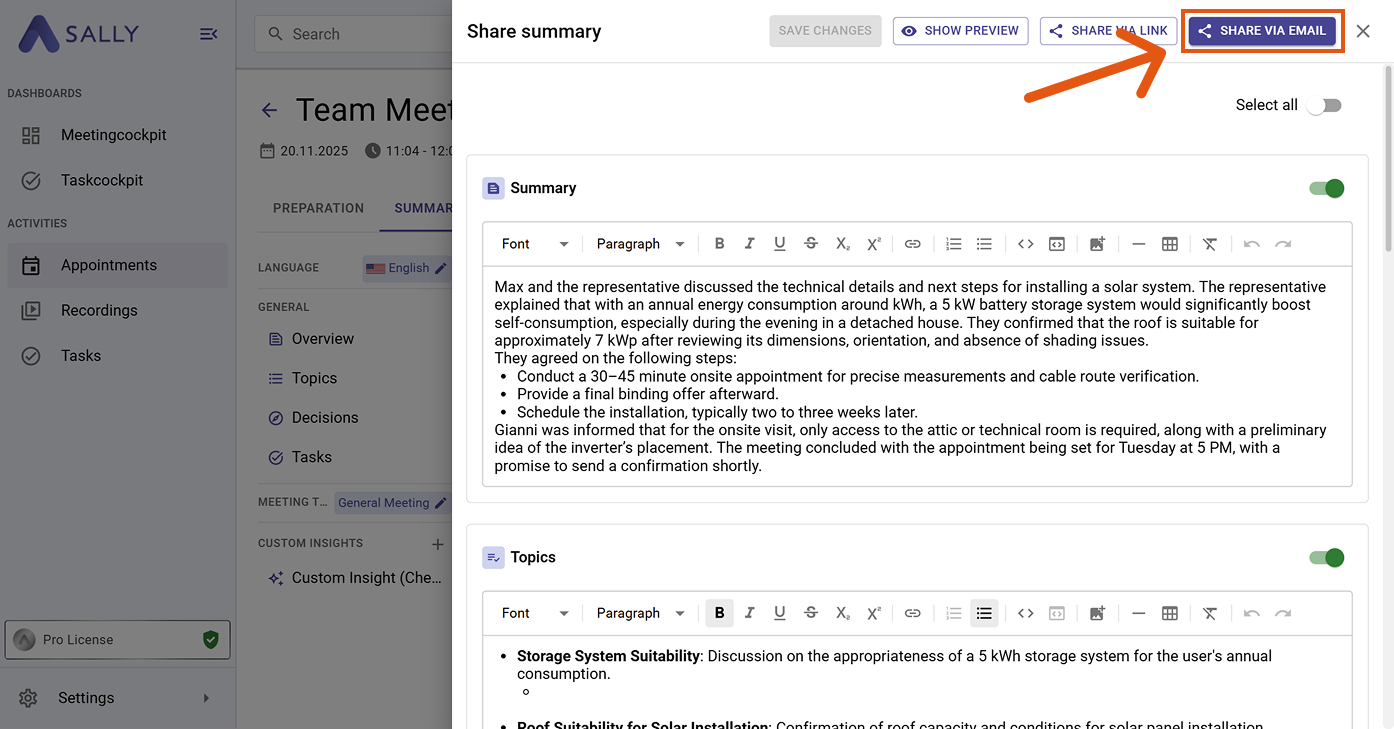
In the "Share summary" dialog, switch to the "Share via email" tab.
Switch to the email tab -
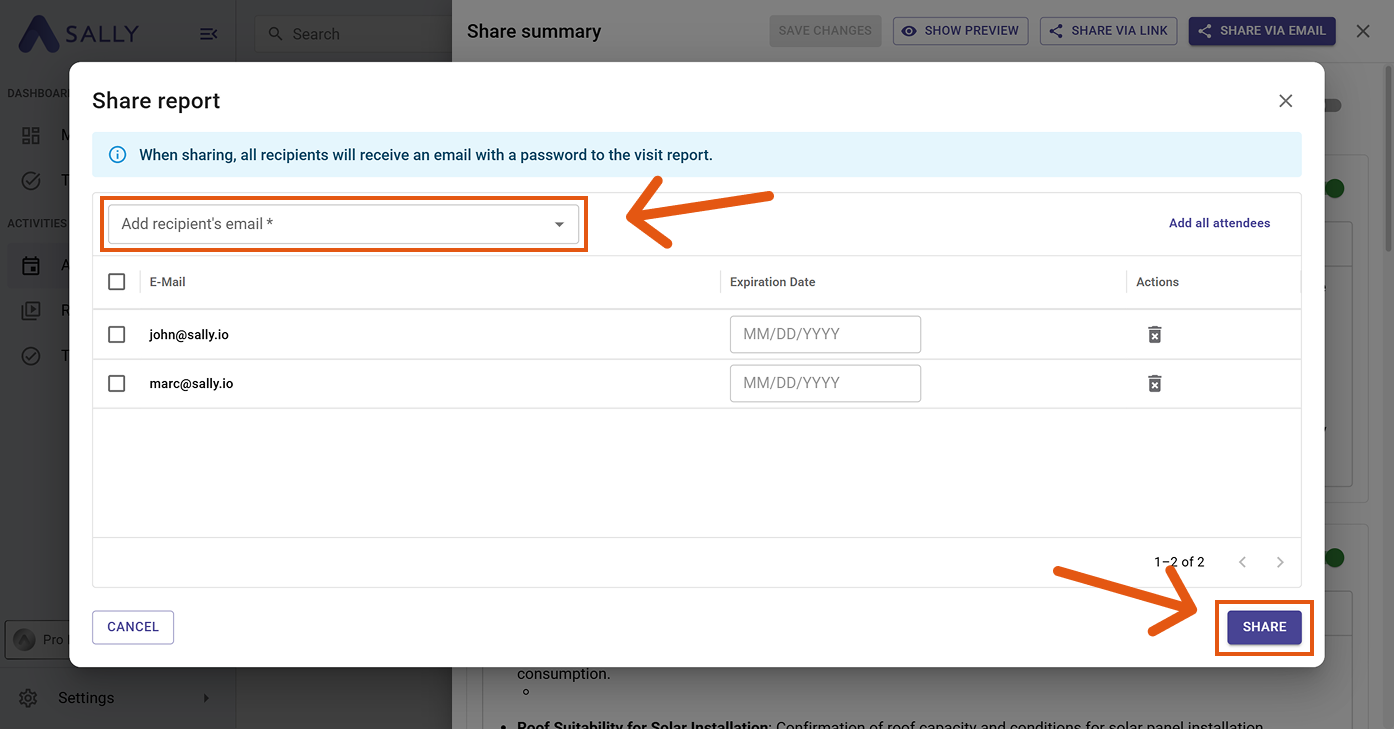
Enter the recipient email addresses, set an optional expiration date for each recipient, and click "Share". You can also click "Add all attendees" to quickly add everyone who participated in the meeting.
Add recipients and share the report -
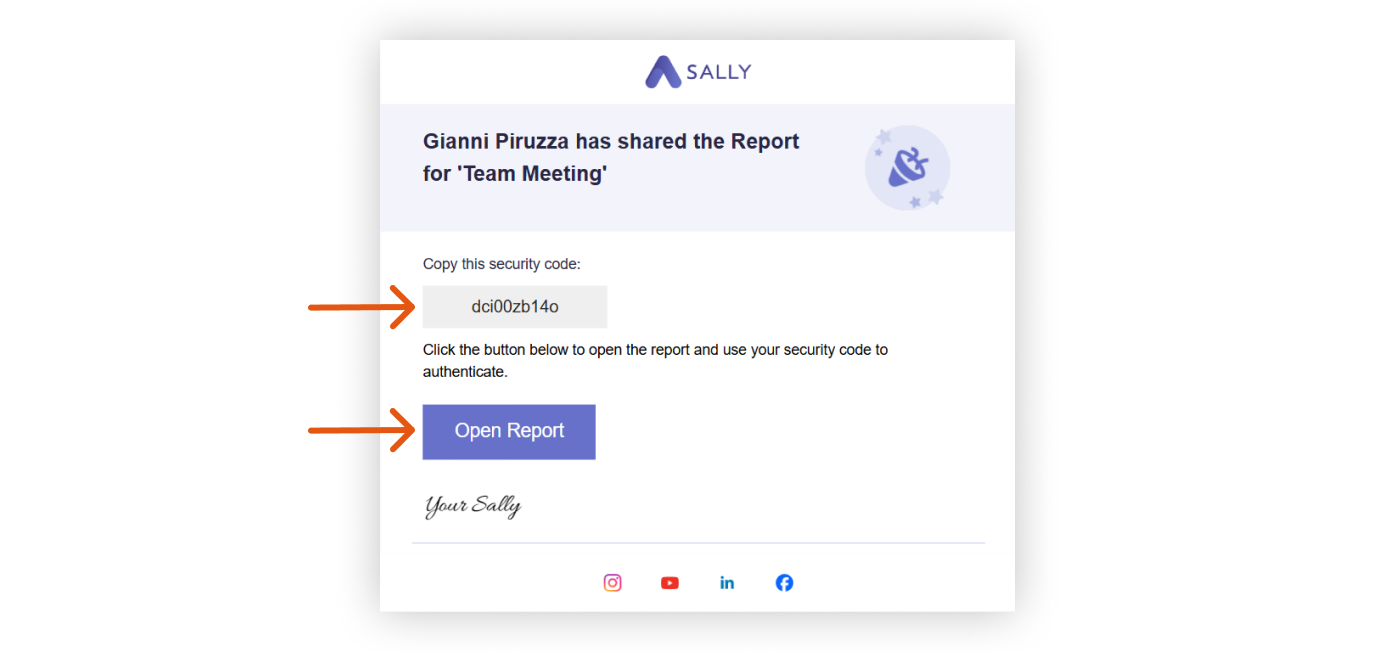
The recipient receives an email with a security code.
The recipient copies the security code and clicks Open Report -
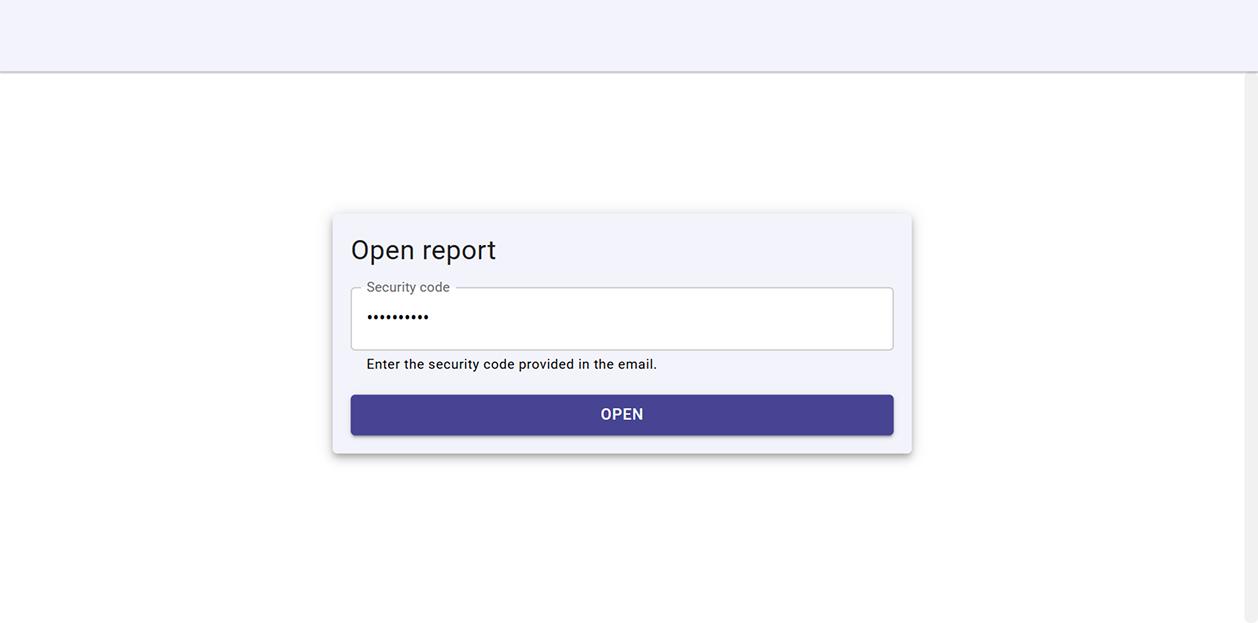
After clicking "Open Report", the recipient enters the security code from the email and clicks "Open" to access the summary.
Enter the security code and click Open -
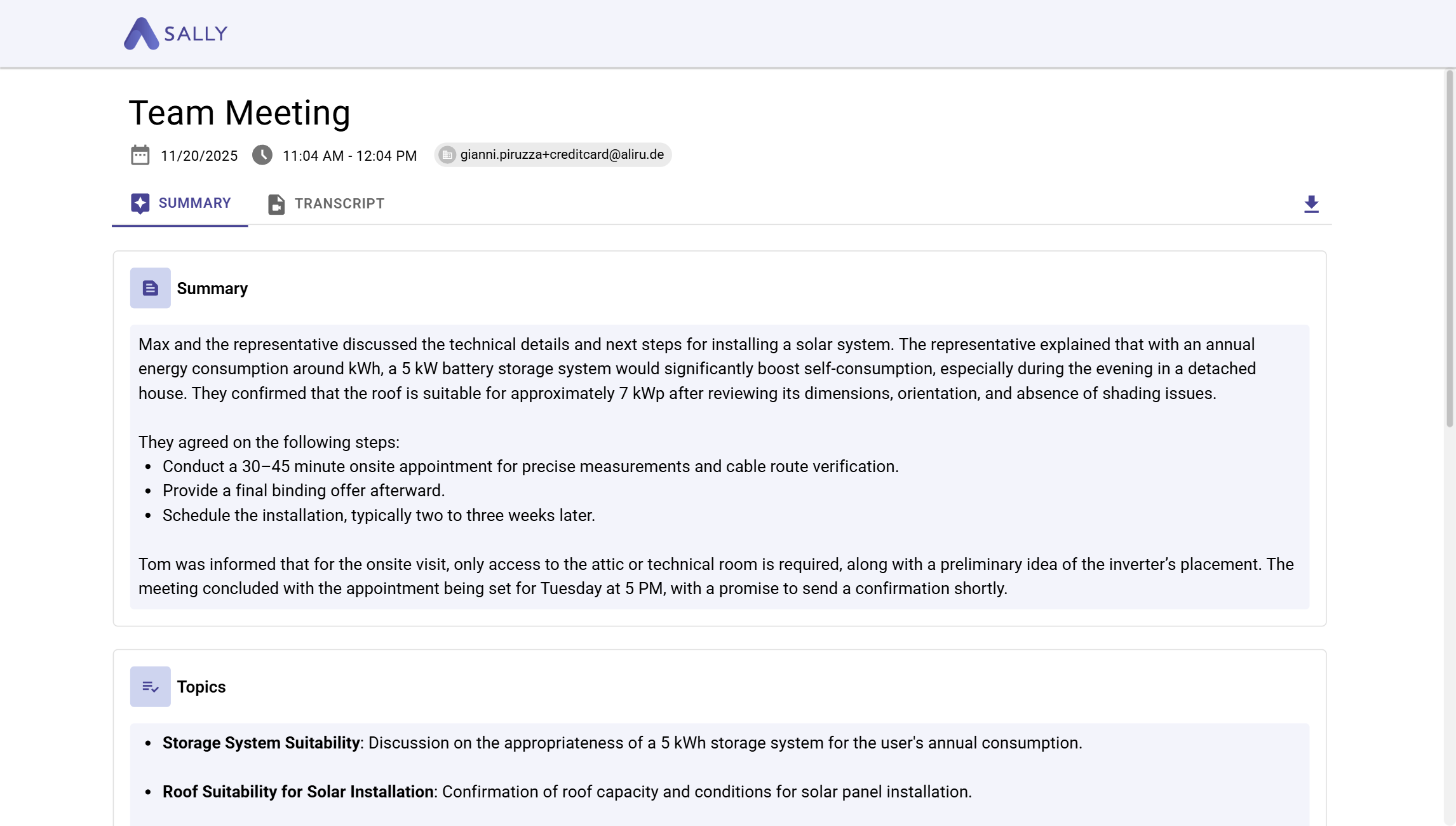
This is what the shared report looks like for the recipient.
The shared report as seen by the recipient