How to Search for Meetings, Recordings, and Summaries
Sally makes it easy to find past meetings and their summaries. You can either search across all your meetings directly from the dashboard or navigate to your recordings for quick access to existing summaries.
Quick navigation
1. AI-powered search across all meetings
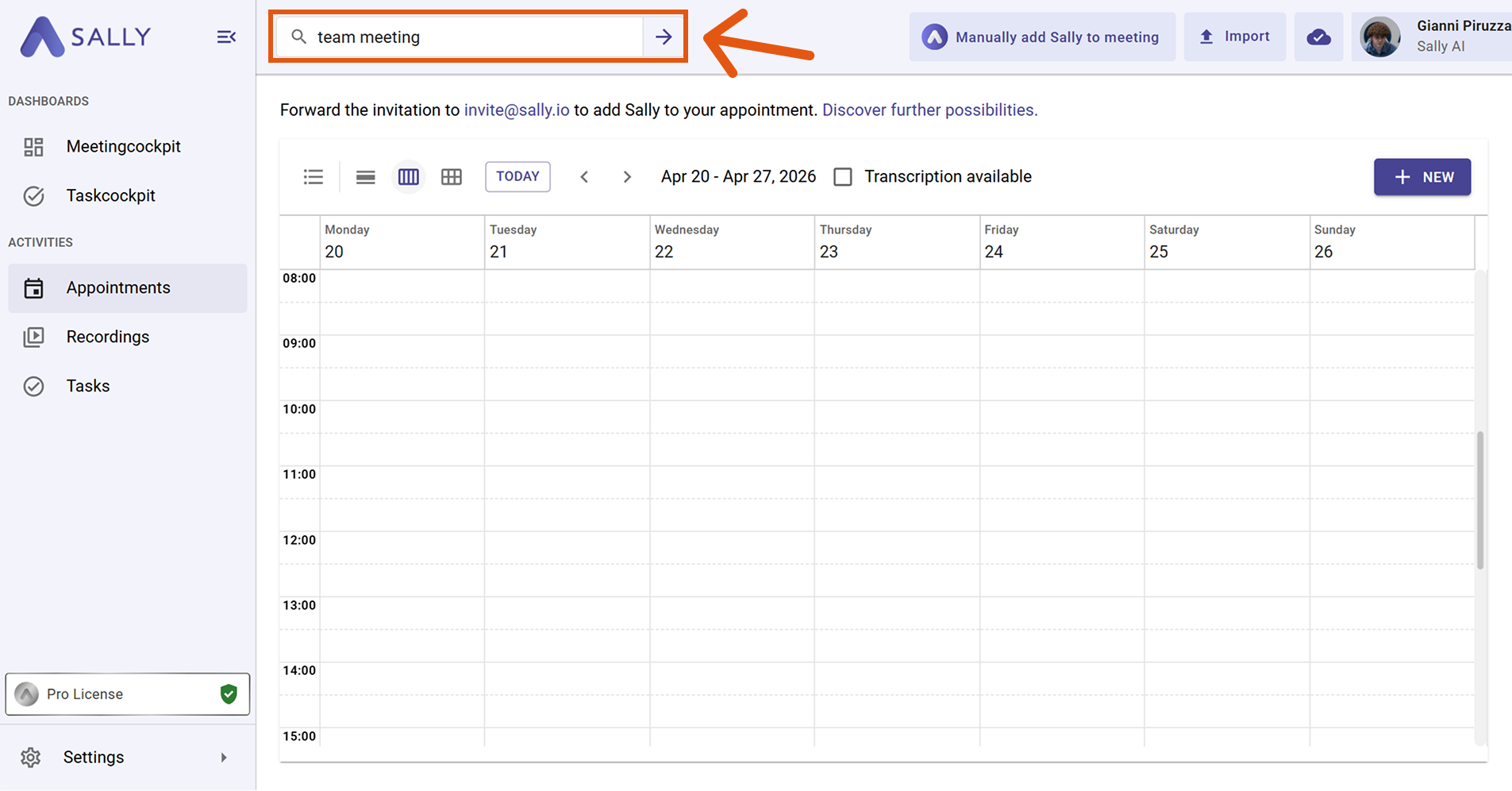
- Open your Sally dashboard and enter a search term in the search bar at the top. Sally searches through all your meetings, not just titles. You can search for meeting names, topics, specific phrases, or even ask a question.
- Meeting names: e.g. "Team Meeting" or "Sprint Review"
- Topics: e.g. "homepage redesign" or "budget planning"
- Specific content: e.g. "next steps for the proposal" or "delivery date for the project"
- Questions: e.g. "What was decided about the new pricing?" Sally will search all your meetings and summarize the relevant information for you.
Example questions for the search
| Category | Example question |
|---|---|
| People | "What did I last discuss with Anna?" |
| People | "Which meetings included the client Acme Corp?" |
| Decisions | "What decisions were made in the sprint review?" |
| Decisions | "Did we agree on a delivery date?" |
| Tasks | "Who is taking care of the proposal task?" |
| Tasks | "What open tasks came out of the last project meeting?" |
| Topics | "What was said about the Q3 budget planning?" |
| Topics | "What is the current status of the homepage relaunch?" |
| Time range | "What did I discuss this week?" |
| Time range | "Which meetings did I have in March with the sales team?" |
| Details | "What numbers were mentioned in the quarterly report?" |
| Details | "What was the result of the customer survey?" |
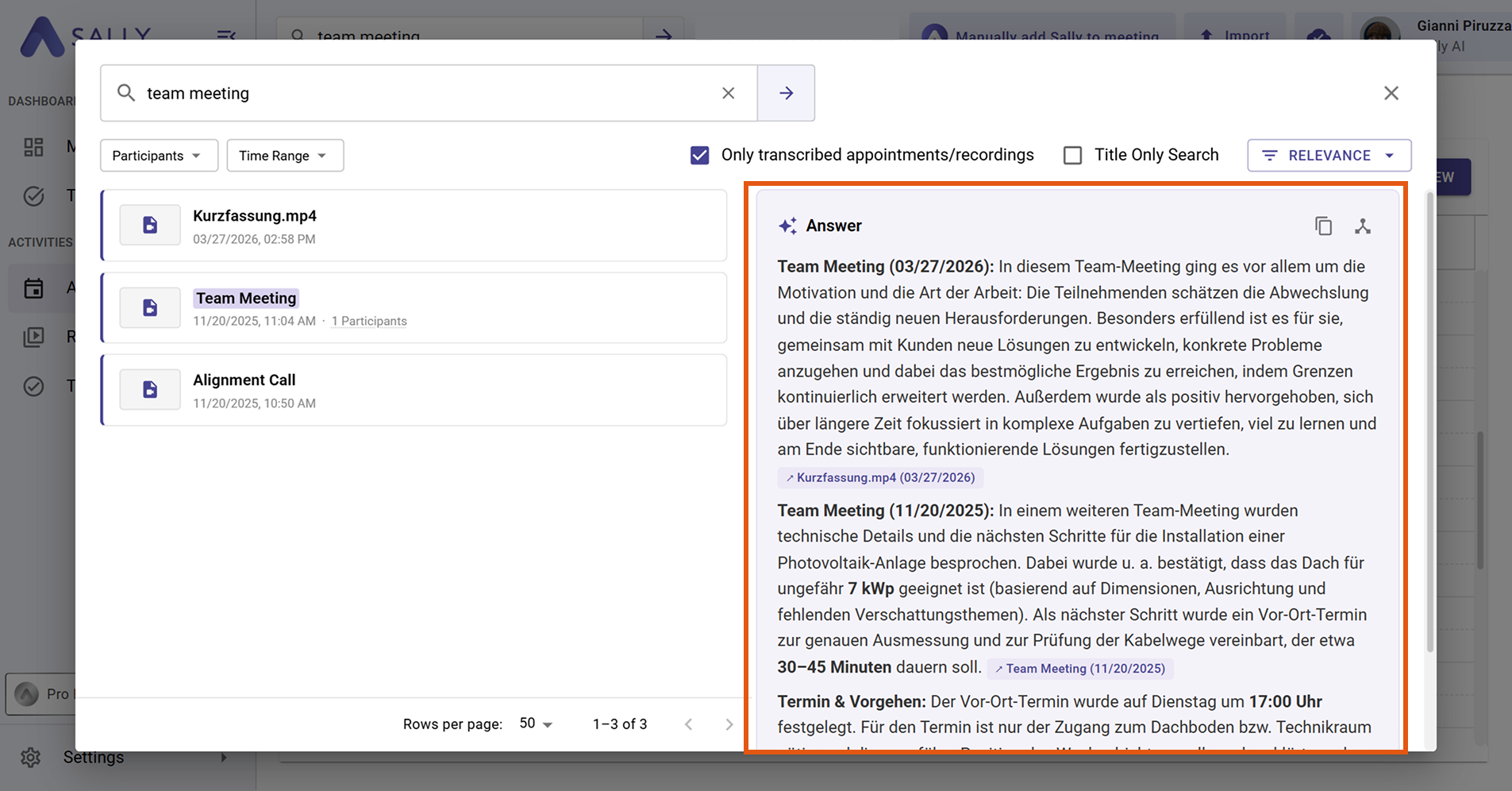
- Sally displays a list of matching meetings on the left side. On the right side, you immediately see an AI-generated answer that summarizes the key information across all matching meetings.
You search for "What was discussed about the new pricing model?" Sally finds all meetings where this topic came up and shows you a summary of the key points, decisions, and next steps right away, without you having to open each meeting individually.
-
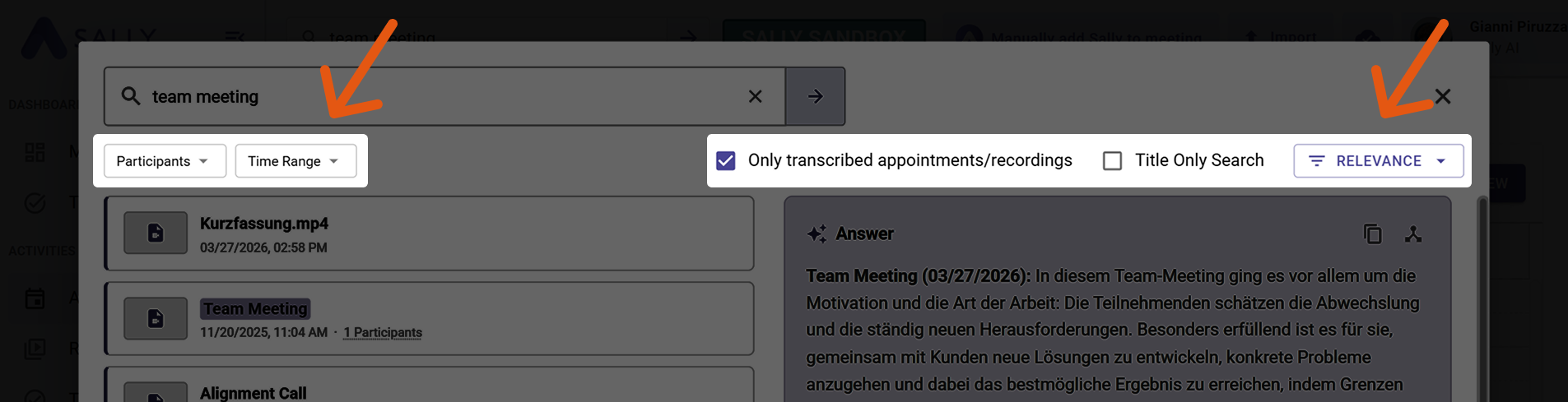
(Optional) Use the available filters at the top of the search results to narrow down your results:
- Participants: Filter by specific meeting participants.
- Time Range: Limit results to a specific time period.
- Only transcribed appointments/recordings: Show only meetings that have been transcribed.
- Title Only Search: Search only within meeting titles instead of all content.
- Sort order: Sort results by relevance, newest first, or oldest first.
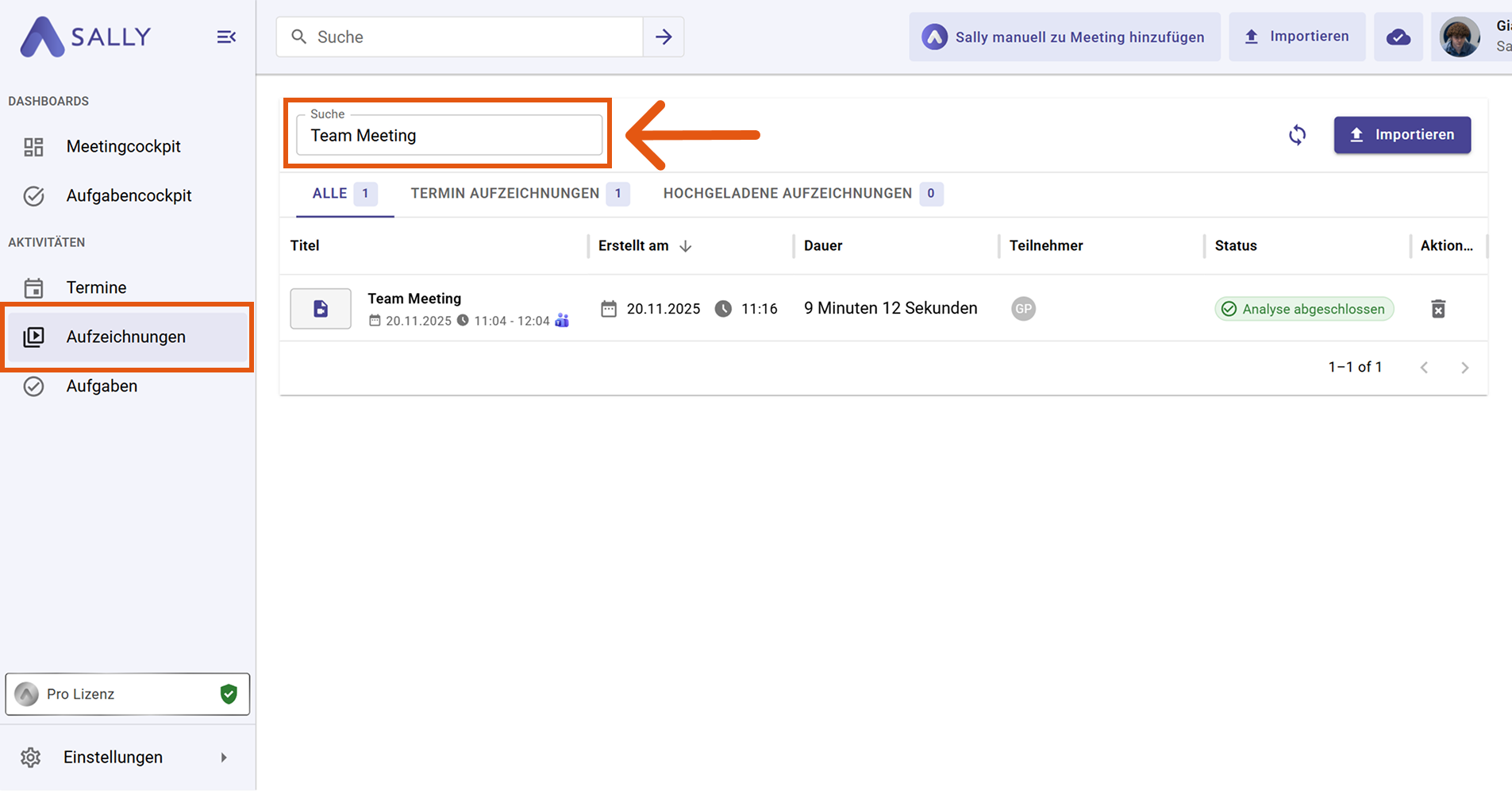
2. Filter recordings by name
If you want to go directly to existing summaries, you can also search within your recordings.
-
Click on Recordings in the left sidebar.
-
Enter the name of a meeting or recording in the search field. Sally filters your list directly by name and shows only the matching results.