Convert each insight into a reusable section for meeting templates with the Convert to library section action. That stays possible until October 31, 2026. Moving custom insights to meeting templates walks you through the conversion step by step.
How do custom insights work in Sally AI?
Custom Insights are tailored instructions that tell Sally exactly which information to extract from your meetings. They give you the specific content your workflow needs in every summary, in addition to Sally's standard summary sections.
For example, you can pull out open tasks, risks, customer feedback or tickets, exactly the way you prioritize them.
Quick navigation
- How Custom Insights work
- How to create Custom Insights
- Tips for writing good prompts
- Practical examples
- Benefits of Custom Insights
- Moving custom insights to meeting templates
1. How custom insights work
With Custom Insights, you can add your own fields to your meeting summaries.
These fields appear below Sally's standard summary sections and can contain any type of content, such as tickets, customer feedback, or checklists.
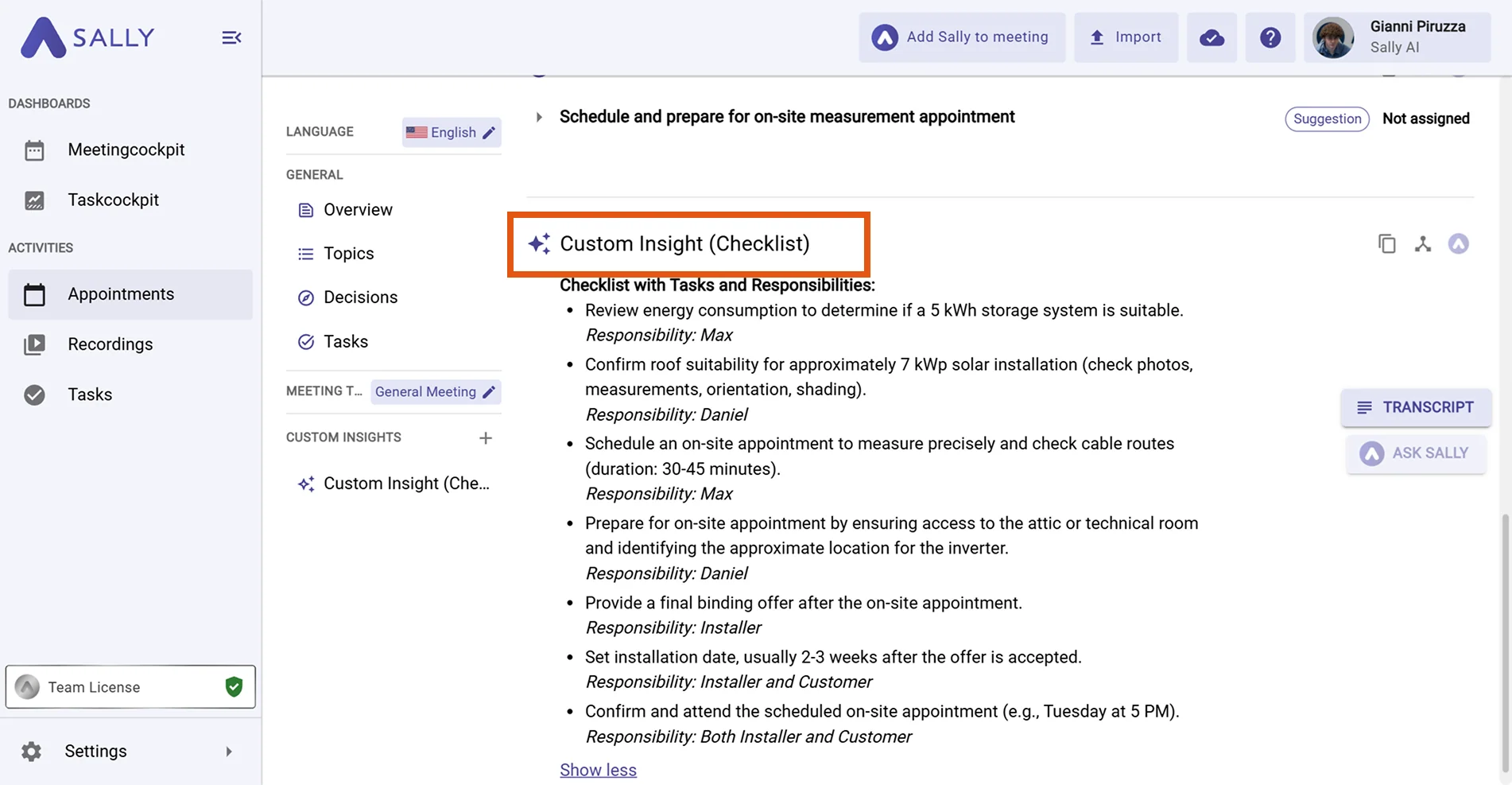
How it works:
You give Sally a prompt that says what to extract, and she adds it to every future summary.
2. How to create custom insights
- Open "Settings" in Sally.
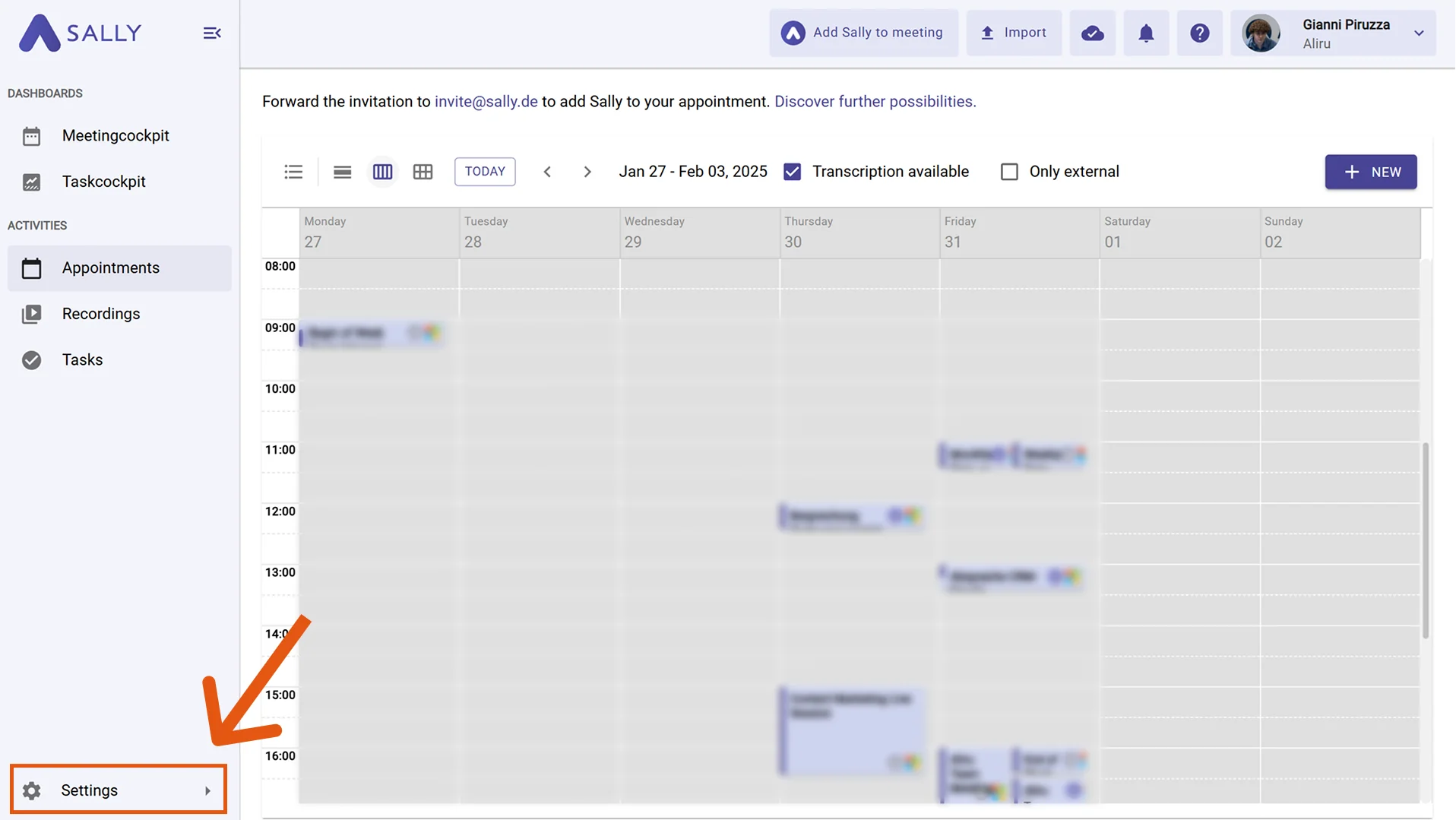
- Click "Content Settings".
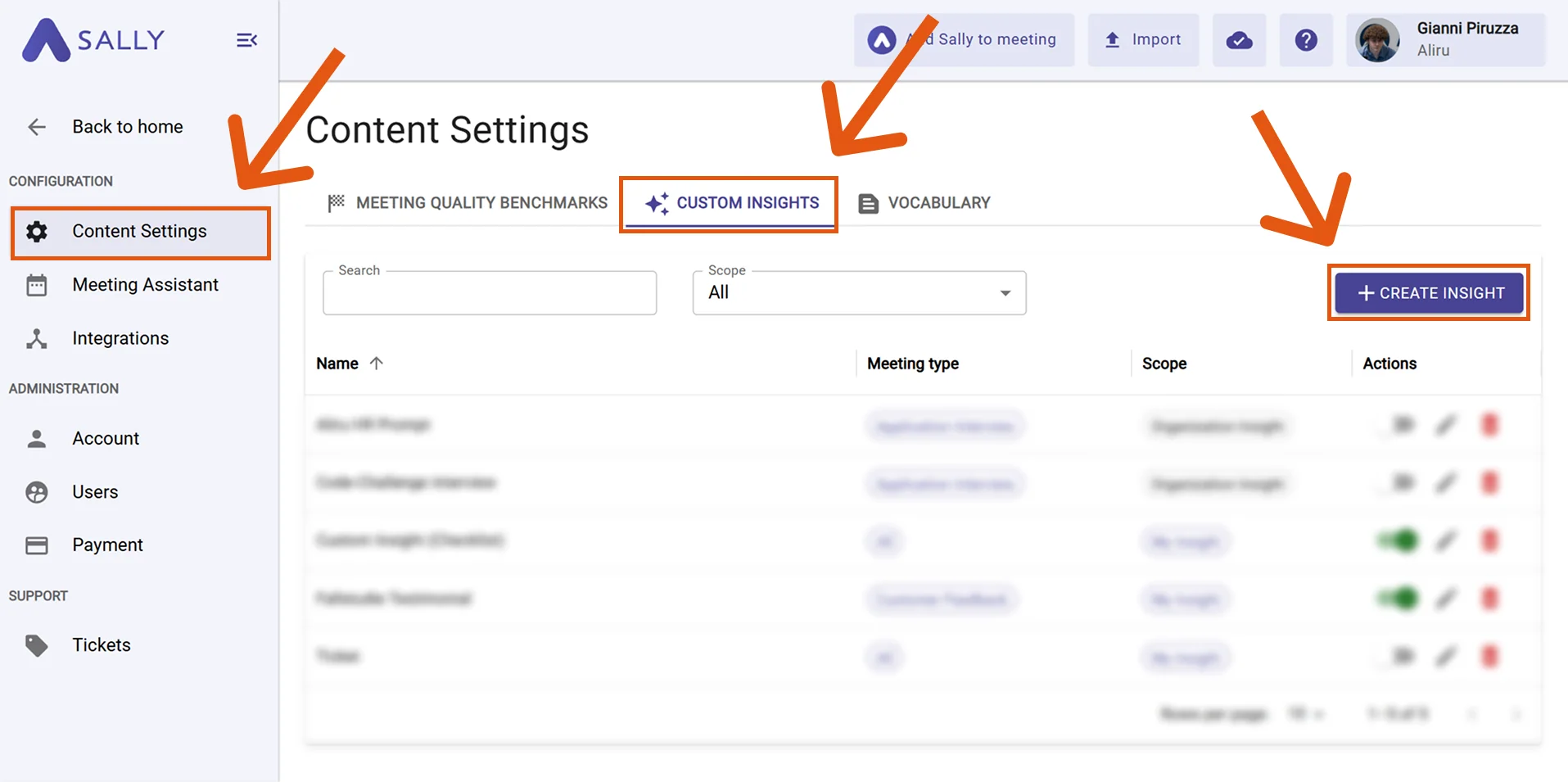
- Navigate to the "Custom Insights" tab.
- Click "+ Create Insight".
- A form opens. The image numbers every element, and the info box below explains them one by one:
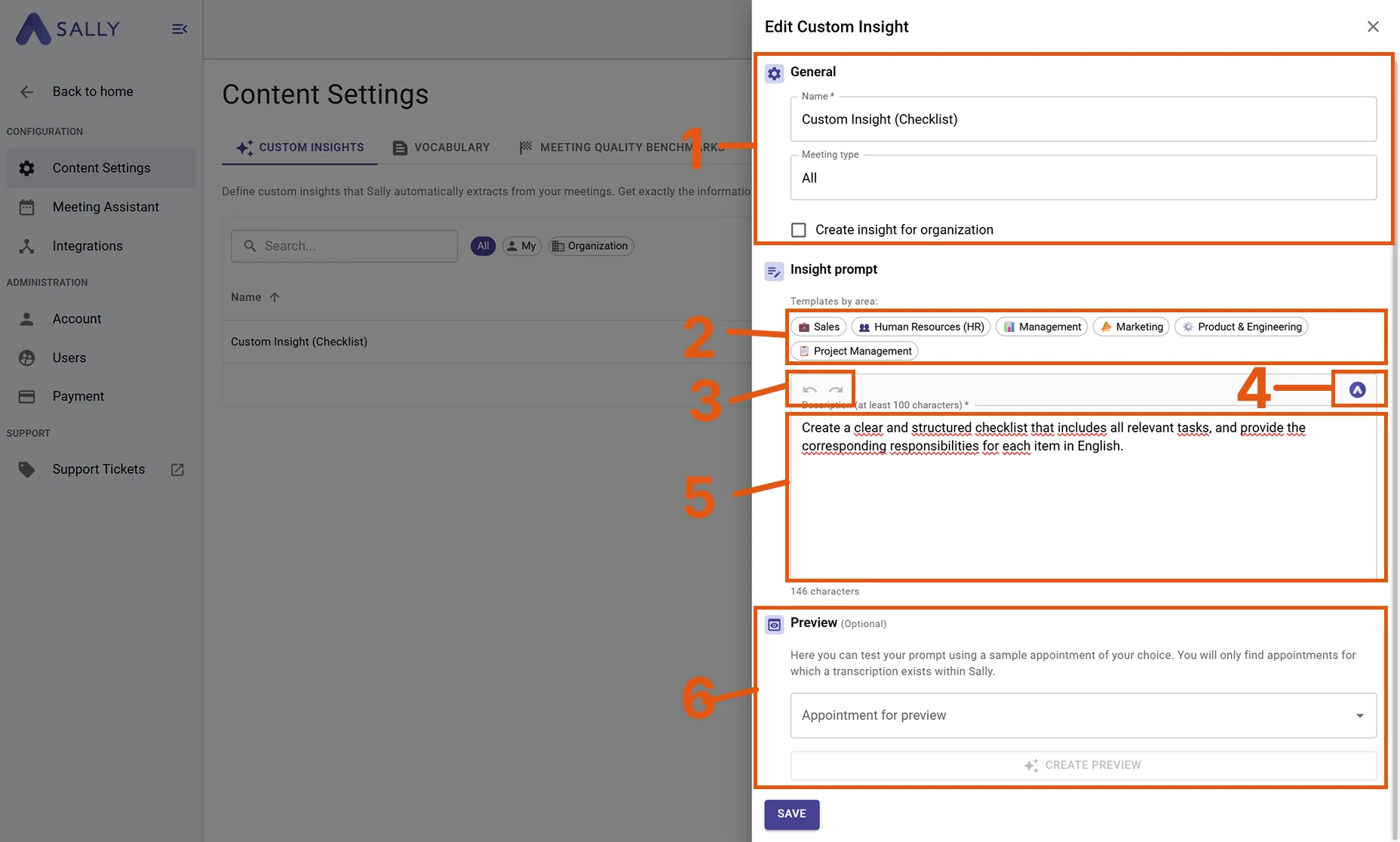
① General information
- Give your insight a clear name so you can recognize it later.
- Select the meeting type it applies to. The insight will only appear in summaries of that meeting type.
- Decide whether this Custom Insight should apply organization-wide (visible to all team members) or only to you personally.
- Example: If you want Sally to highlight customer objections in every qualification call, select Qualification Call as the meeting type.
② Prompt templates (optional)
- Click to open a selection of pre-built prompt templates for common use cases.
- Selecting a template automatically inserts it into the input field (⑤). You can then edit it freely.
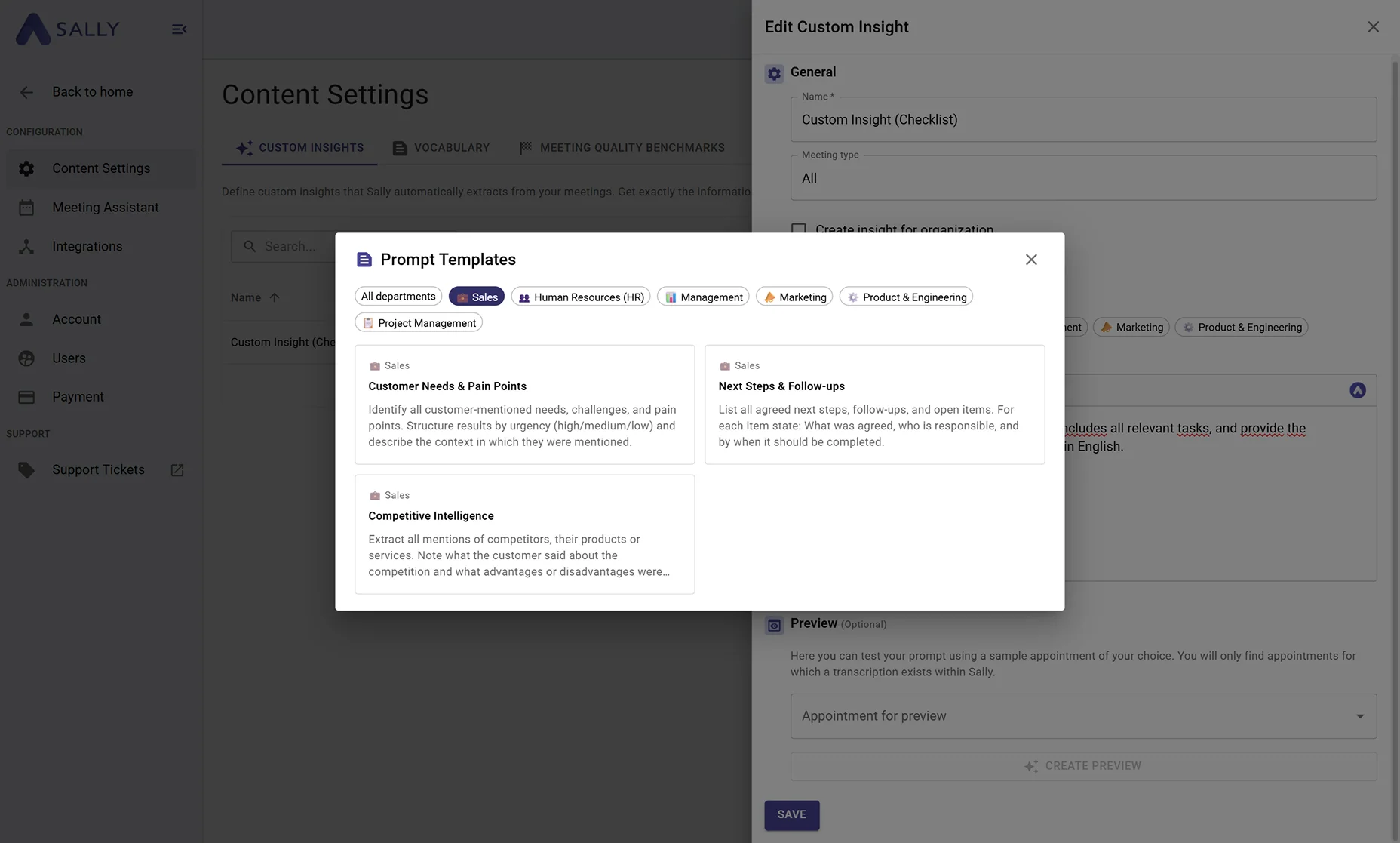
③ Undo
- Reverts the last change made to the prompt text.
- Useful if you accidentally overwrite your prompt or want to go back to a previous version.
④ Ask Sally
Use this to improve a prompt with AI. Instead of writing everything yourself, you tell Sally what should change and she rewrites the prompt for you.
How it works:
- Write a rough first version of your prompt in the input field (⑤), or load a template (②).
- Click "Ask Sally" and describe what you want to optimize. For example: "Make it more concise", "Add a column for the due date", or "The output should be a numbered list instead of bullet points." Then click the sparkle button (✦) on the right side of the input field to confirm your request.
- Sally rewrites the prompt and inserts the improved version directly into the input field.
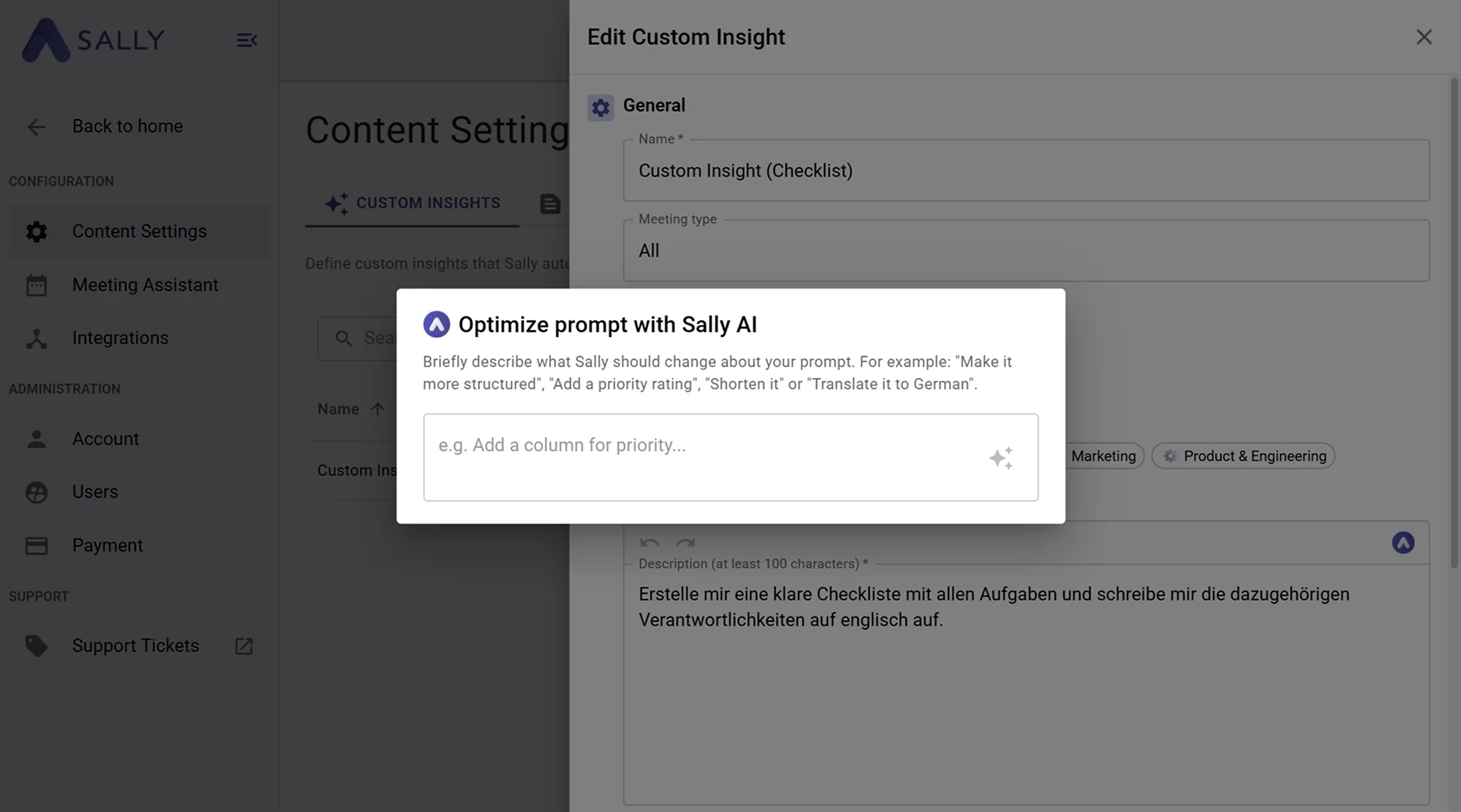
Tip: You can run Ask Sally several times in a row and refine your prompt step by step.
⑤ Input field
- This is where your prompt text goes.
- You can type directly here, load a template (②), or let Sally generate one for you (④).
- The prompt can be as short or detailed as you need, see Tips for writing good prompts.
⑥ Load preview
- Select a past meeting to test how your prompt performs on real data.
- Sally generates a preview of what the Custom Insight would look like for that meeting.
- Adjust the prompt if needed, then save.
- Your insight will now appear in the Custom Insights overview (you can edit or delete it at any time).
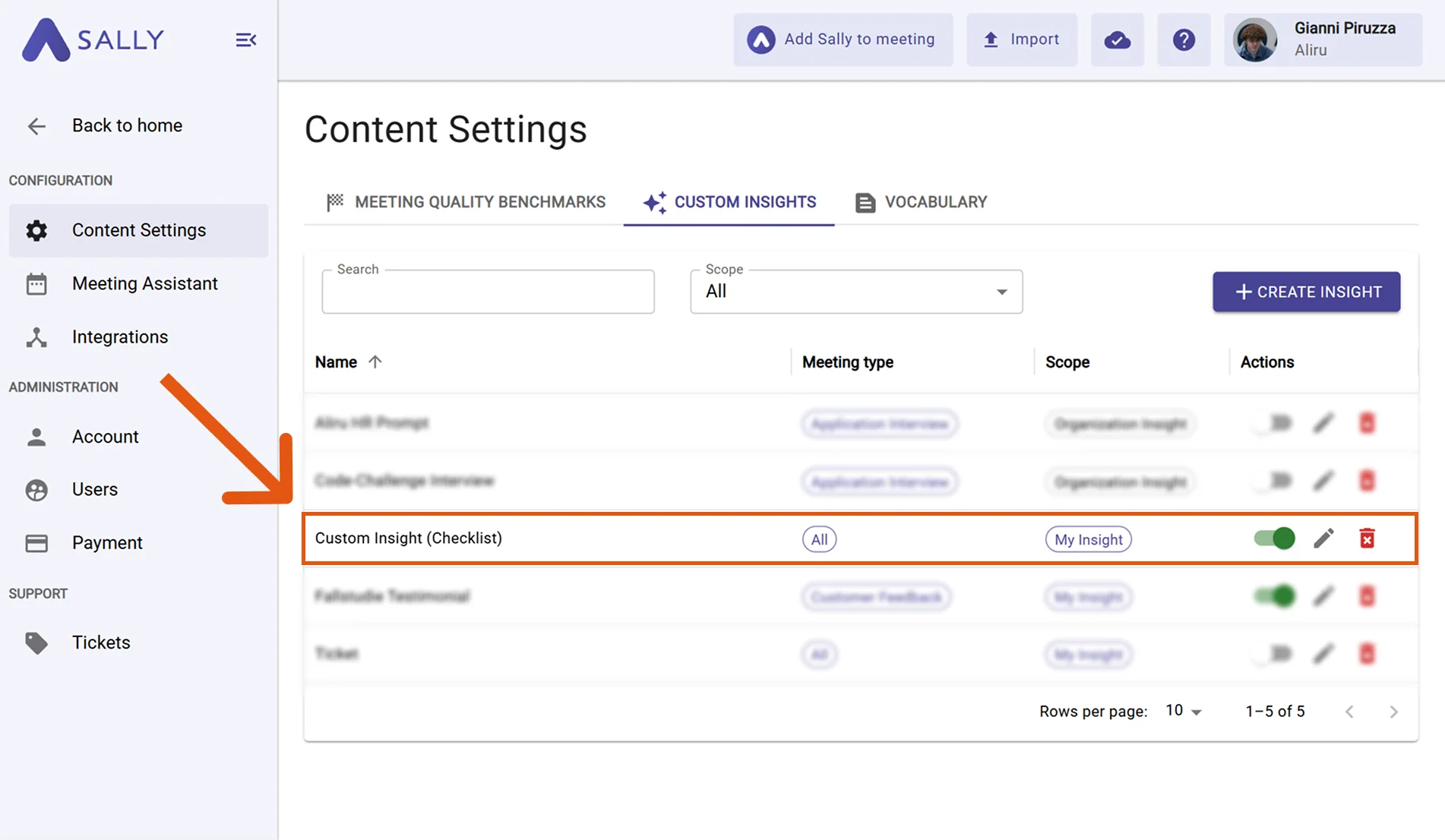
- From now on, every summary of that meeting type carries a new Custom Insight section at the bottom.
You can then click “Generate Now” to apply your prompt.
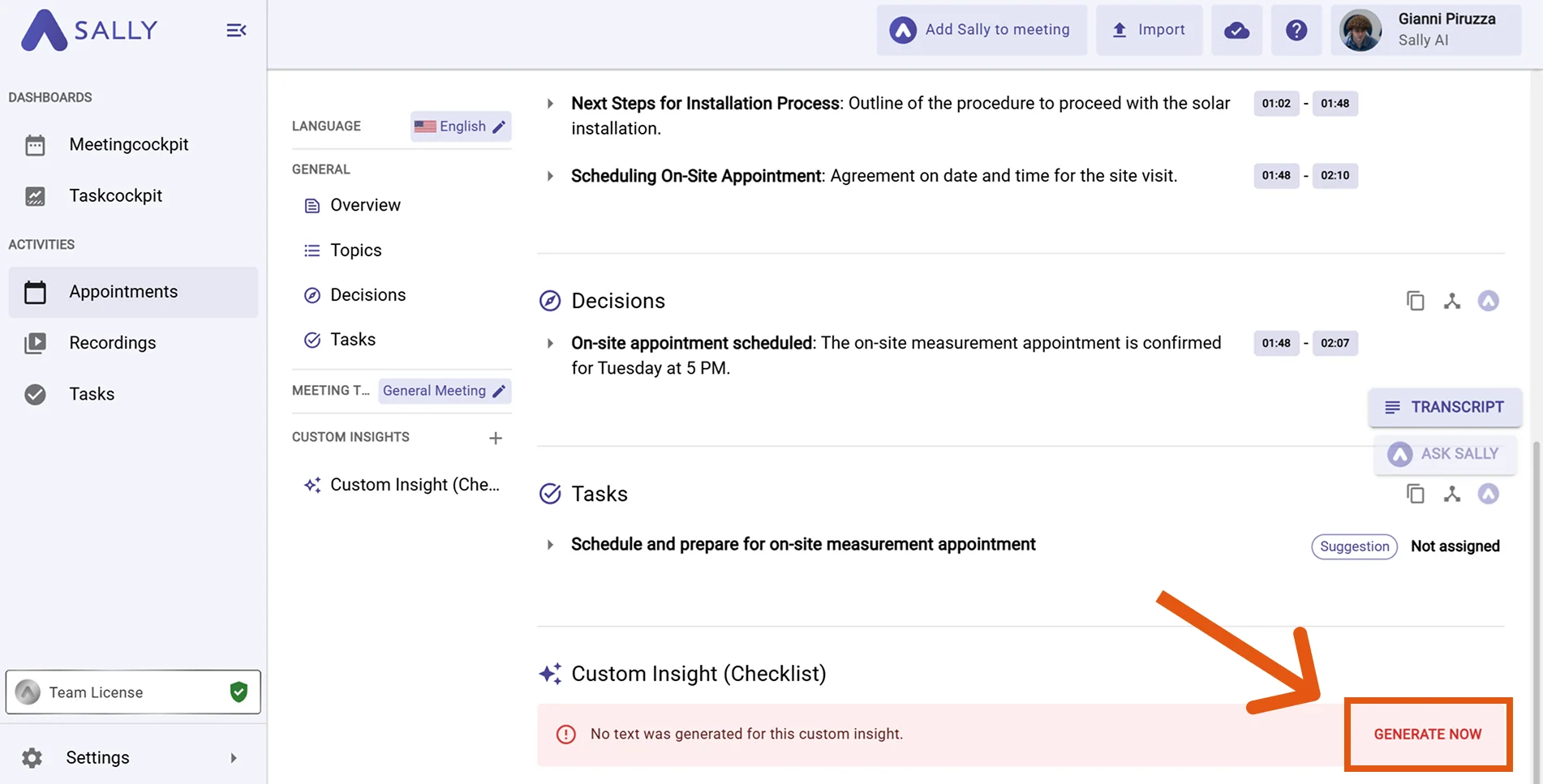
- After loading, you will receive your Custom Insight:
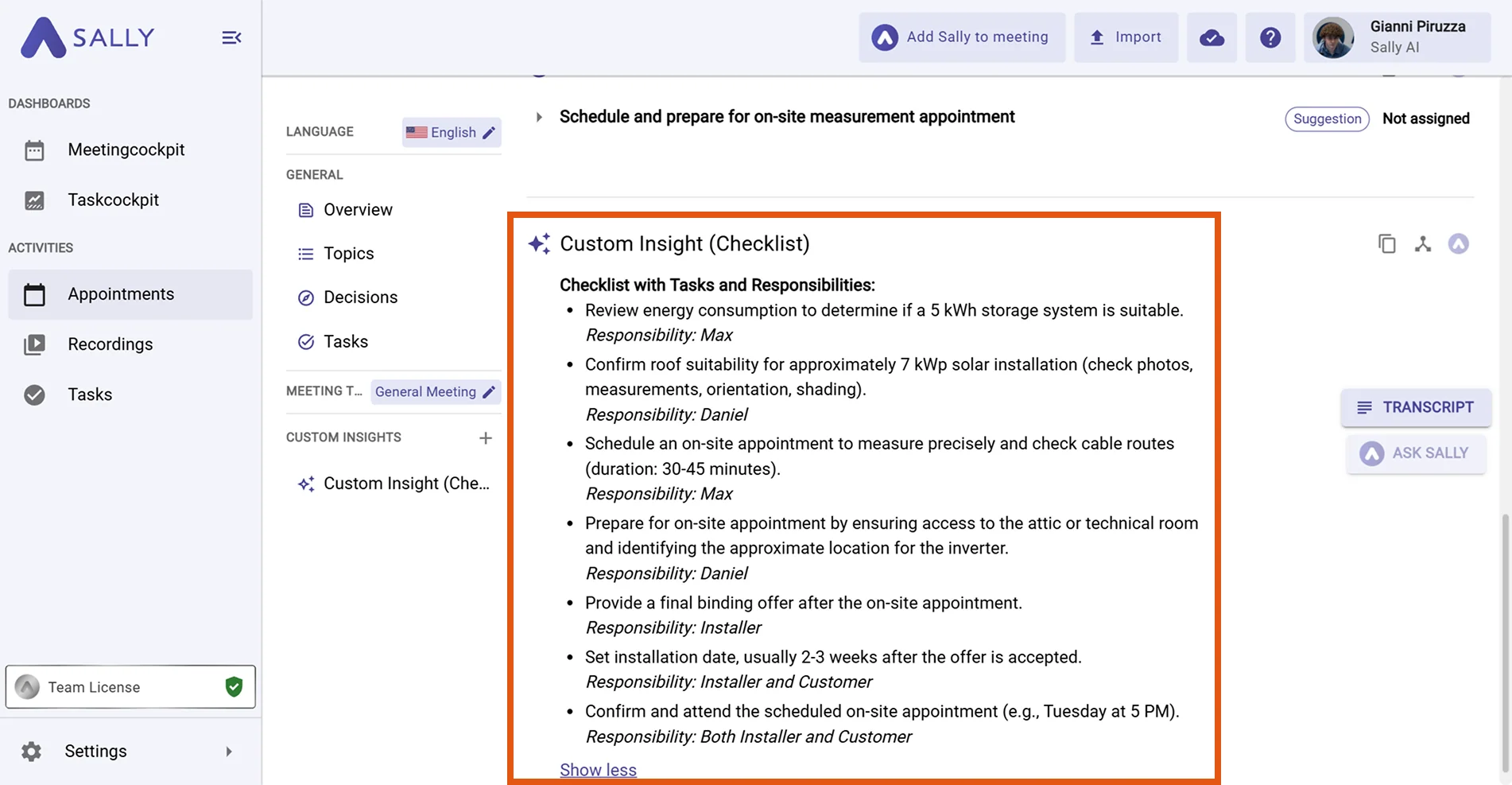
3. Tips for writing good prompts
A few principles get you noticeably better results.
-
Tip 1: Be specific
The clearer your prompt is, the better Sally can extract the information you want from the conversation.
Try to define clearly:
- What type of information you want (e.g., tasks, decisions, risks)
- What additional details should be included (e.g., responsible person or due date)
❌ Vague prompt ✅ Precise prompt List the most important things from the meeting. List all open tasks from the meeting and include the responsible person and the due date (if mentioned). What came out of the discussion? List all decisions made during the meeting and add a short explanation of the context (max. 1 sentence).
-
Tip 2: Use simple and clear language
Prompts do not need to be complicated. Clear and simple wording usually works better than long or complex sentences.
Short, direct instructions land more reliably than complex descriptions.
| ❌ Complicated prompt | ✅ Clear prompt |
|---|---|
| Please identify within the meeting summary all potential operational measures or next steps that were discussed or implicitly agreed upon during the conversation. | List all agreed next steps from the meeting. |
| Analyze the conversation flow and extract all customer statements that may indicate requirements, concerns, or wishes regarding the product. | List all customer statements that contain concerns or requests as bullet points. |
-
Tip 3: Keep the focus narrow
Ideally, a prompt should focus on one clear task.
If you try to extract too many things at once, the result may become cluttered or difficult to read.
Instead, it is often better to create several separate insights, for example:- Open tasks
- Risks or concerns
- Customer feedback
- Decisions
This keeps your summaries structured and easier to use.
❌ Too broad prompt ✅ Focused prompt List tasks, decisions, risks, and customer feedback from the meeting. List only the open tasks from the meeting as bullet points. Summarize everything from the conversation. List all risks or concerns mentioned during the meeting.
-
Tip 4: Define the output format
You can specify how Sally should present the results in the prompt.
For example:
- Bullet points
- Numbered lists
- Tables
- Checklists
If you define the format, the results will be more consistent and easier to reuse.
❌ Unclear prompt ✅ Prompt with a defined format List the tasks from the meeting. List all tasks from the meeting as a numbered list and include the responsible person. Show me the tasks from the conversation. Create a table with the columns Task, Responsible Person, and Due Date for all tasks mentioned in the meeting.
-
Tip 5: Only extract relevant information
Custom insights are most useful when they focus on important information that appears regularly in meetings.
Only ask for things you actually need on a recurring basis, for example tasks, customer feedback, or risks.
Too many insights just clutter your summaries.
❌ Too general prompt ✅ Relevant prompt Collect all information from the meeting. List only the customer feedback from the meeting as bullet points. Extract everything important from the conversation. List all risks or problems mentioned during the meeting.
3.1. Complete prompt examples
| ❌ Poor prompt | ✅ Good prompt |
|---|---|
| List the most important things from the meeting. | List all open tasks from the meeting. For each task, include the responsible person and, if mentioned, the due date. Format the output as bullet points. |
| Summarize the customer feedback. | List all statements from the customer that contain feedback, requests, or concerns. Format the output as bullet points and, if possible, label them as (Feature request), (Pricing concern), or (Product feedback). |
| What was decided in the meeting? | List all decisions made during the meeting as a numbered list. Each item should include: the decision, a short context (max. 1 sentence), and, if mentioned, the person responsible for implementation. |
4. Practical examples
Example 1: Well-structured development tickets
Prompt:
Generate development tickets in the following structure:
Ticket ID, Title, Short Description (max. 3 sentences), Responsible Person, Due Date,
Priority (High/Medium/Low), Status (Open/In Progress/Done). Group tickets by responsible person.
Why it's useful:
Ideal for teams that need actionable tickets directly from meeting discussions. No missing details, no extra work, everything already in the right format.
Example 2: Follow-up email for the customer
Prompt:
Draft a professional follow-up email for the customer that summarizes the meeting in polite business English.
Include: greeting, brief recap of main discussion points,
agreed next steps with deadlines, and a friendly closing with my signature block.
Why it's useful:
Perfect for account managers or project leads who need a ready-to-send client email. Sally takes care of tone, structure and completeness.
Example 3: Checklist for international colleagues
Prompt:
Create a checklist of all agreed tasks from the meeting and translate it into Spanish.
Keep it short, use bullet points, and start each item with an action verb.
Use DD/MM/YYYY for deadlines.
Why it's useful:
Great for international teams: colleagues who prefer Spanish get a clean to-do list they can use right away, and nobody has to translate anything.
5. Benefits of custom insights
- Save time: Automates repetitive follow-up tasks.
- Stay flexible: Sally shows exactly what you need, without unnecessary clutter.
- Increase productivity: Clear results help you act faster.
- Reduce errors: the same format every time leaves less room for mistakes.
- Improve collaboration: Precise, uniform summaries keep everyone aligned.
With Custom Insights your summaries turn into a tool built around your work.
Try it and see how quickly you document results, prioritize tasks and get moving.
6. Moving custom insights to meeting templates
Meeting templates take over from custom insights. Everything an insight did for you, a section inside a template does as well, only in a place where you can reuse it across templates, version it and share it with your team. You do not have to rewrite a single prompt: Sally turns an existing insight into an entry in the section library and carries the prompt over. That stays possible until October 31, 2026.
6.1. What becomes what
| Custom insight | In a meeting template |
|---|---|
| Name of the insight | Title of the section, it becomes the heading in the summary |
| Prompt | Prompt of the section, carried over word for word |
| Meeting type | The template that runs for meetings of that type |
| Scope (my insight, organization insight) | Visibility of the library entry (personal, team, organization) |
| Section at the bottom of the summary, generated on demand | Section at the position you give it, written with every summary |
6.2. Converting an insight step by step
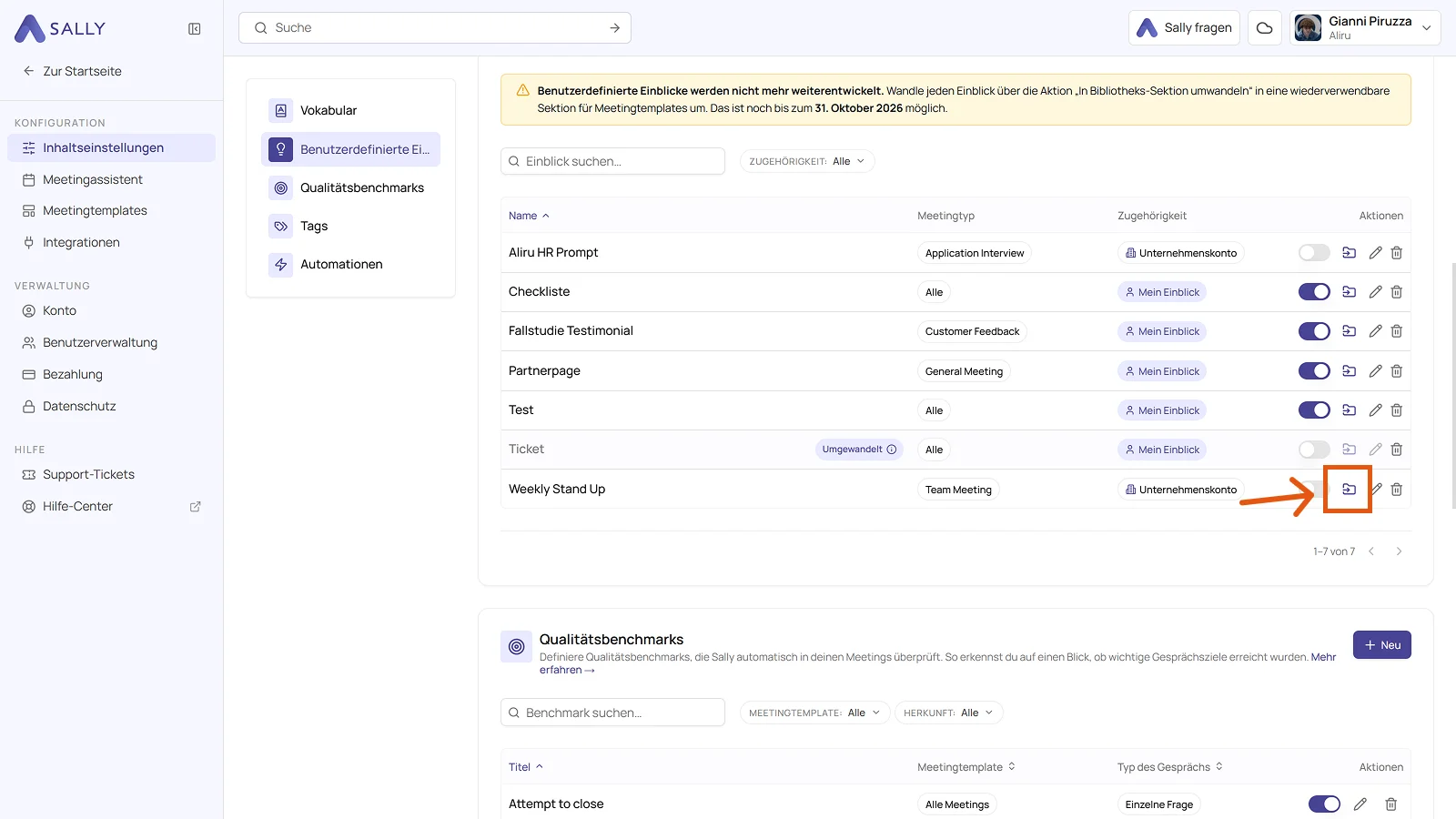
- Open Settings, click Content Settings and switch to the Custom Insights tab. In the Actions column of the insight, click the icon Convert to library section. An insight you have already converted carries a Converted badge and its icon is greyed out, so you can see at a glance what is still open.
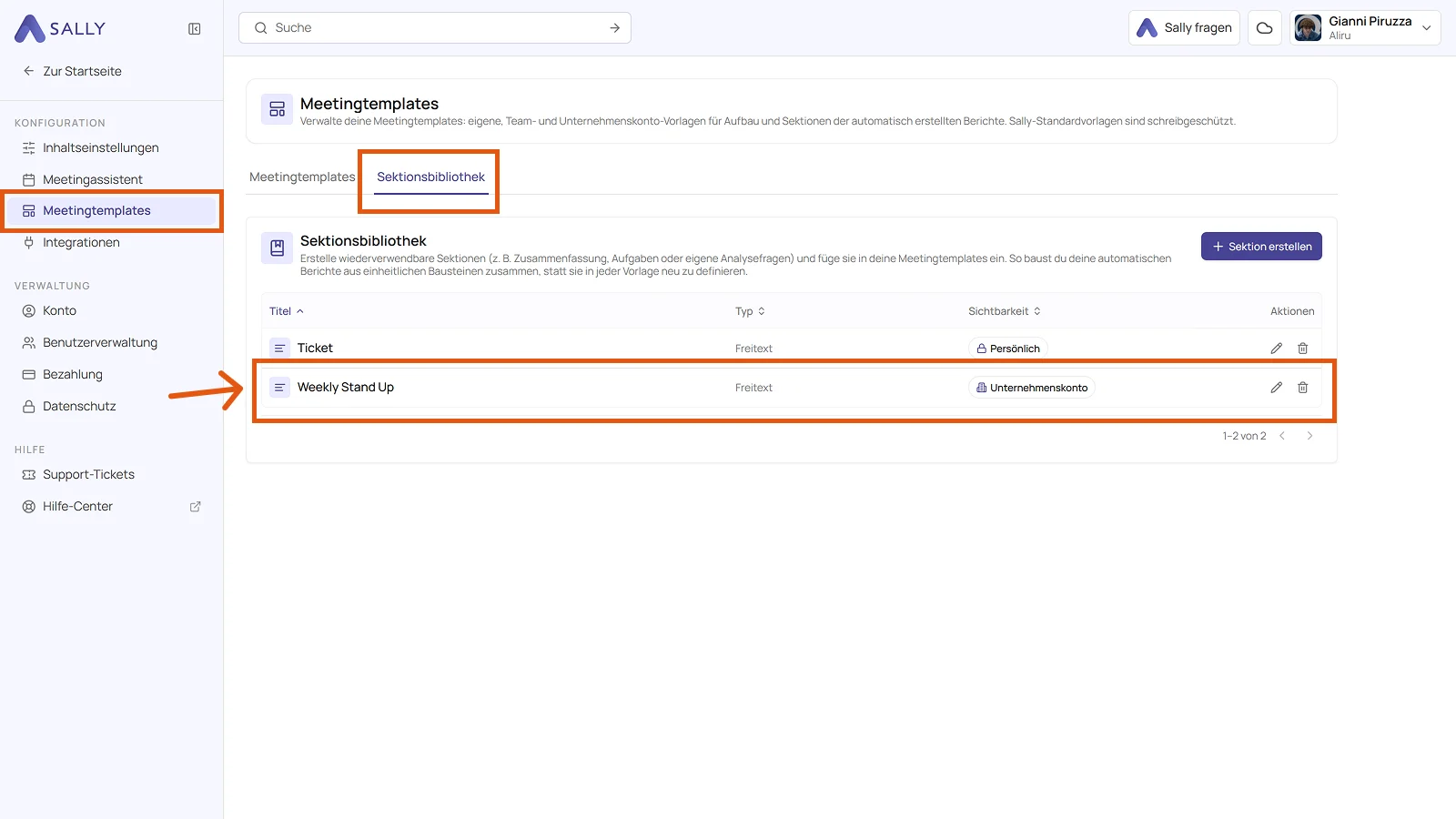
- Switch to Meeting templates in the settings sidebar and open the Section library tab. Your converted insight is waiting there as an entry, with its type and its visibility. The pencil icon on the right of the row opens it, so you can adjust the title, sharpen the prompt or set the output format. Sections and the section library explains every one of those settings.
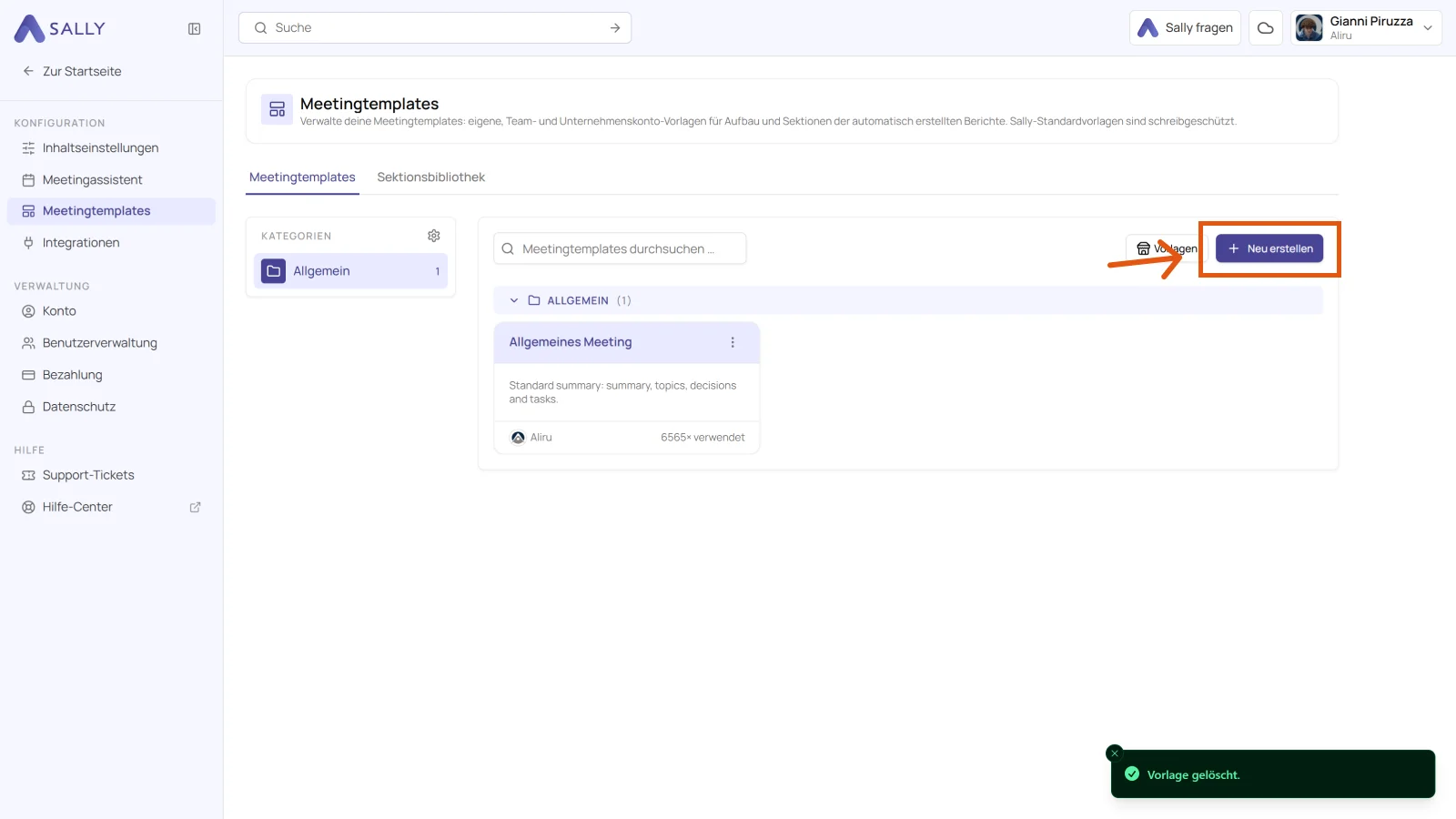
- Go back to the Meeting templates tab and open the template the section belongs in. If there is no fitting one yet, click Create new in the top right and build one. Creating your own template walks through that step by step.
- Once you have given your template a name and a description, click Add section in the draft, switch to the Library tab in the panel on the right and click the plus next to your entry. The section lands in the section list, and you can drag it to the position you want. A template that is already published needs Create draft version first, a brand new one is a draft from the start.
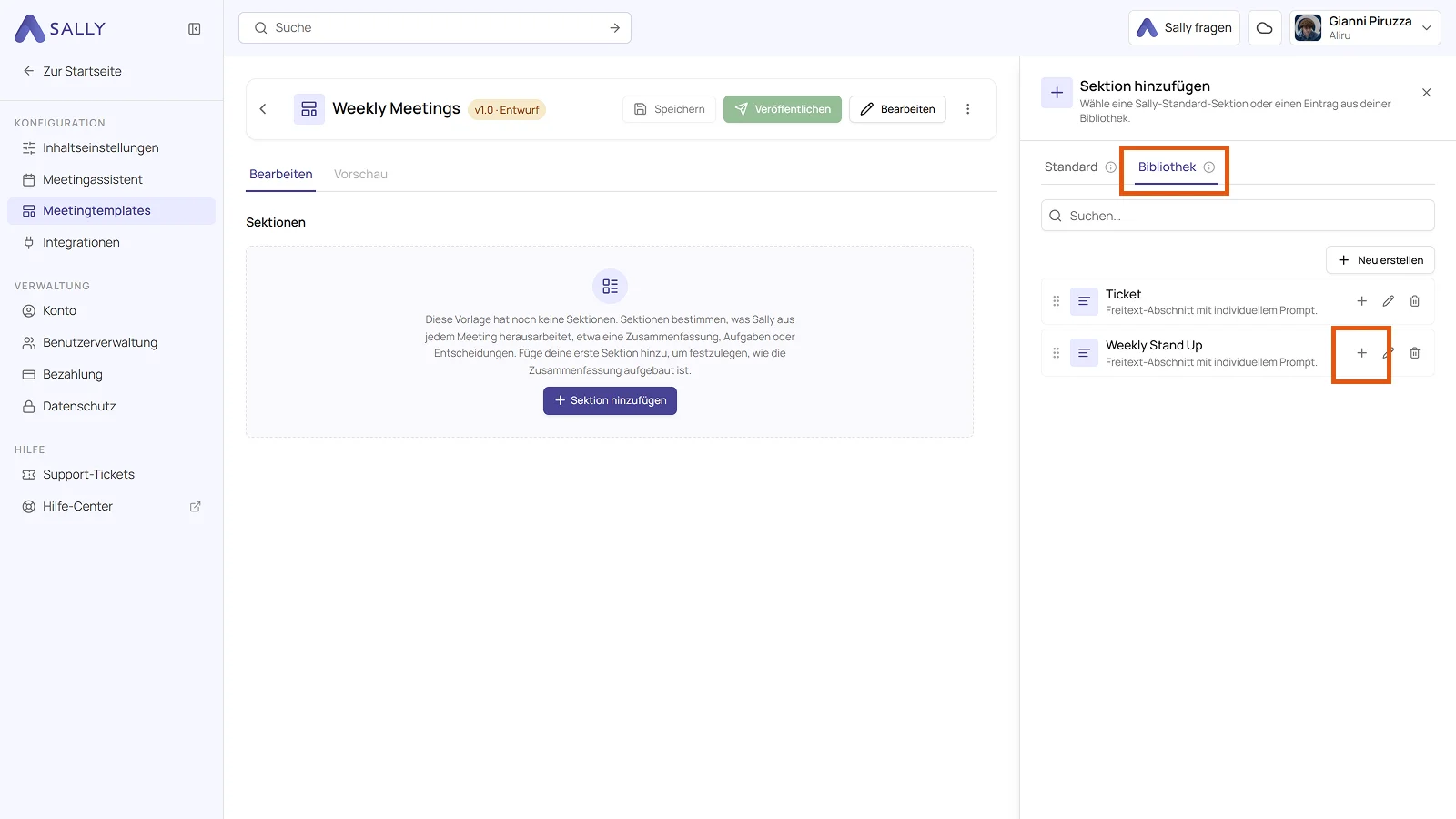
- Click Save, then Publish. From the next meeting of that type on, the section is part of the summary. Switch the old insight off in the Custom Insights tab afterwards, so the same content does not appear twice.
From that date on, an insight can no longer be converted automatically. Anything you have not moved by then you rebuild by hand as a new section in the section library, which costs you the prompt text and a few minutes per insight. So go through your list once and convert everything you still use.
An insight becomes exactly one library entry, and that entry goes into as many templates as you need. You keep the prompt in a single place, and every template that uses it follows along when you change it.
6.3. Where to read on
Templates can do considerably more than take your insights over. They decide the whole structure of a summary, they come in versions you publish when you are ready, and you can share them with your team or hand them on as a file.
- Meeting templates is the starting point and links to every article in the area.
- What a template controls shows which part of the summary comes from where.
- Sections and the section library covers prompts, variables, output settings and the library in detail, so it is the direct continuation of your converted insight.
- Applying a template explains how a template reaches your meetings.