How does Sally AI generate meeting summaries?
Sally writes your meeting summaries on her own, with modern AI. Every summary gives you a structured overview of what mattered, so your team sees the key points, tasks, decisions and next steps at a glance.
Quick navigation
1. How summaries are created
1.1. Voice recording and transcription
The meeting is recorded, either through your microphone or through the integrations for Zoom, Microsoft Teams and Google Meet.
Sally’s speech recognition then turns the audio into text with high accuracy.
The transcript always comes in the language spoken during the meeting, while the summary follows your personal language. You can change your language at any time.
If you want the summary in a different language than your platform, set it in the summary language.
1.2. Extraction of key information
As soon as the transcript is ready, Sally goes through it and picks out what matters.
She looks for the main topics, the statements that count and the themes that keep coming up.
1.3. Categorization into four sections
What she finds goes into four categories:
- Key points: Main topics covered in the meeting.
- Tasks: Assigned tasks and responsibilities.
- Decisions: Agreements or choices made during the meeting.
- Next steps: Planned follow-up actions.
You can customize your summaries further with meeting templates or Custom Insights.
1.4. AI-powered refinement
Sally then cleans the summary up, drops repetitions and tightens the wording.
Over time she also adapts to the kind of meetings you run.
2. Summary output
At the end you get a clear, structured summary of the meeting.
Everyone catches up in a minute, nothing important slips through and the team can get straight to the follow-up work.
3. Where to find summaries
There are two ways to reach your summaries:
3.1. Within the appointment
- Open the meeting in Sally.
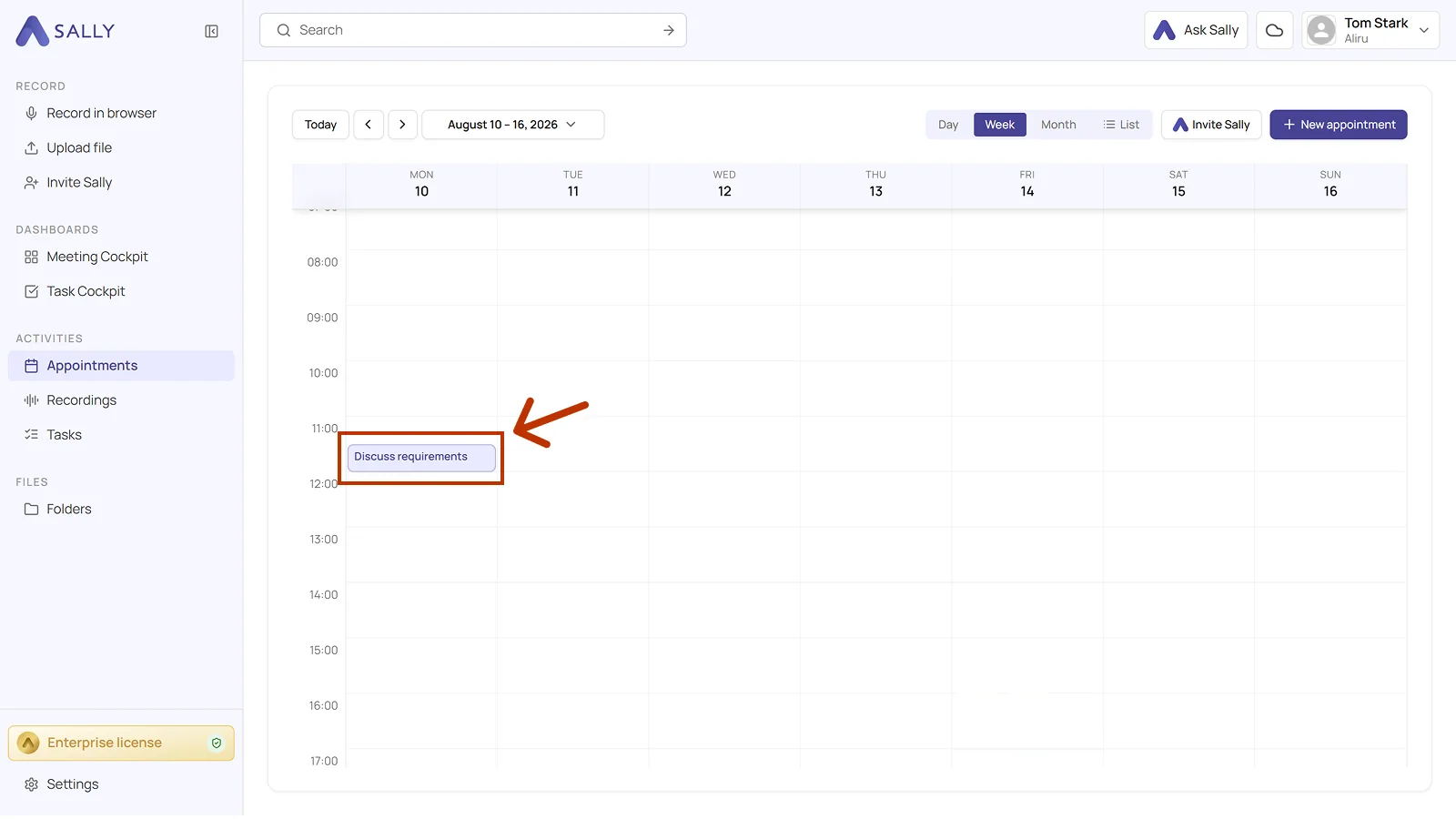
- There you will find the summary.
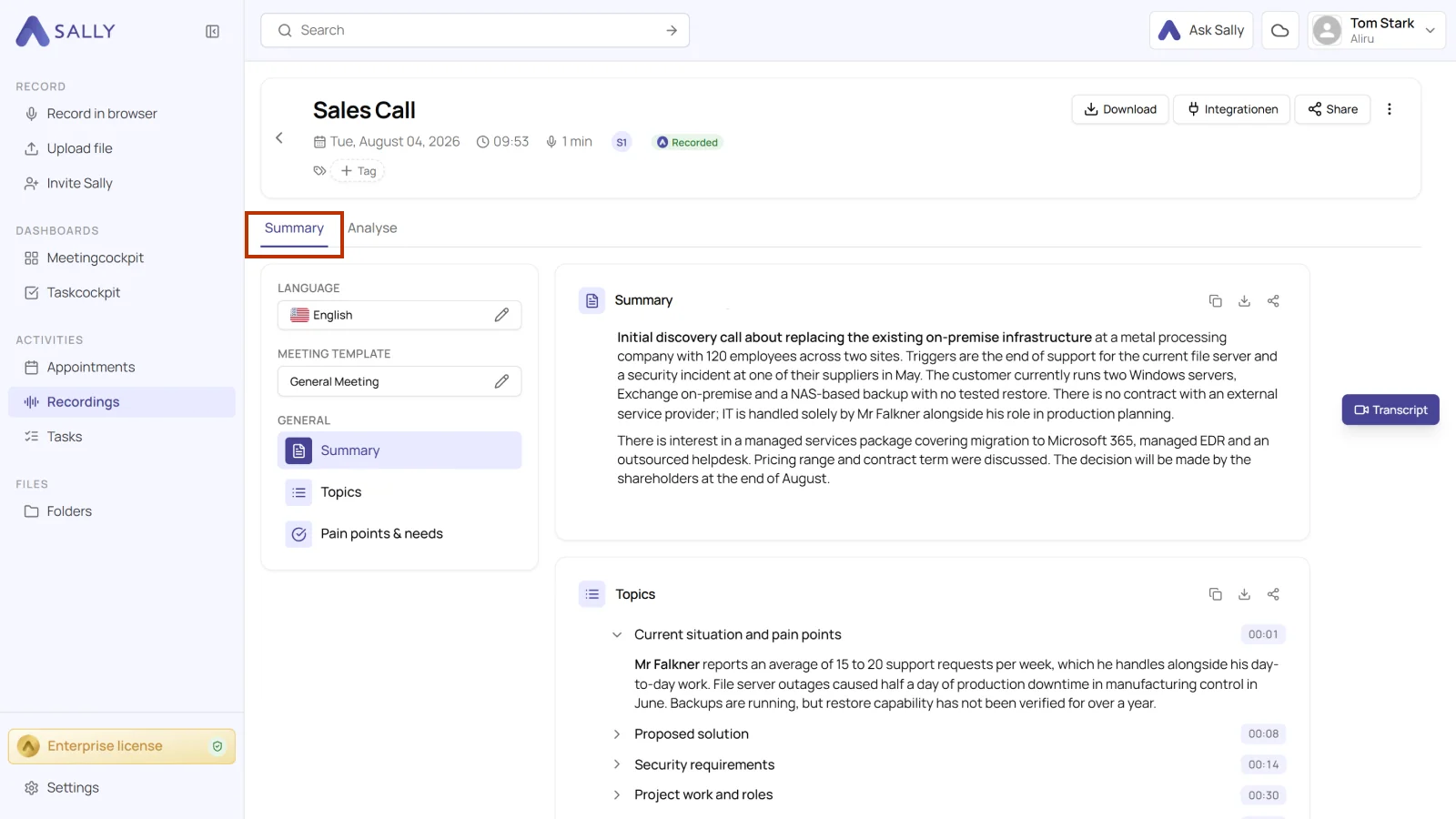
3.2. In the recordings section
- Open Recordings in the sidebar and click the recording you want to see.
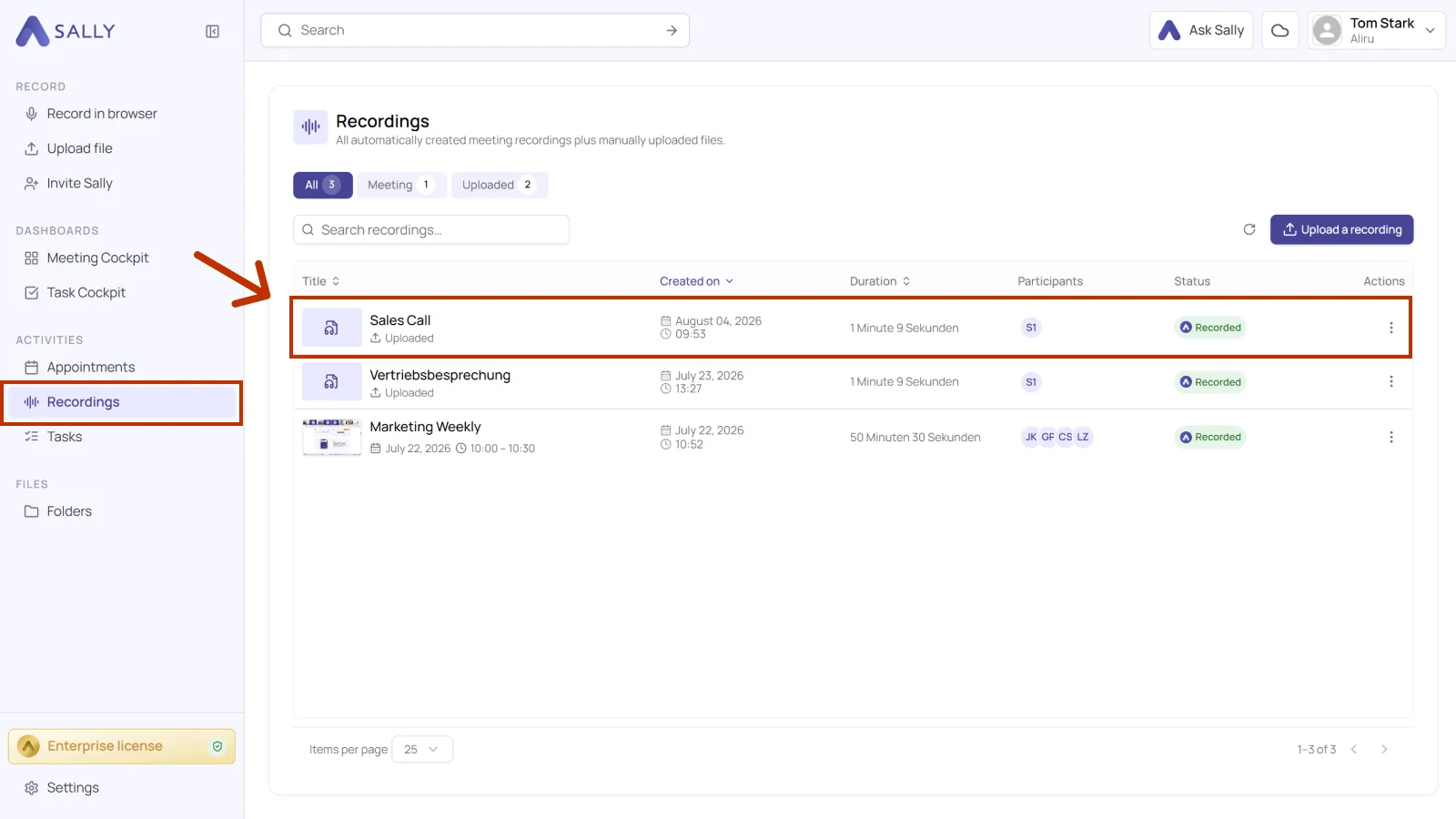
- There you will find the summary.