What are meeting quality benchmarks in Sally AI?
Quality benchmarks are questions Sally answers on her own after every meeting, whether the next steps were confirmed, say, or whether the other person got a chance to speak. That way you can tell at a glance if the important conversation goals were met, without checklists and without listening through recordings.
This article covers what benchmarks are good for, how you create them in Content Settings, and where to find the answers with their evidence and timestamps in the appointment.
Quick navigation
- What quality benchmarks are
- When this is useful
- How it works
- How to create Quality Benchmarks
- Writing effective benchmarks
- Where you see the results
- Concrete example benchmarks
- Troubleshooting & tips
- Next steps
1. What are meeting quality benchmarks?
With quality benchmarks you define the moments that have to happen in a meeting, for example confirm next steps, handle a pricing objection or ask for a satisfaction score.
Sally then analyzes each matching meeting and shows whether those elements happened, with time‑stamped references so you can jump straight to the relevant part of the transcript.
The point is consistent, professional conversations across your team, without checklists and without sitting through recordings.
2. When this is useful
- Sales and presales: make sure your discovery framework is covered, so budget, timeline and need, and that the usual objections get answered.
- Customer success: check that next steps and owners were agreed and that health checks and renewal risks came up.
- Hiring and HR: check that interviewers explained the role, asked the core questions and outlined the next steps.
- Project and delivery: confirm that scope, success criteria, risks and responsibilities were settled in kickoffs and reviews.
- Compliance and privacy: make sure the required notices were read out and the consent was recorded.
3. How it works (high level)
- You create one or more benchmarks. Each is a clear requirement phrased as a question. The answers later show up in the appointment under Conversation Goals.
- You decide where they apply, either in all meetings or only in selected meeting templates, onboarding, HR meetings or dailies for instance.
- Sally reads the transcripts of the matching meetings and gives you:
- a check mark where Sally considers the goal met,
- one or more timestamps showing where the topic was addressed,
- short quotes so you can check the context.
How well this works depends on the transcription quality, so on microphones, crosstalk and language. Keep your benchmarks specific and unambiguous.
4. How to create quality benchmarks
You set quality benchmarks up in Content Settings.
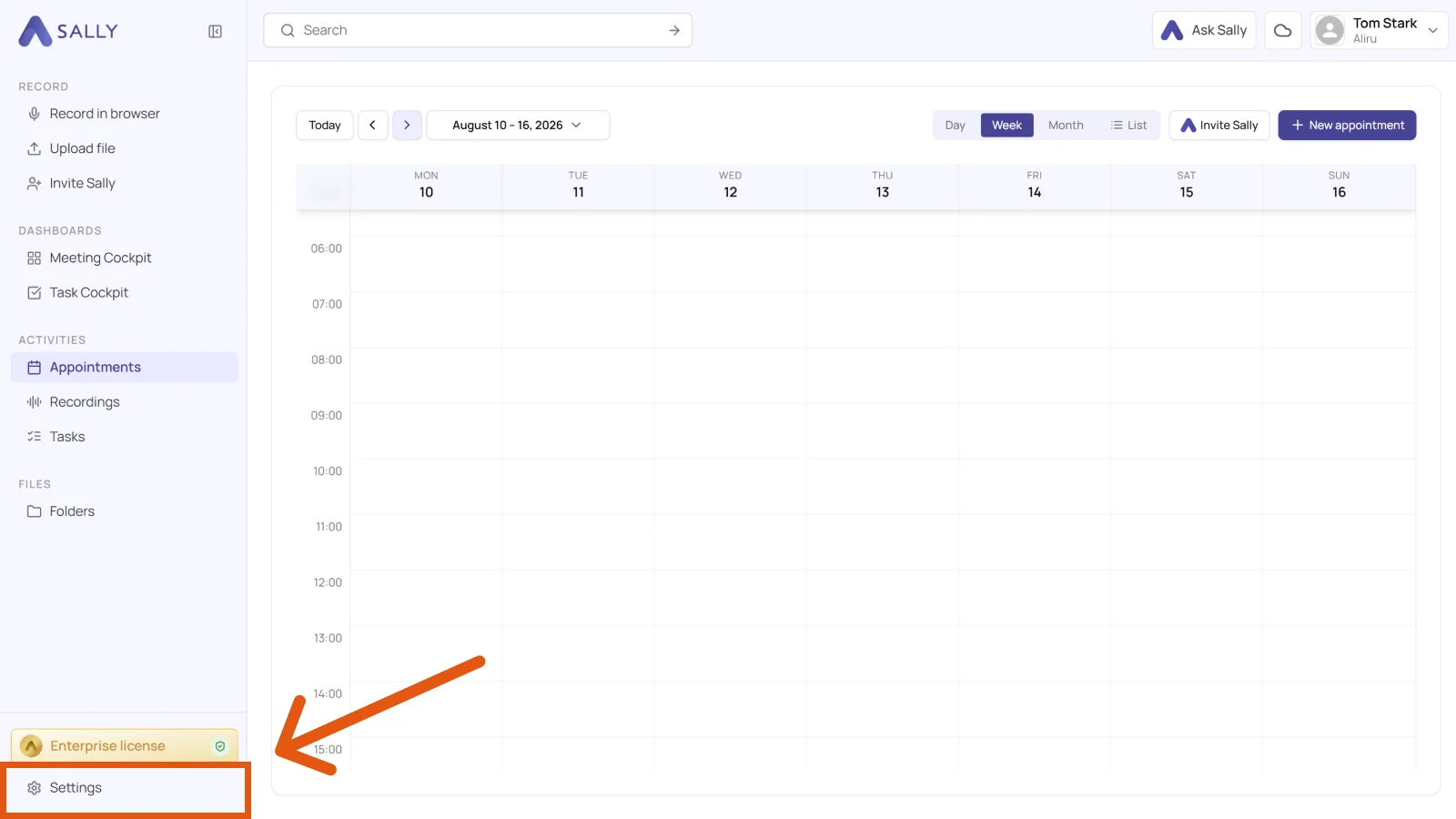
- Open Settings at the bottom of the left sidebar.
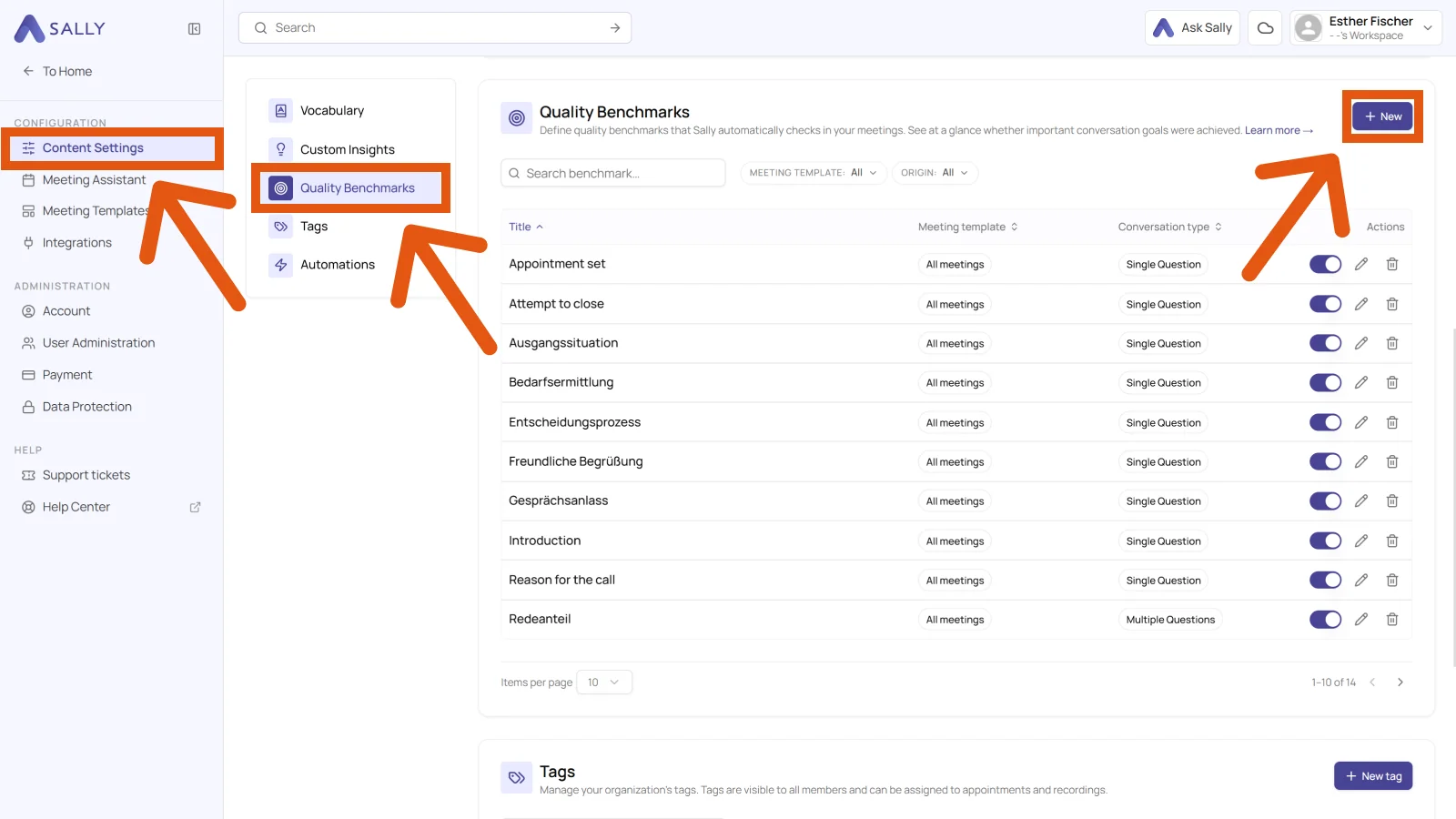
- Under Configuration, open Content Settings, pick Quality Benchmarks on the left, and click + New in the top right.
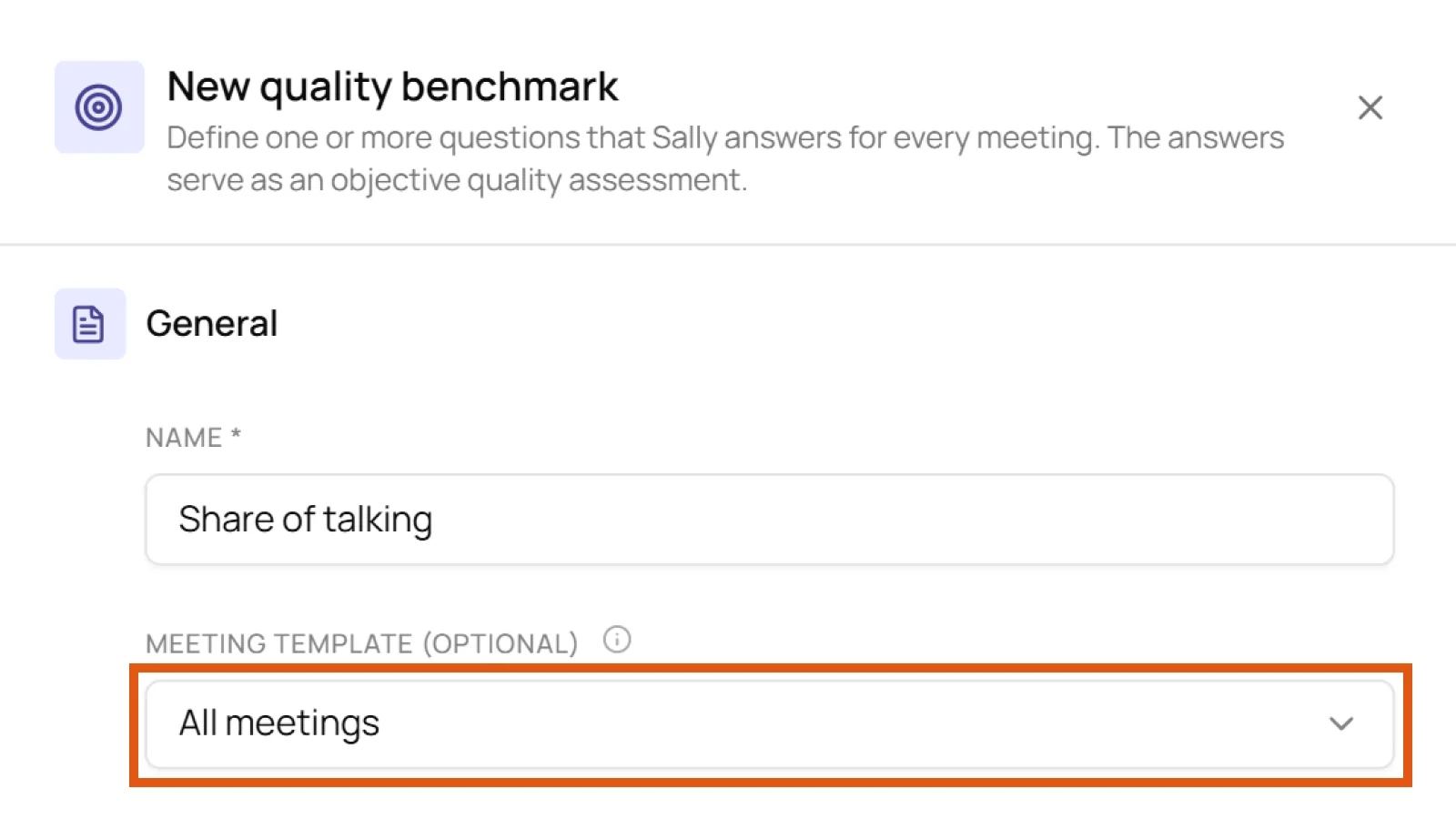
- The "New quality benchmark" panel opens with two areas, General and Question. Once everything is filled in, click Create in the bottom right.
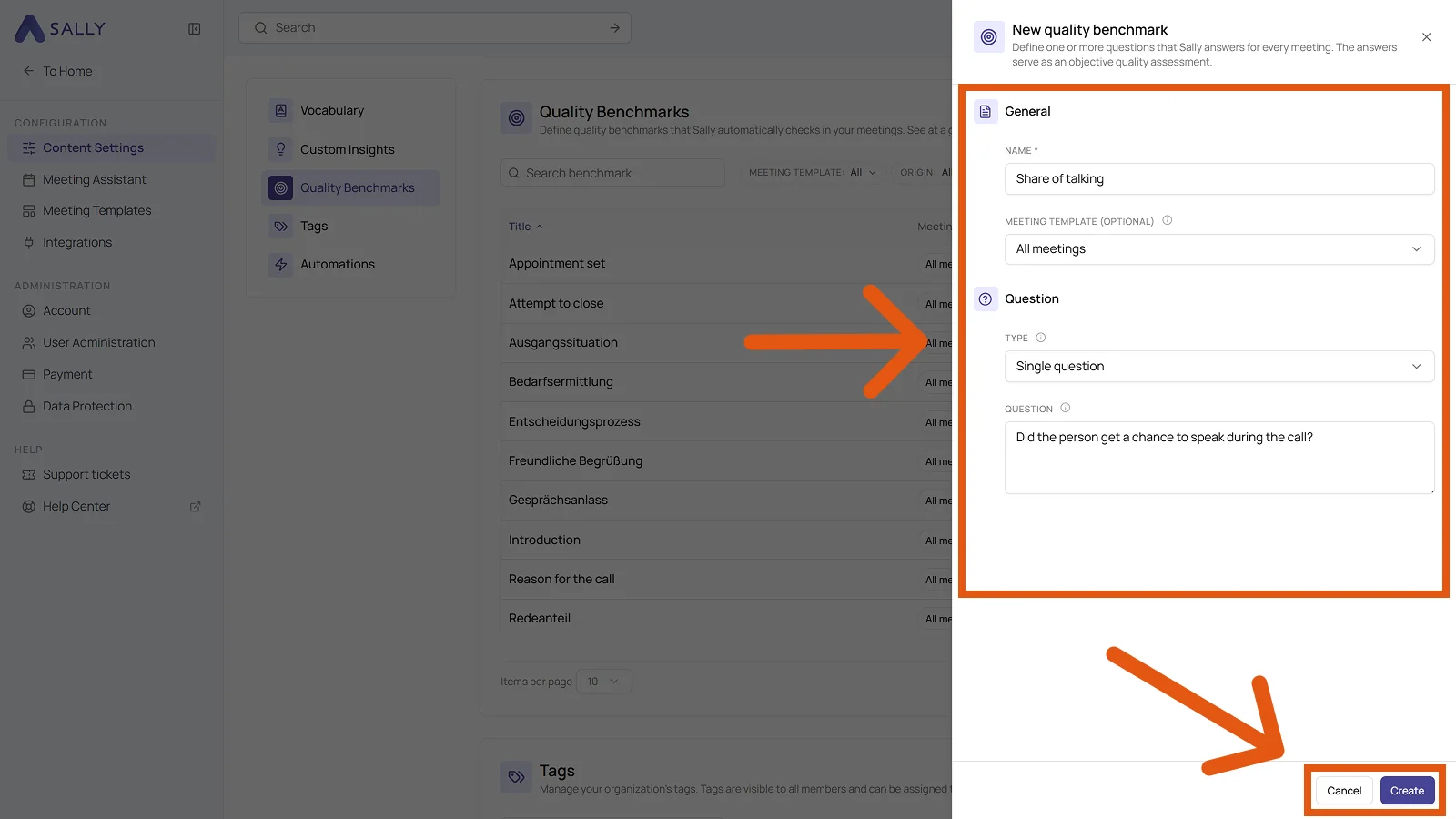
4.1 Name
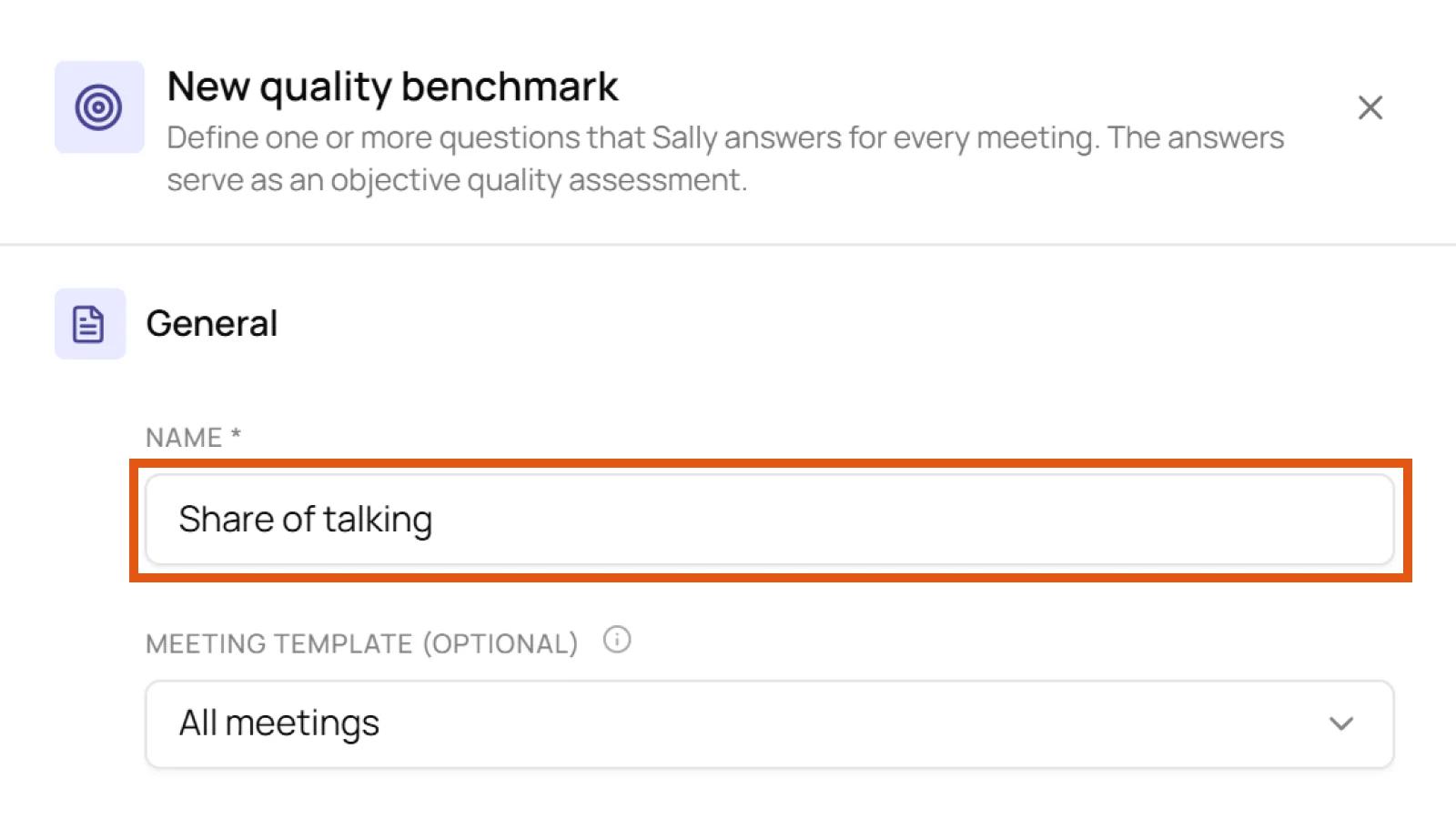
In the General area, Name is the only mandatory field. Pick something that reads clearly in the result, for example Share of talking or Pricing objection answered with ROI.
4.2 Meeting template
Below it, Meeting template decides where the benchmark applies. The field is optional and defaults to All meetings. Pick a specific template when Sally should only check the meetings that use it, discovery calls or HR interviews for instance.
4.3 Question
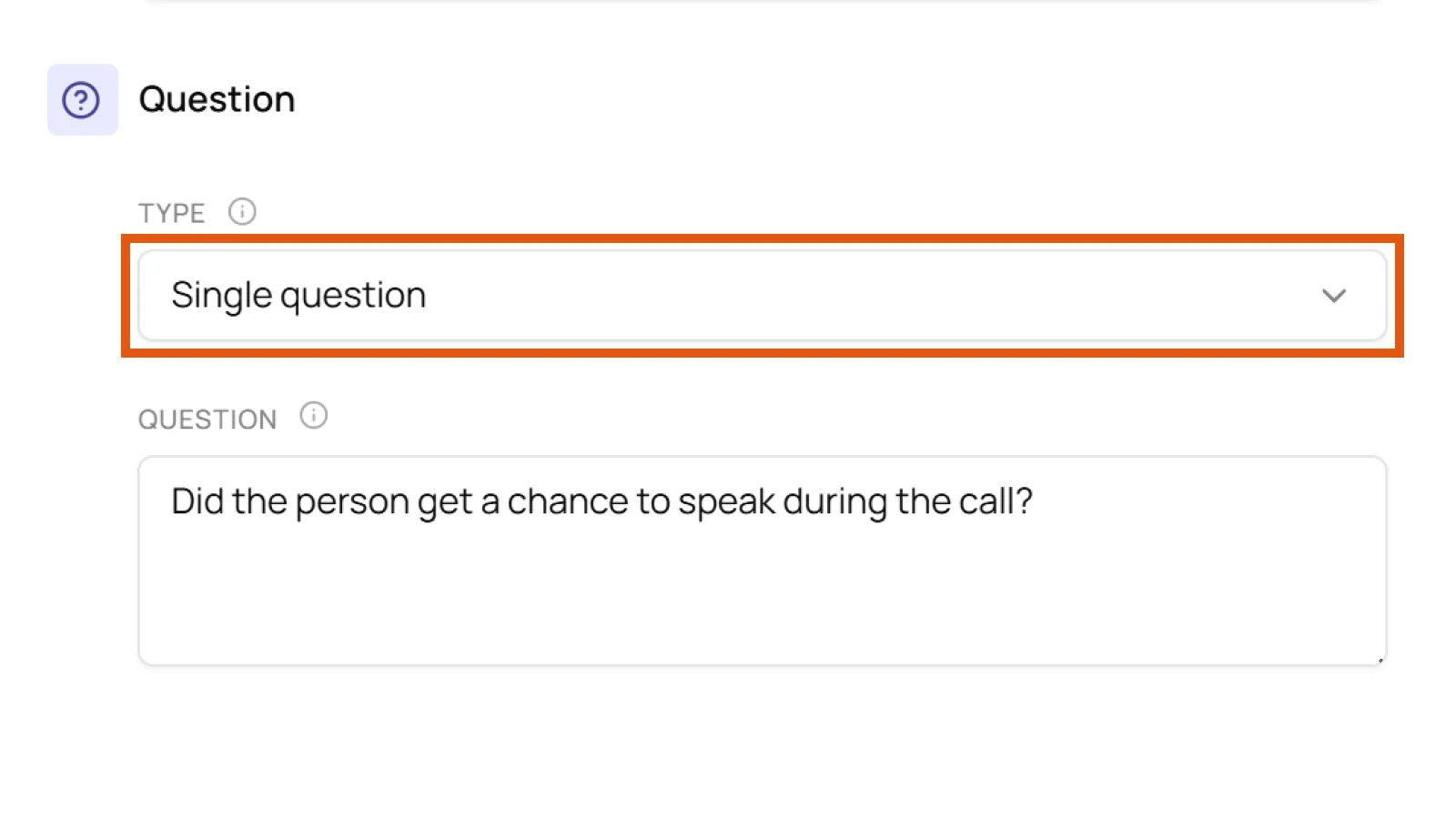
In the Question area, Type decides whether Sally answers a single question or several questions on the same topic.
4.3.1 Single question
You write one question in the Question field. Sally answers it for every matching meeting.
Example: "Did the person get a chance to speak during the call?"
4.3.2 Multiple questions
Use this type when a topic needs more than one question. Set Type to Multiple questions and fill in the fields under Questions. + Add question adds another row, and the X on the right removes one. You can also use it to phrase the same question in several ways, for the times people ask about it differently. The benchmark counts as met as soon as one of the questions is answered. In the result, every question Sally found is listed separately under the benchmark's name.
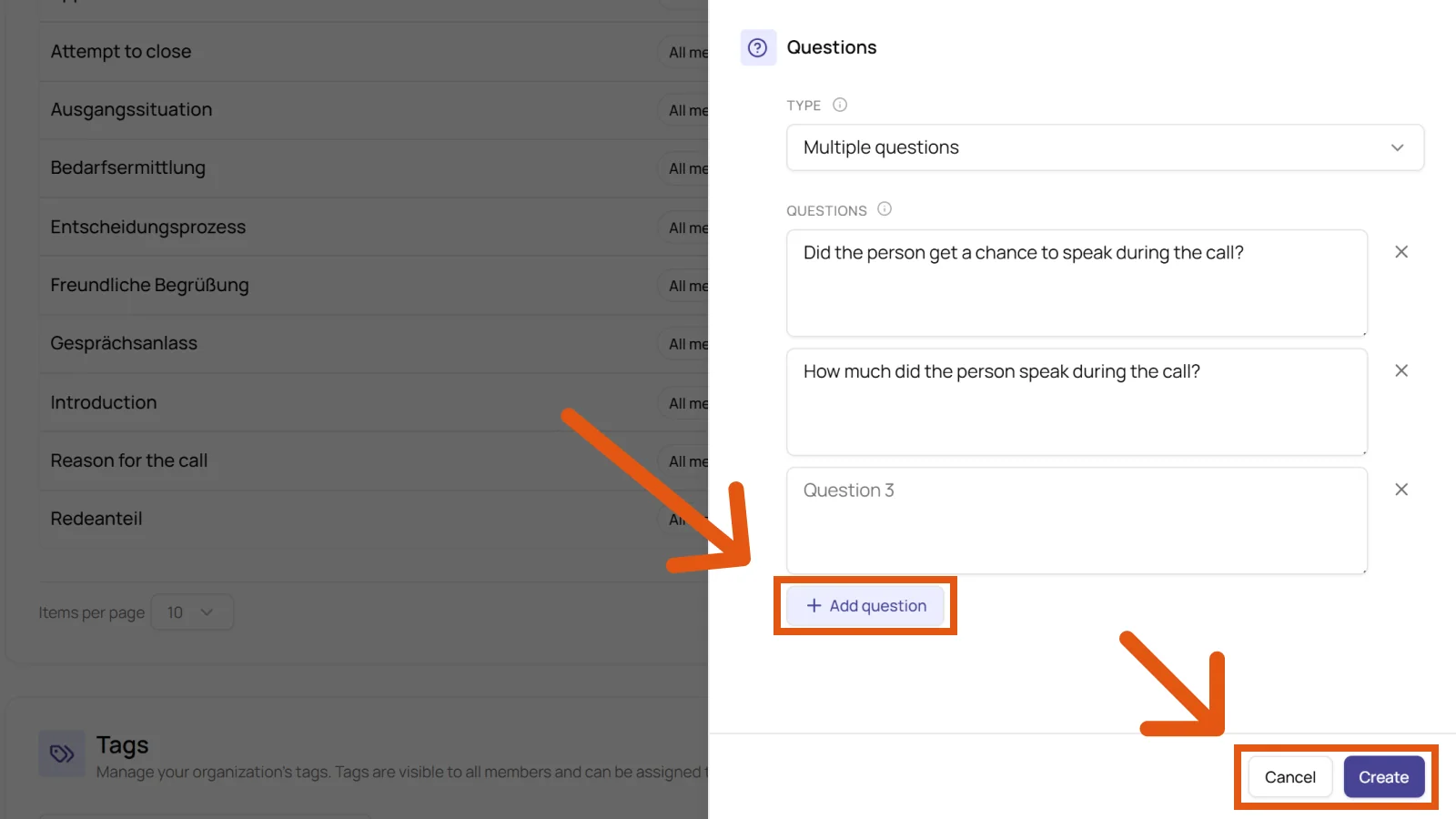
The Share of talking benchmark bundles two questions:
- "Did the person get a chance to speak during the call?"
- "How much did the person speak during the call?"
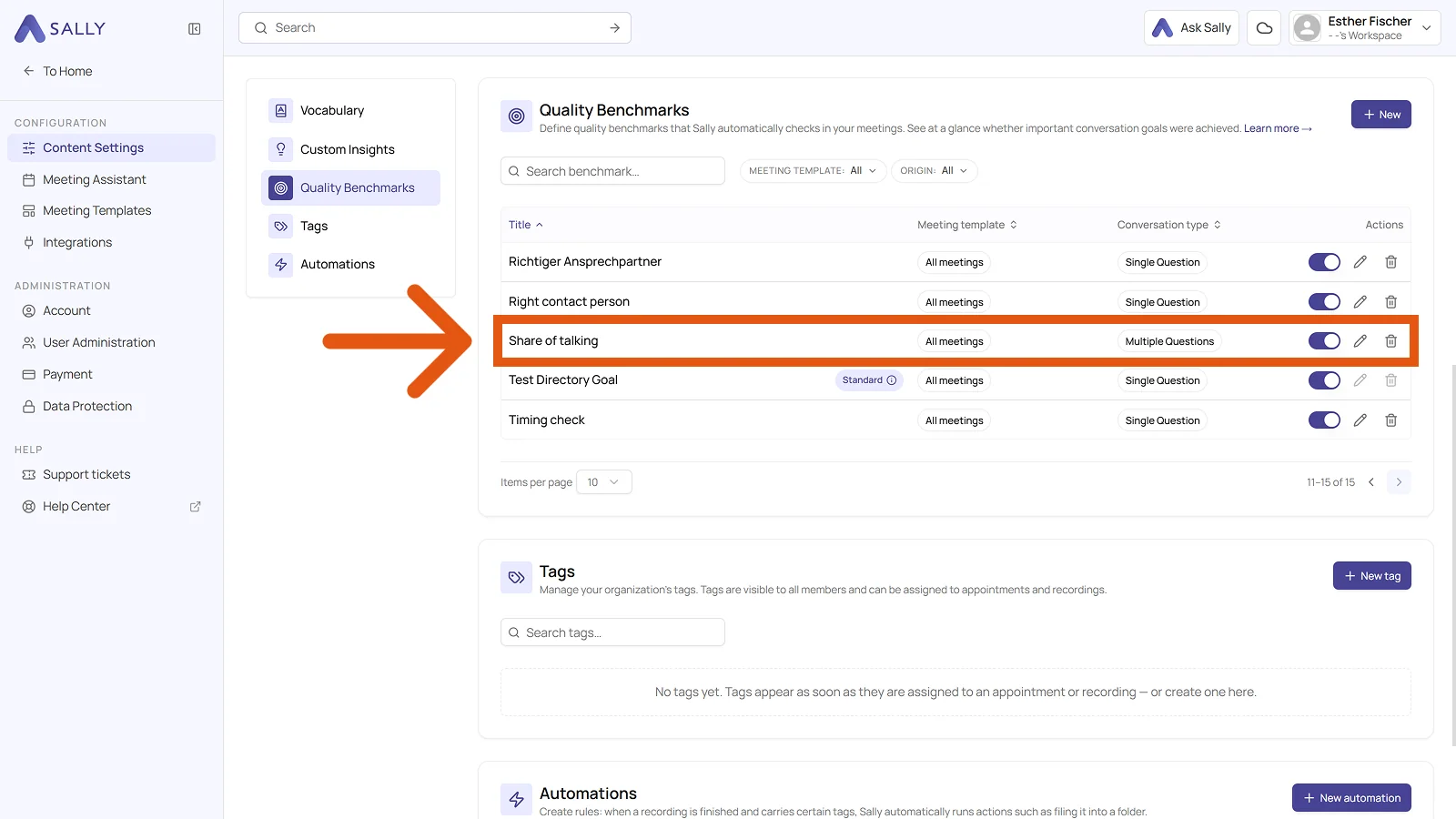
Click Create. The benchmark then shows up in the list, where the toggle switches it off, the pencil opens it for editing, and the bin removes it. The Conversation type column tells you whether it holds one question or several.
5. Writing effective benchmarks
A few habits make your benchmarks clearer and easier for Sally to detect:
- Phrase naturally: Write the benchmark exactly as someone would say it in the meeting. Avoid unnatural wording that nobody would actually use in conversation.
- Be specific: “Did we confirm the next step and assign an owner?” is better than “Was the meeting effective?”
- One requirement per question: Avoid compound sentences.
- Use the meeting template filter: Don't apply sales checks to HR interviews.
- Limit the number: three to seven per meeting works well, enough to steer the conversation without drowning it.
6. Where you see the results
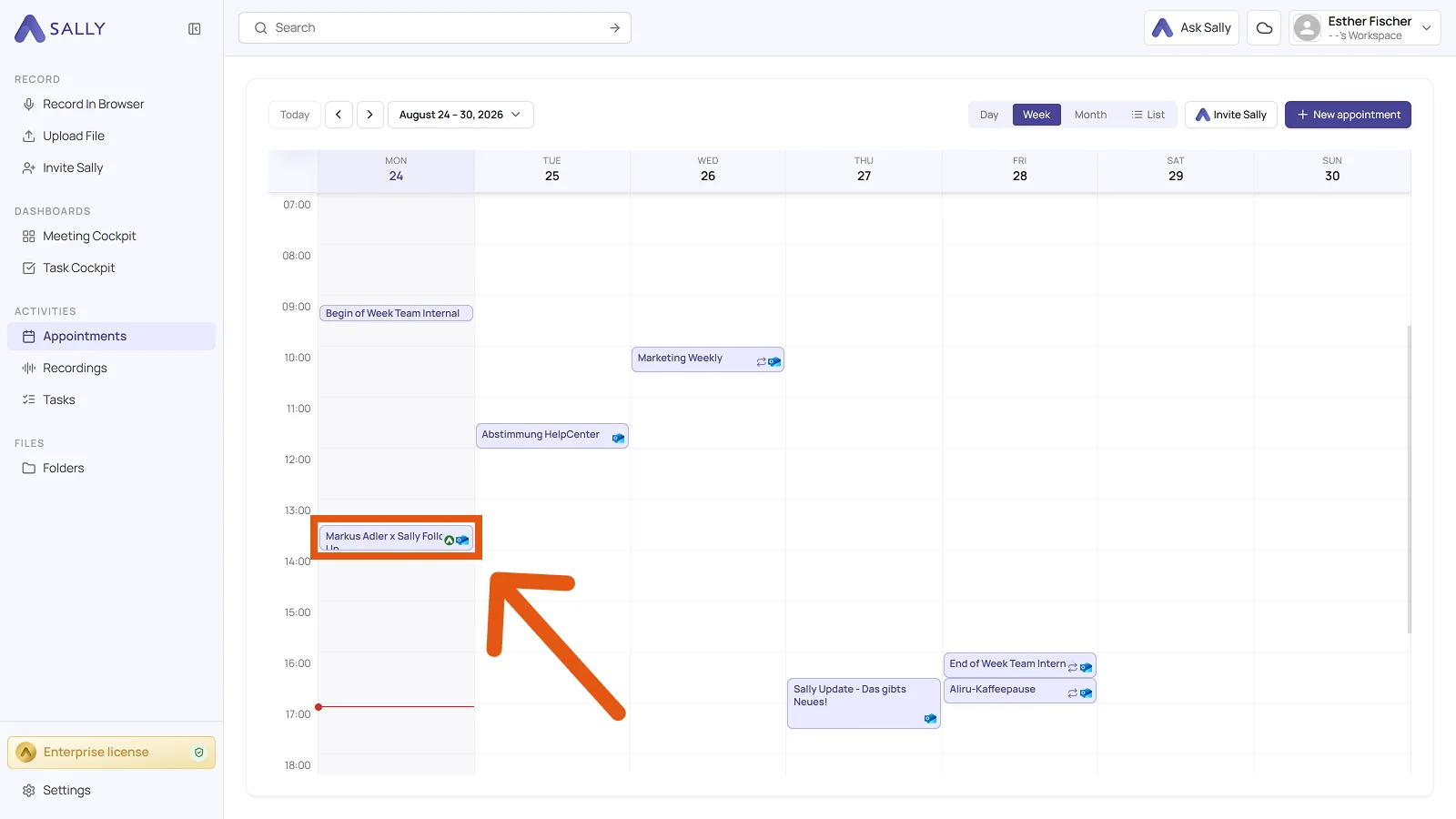
- Open the appointment once it has been processed.
- Open the Preparation tab and pick Conversation Goals on the left. The number next to it tells you how many questions were checked.
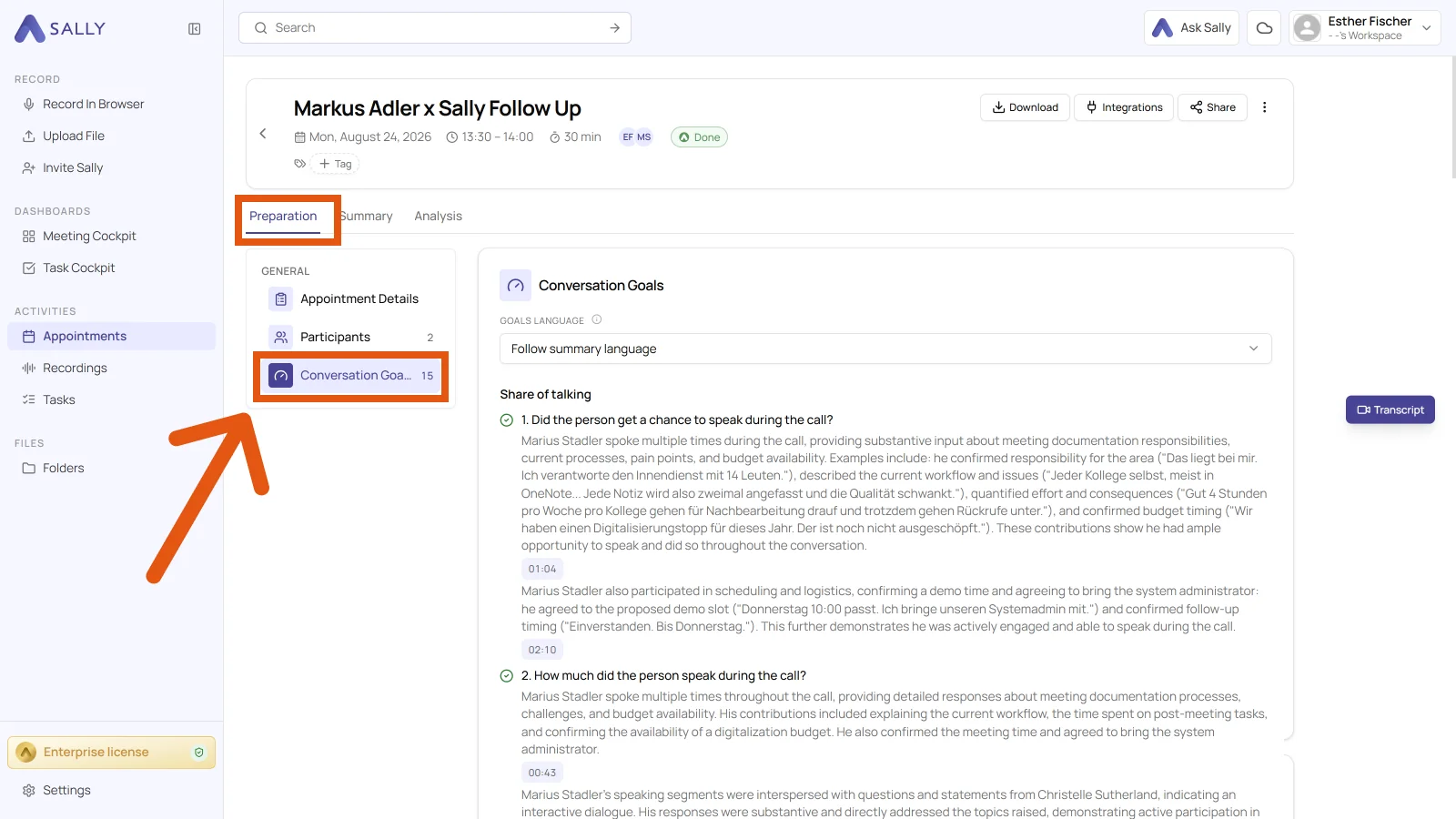
Each benchmark shows its name and every question below it. A check mark means Sally considers the goal met, and that answer comes with supporting sentences from the conversation and timestamps that take you straight to that spot in the transcript. A red X with the note Not evaluated means Sally could not answer the question, because the topic never came up or she did not find it in the conversation.
- Goals language sets the language the goals are evaluated in. It defaults to Follow summary language, but you can pick a language independently of it.
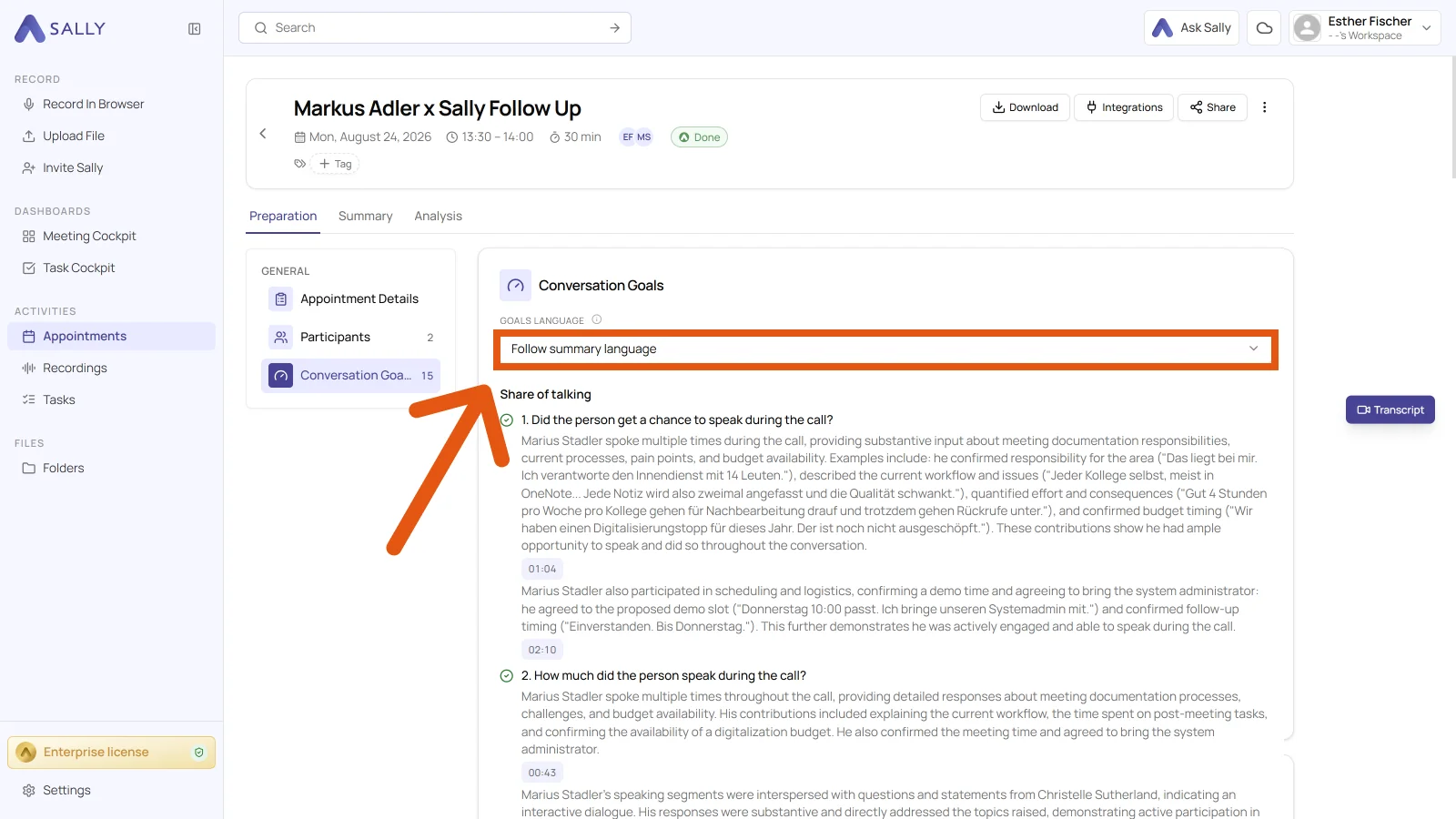
This setting only affects the conversation goals. The language of the summary itself is set in summary language.
- If you create a benchmark after a meeting has already been processed, that meeting has no evaluation for it yet. Sally points this out above the list and names the count, in the example “4 conversation goals still need to be evaluated for this meeting”. Generate all evaluates every goal at once. Where a single benchmark shows No result, Generate results covers just that one.
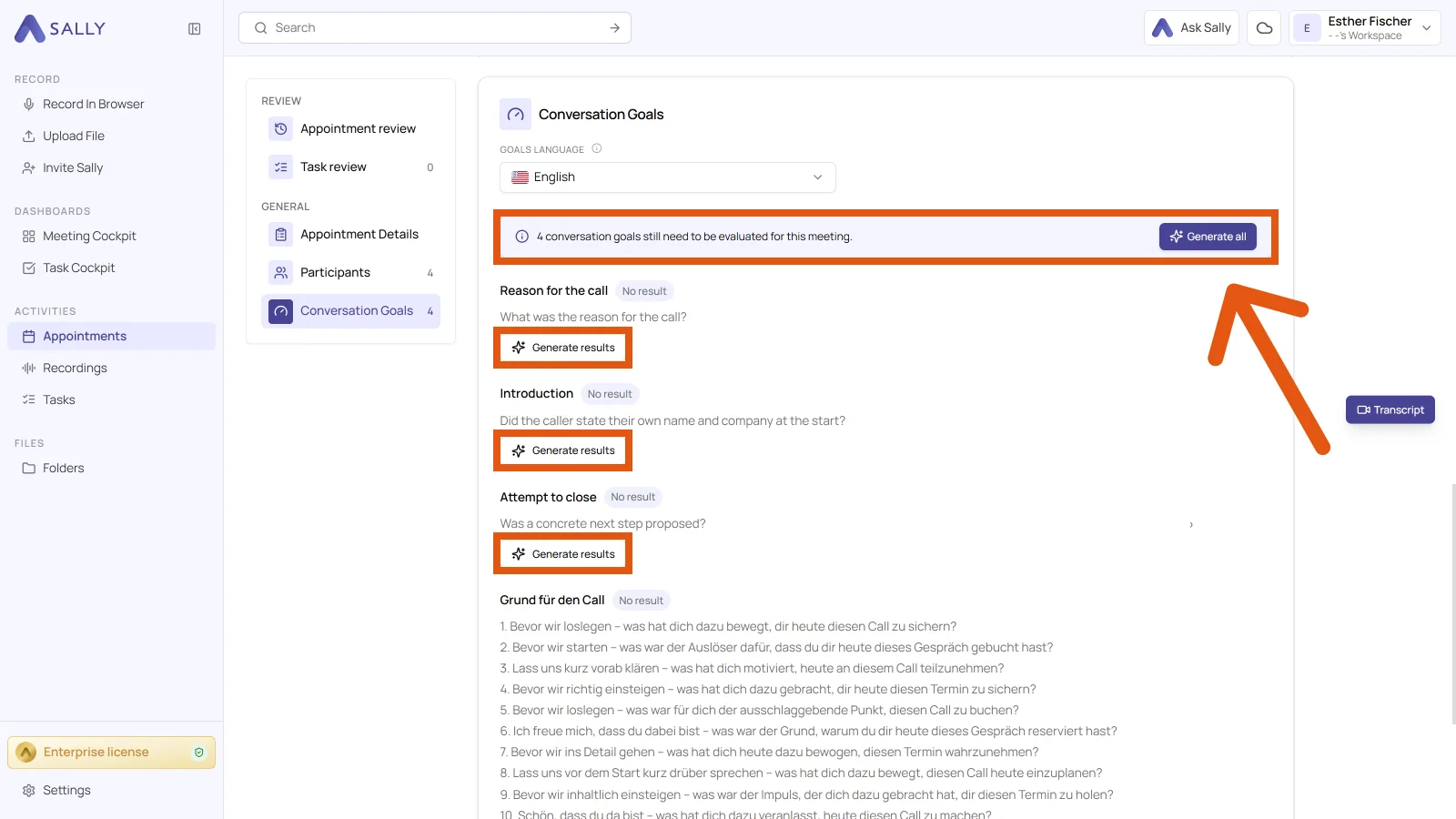
That way a new benchmark also covers older meetings, without recording them again. It pays off once you have sharpened the wording of a benchmark and want to see how it does on past conversations.
7. Concrete example benchmarks
7.1 Sales objection handling
- Benchmark (single question): “If the customer raises a price objection, did the rep respond with ROI or total cost of ownership?”
- Why it helps: keeps reps on the agreed line of argument when “too expensive” comes up.
7.2 Customer success check‑in
- Benchmark (multiple questions, one variation per requirement):
- “Did we confirm the customer's current goal or desired outcome?”
- “Did we agree on a next step with an owner and due date?”
- “Did we ask for a quick satisfaction rating or sentiment?”
- Why it helps: keeps every check‑in consistent and focused on action.
7.3 Hiring interview basics
- Benchmark (single question): “Did the interviewer explain the role expectations and next steps to the candidate?”
- Why it helps: every candidate gets the same experience and the interview follows one shape.
7.4 Project kickoff essentials
- Benchmark (multiple questions, variations allowed):
- “Did we define scope and success criteria?”
- “Did we identify risks or dependencies?”
- “Did we align on responsibilities and timeline?”
- Why it helps: everyone knows where they stand from day one, which saves rework later.
7.5 Privacy & compliance
- Benchmark (single question): “Was the meeting privacy notice presented at the beginning?”
- Why it helps: it documents your compliance in a regulated environment.
8. Troubleshooting & tips
- The benchmark does not appear in a summary: check that it is enabled and that the meeting template matches its scope.
- Detection seems inconsistent: simplify the wording and keep one requirement per sentence. Better audio helps too, so microphone close to the speaker, less echo and nobody talking over anyone.
- Mixed languages: stay in one language per meeting where you can, because a mix costs accuracy.
- Too many benchmarks: start small and add more later. A few benchmarks done well beat a long list.
9. Next steps
- Create two or three benchmarks that really matter per meeting template, for example sales discovery, onboarding or interviews.
- Test on a handful of past recordings and refine phrasing.
- Roll out to the team and use results for coaching and QA reviews.