How to change the language in Sally AI
You can define which language Sally uses for you personally (interface and summaries) and for your entire organization, which applies whenever Sally communicates on behalf of the organization, for example in meeting chats with several users.
Quick navigation
1. How do I change my personal language in Sally AI?
Your personal language determines:
- The Sally interface you see.
- The language of summaries and notes created for you, as far as you have enabled those language settings.
How to change it:
- Open Settings from the bottom-left corner of the sidebar.
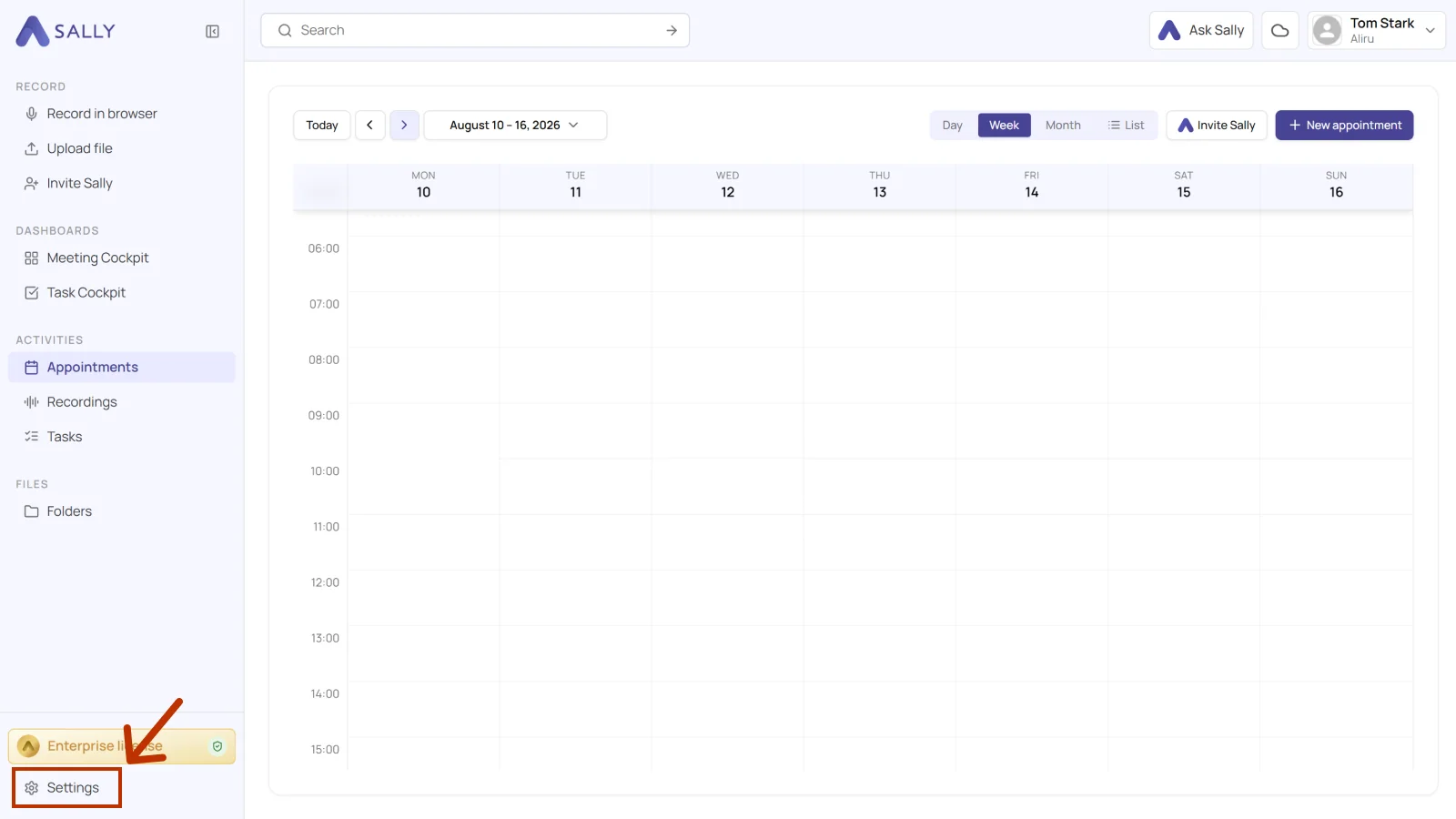
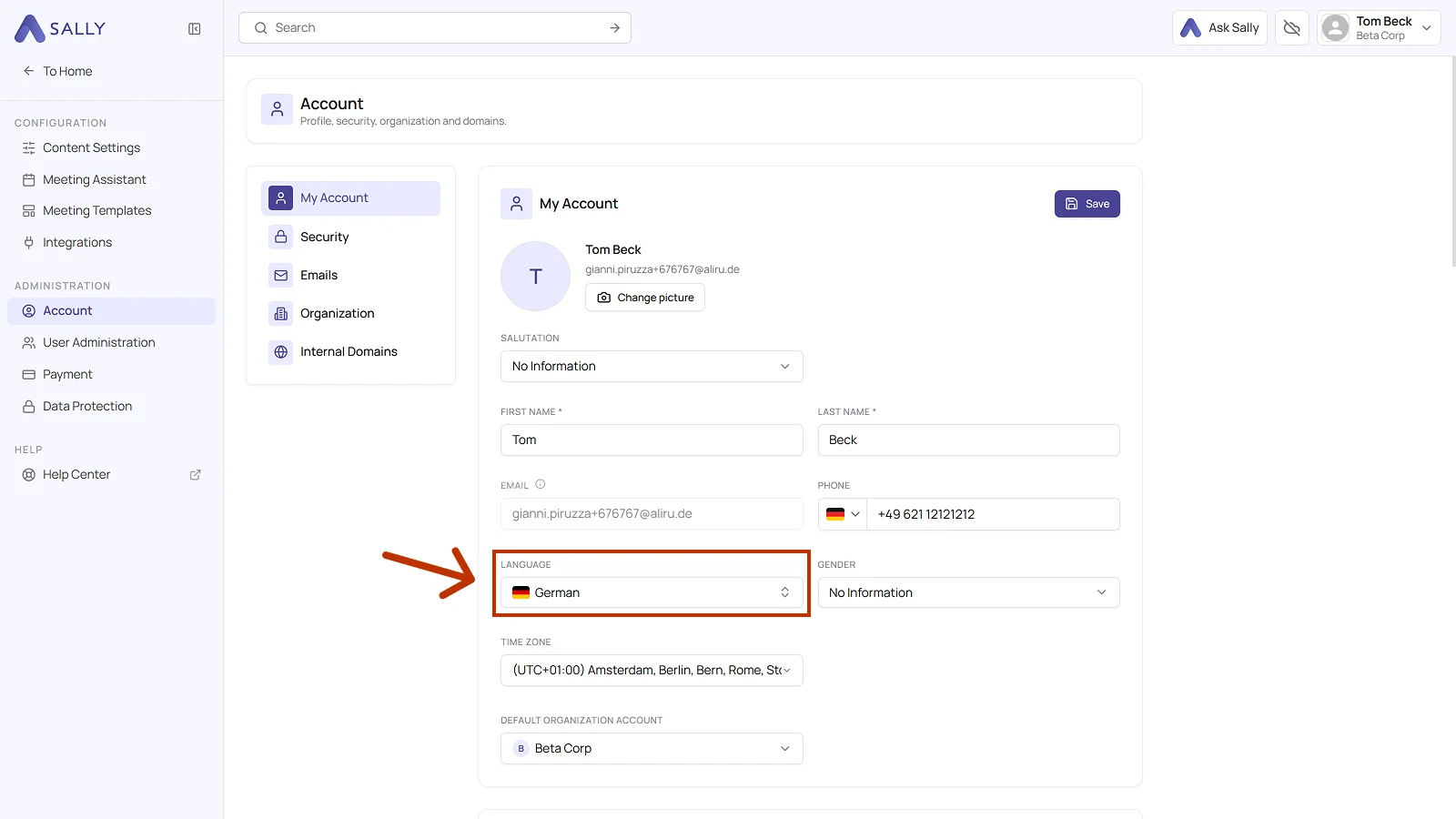
- Under Administration, select Account and open the My Account tab.
- Set your preferred language in the Language field and click Save in the top right corner of the card.
What happens next
- The interface updates to your selected language.
- New summaries and notes will be created in your personal language.
- Existing content isn't translated retroactively.
2. How do I change the organization language?
The organization language is used whenever Sally communicates on behalf of your organization. For example, if multiple users from your organization are in a meeting, Sally posts messages in the meeting chat in the organization language.
- Open Settings and select Account under Administration.
- Switch to the Organization tab.
- In the General section, pick the language for your organization and click Save.