How to set the default organization in Sally AI
If you belong to multiple organization accounts, Sally may not be able to assign meetings correctly. This problem mainly occurs when you add Sally to a meeting via email invitation. Email invitations don't contain any information about which organization account a meeting belongs to. Sally sees the invitation but cannot determine the context in which the meeting takes place.
By setting a default organization, you give Sally a clear assignment. Every meeting created through an email invitation is automatically assigned to the default organization. This way no meetings are lost and all appointments end up in the correct account.
When you log in, you are also automatically logged into the default organization.
Here's how it works:
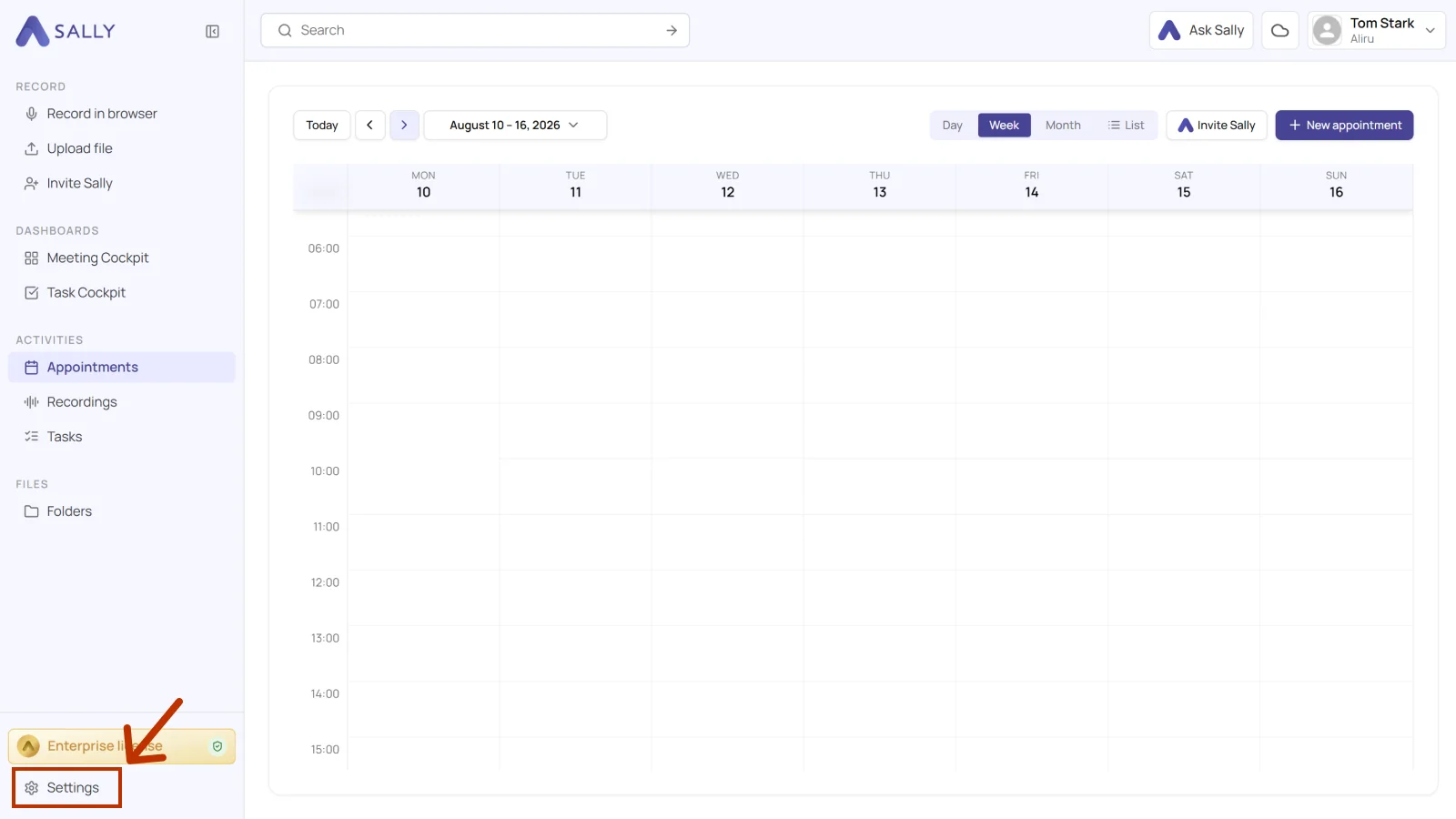
- Open Settings from the bottom-left corner of the sidebar.
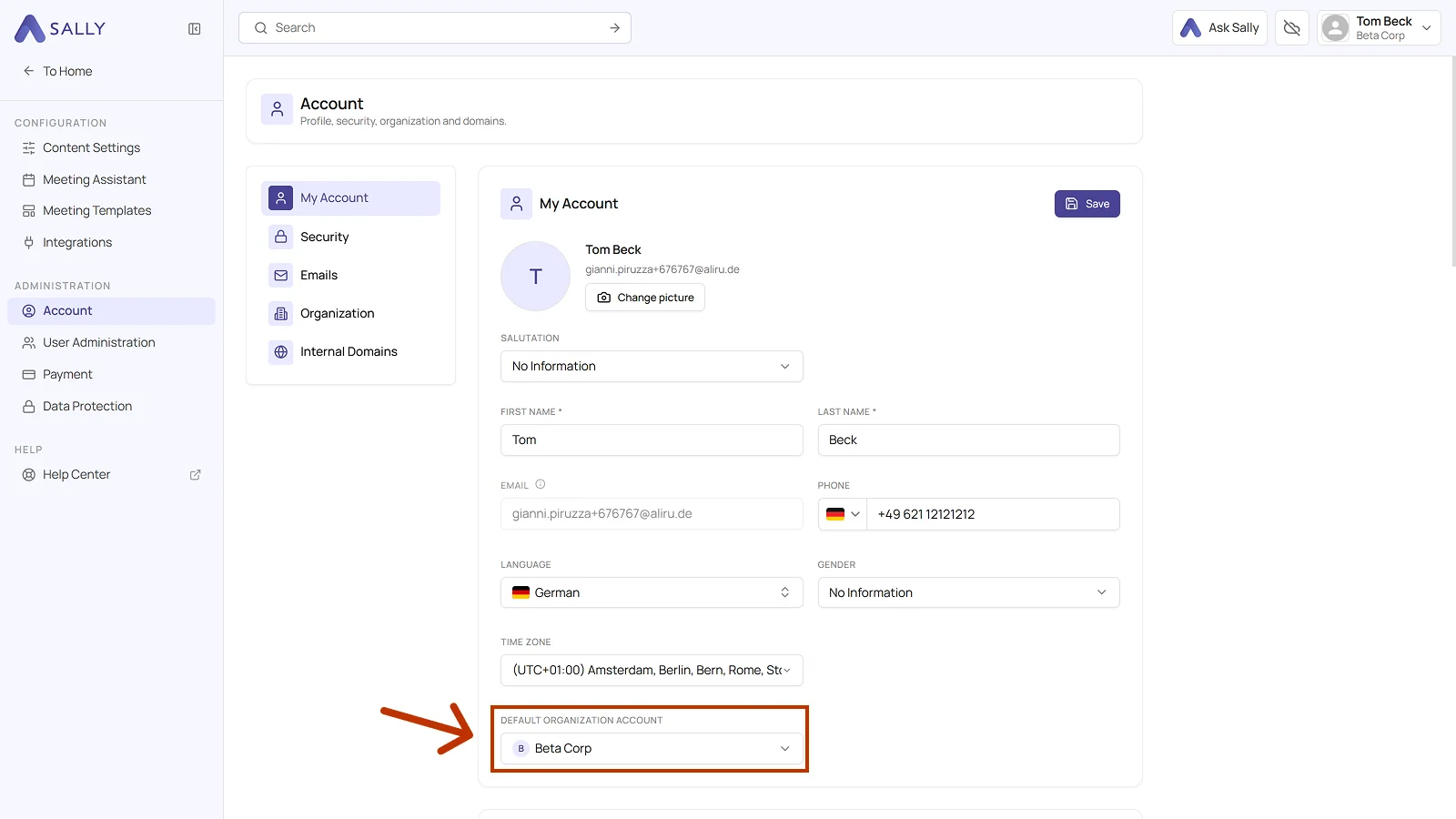
- Under Administration, select Account and open the My Account tab.
- Pick your account in the Default organization account field and click Save in the top right corner of the card.
If Sally missed a meeting because no default organization was set, simply add her again to the meeting invitation once the default organization has been configured.