How to restore archived recordings in Sally AI
After 120 days without access, Sally automatically archives your video and audio files to save storage space and keep your workspace tidy. This guide shows you how to easily restore archived recordings at any time.
If you have configured automatic deletion of files in your settings, recordings will be permanently deleted after the defined retention period. Once deleted, they cannot be restored.
1. How do I restore an archived recording in Sally AI?
Follow these steps to bring back archived videos or audio files.
- Open the meeting you want to restore.
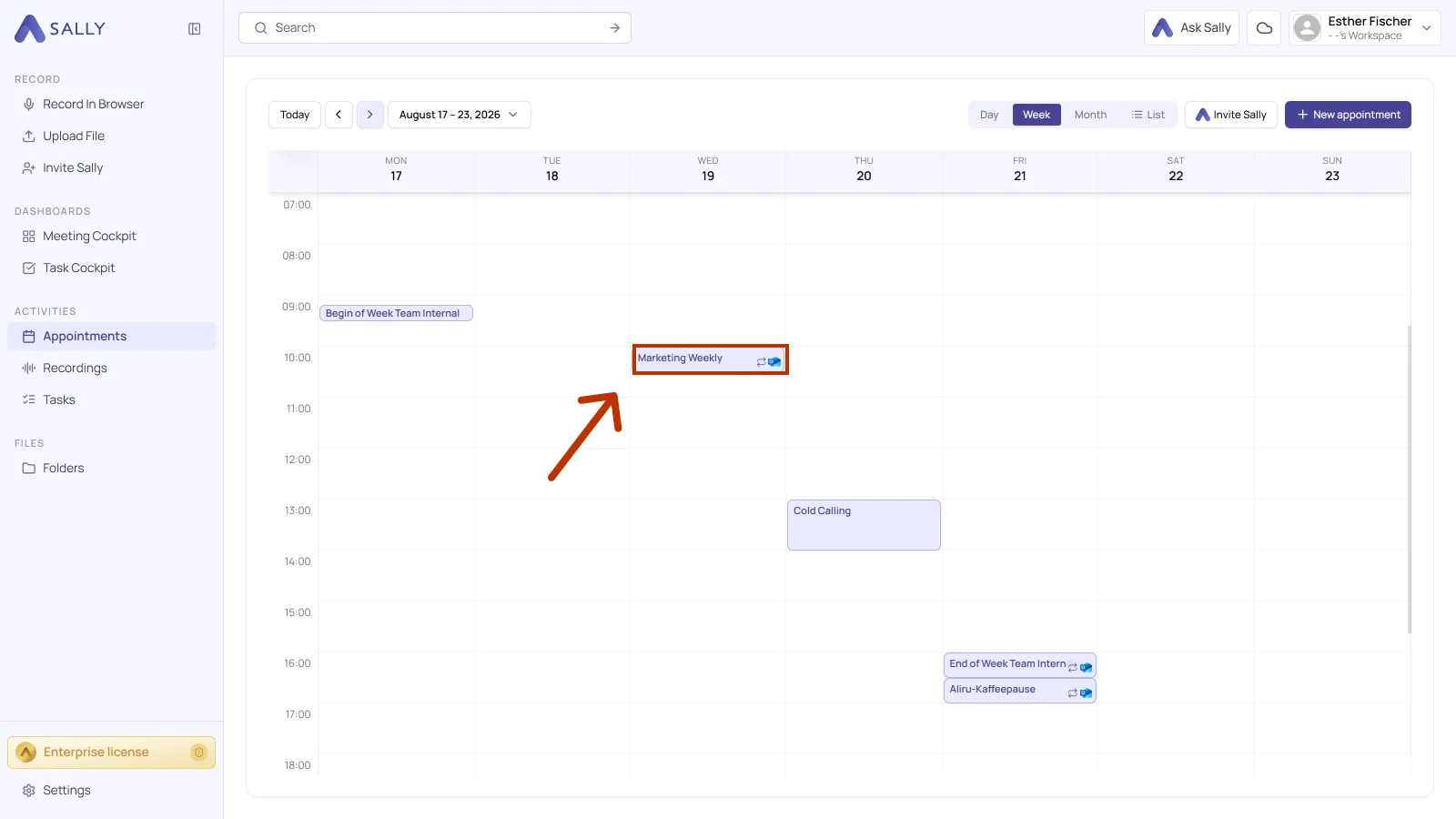
If you want to restore an imported file instead of a meeting recording, go to the Recordings tab in the sidebar and open the file from there.
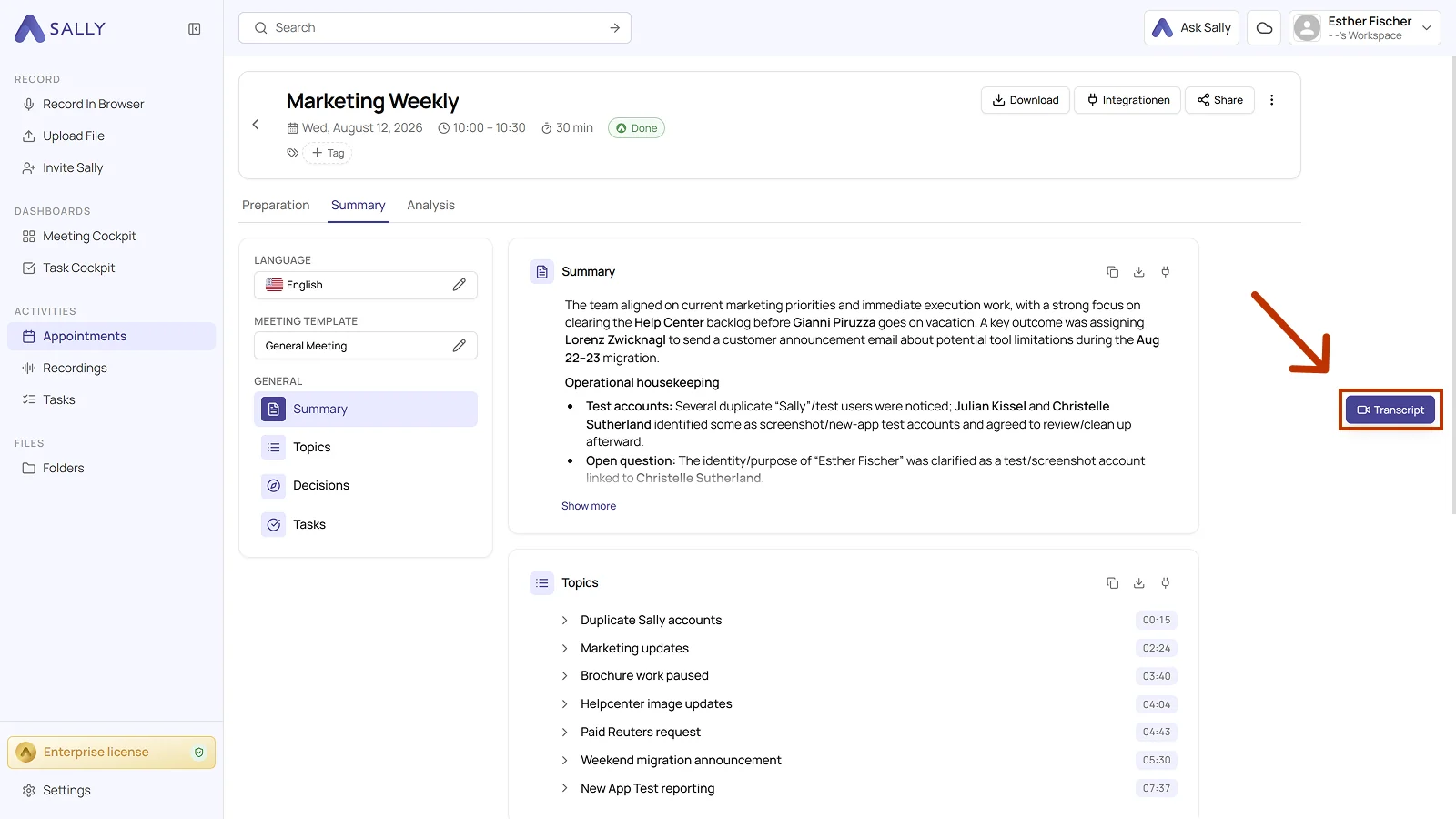
- Click Transcript on the right-hand side of the meeting.
- Above the transcript you see Recording archived. Click Restore there.
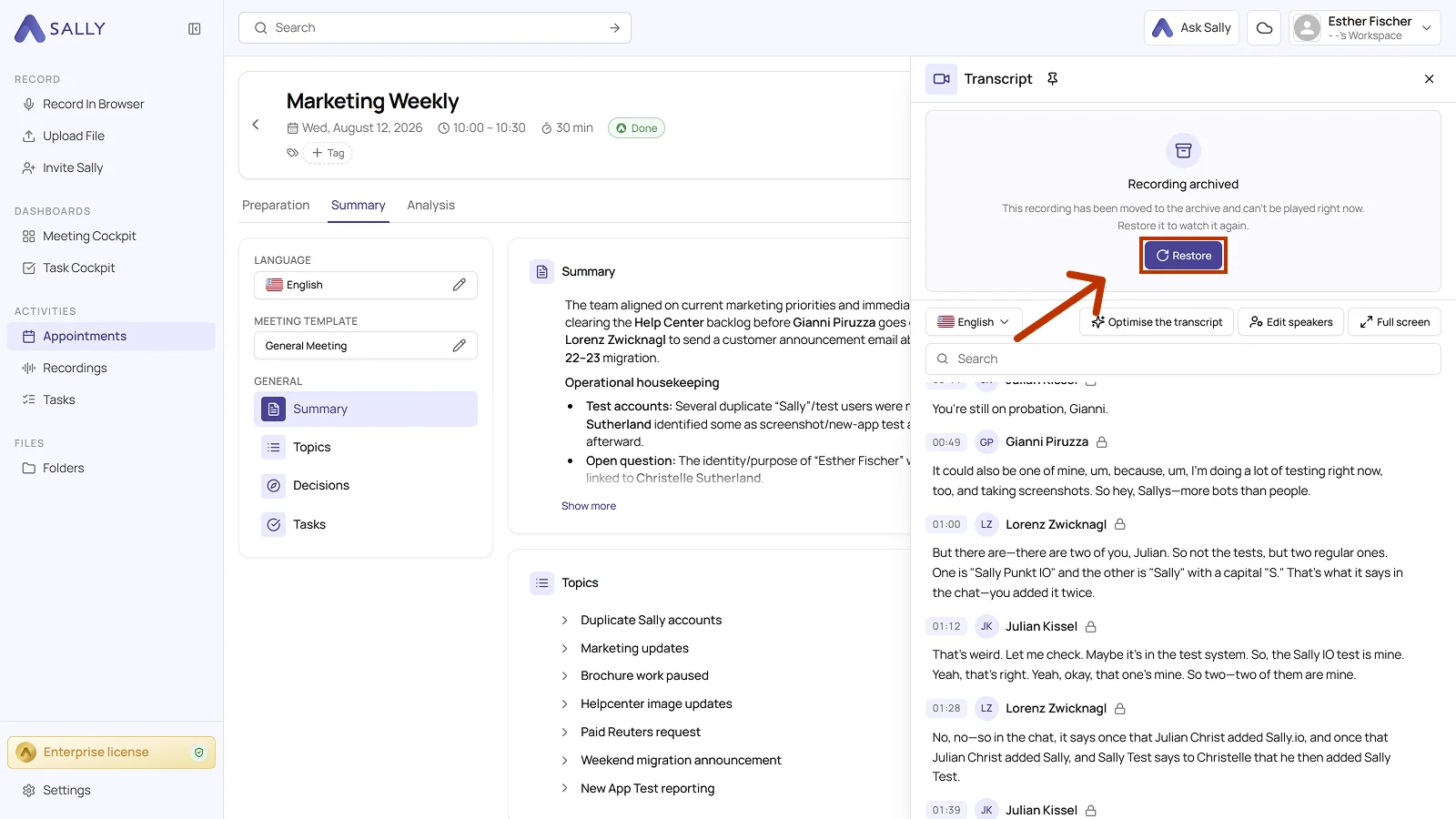
The restoration process may take a few minutes. You don't need to keep Sally or the meeting open during this time. You'll receive an email as soon as the video is available again.