How to export and import templates
Sometimes sharing inside the account is not enough. You are setting up a second account, a colleague in another organization wants your structure, or you simply want a copy of a template you spent time on. That is what export and import are for.
A template travels as a single file. You download it, pass it on, and whoever receives it imports it into their own account. Nothing is linked afterwards: the imported template is an independent copy.
Quick navigation
1. What export and import are for
There are three situations where a file works better than sharing inside the account.
- Moving between accounts. Visibility only reaches as far as your organization account. A file goes further.
- Passing it on to colleagues who are not in your account, for example an agency or a partner company.
- Keeping a copy of a template before you rebuild it.
Inside your own account you do not need this. There, sharing or Duplicate is quicker.
2. Exporting a template
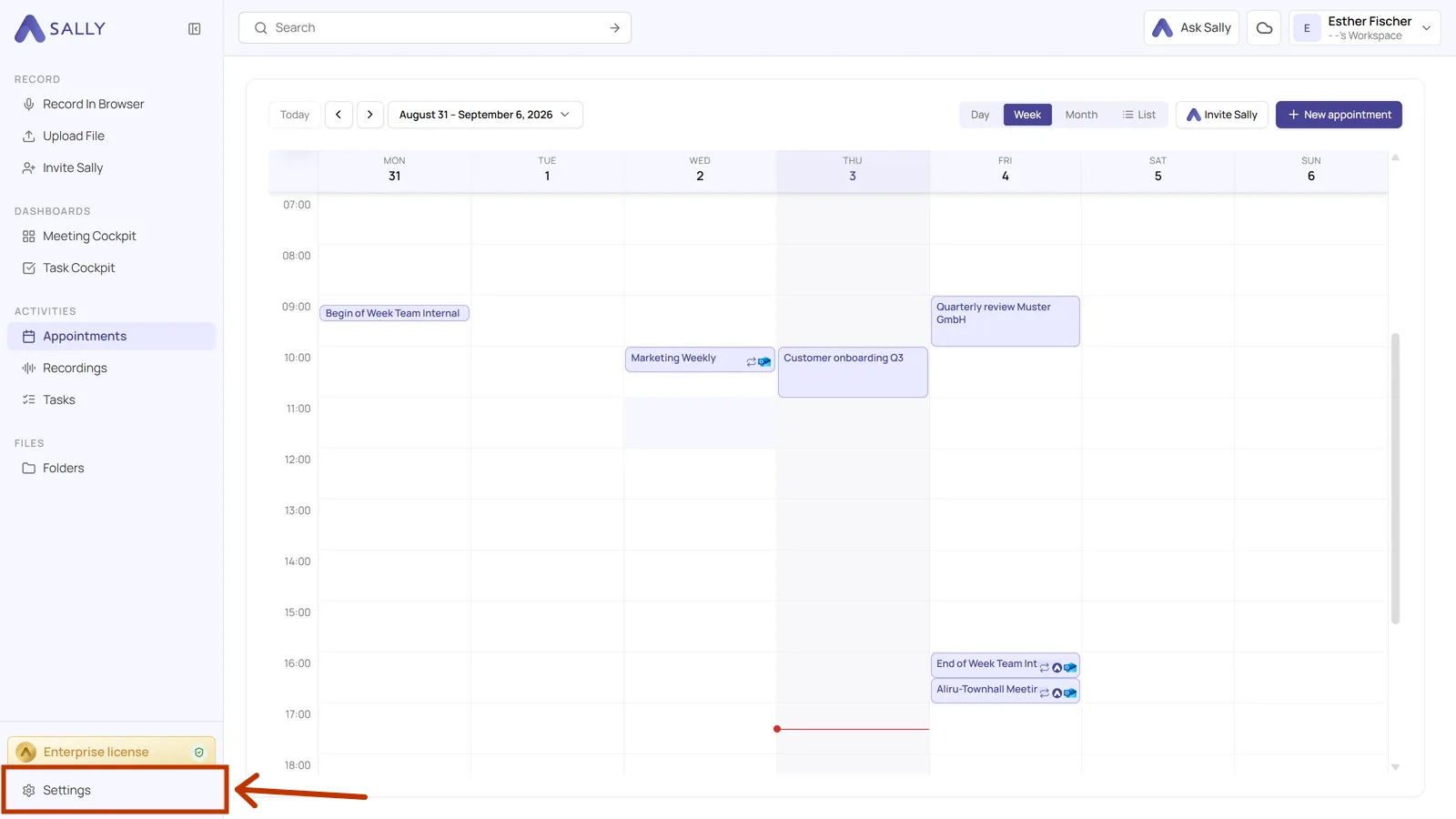
- Open Settings at the bottom of the left sidebar.
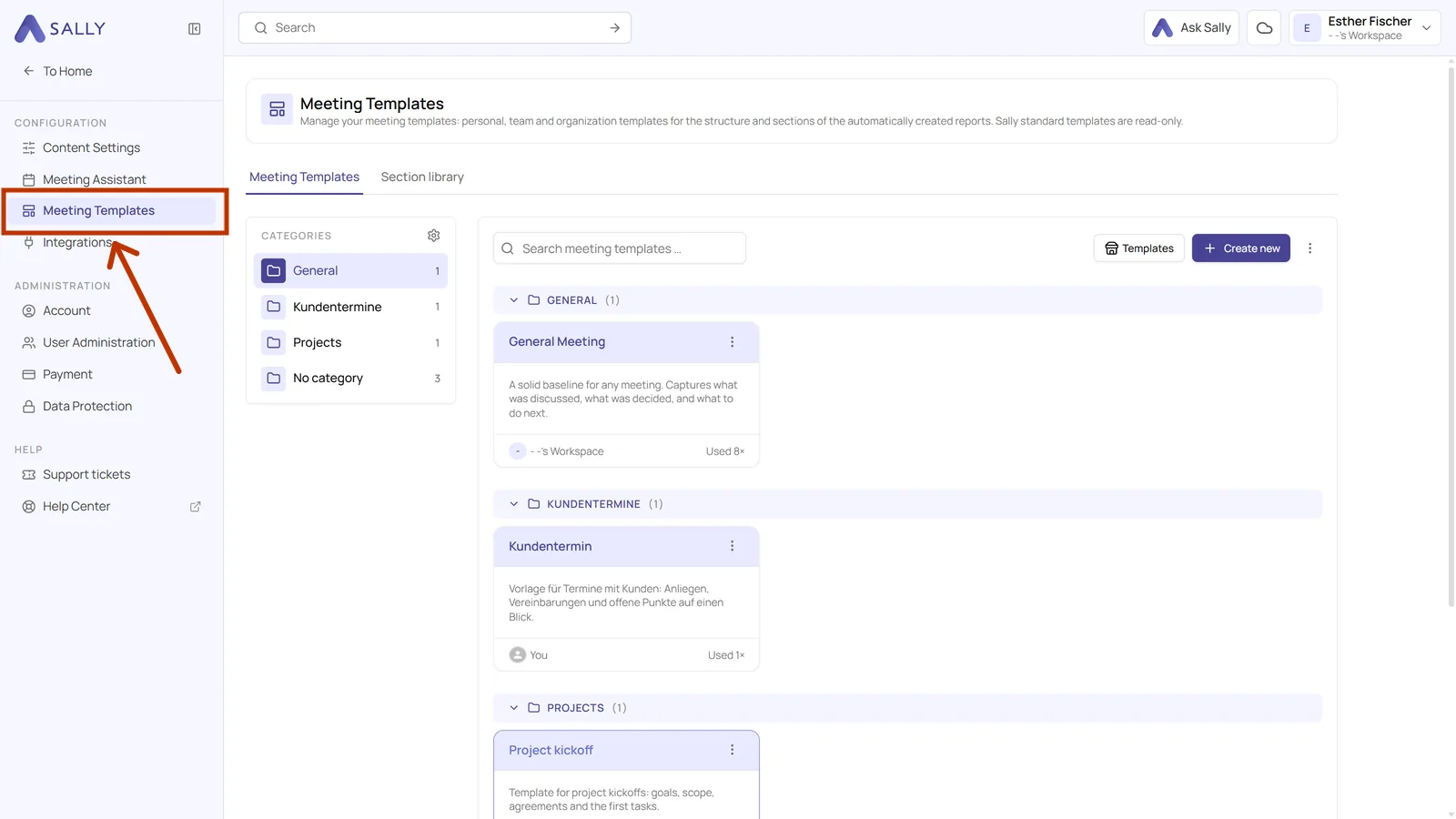
- In the settings sidebar on the left, under Configuration, click Meeting templates.
- Open the three dots on the card of the template and click Export.
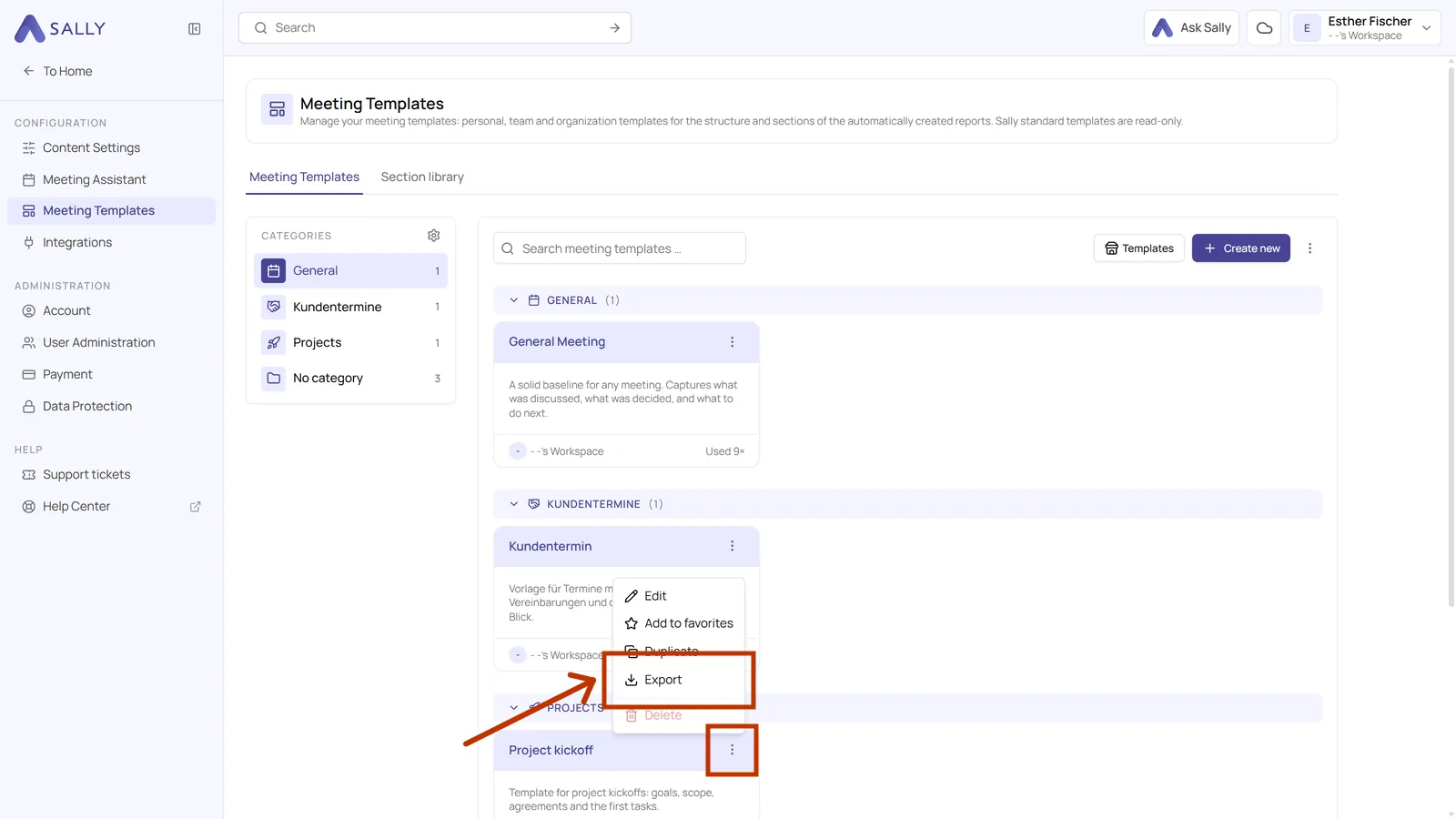
The same entry is in More actions on the template's own page, next to its name. Sally downloads a JSON file named after the template, for example weekly-meeting.json.
3. What the file contains
The file is plain text, so you can open it and see what you are passing on. It contains the details of the template and every section with its complete settings:
{
  "format": "sally.meeting-template",
  "formatVersion": 1,
  "template": {
    "title": "Weekly meeting",
    "description": "Template for recurring team meetings: summary, blockers, decisions and next steps.",
    "categoryName": null
  },
  "sections": [
    {
      "sortOrder": 2,
      "title": "Blockers",
      "additionalInstructions": "List every blocker that was mentioned. For each one, say what it is about, who is affected and what is needed to resolve it.",
      "detailLevelCode": 10,
      "isTimestampInclusionEnabled": false,
      "outputFormatCode": 10
    }
  ]
}
What does not travel with it: the visibility, the version history and the usage count. Those belong to the account the template lived in. The imported template starts fresh at version 1.0.
4. Importing a template
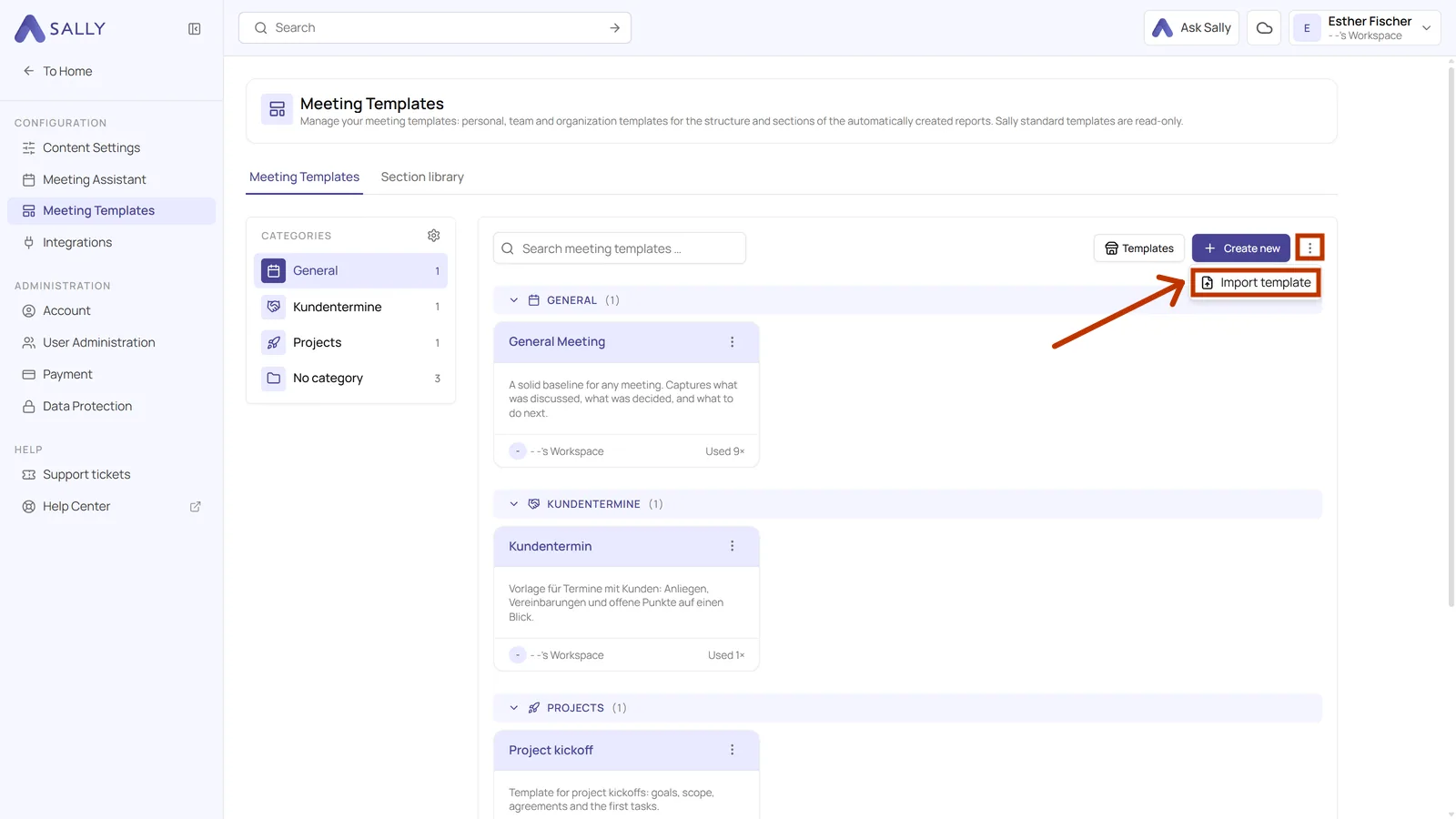
- In the overview, open More actions next to Create new and click Import template.
- Choose the file. Sally reads it right away and shows you what is in it, in this case the name of the template and how many sections it brings. Below that you set the visibility the imported template should have.
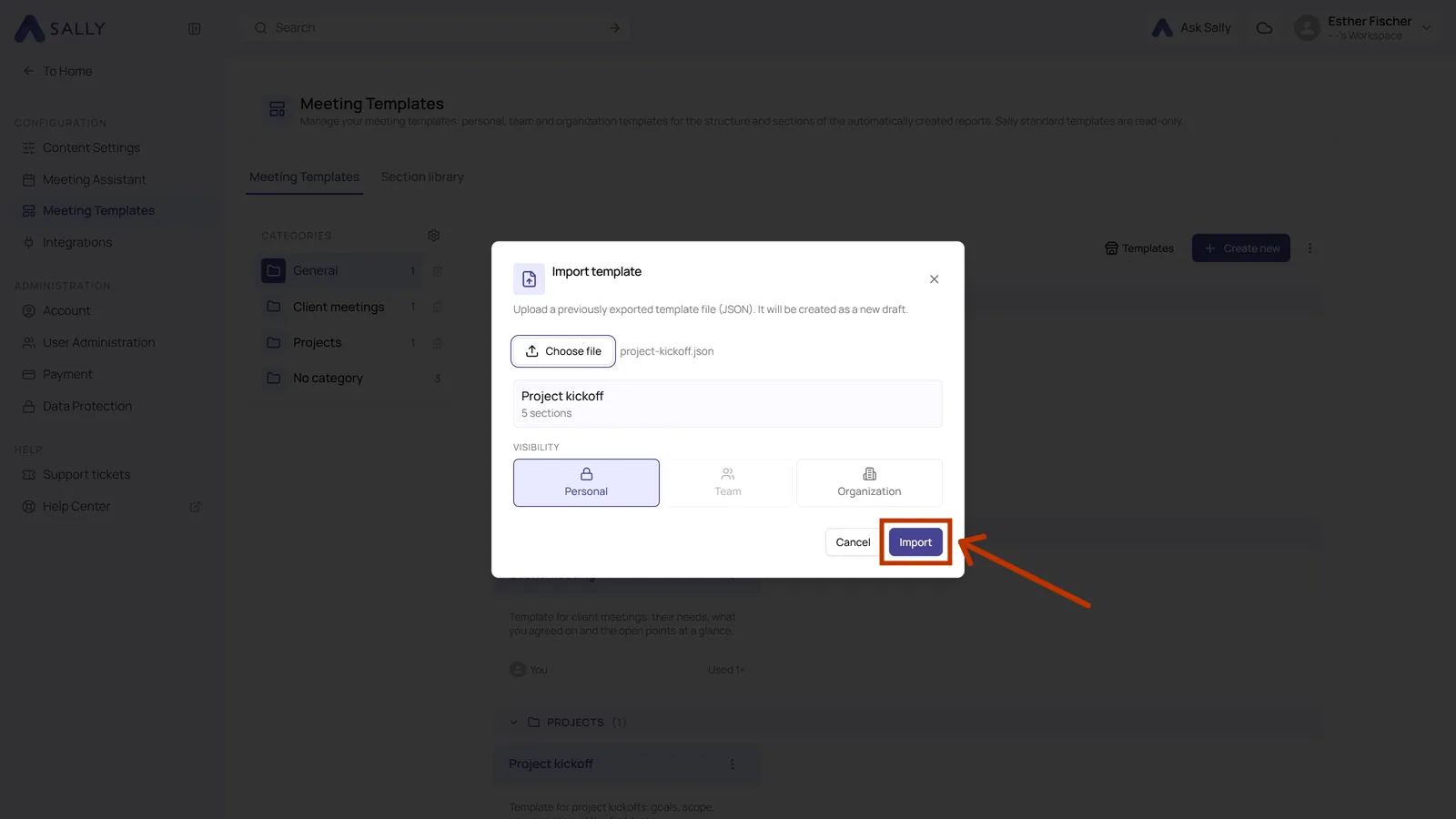
- The template is created as a draft and the editor opens. Go through the sections, adjust what you want, and publish it when it is ready.
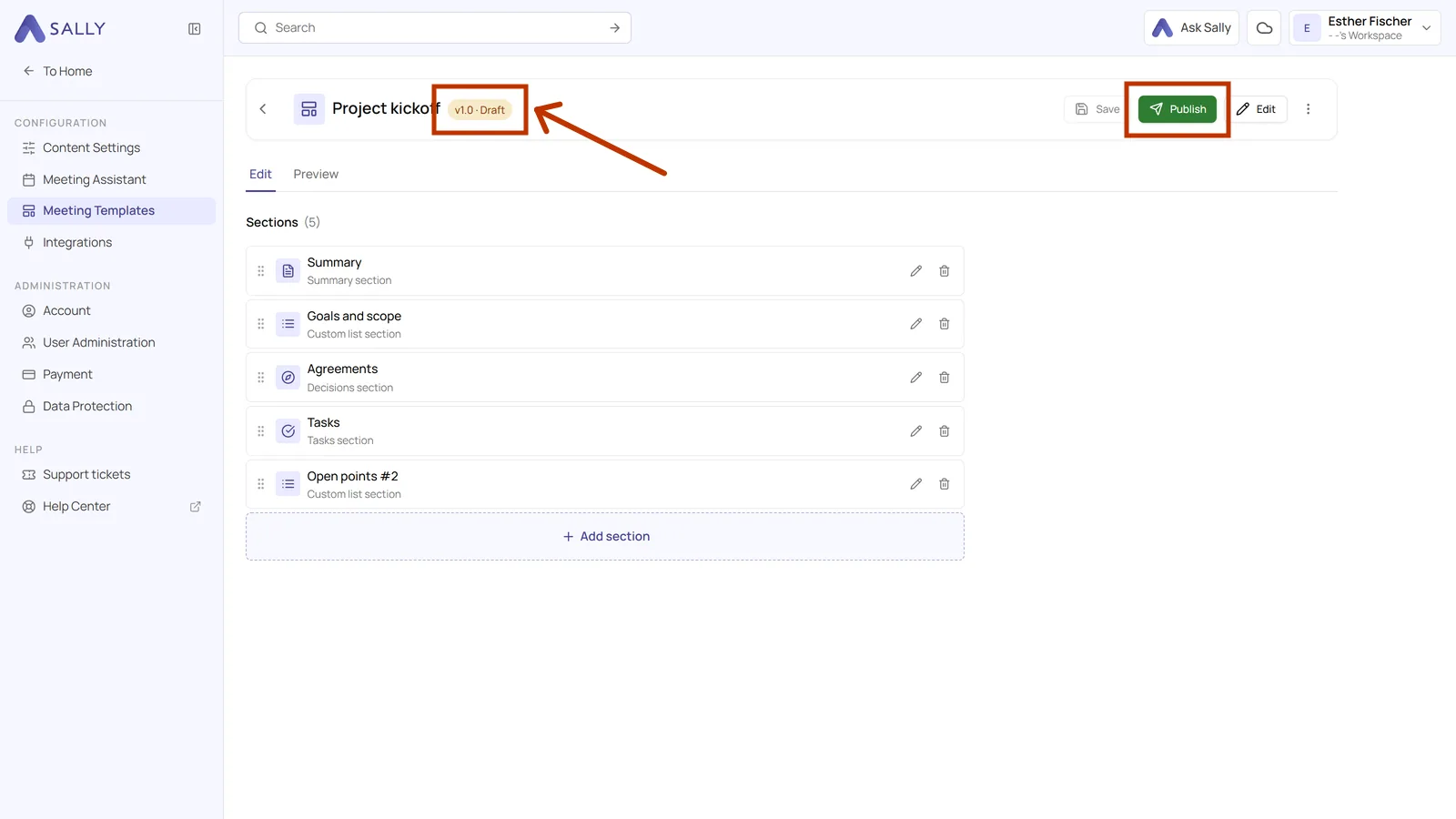
Sally does not publish an import automatically. That way you can check a template from someone else before your meetings use it. Creating a new version explains how publishing works.
Anyone who has the file can read your prompts. If your section prompts contain internal details, for example customer names or the way you assess candidates, treat the file like a document, not like a link.