Control video and audio recordings
Decide when Sally is allowed to save video recordings and whether audio recordings should continue when video is restricted.
Configure video recordings
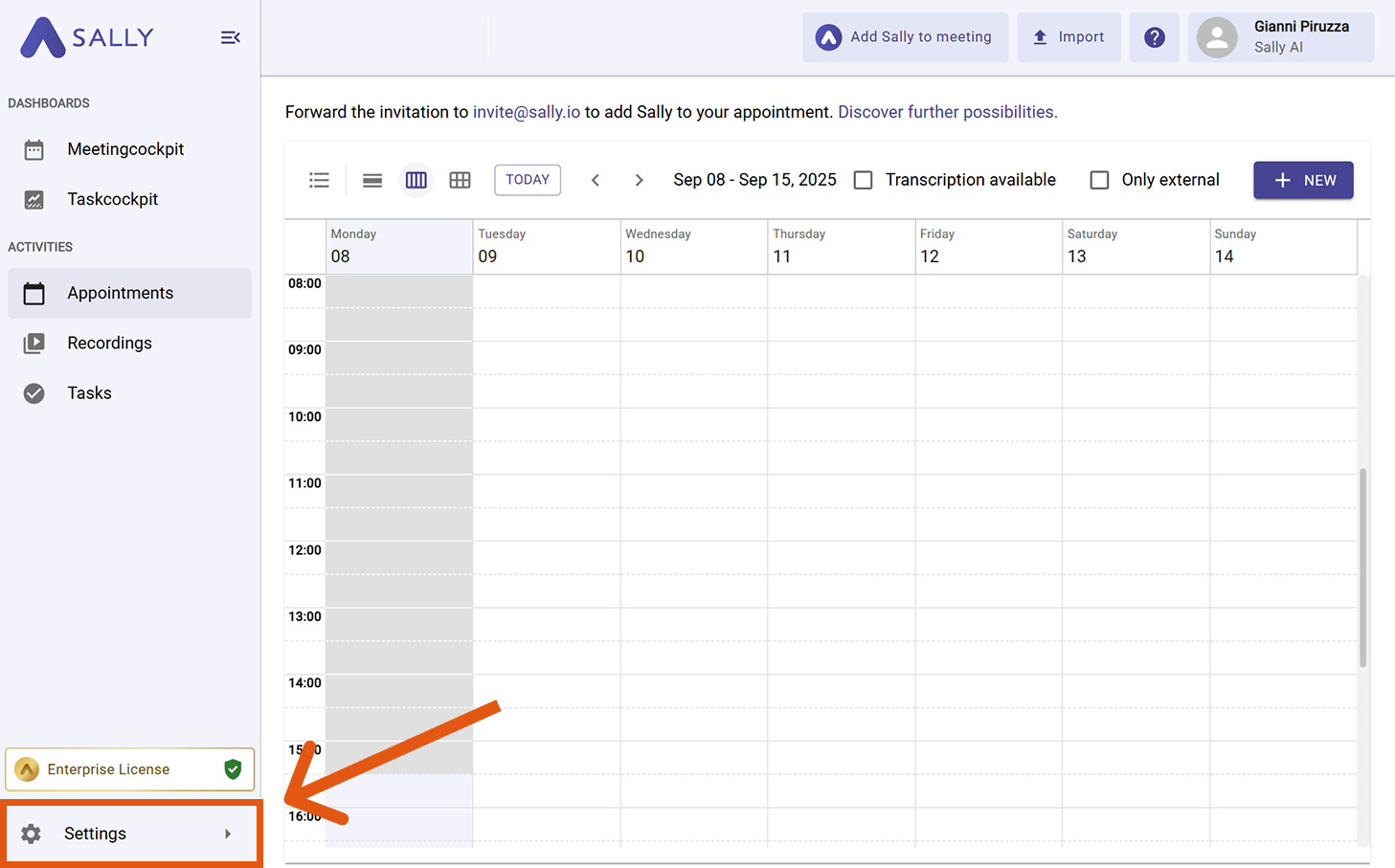
- Open Settings in the left sidebar.
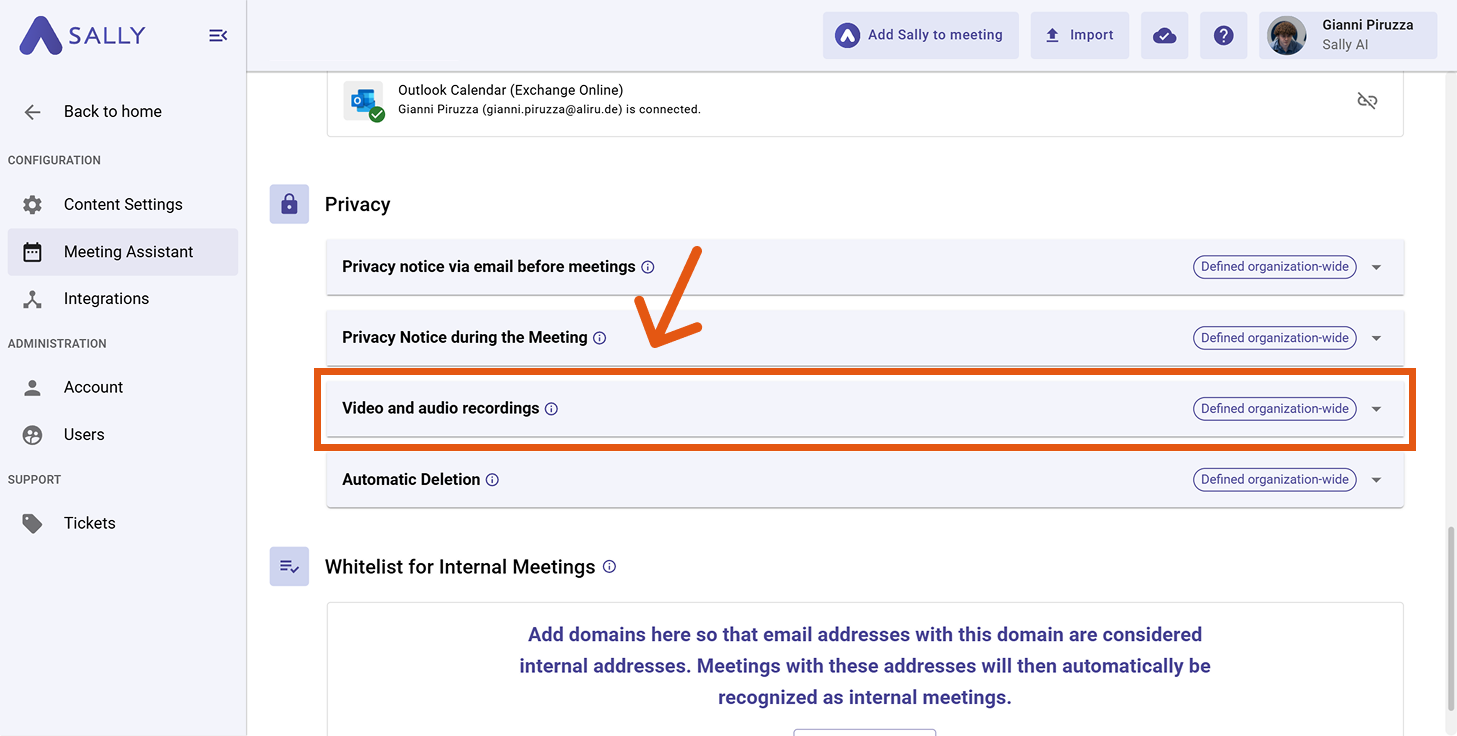
- In Configuration, select Meeting Assistant.
- Scroll to the Privacy section and open "Video and audio recordings".
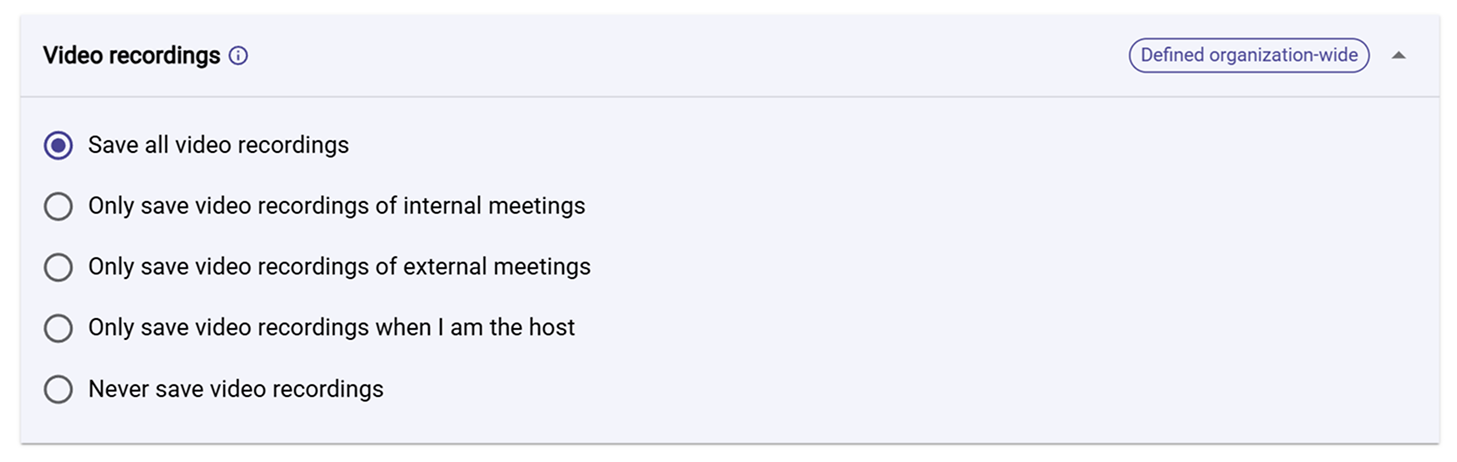
- In Video recordings, select one of the following:
-
Save all video recordings Use when: You want to document all meetings completely.
-
Only save video recordings of internal meetings Use when: External conversations should not be recorded by default.
infoWhen you select this option, an additional toggle appears: "Continue saving audio recordings for all meetings."
If you don't want audio recordings to be saved either, make sure to disable this option as well.

-
Only save video recordings of external meetings Use when: Customer or other external conversations are your main focus.
infoWhen you select this option, an additional toggle appears: "Continue saving audio recordings for all meetings."
If you don't want audio recordings to be saved either, make sure to disable this option as well.

-
Only save video recordings when I am the host Use when: You want to personally decide when recordings are allowed.
infoWhen you select this option, an additional toggle appears: "Continue saving audio recordings for all meetings."
If you don't want audio recordings to be saved either, make sure to disable this option as well.

-
Never save video recordings Use when: Your policy does not allow video recordings.
infoWhen you select this option, an additional toggle appears: "Continue saving audio recordings for all meetings."
If you don't want audio recordings to be saved either, make sure to disable this option as well.

Recording meetings may require consent depending on your jurisdiction and company policy. Ensure all participants are informed and have given their consent before recording.