Privacy notice via email before meetings
Sally can automatically inform meeting participants by email before a meeting starts if a recording is planned. This setting allows admins to define whether an email is sent and how consent is handled.
Quick navigation:
1. Configure the email privacy notice
- Open Settings in the left sidebar.
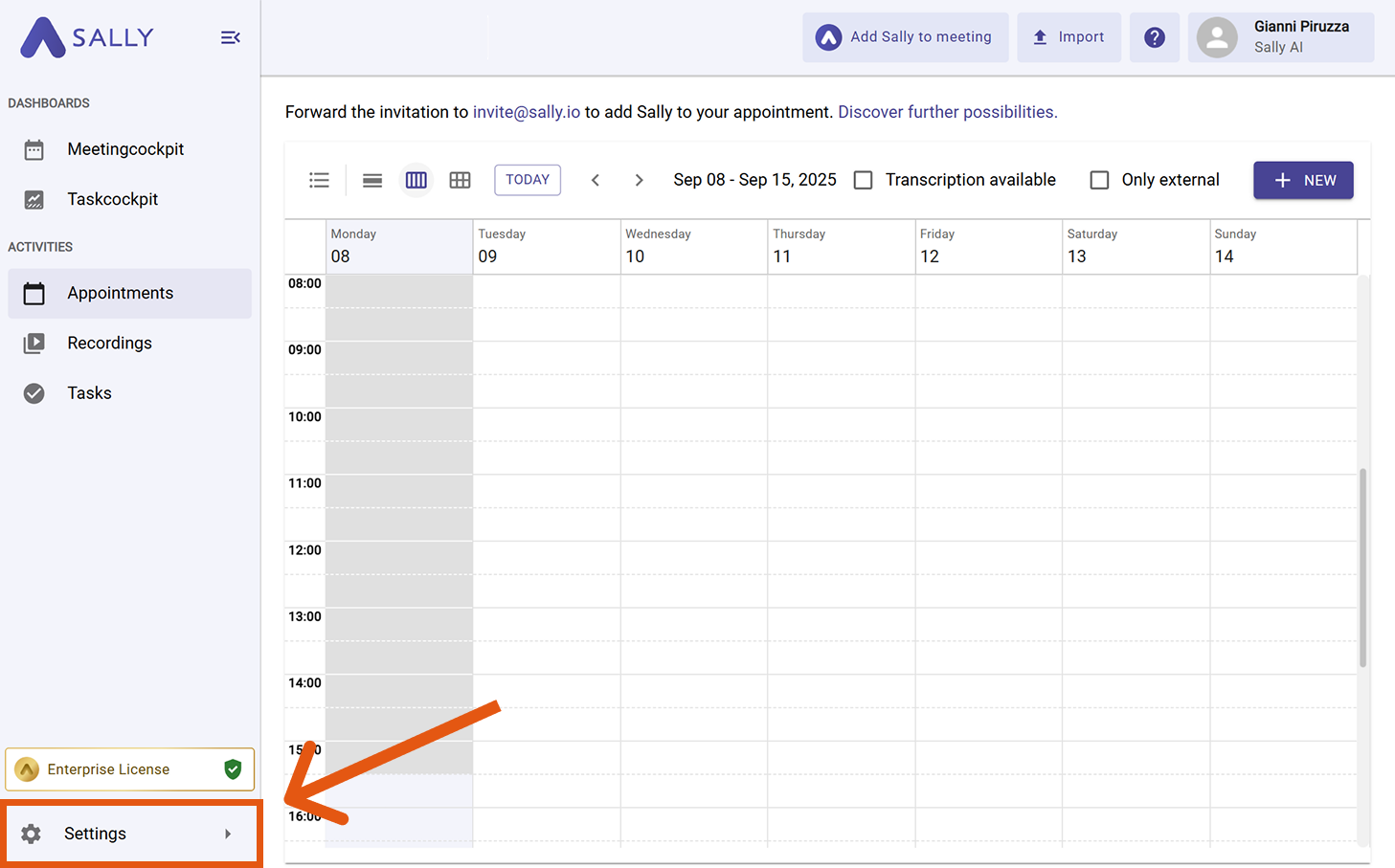
- In Configuration, select Meeting Assistant.
- Scroll to the Privacy section and open "Privacy notice via email before meetings".
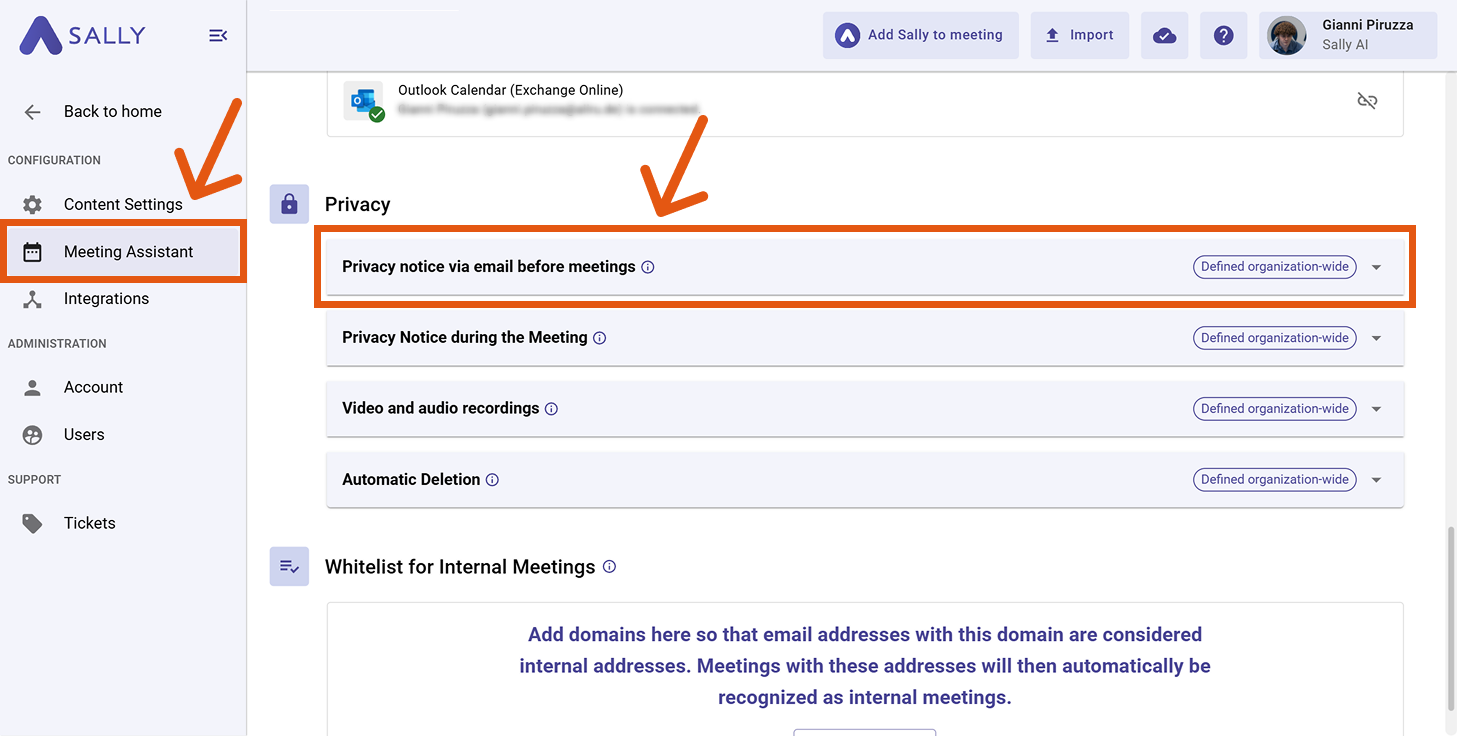
- The settings panel opens with the available options:
- Send email before the meeting – Define whether an email is sent to external participants.
- Consent mode – Choose how participant consent is handled (opt-out or opt-in).
4.1. Send email before the meeting
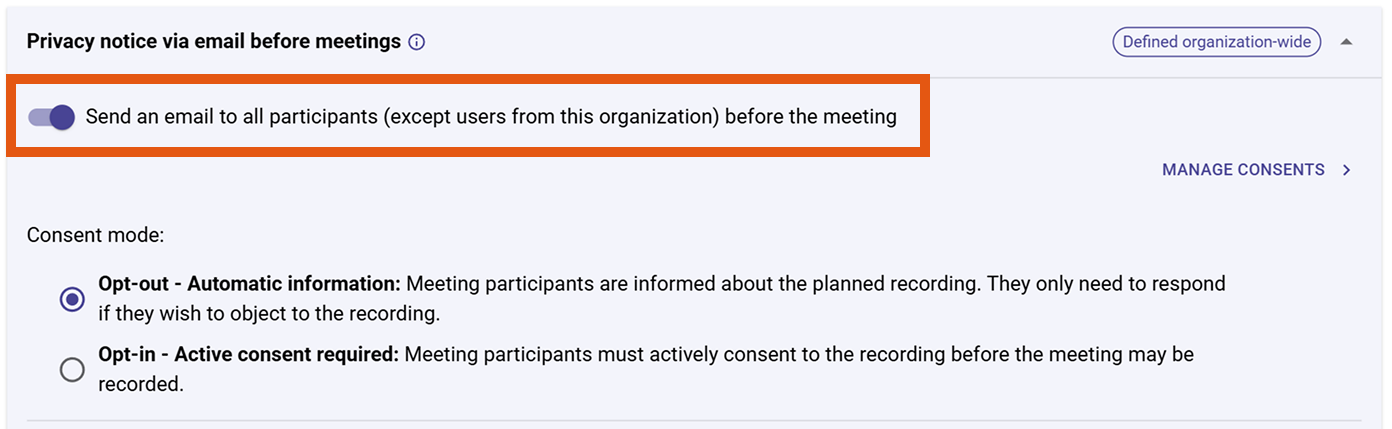
Enable this option if you want external meeting participants to be notified by email before the meeting about the planned recording. Sally automatically sends the email to all participants who are not part of your organization.
Internal users (based on your internal domain whitelist) do not receive this email.
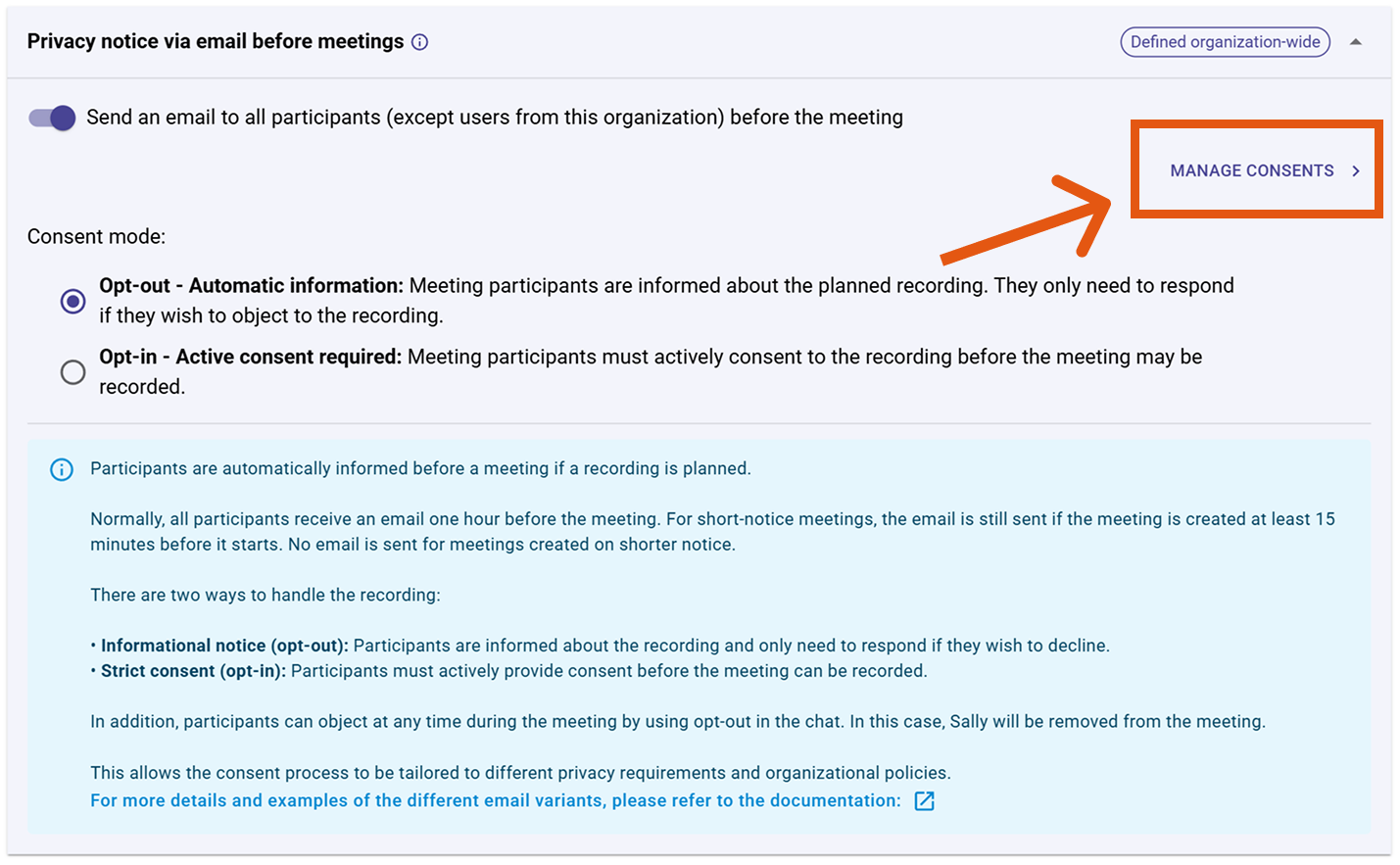
4.2. Consent mode
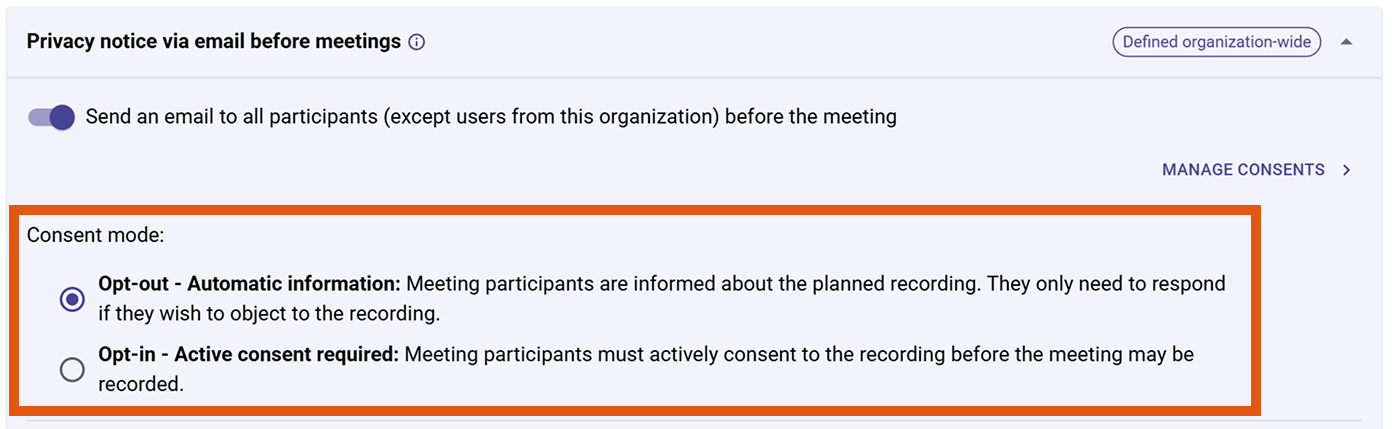
Choose how participant consent is handled:
-
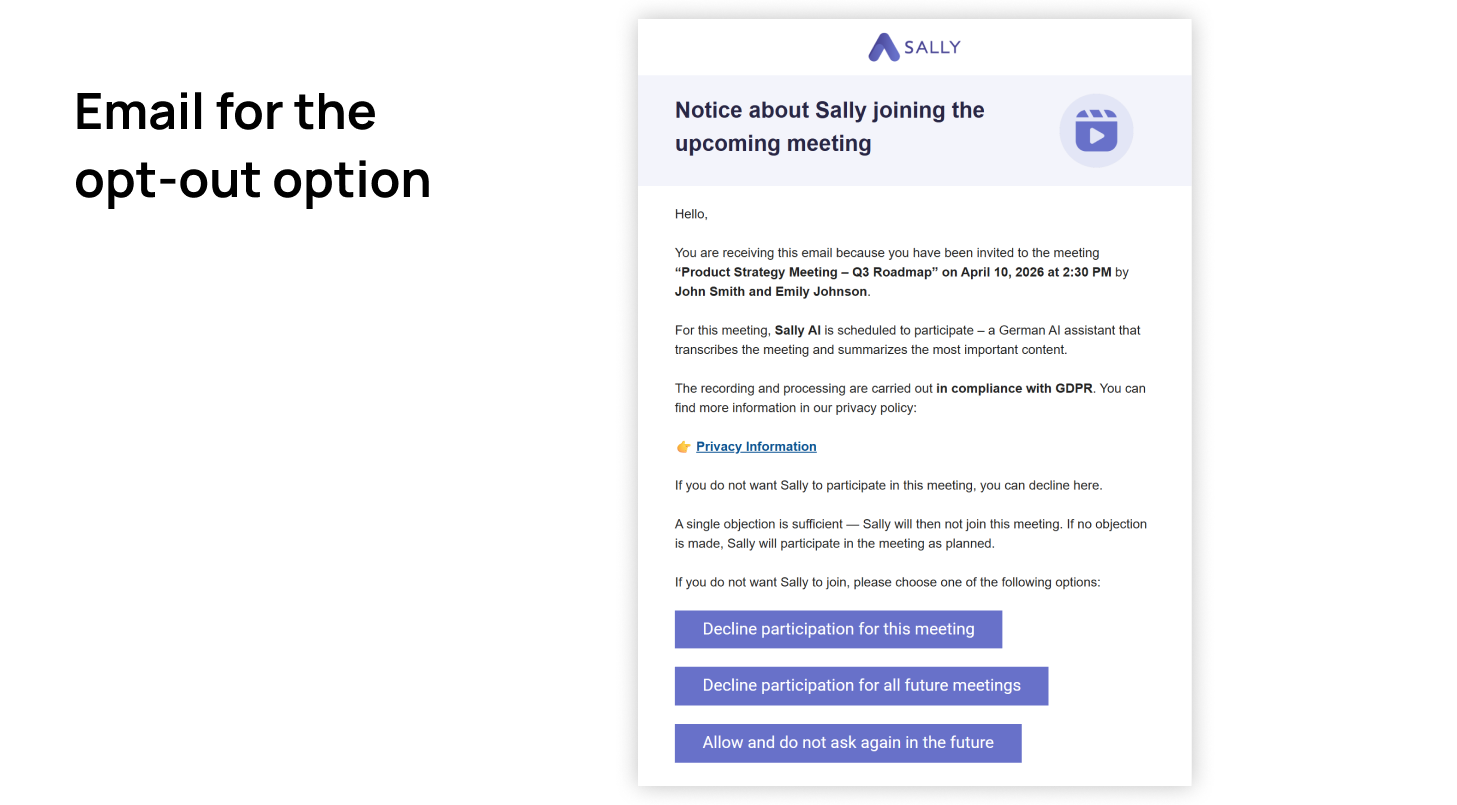
Opt-out – Automatic information Participants are informed about the planned recording and only need to respond if they object. Use when: Your policy allows implied consent with the option to object.
This is what an opt-out email looks like:
-
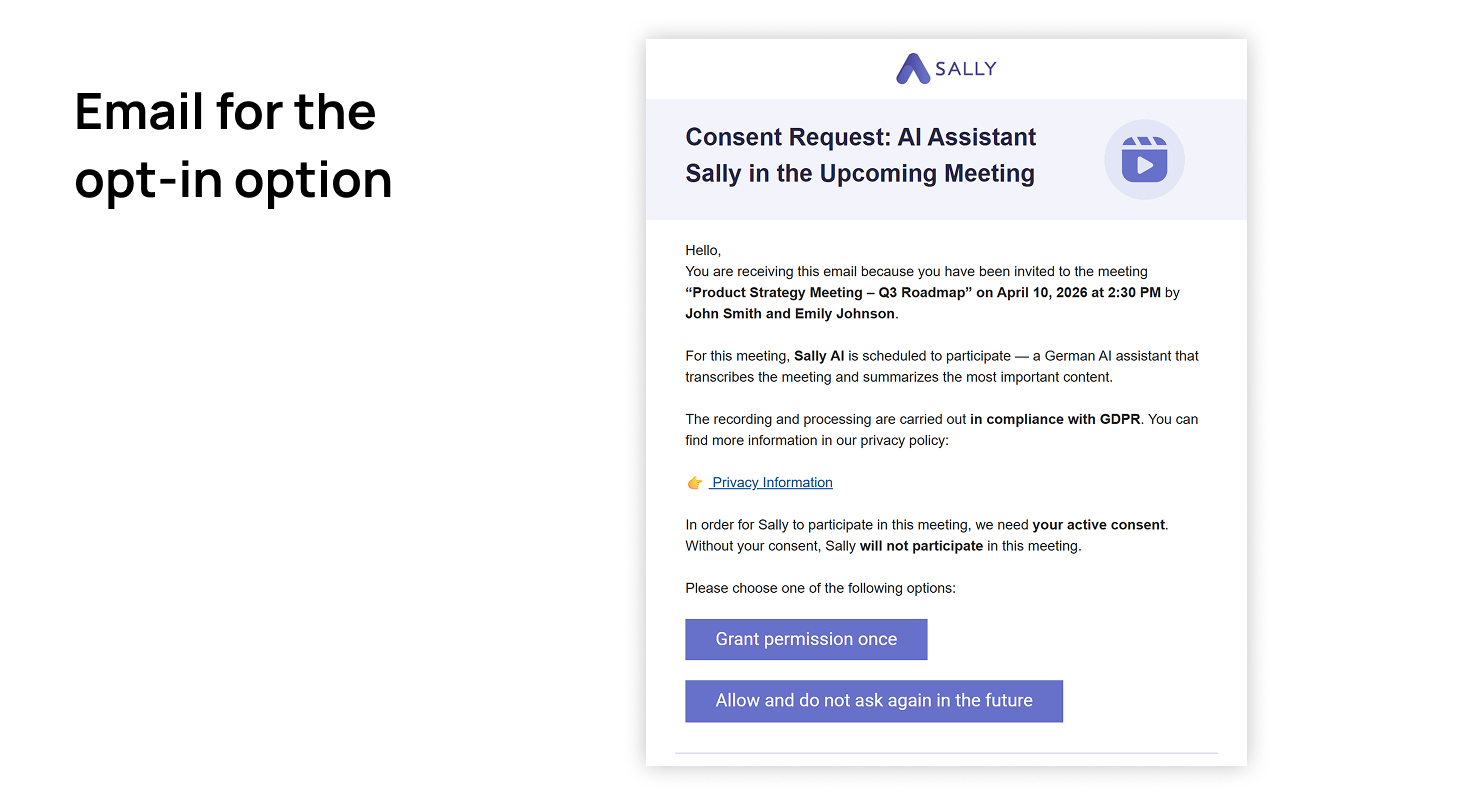
Opt-in – Active consent required Participants must explicitly consent before the meeting can be recorded. Use when: You operate in stricter legal or compliance environments.
This is what an opt-in email looks like:
Normally, the email is sent one hour before the meeting. For short-notice meetings, the email is still sent if the meeting is created at least 15 minutes before it starts. No email is sent for meetings created on shorter notice.
Participants can object at any time during the meeting by using opt-out in the chat. If this happens, Sally will be removed from the meeting.
2. Manage and adjust consents
In this section, you can view and specifically edit the consents of meeting participants. This is especially helpful if participants made their decision incorrectly by mistake or if you need to properly document consents afterward.
Editing consents without the approval of the affected individuals may violate the GDPR. Only make changes in coordination with the respective participants and document them internally if necessary.
2.1 View consents
- In the section "Privacy notice via email before meetings", click on "Manage consents".
- You will be taken to an overview of all recorded consents.
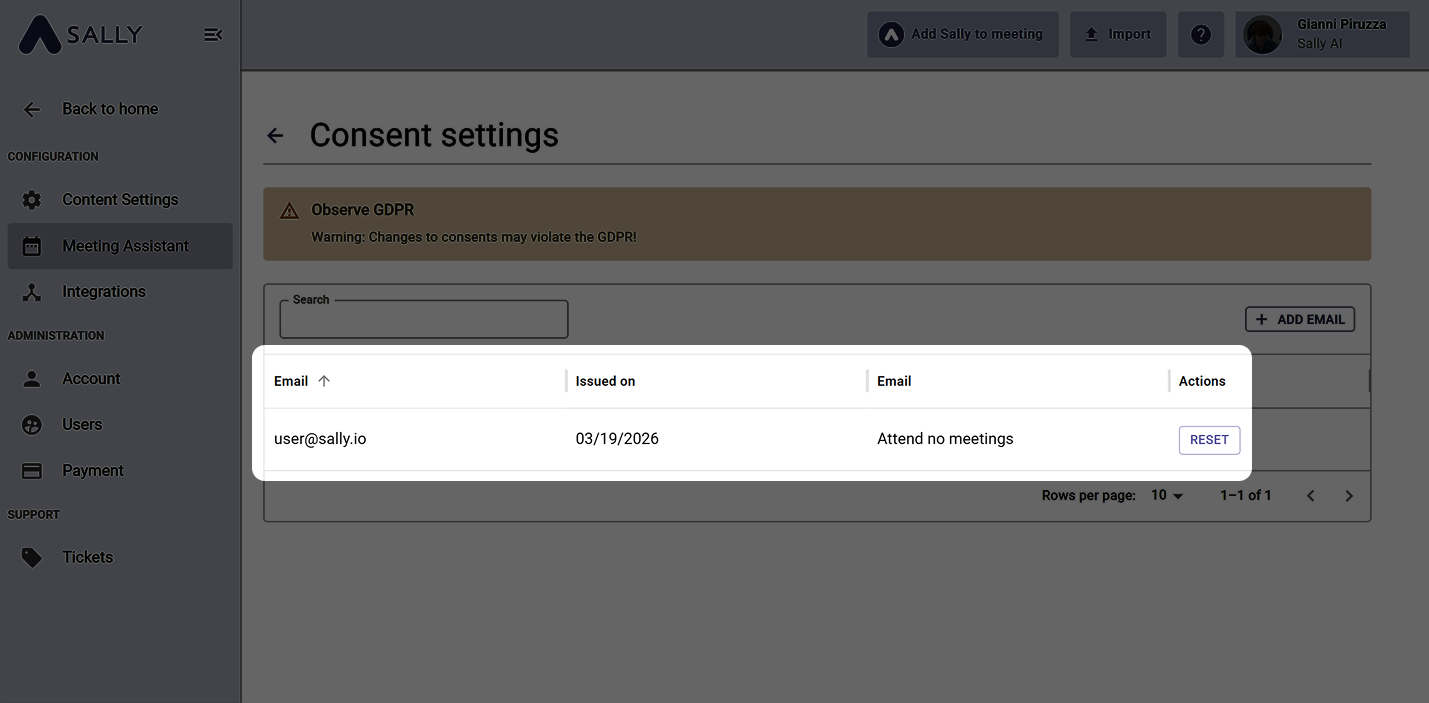
Here you can see:
- Participant's email address
- Timestamp of the consent
- Current status (e.g. participation allowed or declined)
2.2 Edit consents
You have two options to adjust consents:
- Reset consent → Participant can decide again
- Manually add email → Define consent in advance (e.g. for known participants or regular partners)
Reset consent
If a participant declined by mistake, for example, you can reset their status:
- Find the respective participant in the list.
- Click "Reset" on the right.
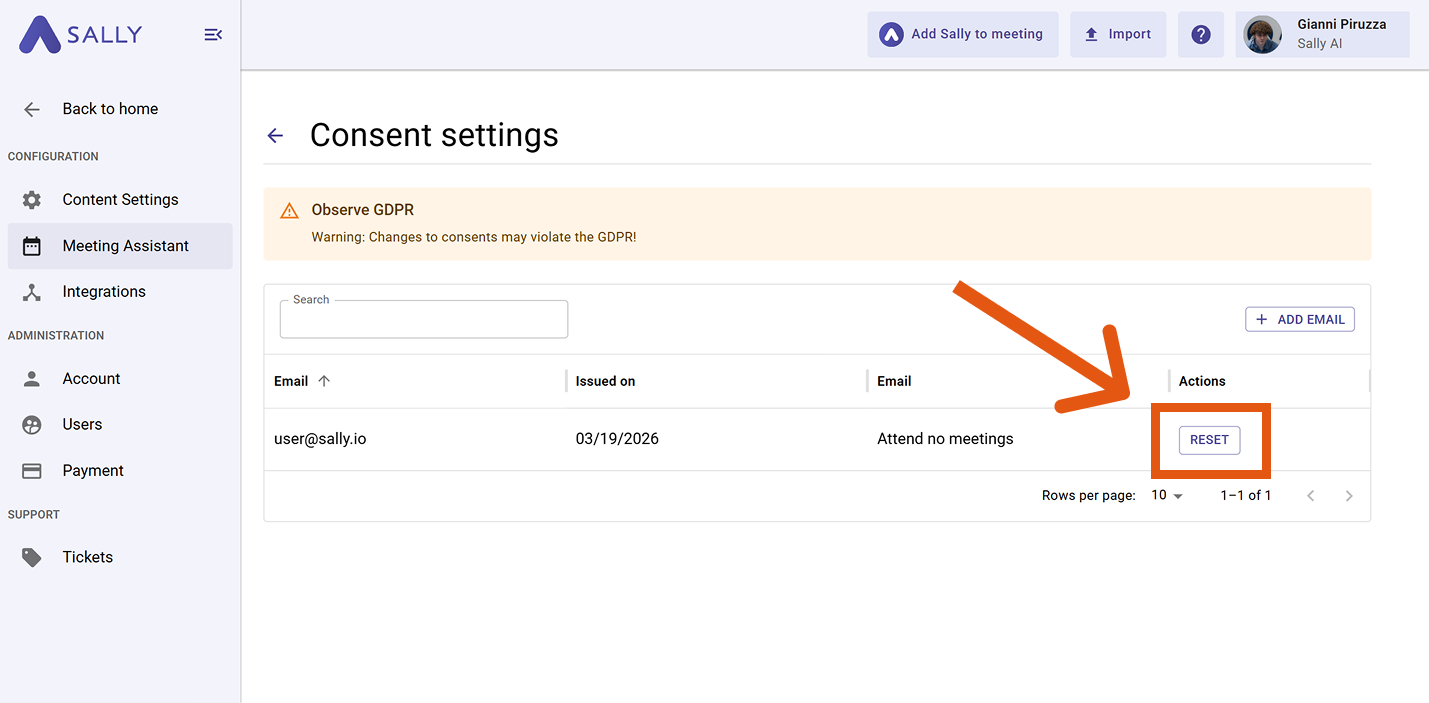
This allows the participant to provide their consent again in the next meeting.
When you reset a consent, no email is sent immediately.
The affected person will only be notified again automatically via email for the next newly created meeting and can provide their consent again.
Manually add participant
You can also set consents proactively, for example if:
- you regularly work with the same external partners
- consents have already been obtained outside of Sally (e.g. contractually)
- Click on "+ Add email".
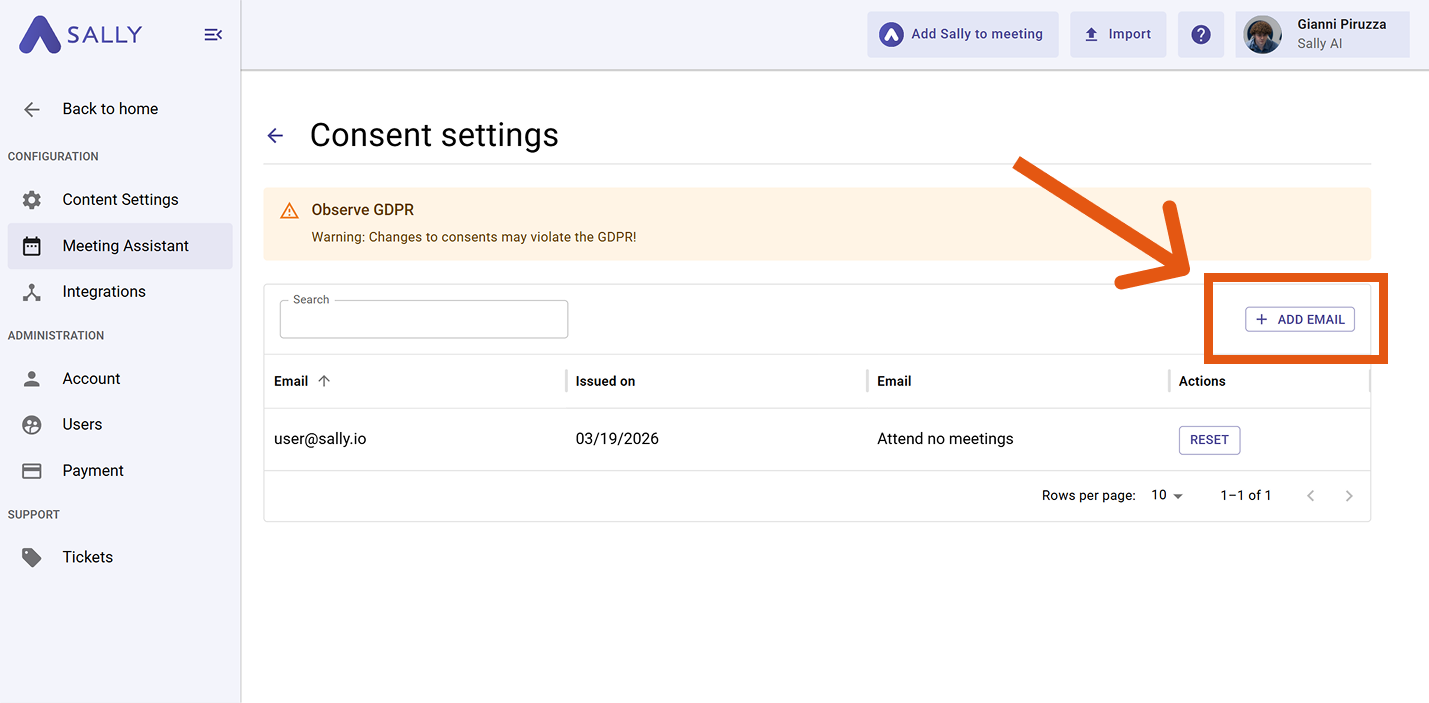
- Fill out the form:
- Enter email address
- Select consent status (allow or decline participation)
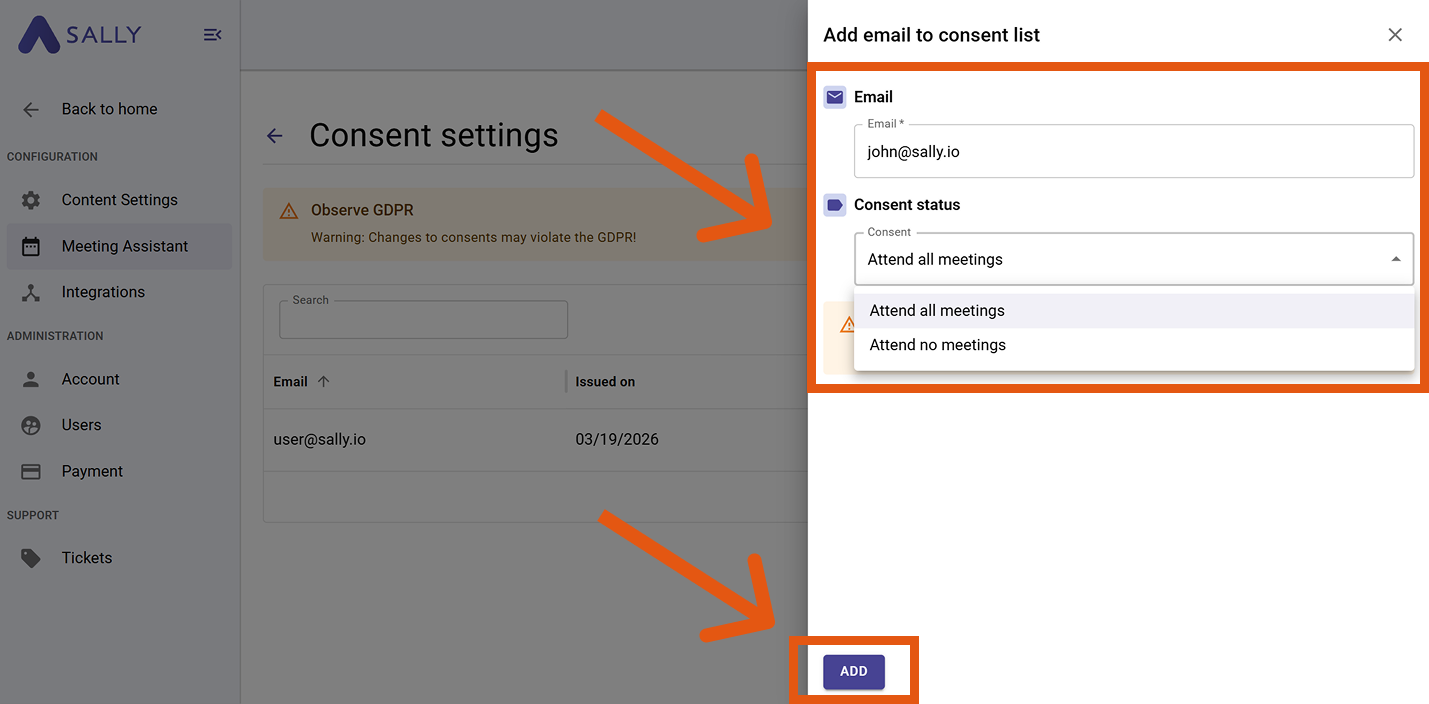
- Click "Add" to save the entry.
Use this feature sparingly and only if the consent is verifiably documented (e.g. in writing or contractually agreed).