Privacy notice in the meeting
The privacy notice is a short message that informs participants about Sally's presence in the meeting and how to manage their data. It appears in the meeting chat before or during the meeting (depending on your settings).
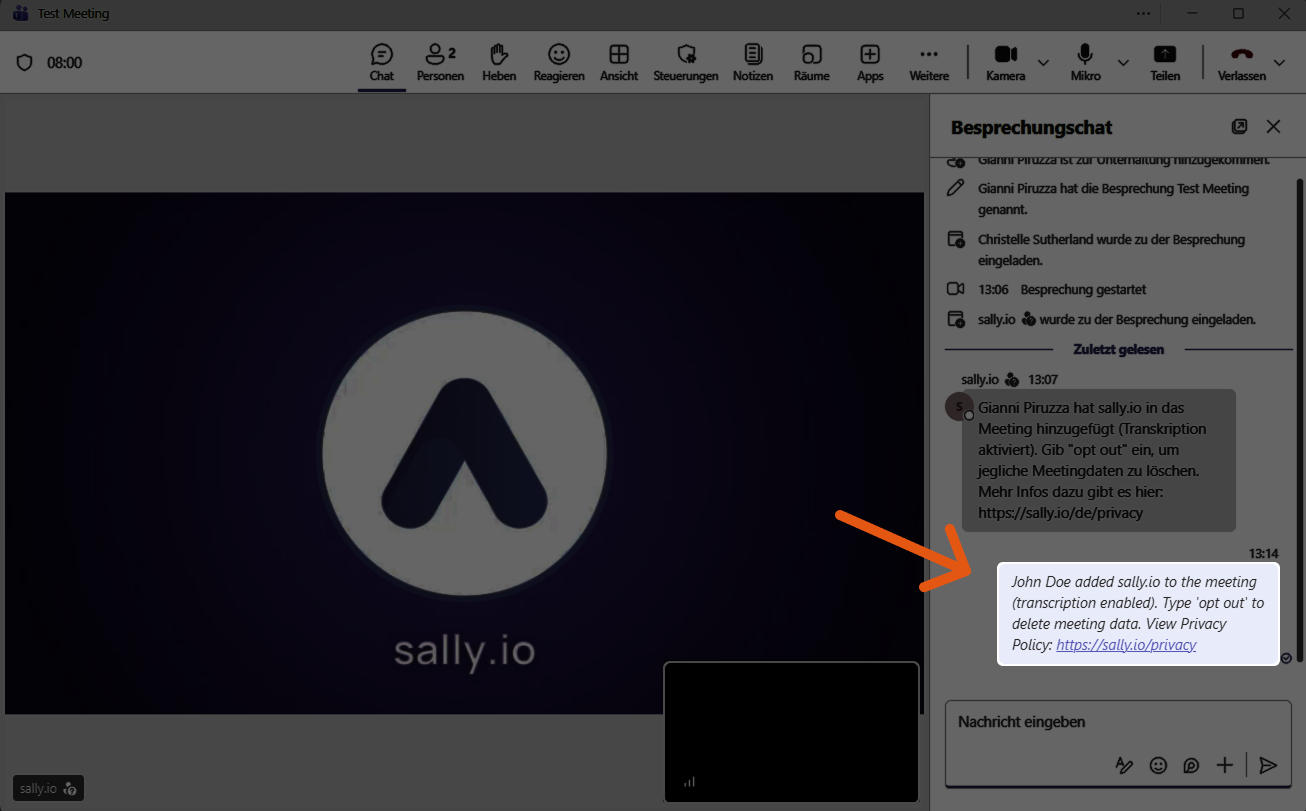
By default, the message is shown in the user's language. If multiple users belong to the same directory, the directory language will be applied.
Why it matters: This helps you meet transparency obligations and sets clear expectations for participants.
Quick navigation:
1. Configure the one-time meeting privacy notice
- Open Settings in the left sidebar.
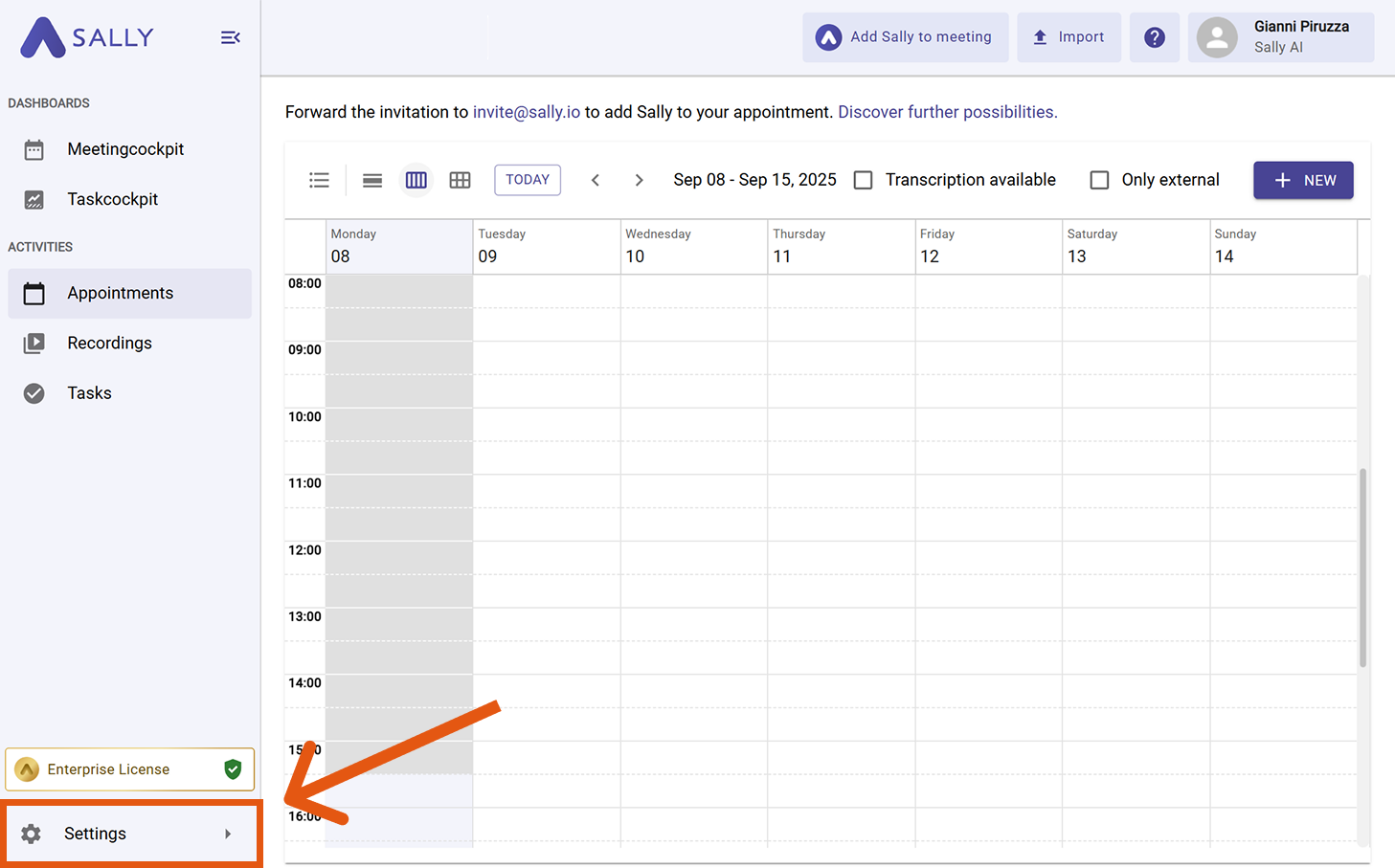
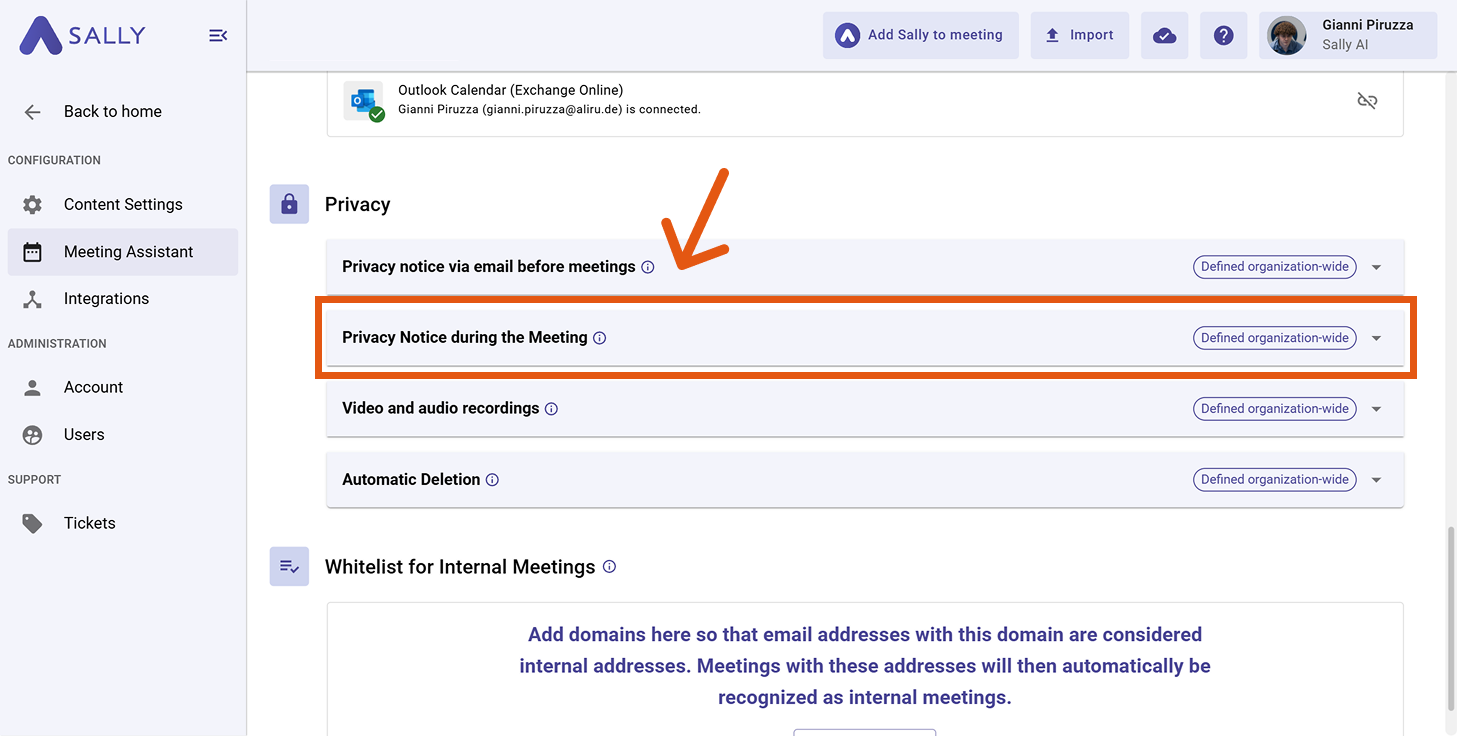
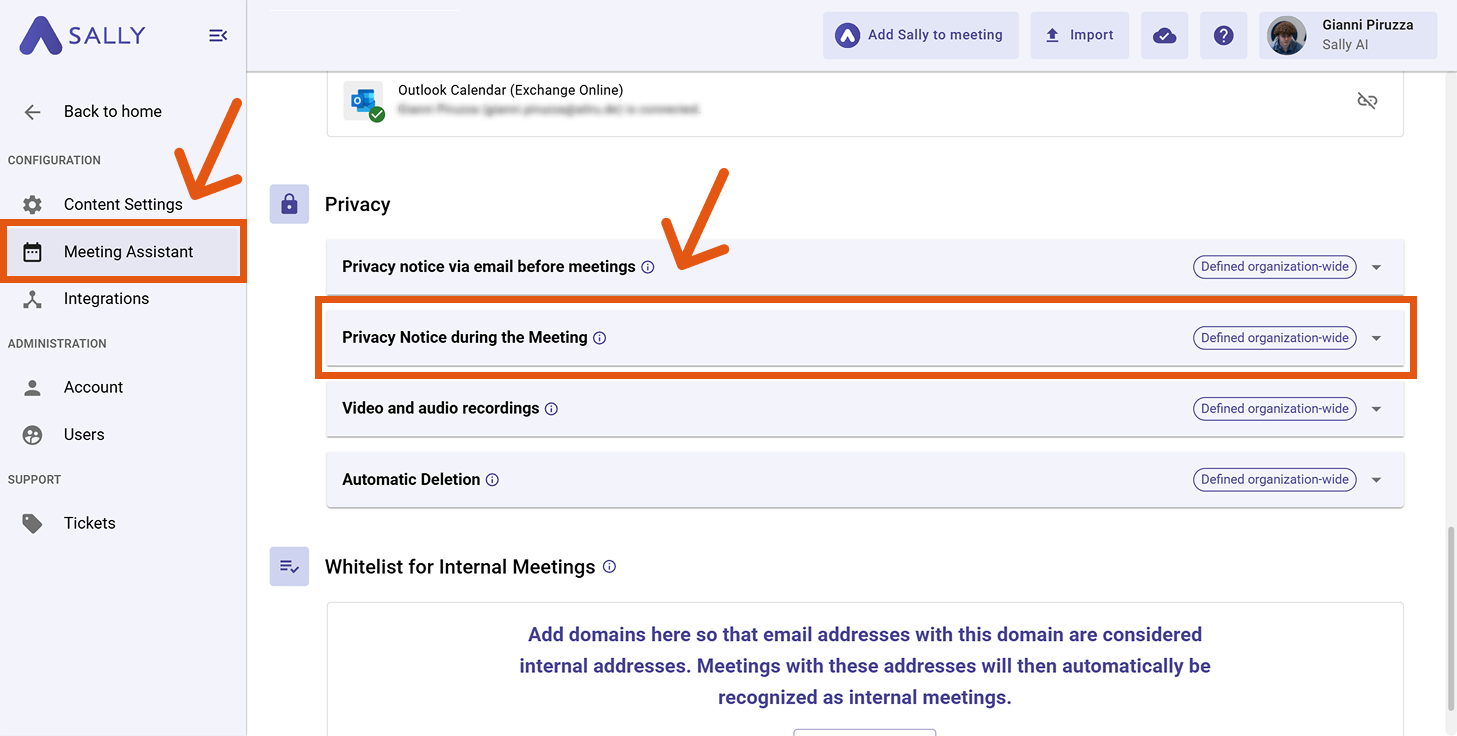
- In Configuration, select Meeting Assistant.
- Scroll to the Privacy section and open "Privacy Notice during the Meeting".
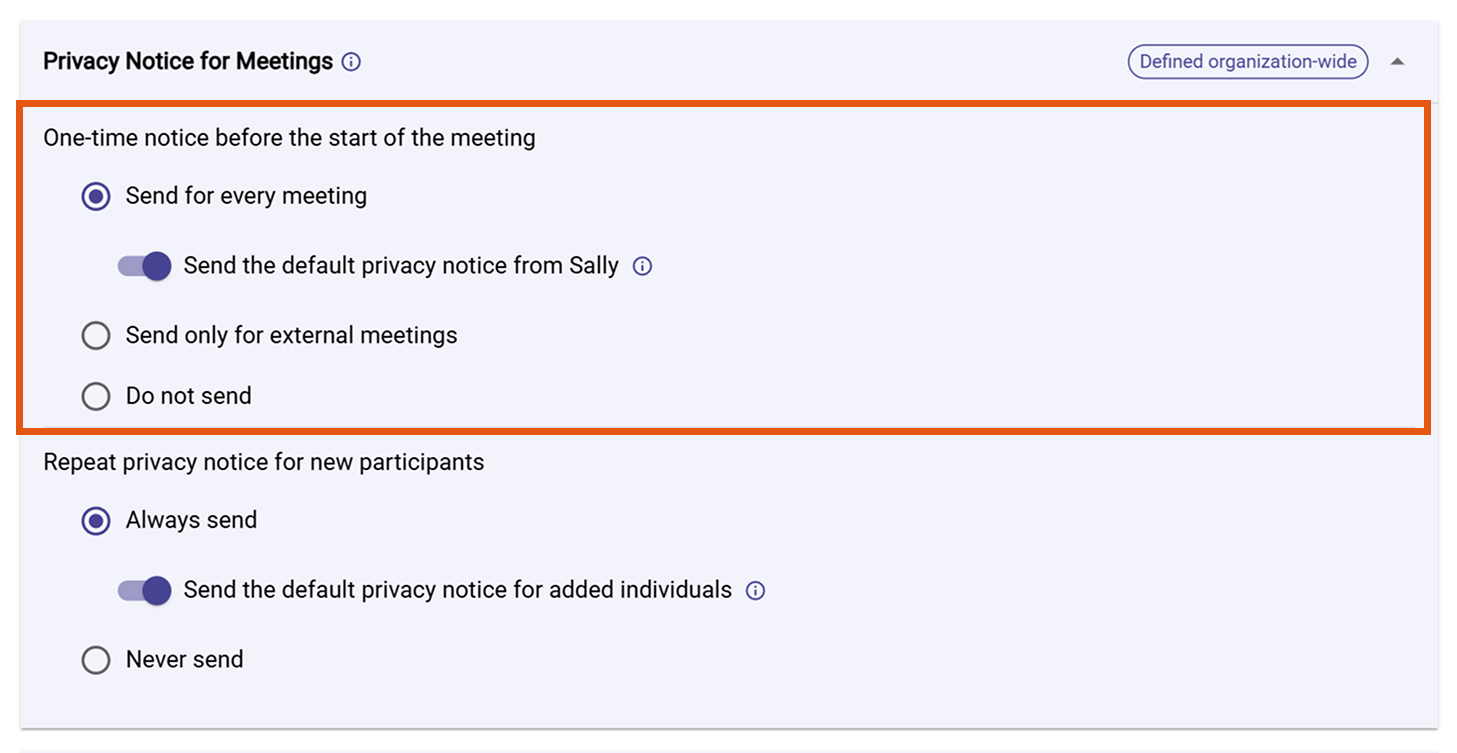
- In Privacy Notice for Meetings, pick one option:
-
Send for every meeting – Always send a notice. Use when: You want consistent transparency for all meetings.
-
Send only for external meetings – Send when participants are outside your domain(s). Use when: Internal teams already know Sally; notify only external guests.
External vs. internal is based on your Internal Domain Whitelist. Configure it in How to set the internal domain whitelist. All domains not on the whitelist are treated as external.
- Do not send – Never send a notice. Use when: You provide equivalent information by other means and your legal basis allows it.
If you disable the notice, participants may not be informed about processing in the meeting. Make sure this aligns with your legal requirements.
- (Optional) Toggle Send the default privacy notice from Sally to use Sally's standard wording. Use when: You want a ready-to-use, compliant default.
2. Configure the notice for new participants
Decide whether Sally should send a repeat privacy notice when new participants join an ongoing meeting.
- Open Settings in the left sidebar.
- In Configuration, select Meeting Assistant.
- Scroll to the Privacy section and open "Privacy Notice during the Meeting".
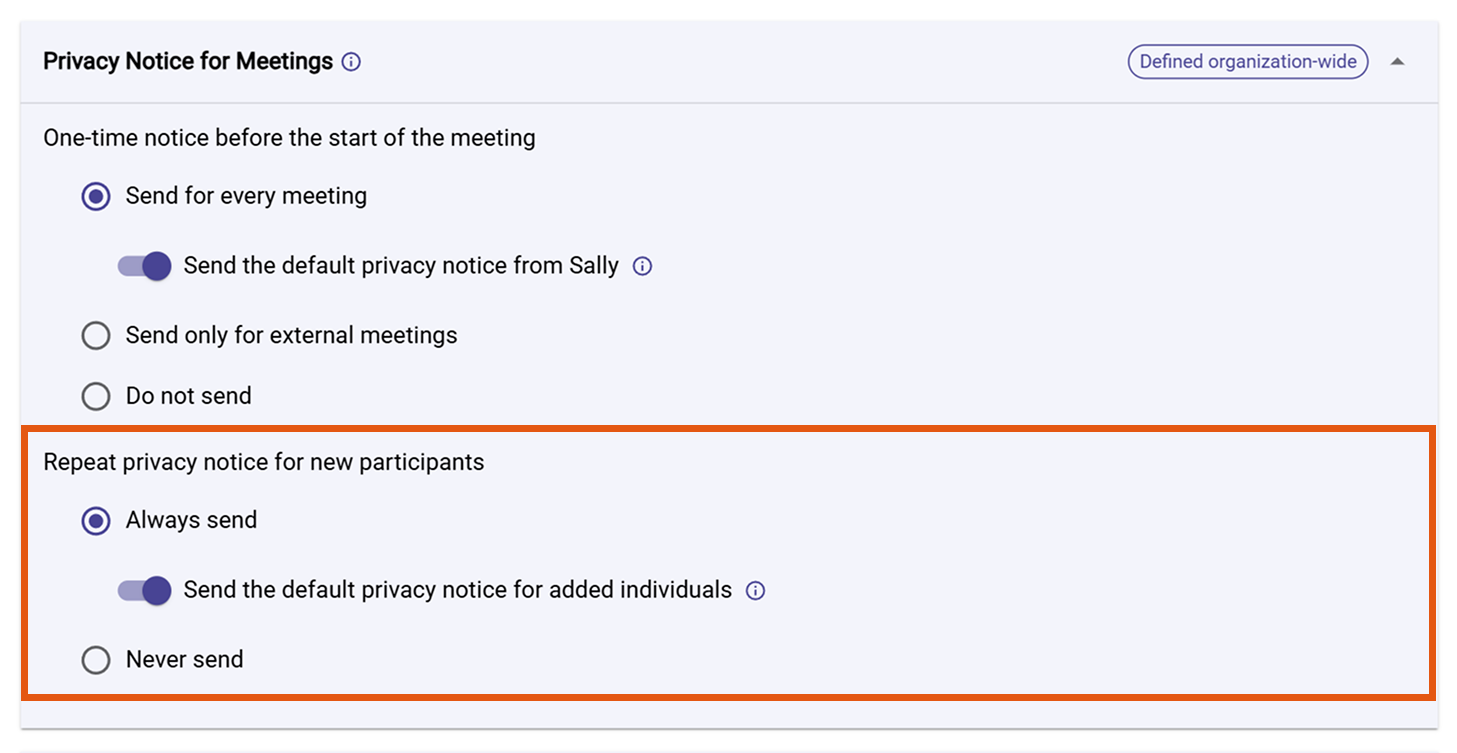
- In Repeat privacy notice for new participants, choose:
-
Always send – Always notify new joiners. Use when: People frequently join late or are added ad-hoc.
-
Never send – Do not notify new joiners. Use when: All participants are informed through other channels.
- (Optional) Toggle Send the default privacy notice for added individuals to use Sally's standard text for those notifications. Use when: You prefer pre-approved wording.