Automatic data deletion
Define a maximum retention period for appointments, summaries, recordings, and other meeting artifacts. Sally will automatically delete items older than the selected period.
Default setting
By default, Sally is set to automatically delete all data after six months.
Configure automatic deletion
- Open Settings in the left sidebar.
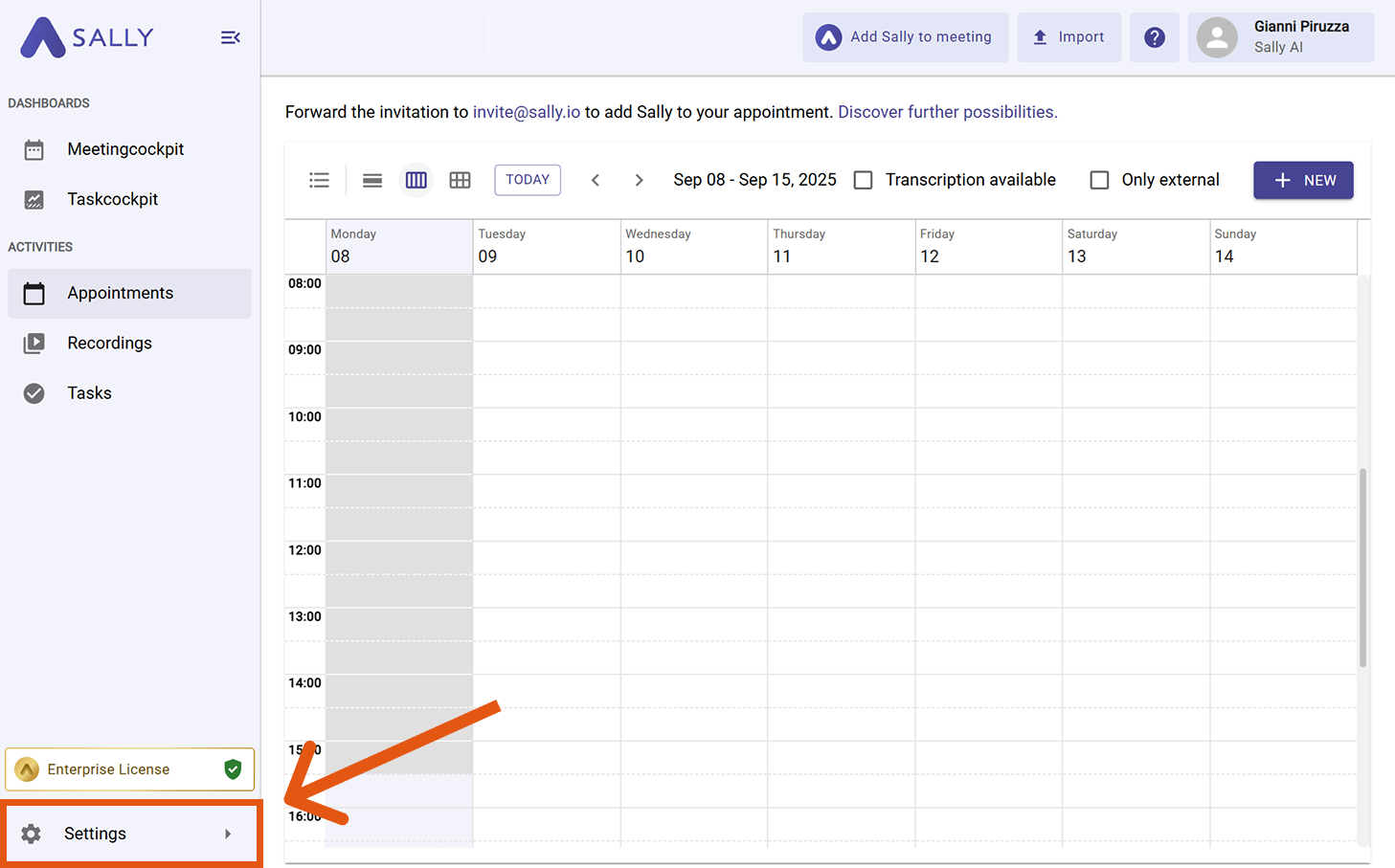
- In Configuration, select Meeting Assistant.
- Scroll to the Privacy section and open "Automatic Deletion".
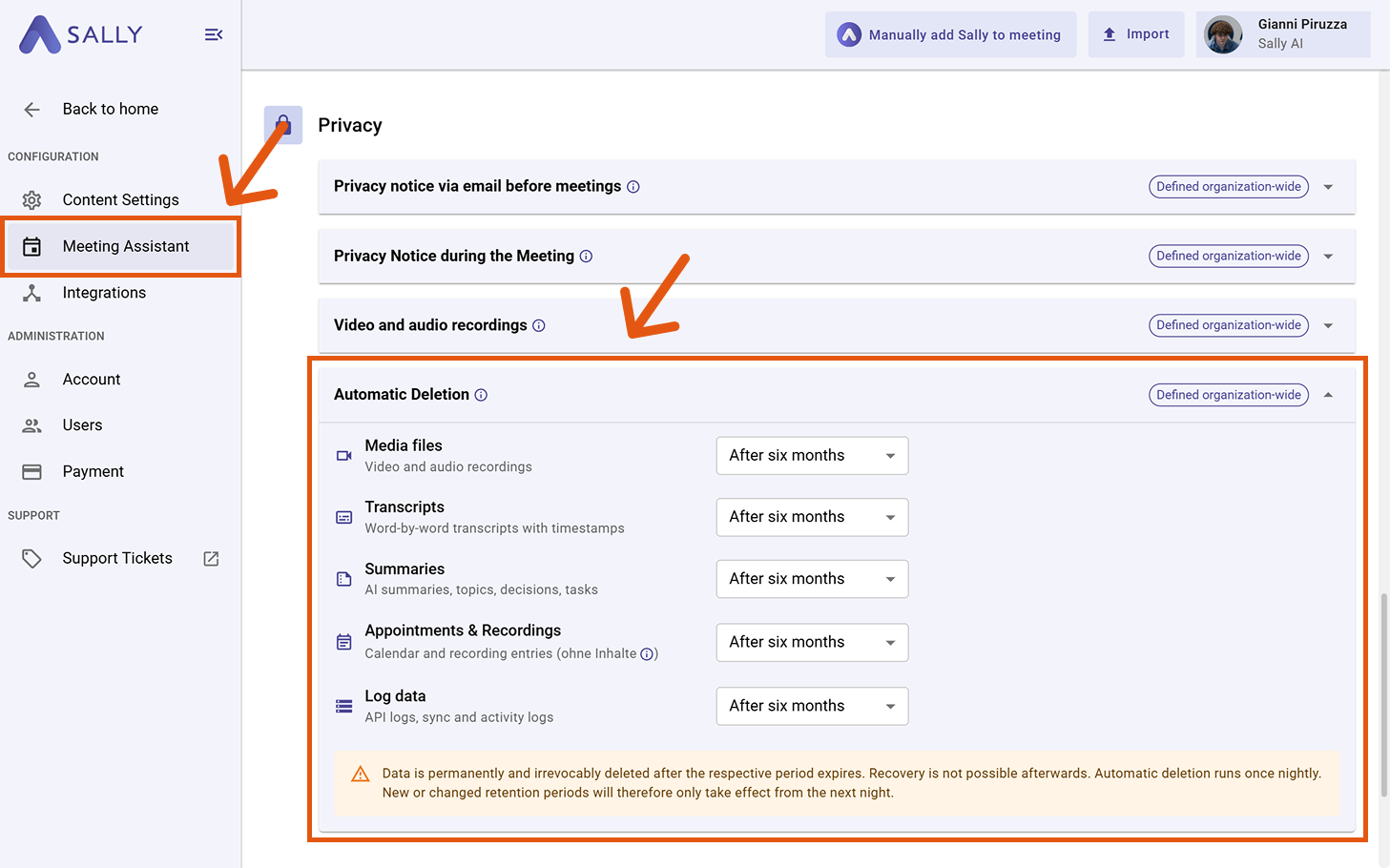
- In Automatic Deletion, you can set a retention period for each data type individually:
- Media files: all video and audio recordings captured during meetings, including screen shares and uploaded media.
- Transcripts: the complete word-by-word transcription of every meeting, including speaker labels and timestamps.
- Summaries: AI-generated meeting summaries, including key topics, decisions, action items, and tasks.
- Appointments & Recordings: calendar entries and recording metadata such as date, time, participants, and duration — without the actual meeting content.
- Log data: technical logs including API calls, sync events, and user activity logs used for troubleshooting and auditing.
- Open each dropdown and select the desired retention period.
Available options
After two weeks, after three months, after six months, after 1 year, after 2 years, or never delete.
- Sally will automatically delete items of that type once they exceed the selected period.
Permanent deletion
Data is permanently and irrevocably deleted after the respective period expires. Recovery is not possible afterwards. Automatic deletion runs once nightly. New or changed retention periods will therefore only take effect from the next night.