How to adopt a ready-made template from Sally
You do not have to build a template for every kind of meeting yourself. Sally comes with 30 ready-made ones, for dailies, retrospectives, sales calls, job interviews, kickoffs and more. Each of them has its sections and prompts already written.
Before you adopt one, you can look at it in detail: which sections it produces, what a finished summary looks like, and the exact prompt behind each section. Once you copy a template into your own account, it becomes yours and you can change everything about it.
Quick navigation
- Opening the template catalog
- Checking what a template produces
- Adopting a template
- Changing the copy
1. Opening the template catalog
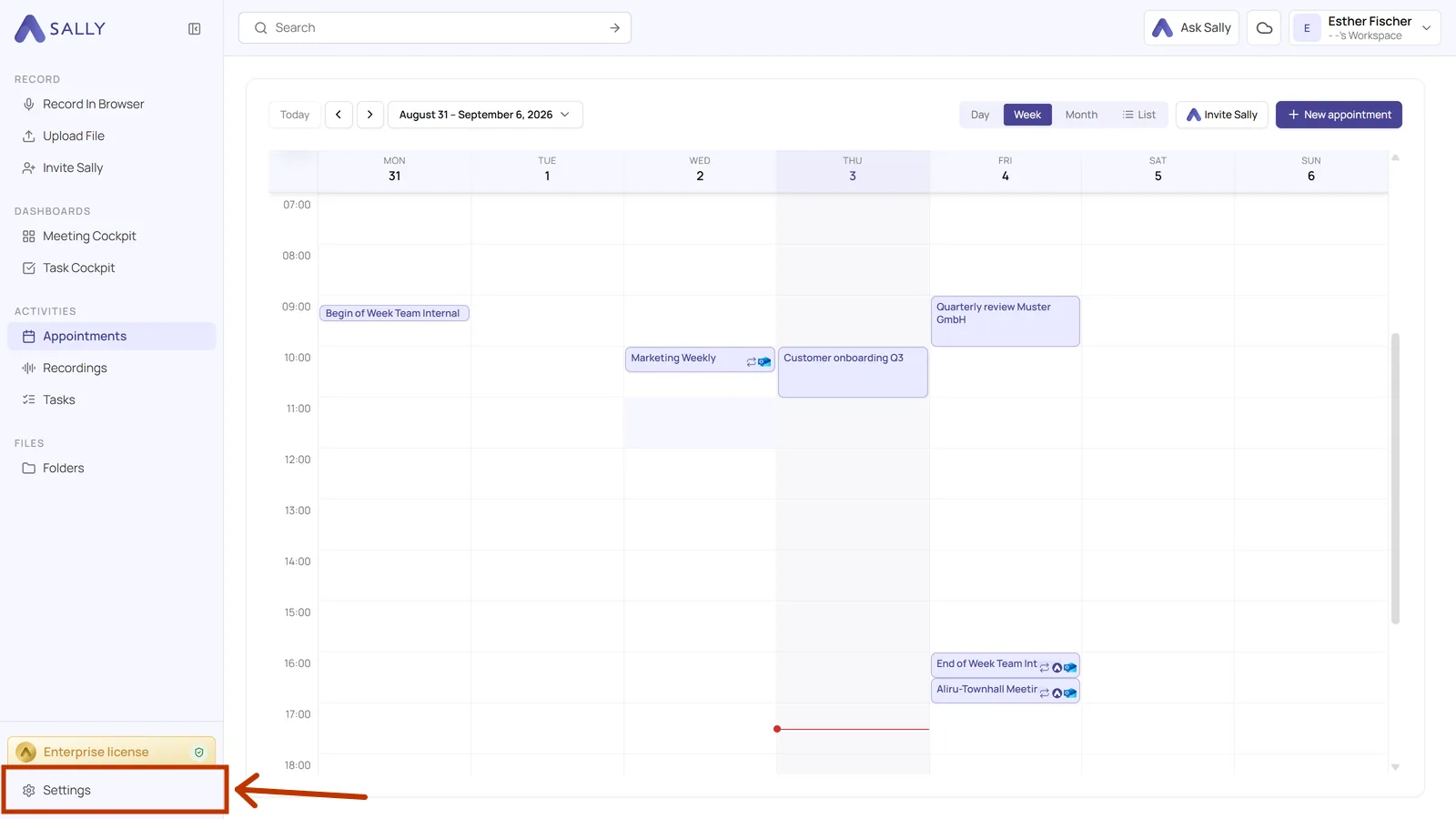
- Open Settings at the bottom of the left sidebar.
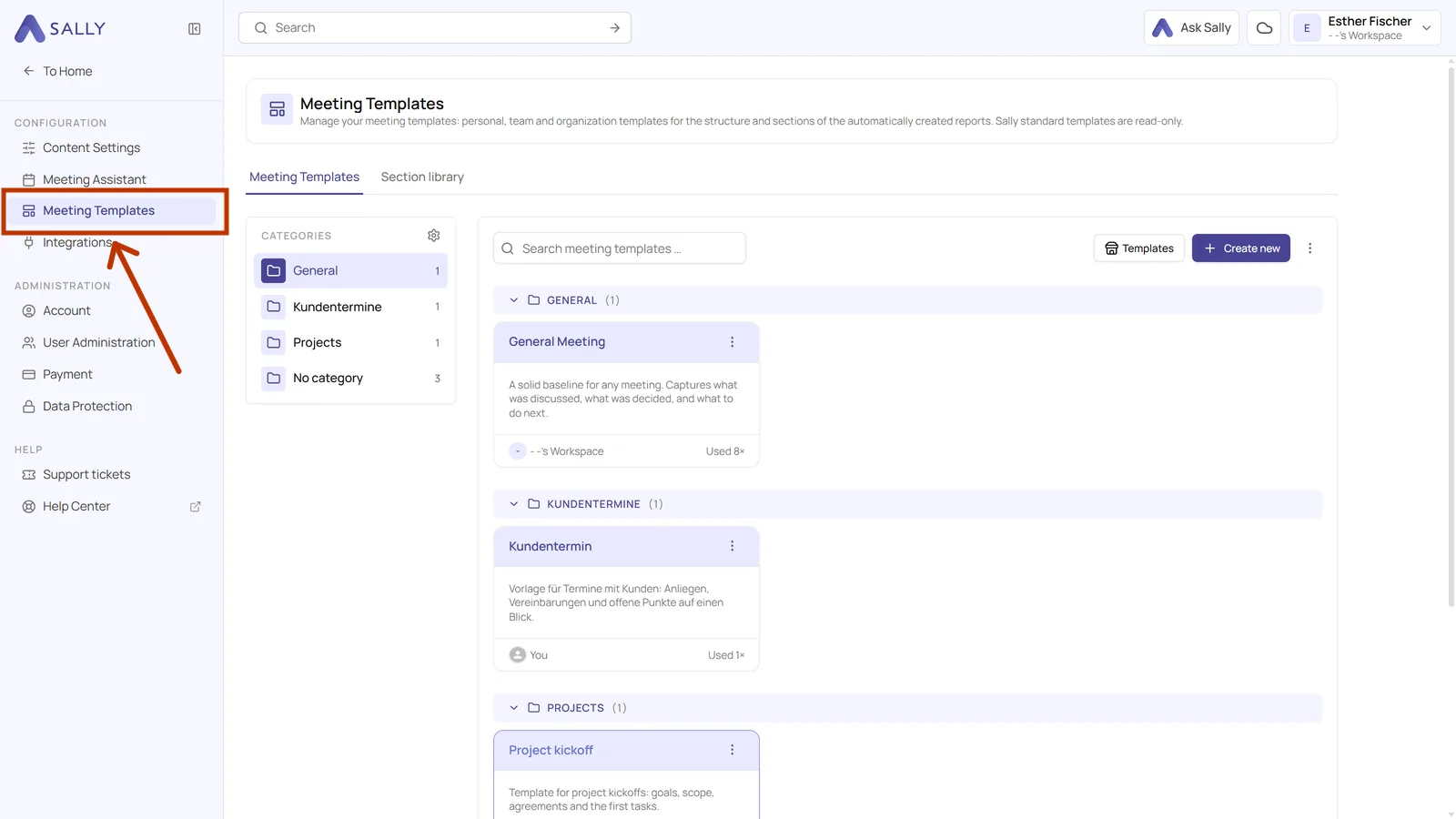
- In the settings sidebar on the left, under Configuration, click Meeting templates.
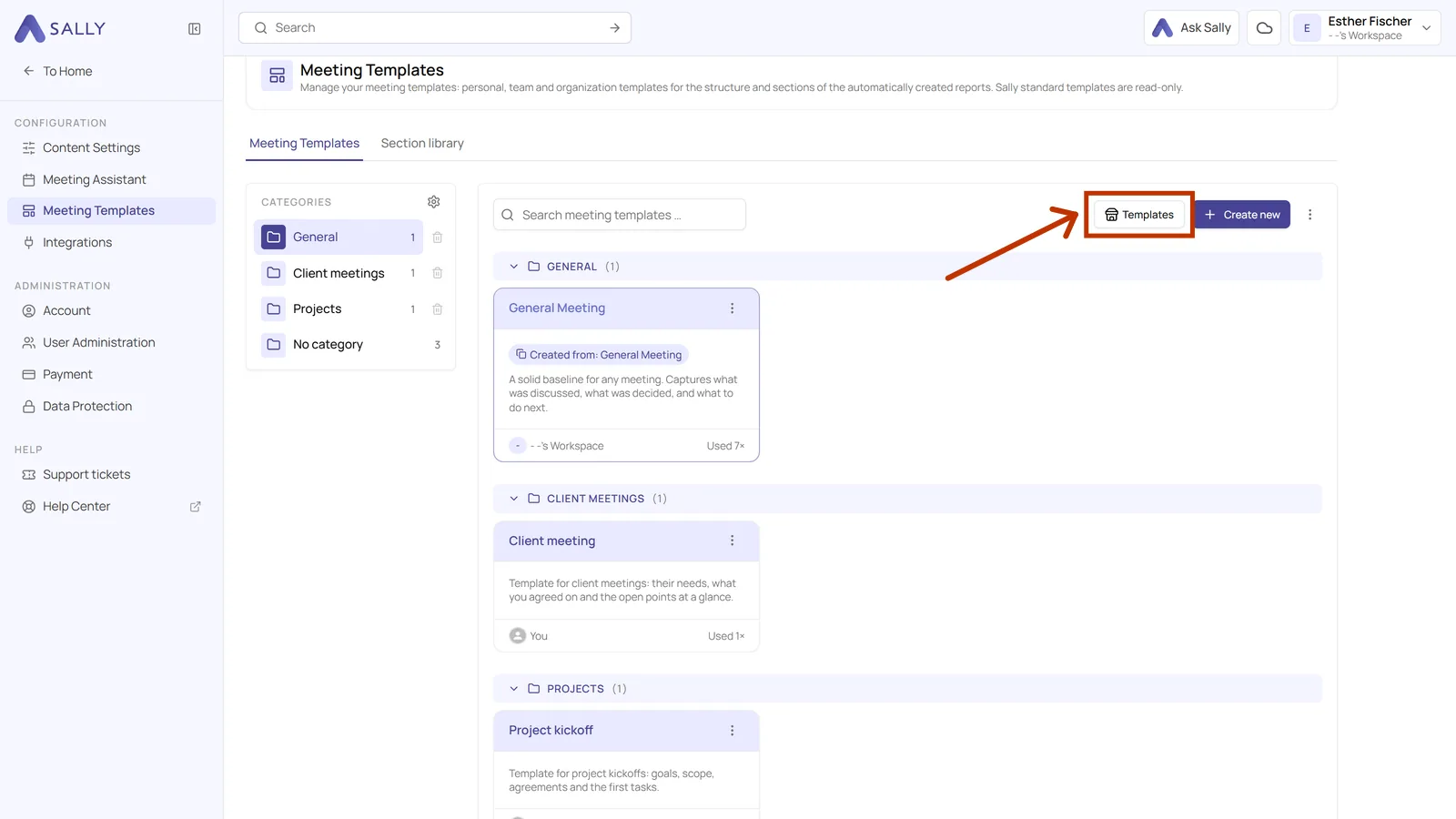
- Click Templates in the top right.
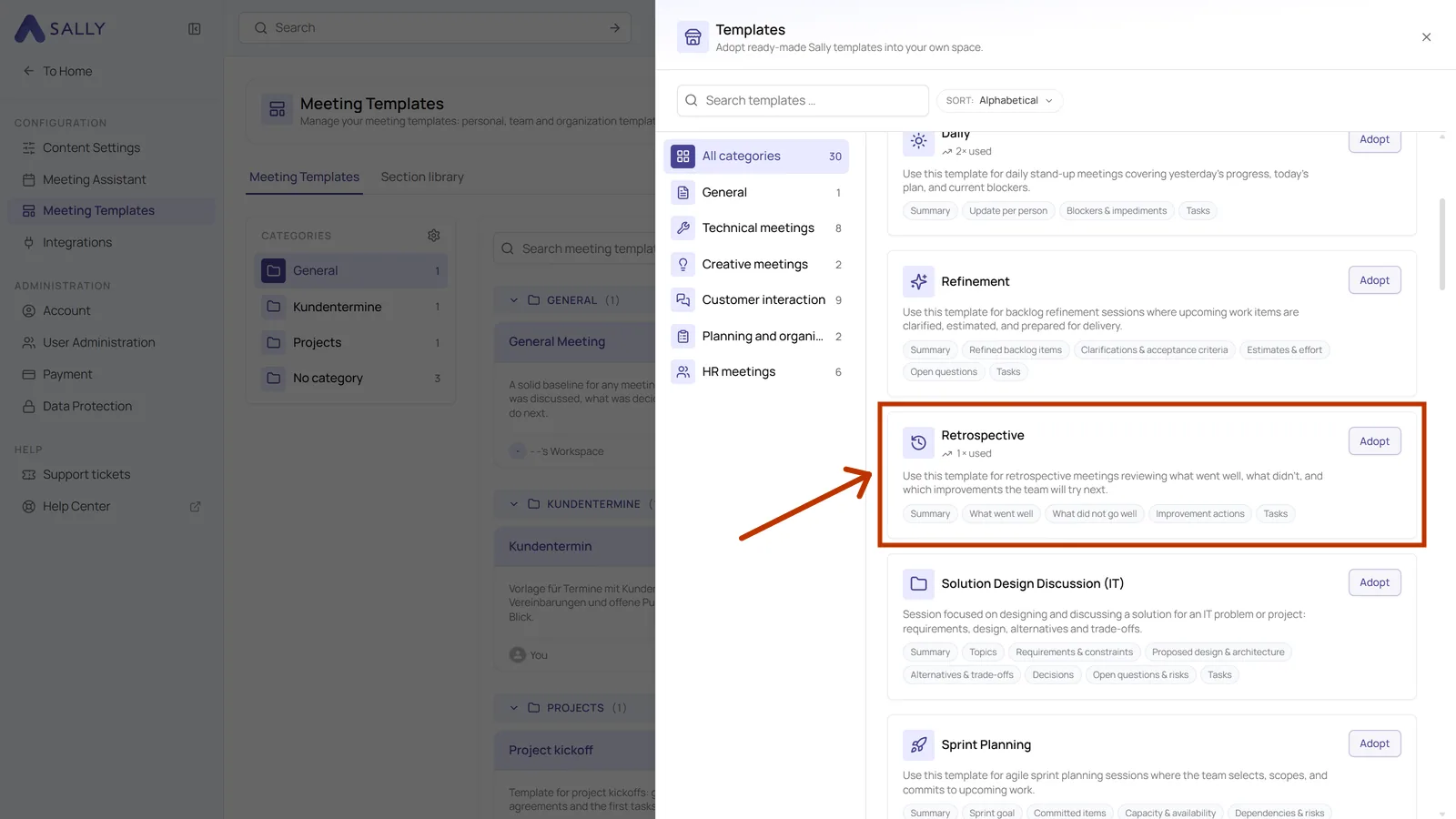
- The catalog opens as a window over the overview and shows every template Sally brings along. The categories are on the left, each with the number of templates behind it, and on the right you scroll through all of them. The Sort control at the top right switches between Alphabetical and Most used. If a template looks right straight away, click Adopt on the right of its card.
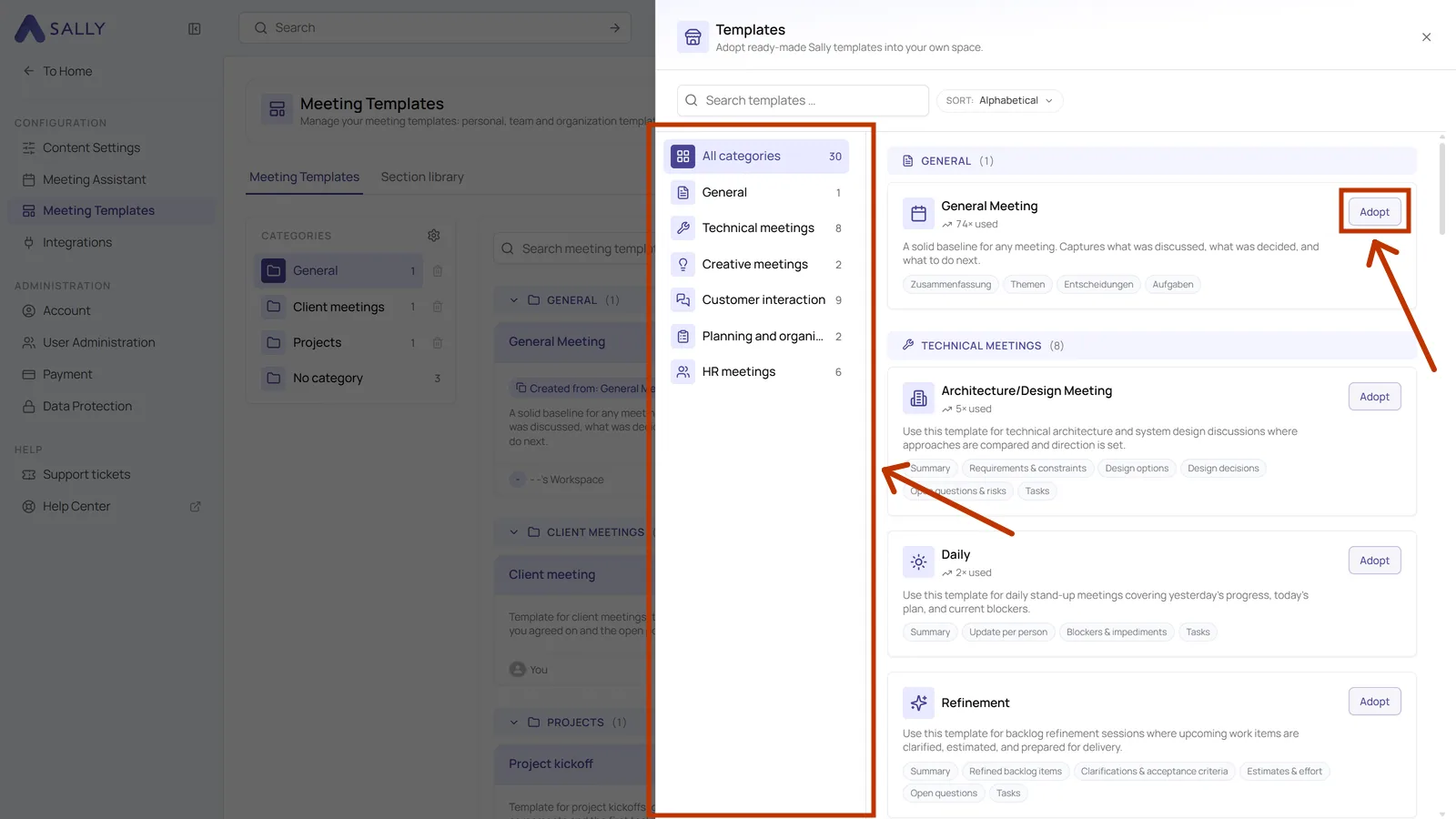
The categories are General, Technical meetings, Creative meetings, Customer interaction, Planning and organization and HR meetings. Popular templates also show how often they have been used, which is a useful hint when two of them look similar.
2. Checking what a template produces
Before you adopt a template, you can see what it delivers.
- In the catalog, click the card of the template you are interested in.
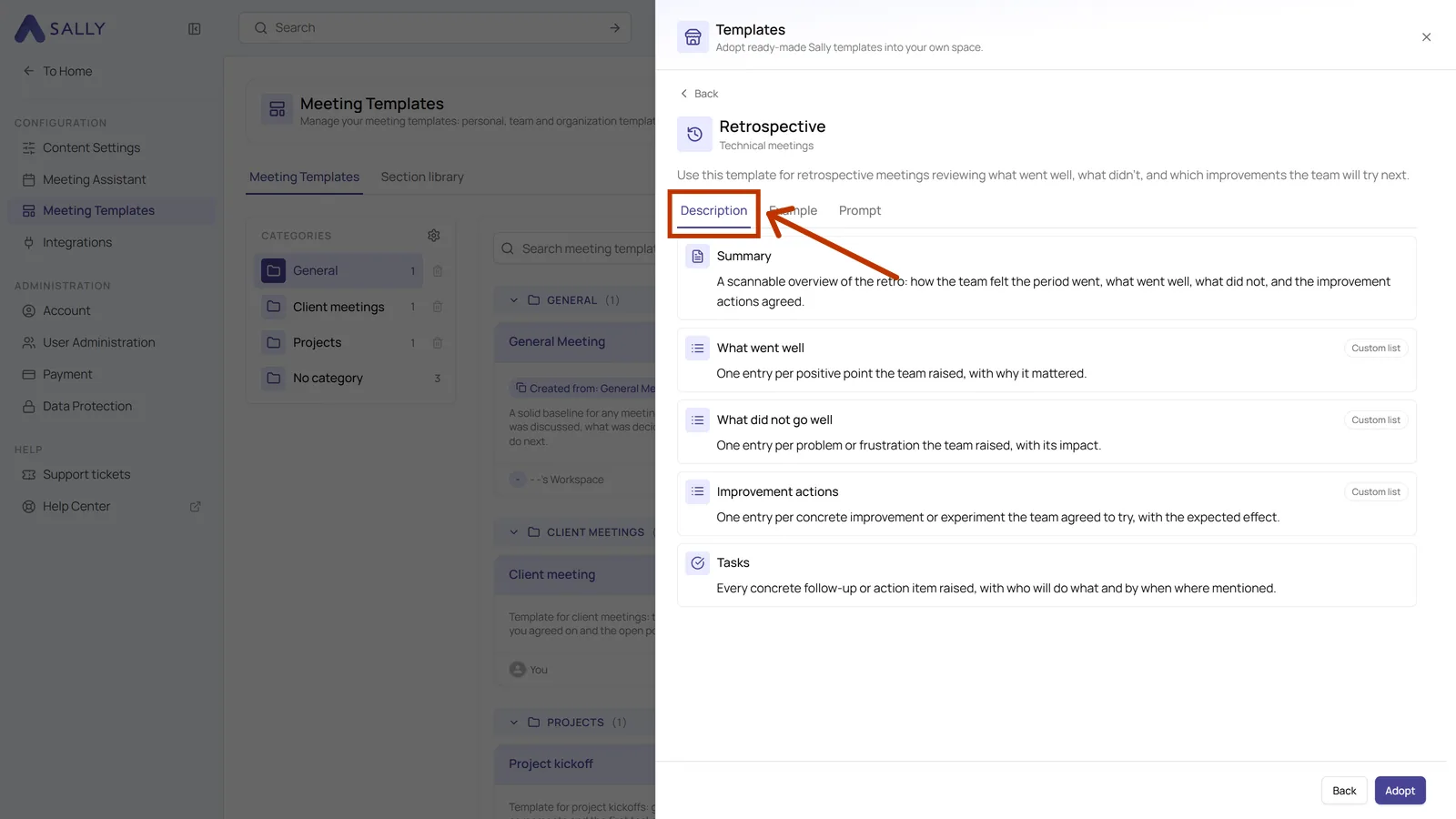
- The details open with the Description tab in front. It lists every section with a sentence about what goes into it, so you can tell at a glance whether the structure fits your meeting.
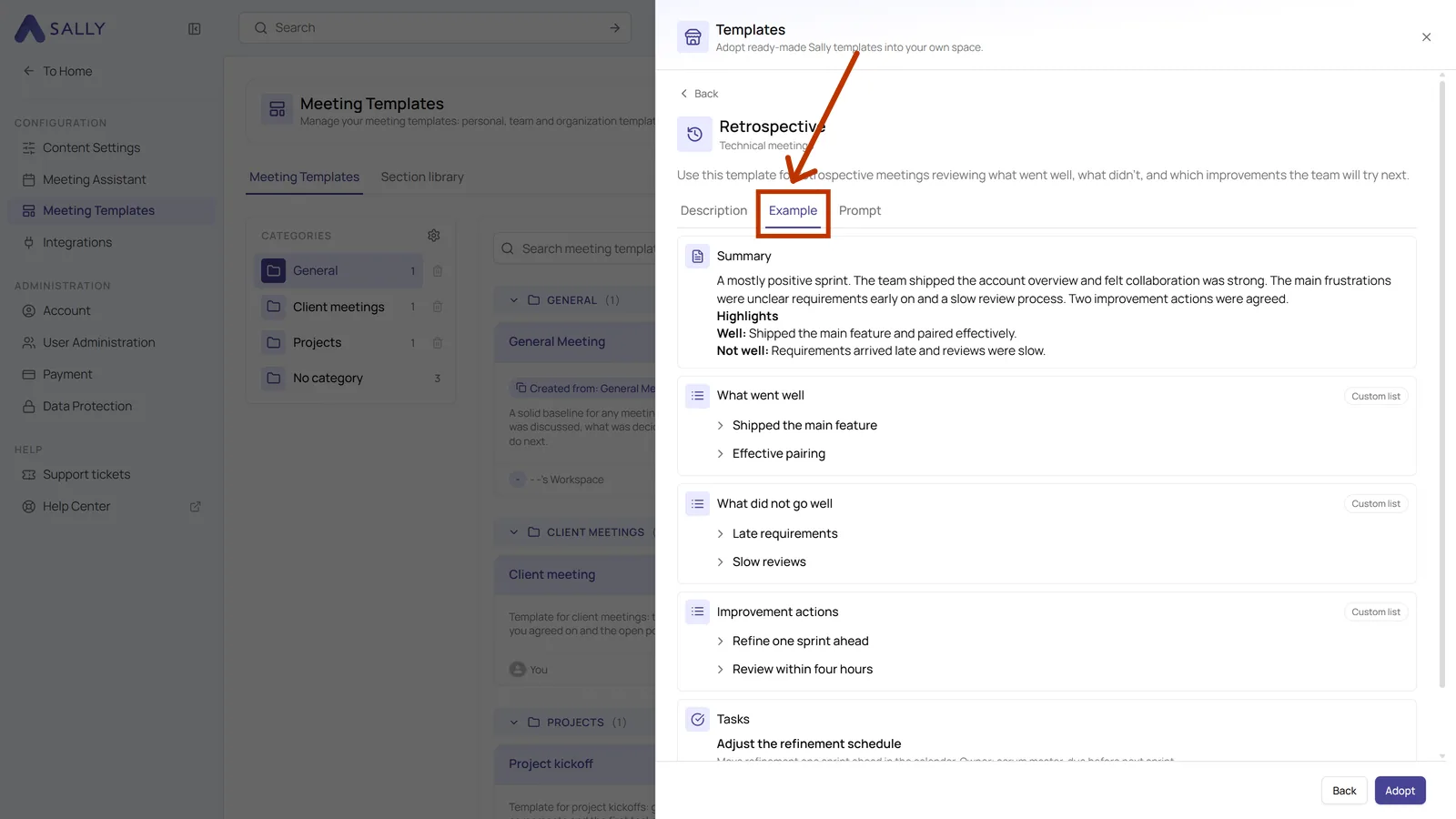
- Switch to the Example tab at the top. It shows a complete summary as this template would write it, with realistic content. This is the fastest way to judge whether the level of detail is what you need.
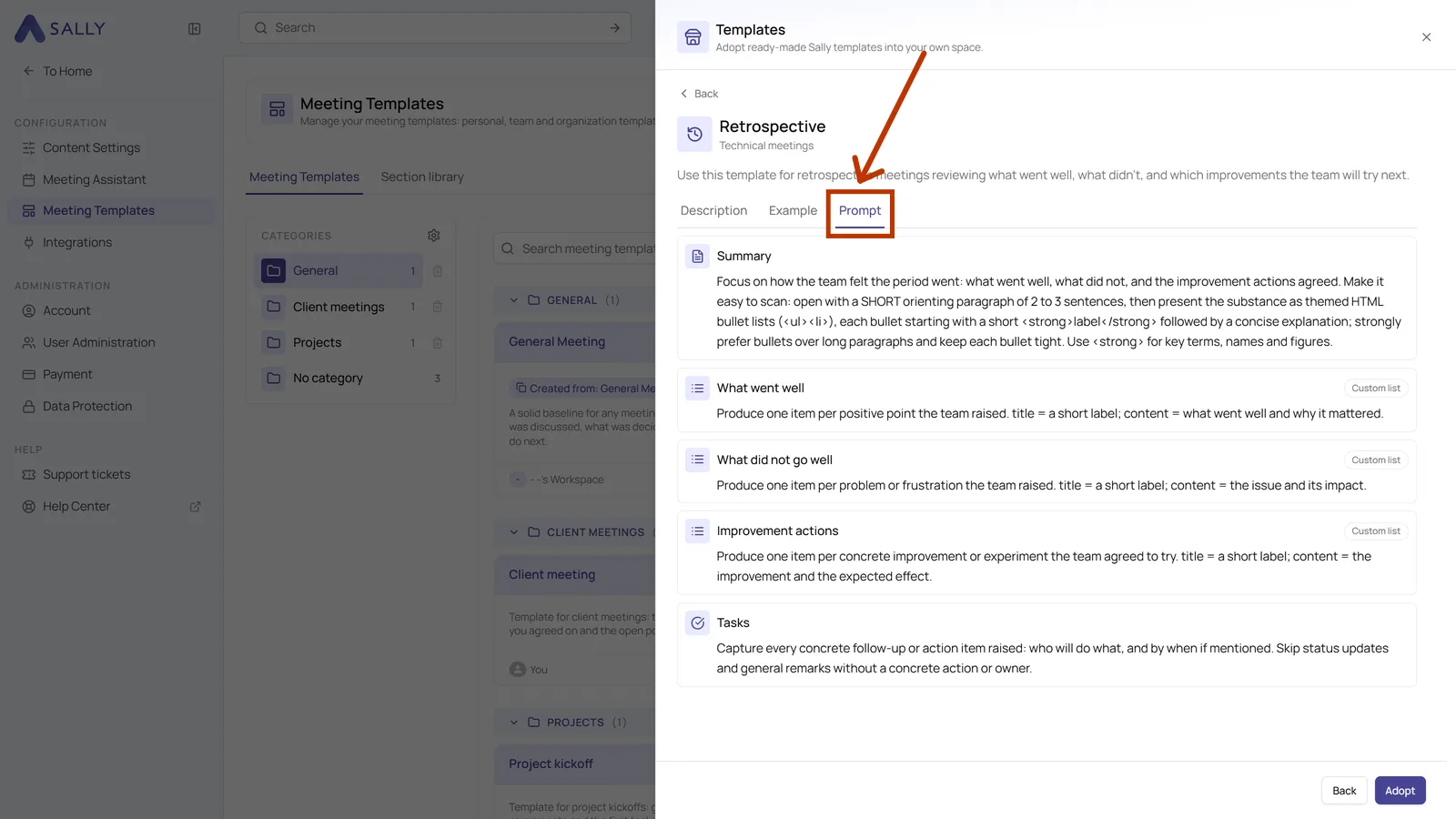
- Switch to the Prompt tab. It shows the exact instruction Sally follows for each section. That is worth a look if you plan to adjust the template later, because you can see where the wording comes from. The prompts of Sally's templates are in English, because the AI follows English instructions more precisely, and your own prompts are best written the same way.
3. Adopting a template
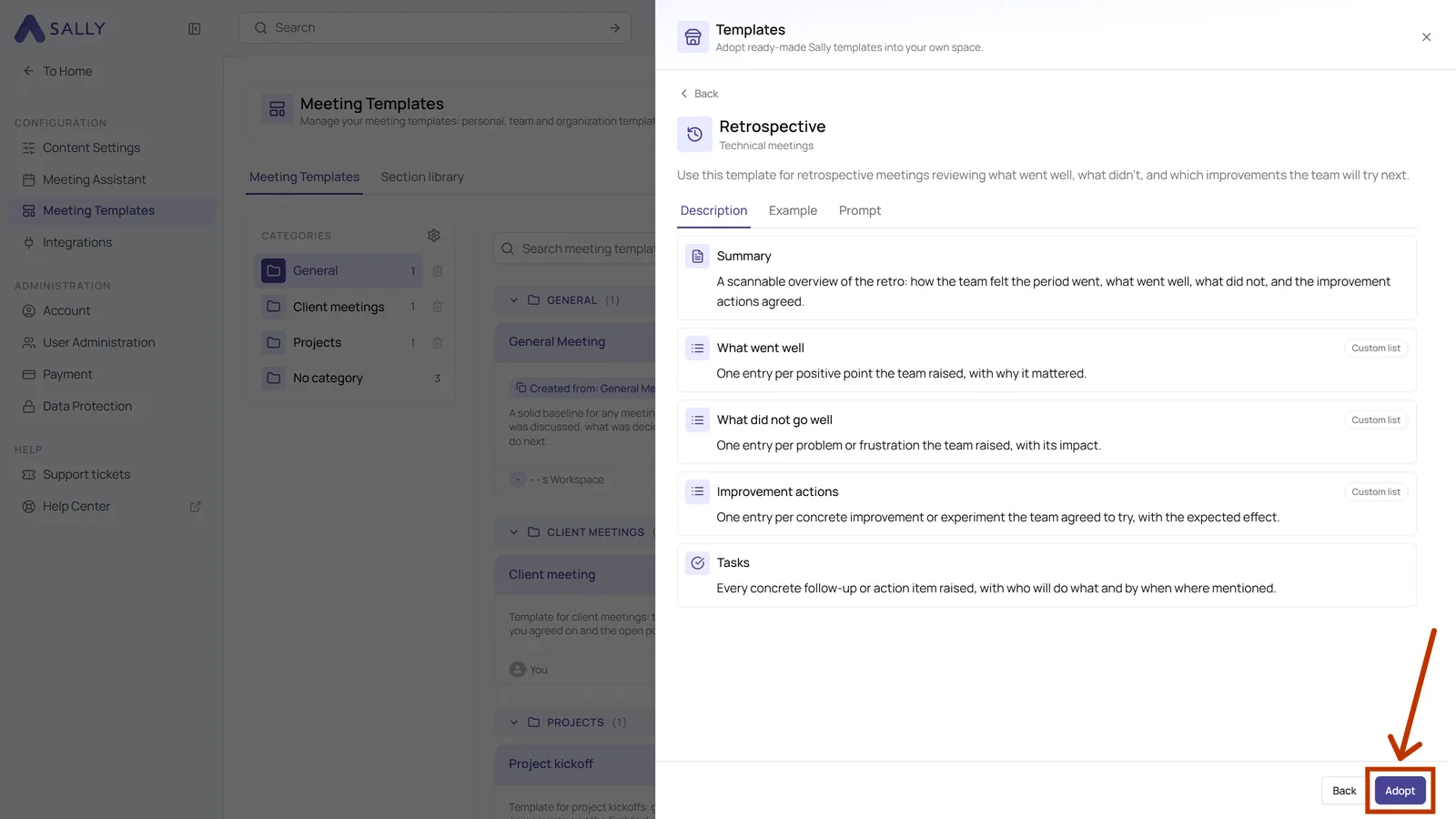
- Once you have decided which template you want to use, click Adopt, either on the card or in the details.
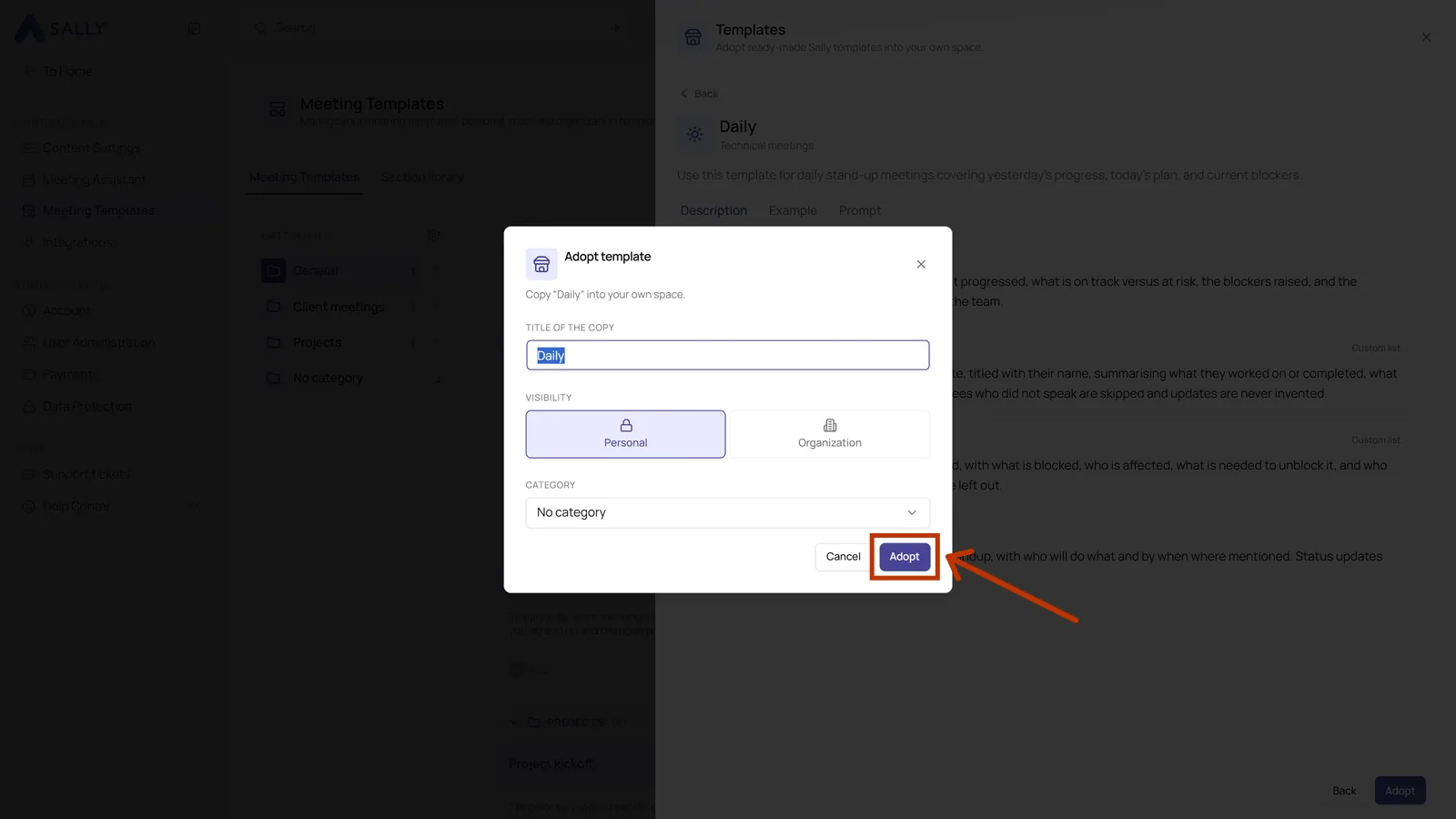
- Sally asks for a few details for the copy. Title of the copy is prefilled with the original name, and it is worth changing it to something your team will recognize. Under Visibility you can pick Personal or Organization. Personal keeps the copy with you, nobody else sees it in their list. Organization makes it available to everyone in the account, which only administrators may do. If a team is set up in your account, Team appears as a further level, see Sharing a template. Under Category you choose where the copy is filed, and new categories can only be created by administrators. Once everything is filled in, click Adopt in the bottom right.
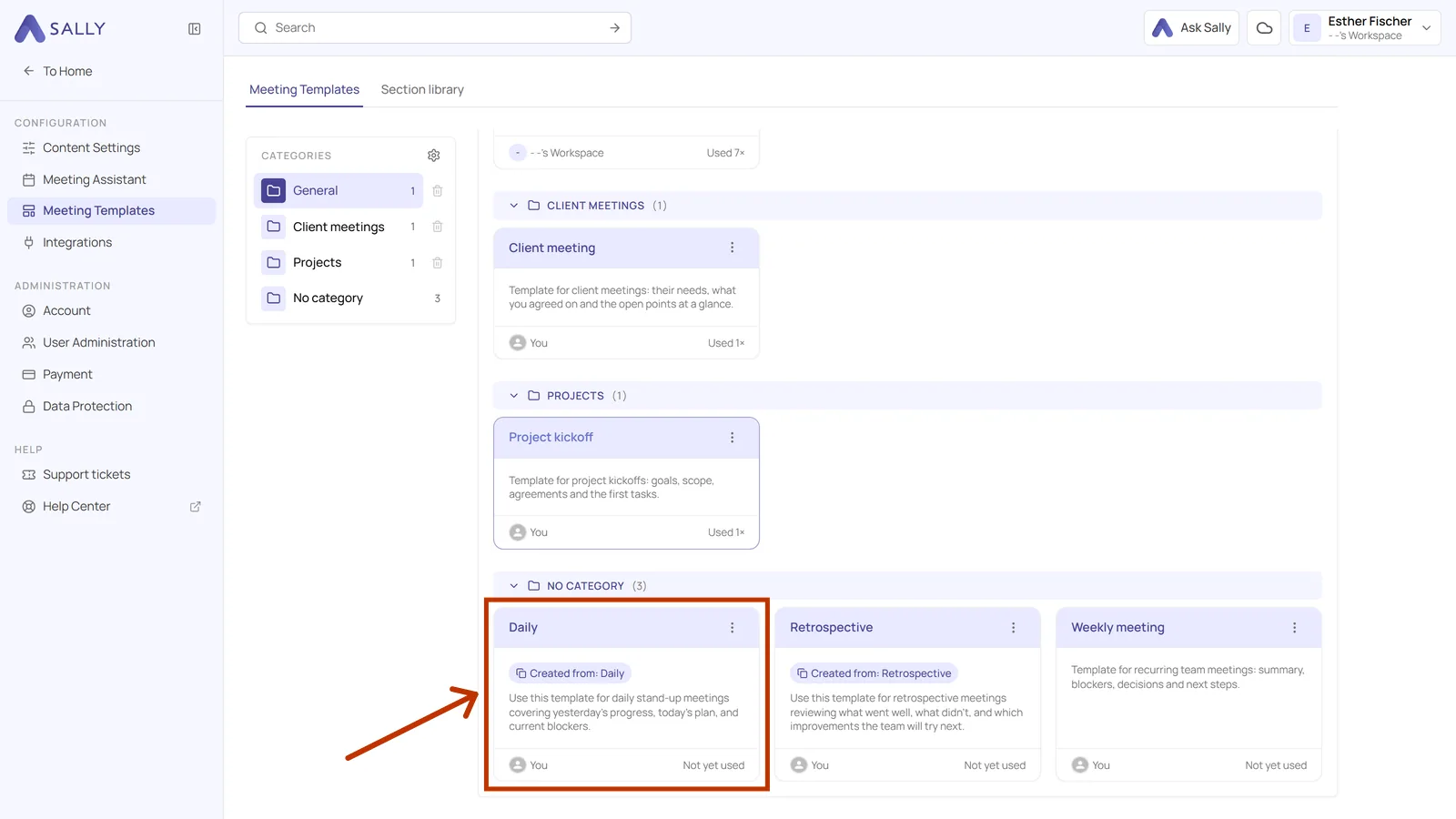
- The template now appears in your overview. The note Created from tells you which Sally template it came from.
4. Changing the copy
The copy is a normal template of yours, so everything is open to you: rename sections, rewrite prompts, add sections, remove them. Because it is published, every change goes through a draft. The short version:
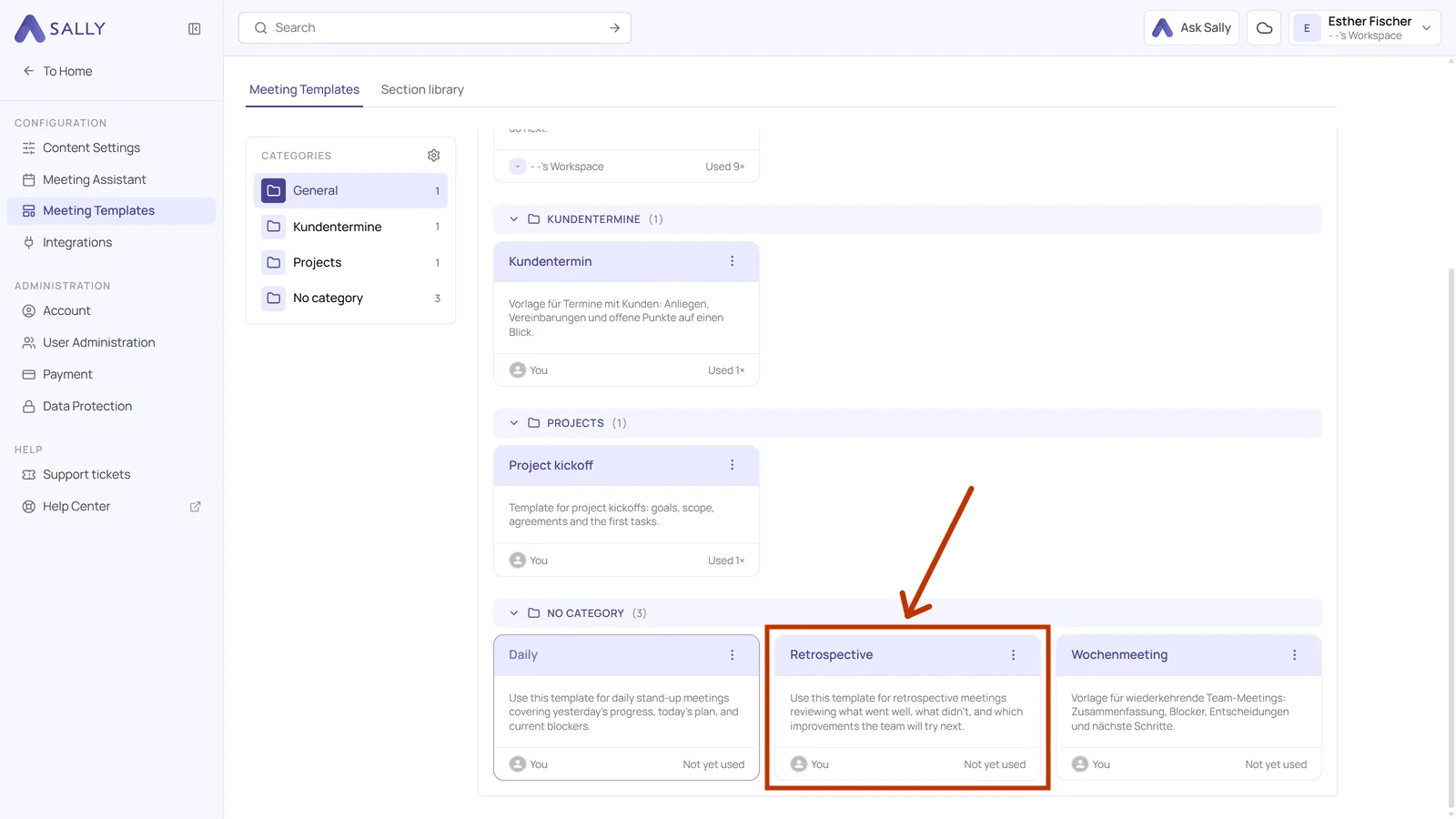
- In the overview, click the card of your copy.
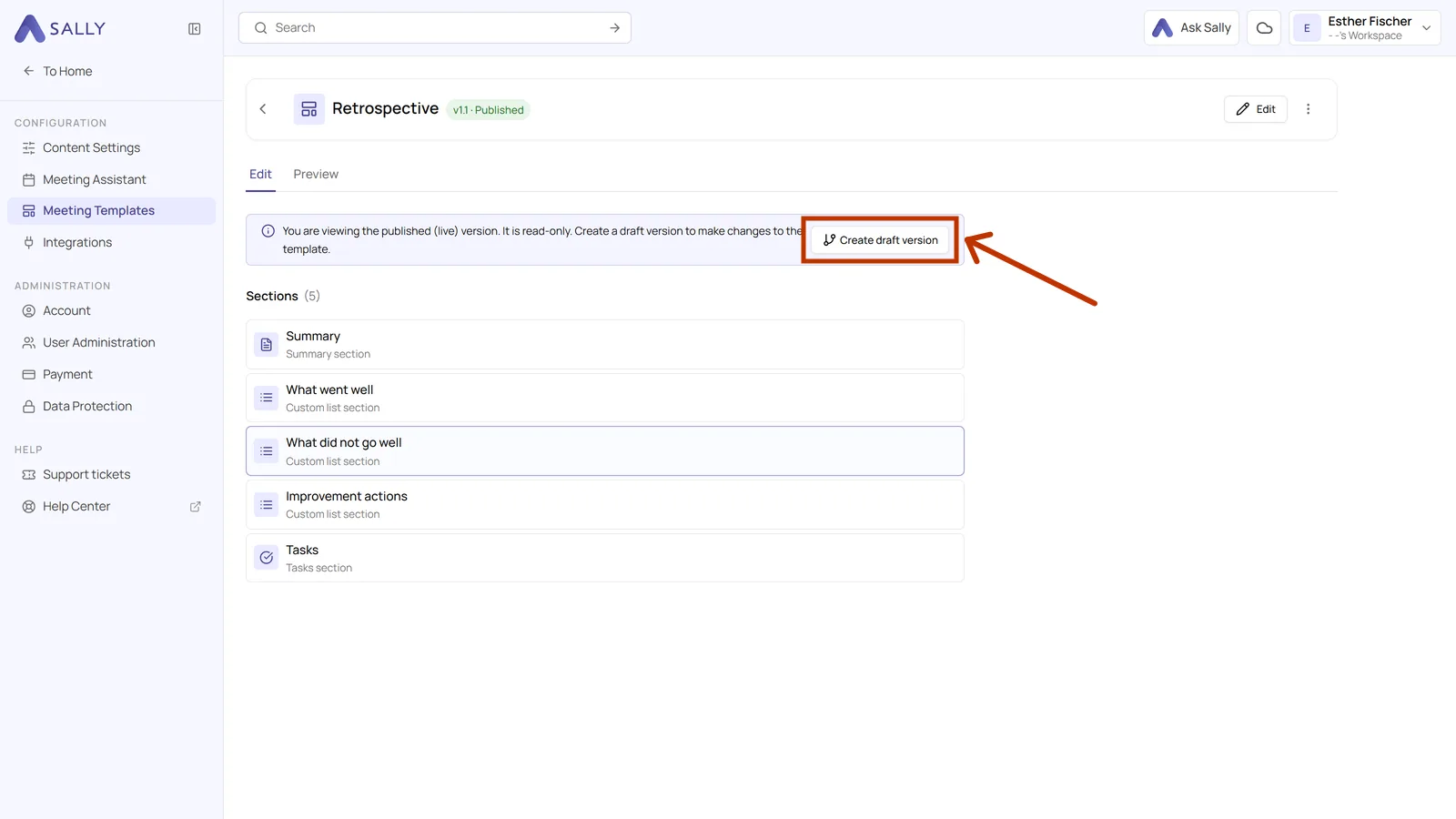
- In the note at the top, click Create draft version and confirm the version number. Creating a new version shows that path in detail.
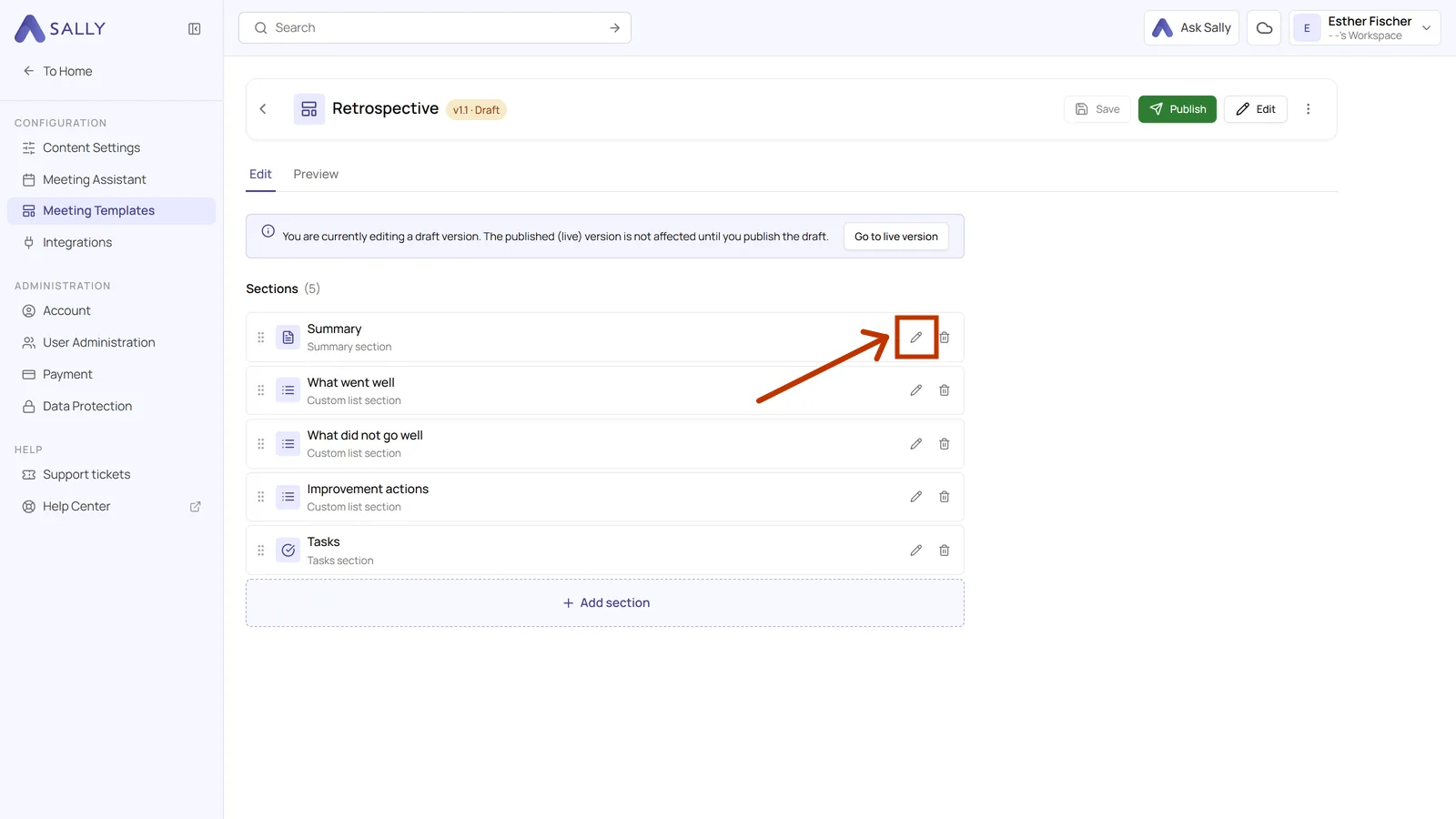
- In the draft, open a section through its pencil icon and adjust the title, the prompt and the output settings. Sections and the section library explains what each of those settings does.
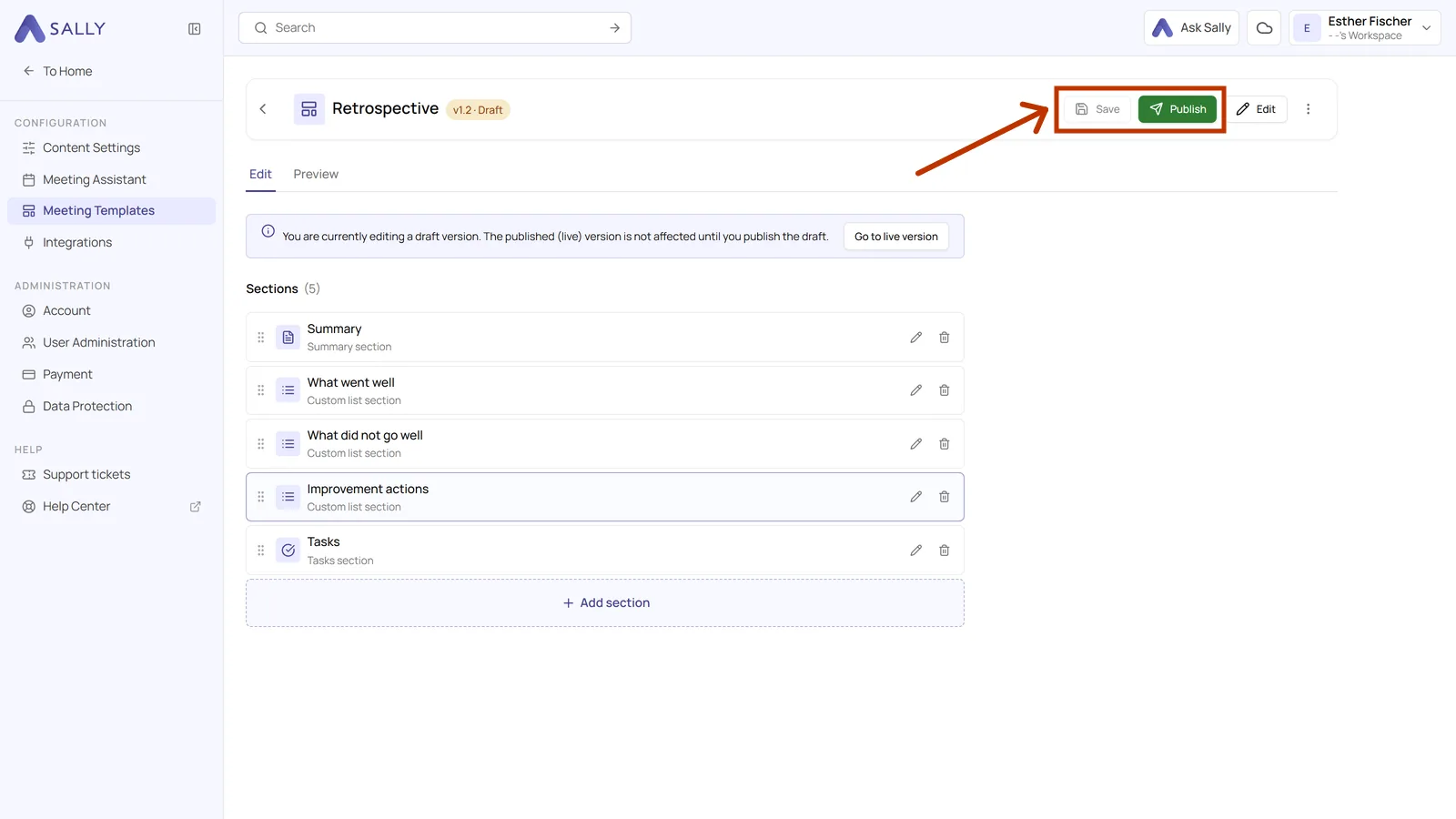
- Click Save in the top right, then Publish. From that moment on your meetings use the adjusted version.
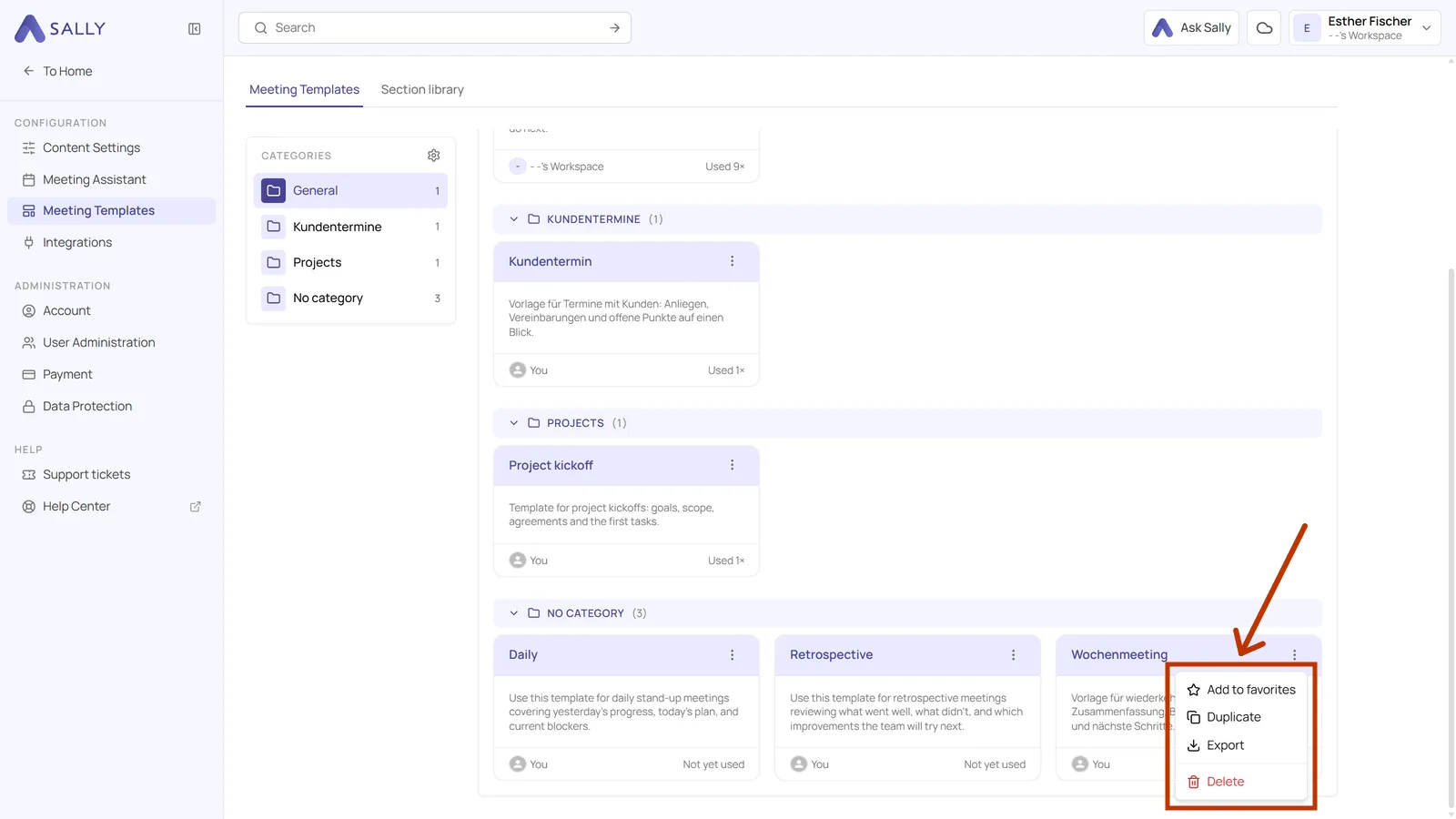
Beyond the content, you can also file the copy where you want it. The three dots in the top right of its card add it to your favorites, duplicate it, export it as a file or deactivate it when you do not need it for a while. You move it to a different category through Edit in the header of the template. Managing templates and categories lists what each of those actions does.
Sally's originals in the catalog stay read-only, and that is deliberate. You can adopt the same template several times, for example one variant for your own team and one for the whole organization.
Adopting a template that is roughly right is usually faster than starting from nothing. Take the one that comes closest, run it against an existing recording through the Preview tab, and only change the sections that did not deliver what you wanted.