Sally MCP with Claude Desktop
Claude Desktop is Anthropic's desktop application for macOS and Windows. The Model Context Protocol (MCP) is an open standard that lets AI tools connect to external data sources. Claude Desktop supports MCP servers natively through a JSON config file, so connecting Sally takes only a few minutes. Once set up, you can search your Sally meetings, read summaries, and pull transcripts directly in a Claude conversation, for example to prepare for an upcoming call, recap action items, or find what was discussed in a past meeting.
- Claude Desktop installed on macOS or Windows (download from claude.ai/download).
- Node.js 18 or later installed. Check in your terminal with
node -v. If not installed, download from nodejs.org. - An active Sally user with access to at least one company account.
- Sally MCP enabled for your company account (admin setting).
Quick Navigation
- Create a Personal Access Token in Sally
- Set up the MCP connection in Claude Desktop
- Access scope
- Troubleshooting
1. Create a Personal Access Token in Sally
A Personal Access Token (PAT) is the credential Claude Desktop uses to authenticate against the Sally MCP endpoint. You create it once.
- Log in to Sally at app.sally.io.
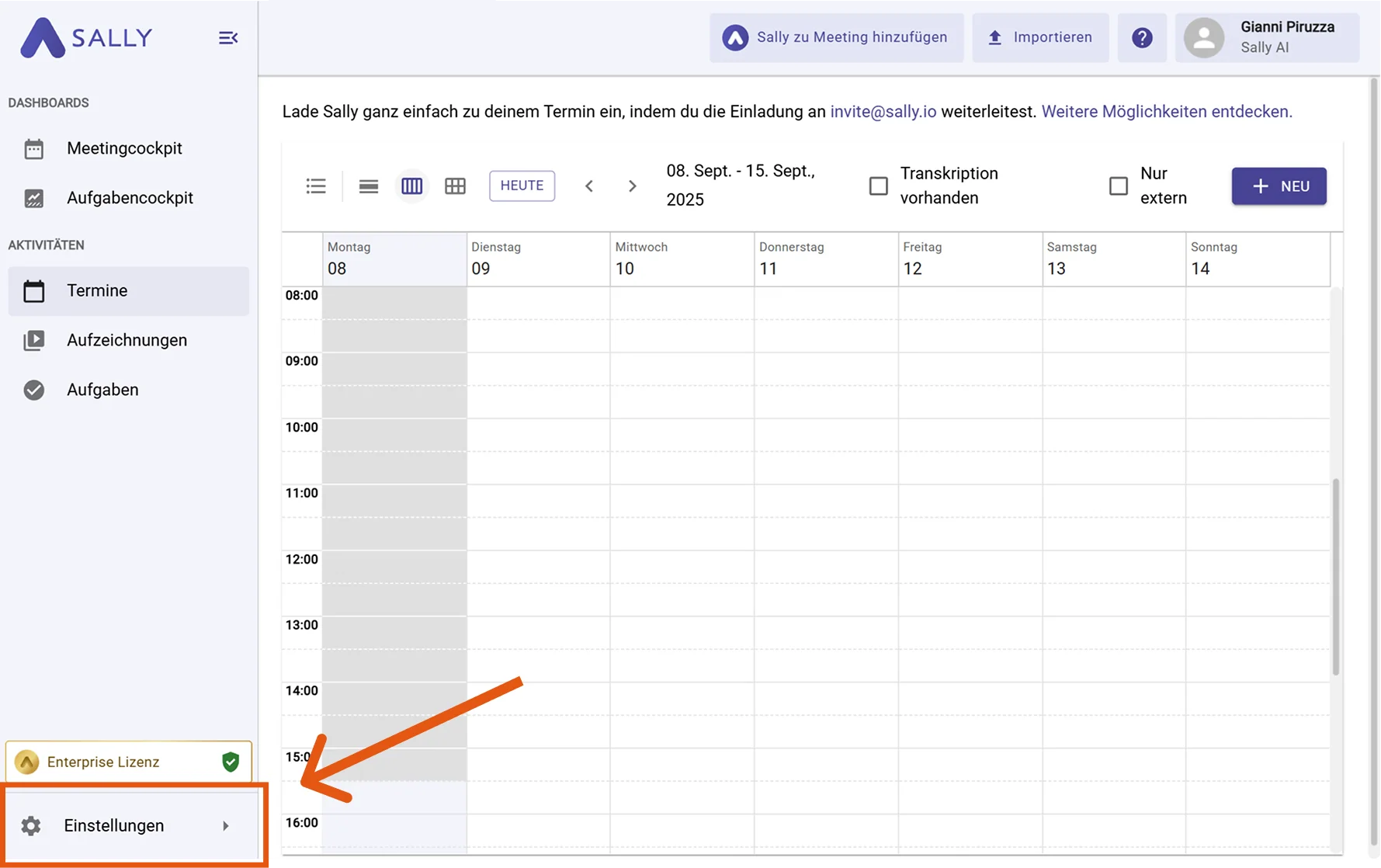
- Open Settings in the bottom-left of the sidebar.
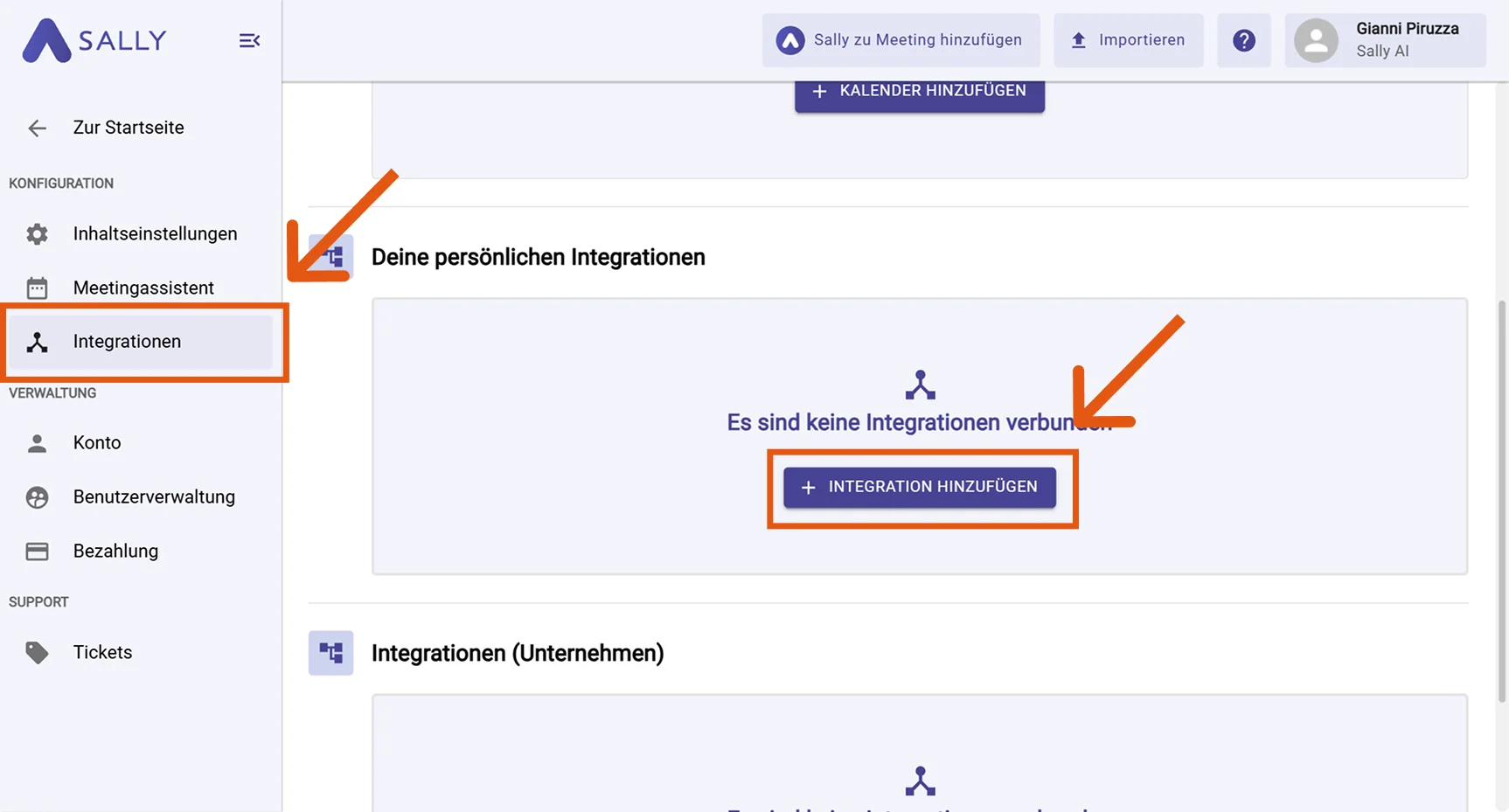
- In Settings, choose "Integrations". Under "Your personal integrations", click "+ Add integration".
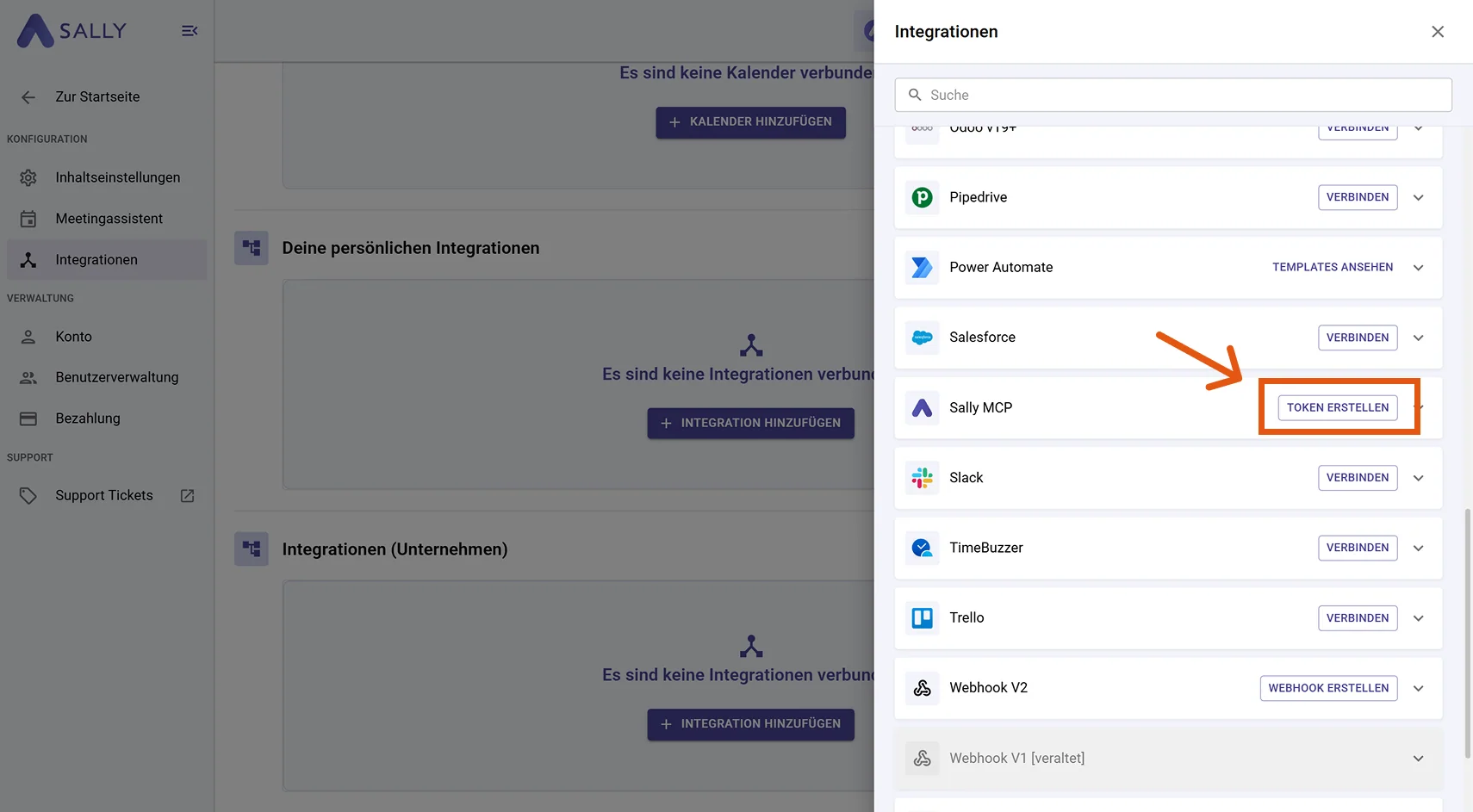
- In the integration drawer, find "Sally MCP" and click "Create Token".
-
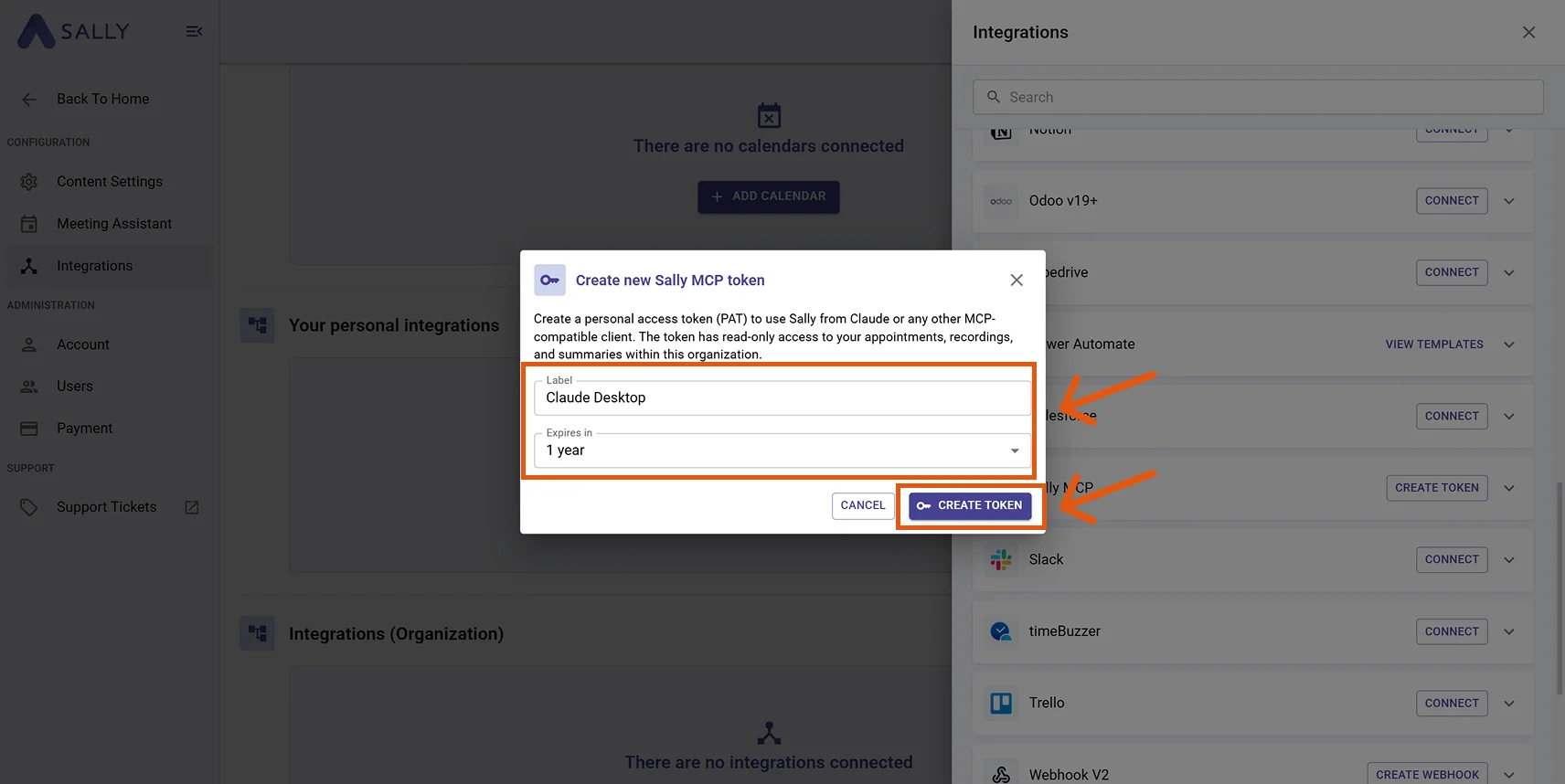
Fill out the "Create new Sally MCP Token" dialog:
- Name: a label that helps you recognize the token later (e.g. "Claude Desktop").
- Expires: choose a lifetime: 30 days, 90 days, 1 year, 2 years, or Never.
Then click "Create Token".
- Sally displays the full token exactly once. Copy it immediately and store it in a password manager or secure secret store. Once you close the dialog, the clear-text value is gone: you cannot view it again, only regenerate it.
The token grants read access to every appointment, recording, and summary your Sally user sees in this company account. Do not paste it into Slack, email, or tickets. Store it in a password manager.
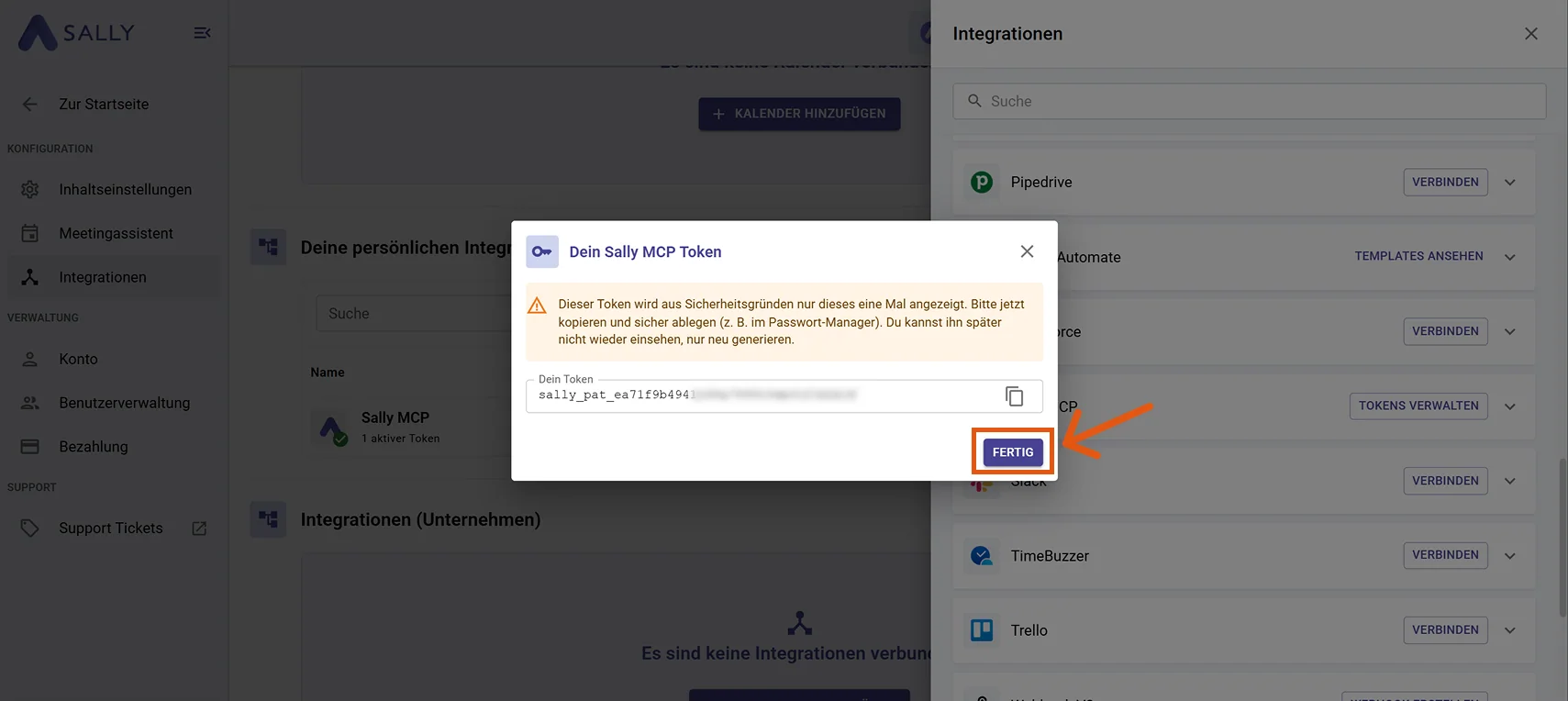
- Click "Done".
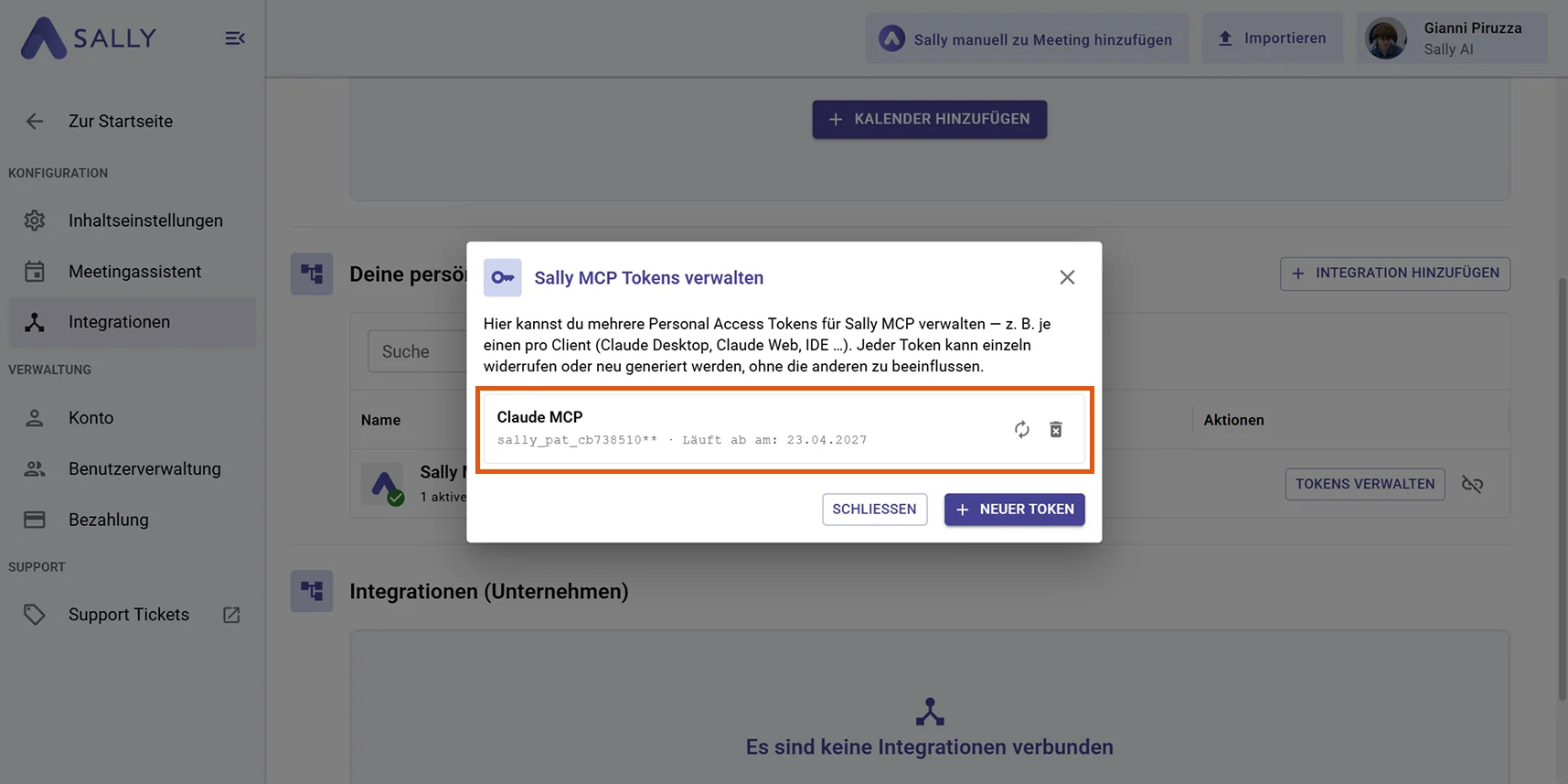
You can return to Settings → Integrations → Sally MCP → "Manage Tokens" at any time to regenerate, revoke, or create additional tokens. Regenerating invalidates the old token immediately, so update it in any client that still uses it.
2. Set Up the MCP Connection in Claude Desktop
- Open Claude Desktop.
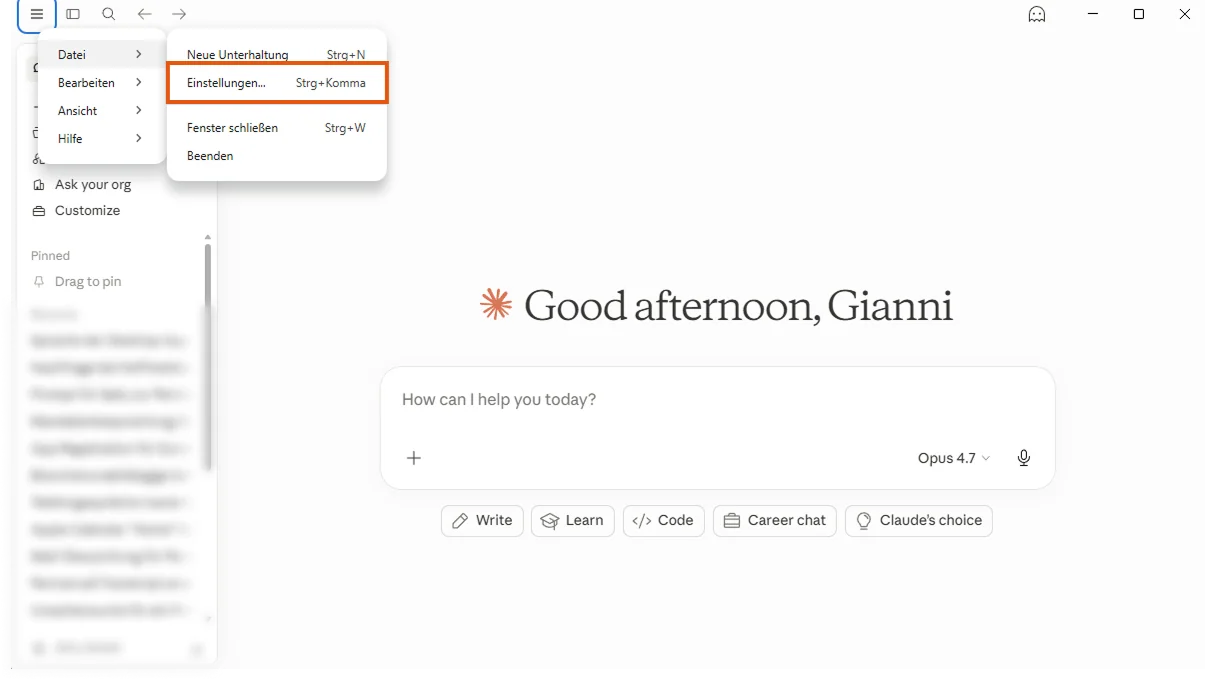
- Click the hamburger menu (top-left) and then "Settings...".
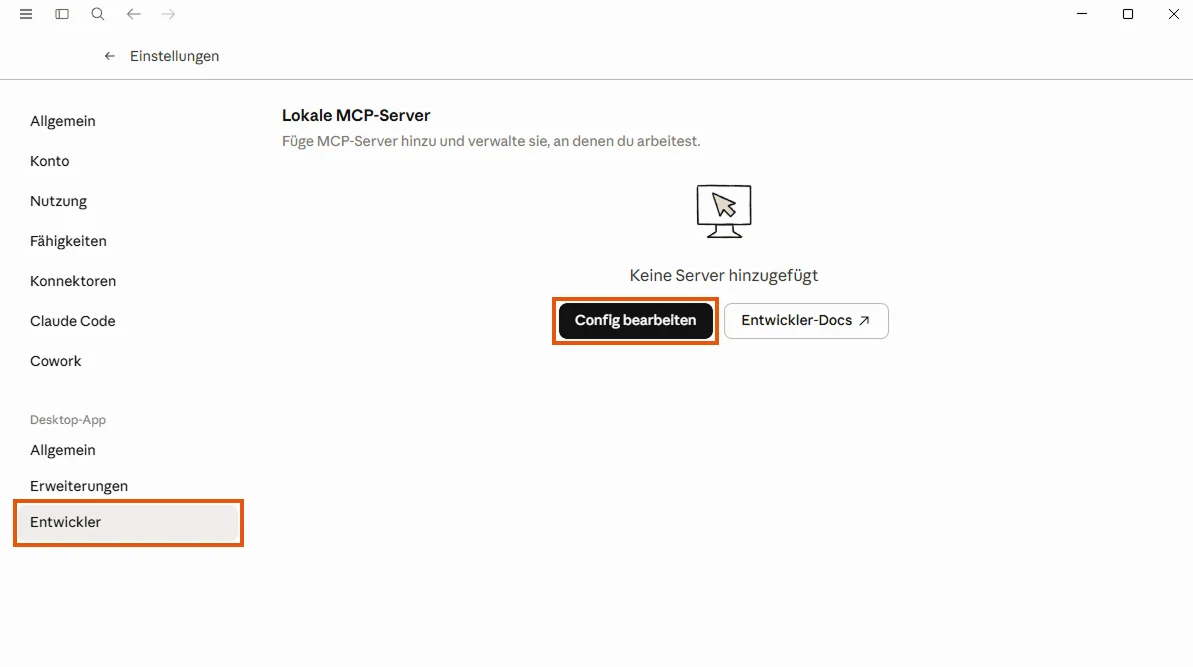
- Navigate to Developer in the left sidebar.
- Click "Edit Config". This opens the file
claude_desktop_config.jsonin your default text editor.
The config file location depends on your operating system:
| OS | Path |
|---|---|
| macOS | ~/Library/Application Support/Claude/claude_desktop_config.json |
| Windows | %APPDATA%\Claude\claude_desktop_config.json |
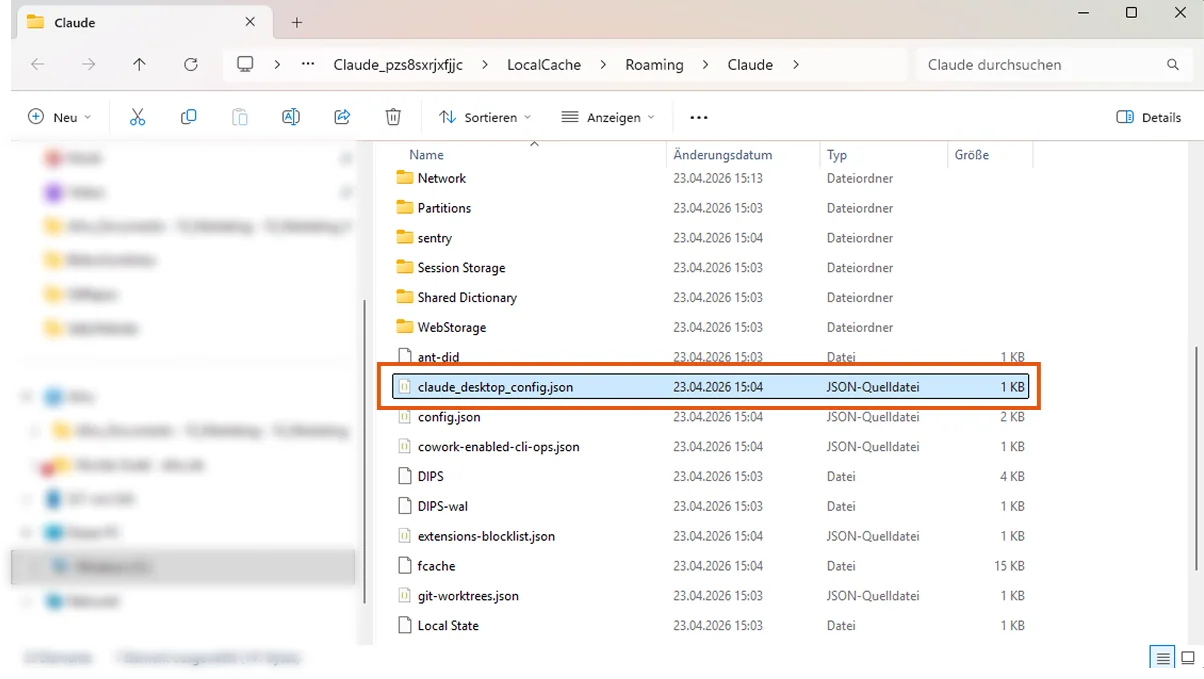
If the file doesn't exist or is empty, Claude Desktop creates it the first time you click "Edit Config". You can also create it manually at the path above.
- Copy the following snippet as-is and replace the entire contents of the config file. If the file already contains a
"preferences"block, that's fine: Claude Desktop regenerates it automatically on the next launch.
Windows:
{
  "mcpServers": {
    "sally": {
      "command": "cmd",
      "args": [
        "/c",
        "npx",
        "-y",
        "mcp-remote",
        "https://app.sally.io/api/v1/McpExternal",
        "--header",
        "Authorization:${AUTH_HEADER}"
      ],
      "env": {
        "AUTH_HEADER": " Bearer sally_pat_PASTE_YOUR_TOKEN_HERE"
      }
    }
  }
}
macOS:
{
  "mcpServers": {
    "sally": {
      "command": "npx",
      "args": [
        "-y",
        "mcp-remote",
        "https://app.sally.io/api/v1/McpExternal",
        "--header",
        "Authorization:${AUTH_HEADER}"
      ],
      "env": {
        "AUTH_HEADER": " Bearer sally_pat_PASTE_YOUR_TOKEN_HERE"
      }
    }
  }
}
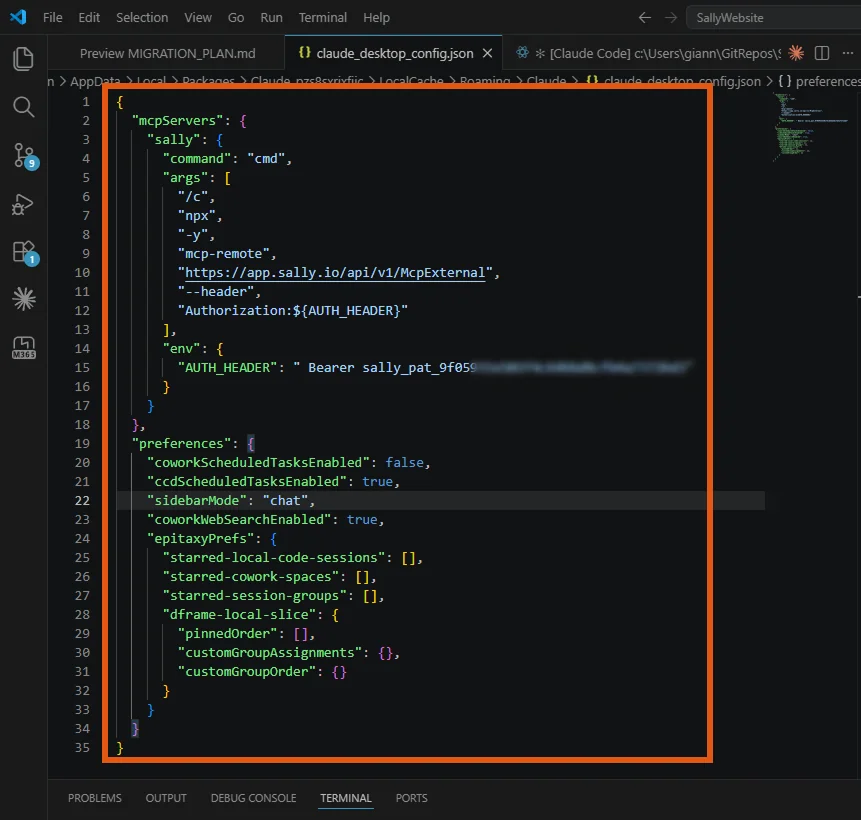
Replace PASTE_YOUR_TOKEN_HERE with the full token you created in Step 1. Keep the sally_pat_ prefix, the space before Bearer, and the surrounding quotes.
Claude Desktop opens the config file in your default text editor. This could be Notepad, TextEdit, VS Code, or any other editor. It doesn't matter which one. The following screenshot shows VS Code as an example.
- Save the file and close Claude Desktop completely.
Closing the window is not enough — Claude Desktop keeps running in the background. Open Task Manager (Ctrl + Shift + Esc), find the "Claude" process and click "End task". On macOS: right-click the Claude icon in the Dock and choose "Quit". Then relaunch Claude Desktop — the app only reads the config file at startup.
Start a new conversation and type:
"Which Sally tools are available?"
Claude should list the five Sally tools (search_appointments, search_summaries, get_recordings, get_summary, get_transcription). You can also try a real query:
"Search my Sally meetings from the last 7 days."
3. Access Scope
The Sally MCP connector only returns meetings tied to your own Sally user or explicitly shared with you. The table below sums up what is and isn't reachable through your token:
| Source | Accessible via MCP? |
|---|---|
| Your own meetings (you are the owner / technical owner) | Yes |
| Meetings shared with you via a recording folder (directly or through one of your teams) | Yes |
| Meetings of users for whom you have been set as deputy ("Vertretung") | No |
Even if you have been granted deputy ("Vertretung") rights for another user inside Sally, those meetings are not exposed through MCP. The connector currently only surfaces your own recordings and recordings explicitly shared with you via folders. If you need a deputy's meetings in your AI tool, ask the owner to share them through a recording folder.
4. Troubleshooting
| Issue | Fix |
|---|---|
| Sally tools don't appear | Make sure the config file is valid JSON (no trailing commas, all braces matched). Restart Claude Desktop completely. |
| "Unauthorized" or "Invalid token" | Double-check that the full token including the sally_pat_ prefix is pasted correctly, with no extra spaces or line breaks. |
| Connector is red / no status | Check the MCP log: • macOS: ~/Library/Logs/Claude/mcp-server-sally.log• Windows: %APPDATA%\Claude\logs\mcp-server-sally.log |
| Error "command not found: npx" or "npx is not recognized" | Node.js is not installed or not in the PATH. Install Node.js (version 18 or later) from nodejs.org and restart Claude Desktop. |
| Sally tools are not updated after changing the token | mcp-remote caches connection data locally. Delete the folder ~/.mcp-auth (macOS/Linux) or %USERPROFILE%\.mcp-auth (Windows) and restart Claude Desktop. |
For more troubleshooting tips, see the General Setup Guide → Troubleshooting.