Substitute rules & user impersonation
The impersonation mode allows authorized users to temporarily use Sally from the perspective of another user.
In addition, substitutes can be assigned who may impersonate a user in case of absence - even without having an admin role.
These features help ensure business continuity, for example in cases of illness, vacation, or unexpected absence.
Impersonation does not grant additional permissions. All actions remain limited to the role and permissions of the impersonated user.
If you would like to disable the impersonation feature for your entire organization, please contact us. We can disable the functionality completely upon request.
Quick navigation:
- Role permissions
- Assign substitutes
- Impersonate a user
3.1 Permissions in impersonation mode - End impersonation mode
- Data protection and compliance
1. Role permissions
The ability to impersonate users is restricted based on roles to ensure controlled and traceable access.
1.1 Standard impersonation via roles
| Impersonating role ↓ / Target role → | Owner | Admin | Member |
|---|---|---|---|
| Owner | ✅ | ✅ | ✅ |
| Admin | ❌ | ✅ | ✅ |
| Member | ❌ | ❌ | ❌ |
This hierarchical structure ensures that impersonation follows the defined responsibility and permission model of your organization.
1.2 Impersonation via assigned substitutes
Additionally, substitutes can be assigned. A designated substitute can impersonate the corresponding user - regardless of their own role.
The following rules apply:
| Role | Can impersonate users |
|---|---|
| Owner | Yes |
| Admin | Yes (except Owners) |
| Member (without substitute assignment) | No |
| Member (assigned as substitute) | Yes (for assigned users only) |
Substitutes can only impersonate the user for whom they have been assigned as a substitute.
Members cannot assign themselves as substitutes for other users. Only Owners and Admins can configure members as substitutes for other users.
2. Assign substitutes
A substitute receives permission to impersonate the corresponding user when necessary — even if they do not have an admin or owner role.
Typical use cases:
- Vacation coverage
- Sick leave
- Assistant roles
- Project handovers
Key characteristics:
- The substitute can only impersonate the assigned user.
- No additional system permissions are granted.
- All actions are performed within the permission context of the impersonated user.
Steps to assign a substitute
- Navigate to Settings.
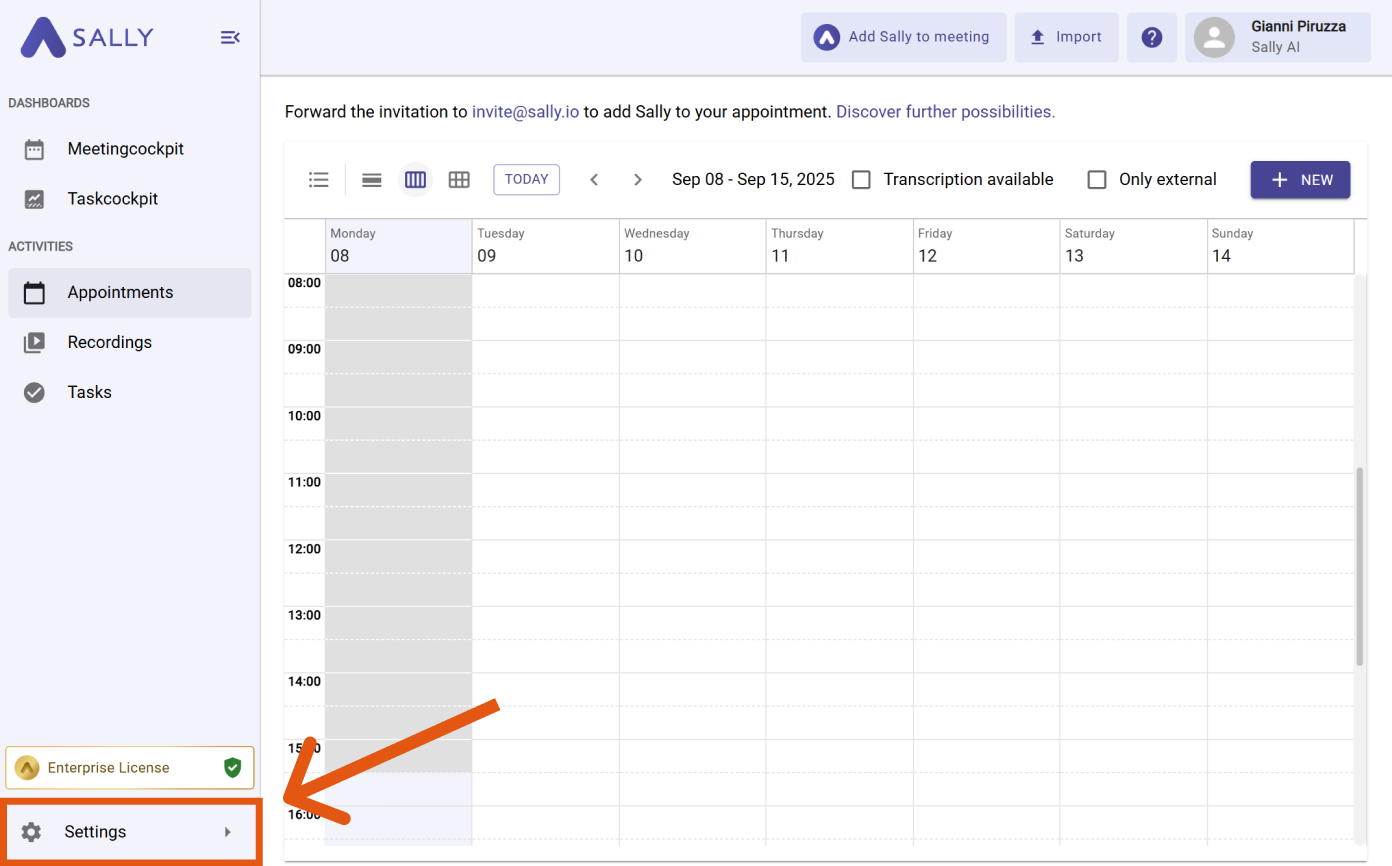
Open Settings
-
Under Administration, open User Administration.
-
Open the profile of the user for whom you want to assign a substitute by clicking the edit icon.
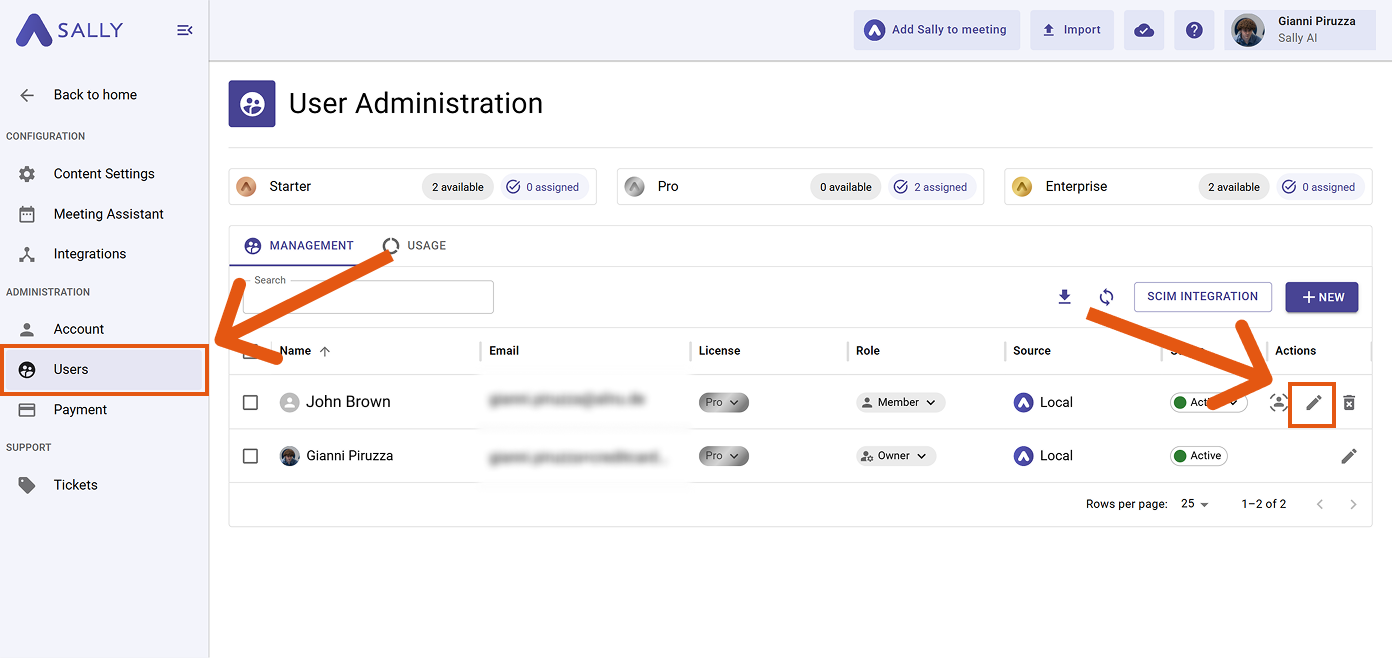
Navigate to Settings → Users
- In the Management section, locate the field "Authorized Substitutes" and select one or more users who should act as substitutes.
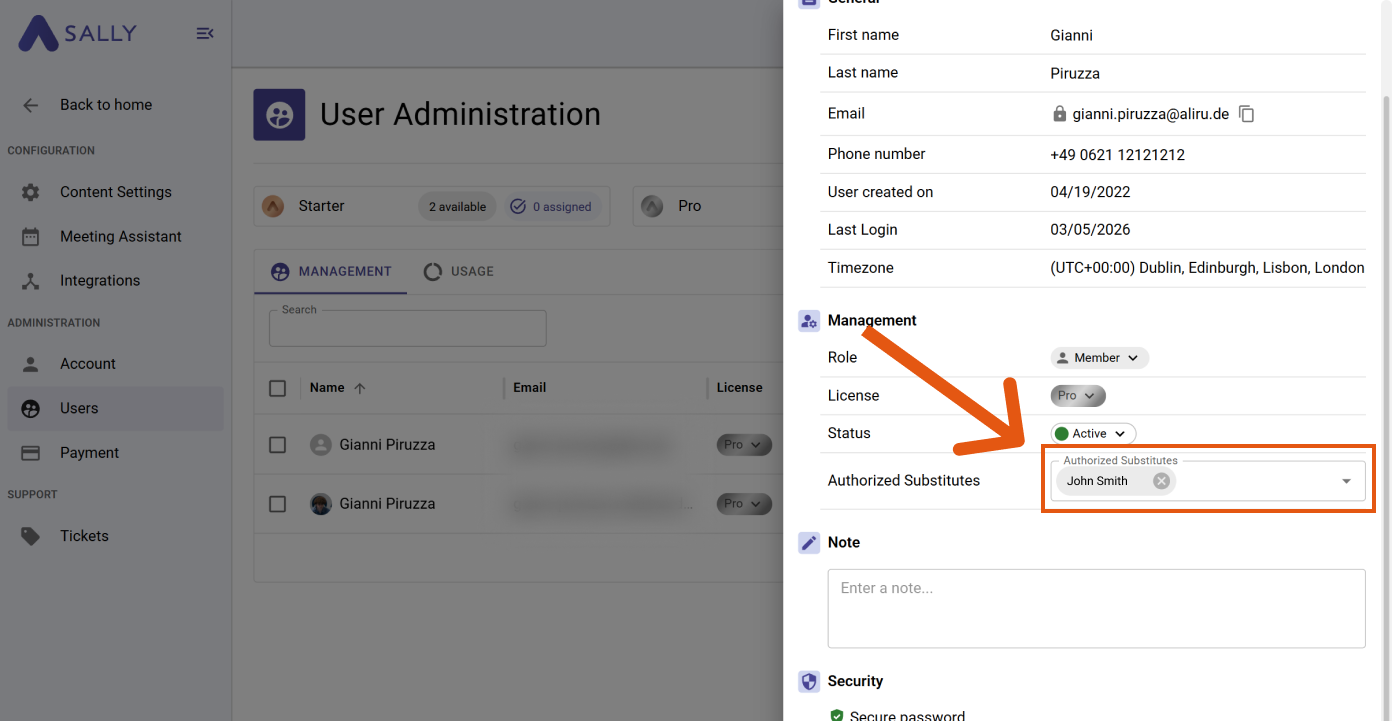
Add one or more substitutes in the 'Authorized Substitutes' field
The selected users can now impersonate the corresponding user.
3. Impersonate a user
This action can only be performed by Owners, or by Admins for other Admins or Members. Members can impersonate users only if they have previously been assigned as a substitute for that user.
Follow these steps to activate impersonation mode:
- Navigate to Settings.
Open the settings
-
Under "Administration", select "Users".
-
Find the user you want to impersonate.
-
Click the impersonation icon in the "Actions" column.
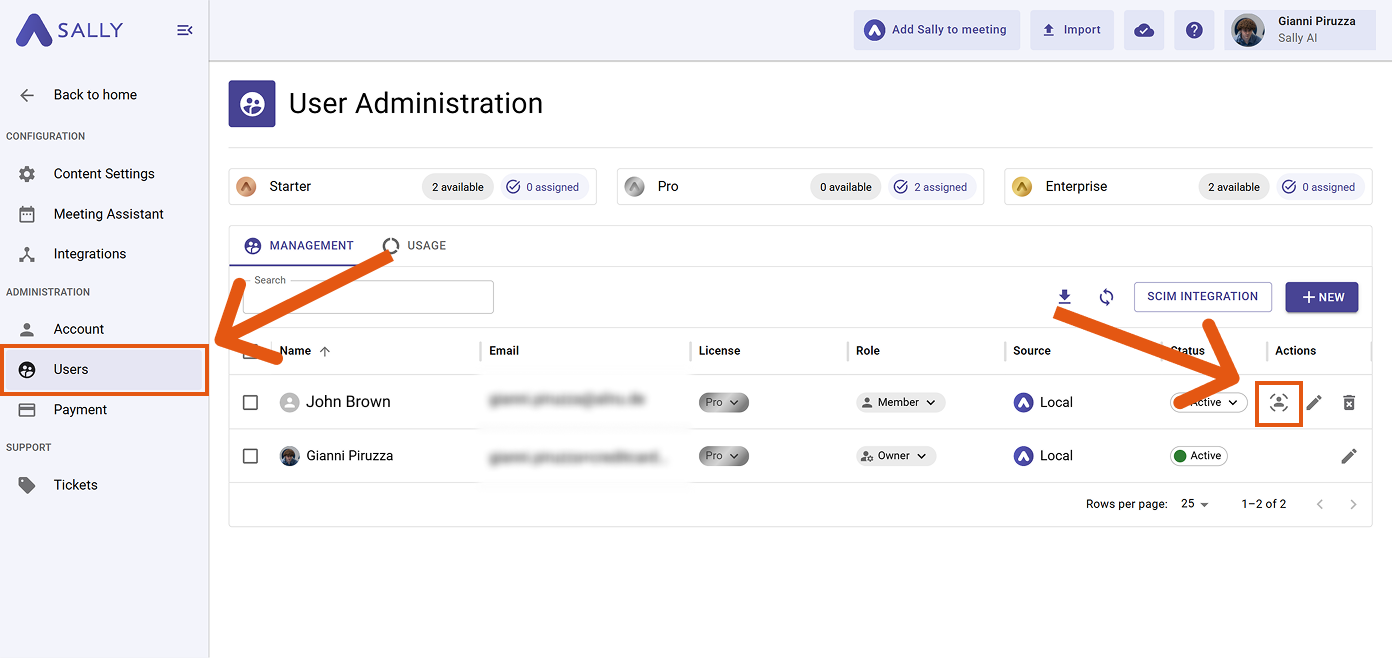
Start impersonation using the icon in the user list
You are now in impersonation mode.
You can recognize this in the user menu at the top right: an exclamation mark icon indicates that impersonation is currently active.
3.1 Permissions in impersonation mode
In impersonation mode, you assume exactly the role and permissions of the user you are impersonating.
This means:
- You have all permissions that the user has.
- You receive no additional permissions.
- Your own role (e.g., Owner or Admin) is not active during impersonation.
While impersonating, you operate entirely within the permission context of the target user.
In practice, this means:
- If the user can view meetings, you can also view them.
- If the user can add Sally to meetings, you can do so as well.
- If the user cannot modify system-wide settings, you cannot either.
Impersonation is not a separate permission level, but a temporary perspective switch to another user.
For example, if an Owner impersonates a Member, they will only have the permissions of the Member during impersonation. Owner-level permissions are not active at that time.
Impersonation never expands or bypasses existing role, license, or access restrictions.
4. End impersonation mode
To exit impersonation mode:
- Click the user menu in the top-right corner.
- Select “End impersonation”.
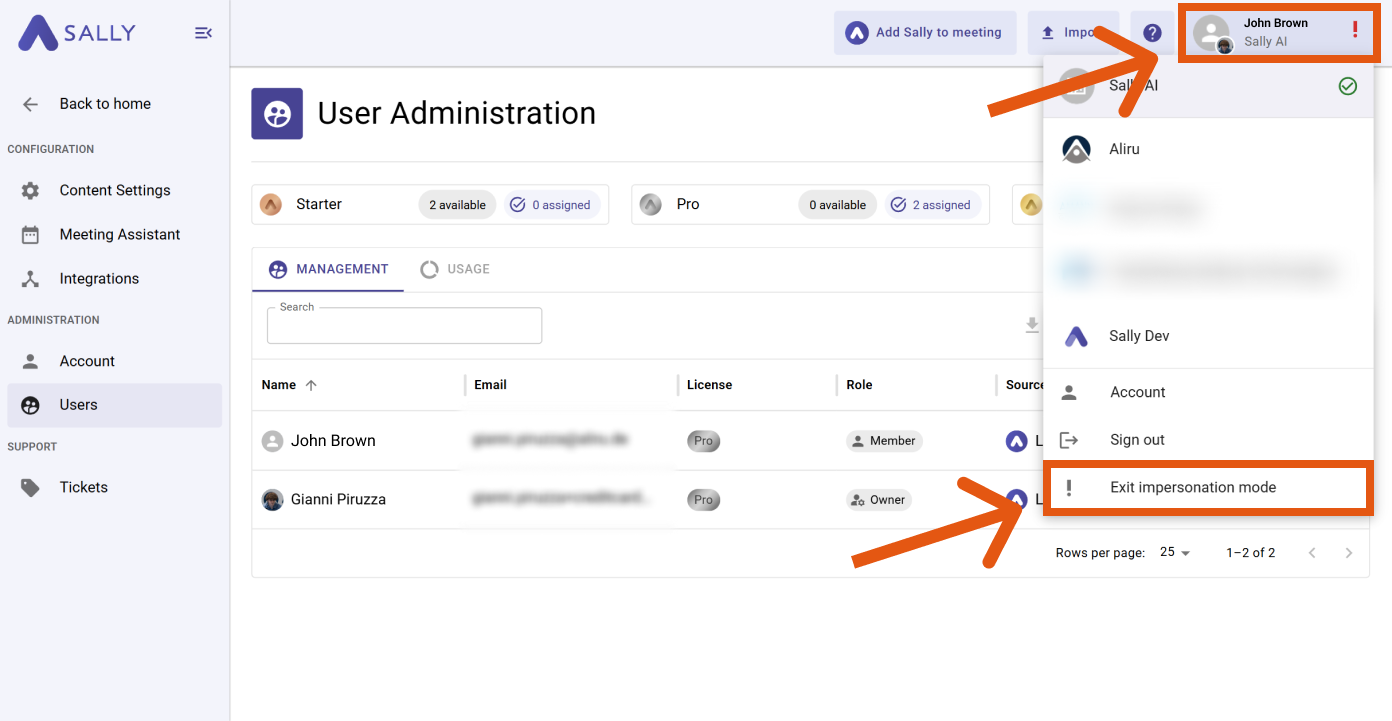
End impersonation using the user menu
You will immediately return to your own user account.
5. Data protection and compliance
Impersonation mode is intended exclusively for temporary business-related substitutions, for example to bridge absences or ensure operational continuity.
Key principles:
- Access follows the existing role and permission structure of your organization.
- Impersonation does not bypass access controls.
- Substitutes only receive access within the context of the impersonated user.
- Sally does not perform any independent or automated actions.
- Every action requires active initiation by a user.
Organizations are responsible for defining internal policies regarding when impersonation may be used (e.g., documented absence scenarios).
Sally processes meeting data exclusively within the defined business context of your organization. Access to recordings, transcripts, and summaries remains subject to the role and permission settings configured by your organization.