Multi-factor authentication (MFA)
Multi-factor authentication adds an extra layer of security to your Sally account. In addition to your password, you need to enter a one-time code from an authenticator app each time you sign in. This protects your account even if your password is compromised.
How to set up MFA:
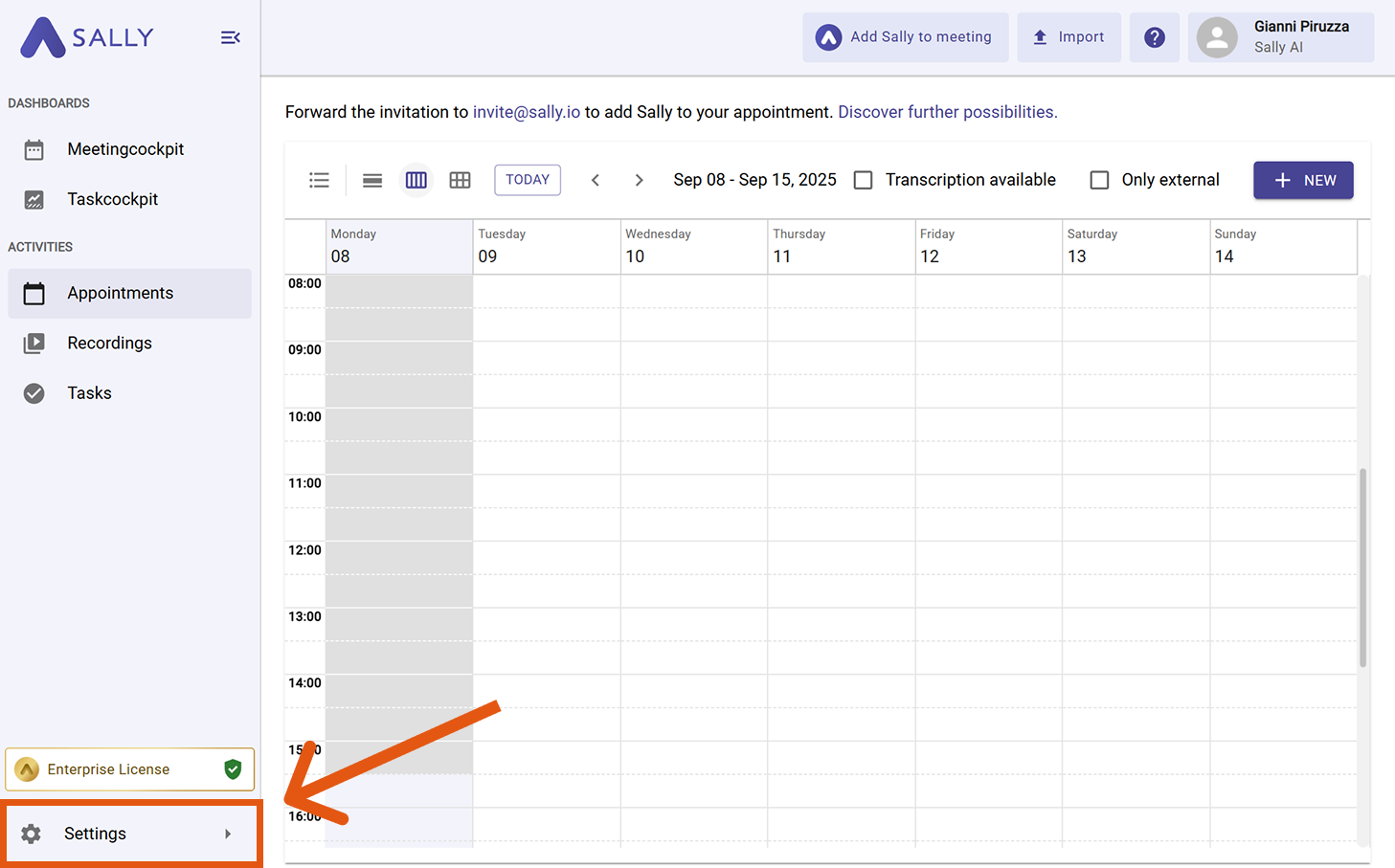
- Open Settings in the left sidebar.
- Navigate to My Account > Security.
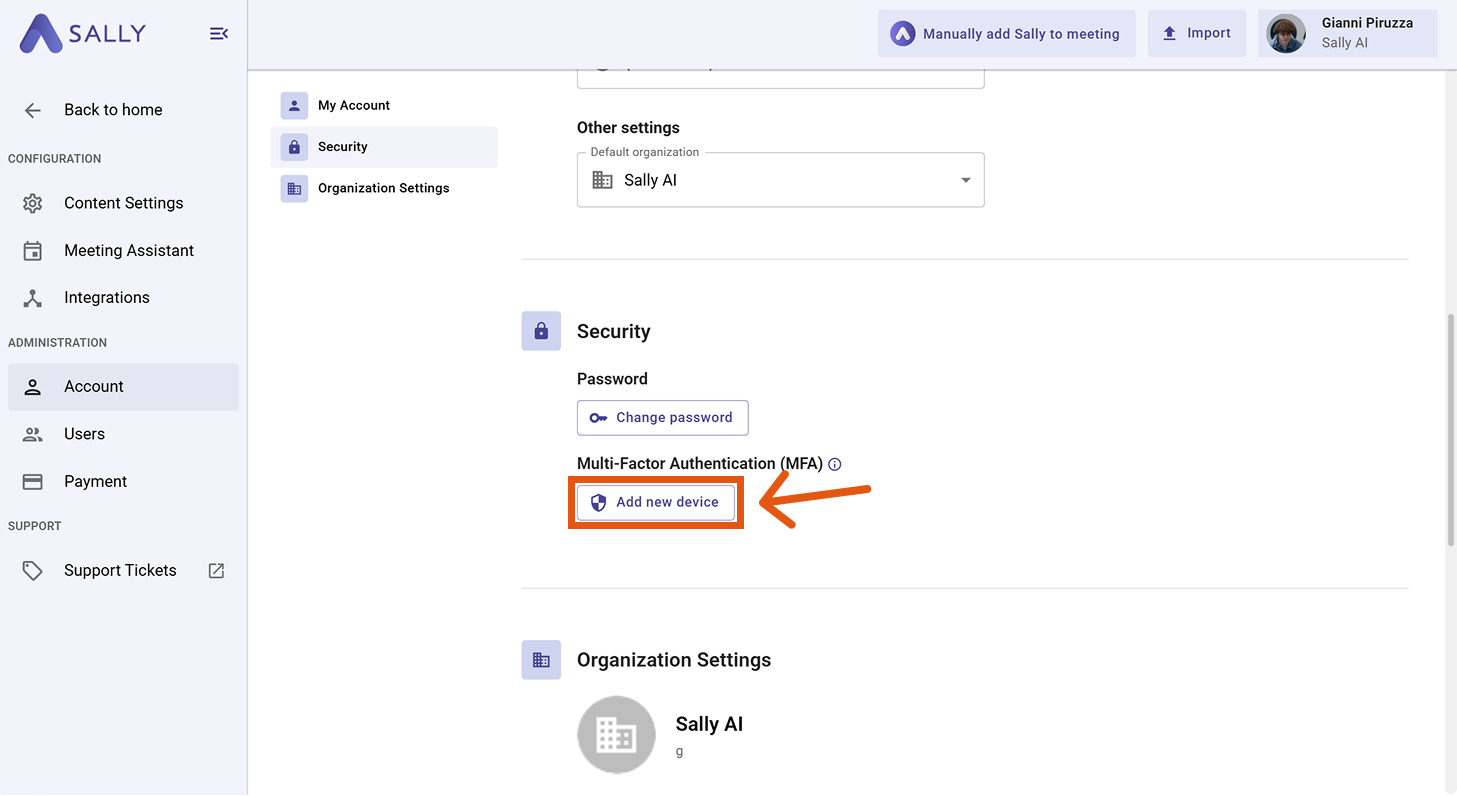
- In the Multi-Factor Authentication (MFA) section, click "Add new device".
- A dialog appears with an overview of the setup steps. Click "Start setup" to begin.

- You will receive a verification code by email. Enter this code in Sally to confirm your identity.
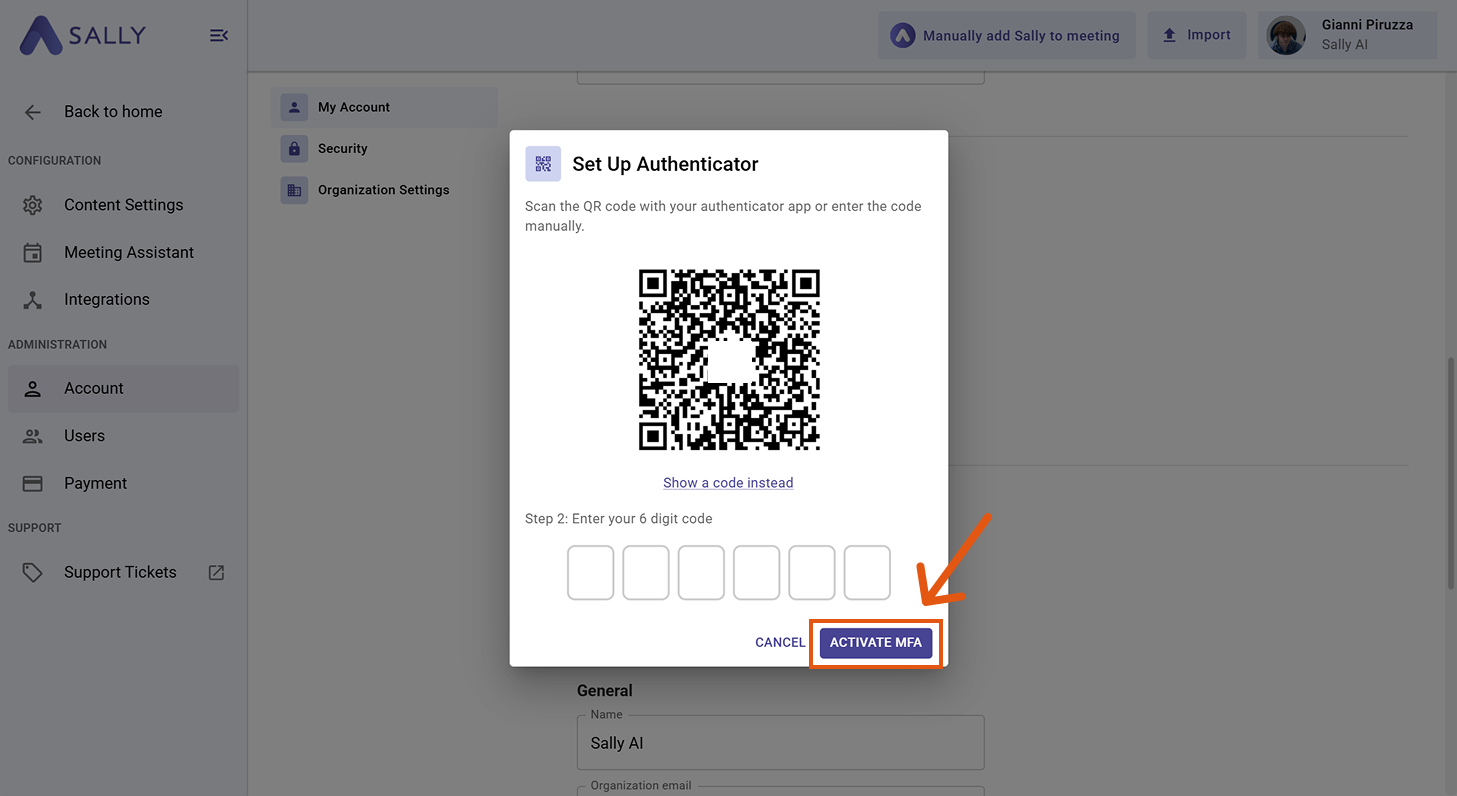
- After successful verification, a QR code appears. Scan it with your authenticator app (e.g. Google Authenticator, Microsoft Authenticator). If you cannot scan the code, click "Show a code instead" to enter it manually.
- Enter the 6-digit code from your authenticator app and click "Activate MFA".
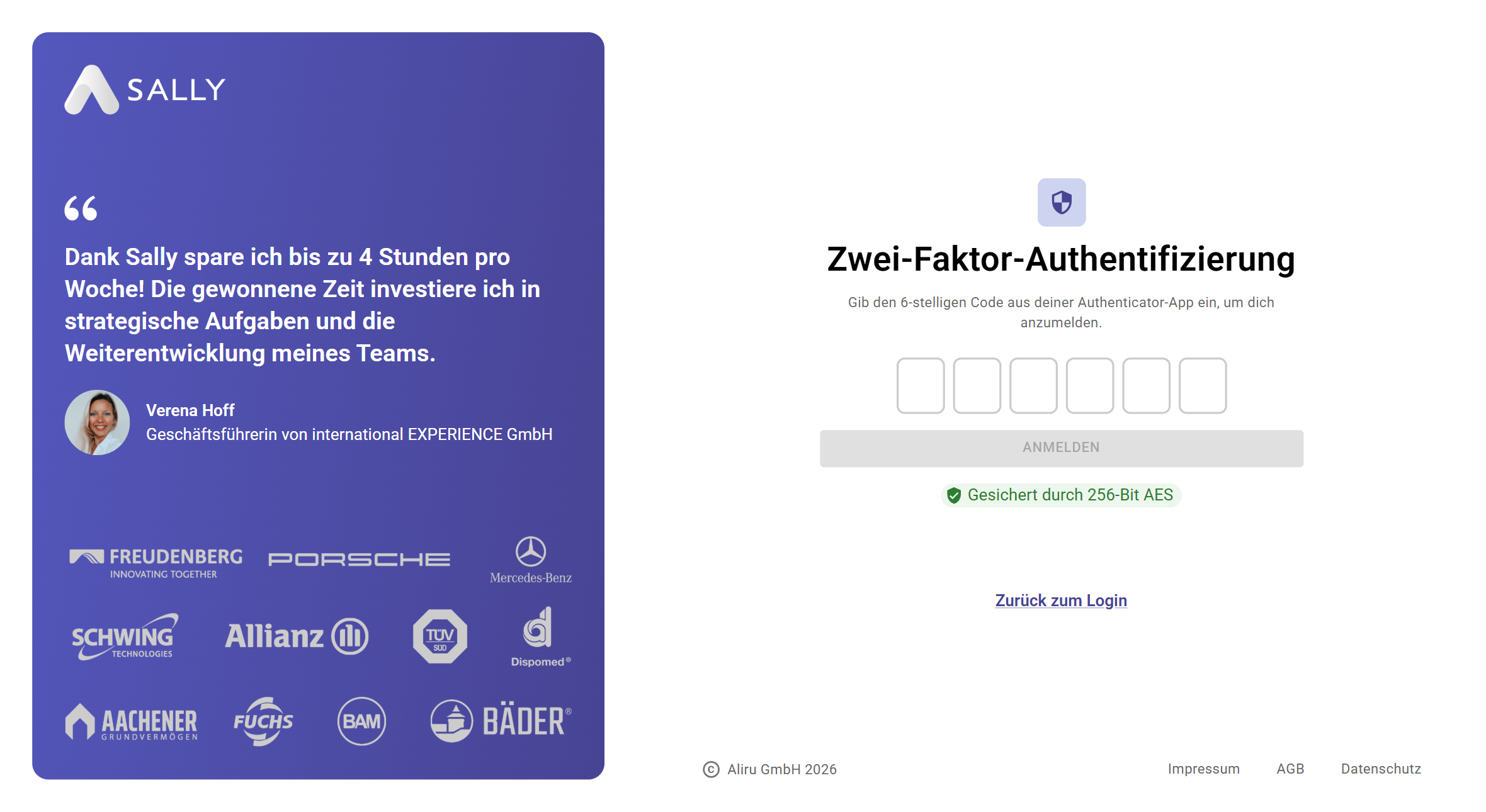
From now on, you will be asked to enter a code from your authenticator app each time you sign in to Sally.