How to apply a template to your meetings
A template only helps once your meetings actually use it. There are two ways to get there: you set a default that Sally uses for every new recording, or you pick a template for a single meeting, even after it has already been summarized.
Both are quick. The second one helps most when a summary did not come out the way you wanted: you can put a different template on the same recording and let Sally write it again.
Quick navigation
1. The default for new recordings
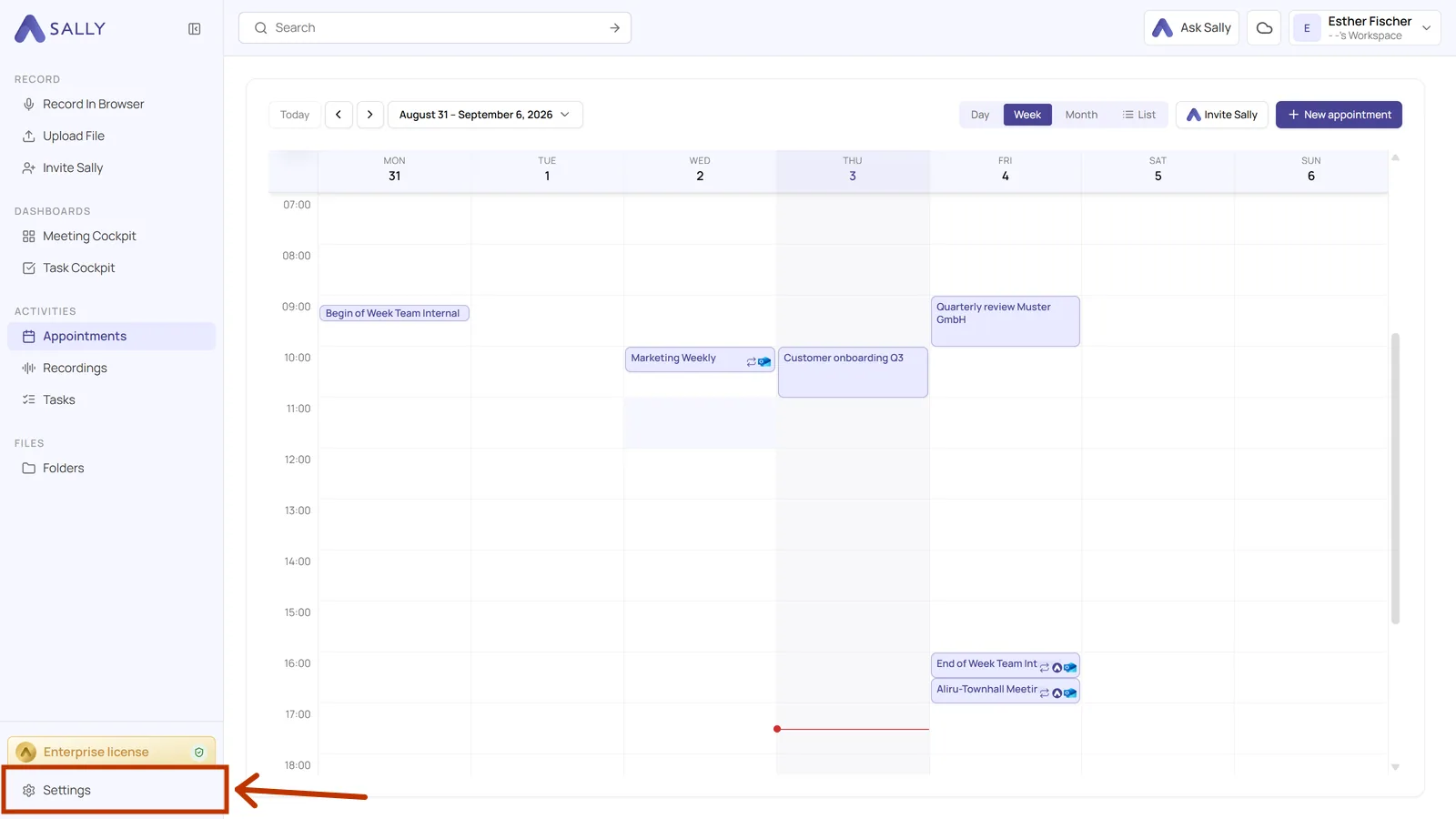
- Open Settings at the bottom of the left sidebar.
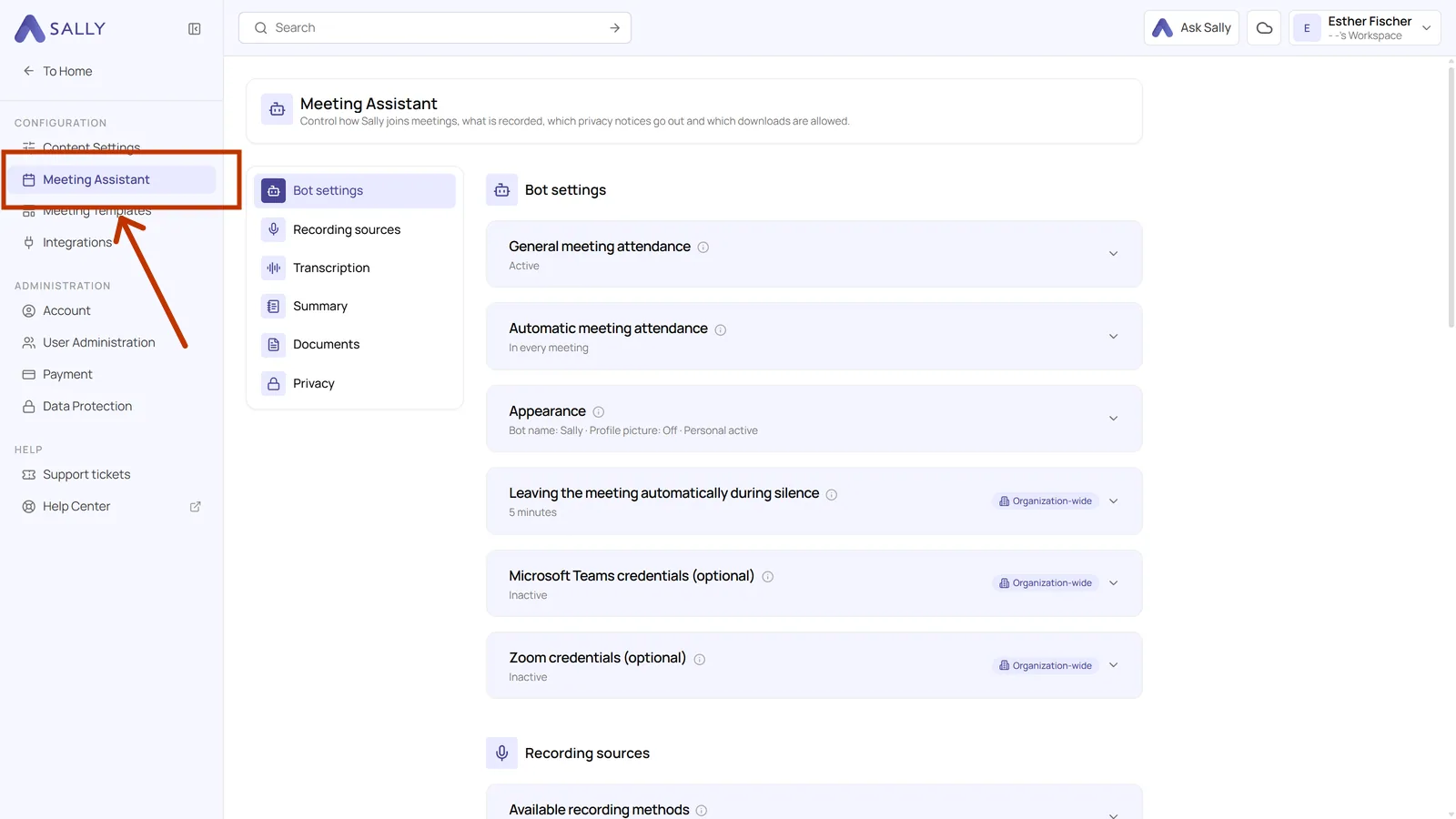
- In the settings sidebar on the left, under Configuration, click Meeting assistant.
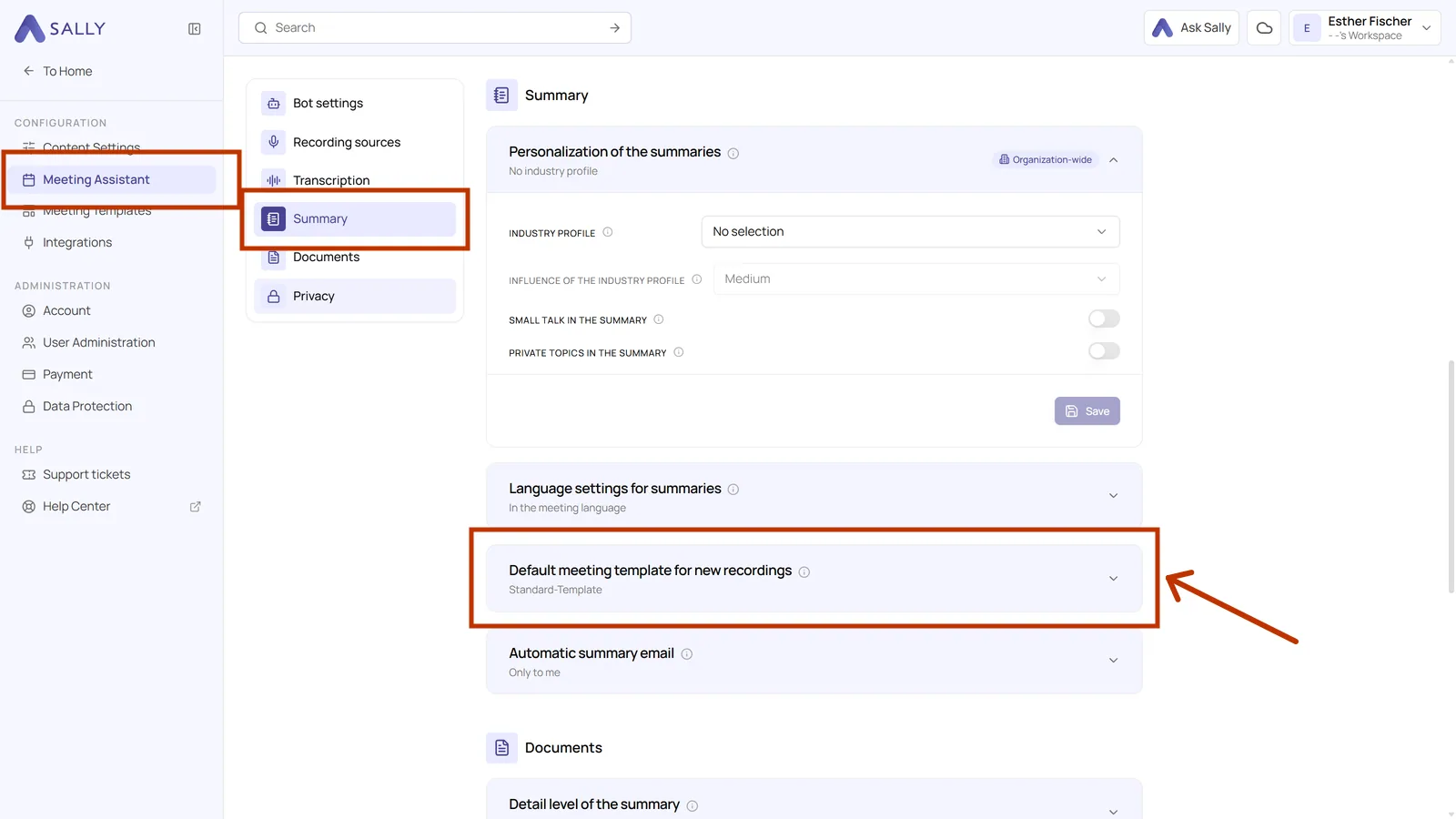
- In the list next to the settings, click Summary. The area then shows the setting Default meeting template for new recordings.
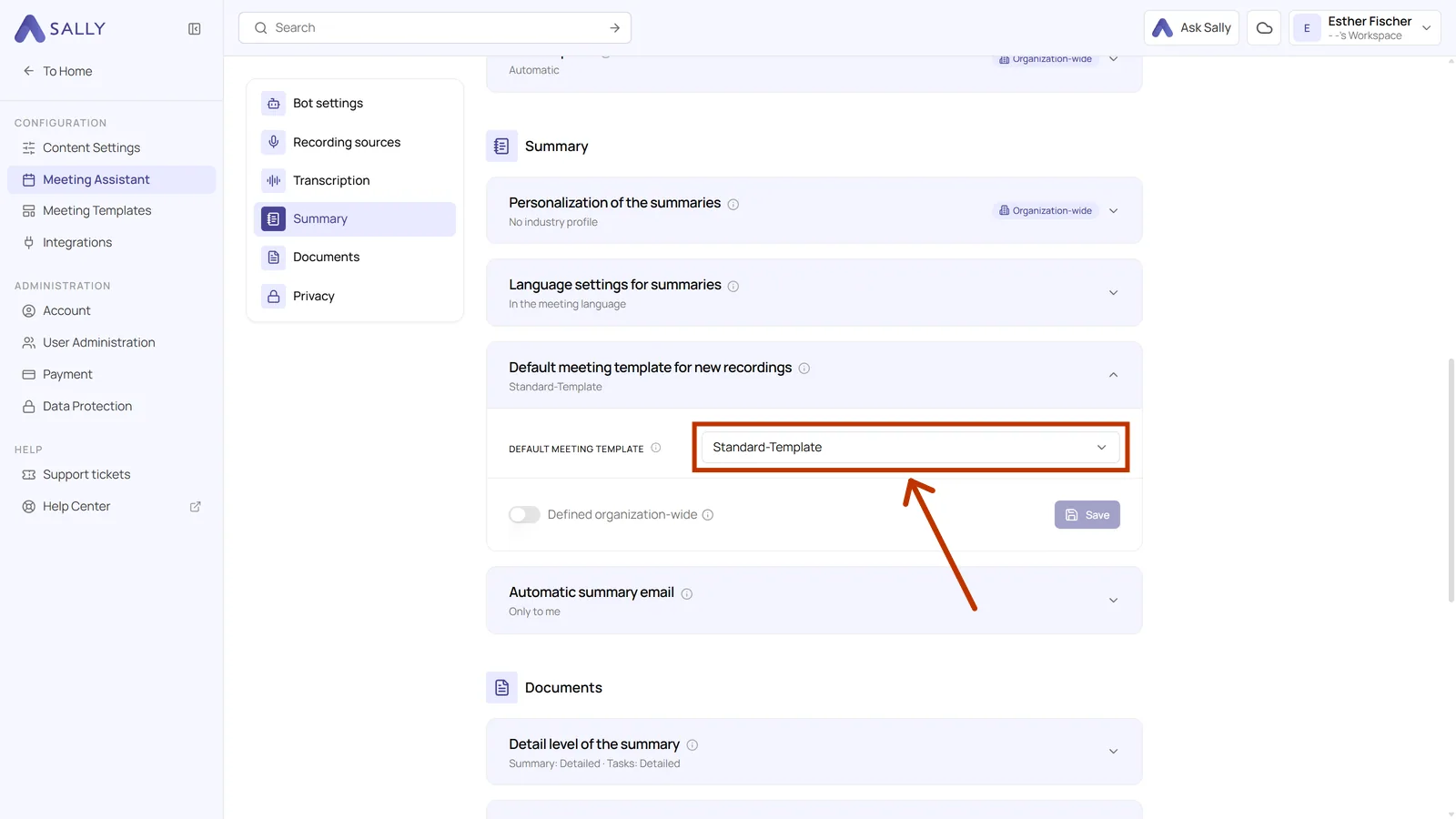
- Click the setting to open it. The field shows what is currently set.
- The selection dialog lists your templates by category, with a search field above them. The one in use is marked Current.
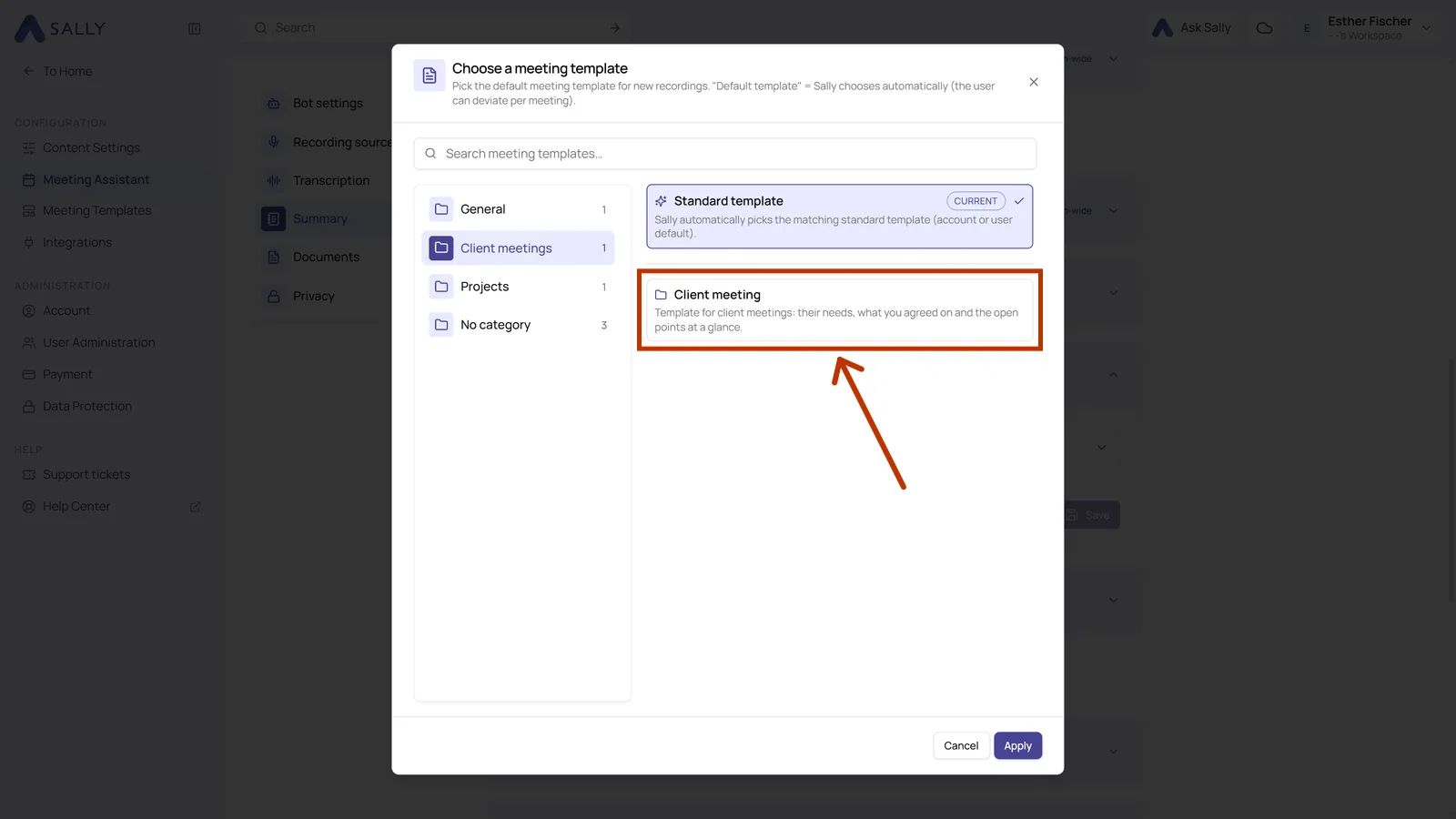
The entry Standard template is not a template of its own. It stands for setting nothing, and Sally then uses whatever template the account has as its default. If nobody has changed that, it is General Meeting. Leave it on that if your meetings are too different for one fixed template.
- Below the field, Defined organization-wide makes your choice binding for everyone in the organization. Only owners and admins can flip that switch. Without it the setting applies to you. Then click Save.
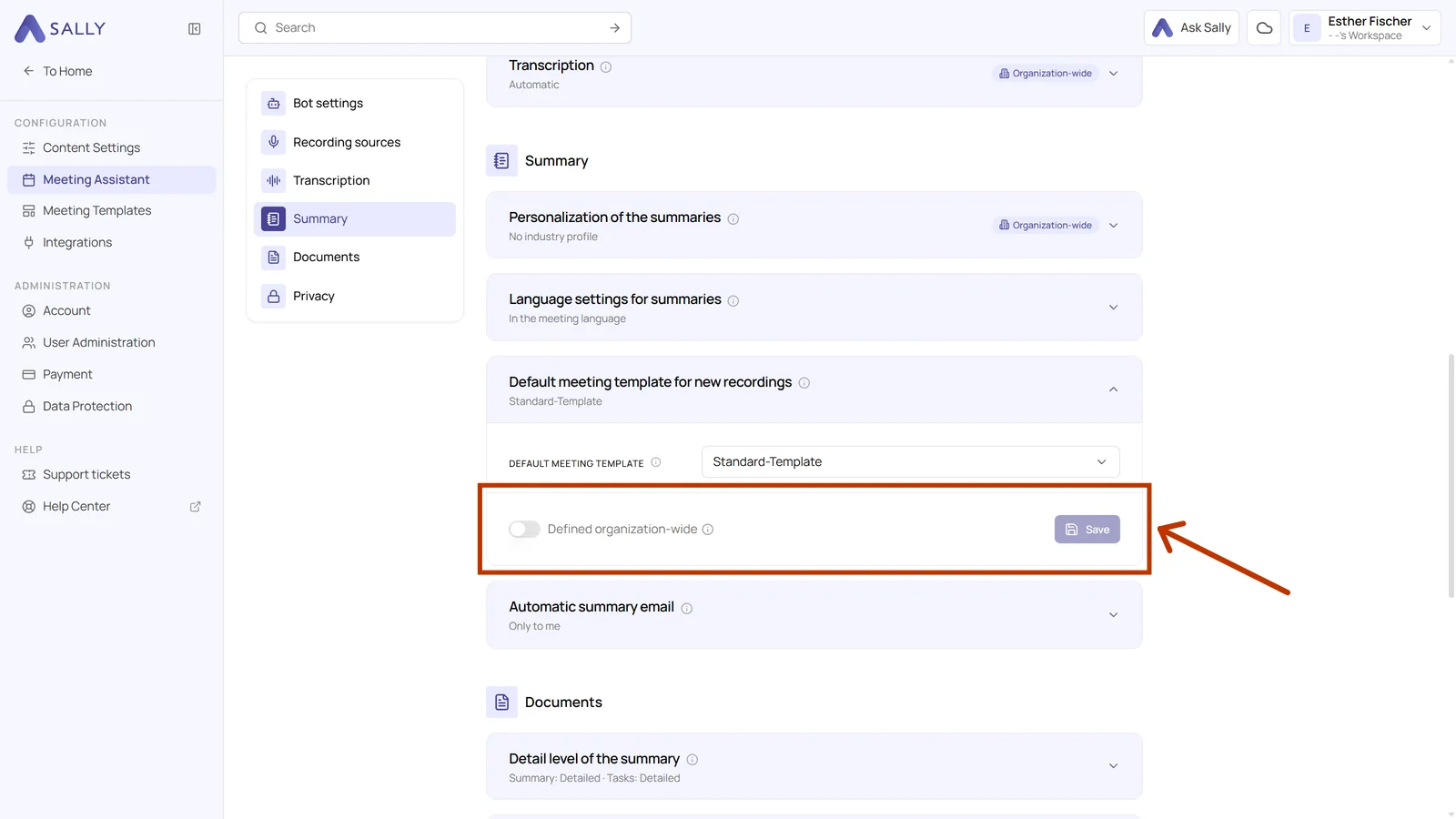
Even a default that is set organization-wide does not lock anything in. For a single meeting, anyone can pick a different template the way the next section describes.
2. The template of a single meeting
- Open a recording and go to the Summary tab. On the left, above the list of sections, you see Meeting template with the name of the template being used.
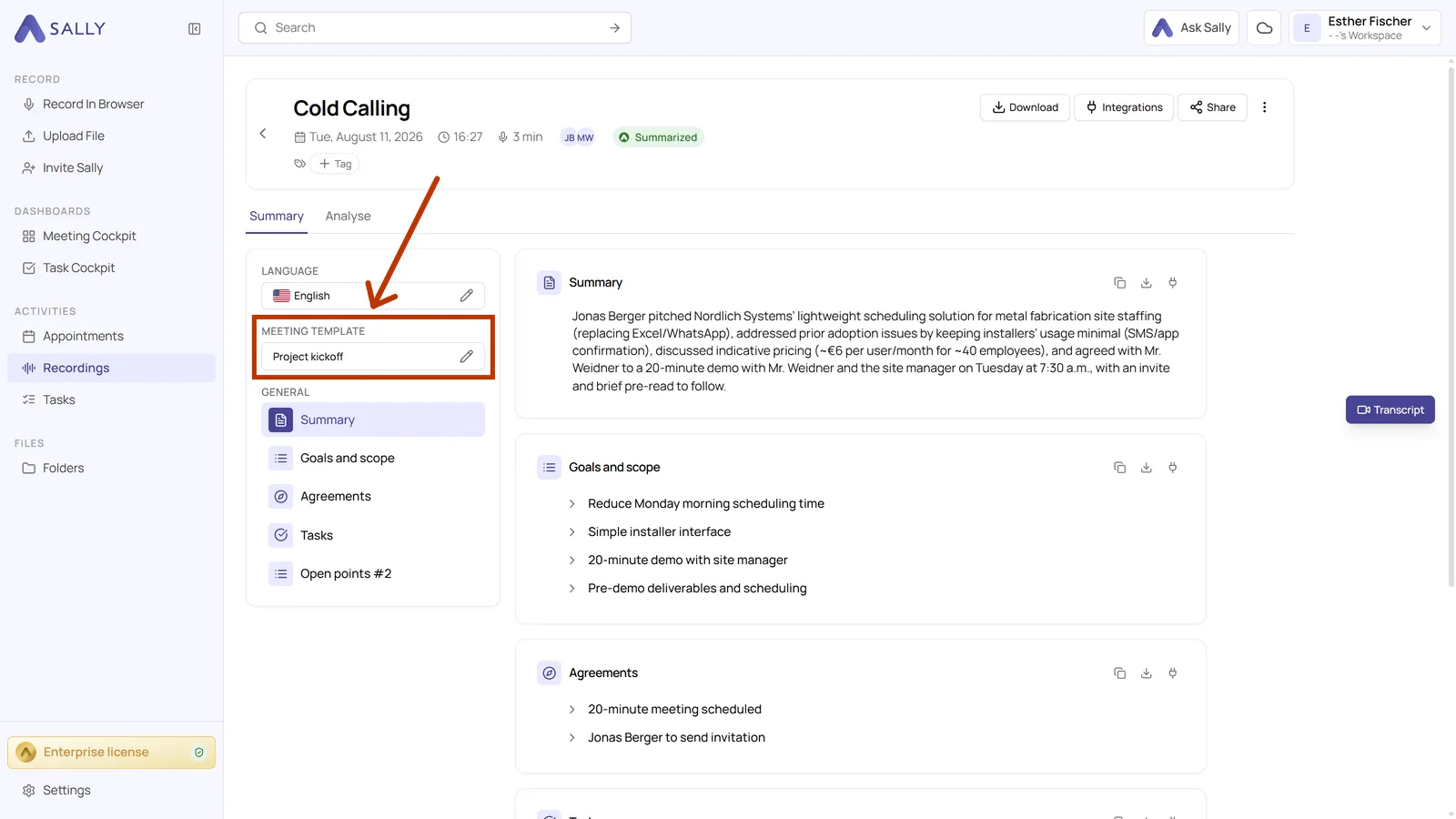
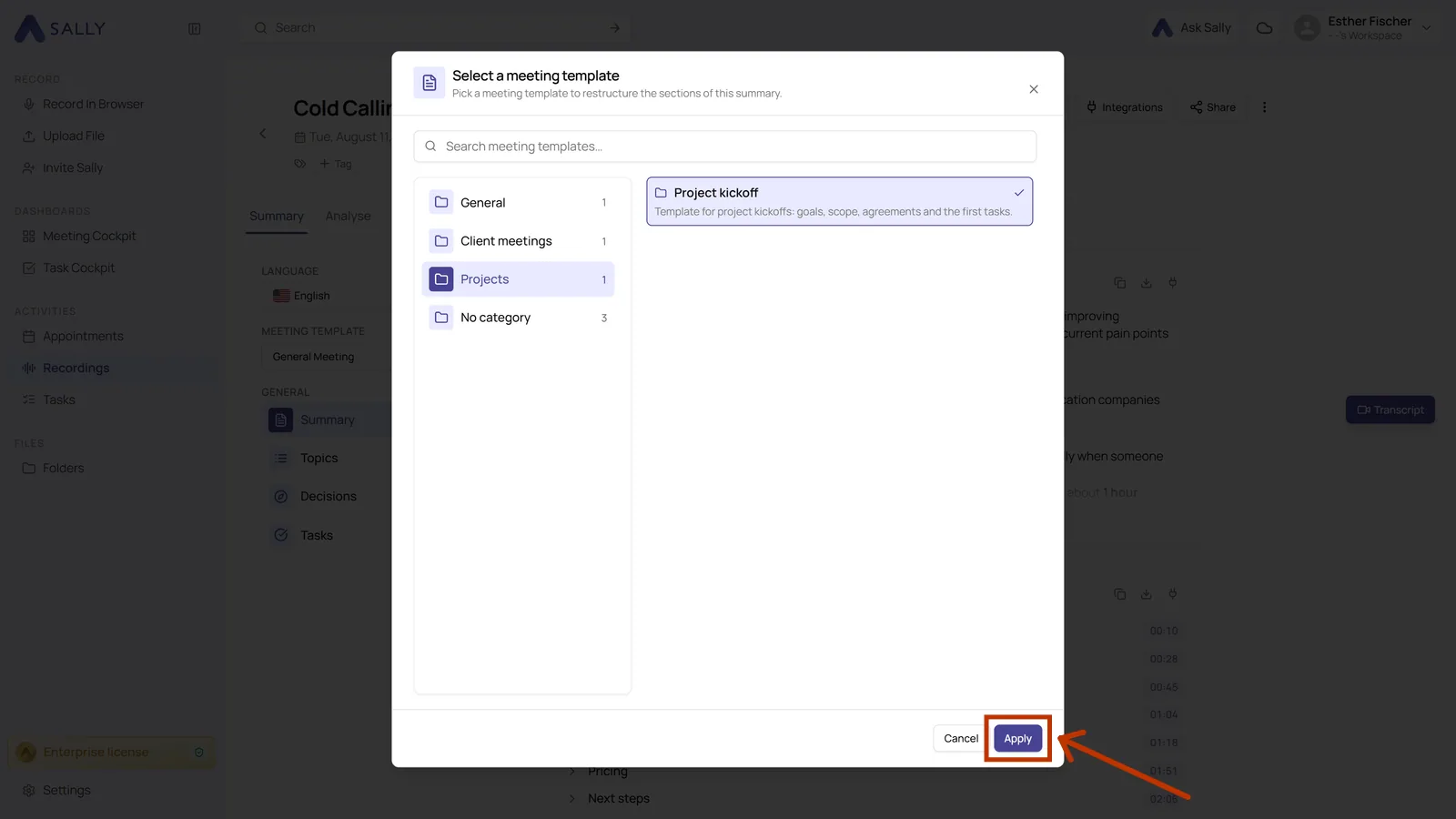
- Click the pencil icon to the right of the name. The dialog is the same one as in the settings, and it lists every template you can use.
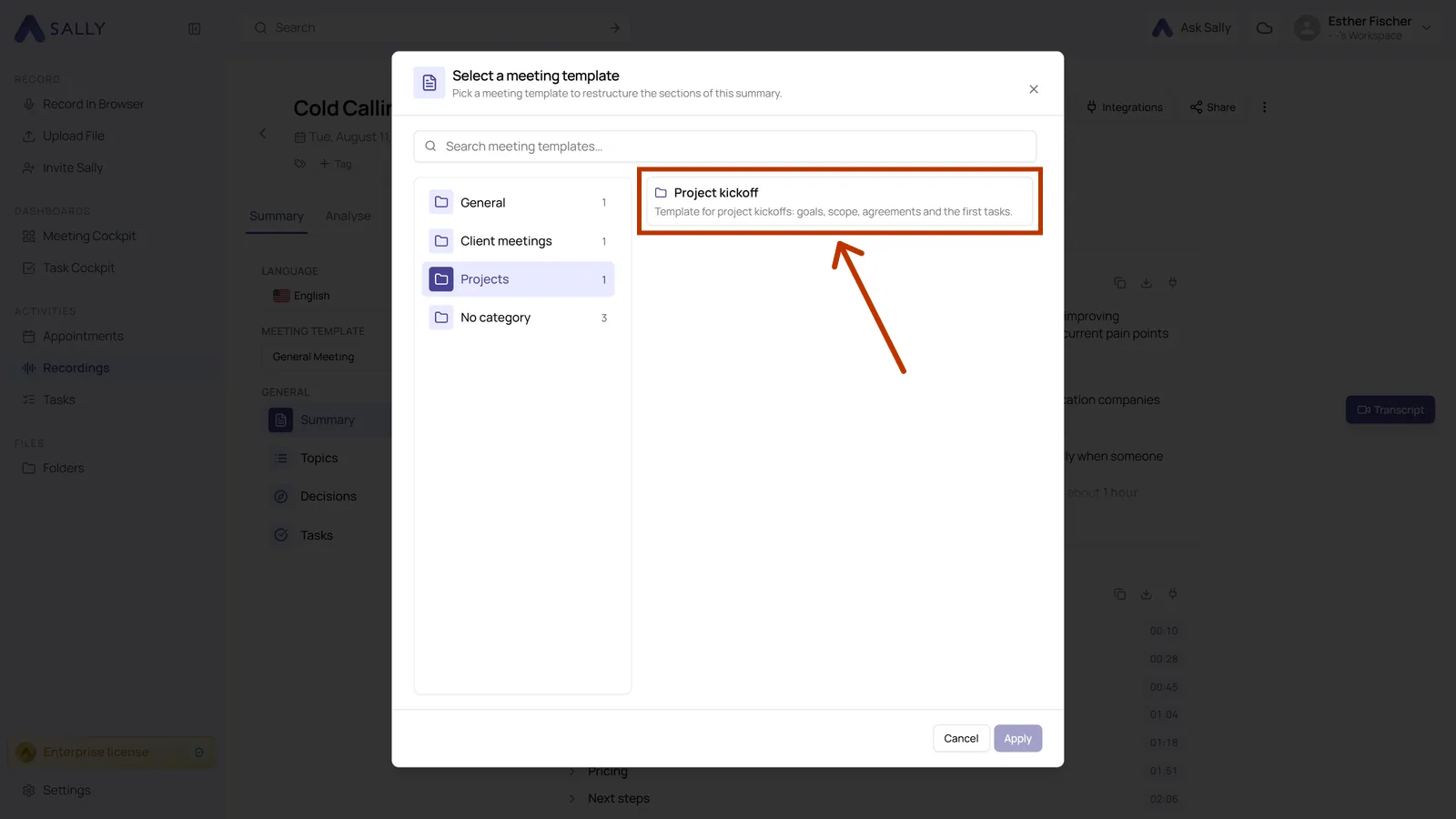
- Pick the template you want and click Apply in the bottom right.
3. The summary after the change
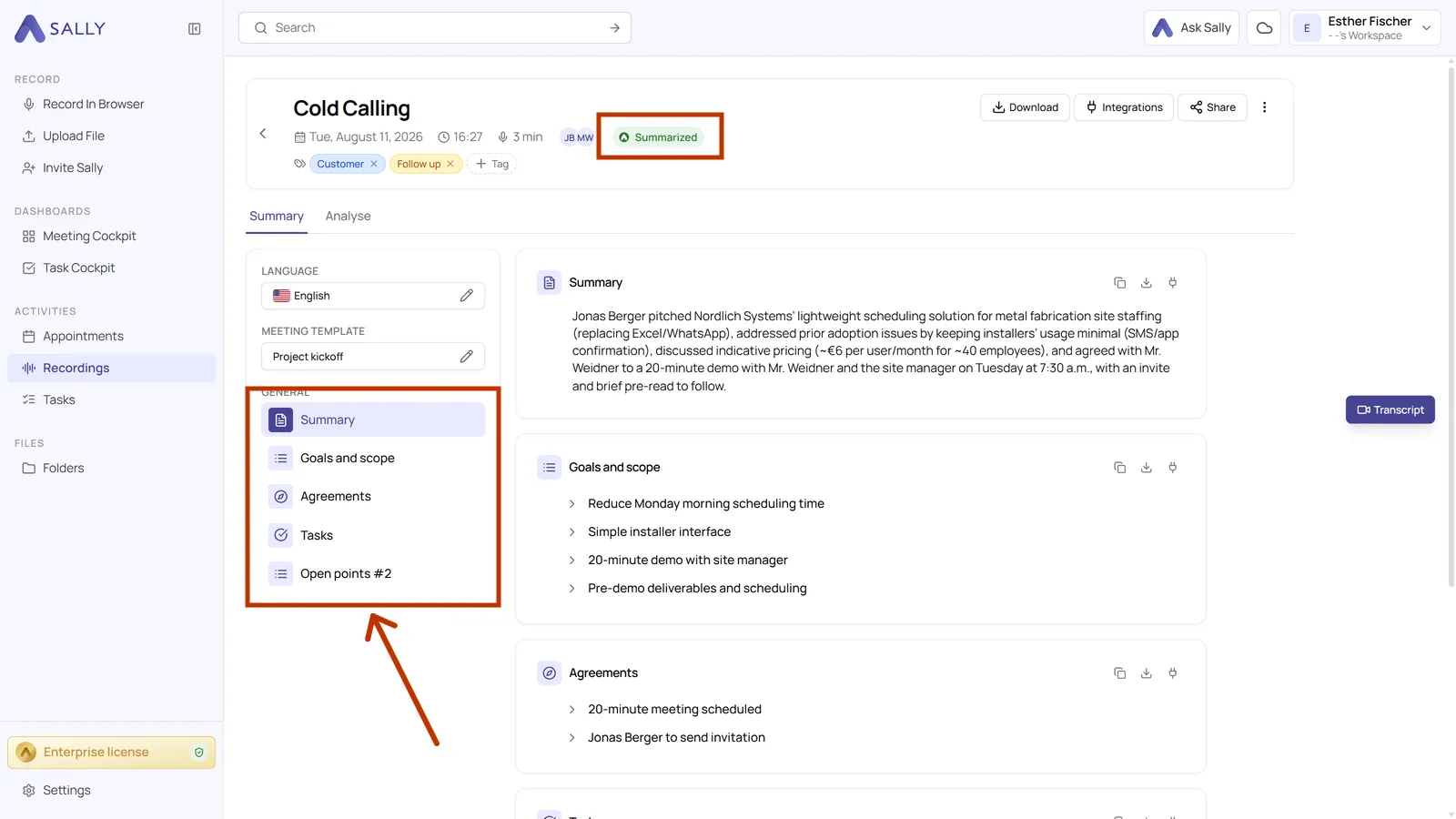
Sally writes the summary again, using the sections of the new template. The recording and the transcript are untouched, only the summary is rebuilt.
That takes a moment. The status next to the recording title tells you how far along it is: first the summary is pending, then it is being created, and after that it reads Summarized while the new sections appear on the left.
The new version overwrites the old summary, and there is no way back to the previous wording. If you have edited the summary by hand, copy those passages out before you apply a different template.
The Preview tab of a template runs it against a recording without changing anything. What meeting templates are shows where to find it. That is the safer way to compare two templates on the same meeting.